Posts tagged with "widgets"

Todoist’s iOS 14 Widgets Make Managing and Creating Tasks Easier than Ever

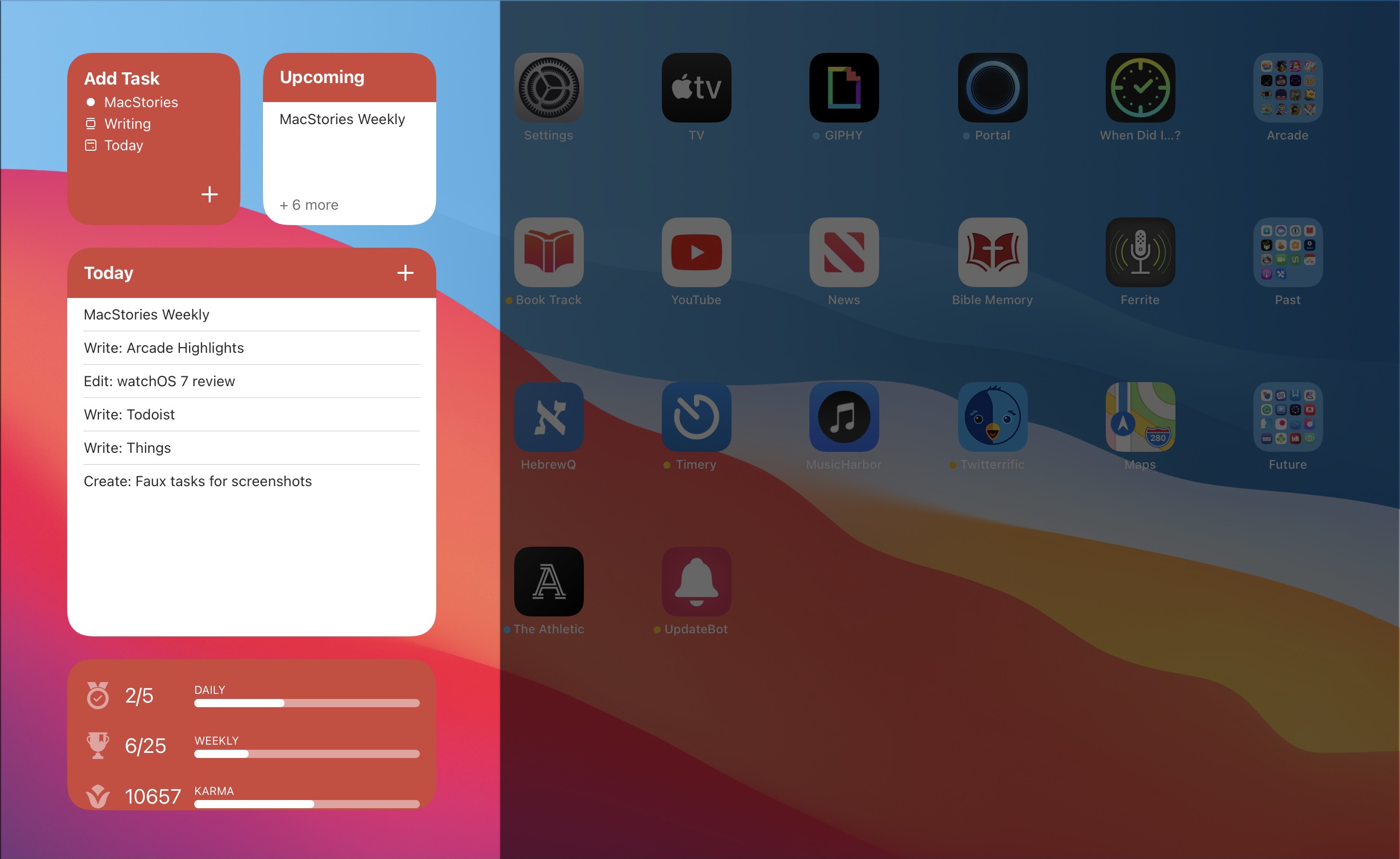
Todoist’s three new widget types.

Todoist’s three new widget types.

Even before iOS and iPadOS 14 brought a new form and function to widgets on Apple platforms, one of the tried and true widget use cases in previous years was task lists. Some of my most used widgets over the years have been those provided by my task manager, so I was excited to see the slate of new widgets Todoist has introduced in its latest update for iPhone and iPad.

Before detailing the new widgets, though, it’s important to state up front that for all the advantages of iOS 14’s new widgets, they bring a regression that negatively impacts task managers especially: widgets can no longer be fully interactive. In the iOS 13 widget for Todoist, you could check off tasks as you completed them without needing to open the full app. With the app’s new widgets that’s no longer possible, because the only interactions Apple currently allows in widgets is launchers into different parts of an app. The good news is that apps are allowed to offer both iOS 13 and iOS 14 widgets to users, so on iOS 14 Todoist users will find both options available. If you really need the old functionality it’s still available to you, there’s just no way to add a legacy widget to the Home screen.

That bad news out of the way, let me focus on how Todoist’s team has made the most of the new widget system in a couple key ways.

Let’s start with its basic Tasks widget. In iOS 14 you can configure a list of your tasks to appear in either a small, medium, or large widget. Each widget can be set to show tasks from your Today or Upcoming lists, or one of your projects, labels, or filters. Despite being unable to check off tasks from the widget, there are two advantages over Todoist’s previous widget: information density and the ability to create multiple widgets. Since Todoist’s developers no longer need to create large touch targets for users to check off tasks, the widget is able to display a bit more information than before. And you can now create separate widgets tied to separate lists of tasks, even stacking them if you’d like, offering a lot more flexibility than before.

Besides widgets for lists of tasks, Todoist offers two other widget types: Productivity and Add Task. The former displays stats relating to your task completion goals for the day and week, along with your karma score. I’ve never been big on tracking the number of tasks I complete in a given day, but the Productivity widget’s nice to have for users who care about those numbers. The Add Task widget, however, is exactly what I would want from every task manager.

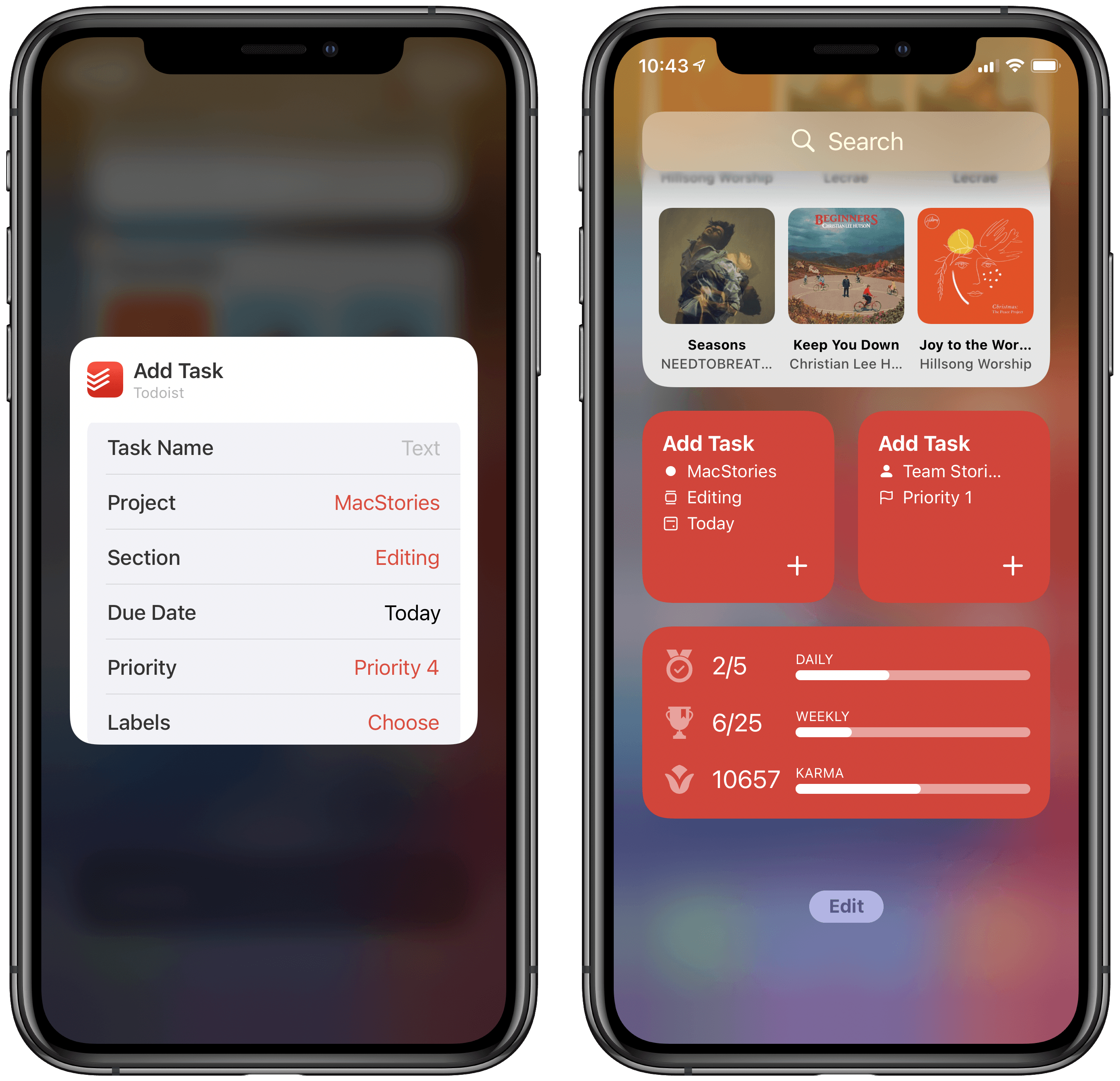
Configuring Todoist’s Add Task widget.

Configuring Todoist’s Add Task widget.

Both the medium and large Tasks widgets already offer a button to quickly create a new task inside Todoist, but the dedicated Add Task widget is special because it can be customized to create tasks that have their metadata pre-filled. You can set which project and section the newly created task will have, its due date, priority, labels, and even the task name if there’s a specific task you commonly create. Once it’s set up for your preferences, the Add Task widget eliminates the monotony of filling in metadata over and over again for every new task. If you commonly create tasks assigned to a certain project and with a certain due date, the widget is now the quickest way to do that.

Add Task is only available as a small widget and as a result it can only have a single group of pre-sets for creating a single type of task, but that makes it a perfect candidate for stacking. Using a few different Add Task widgets for different types of common tasks you create and having them stacked will still provide a faster task creation method than having to enter the metadata over and over with every new task.


Todoist already offered the fastest task creation of any task manager I’ve used thanks to its natural language input system, but now with the Add Task widget it provides an even faster method. Todoist’s developers have clearly spent time considering the needs of their users and have built a suite of widgets that meet those needs well. The OS restriction against full interaction will hopefully be removed in the future, but even if it never is, Todoist has delivered value with its new widgets that more than makes up for what it lost.

Todoist is available on the App Store.

LookUp 7 Debuts Widgets on iPhone and iPad Alongside Powerful New watchOS 7 App

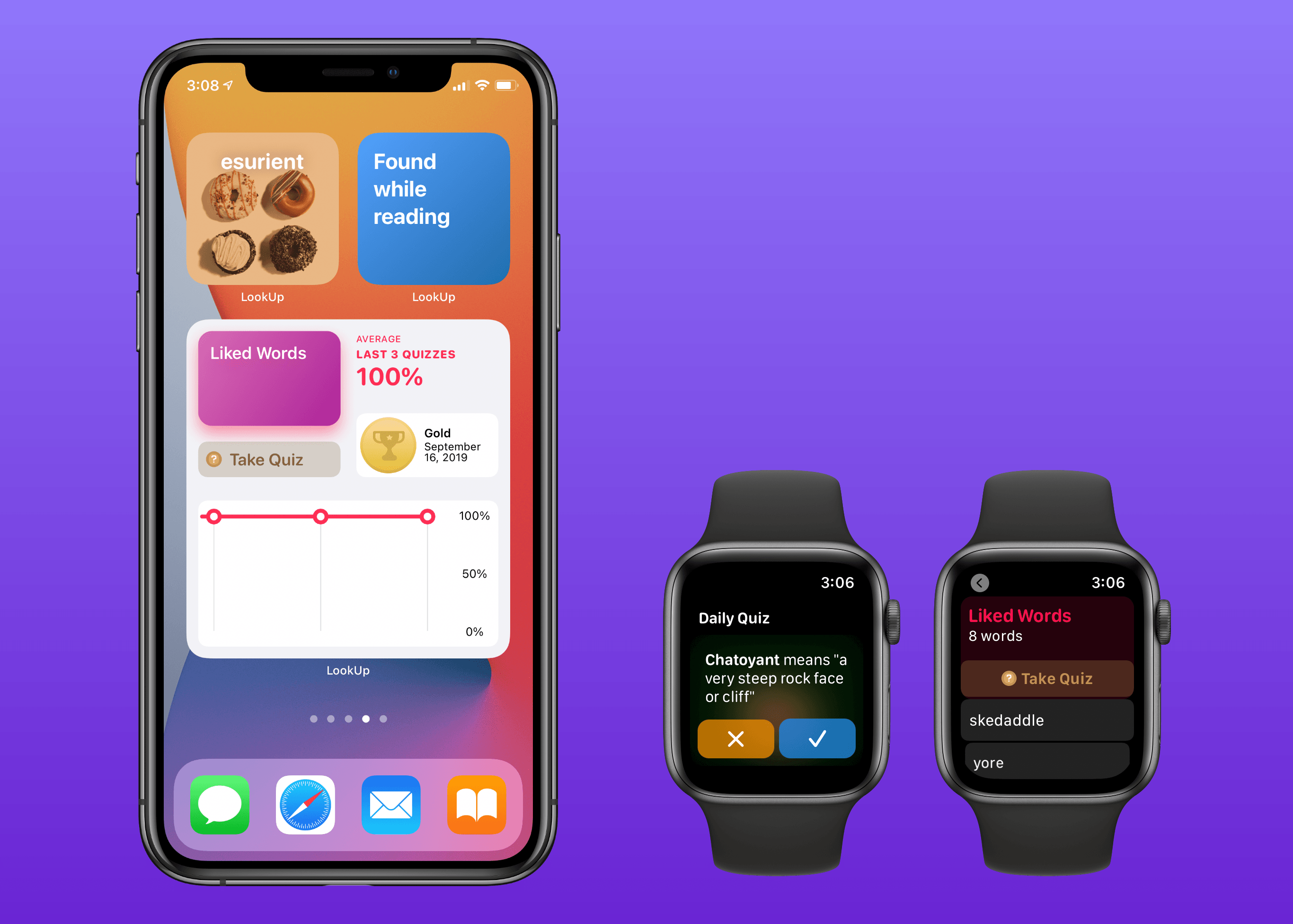
LookUp’s new widgets and watchOS app.

LookUp’s new widgets and watchOS app.

Widgets in iOS and iPadOS 14 are here and can be saved to your iPhone or iPad Home screen. A lot of third-party app updates will be trickling out in the days and weeks ahead with support for their own custom widgets, vying for your limited Home screen space.

If you’re interested in expanding your vocabulary, a word of the day widget seems like a perfect fit for the Home screen where you can glance at it throughout the day. That’s exactly what LookUp 7 provides, alongside widgets for running quizzes and opening your word collections. The dictionary app has also upgraded its watchOS component in a big way, offering new functionality that was previously limited to the full iOS version.

Read more


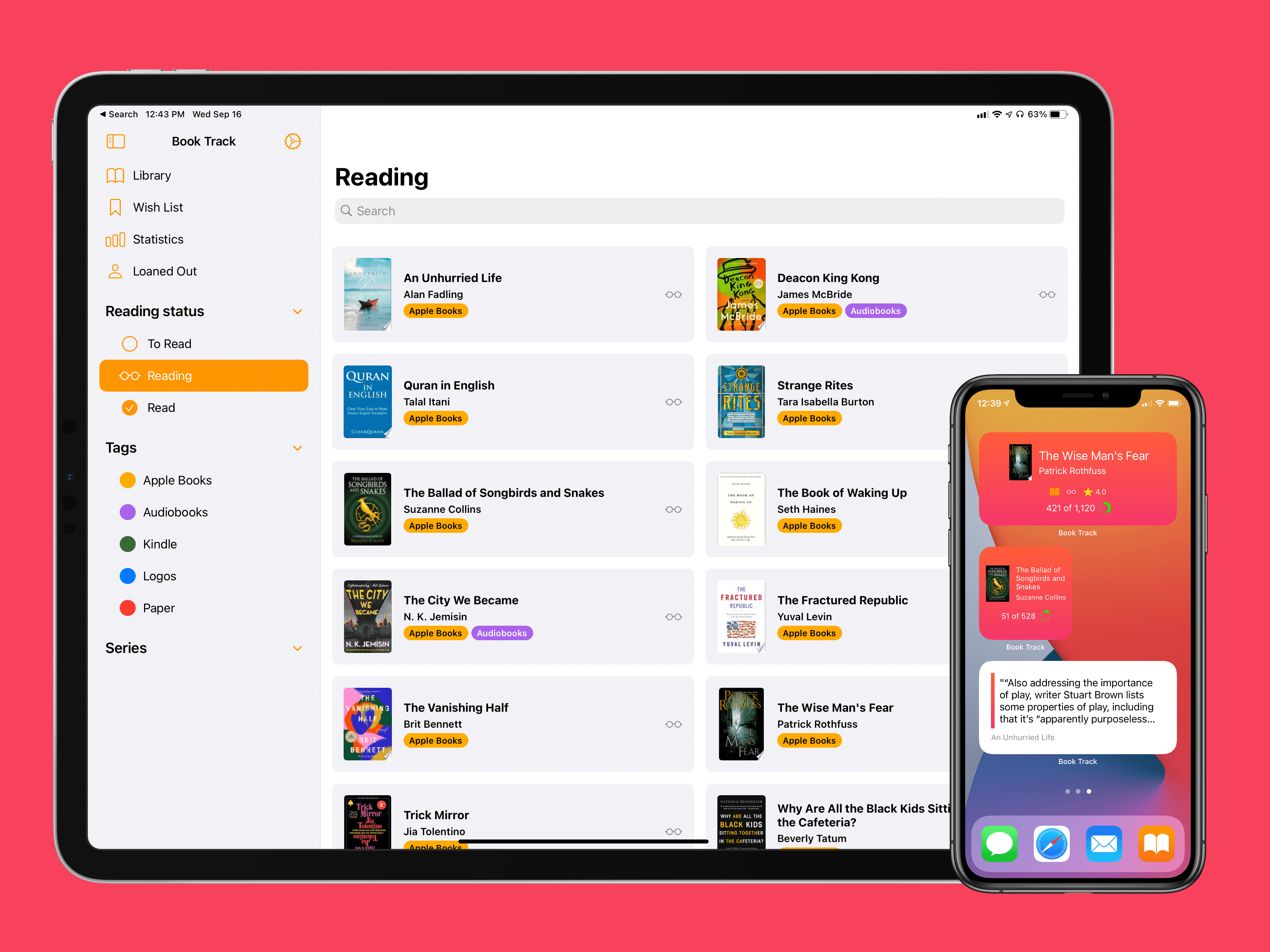
Book Track 2 Review: Widgets, Sidebar for iPad, Shortcuts, and More

I’ve been on a book reading binge this year like never before. That’s partly owing to the pandemic, I’m sure, but it’s also tied to reduced time spent reading articles and social media. In a normal year I read about a dozen books, and this year I’m on pace for five times that. As a result, it’s no surprise that one of my favorite app debuts of the year has been Book Track, from developer Simone Montalto.

Book Track launched at the beginning of the year as a promising 1.0, then followed with a big update mid-year that addressed my initial problems with the app and expanded its functionality in key ways. That update was a great setup for the launch of today’s version 2.0, which introduces support for some of the top features of iOS 14 and iPadOS 14: widgets and a new sidebar design. By getting the low-hanging fruit out of the way in previous updates, Montalto was able to keep Book Track current with all the latest OS technologies right from launch day. Not stopping there, however, he’s thrown in support for Shortcuts (the app) and keyboard shortcuts in today’s update too.

Read more


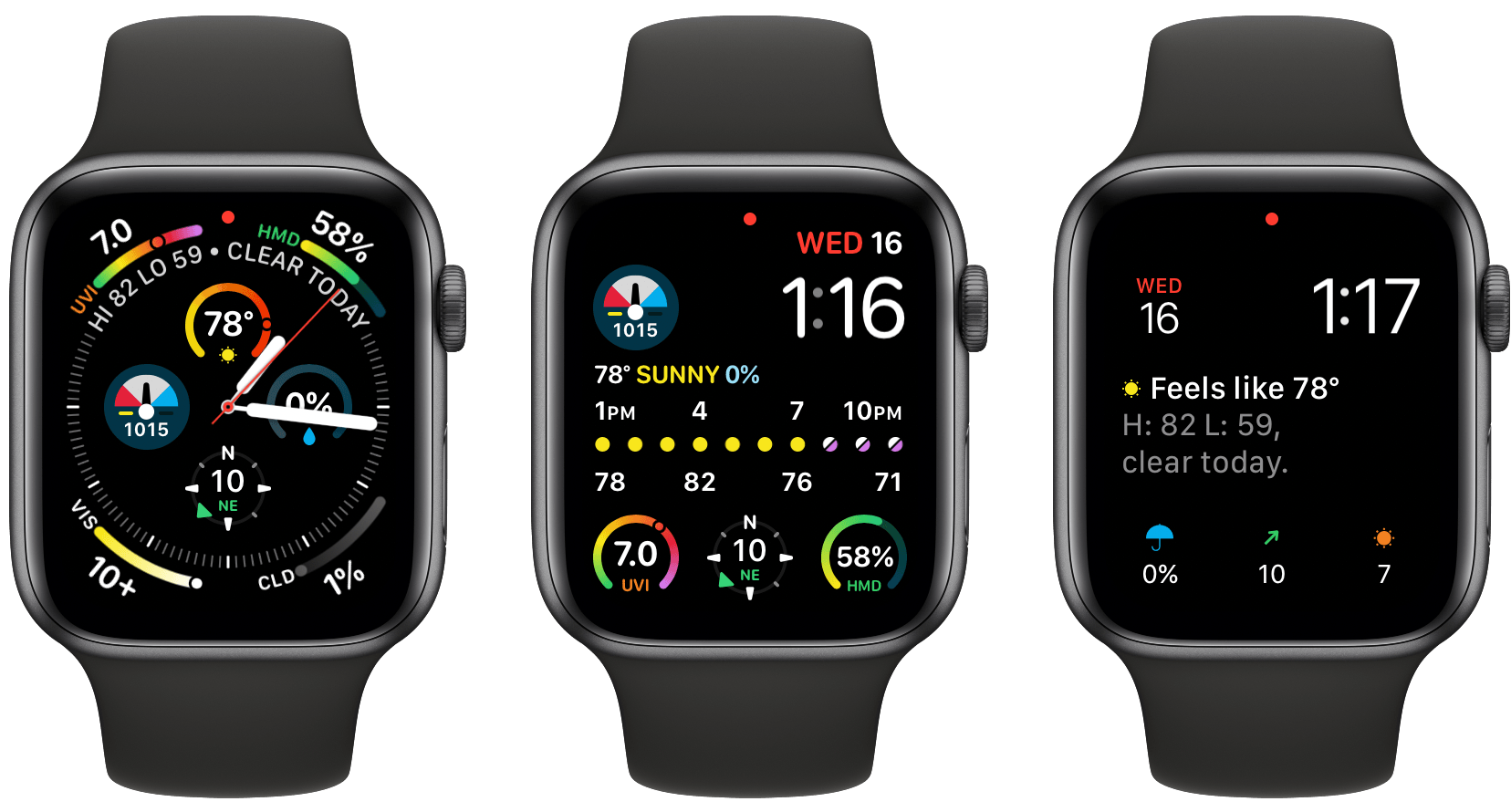
CARROT Weather Gains Flexibility with iOS 14 Widgets, Watch Complications, and Watch Face Sharing

The weather can vary a lot day-to-day in Chicago, so I’ve always had a weather app on my iPhone’s Home screen. For the past few years, I’ve used CARROT Weather, one of the most comprehensive such apps available on the App Store. CARROT’s Today widget and Watch complications are among the best of any app category, but with the release of iOS 14 and watchOS 7, developer Brian Mueller has taken CARROT Weather’s widgets and Watch complications to a new level.

iOS 14 widgets and watchOS 7’s more flexible complications and watch face sharing feel like they were tailor-made for an app like CARROT. The variety of data available in weather apps makes them perfect for creative widget and watch face implementations, which is precisely what you get with CARROT Weather. Let’s dig into what’s new.

Read more


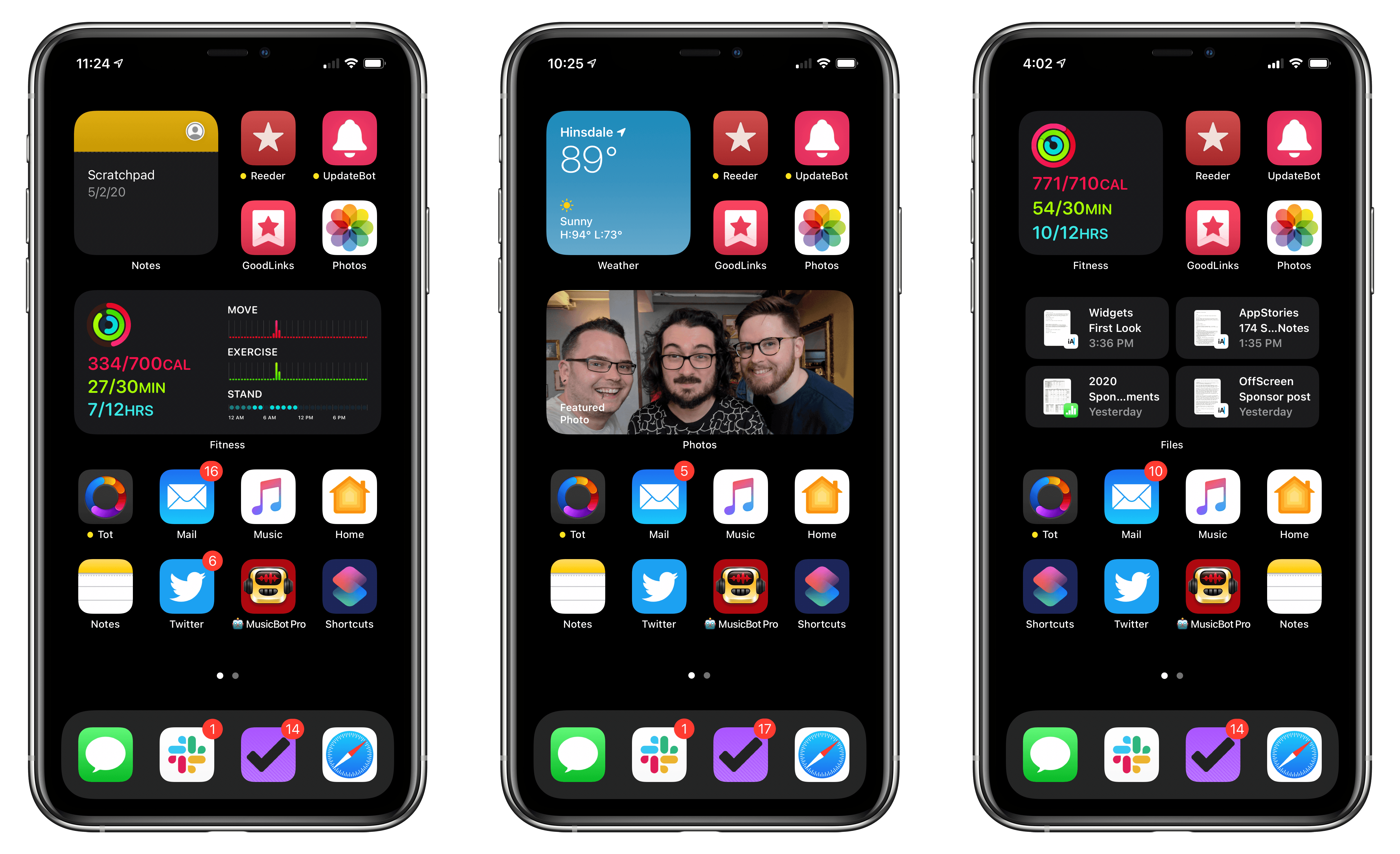
Widgets and the App Library: A First Look at Bringing Personality and Customization to Your Home Screens

No single feature of the iOS 14 betas has had as immediate an impact on my daily iPhone use as Home screen widgets. Together with the App Library, the features can radically change the way apps are organized and accessed by everyone. Users don’t have to use widgets or the App Library, but they’ve been designed to feel familiar and inviting, echoing the iPhone’s grid layout, folders, and search systems. The result is a deft balancing act that gently introduces the iPhone Home screen’s most significant makeover since it was launched, which I think will be a big hit with users and developers alike.

Widgets’ impact is less pronounced on the iPad, where their placement is less flexible, and there is no App Library. Widgets can’t do quite as much in iOS and iPadOS 14 betas as they can under iOS 13 either. Those are fairly significant caveats depending on how you currently use widgets and should be kept in mind, but it’s also worth remembering that this is the first public beta release. There are still many weeks before iOS and iPadOS 14 will be released, and users’ feedback could influence what the final implementation of widgets looks like.

Despite the current limitations, widgets have profoundly changed the way I use my iPhone and have the potential to do the same on the iPad. The impact surprised me because, after two and half weeks on the developer betas, the only widgets I’ve tried so far are based on Apple’s system apps. As a result, I wanted to share my first impressions and thoughts on widgets, the App Library, and how I’m using both on the iPhone and iPad. I also thought it would be fun to show off some of the ideas being explored by third-party developers, which I’m excited to try soon.

Read more