Posts tagged with "safari"

Safari’s New MCP Server Is Great for Agents

Saron Yitbarek, writing on the WebKit blog:

In Safari Technology Preview 247, we’re introducing the Safari MCP server — a Model Context Protocol server for web developers that makes your web development and debugging workflow faster and more powerful. We know agents are increasingly integral to the coding process and the Safari MCP server gives your agent the ability to know how your code actually renders in the browser by connecting it to a Safari browser window.

Any MCP-compatible client can connect to the Safari MCP server. By connecting your agent to a Safari browser window, your agent can emulate what your users experience, giving it the information it needs to debug more autonomously, like access to the DOM, network requests, screenshots, and console output.

Importantly:

The Safari MCP server runs entirely on your local machine and makes no network calls of its own. It also does not have access to your personal information in Safari (e.g. AutoFill or other browser activity). When it captures page content, screenshots, or console logs, that data goes directly to the agent you’re running — not to Apple. What happens to that data from there depends on the agent and model you’re using. As with any agent you give access to your browser, only use ones you trust.

For the past few months, I’ve been using Google Chrome on my MacBook Pro and Mac Studio not because I like the browser (in fact, I really dislike Chrome’s text rendering and UI), but simply because it was the best option for agents. In Codex specifically, between Playwright, Chrome Dev Tools, and OpenAI’s own Chrome extension, I could kick off research tasks (such as vacation planning and booking a hotel) that involved a browser directly from my iPhone, letting Codex drive the research on my remote Mac.
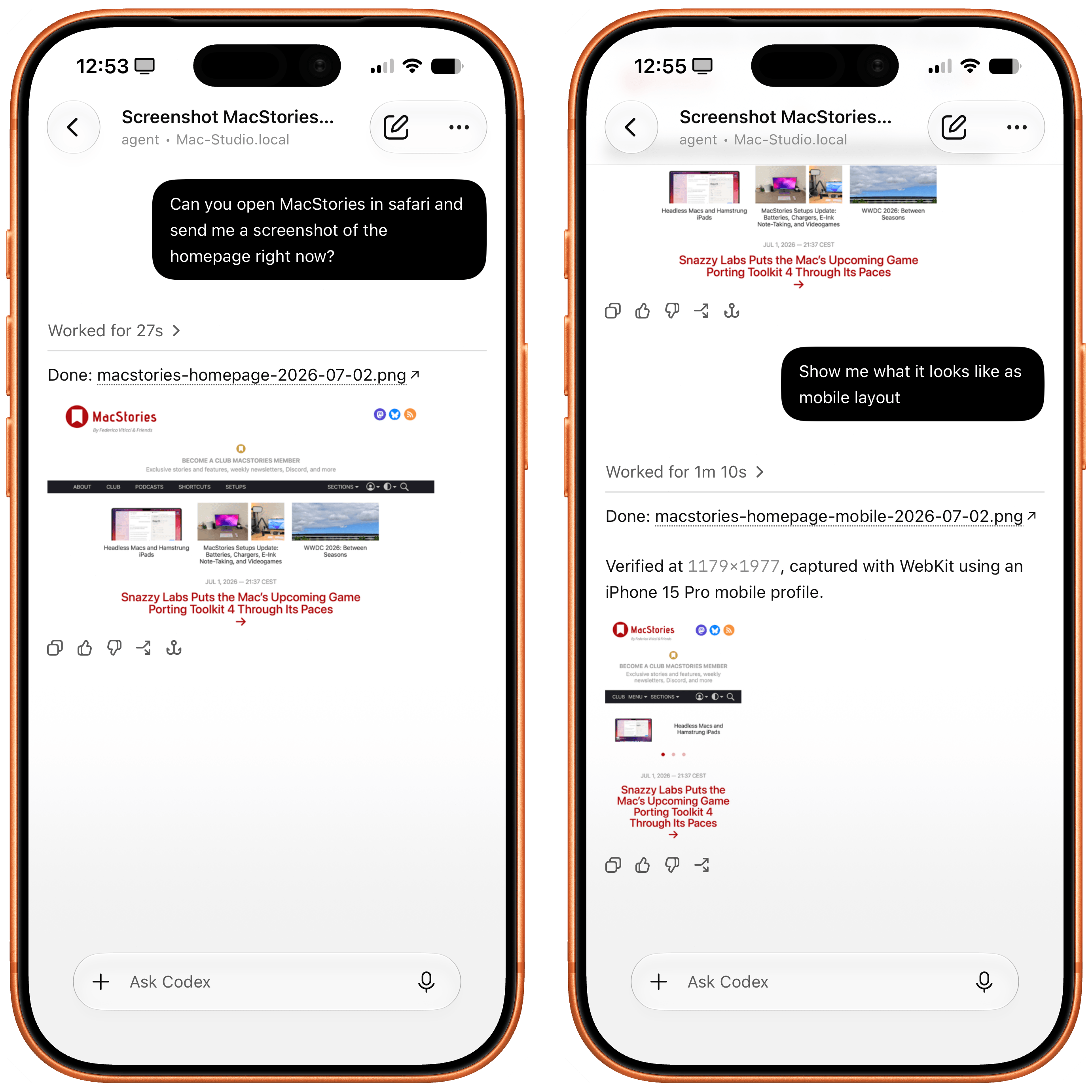
Safari in Codex.

Safari in Codex.

Now, thanks to Safari’s new MCP server, I no longer have to use Chrome on desktop and can return to a unified browser setup across all my devices. Even better: it actually looks like Apple shipped the most ergonomic browser MCP for agents to date. The MCP server has dedicated tools for page extraction (including getting webpages as Markdown, based on WebKit’s own conversion pipeline), evaluating JavaScript, DOM interactions (clicking, scrolling, resizing the viewport for mobile screens, etc.), taking screenshots, and more. I set this up immediately in Codex, and I also asked Codex about comparing Safari’s MCP to its own Chrome extension and the older Playwright. The verdict: although Chrome has a richer API with Chrome Dev Tools when it comes to network requests, Codex actually preferred Apple’s leaner, more direct approach for letting an agent drive and debug a browser.

I’m really happy to see folks at Apple embrace agentic tools: between the new MCP capabilities of Xcode and now this, it looks like Apple’s software (on the Mac, of course) is becoming more and more approachable by people who are working in new ways thanks to agents. Whether you’re a web developer or tinkerer, I highly recommend checking out what Apple has released in Safari Technology Preview. More of this, please.
Permalink

Well, I Guess I Like Safari’s Compact Tab Bar in iPadOS 26.4 (Also: Using Vertical Tabs in Safari for iPad)

We're so back.

We’re so back.

Yours truly, back in September 2021:

In case I haven’t been clear enough above, I’ll be blunt: I don’t understand why the compact tab bar exists on iPad, and I think this design shouldn’t have shipped to customers.

My understanding is that Apple thought the benefit of removing a separate address bar, therefore saving a few vertical pixels on the page, would have made all the compromises we’ve seen so far worth the trade-offs in usability. I think that’s a wrong and mismanaged decision driven by an unmotivated pursuit of an iPhone-like design that has no place on iPad. If slightly increasing vertical space on webpages is Apple’s only argument here in favor of the compact tab bar, you tell me if it’s worth the trouble by judging from the screenshots below.

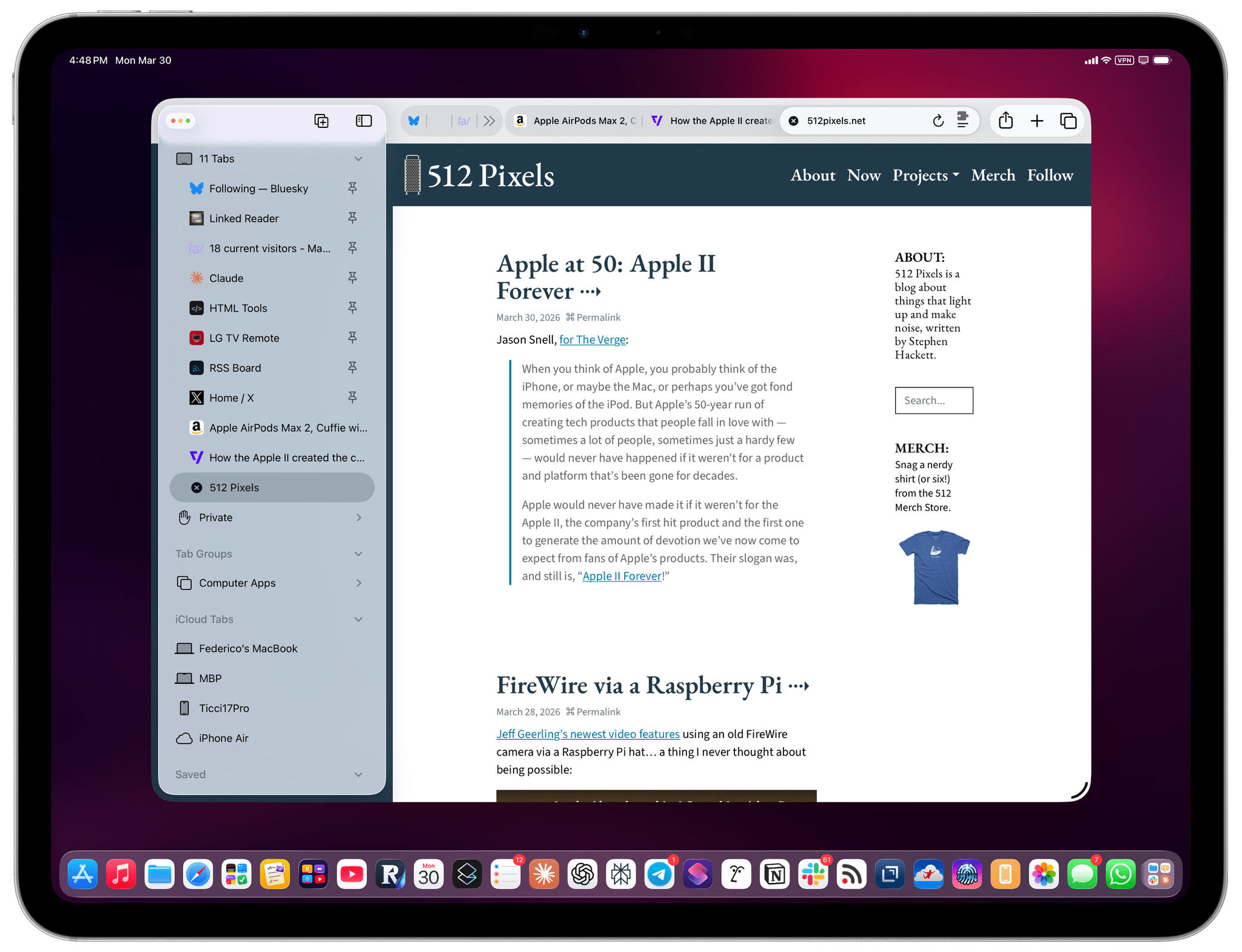
If, like me, you missed this in the release notes for the recently released iPadOS 26.4, the compact tab bar has returned to Safari for iPad after mysteriously disappearing in iPadOS 26.0. And I’m here to tell you that not only do I not despise it like I did five years ago, but I actually like this mode and have been working with Safari on my 13” iPad Pro like this for the past two weeks.

Read more


How to Enable Smoother 120Hz Scrolling in Safari

I came across this incredible tip by Matt Birchler a few weeks ago and forgot to link it on MacStories:

Today I learned something amazing: Safari supports higher than 60Hz refresh. It’s the only mainstream web browser that doesn’t, and I have never understood why, but apparently as of the end of 2025 in Safari version 26.3 (and maybe earlier) you can enable it. Here’s how to do it.

I won’t paste the steps here, so you’ll have to click through and visit Matt’s website (I keep recommending his work, and he’s doing some really interesting work with “micro apps” lately). I can’t believe this feature is disabled by default on iOS and iPadOS; I turned it on several days ago, and it made browsing with Safari significantly nicer.

Also new to me: I discovered this outstandingly weird website that lets you test your browser’s refresh and frame rates. Just trust me and click through that as well – what a great way to show people who “don’t see” refresh rates what they actually feel like in practice.

Permalink

Web Advocates Challenge Apple’s EU Browser Policies

The EU’s Digital Markets Act requires Apple to allow third parties to offer web browsers with their own browser engines. However, more than a year later, there are no browsers built with Chromium, Gecko, or any other engine in the EU.

At a recent EU workshop on Apple’s compliance with the DMA’s browser requirements, Apple representatives were asked some pointed questions by Open Web Advocacy (OWA), and others about its browser engine policies. OWA, a non-profit that advocates for the open web, raised multiple issues with Apple’s approach to browser engines in the EU that they believe are holding back third-party engines.

One issue is that versions of the same browser with different engines can’t be part of the same app bundle. According to OWA, that effectively means vendors like Google and Mozilla would need to release a new EU-only version of their browsers, starting the process of acquiring users from scratch, which I can’t imagine any browser company would sign up to do voluntarily.

Another issue OWA raised is that there is currently no way for web developers outside the EU who are not associated with the browser makers to obtain browsers with competing engines for testing purposes. That’s a problem that’s been solved with other apps by allowing test versions to be distributed outside the EU. However, as things stand today, OWA says that web developers couldn’t use EU-only browsers for testing even if there were any available.

Other issues were raised, too, but these two strike me as practical impediments to third-party browser engines that can and should be resolved. Apple’s responses to OWA’s challenges focused on privacy and security, which are legitimate factors to consider, but it’s disappointing that more than a year after the DMA took effect, the practical problems raised by OWA and others still haven’t been solved.

Permalink

How I Fixed Switching Between Safari Profiles with BetterTouchTool and a Hyper Key

A lot has changed in my professional life over the past year. As of today, I am working fully from home on three separate long-running projects, and now more than ever, the web browser has become central for all three. Since the M2 MacBook Air is my only computer, I found myself in urgent need of a way to allow these virtual workspaces to coexist on the same device.

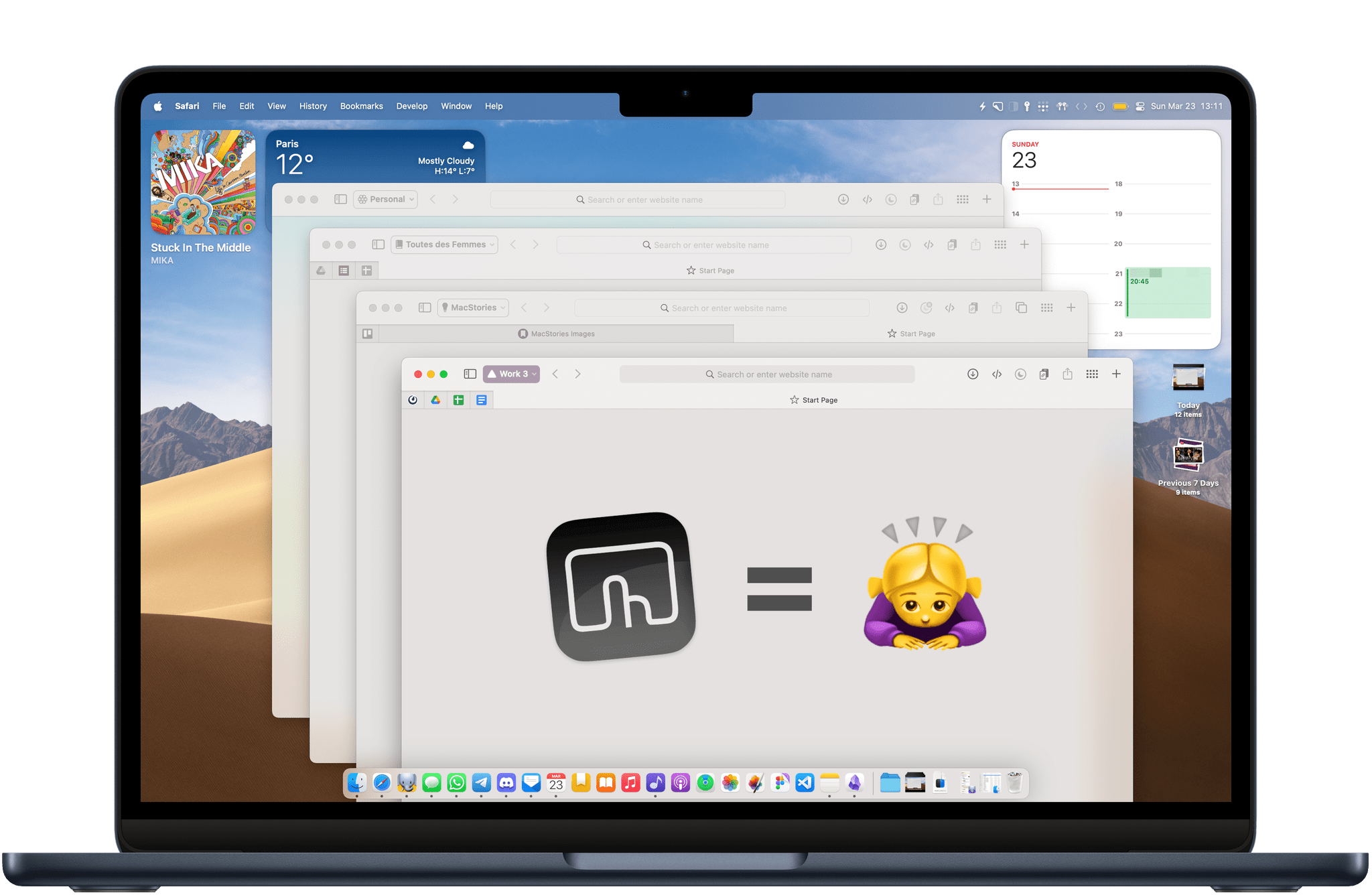
Fortunately, Apple added profiles to Safari in macOS 14 Sonoma, iOS 17, and iPadOS 17 (then later in visionOS 2). Profiles offer a way to keep your bookmarks, cookies, extensions, and browsing history separate between, say, a Personal profile and a Work profile. Even though Google Chrome and Firefox have had similar solutions in place for a while, Safari remains my web browser of choice, so I wanted to take full advantage of the new feature.

In my prolonged usage, Safari profiles work exactly as intended. I’ve set up four different profiles: a Personal profile and three separate work profiles. They are each logged into a different Google account, and they each have their own set of bookmarks, their own pinned tabs for quick access to relevant tools and web apps, and their own set of extensions. Safari makes it easy enough to tell profile windows apart by allowing you to assign a custom icon and color to each one.

That being said, Safari’s implementation of profiles has one major UI flaw: Apple has made it unusually cumbersome to switch between them on the fly, or even to launch Safari into a specific profile directly. So, to no one’s surprise, I have once again attempted to leverage the power of Mac automation utility BetterTouchTool to come up with a workaround. The solution I’ve arrived at is simple, but it makes a huge difference.

Let me show you.

Read more


Beyond ChatGPT’s Extension: How to Redirect Safari Searches to Any LLM

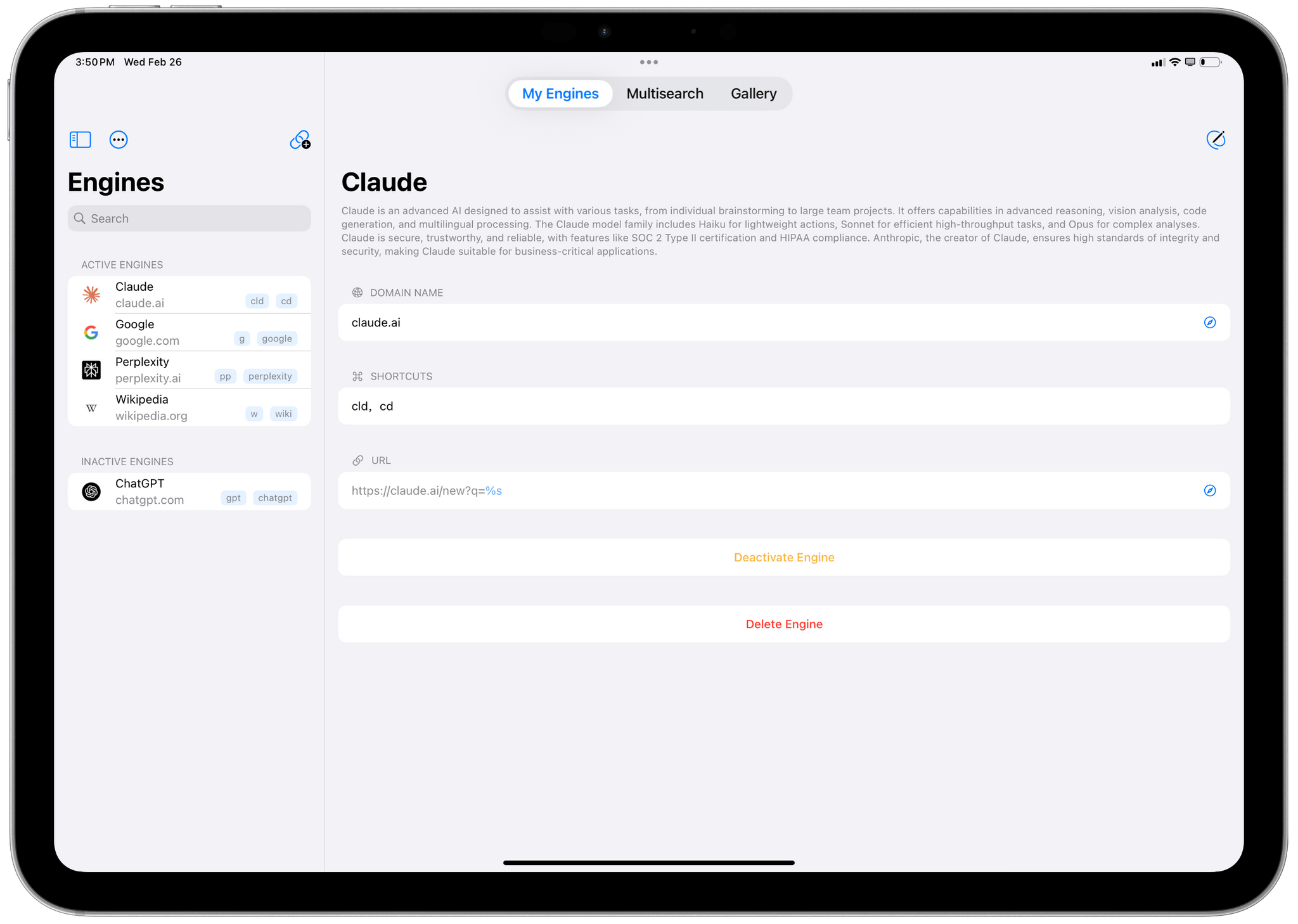
xSearch for Safari.

xSearch for Safari.

Earlier this week, OpenAI’s official ChatGPT app for iPhone and iPad was updated with a native Safari extension that lets you forward any search query from Safari’s address bar to ChatGPT Search. It’s a clever approach: rather than waiting for Apple to add a native ChatGPT Search option to their list of default search engines (if they ever will), OpenAI leveraged extensions’ ability to intercept queries in the address bar and redirect them to ChatGPT whenever you type something and press Return.

However, this is not the only option you have if you want to redirect your Safari search queries to a search engine other than the one that’s set as your default. While the solution I’ll propose below isn’t as frictionless as OpenAI’s native extension, it gets the job done, and until other LLMs like Claude, Gemini, Perplexity, and Le Chat ship their own Safari extensions, you can use my approach to give Safari more AI search capabilities right now.

Read more


Chrome for iOS Adds ‘Circle to Search’ Feature

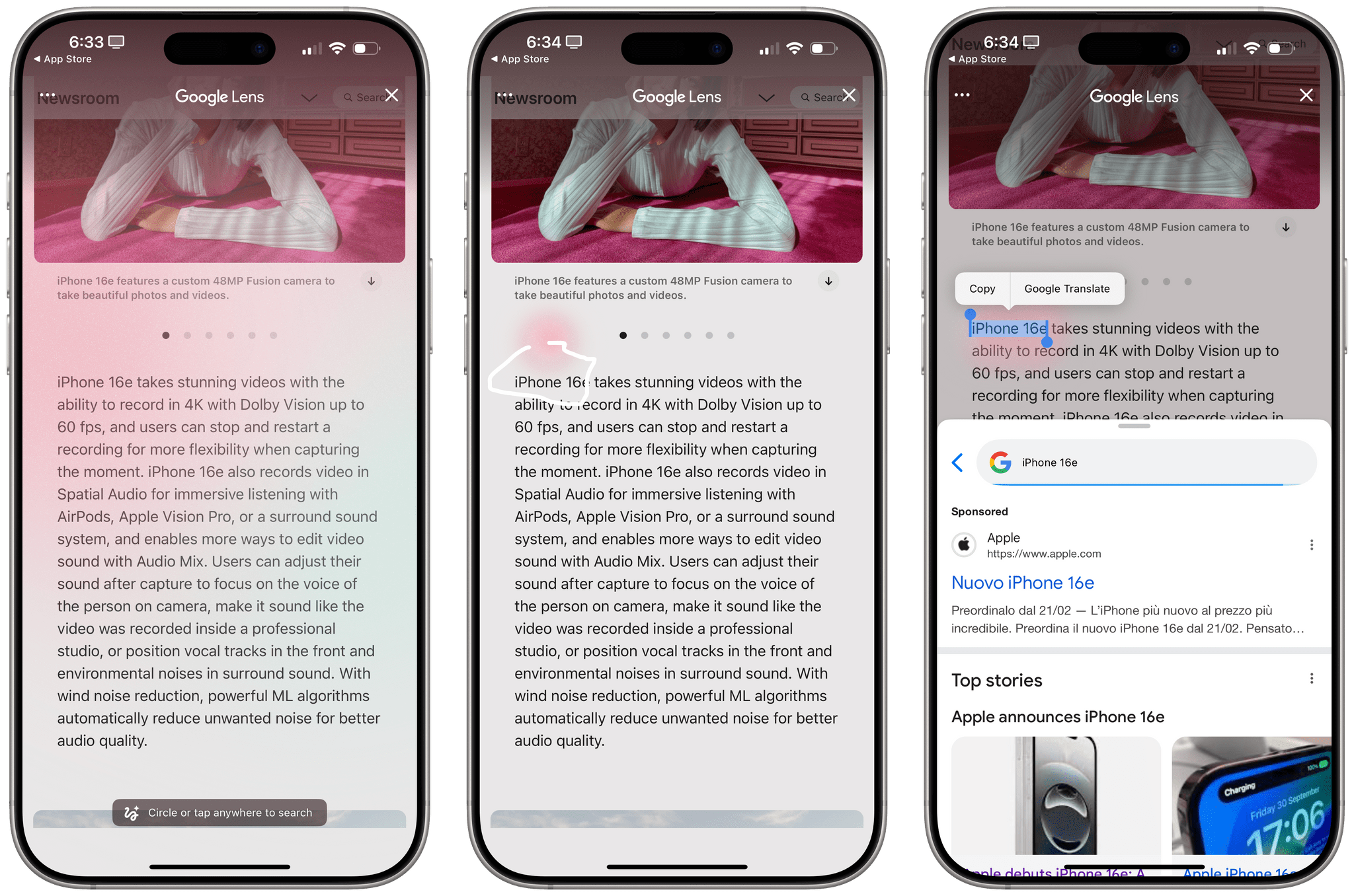
Circle to Search in Chrome for iOS.

Circle to Search in Chrome for iOS.

Jess Weatherbed, writing for The Verge:

Google is rolling out new search gestures that allow iPhone users to highlight anything on their screen to quickly search for it. The Lens screen-searching feature is available on iOS in both the Google app and Chrome browser and provides a similar experience to Android’s Circle to Search, which isn’t supported on iPhones.
[…]
To use the new Lens gestures, iPhone users need to open the three-dot menu within the Google or Chrome apps and select “Search Screen with Google Lens.” You can then use “any gesture that feels natural” to highlight what you want to search. Google says a new Lens icon for quickly accessing the feature will also be added to the address bar “in the coming months.”

This is a nifty addition to Chrome for iOS, albeit a far cry from how the same integration works on modern Pixel phones, where you can long-press the navigation handle to activate Circle to Search system-wide. In my tests, it worked pretty well on iPhone, and I especially appreciate the haptic feedback you get when circling something. Given the platform constraints, it’s pretty well done.1

I’ve been using Chrome a bit more lately, and while it has a handful of advantages over Safari2, it lacks a series of foundational features that I consider table stakes in a modern browser for iOS and iPadOS. On iPad, for whatever reason, Chrome does not support pinned tabs and can’t display the favorites bar at all times, both of which are downright nonsensical decisions. Also, despite the existence of Gemini, Chrome for iOS and iPadOS cannot summarize webpages, nor does it offer any integration with Gemini in the first place. I shouldn’t be surprised that Chrome for iOS doesn’t offer any Shortcuts actions, either, but that’s worth pointing out.

Chrome makes sense as an option for people who want to use the same browser across multiple platforms, but there’s something to be said for the productivity gains of Safari on iOS and iPadOS. While Google is still shipping a baby version of Chrome, UI- and interaction-wise, Safari is – despite its flaws – a mature browser that takes the iPhone and iPad seriously.


  1. Speaking of which, I think holding the navigation handle to summon a system-wide feature is a great gesture on Android. Currently, Apple uses a double-tap gesture on the Home indicator to summon Type to Siri; I wouldn’t be surprised if iOS 19 brings an Android-like holding gesture to do something with Apple Intelligence. 
  2. For starters, it’s available everywhere, whereas Safari is nowhere to be found on Windows (sigh) or Android. Plus, Chrome for iOS has an excellent widget to quickly search from the Home Screen, and I prefer its tab group UI with colorful folders displayed in the tab switcher. 

Default Browser: A Mac Menu Bar Utility for Quickly Switching Browsers

Sindre Sorhus has released more apps than most indie developers I’ve covered, and many are among my favorite utilities. I suspect that a big part of Sorhus’ success is the tight focus of most of those apps, which are designed to eliminate specific points of friction for users.

Sorhus’ latest utility is called Default Browser. It’s a Mac menu bar app that, as the name suggests, lets you change your Mac’s default browser on demand. Just head to the menu bar, and with a couple of clicks, you can switch between any browsers you have installed.

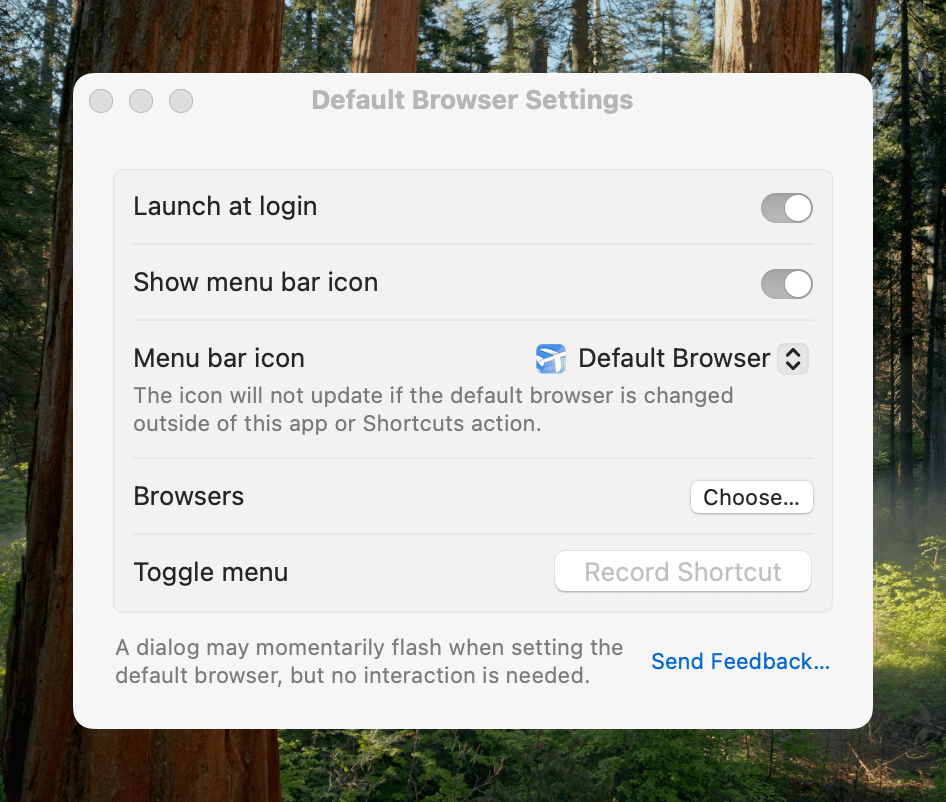
Switching default browsers can be simplified even further by setting a hotkey to reveal the app’s menu and then hitting the number associated with the desired browser. Alternatively, holding down Option as you click on a browser opens it without making it the default. Another nice touch is that, among the multiple menu bar icon options in the app’s settings, there’s an option to use the icon of the currently active default browser, a great reminder of which is active.

Default Browser includes several handy settings.

Default Browser includes several handy settings.

Default Browser works with Shortcuts, too, with actions to get and set your default browser programmatically with actions. That makes it easy to assign browsers to a device like a Stream Deck or Logitech Creative Console for push-button convenience. As Sorhus suggests in the app’s documentation, combining Default Browser with an app like Shortery, which has shortcut triggers for Mac events like connecting to a Wi-Fi network or launching a particular app, opens up a wide array of possibilities as well.

Default Browser also offers a Focus filter, giving you the ability to associate a particular browser with a Focus mode. I don’t have Focus modes for contexts where using a different browser would be useful, but I can imagine it working well for separating web browsing at home from browsing at your workplace or school, for example.

I primarily use Safari, but I’ve been experimenting with Microsoft Edge more, and I’m testing Surf, a browser fused with an AI assistant. I expect we’ll see many more browsers like Surf that aim to combine traditional search and web browsing with the best of what AI can do to organize and provide insights into data. That’s why I purchased Default Browser. The app is available directly from Sorhus for $4, and it makes it easy to quickly switch between browsers whether you’re testing them like me, you’re a developer testing code in different browsers, or you simply prefer certain browsers for certain tasks.


NVIDIA Announces GeForce NOW Support Coming to Safari on Vision Pro Later This Month

With a press release following an otherwise packed keynote at CES (which John and Brendon, my NPC co-hosts, attended in person last night), NVIDIA announced that their streaming service GeForce NOW is going to natively support the Apple Vision Pro…well, sort of.

There aren’t that many details in NVIDIA’s announcement, but the gist of it is that Vision Pro users will be able to stream games by visiting the GeForce NOW website when a new version launches “later this month”.

Get immersed in a new dimension of big-screen gaming as GeForce NOW brings AAA titles to life on Apple Vision Pro spatial computers, Meta Quest 3 and 3S and Pico virtual- and mixed-reality headsets. Later this month, these supported devices will give members access to an extensive library of games to stream through GeForce NOW by opening the browser to play.geforcenow.com when the newest app update, version 2.0.70, starts rolling out later this month.

This is all NVIDIA said in their announcement, which isn’t much, but we can speculate on a few things based on the existing limitations of visionOS.

For starters, the current version of Safari on visionOS does not support adding PWAs to the visionOS Home Screen. Given that the existing version of GeForce NOW requires saving a web app to begin the setup process, this either means that a) NVIDIA knows a visionOS software update in January will add the ability to save web apps or b) GeForce NOW won’t require that additional step to start playing on visionOS. The latter option seems more likely.

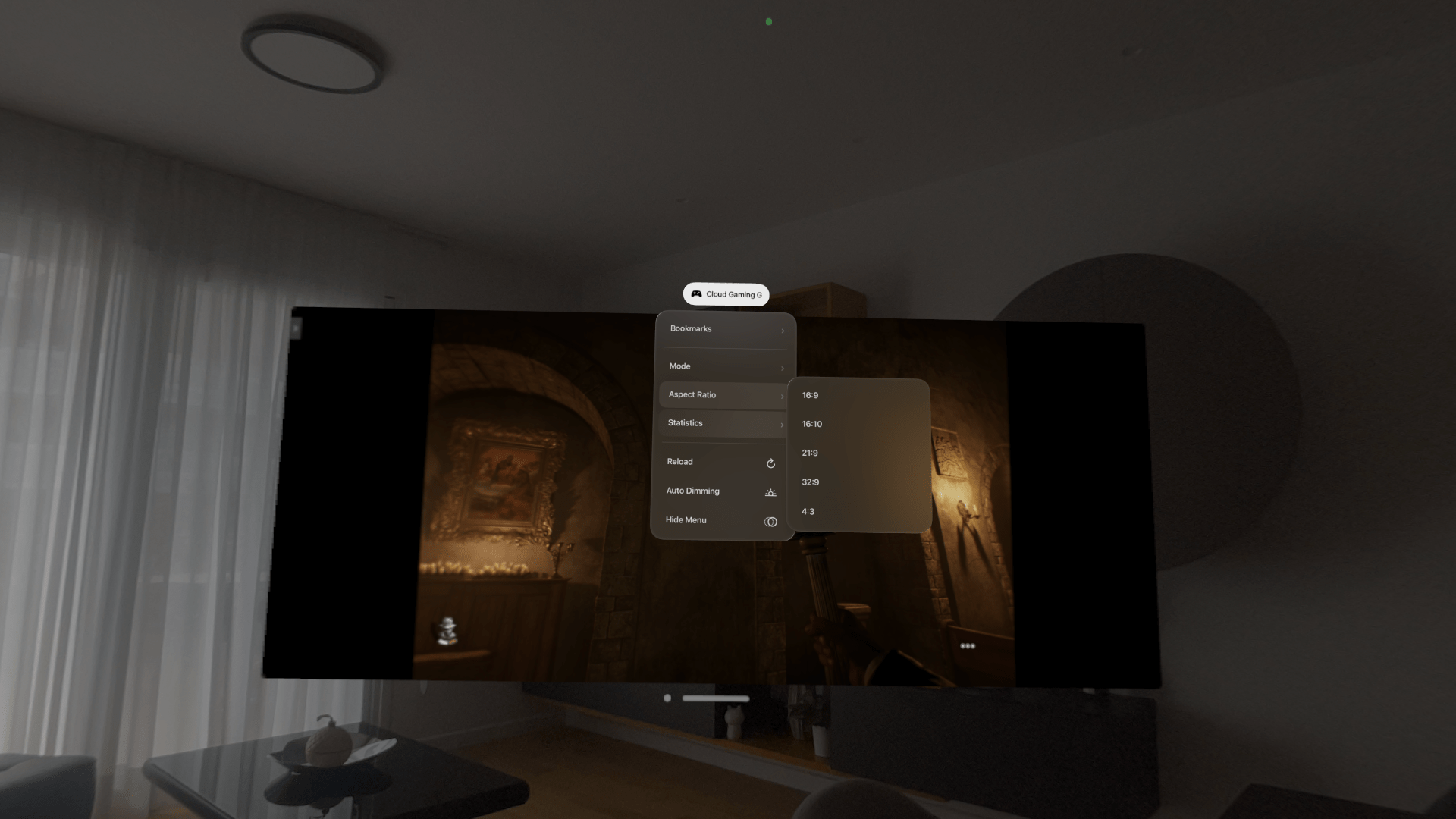
Second, as we covered last year, there is a workaround to play with GeForce NOW on visionOS, and that is the Nexus⁺ app. I’ve been using the Nexus⁺ app on my Vision Pro to stream Indiana Jones and other games from the cloud, and while the resolution is good enough1, what bothers me is the lack of HDR and Spatial Audio support (which should work with the Web Audio API in Safari for visionOS 2.0) in GeForce NOW when accessed from Nexus⁺’s built-in web browser.

The Nexus⁺ app supports ultra-wide aspect ratios, but HDR is nowhere to be found.

The Nexus⁺ app supports ultra-wide aspect ratios, but HDR is nowhere to be found.

With all this in mind, I’m going to guess that, at a minimum, NVIDIA will support a PWA-free installation method in Safari for visionOS. I’m less optimistic about HDR and Spatial Audio, but as I gravitate more and more toward cloud streaming rather than local PC streaming2, I’d be happily proven wrong here.

My only question is: with the App Store’s “new” rules, why isn’t NVIDIA making a native GeForce NOW app for Apple platforms?


  1. I’d love to know from people who know more about this stuff than I do whether Safari 18’s support for the WebRTC HEVC RFC 7789 RTP Payload Format makes a difference for GeForce NOW streaming or not. 
  2. I’m actually thinking about selling my 4090 FE GPU in an effort to go all-in on cloud streaming and SteamOS in lieu of Windows in 2025. But this is a future topic for NPC