Posts tagged with "mac"

Managing Music From Your Mac’s Menu Bar

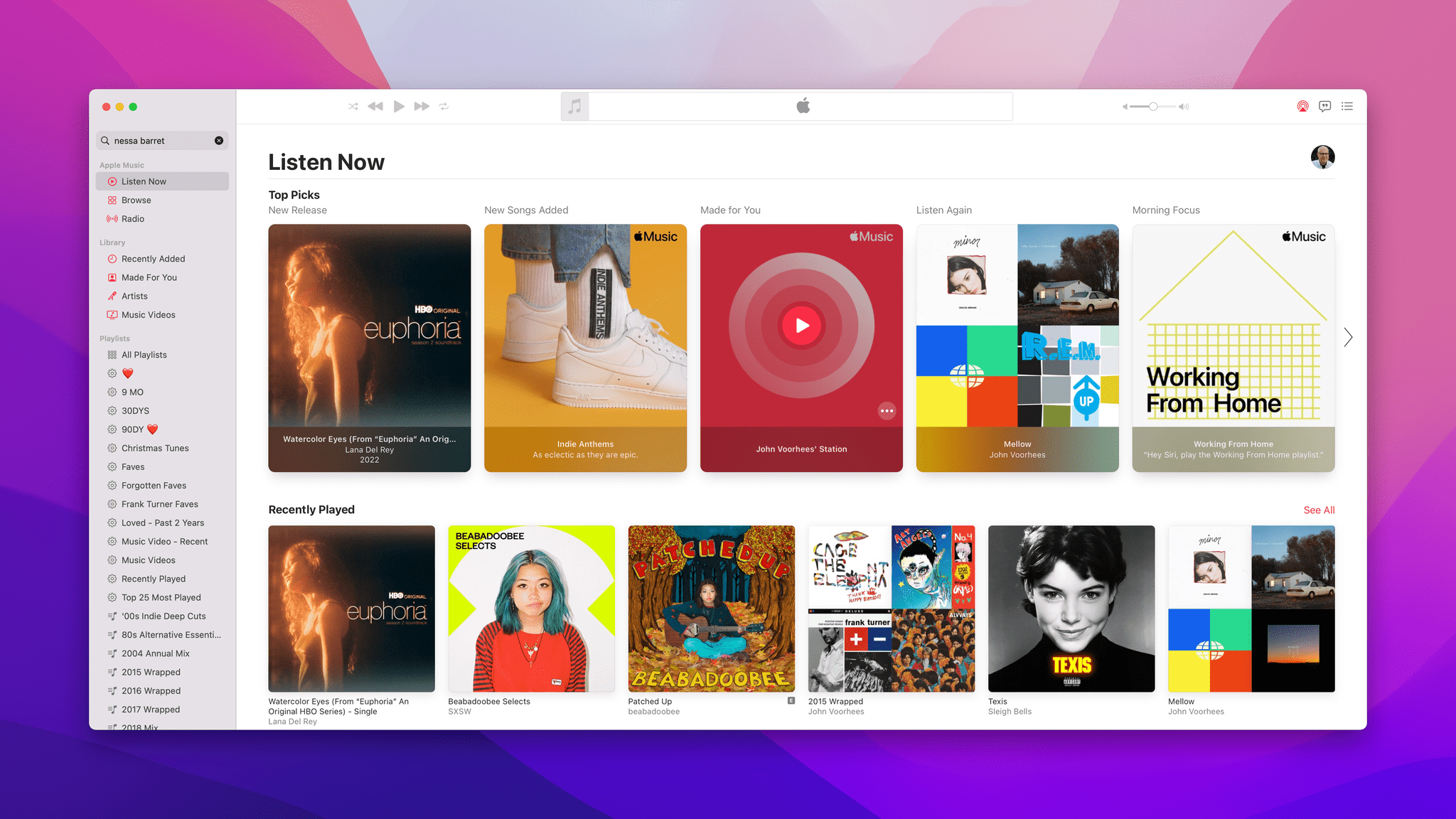
As Club MacStories members know, I use my Mac’s menu bar sparingly. With Bartender, our MacStories Selects Mac app of the year, I limit my menu bar to a handful of frequently-used apps and system controls that take up as little space as possible. That cuts down on clutter and means everything will fit when I’m using my MacBook Air in laptop mode.

However, every rule is meant to be broken, and for me, I break my menu bar rule by tracking and controlling my music from the menu bar, which takes up a lot of space but is worth it. You see, I listen to a lot of playlists as a way to discover new music, but that also means I find myself flipping to the Music app frequently to see artist and album information and perform simple tasks like adding a song to my music library or liking it. The constant context switching was a distraction I didn’t need, which led me to look for a better way.

Apple's Control Center widget takes up limited space, but also doesn't do much.

Apple’s Control Center widget takes up limited space, but also doesn’t do much.

Fortunately, there are a lot of options depending on your needs. The simplest solution is to drag the Now Playing widget out of Control Center on your Mac and use it as a standalone menu bar item. That works well if you want simple playback controls and song information, but the functionality of Apple’s control is limited and requires a click to do anything.

The two third-party solutions I prefer are NepTunes and the recently-released Looking Glass music remote. Both apps live in your menu bar and offer different sets of features that will play a big part in which app will suit your needs best.

Read more


Early Experiments with BetterTouchTool’s ‘Notch Bar’ as a Visual Shortcuts Launcher for macOS

The notch bar in BetterTouchTool.

The notch bar in BetterTouchTool.

For the past couple of weeks, I’ve been playing around with (and thoroughly enjoying) BetterTouchTool’s latest major feature: the notch bar. This feature is currently available as an optional alpha update in BetterTouchTool, and it’s still rough around the edges, so don’t consider this short post a full review of it; I’m sure we will revisit this functionality more in depth over the course of 2022. However, since I believe the notch bar is one of the most exciting developments in the Shortcuts for Mac ecosystem lately, and since I’m having so much fun with it, I figured it’d be worth an early hands-on preview before the end of the year.

Read more


Shortcuts for Mac’s Superpower

Earlier today on Six Colors, Jason Snell wrote about running Shortcuts from the command line:

I was reminded by Simon Støvring, maker of the excellent Mac and iOS utility Data Jar (which is a persistent data store that’s accessible via Shortcuts), that people may not be aware of just how well integrated Shortcuts is into macOS.

Jason has put his finger on something I think has gone unnoticed by a lot of users. The deep integration of Shortcuts with macOS is its superpower, especially because it’s bidirectional. You can run your shortcuts from the command line and run command line scripts in your shortcuts. The same goes for AppleScript.

Add to that the ability to run shortcuts via AppleScript files, as applets, or with third-party apps, and there’s an incredible amount of room for creativity in bringing tools built into macOS and third-party automation apps together in new ways. It’s what led me to build the utility shortcuts I wrote about on MacStories and Club MacStories today and Federico to explore new ways to pass input into shortcuts earlier this week.

Be sure to check out Jason’s story for examples of the way shortcuts can be run from the command line and the results passed to other apps or used by macOS in various ways.

Permalink

How to Batch Convert Shortcuts for Use Throughout Monterey and with Other Automation Apps

My latest Shortcuts experiments began in earnest on my way back from Rome. I stopped in Ireland for a few days to deal with COVID testing and start ramping back up to my normal work routine. I wasn’t quite ready to tackle the day-to-day yet, so I decided to revisit a Shortcuts experiment I had started back in June.

I’ve been a fan of PopClip for years and have played around with creating my own extensions for the app occasionally. So, shortly after WWDC, I tried building a PopClip extension that triggered a shortcut that had been saved as a Service. PopClip works with services, and the extension I built came tantalizingly close to working, but it had too many issues to be useful, so I set it aside.

PopClip.

PopClip.

Sitting in Dublin with the released version of Monterey and a new version of PopClip that had been updated to work with Shortcuts, I revisited my early experiments. The updates to macOS and PopClip made adding shortcuts as PopClip extensions trivially easy, as Federico demonstrated recently in MacStories Weekly. Then, when I got home, my Stream Deck was waiting for me, which led to another round of experimentation and an in-depth story on the many ways it can run shortcuts.

Since then, I’ve been incorporating Mac shortcuts I’ve built into my workflows using multiple third-party apps like BetterTouchTool, Alfred, and, of course, PopClip. It wasn’t long before I wished there was a way to batch process shortcuts, so I could use them in multiple ways across Monterey and in third-party apps.

Scripts built with AppleScript are just one way to integrate shortcuts with other apps.

Scripts built with AppleScript are just one way to integrate shortcuts with other apps.

To streamline the process, I turned, of course, to Shortcuts itself. In total, I’ve created four shortcuts to help me deploy my favorite shortcuts across macOS:

  • Script Builder: Generates .scpt files that can be incorporated in other apps from multiple shortcuts using AppleScript
  • Dock Applet Builder: Creates Dock applets from shortcuts that can be launched from the Finder, app launchers, and more
  • Script Applet Builder: Converts shortcuts into AppleScript applets with custom icons that behave like Dock applets but don’t get automatically deposited in your Dock
  • PopClip Builder: Produces and streamlines installation of multiple PopClip extensions with custom icons that run shortcuts

I’ll cover the first two shortcuts here. Script Applet Builder and PopClip Extension Builder are included in The Macintosh Desktop Experience, my column for ClubMacStories+ that explores new ways to make your Mac work for you.

Read more


Pixelmator Pro Updated with Background Removal, Subject Selection, and Select and Mask Tools

Mac image editor Pixelmator Pro continues its streak of releasing machine learning-based tools that feel like magic, with a release that the Pixelmator team calls Abracadabra appropriately enough. The release of version 2.3 features tools to remove the background of an image, select just the subject of a photo, and a new Select and Mask feature for making fine-tuned selections.

I started with these images.

I started with these images.

When I first saw a demo of what Pixelmator 2.3 could do, I was a little skeptical that the features would work as well with my photos as the ones picked to show off the new tools. However, Pixelmator Pro’s new suite of related features is the real deal. With virtually no work on my part, I grabbed a photo of Federico and me from my trip to Rome, selected us, and after making a few refinements to the selection to pick up more of Federico’s hair (mine was perfect), I cut out the background, and replaced it with a photo I took in Dublin days before. After compositing the photos on separate layers, I color-matched the layers using ML Match Colors, so they’d fit together better.

The final composed image.

The final composed image.

The results aren’t perfect – the lighting and perspective are a little off – but those are issues with the photos I chose, not the tools I used. The photo of Federico and me was taken after the sun had set and was artificially lit, while the Dublin Canal was shot on a sunny morning, yet the composite image works incredibly well. What’s remarkable is what I was able to accomplish in just a few minutes. I also removed the background from one of the photos I took recently for my Stream Deck story, which worked perfectly with no additional work needed, which has interesting implications for product photography.

Remove Background takes advantage of Apple’s Core ML framework and works in just a few seconds. Select Subject works similarly but selects the subject of an image instead of erasing the background behind the subject. If you look closely at the masked selection below, you can see how well Pixelmator Pro did picking up the edges to get selection details like hair without any additional work by me. However, if an image needs a little selection touch-up, the Refine Edge Brush and Smart Refine feature make that sort of work easy too.

Pixelmator Pro’s new tools are available elsewhere in macOS, too, as Finder Quick Actions, Shortcuts actions, and AppleScript commands. I covered Pixelmator Pro’s Shortcuts actions earlier this fall, and they are some of the best available among Mac-only apps, so it’s fantastic to see those automation options continue to expand.

Pixelmator Pro has long been one of my must-have Mac apps. I don’t spend a lot of time editing images, but when I do, I appreciate that Pixelmator Pro makes the process easy and produces excellent results regardless of your experience with image editors.


Apple Announces Self Service Repair Program That Will Provide Customers With Access to Tools, Parts, and Manuals

Apple announced today that its customers will be able to order tools, parts, and manuals to make repairs to iPhones, and later, M1 Macs beginning early next year:

Available first for the iPhone 12 and iPhone 13 lineups, and soon to be followed by Mac computers featuring M1 chips, Self Service Repair will be available early next year in the US and expand to additional countries throughout 2022.

The initial phase of the program will focus on the most commonly serviced modules, such as the iPhone display, battery, and camera. The ability for additional repairs will be available later next year.

Repair materials will be offered in a new store:

The new store will offer more than 200 individual parts and tools, enabling customers to complete the most common repairs on iPhone 12 and iPhone 13.

Also, the company will offer a credit toward new part purchases when used parts are sent back to encourage recycling.

It’s excellent to see Apple expanding customer repair options. As the company notes in its press release, the number of authorized repair providers has expanded in recent years, but not everyone has easy access to existing alternatives. More repair options also address complaints that Apple’s devices are too hard to repair, although there remains room to make more kinds of repairs easier. Still, today’s move is a step in the right direction and one that will be interesting to follow in the coming year.


Getting Started with Shortcuts for Mac and the Stream Deck

The Stream Deck has been a favorite of Mac users who are into automation for a while now, but the device’s utility has grown substantially for a couple of reasons. First, you can use the Stream Deck to run Shortcuts, which expands the device into an entirely new realm of automation.

Second, the Stream Deck opens up new ways to approach all automation on your Mac that aren’t possible with any single Mac app, allowing you to mix and match different kinds of automation in one interface. It’s a powerful combination that unlocks the ability to organize the automation tools you use to fit with the way you think and work.

To get you started, I’m going to cover:

  • What the Stream Deck is and how it works
  • The many ways to run your Shortcuts from the device
  • Approaches for organizing your shortcuts and other automations with the Stream Deck
  • An alternative to the Stream Deck

Let’s dig in.

Read more


FaceTime’s Audio and Video Take a Leap Forward With Apple’s Upcoming iPhone, iPad, and Mac OS Updates

FaceTime has been a centerpiece feature across all of Apple’s platforms for a long time. However, with the pandemic, it became more important than ever, playing a critical role in the way friends and family have stayed connected. Of course, FaceTime isn’t the only way have kept in touch. The app had plenty of competition from Zoom, Skype, and other services.

So, it’s not surprising that this year’s FaceTime updates focus on fundamentals like audio and video quality and making the app available outside of Apple’s ecosystem, allowing it to compete better with other services. Nor is it surprising that Apple announced SharePlay, which won’t ship until later this fall, so friends and family who can’t be together can still enjoy synchronized group activities like watching a video or listening to music. I’m skeptical that SharePlay will be the hit that Apple’s marketing suggests the company hopes it will be, but even putting SharePlay aside, the app is getting some major improvements that I think everyone will appreciate, so let’s dig in.

Read more


TestFlight for Mac Has Finally Arrived

I’ve waited seemingly forever for TestFlight for Mac, so I’m pleased to report that a beta is finally available. The app was released late yesterday, so first thing this morning, I downloaded it and started testing.

Here’s what Apple’s developer news site has to say about its beta for testing betas:

Use the beta version of TestFlight for Mac to test your Mac apps. You can invite registered Apple developers to download this beta version and use it to test your apps on macOS Monterey beta 5. We’d also appreciate your feedback on TestFlight for Mac, which you can provide through Feedback Assistant.

I haven’t had a lot of time to spend with TestFlight for Mac yet, but I was pleasantly surprised to find that it was already populated with a long list of betas. I downloaded a couple of iPhone and iPad apps that are compatible with Apple’s M1 Macs, and the process was as simple and straightforward as using TestFlight on iOS or iPadOS. That said, this is still clearly a beta. The sidebar lists every single TestFlight beta in which I’ve ever been enrolled regardless of whether it has expired or is compatible with my Mac. Also, there’s no way to sort or search through betas. Instead, the order of the sidebar list appears to be random.

Still, this is an excellent beta 1. The app works for installing betas and provides a quick and easy way to send feedback to developers. I expect TestFlight for Mac to be adopted quickly because it’s a much better way to manage a large group of testers and to distribute builds to reviewers.

If you have a developer account, you can download TestFlight for Mac from the Applications section of the Beta Software Downloads page.