Summer beta season is in full swing, with a new wave of testers coming aboard via the just-released public OS 27 betas. While visionOS hasn’t ever been included in the public beta program, now is as good a time as any to check in on visionOS 27. What’s it like living with the features Apple highlighted at WWDC, and if you’re jumping on the public betas with your other devices, is it a good time to give the visionOS 27 developer beta a try, too? Let’s dig in and find out.
Siri AI
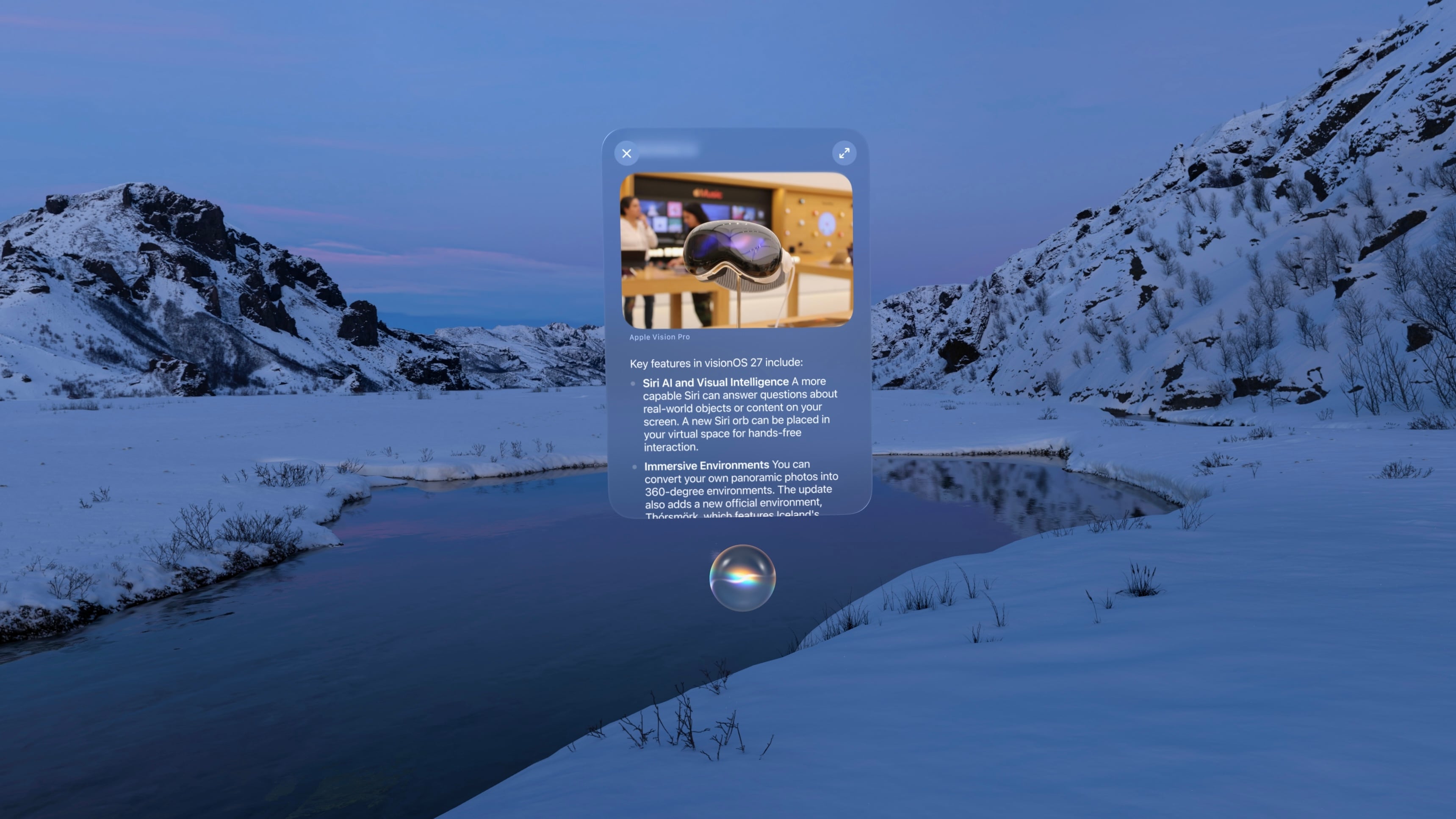
Given the massive overhaul Siri is receiving this year and the fact that the Vision Pro has always been a little behind when it comes to Apple Intelligence features, I didn’t expect visionOS to get the full Siri AI treatment this year. Thankfully, I was wrong. Not only is Siri AI fully present in visionOS 27, but the experience of interacting with the assistant has even been adapted to fit a spatial context.
For starters, Siri is much more capable in visionOS 27 than ever before. It’s not just for opening apps anymore. With access to your personal context, Siri can handle tasks I would have never imagined prompting it for until now. Questions like, “When was the last time I ate at this restaurant?” or, “How many years in a row have I attended this local event?” used to lead me down time-intensive rabbit holes of scavenging emails, texts, calendar events, photos, and more. Now, Siri can pull all of that information for me and answer the question in just a few seconds.
That “in a few seconds” bit is important. At least this point in the beta cycle, every request I give the assistant takes some time. Even tasks like checking my calendar and opening apps have a bit of lag to them on my M2 Vision Pro. This seems to be a side effect of Siri’s new architecture: it can do more, but parsing input, coordinating resources, and performing tasks takes a little longer than you might expect.
Of course, Siri has access to world knowledge now, too. We’ve all run into the classic, “Here are some web results for you,” response when asking Siri a question it considers too complex to answer itself, but those canned responses are no more. Now, Siri can dive into its (scraped) trove of knowledge to answer questions about pretty much any topic: history, science, pop culture, and more. Siri is the all-knowing bot we’ve always wanted it to be; just be sure to double-check its answers because, as Siri will remind you, AI can get things wrong.
Interacting with Siri in visionOS 27 is a whole new experience. The purple, blue, and green sphere evocative of Siri’s previous era (before all of Apple’s other platforms switched to the rainbow outline UI that never came to visionOS) has been replaced with a semi-translucent glowing white orb matching the Siri aesthetic on iOS, iPadOS, and macOS. The circular “thinking” animation mimics what you see when you interact with Siri on other devices, too, making for a much more cohesive cross-device experience.
When you invoke Siri via voice, the orb appears with a window above it displaying the text of your conversation. You can grab the window and place it anywhere in your environment. To continue the conversation, you simply look at the Siri UI and start speaking again. It all feels very natural, and I appreciate the way you can converse with Siri while interacting with other windows in objects in visionOS, a task that doesn’t translate as well to Apple’s other platforms. For those on the M5 Vision Pro, Siri has a new, more natural voice with customizable speed and expressivity as well, though my M2 model isn’t capable of running the local model necessary to power these changes and the improved dictation system.
visionOS 27 also includes a gesture for activating Siri that’s a little nostalgic. If you hold your palm open and upward then look at it, you’re present with a Home button as before. But if you pinch and hold the Home button, a tiny Siri UI will appear above it, just like in the old days when iPhones had physical Home buttons. You have to hold your fingers together the whole time you’re speaking to Siri, which seems a bit strange to me, but once you’ve made your initial request, the standard Siri UI appears, and you can carry on as usual.
The new version of Siri also brings Visual Intelligence to the Vision Pro for the first time. You can ask Siri about the content of a virtual window or objects in your real-world environment. When Visual Intelligence is activated, the system displays a very cool animation of your environment being scanned, and then, Siri can use what it sees to answer your questions. I’ve used this to ask Siri about webpages, documents I’m working on, and items I see around me, and it’s very cool to have an always-available digital assistant who can see what I see. It did a great job identifying my water bottle and then pulling up the receipt from my email to let me know how old it was, which I found to be a great combination of Visual Intelligence with my personal context.
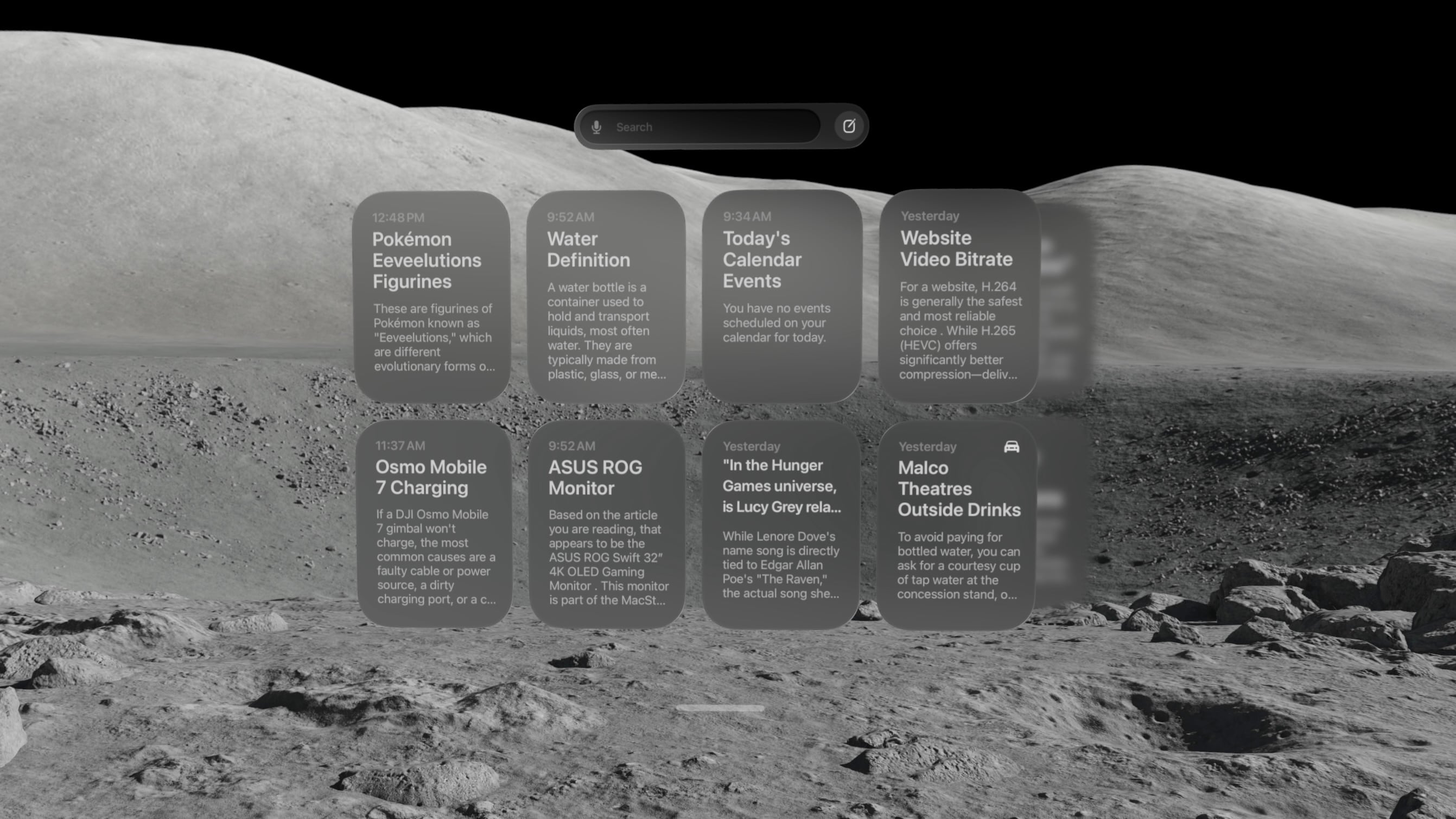
There’s also a new Siri app that contains a history of all your conversations with the assistant, including those synced from other devices. On visionOS, the Siri app is a horizontally-scrolling list of glassy cards that reminds me a lot of the Spatial Gallery app. It’s a handy way to pick back up on conversations started elsewhere, search for a previous answer, or simply interact with Siri via keyboard rather than voice.
At WWDC, Apple showed off a Siri mode where the orb persists in your environment, waiting for you to look at it and start a conversation. I have not been able to get that method to work yet. Once I start a conversation with Siri, I can keep the conversation window open and place it anywhere, but that’s not the same as having a small Siri UI sitting on my desk out of the way until I need it. I’ll keep my eyes peeled for it in future beta releases.
Siri AI is marked for release “later this year” (as opposed to the OS 27 updates listed as coming “this fall”), so there are still some rough edges to work out. Sometimes, conversations simply stop, with Siri telling me an error occurred. The Siri conversation UI will sporadically disappear, and I have to force quit the Siri app to get it to show up again. And Visual Intelligence sometimes struggles to understand what I’m trying to get it to look at, focusing on the wrong window or even the keyboard. But that’s beta life for you; it’s what I signed up for, and I’m trusting it will all be worked out before the public release.
Beta UI bugs aside, Siri AI is a huge upgrade for Apple’s digital assistant, and I’m happy to see visionOS getting the first-class treatment here. It isn’t simply ported over from iOS. It’s been carefully adapted for a spatial UI, and it makes for a powerful overall experience.
There is one other major way Siri differs on visionOS from other platforms: it hasn’t been integrated with Spotlight Search. For now, at least, the search feature on visionOS is dedicated to finding apps, app content, and web results, without even an ‘Ask Siri’ button in sight. With so many other ways to interact with Siri on the platform, it might make sense to keep it separate from search, but it’s certainly an oddity given the way the two features have been merged on every other platform. I’m still trying to figure out if I find this a helpful separation or a missed opportunity for cross-device cohesion.
Panoramas and Environments
There’s a lot more to visionOS 27 than just AI. Big changes are coming to panoramas, including the ability to act as persistent Environments. And, of course, Apple has to throw in a new Environment of its own, too.
Over the past couple of years, Apple has continually pushed the capabilities of its spatial photo conversion technology. Last year, that came in the form of spatial scenes across all of the company’s platforms, and this year, it’s coming to panoramas. In visionOS 27, you can convert panoramas into spatial scenes, adding layers of depth and perspective to the already stunning experience of viewing panoramas on the Vision Pro.
Being immersed in panoramic photos in visionOS was already breathtaking. This takes it to a whole new level. Experiencing memories in deeper ways than I ever thought possible is one of my favorite uses for the Vision Pro, and now, I can use it to revisit places I’ve been and feel like I’m standing there once again.
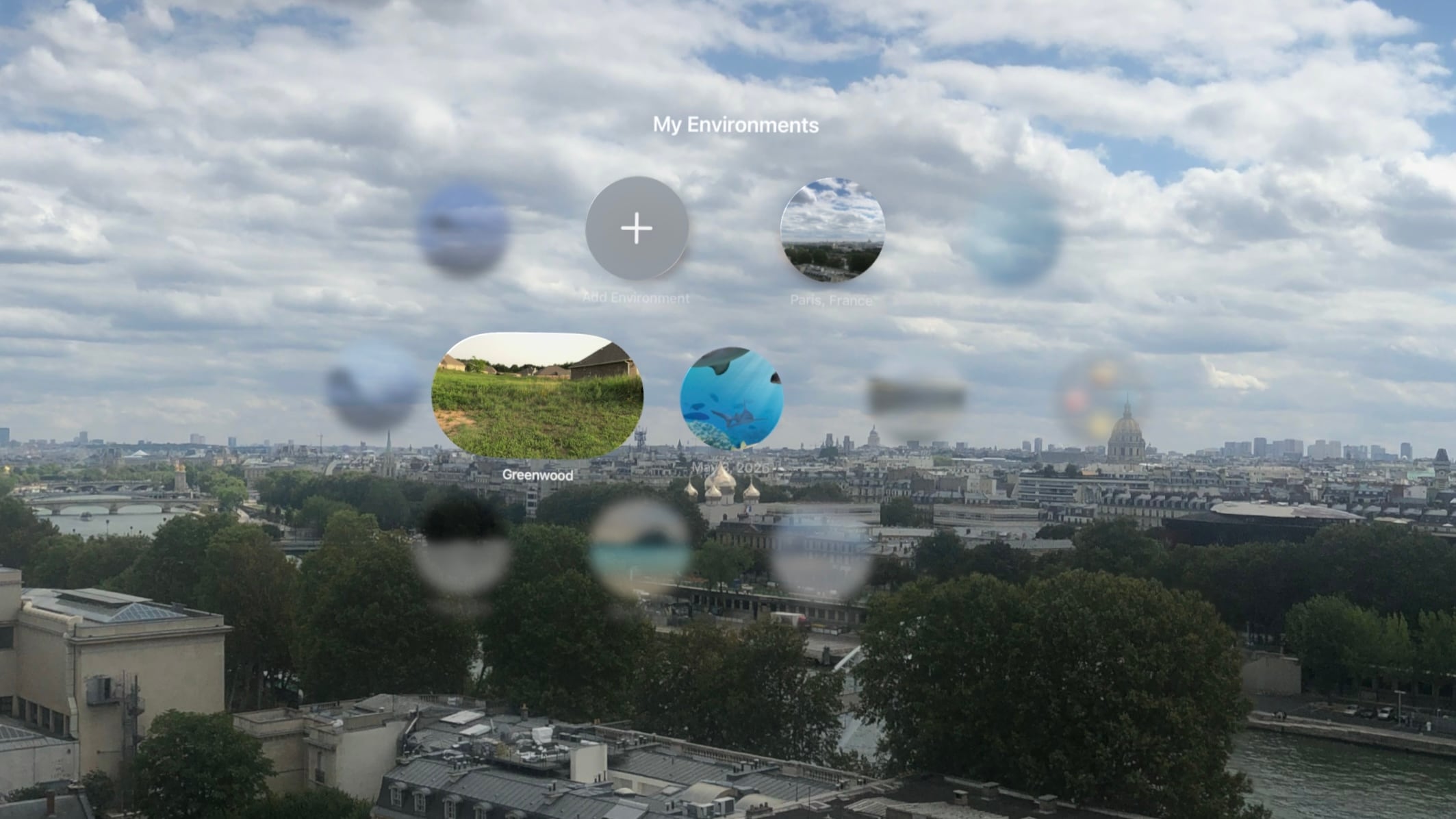
The system takes this experience one step further by allowing you to set panoramic spatial scenes as custom Environments. In the Environments view, there’s a new folder called My Environments where you can add up to 34 panoramas from your photo library and use them as immersive backgrounds for your content. You can even adjust the immersion level to make the photo wrap around you.
I love that we now have the option to use our own photos as Environments, but it does come with some tradeoffs. Panoramic photos are static, so they don’t have the subtle motion elements that make Environments feel alive. They also don’t expand as far vertically as Environments do, which means you’re likely to see your real-world surroundings if you look up or down. Still, this is the first time visionOS users have been able to set their own custom Environments using their own photos or images purchased online, so it’s a win. It’s definitely inspired me to start taking more panoramas than I did before.
The new built-in Thórsmörk Environment is gorgeous. Apple always knows how to pick the perfect spot. Between the snow, the slow-moving river, and the aurora borealis in the sky at night, it offers a beautiful, peaceful place to relax, watch a movie, or trick your mind into cooling off on a hot summer’s day.
Safari
Spatial browsing is continuing to mature in visionOS 27, this time with the help of curved windows. Safari is one of the few built-in apps – Freeform and TV being the others – that are receiving special curved window modes this year, similar to what we’ve seen in the past with Mac Virtual Display. When a window is expanded beyond a comfortable width for side-to-side viewing, it automatically starts to curve, wrapping around the user’s head to make it easier to take in the window’s contents.
To be honest, I’m not sure how useful curved windows will be for browsing normal websites. While some, such as Apple’s OS Overview page are optimized to display content like image galleries at such wide aspect ratios, most sites don’t expand beyond a certain point, displaying blank space on either side of a centered column of content. Perhaps that will change with time, but for now, I don’t foresee these ultra-wide windows catching on for single-tab browsing.
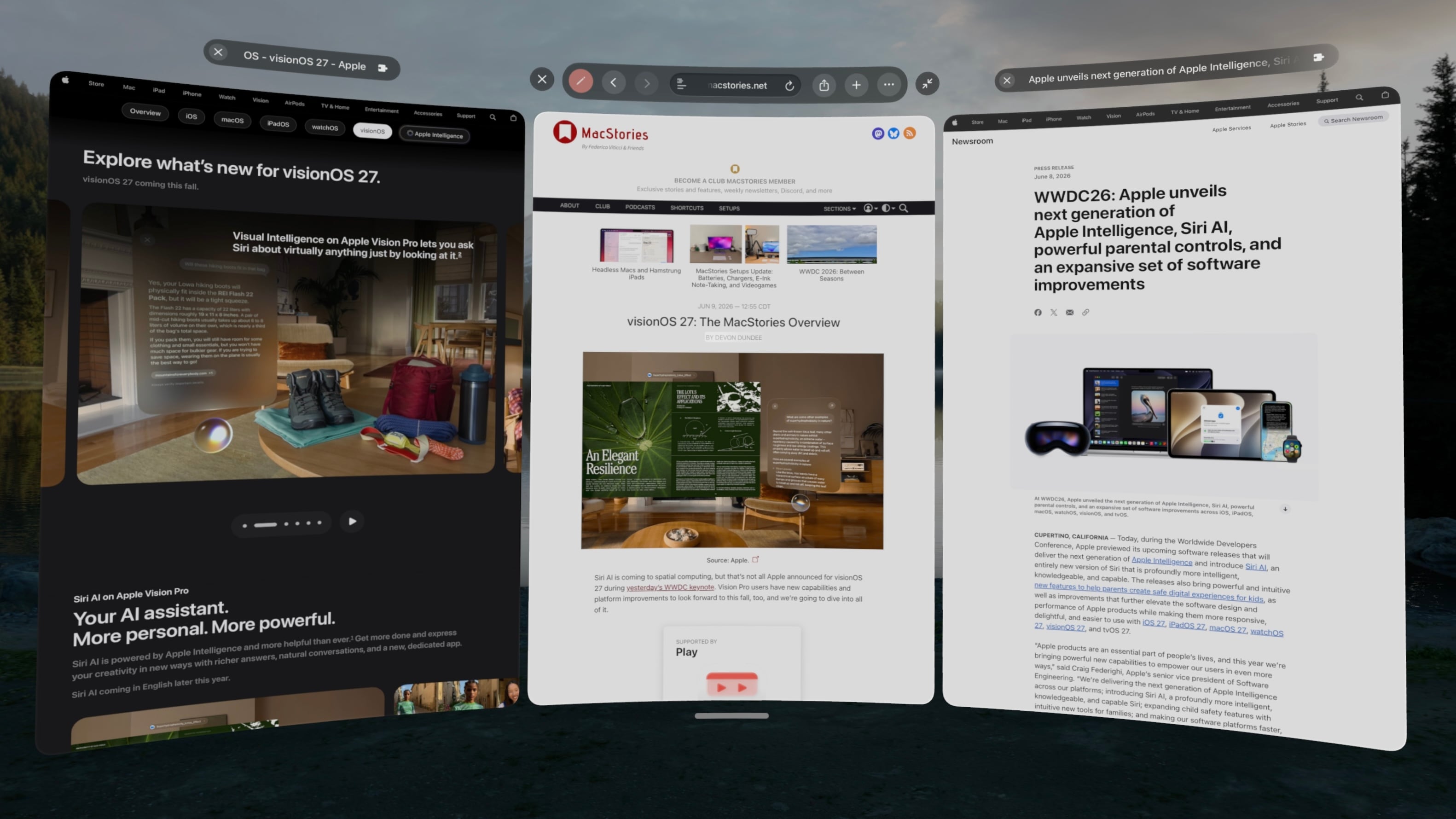
Where the curved Safari window does shine, though, is in the browser’s new multi-tab view. A new button on the right side of the tab bar activates the view, which displays all open tabs side by side in a horizontally-scrolling curved window. These aren’t previews, either. Each tab can be scrolled, navigated, interacted with, and even closed as it if it were an independent browser window.
I’ve already found numerous use cases for this view in my own workflows: editing article previews, comparing product pages, and reviewing multiple research sources at once, just to name a few. Displaying multiple tabs at once in a large, ergonomic window view makes for a fantastic interaction method that I think could apply far beyond Safari webpages and sports multiviews in TV. I imagine this feature will be used far more than last year’s spatial browsing.
Apple Intelligence can sort your bookmarks and Reading List entries based on topic if you like, though the automatic tab sorting feature present on other platforms is curiously missing. Personally, I like managing my own tabs anyway, but add that feature to the long list of strange feature parity omissions on visionOS along with Focus filters, photo editing, and – as of the current beta – Describe a Shortcut.
Platform Improvements
There’s no doubt that this is a refinement year for Apple’s platforms beyond AI. The company is taking the opportunity to revisit and optimize OS features that have long been considered mature, and that’s the case even for visionOS, a relative newcomer.
The time it takes the Vision Pro to connect to Wi-Fi upon power-up has been reduced significantly. Given the device’s short battery life and tendency to go into deep sleep when not in use, this is a quality-of-life change that you’re going to feel. When I turn my M2 Vision Pro on, I can’t log in quickly enough to open Safari or the TV before it’s connected to the Internet. That definitely was not the case before visionOS 27, and I appreciate it.
I’ve long been on the record as a critic of the notification system on visionOS, but it’s taking a big leap forward this year with expanding notifications. When an app icon appears at the top of your view to alert you to a notification, you expand it with your gaze and actually see what you’re being notified about. You can even long-press a Messages notification to reply directly without the need to open the full app, which is so convenient. And with any app, just seeing notifications in full without losing the context of what I’m doing is a major improvement.
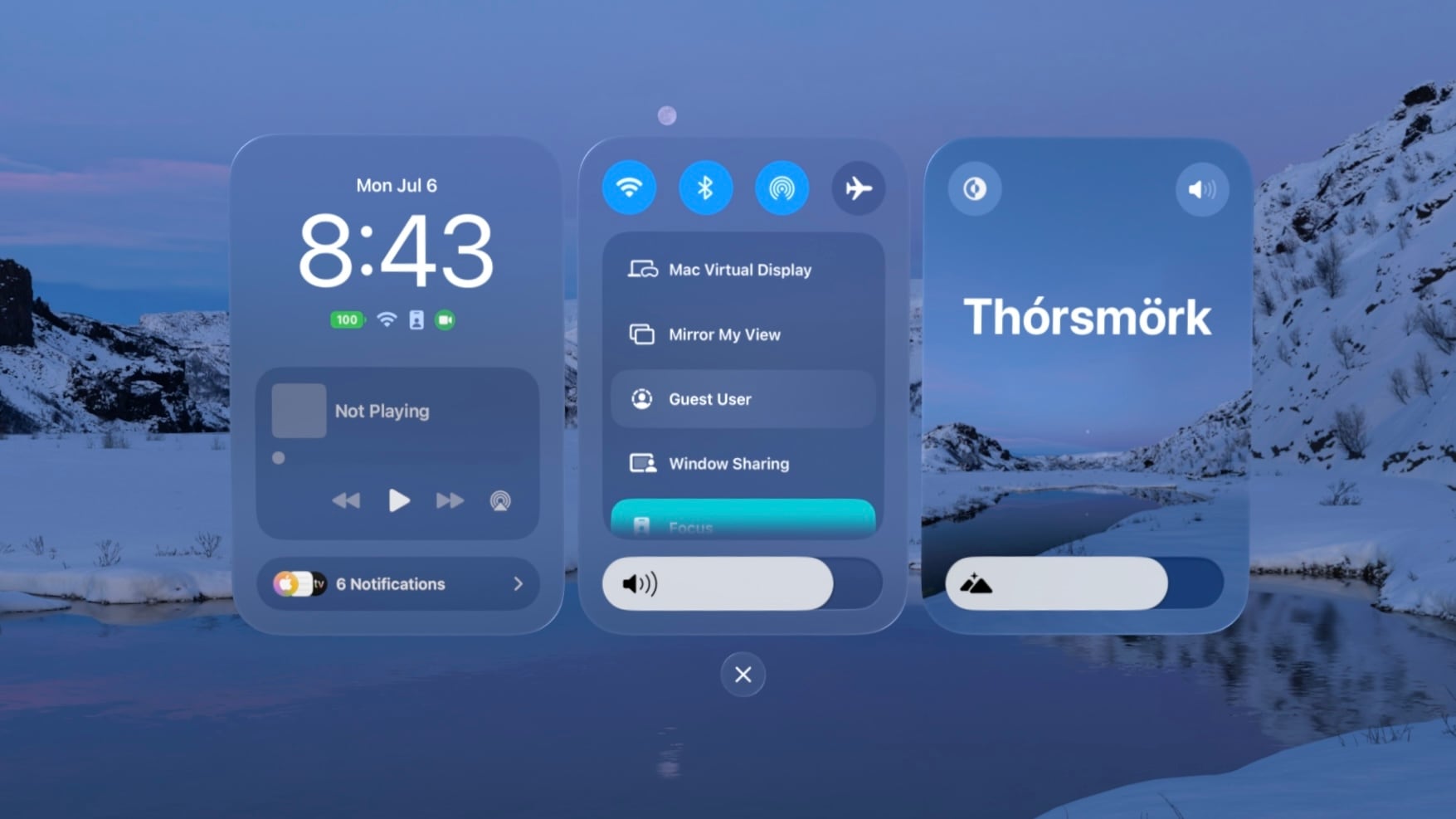
Unlike notifications, I was a fan of the redesigned Control Center in visionOS 26. Alas, Control Center has been redesigned again, now featuring a three-column layout instead of a single window. I’m still getting used to the new look, but it does make sense conceptually to split different types of controls into separate columns, so I’m hoping this will make the feature more intuitive once I’ve adapted to it. Regardless of any other efficiency wins, though, this redesign gets my approval simply because it finally brings the AirPlay menu to the top level of Control Center, saving me an extra tap every time I want to switch sound output to my AirPods.
Sharing screenshots and videos from visionOS is going to be much easier thanks to high-quality screen recordings, which can be enabled in the Settings app. Now, the Vision Pro can take unfoveated videos of its screen for up to three minutes, as well as full-quality screenshots. In the past, on-device screen recordings were fuzzy outside of the viewer’s focus, resulting in a poor representation of the visionOS experience and requiring a Developer Strap and Xcode on a Mac as a workaround. This change alone is going to make my review process much simpler, and it’ll make it easier for all Vision Pro users to show others what using the device is like.
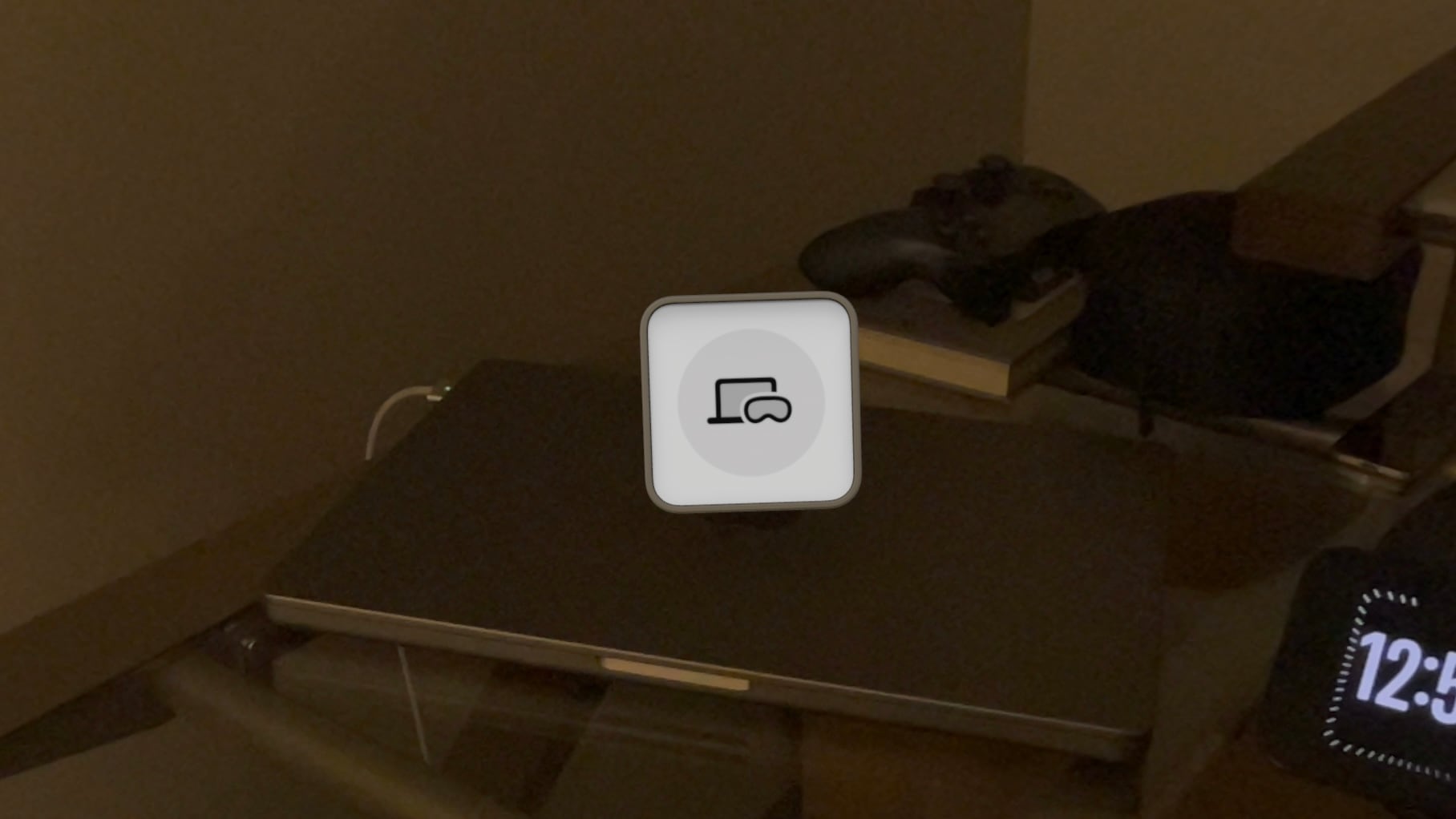
visionOS 27 now supports extra-small widgets, which are basically Lock Screen widgets brought to life in the user’s space. Like any other spatial widget, they can be placed on a wall or a horizontal surface such as a desk, and they are entirely customizable. Apple is introducing its own extra-small Mac Virtual Display widget for starting up a virtual connection with a Mac even if it’s asleep. Extra-small widgets take up much less space on a desk than even small ones, and there are already a bunch of them available from iPad apps running on the Vision Pro, so I think they’re going to be very useful.
Finally, there are some other Mac Virtual Display improvements included in visionOS 27. Virtual Display sessions can optionally persist even when you take your Vision Pro off, and macOS can stream spatial previews of 3D objects directly to visionOS with instant updates and two-way editing. I don’t have a Mac running Golden Gate yet, so I haven’t been able to try these features myself, but I plan to soon. If you work with 3D objects on your Mac and Vision Pro, I imagine this will speed up your workflow significantly.
And that’s visionOS 27 – so far, at least. There’s a still a lot more summer left: bugs to be squashed, refinements to be made, and third-party apps to be updated and introduced. My experience with the new version up to this point has been very positive, and I think it’ll make for a great update.
If you want to try out some of these features early, you can enroll in the Developer Beta anytime in the Software Update section of the Settings app. Whether you upgrade now or hold off for the public release, Apple’s got some great things in store with visionOS 27, and I look forward to continuing my testing over the summer in preparation for a full review this fall.