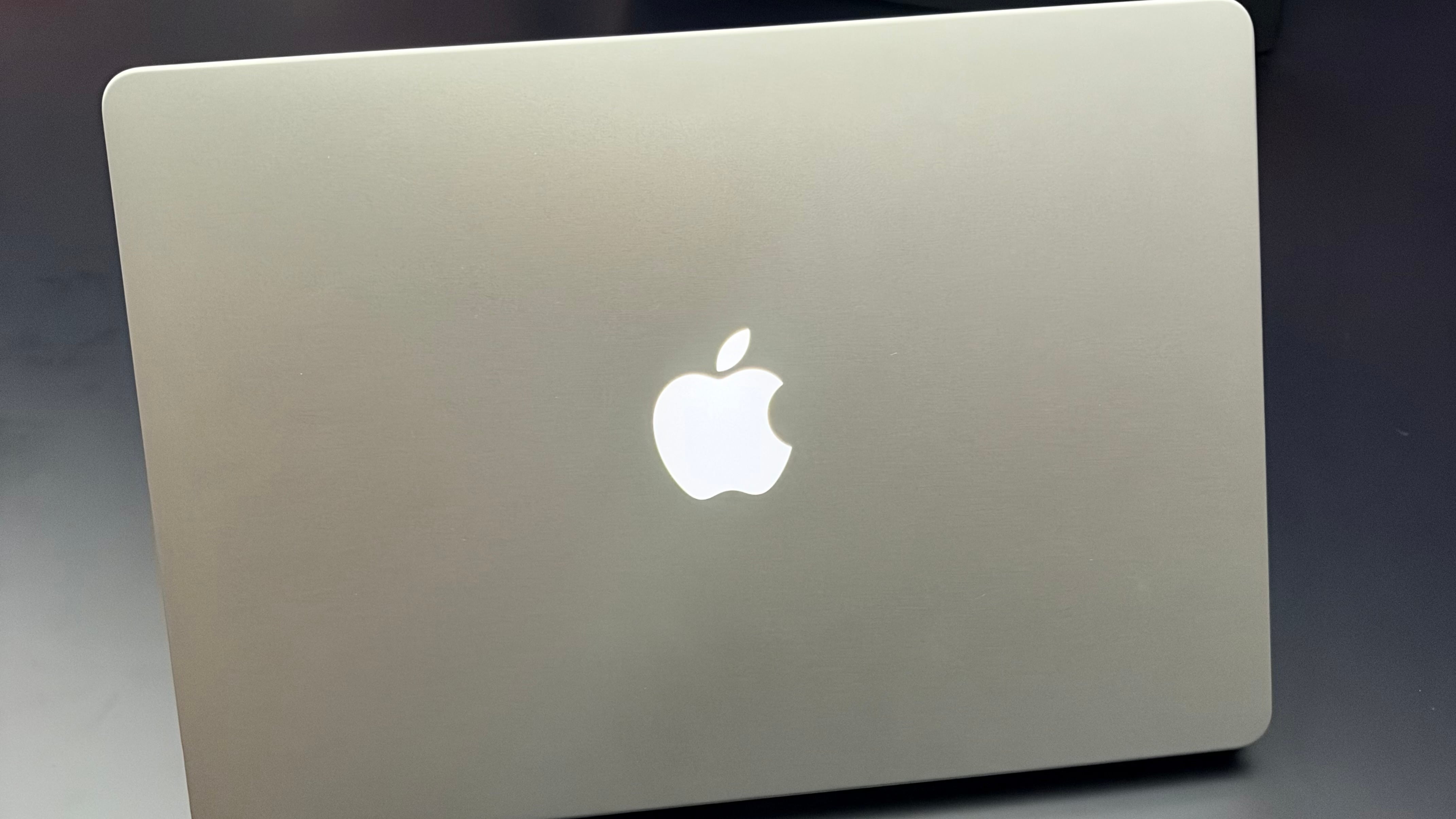
Ever since I got my hands on the very first iPad Pro all the way back in November 2015, I’ve gotten used to a certain type of computer interaction that Steve Jobs once decried as “ergonomically terrible”: working with a keyboard, but sometimes also touching the screen. Of course, that interaction became even more common when Apple introduced the Magic Keyboard with trackpad for iPad Pro in 2020: by that point, I was fully alternating between trackpad control and direct touch input on a tablet that allowed me to “rip off” the display and walk away with it whenever I wanted.
Steve Jobs was right about many things, but I’ve long disagreed with his take on the “terrible” ergonomics of touchscreen laptops. Sure, you don’t want to be forced to interact with a laptop display that sits perpendicular to the keyboard at all times. But for the occasional interaction that benefits from direct manipulation of content – whether that’s zooming on a picture or rotating a 3D object or game character with your fingers – it’s nice to have a secondary input method that does not rely on a UX abstraction such as a trackpad. Think of it as motion controls on a Nintendo Switch: you primarily play games with a controller and physical buttons, but, sometimes, it is nicer – and easier – to rely on the gyroscope for motion controls.
What Apple announced today with the new MacBook Pro with touch and OLED feels like an obvious product designed for a generation of users that grew up with iPads and are now ready to graduate to a Mac for more intensive workflows. It also seems designed for people like me, who have gotten so familiar with the hybrid interactions of a modular iPad Pro and have found the Mac’s strict trackpad-only affair to be too limiting. Since I started using my MacBook Pro more earlier this year because of coding agents and AI apps, I can’t tell you how many times I’ve instinctively reached out to touch the screen, only to remember that, unlike with an iPad Pro, I can’t.
Based on my brief hands-on time with the new MacBook Pro today, it feels like Apple delivered pretty much what I expected. Which is to say: they brought multitouch to the Mac, and optimized the macOS UI for it in the process, without turning the Mac into an iPad or fundamentally altering the nature of a MacBook Pro. It’s the laptop we know, with a (much) better display and lighter footprint because of OLED, now with a secondary input method that is optional and consistent with the work we’ve seen from the company on iPadOS.
If you’ve ever used an iPad Pro, you should feel right at home with the new MacBook Pro. If the Dock is hidden, you can swipe up from the bottom edge of the display to show it and tap on an app icon to open it. You can scroll any list of items by swiping; swipe up with four fingers to summon Mission Control and switch between spaces; long-press a document in Finder to initiate drag and drop. As you perform all these actions on the new MacBook Pro, you’ll notice that Apple did a few things to optimize and fine-tune the experience, which I asked about immediately during my hands-on time at Apple’s “experience” today.
When macOS detects touch input, it automatically spaces out certain UI elements to give them more room to breathe and, therefore, larger touch targets that are easier to sloppily operate with your fingers. In contextual menus, for instance, the distance between menu items in a list grows larger:
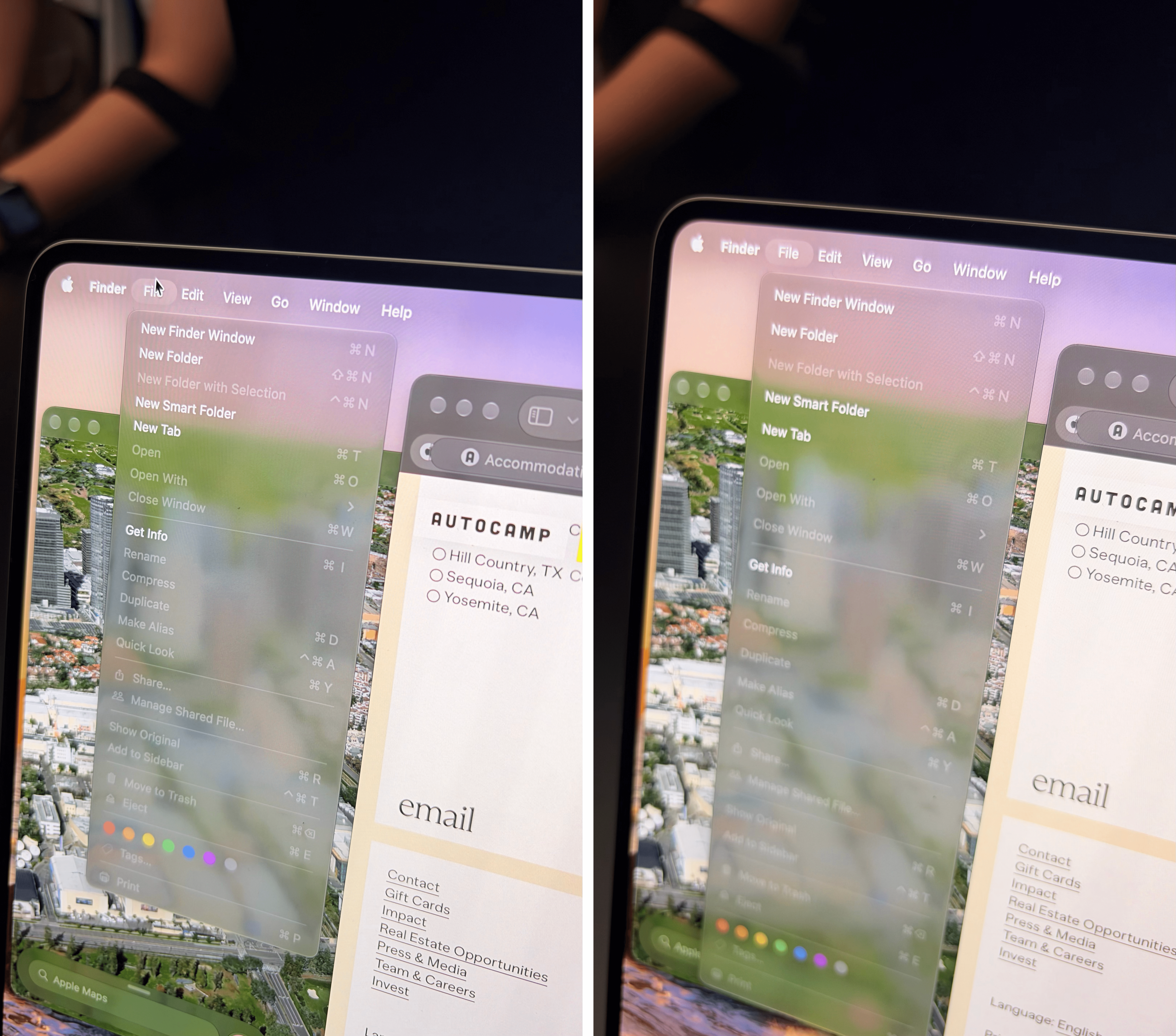
The same menu activated via the trackpad (left) has a denser list compared to touch activation (right).
When you long-press a file in Finder, the item swiftly “lifts up” under your finger to signify that it’s been selected – a UX detail that is typically seen on iOS and iPadOS. At this point, you can either drag the item away and drop it somewhere else, or you can let go, and the resulting contextual menu will be, once again, more spaced out than when activated via the regular pointer:
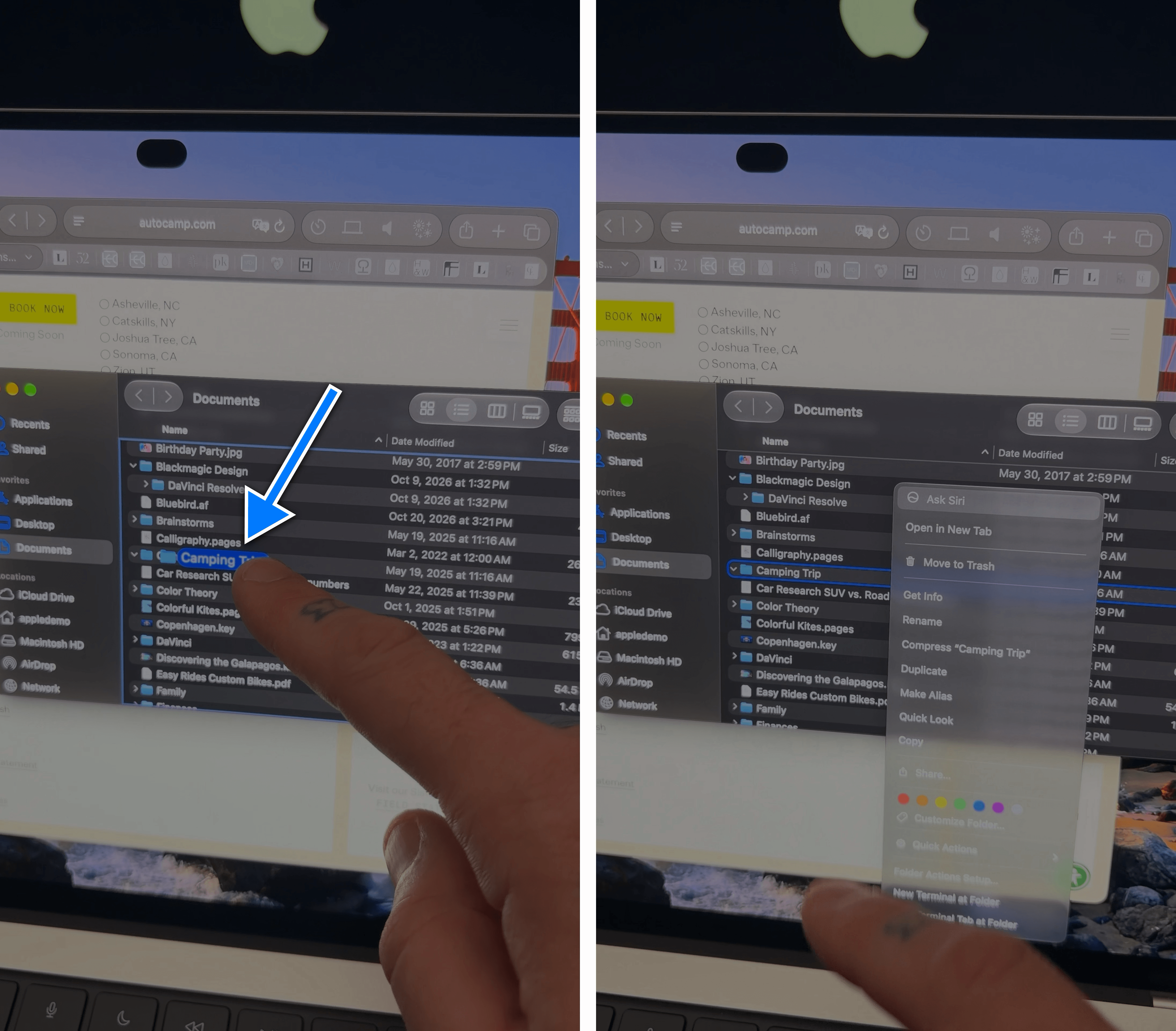
The selected item lifts on-screen when long-pressing in Finder (left) and the context menu is more spaced out when activated via touch (right).
In my brief hands-on time with the product (fun detail: three hours after the introduction, all machines were already removed from the hands-on tables), it became apparent that Apple did a lot of work to ensure that touch optimizations are everywhere in macOS Golden Gate. The implementation of touch in a historically not-touch-friendly OS has happened in a variety of ways. For starters, all system apps support touch input because, by default, macOS does the heavy lifting to translate touch input to cursor input. This also means that, regardless of which app you download and whether it’s been optimized for touch on macOS or not, basic touch interactions are going to be supported, even if the app is old and not optimized for the new MacBook Pro yet. I haven’t seen this in action myself, but my understanding is that every app is going to just work out of the box.
Second, developers can specifically optimize their apps’ UIs for touch if they so choose. Apple has already published some developer videos about bringing touch to the Mac, and more resources are coming soon alongside Xcode 27.3. From what I’ve seen today, the optimizations that developers can bring to their apps for touch seem fairly extensive. For example, I’ve seen a custom color picker in DaVinci Resolve (which worked with Apple on this ahead of time) as well as a custom slider that appeared when the user’s finger was hovering over that UI element. I’m curious to know about the extent to which developers can customize their UIs for touch, and if landing on hybrid iPad-Mac UI conventions will become the norm for multi-platform apps.
Third, there is no Apple Pencil support on the Mac yet (although everyone here is asking Apple PR reps the same questions about it over and over), and it’s possible to turn off touch input altogether under Accessibility. If you’re interested in buying an OLED MacBook just for the display (which does look extremely good in person and puts the Tandem OLED panels previously seen on some Lenovo laptops to shame) and don’t want to ever touch the display, that setting is for you. Also seen in Accessibility, and turned off by default: there’s a preference to enable Display Zoom, which will let you pinch to zoom into any part of the macOS UI to make it larger and easier to read.
I haven’t spent a lot of time testing the new MacBook Pro; I’m sure I’ll have more thoughts and questions about it when I get to actually try one and use it for regular work tasks. But here’s what I think so far:
I think too many people ascribe too much importance to something that Steve Jobs said 16 years ago without realizing that so many things in our society have changed since.
That famous quote from 2010 comes from a time before Apple even knew that the iPad was going to be a massive success. That quote predates an entire generation of kids who have grown up using iPads, are now familiar with multitouch, and probably think that it’s odd that MacBooks only come with a tiny trackpad and no direct manipulation. That quote belongs to a time when iPhones had only existed for three years; 16 years later, touchscreens have penetrated every corner of the tech consumer market, from gaming consoles and car dashboards to smart fridges and coffee makers.
I’d argue that the Mac’s lack of touch is a liability at this point. Its omission has turned from a deliberate design decision that made sense for its time to a choice dictated by inertia and, perhaps, an unwillingness to challenge the status quo. Which is especially funny since the “status quo” of Apple is that of a company that sells millions of touch-enabled devices every year and considerably fewer trackpad-only ones. The lack of touch on the Mac feels like a self-inflicted problem that has no reason to exist anymore, and which John Ternus is rightfully rectifying for the modern age.
As someone who has spent the past decade working on an iPad, and is now increasingly shifting his workflow to the Mac, I think it’s great that we’re getting touch as an option on the Mac. I’ve always been in favor of hardware that can adapt to the user instead of the other way around.
The MacBook Pro getting touch support feels like another step in the long arc of Apple meeting users where they are – even if it means “contradicting” a quote from 2010. We’re moving on, and it’s about time.

