First-Party Apps
Last year’s release of watchOS 3 brought a host of updates and new additions to first-party Apple Watch apps. While watchOS 4 has a few items of note in this area, overall the scope is much smaller this year. The biggest changes on this front are the previously discussed Workout app, the newly introduced News app, and updated Music and Camera apps. There are some miscellaneous tweaks to a few others as well, but nothing else especially noteworthy in the first-party watchOS app space this time around.
News
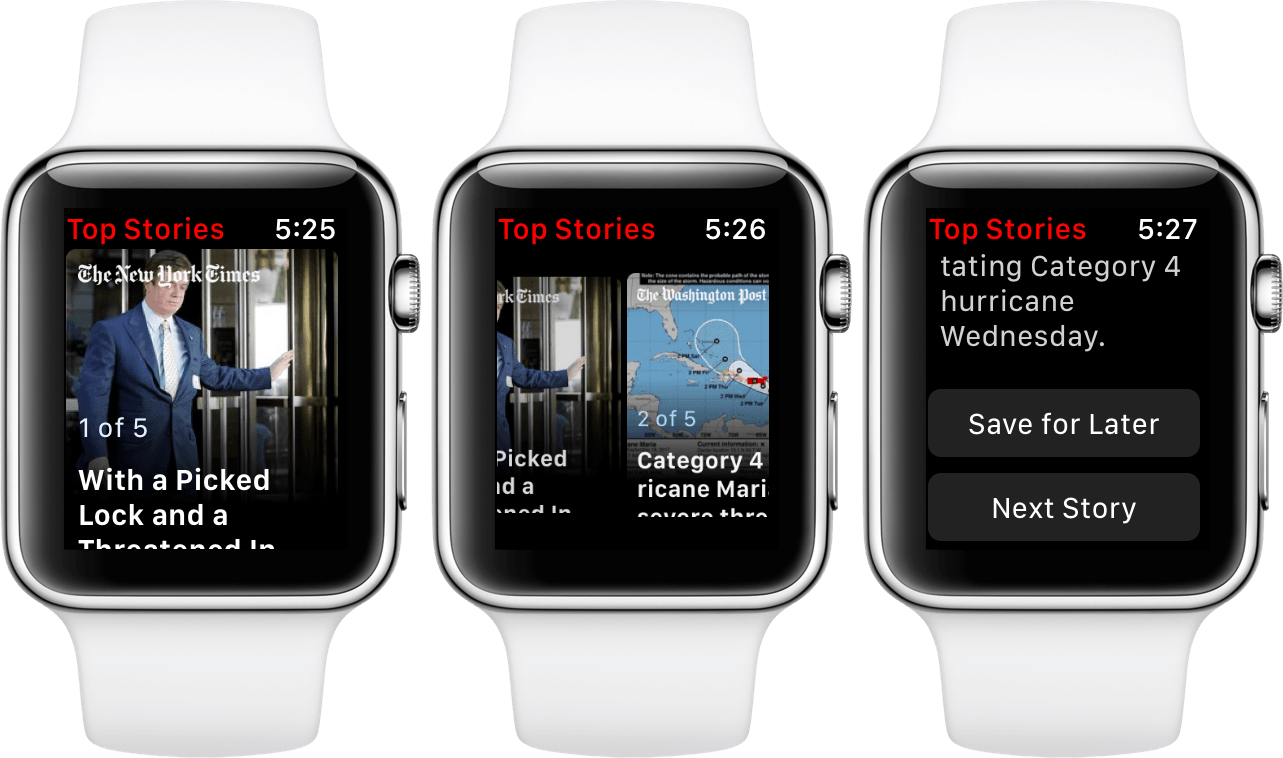
Previous iterations of watchOS have surprisingly lacked a smartwatch-sized version of Apple’s News app, but this year the Cupertino company has rectified that. I didn’t expect much from a News app on my Watch, but I’ve actually found myself pleasantly surprised.
The watchOS News app is a superbly simple interface. It consists entirely of five current event news summaries which are chosen and updated automatically for you. Upon opening the app you are taken to the first of these summaries, and can swipe side-to-side to navigate amongst them. Each summary begins with a small background picture with a title overlaid on top of it. From there you scroll down directly into the text, and if you scroll all the way to the bottom you’ll see two buttons: Save for Later and Next Story.
All five of the news summaries relate to bigger, more full-featured stories. Rather than expecting you to read a whole news story on your Apple Watch, Apple has instead provided the Save for Later button at the bottom of each summary. If you finish a summary and are interested enough in the topic that you want to read the whole story, you can hit the Save for Later button and the full story will be sent to the Saved tab in the iOS News app.
The Next Story button is of course just a shortcut to move one space to the right, but I like that they included a button so that people can still read each summary even if they aren’t aware of the swiping gestures. When you get to the last summary in the group this button is not present.
I didn’t expect that I’d use the watchOS News app nearly as much as I have, particularly given that I’ve barely opened the iOS News app at all since it was introduced. The main reason behind this has been the Siri watch face, which frequently includes these news summaries in its list of cards. I think important, breaking news is an excellent contender for the cards that the Siri watch face surfaces, even the top two slots, but these cards would be greatly improved if the watch face deployed them more strategically.
I would love it if the Siri watch face could differentiate news stories at a high enough level that it would only surface them among the top two cards if there was a truly important story going on. As it is, news stories seem to show up pretty arbitrarily wherever the watch face feels like putting them in the list. While sometimes a story will catch my interest and I will appreciate it being surfaced for me, there are also plenty of times in which it seems like a waste of those top spaces.
Regardless of the Siri watch face’s problems, the News app on watchOS 4 is a great addition, and another fantastic example of how to make a good watchOS app. The News app includes Complications for all size classes, so if you aren’t using the Siri watch face I’d say this app is definitely worth considering for a Complication slot.
Music
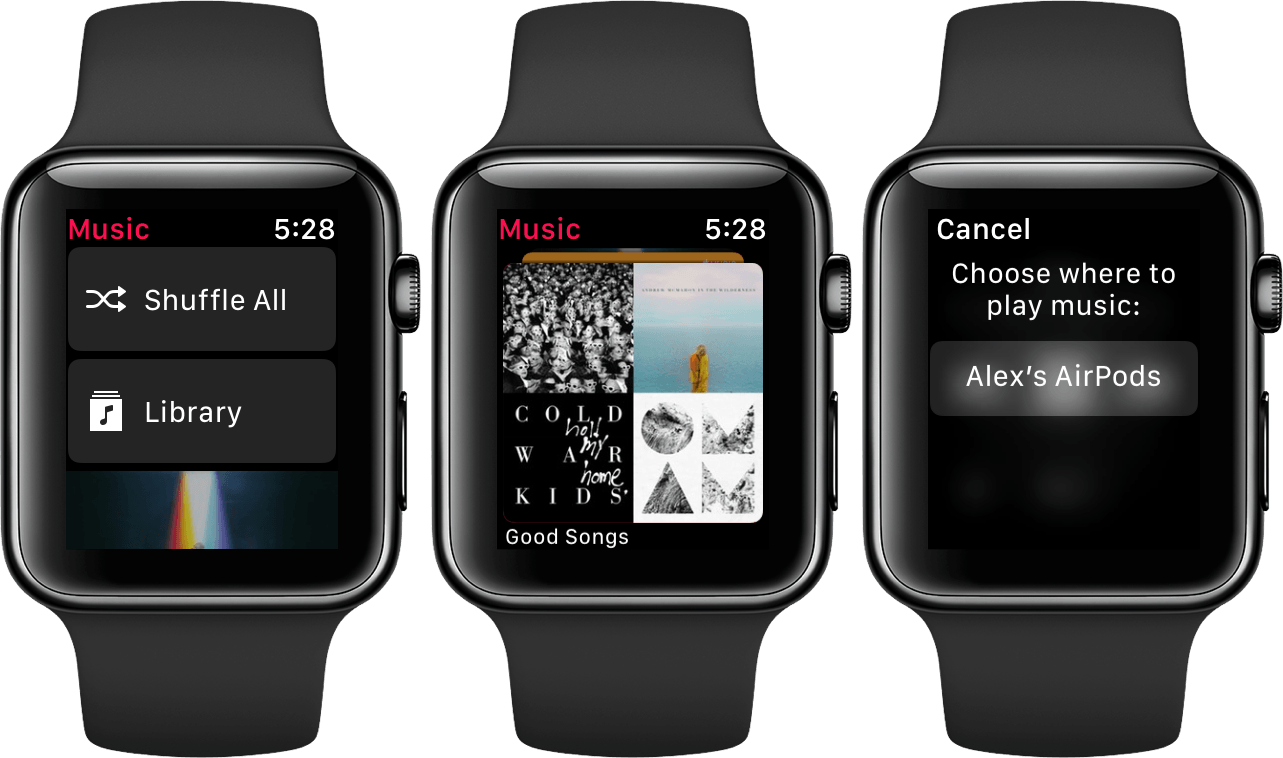
The Music app in watchOS 4 has been fully redesigned, and updated to automatically sync certain playlists. One of the pain points in watchOS in the past has been downloading music onto your Apple Watch, because it wouldn’t do anything unless you told it to. In this year’s update Apple is attempting to improve that situation.
When you open up the new music app you’ll be presented with another vertical-scrolling list of cards. Each card will show an album cover on it that comes from the album or playlist that it’s associated with. The interface is very Cover Flow-esque, but also fits into the new design decisions that Apple has made throughout the operating system. Tapping on any of these cards will immediately start playing the corresponding album or playlist, the title of which is shown at the very bottom under the cover image.
At first I wasn’t sure whether I liked that tapping these immediately started playback rather than displaying the list of songs like the Music app for iPhone does. After using the app for a few months though, I’ve embraced this wholeheartedly. Similar to the choices made for the Workout and News apps, this is a design decision made specifically to keep the Apple Watch interface as simple and straightforward as possible. If you want to do playlist management or find a very specific song, for the most part you’re probably better off doing this from your iPhone. If you just want to transition from not listening to music to listening to music as quickly as possible, then your Apple Watch is the place to go.
Interestingly, Apple seems to have made the decision with watchOS 4 to divorce the Apple Watch Music app from the iPhone Music app. In previous versions of watchOS you had access to the entire music library from your iPhone, and choosing a song that was not downloaded to your watch would kick off playback from the iPhone instead. In the new update this is no longer supported at all. Instead, your Apple Watch will receive a small subset of playlists and albums as specified by you in the Watch app on your iPhone. These will be the only songs available in the Apple Watch music app.
If you’re an Apple Music subscriber than by default the Apple Watch Music app will get the following playlists synced over: Heavy Rotation, My Chill Mix, My New Music Mix, and My Favorites Mix. The latter three are the familiar playlists from the For You section of the Music app for iOS (My Chill Mix is a new addition here as of this summer). Heavy Rotation is not a playlist itself, but rather a collection of playlists and albums that you listen to frequently. You can see these in the Music app on your iPhone in the Heavy Rotation section, which is mid way down the For You page.
If there are other specific playlists or albums that you want synced to your watch, you can add those from the Watch app on iOS. Open the Music settings page, scroll to the bottom, and use the ‘Add Music…’ button to pick your favorites. Once added these should be kept up to date automatically if you make any changes to the songs within them. You can also disable any of the default synced playlists from this page if you don’t want them on your Apple Watch.
When I first started using the new Music app, my default playlists were not automatically synced over. I had to manually tap the sync buttons and place my Apple Watch on the charger to get all of the data moved. This was annoying, but after I did it the first time the Watch seems to be doing a good job of syncing changes to those playlists automatically and I haven’t had to worry about it again.
Once a playlist has been downloaded onto your Apple Watch, when you start playback it will play with your watch as the source. Sadly, the Music app still does not support playing through the watch’s speakers, but it does support AirPods. If you use AirPods then your Apple Watch will automatically grab their Bluetooth connection when you first start playing Music. You’ll see an interface pop up allowing you to pick a source for the music to play through while it attempts to connect, so if you have a different source available then you can pick that instead.
After the Apple Watch has successfully taken control of your AirPods or another Bluetooth audio source, the source view will dismiss automatically and you’ll be taken to the Music app’s Now Playing screen. This view is slightly different from the external Now Playing screen, because it includes a small list icon in the bottom left corner. Tapping this icon will bring up a similar playlist view to the one you see in the Music app for iPhone. At the top is the playlist artwork and title, with two large shuffle and repeat buttons directly below that. Under those is the list of songs in the playlist or album, and you can scroll through there and pick particular songs if you’d like to skip around.
That’s all there is to the Music app, another great example of building Apple Watch apps which are stripped down to their essentials. This app does exactly what you want it to do in the majority of situations — no more and no less. If you need to perform a task that is too complex for the Music app on your Watch then you should probably be doing it on your iPhone anyway. In watchOS 4 you don’t have any other choice.
Camera
The Camera app in watchOS 4 has picked up a pretty significant feature expansion, although it still looks as simple as ever when you first open it. The app will still launch the Camera app on your iPhone and mirror the image on your Watch screen, providing buttons on the watch to take a picture immediately or to take one after a three second countdown. As of watchOS 4, you can now Force Touch the screen to bring up four different options: flipping between the front and rear cameras on your iPhone, activating or deactivating the flash, enabling or disabling HDR mode, and enabling or disabling Live Photos.
The watchOS 4 Camera app also supports other iPhone camera modes for the first time. You can’t switch the mode from the watch itself, but if you swipe on the Camera app on your iPhone the Apple Watch will now switch modes as well. You can record time-lapses, Slo-mo videos, normal videos, or take square photos. The only mode which is still not supported is panorama mode, but I think that is for fairly obvious reasons.
It’s good to see the Camera app improved to support all of these modes. I don’t use this app particularly often, but when I do it’s always a great help. I’m happy to see these artificial limitations removed from it.
Phone
The watchOS 4 Phone app finally includes a keypad view, allowing you to initiate phone calls directly from your Apple Watch. While I haven’t personally found much use for this app over the last couple years, the lack of a keypad has always seemed like an odd and somewhat arbitrary omission. The new keypad is also made available while a phone call is active, so now you can use your Apple Watch to navigate a phone tree, buzz people into your building, etc.
Timer
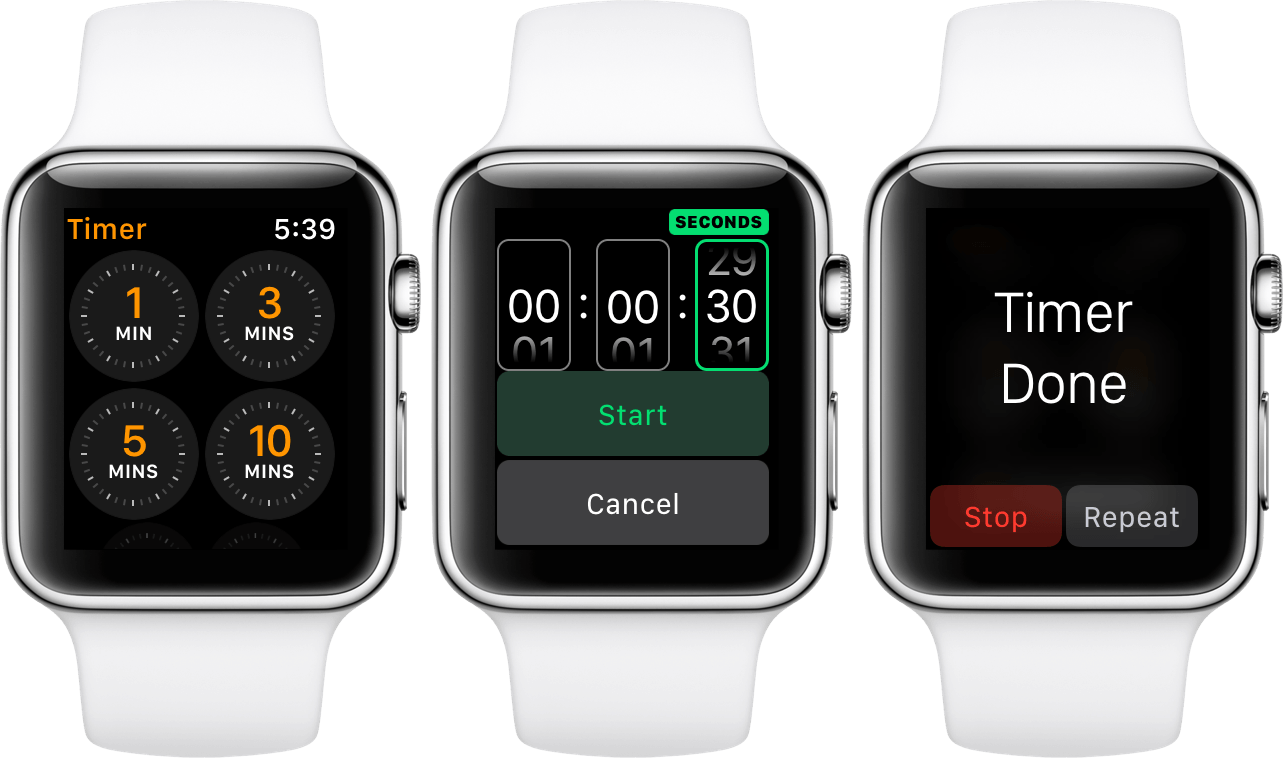
The Timer app is saying goodbye to the circular, clock-style picker design for setting custom timers. Instead, this has been replaced with a more iOS-style picker, as seen above. The Timer app will also now show a button to repeat a timer when it goes off, so you can quickly restart it if you are timing some task consecutively.
Maps
The Maps app is mostly the same, but has received a small update to the design of the live, turn-based navigation UI. This includes the addition of lane guidance, but unfortunately does not show the current speed limit — another new feature of the iOS 11 Maps app.
Heart Rate
The Heart Rate app in watchOS 4 has been updated to show a graph with the last 24 hours of measured heart rate data on it. This graph now takes up the top half of the screen, leaving the bottom half to show the same old heart rate calculating animation and the current heart rate once it has been measured. This is still just a single page app, but Apple has managed to squeeze a lot more data into that page without making it feel too crammed — a solid update.
The Heart Rate app also has an updated Complication which will show your measured heart rate throughout the day when you glance at your watch. This is only on larger style Complication sizes, smaller sizes will still just be a shortcut to the Heart Rate app.
Performance
If that 70% speed increase for the Apple Watch Series 3 piqued your interest but you’re not quite ready to upgrade, watchOS 4 has some good news for you. Apple has managed to pull significantly better performance out of older hardware by unifying the processes which control the UI elements and the logic of watchOS apps.
Back in the watchOS 1 days these processes were the main culprits for the incredibly poor performance of apps, because at that time the logic was running on the iPhone while the UI process ran on the Apple Watch. A huge improvement in watchOS 2 was bringing the logic processes over to the Apple Watch itself, but they still ran separately from the UI. This year Apple has managed to merge these processes together into one, and the results really are noticeable. Apps on watchOS 4 launch faster and run smoother.
It seems to me that the unification of these processes marks the end of the low-hanging fruit for watchOS performance improvements. As we move forward I expect the hardware of older models to start being a major limiting factor in the effectiveness of software upgrades in this area. At this point, Apple has already improved performance more than I ever expected they’d be able to without hardware processor changes. If you have an Apple Watch Series 1 or Series 2, performance is probably good enough that you don’t need to upgrade this year for speed advancements alone. If you’re still using an original Series 0 then it’s at least worth considering, but you could probably push it another year too.
Miscellany
We’ve made it through the main features, but there are still a few other miscellaneous improvements that I’ll run through briefly here.
First, watchOS 4 is opening up more categories in which Apple Watch apps are allowed to run in the background. This list now includes workout apps, navigation and public transit apps, audio recording apps, tour guides, and a few others. These apps can execute in the background of watchOS while other things happen and then tap the user with haptics whenever they need renewed attention. In previous versions of watchOS, only audio apps were allowed to run in the background.
Second, you can now spin the Digital Crown upward when your Apple Watch screen is off to manually turn it on. In my experience this method works a bit more reliably than just tapping on the blank screen does, so I’ve mostly adopted this method for when I want to turn on my watch screen without raising my wrist.
Third, your Apple Watch will now wish you a happy birthday. This will come in the form of a special notification which shows balloons floating up across your watch face when you tap it. When I tested this, the notification stayed pinned to the bottom of Notification Center on my watch all day. While this could potentially be annoying, I’ll admit to finding a modicum of enjoyment in being able to procure a flood of balloons on my watch face throughout the entire day. I may have tapped it more times than really necessary for “testing” purposes.
My birthday is an April, so I can’t say for sure how good Apple is at knowing when your birthday is. I was able to trigger this functionality manually by entering a random date in August as the birthday in my personal contact card on my iPhone. Prior to setting that I did not have a birthday set in the contact card at all, so I’m not sure if the Apple Watch would have missed my real birthday completely or if it’s able to draw from other sources to figure that information out. If you’re looking forward to this feature, you might want to save your birthday in your contact card just to make sure your Apple Watch gets it. Consider it an early birthday present to yourself, since you’ll probably forget about this until the notification pops up.
Next, watchOS 4 advertises the introduction of person to person Apple Pay payments. Unfortunately, this feature has not been active during the beta period, and will likely end up being delayed until a point update later this year. We’ll have a post on MacStories about this feature whenever it ends up being released.
Finally, in watchOS 4 developers will be able to access Core Bluetooth, the framework that manages Bluetooth connections to third-party devices from the Apple Watch. Previously all Bluetooth connections besides headphones had to go through the attached iPhone, but now watchOS apps can connect and communicate with third-party Bluetooth devices directly from the Apple Watch itself. This means that a wide variety of hardware sensors can now be used without an iPhone present, which is a huge win for fitness trackers, health-related devices, and more. It’s no coincidence that this change is arriving just in time for the LTE-enabled Apple Watch Series 3, but direct Bluetooth communication will work with non-LTE models as well.
Conclusion
Last year Apple reimagined watchOS in a way that changed its course and set it up for future success. With watchOS 4, Apple has proven that it’s capable of bearing that success out. For the first time ever we’ve seen the results of a watchOS update which can focus on making progress rather than repairing past mistakes, and it really does make the future of the Apple Watch look brighter than ever before.
watchOS 4 is still far from perfect. Low-hanging fruit like a truly replaced home screen, improvements to notifications, and much more still remain. The new “intelligent” features are yet to really feel intelligent at all, and the story around audio controls lacks cohesion. As much as there is to complain about though, this year feels like the first time that there’s even more to praise.
Fitness features on the Apple Watch have never been better. The new Workout app is an excellent upgrade which fits an impressive amount of complexity into an app which still comes off as simple during use. New Activity notifications keep you motivated and aware of the status of your goals, but don’t appear so often as to become an annoyance. While audio controls may be fragmented and unsolved, they’re still significantly improved over what came before. Between the Now Playing Complication and auto-launch, you’ll be able to find a setup that works for you — and it will be a lot more useful than last year’s.
watchOS 4 has also introduced a redesigned Dock, significant performance and background improvements, new watch faces, new and updated first-party apps, and more. Taken altogether this is a significant update with effective new features.
When it comes down to it, the biggest indicator of quality for every operating system is how much you use it. With watchOS 4, I’m using my Apple Watch more than I ever have before, and I’m truly enjoying its conveniences. There’s still a lot more work to be done here — watchOS undoubtedly remains in its infancy — but after this year I feel confident that Apple will be able to handle it.