Serenity Caldwell’s 2018 iPad Review

Serenity Caldwell, writing on iMore:

To me, the 2018 base-model 9.7-inch iPad is a special beast: It hits a line drive right through the company’s fabled intersection of technology and liberal arts — and at the right price point. The iPad Pro did it first, but at a cost unattainable for all but the tinkerers and serious artists, and without iOS 11’s crucial multitasking features. At $329, the iPad offers a low-end tablet experience unlike any other on the market. Add an extra $99 for Apple Pencil, and Apple has created the best device for all-purpose education, period.

But it’s easy to make that claim, and a whole other thing to explain why I believe it so whole-heartedly. As a result, I decided to try and prove it: Starting with a blank page in Procreate, I created an entire iPad review video by just using my 2018 iPad, Apple Pencil, and third-party apps. My Mac came into play only once — when I uploaded my video to YouTube.

I know what you’re thinking – the new iPad is “boring” compared to the iPad Pro and you don’t need to watch another video about it. But trust me, you’ll want to watch Serenity’s review because it’s unlike anything you’ve seen for a new iPad. Only Serenity could put this together – including the music, which she composed in GarageBand; everything was drawn, assembled, and edited on a “boring” 2018 iPad. You can watch the video below and read Serenity’s technical notes here.
Permalink


Connected, Episode 188: A Better Thing Than a No Thing

Apple has launched a (kinda) new iPhone, discussed the Mac Pro and saved the world. Big week!

A variety of topics on this week’s episode of Connected, including a discussion on what “pro” means on different platforms. You can listen here.

Sponsored by:

  • Warby Parker: Quality eyewear at a fraction of the usual price. Order your FREE Home Try-On kit today
  • Casper: The Internet’s favourite mattress. Get $50 off select mattresses with the code ‘CONNECTED’.
  • Simple Contacts: Contact lens prescriptions from home: Use offer code CONNECTED for $30 off your contact lenses.
Permalink

Eventail 2.2: A Compact and Customizable Calendar Widget

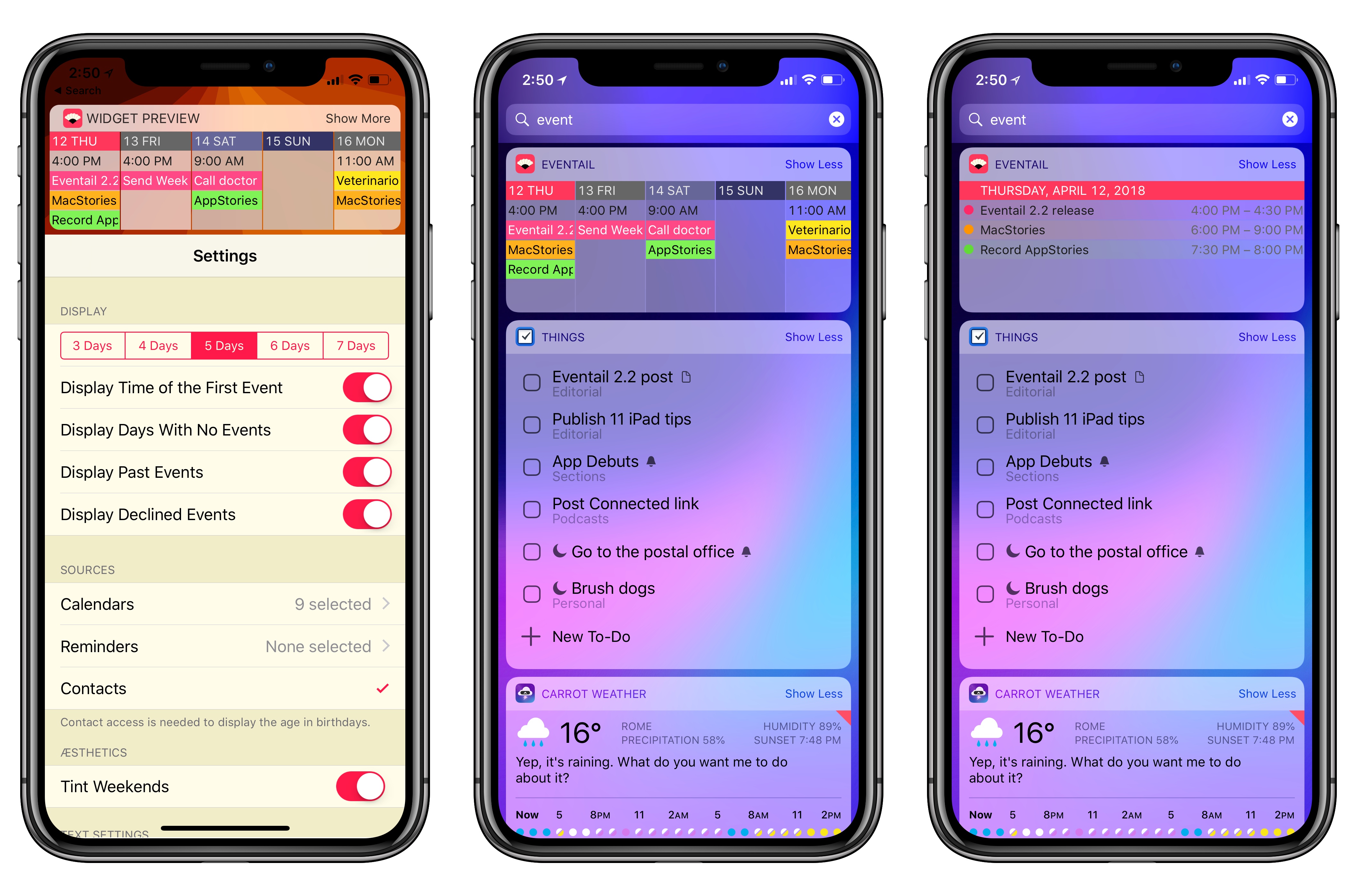
Eventail, developed by Jozef Legeny, is a handy utility for visualizing upcoming calendar events in a widget. Instead of building an alternative client to compete with Apple’s Calendar app, Fantastical, or Week Calendar, Legeny created just a widget that you can use as a companion app alongside the calendar client of your choice.

Eventail has been updated to version 2.2 today, which brings a new vivid color scheme for events, a true black theme for the iPhone X, and other visual tweaks. I’ve been testing the updated app for a couple of weeks and I liked it so much, it’s now got a spot at the top of my widget list on both the iPhone and iPad. In a compact and customizable widget, Eventail tells me everything I need to know from my calendar at a glance: which days are going to be busy and the time of my first appointment. There’s a fair amount of personalization that you can apply in the app’s settings (the app itself – pictured above – is a list of preferences): you can choose the number of days to display, whether you want to highlight weekends or not, and even if you want to display reminders alongside calendar events. Then, once you’re looking at the widget, you can tap individual days to expand them and tap again to go back to the main column view. It couldn’t be simpler.

Eventail’s widget will not scale for busy individuals who have dozens of events going on each day. However, as someone with only a couple of appointments on a daily basis, I find Eventail’s approach to be good enough for my needs and pretty to look at. I’m still using Week Calendar as my primary iPhone calendar client, but I now frequently open the Eventail widget when I need to know what my week looks like in a couple of seconds.

Eventail 2.2 is available on the App Store.


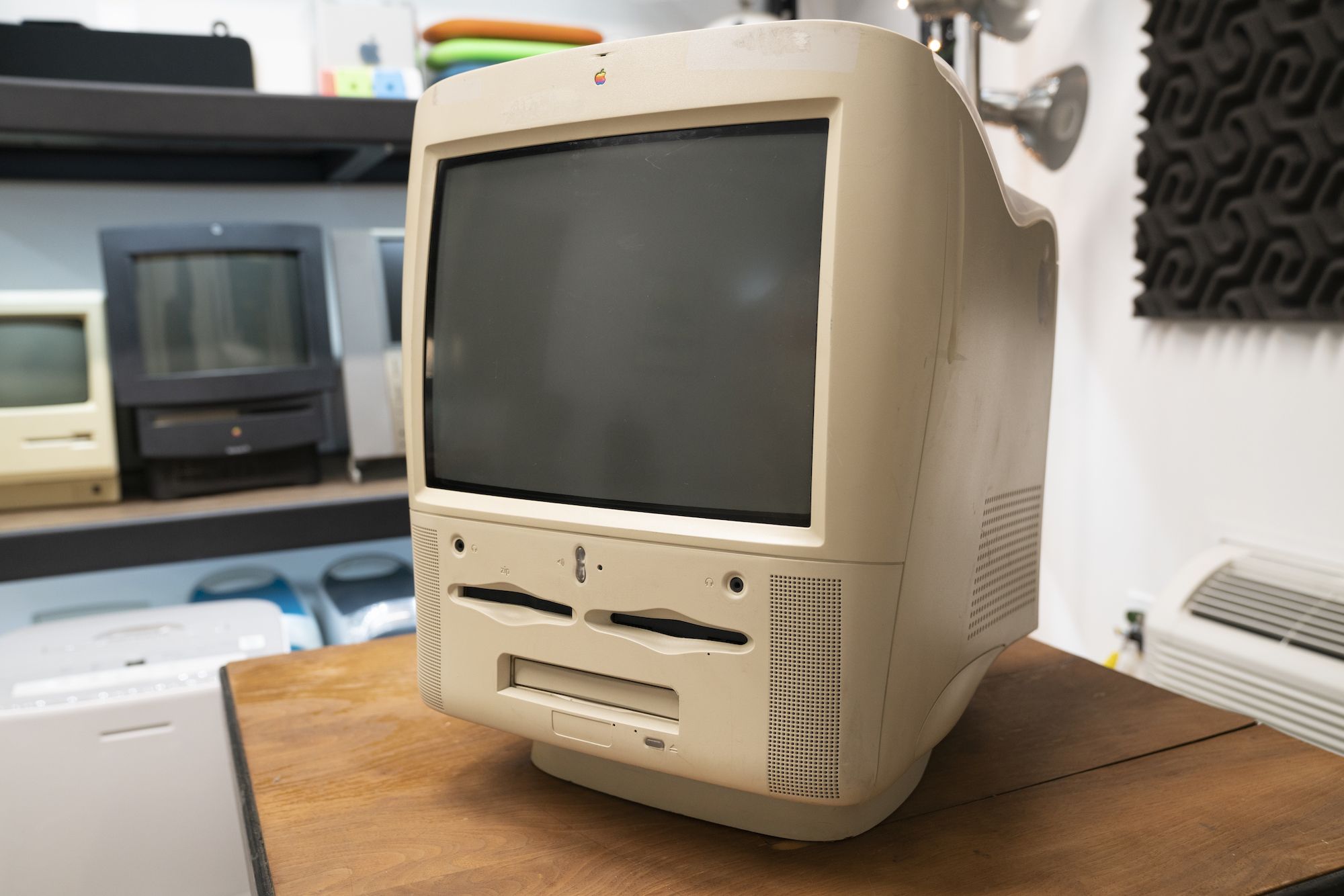
The Power Macintosh G3 All-in-One: Function Over Form

This year marks the 20th anniversary of the iMac, the all-in-one that saved Apple and radically changed the consumer technology landscape.

Any nerd in their 20s or 30s probably remembers seeing one those colorful, curvy iMacs in school growing up. Their friendly design and relatively low cost – for a 90s Mac, at least – made them a staple in education for years.

I certainly saw and used my fair share of them in middle and high school, but I also got to experience the iMac G3’s weird older sibling, the Power Macintosh G3 All-in-One.

Yeah, the one that looks kind of like a big tooth.

Read more


11 Tips for Working on the iPad

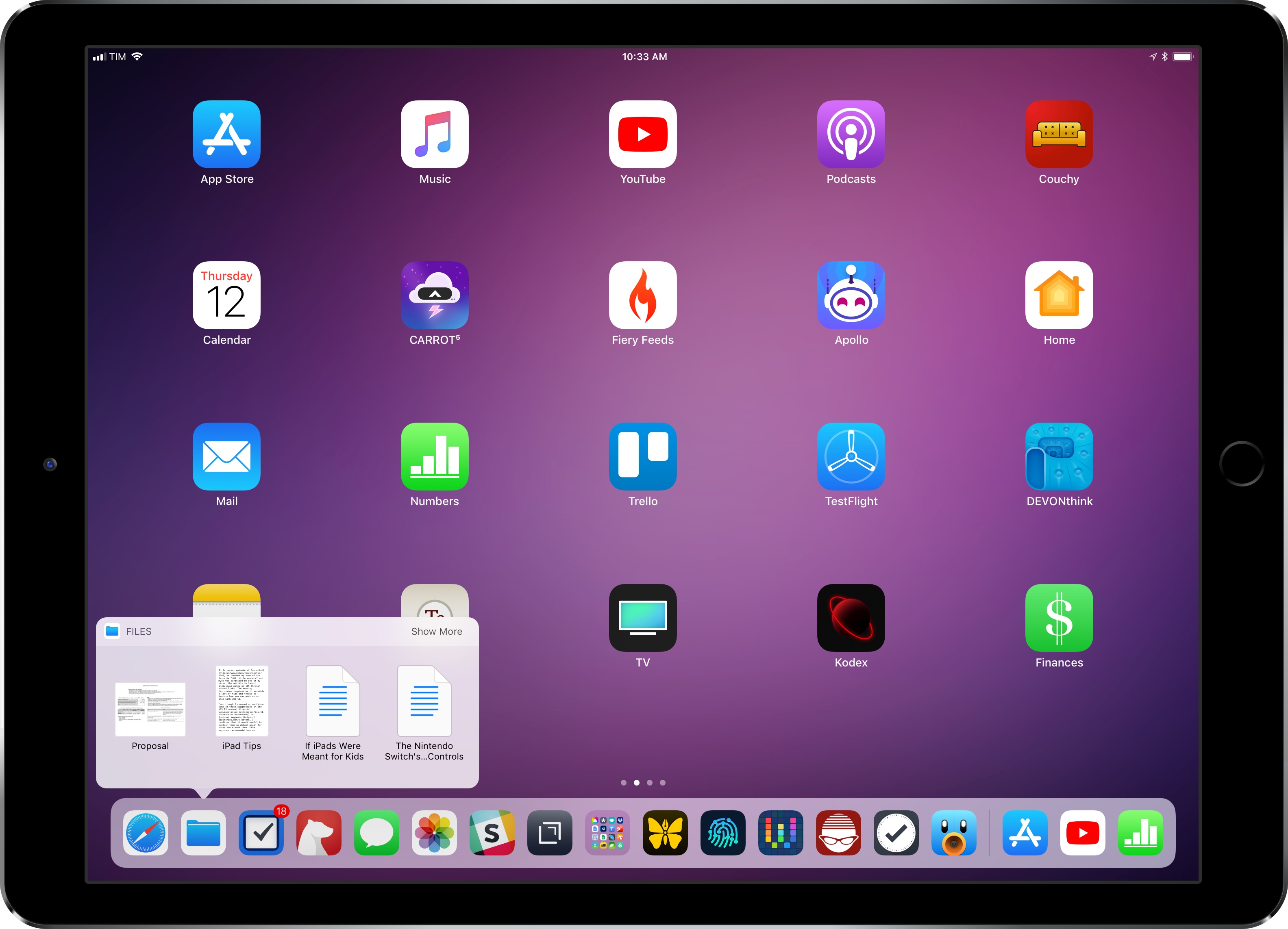
In a recent episode of Connected, we rounded up some of our favorite “iOS little wonders” and Myke was surprised by one of my picks: the ability to launch individual notes on iOS through shared links. The ensuing discussion inspired me to assemble a list of tips and tricks to improve how you can work on an iPad with iOS 11.

Even though I covered or mentioned some of these suggestions in my iOS 11 review or podcast segments before, I realized that it would useful to explain them in detail again for those who missed them. From keyboard recommendations and shortcuts to gestures and Siri, I’ve tried to remember all the little tricks I use to get work done on my iPad Pro on a daily basis.

After several years of being iPad-only for the majority of my work, I often take some of these features for granted. And admittedly, Apple doesn’t always do a great job at teaching users about these lesser known details, which have become especially important after the productivity-focused iPad update in iOS 11. I hope this collection can be useful for those who haven’t yet explored the fascinating world of iPad productivity.

Let’s dig in.

Read more


The MacSparky iPhone Field Guide is Available Now

David Sparks has a knack for breaking down big topics and making them approachable with his series of MacSparky Field Guides. His latest book, the iPhone Field Guide, covers everything iPhone-related. The guide is Sparks’ most ambitious work yet, coming in at 450 pages with over 50 screencasts.

The raw numbers are only part of the story though. New iPhone owners will appreciate Sparks’ coverage of the basics and Apple’s stock apps, but there’s a lot here for more experienced iPhone users too. The book is full of short tutorials and app recommendations to help all users get more out of their iPhones. I especially like that many of the screencasts focus on third-party apps, which is a great way for readers to get a feel for them before deciding to download.

The iPhone Field Guide is a fantastic reference that I wouldn’t hesitate to recommend to anyone who wants to take their iPhone and iOS use to the next level. Skimming through the book, I found many MacStories favorites among the apps covered, and having them all available in a beautifully-designed, interactive iBook makes picking out new apps a pleasure.

The MacSparky iPhone Field Guide is available on the iBooks Store for an introductory price of $19.99, which will increase at a later date.


If iPads Were Meant for Kids

Speaking of Apple and iOS parental controls, this is a must-read article by Dave DeLong that explains all the problems he ran into after giving iPads to his kids:

If iPads were meant for kids, then there would be a way to limit how long they can use an iPad. They’d get reminders when they have 15 … 10 … 5 … 1 minute left of usage time, and then the device would lock and they wouldn’t be able to get back in without the parental passcode.

If iPads were meant for kids, then there would be a way to make the iPad turn off when it’s bed time and not turn on again until morning. Because my son likes to sneak in to our room and take his iPad back from wherever we’ve stashed it, and then stay up until nearly midnight playing Angry Birds.

If iPads were meant for kids, then there would be a way to turn off/hide all their games when they’re supposed to be doing their homework. But you can’t “hide” apps without straight-up deleting them. And all of the remote management systems out there that allow this require device supervision (and not just MDM) and are a complete pain to set up and administer.

There are several other examples in DeLong’s post. I hope someone at Apple reads DeLong’s story and asks their team whether they’re doing enough for parents.

Permalink

The Nintendo Switch’s Parental Controls

Kotaku’s Luke Plunkett, in a story about the usefulness and elegant design of Nintendo’s Parental Controls app for the Switch (which is available on iOS here):

But the Switch comes from a very Nintendo place, where it feels like they don’t just want to tick a few legal/ethical boxes, but genuinely help parents (and, by extension, the kids who are being affected by these limitations). Like the Xbox and PlayStation, the Switch lets adults restrict a child’s ability to play games with certain ratings, or stop them from using a specific type of program. But it’s the extra stuff the Switch does, and the ease with which you can do it, that makes all the difference.

First up: I appreciate the fact that the Switch’s parental controls are housed in a standalone app, rather than something I need to burrow down into system menus for. There’s a practical benefit to that, as it’s faster and easier to get to these settings, but it also sends a message: by breaking the parental control suite out into its own app, rather than house everything alongside the rest of the system’s settings, it shows Nintendo are treating them as a separate and more important matter than what my resolution or surround sound settings are.

I don’t have kids, but I’ve long heard from MacStories readers that this kind of model – a ‘Family’ app on the Home screen with lots of stats and easy-to-access controls for parents – would be fantastic to have on iOS. Given Apple’s commitment to families, I’m surprised iOS’ parental controls seem so lackluster when compared to what Nintendo has done with a game console.

Permalink