
 MacStories Weekly: Issue 133
Documents Adds WiFi File Transfer
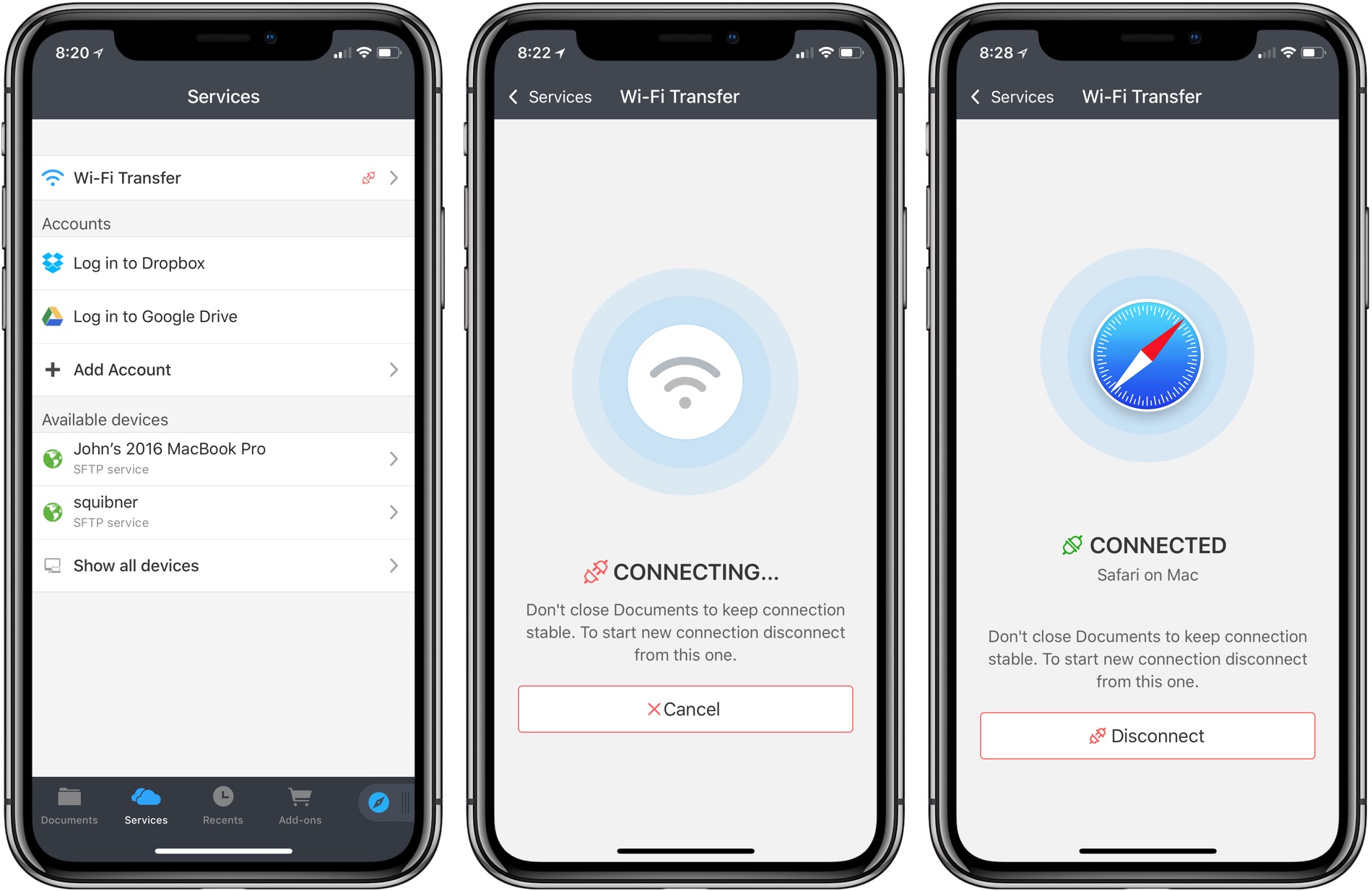
Documents by Readdle has been on the App Store a long time. Before Apple released its Files app, Documents filled the gap with features that made it indispensable for accessing files on iOS devices and doing things like unzipping an archived folder. Although the stock Files app has taken over many of my day-to-day needs for file handling, Documents continues to evolve and adapt, providing tools that aren’t in Files.
Today, for instance, Readdle added WiFi file transfers between a Mac and iOS device to Documents. The system is easy to use and more flexible than AirDrop, making it something to keep in mind, especially when you are moving large numbers of files between a Mac and iOS device.
Instagram Launches IGTV Video App Featuring Longer-Form Video
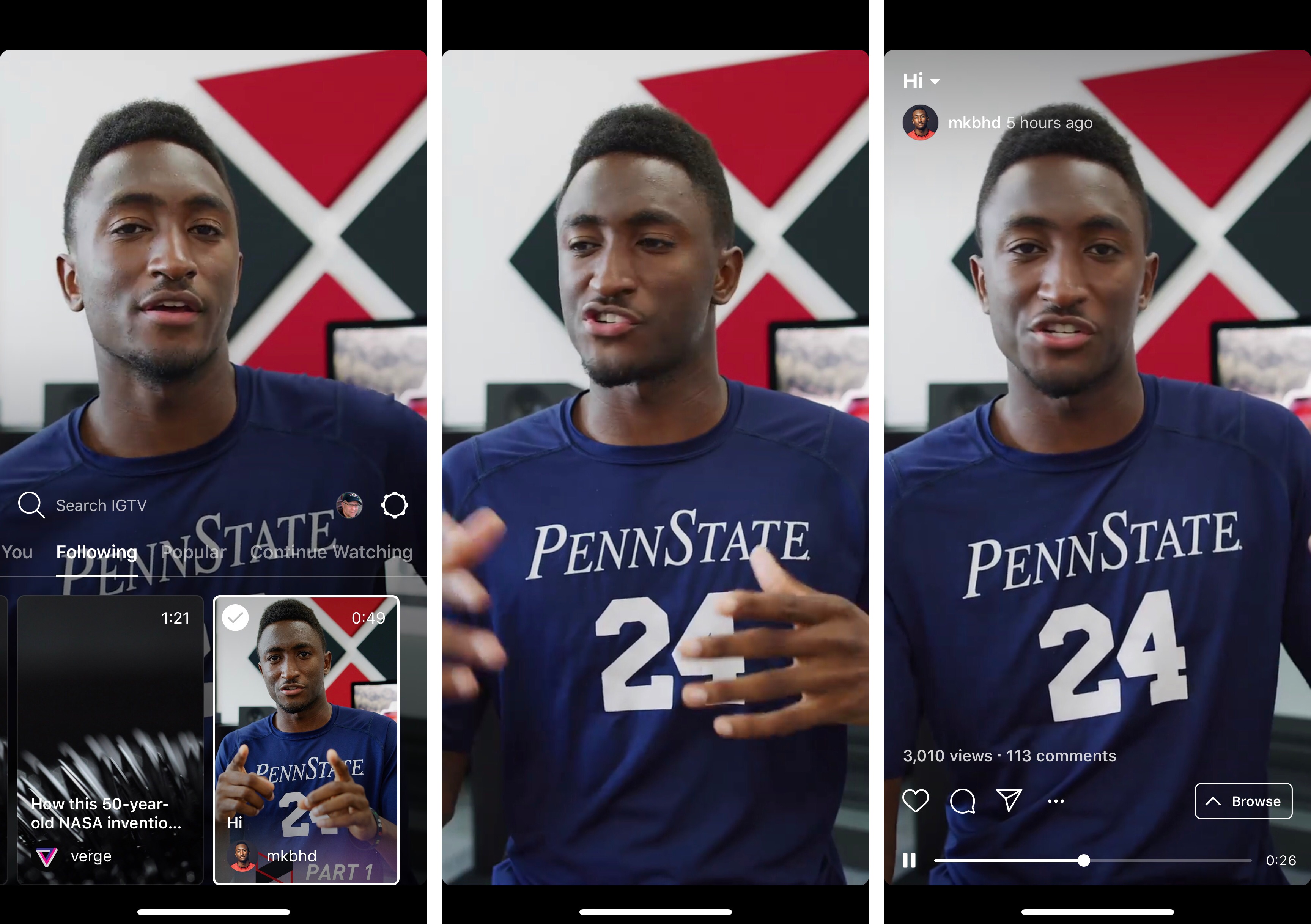
Instagram announced a video service today that is available as a standalone app called IGTV. The new service will be available soon from a button in the top right-hand corner of the Instagram app’s main screen too.
IGTV features vertical video that is longer than is available in Instagram’s Stories feature. Currently, channels created by new accounts and ones with fewer followers are limited to uploading videos that are 15 seconds to 10 minutes long, but TechCrunch reports that eventually all accounts will be able to upload videos up to one hour long.
When you first open the app, it opens to a ‘For You’ section of videos from people you follow on Instagram along with a selection of popular content. The currently-selected video dominates the top two-thirds of the screen. The bottom third of the screen is a horizontally-scrolling, tabbed thumbnail interface for picking other videos. The included tabs are ‘For You,’ ‘Following,’ ‘Popular,’ and ‘Continue Watching,’ which are self-explanatory. You can also swipe between videos in a tab the same way you would in Instagram Stories.

Swiping down dismisses the thumbnails and other UI, so the video dominates the screen. A tap on the video reveals play/pause controls, a scrubber to advance or rewind the video, and buttons to mark videos as favorites, comment, share it with other Instagram contacts, copy a link to the video, report it, or hide it. Tapping the title of the video displays its description, which can include URLs that open in Safari View Controller. TechCrunch says users will be able to subscribe to channels, though that doesn’t seem to be implemented in this initial release.
Although there is currently no advertising in the app, that is coming based on Instagram CEO Kevin Systrom’s comments during the event today. According to the TechCrunch report on the event:
“There’s no ads in IGTV today,” says Systrom, but he says it’s “obviously a very reasonable place [for ads] to end up.” He explained that since creators are investing a lot of time into IGTV videos, he wants to make that sustainable by offering them a way to monetize in the future.
Overall, I like what I’ve seen in the short time I’ve been using IGTV. Only a couple of the accounts I follow have posted videos so far, but I expect that will change as creators experiment with this new outlet. One big disappointment from a design standpoint though, is that the app does not support full-screen iPhone X video.
Anchor Brings User-Friendly Podcasting to the iPad, Complete with Editing Tools
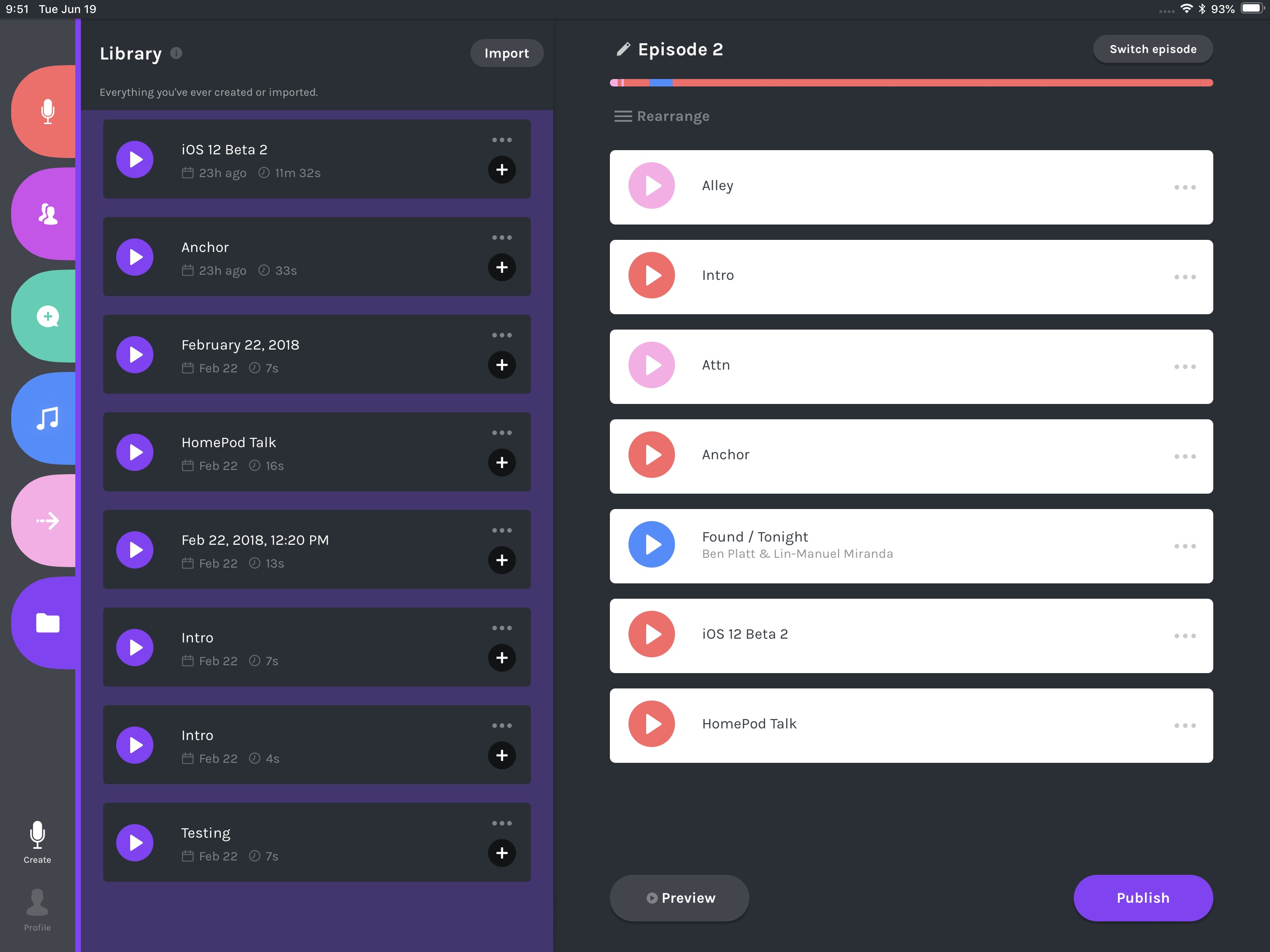
If you’ve ever used Anchor to make a podcast, you know just how easy it is. That ease of use, however, has historically meant sacrificing any access to editing tools that most podcasters need. Today that changes, however, as Anchor is introducing basic editing tools as part of the debut of its iPad app.
AppStories, Episode 60 – The Apps of WWDC 2018→
On this week’s episode of AppStories, we discuss the new and updated apps announced at WWDC 2018.
Sponsored by:
- 1Password - Go ahead. Forget your passwords.
1Password remembers them all for you.- Get three-months free with AppStories today.
- DEVONthink – Document management reinvented for Mac and iOS.
- Get 10% off DEVONthink Personal, Pro, or Pro Office for the Mac with the coupon code APPSTORIES.







Drafts 5.2→
Tim Nahumck:
When writing my review, I needed a way to navigate between the different sections, and all of the subheadings I had created. I had developed an action to navigate to each of the markdown headers, which I was happy with at the time. It was nice to have that functionality to switch around where I was in my review.
Well, I’m happy to say that I have been Sherlocked.
In the upper right corner of the editor, there is a small triangle icon; when you tap the icon, you are presented with a navigation menu. Not only does this navigate headers in Markdown, but it also navigates projects in TaskPaper, and code blocks in JavaScript. It also include a top and bottom button, as well as a select all button.
Drafts 5.2 came out while I was in San Jose for WWDC, and I’ve been meaning to check out the new features since I started getting back into a normal routine. Tim Nahumck, of course, has a great overview of the changes in this version of Drafts, along with some useful examples you can download.
As Tim points out, the ability to navigate headers of a Markdown document through a dedicated “section popup” is a terrific addition to Drafts. Few text editors designed for people who write in Markdown get this right; one of the reasons I still keep Editorial on my iOS devices is because it lets me navigate longer pieces with a header navigation tool. However, the implementation in Drafts 5 is more powerful, modern, and can be controlled with the keyboard (you can invoke the switcher with ⌘\ and, just like Things, dismiss it with ⌘. without ever leaving the keyboard).
Speaking of Editorial, every update to Drafts 5 is pushing me toward converting all my old Markdown workflows to Drafts actions powered by JavaScript. Automation in Drafts involves a lot more scripting than Editorial’s visual actions, but I feel like Drafts 5 is a safer bet for the future. I’ve been putting this off for a long time; maybe I should spend a few days finalizing the process before I start working on a certain annual review.
Connected, Episode 197: Retire Hate for Negative Love→
Recovered from WWDC, Myke previews his summer’s work, Federico shares what he knows about Shortcuts and Stephen gets super nerdy about Dark Mode in macOS Mojave.
On the latest episode of Connected, I go into more detail on Shortcuts and discuss my initial plans and goals for this year’s iOS review. You can listen here.
Sponsored by:
- Squarespace: Make your next move. Enter offer code CONNECTED at checkout to get 10% off your first purchase.
- Pingdom: Start monitoring your websites and servers today. Use offer code CONNECTED to get 30% off.
- Casper: The Internet’s favourite mattress. Get $50 off select mattresses with the code ‘CONNECTED’.
WhenWorks Ends the Scheduling Back-and-Forth
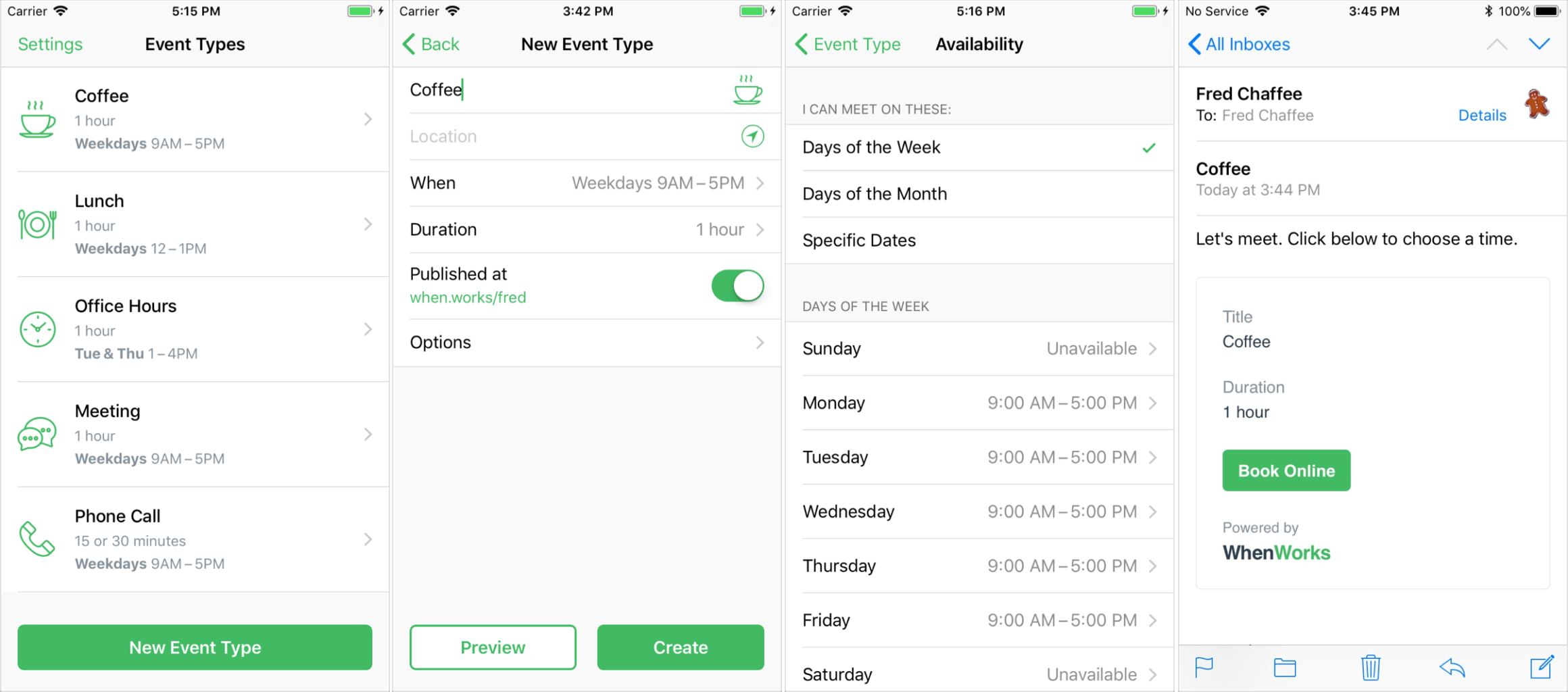
WhenWorks is a new iOS app (and web service) from John Chaffee, creator of BusyCal. While it’s still related to calendars, it serves an entirely different purpose than BusyCal: making it easy for people to schedule time with you for meetings, lunches, podcasts, or anything else for which you’d usually do the back-and-forth availability dance.
Tame Your Inbox with SaneBox’s Customizable Tools [Sponsor]

At its core, SaneBox is about making sure that only your most important messages hit your inbox. Other messages are safely stored in automated folders like the @SaneLater, @SaneBulk, and @SaneNews folders for reviewing later.
But email sorting is just the tip of the iceberg. With custom folders, custom snooze settings, and @SaneReminders, SaneBox takes email management to the next level.
Set up a custom folder and train it by dragging in a few messages. SaneBox will send all messages from the senders to your new folder. It’s a painless way to organize messages for a special project.
SaneSnooze folders can be customized to defer messages anywhere from hours to weeks. SaneBox comes with default snooze folders like @SaneTommorrow and @SaneNextWeek, but adding custom snooze folders lets you set when messages reappear in your inbox with precision.
SaneReminders are a great way to keep on top of tasks. Send yourself a reminder to do something later or get a reminder that someone hasn’t responded to a messages. For example, blind copy [email protected] and the message will show up back in your inbox only if the recipient doesn’t reply within 3 days.
Also, don’t forget that SaneBox works on top of your existing email setup. There’s no app to download or new email account to set up. You can use any email client you want.
Sign up today for a free 14-day SaneBox trial to take back control of your email. MacStories readers can receive a special $25 credit automatically by using this link to sign up.
Our thanks to SaneBox for sponsoring MacStories this week.