Philips Hue App Adds Siri Shortcuts Support

Promised earlier this year, the Philips Hue app now supports Siri Shortcuts allowing users to trigger scenes created in the app.

The Hue app received a major update earlier this year, which significantly improved the creation of scenes. Users can pick from pre-built scenes created by designers to evoke a particular mood or create their own using photos or a color picker to control the color and brightness of a group of Hue bulbs.

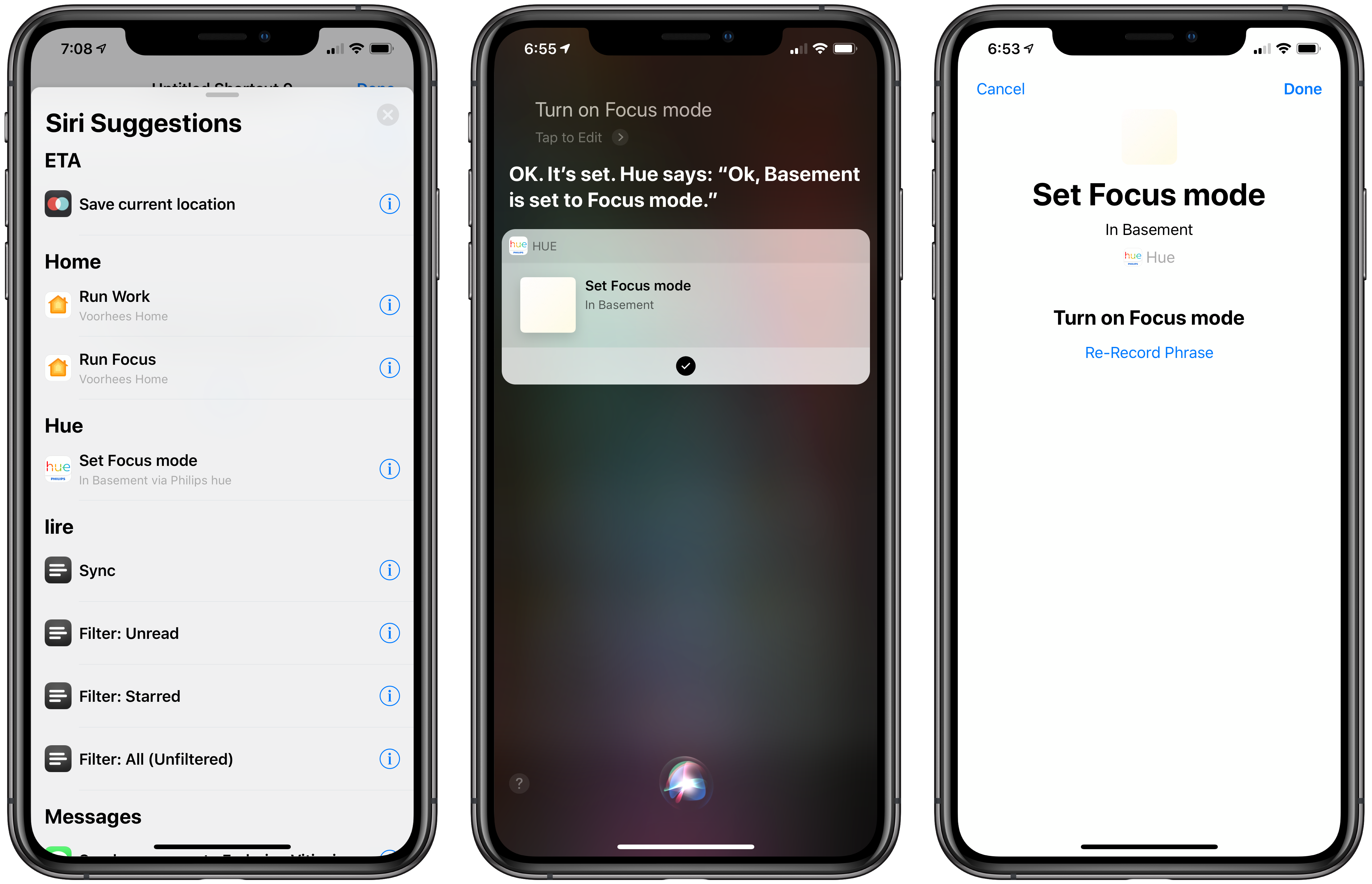
With the new Siri Shortcut support, those scenes can be triggered using Siri and incorporated as actions in custom shortcuts using Apple’s Shortcuts app. I have several Hue bulbs in my studio. They aren’t the kind that supports a wide range of colors, but I can adjust the brightness and warmth of each bulb. To test the Hue’s new shortcut functionality, I created a scene called Focus Mode that turns the brightness up to 100% with a cool blue cast.

After using the scene, the Siri & Search section of the Settings app suggested I add my new scene as a Siri shortcut, which is how many apps approach Siri shortcuts. Frequently-used scenes will also be suggested on the lock screen, Siri watch face, and search.
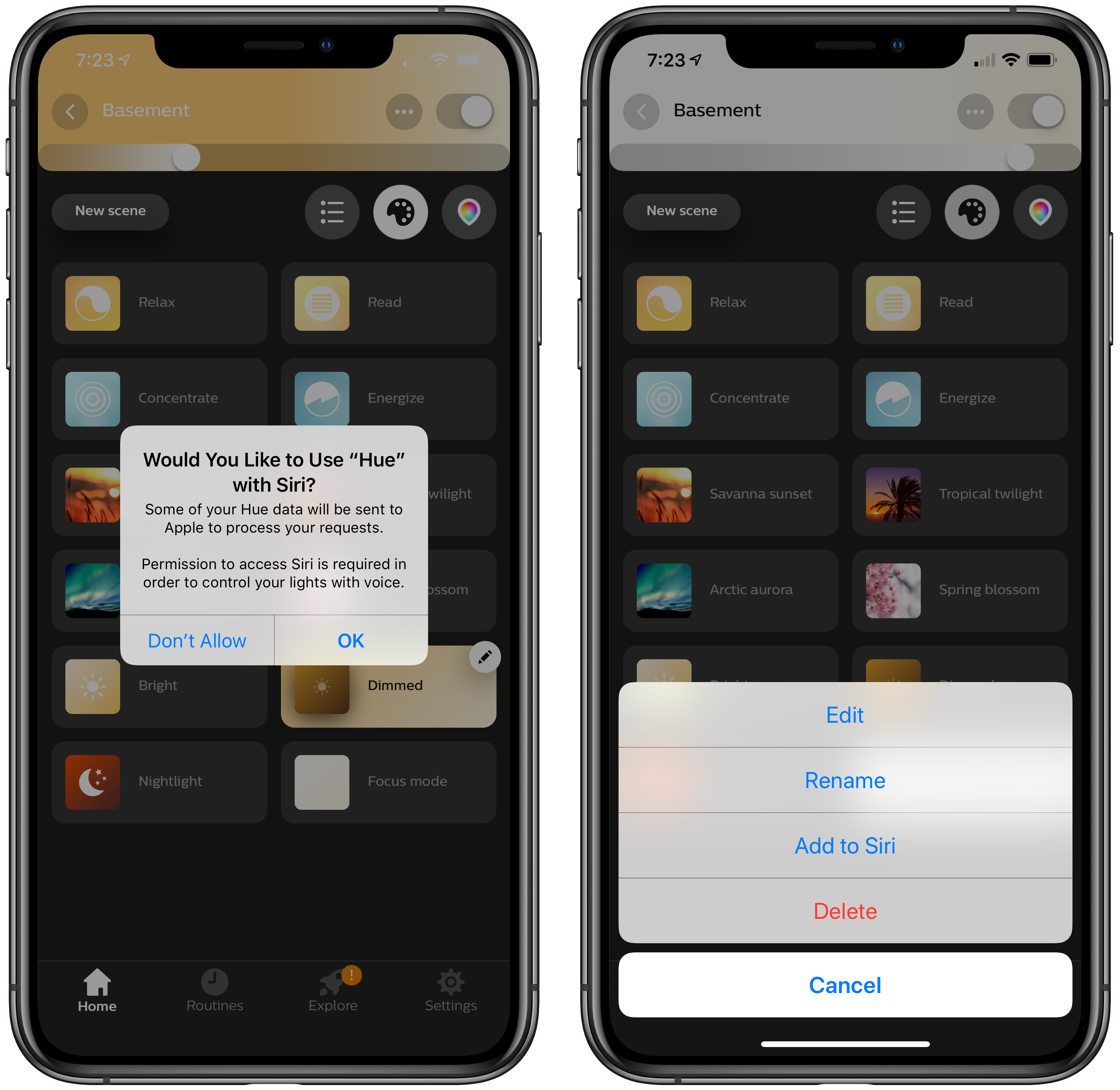
There’s an alternate, better route to setting up a Hue shortcut though. Inside the app, if you tap on a scene, a pencil icon appears in the corner. Tapping on it gives you the option to add the scene to Siri, as well as edit, rename, or delete it. Other developers have added the ability to add Siri shortcuts in their app’s settings, but I especially like Hue’s approach. If you’re in the Hue app creating a scene, that’s the natural spot to add it as a Siri shortcut too.
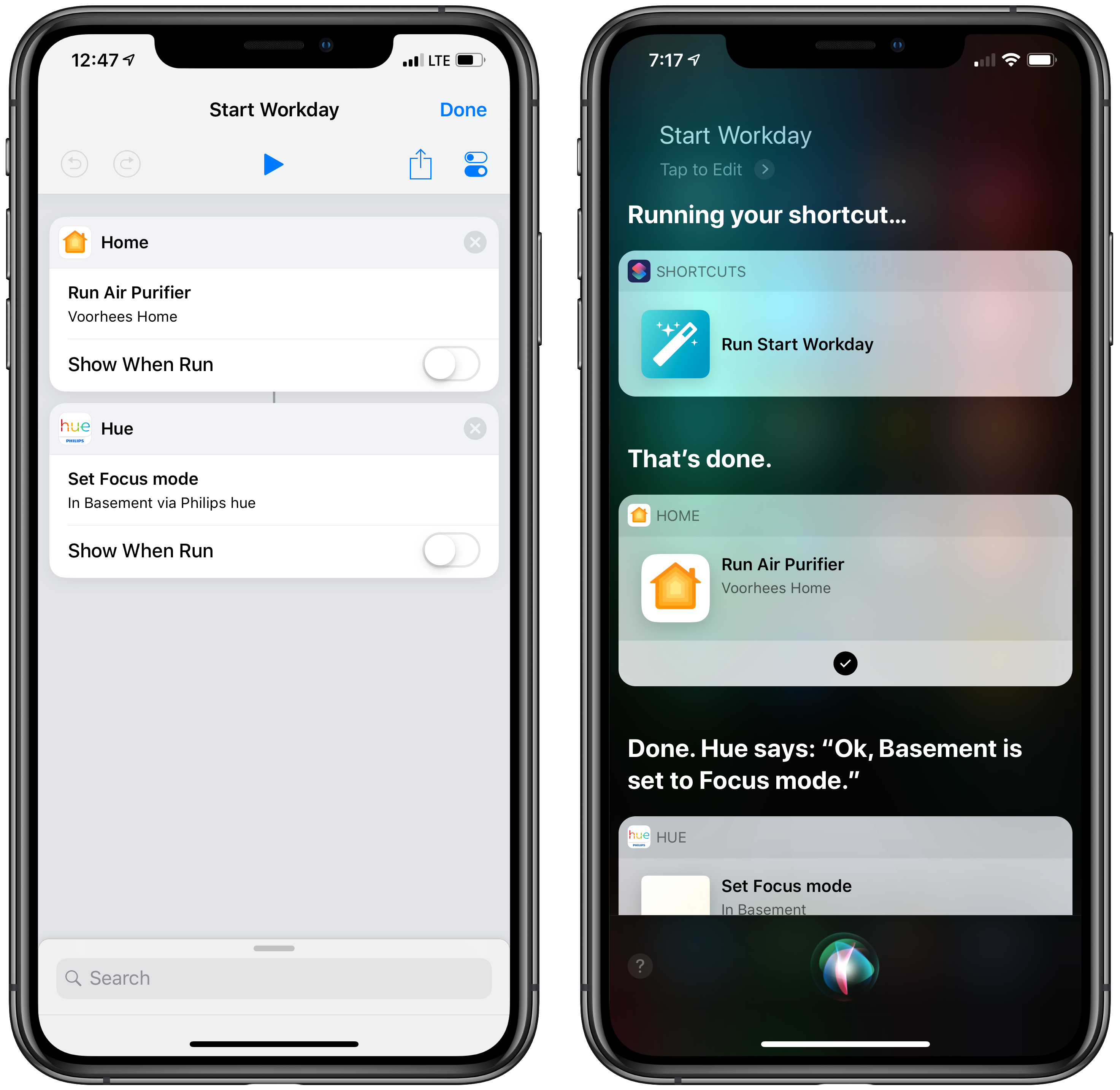
With a Hue Siri shortcut in place, you can also use it as an action in custom shortcuts you create in Apple’s Shortcuts app. I set up a simple shortcut that turns on the lights in my studio and enables a smart electrical outlet that controls an air filter. Now, as I finish my morning coffee, I can say ‘Hey Siri, start Workday’ and the lights and filter come on as I head downstairs. The same sort of shortcut can be created to control lights using Shortcuts’ HomeKit support added with iOS 12, but having similar functionality built into the Hue app is a useful alternative if that’s where you’ve set up your scenes.

The Hue app is available as a free download on the App Store.

Examining Dark Mode Implementations of Mac Productivity Apps

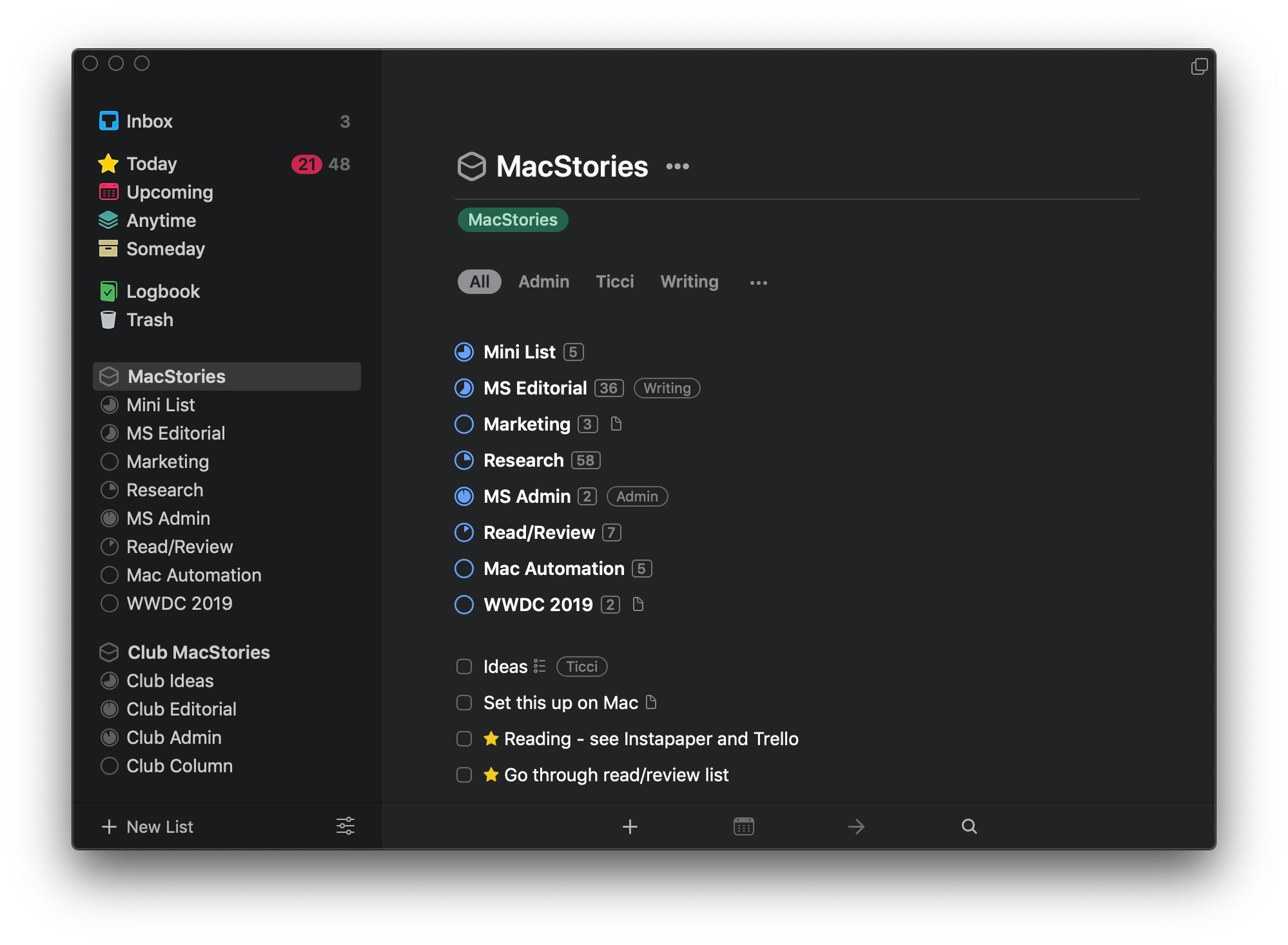
As I noted in my review of macOS Mojave, there’s a lot more going on with Dark Mode than dark gray window chrome. There were two sessions at WWDC dedicated to Dark Mode. Some apps are easier to adapt to Dark Mode than others from a technical standpoint, but beyond the coding, developers have to grapple with many design issues that affect apps differently.

As with many new features Apple introduces, there’s the way the company would like to see Dark Mode implemented and then there’s the way third-party developers use it in practice. Part of the variety you find is driven by the particular needs of each app. Other differences reflect compromises that are necessary to adapt existing designs to Dark Mode. Sometimes, however, developers intentionally ignore Apple’s recommendations, choosing to take a different path.

In my Mojave review, I collected some representative examples of apps that were ready with Dark Mode implementations when the OS update shipped. Since then, many other apps have been updated. I’ve spent time with many of them and have begun to see some design and implementation patterns among the early adopters that are interesting to compare to similar system apps by Apple. It’s also useful to consider how these variations will impact the experiences users have with these apps.

In the sea of dark gray floating before my eyes, I’ve identified a handful of app categories that illustrate some of the subtle differences between the apps I’ve tried. There are many other good examples, but email clients, task managers, text editors, and note-taking apps are categories that best illustrate how Dark Mode is being used by the first wave of developers to put the feature into practice.

Read more


Visualizing Photos Taken ‘On This Day’ in Previous Years with Shortcuts

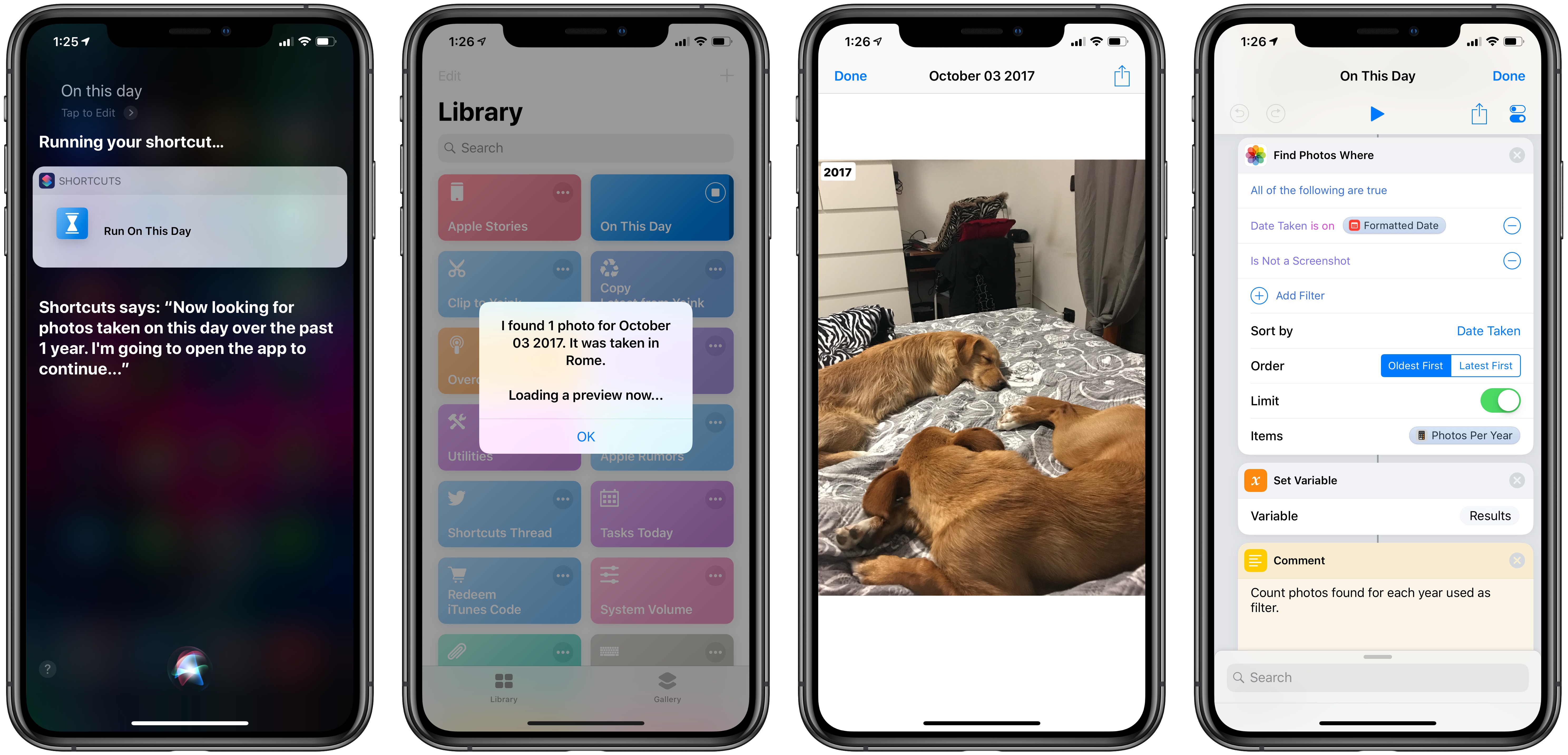
I’m in the process of creating a complete archive of every workflow I ever created for the Workflow app and updating each one for Shortcuts. As I was browsing through my old Workflow articles, I came across an interesting workflow I created in early 2015 called Photo Flashbacks. The main idea was simple enough: given Workflow’s ability to read the contents of the photo library, the workflow would filter a photo taken on the same day in previous years and preview it with Quick Look. That seemed like a fun project that I could pick up again and improve for the Shortcuts app.

Read more


More Than 70 New Emoji Coming Later This Fall Are Now Available in the iOS 12.1 Beta

Apple has announced that later this fall, it will release more than 70 new emoji. The emoji, which will be released when iOS 12.1 is shipped, will be included on the Mac and Apple Watch too.

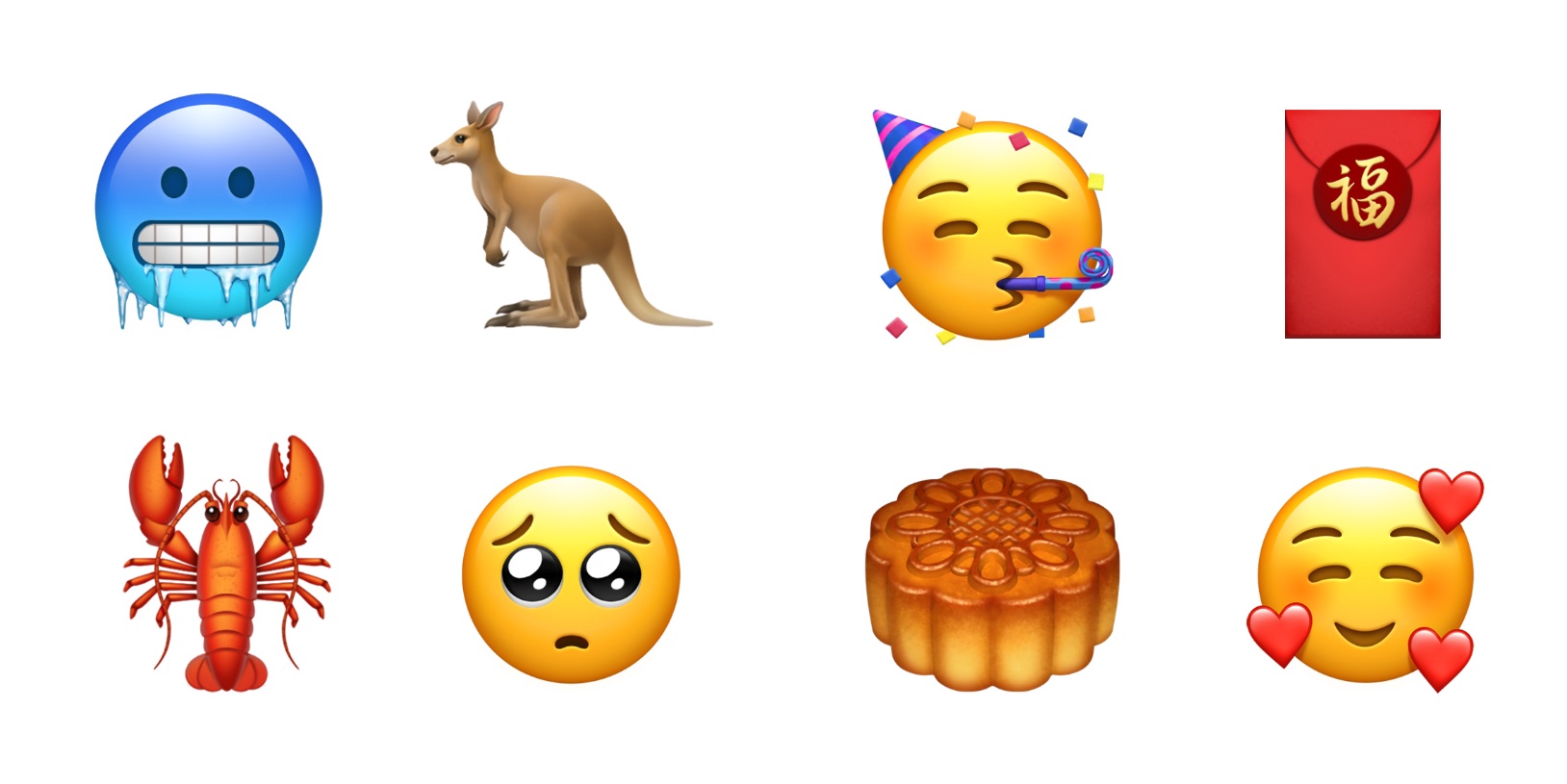
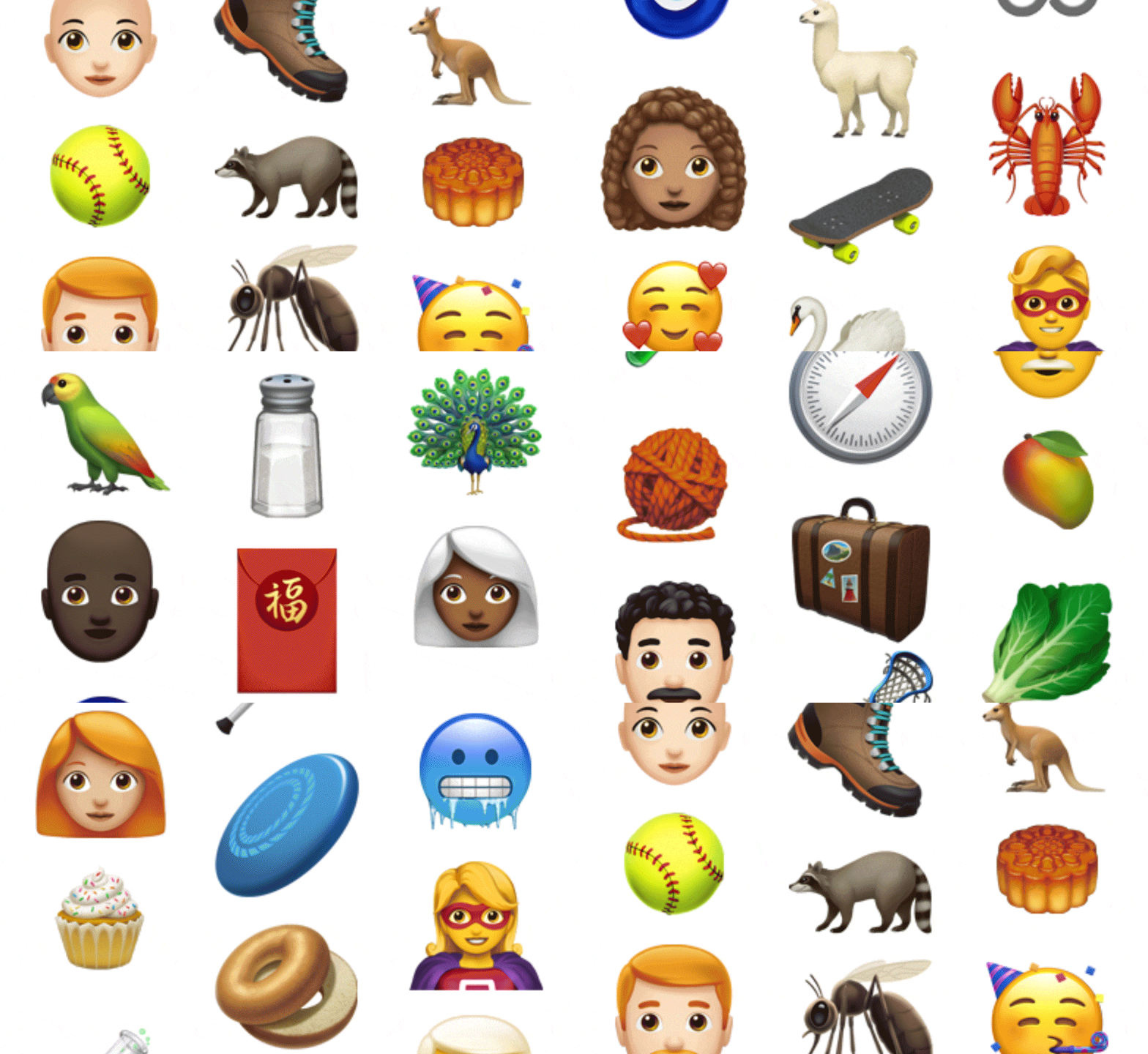
The new glyphs, which are based on the characters approved by the Unicode Consortium as part of Unicode 11.0, include a wide variety of themes. For people, there are new options for gray, red, and curly hair, and for bald people. The new set of emoji also includes new foods, animals, sports, and other activities like travel.

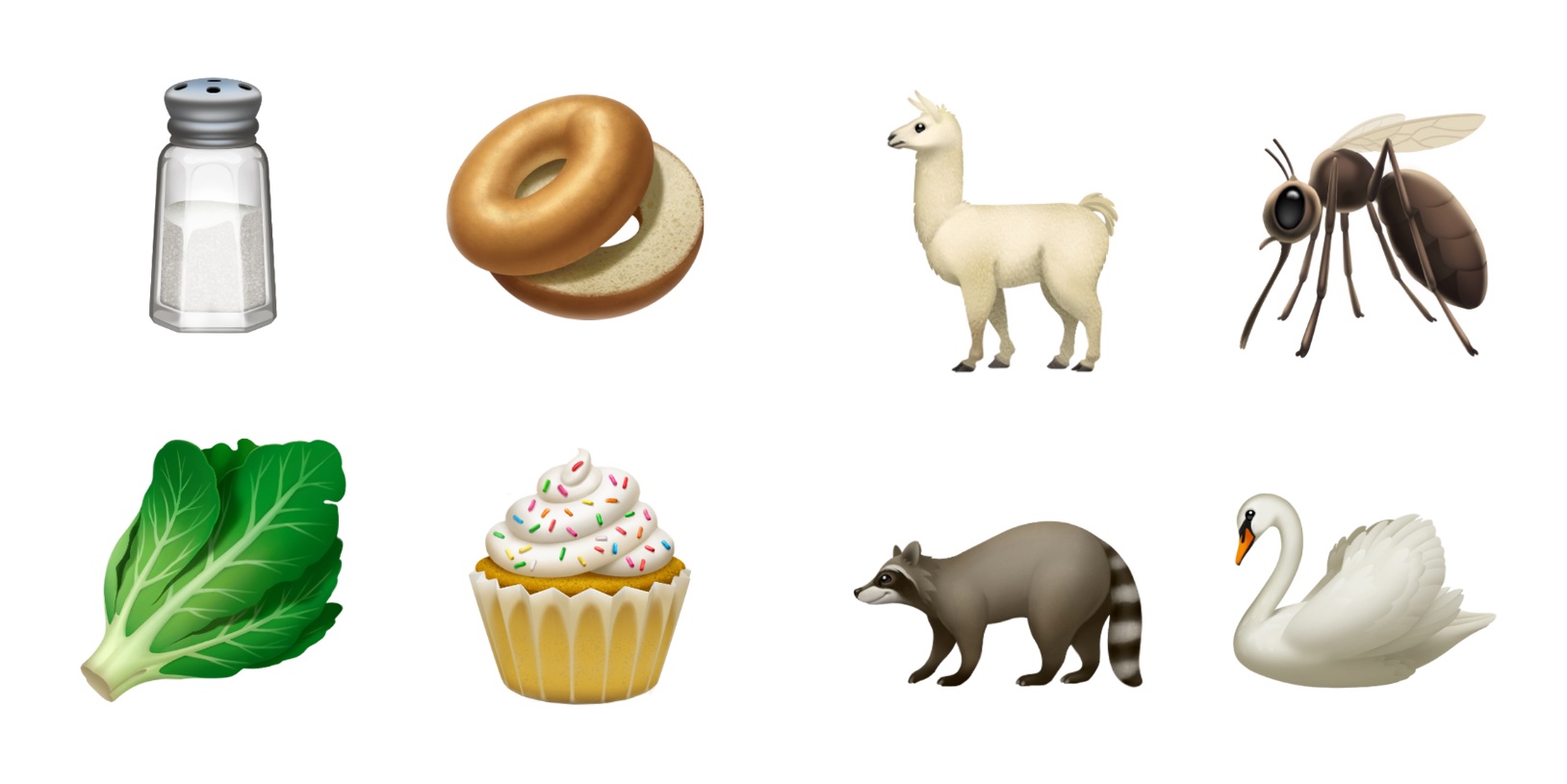
Among the animals added are a raccoon, kangaroo, lobster, swan, parrot, peacock, and llama. Foods include leafy greens, a cupcake, a bagel, moon cake, mango, and salt. Sports have added a softball, frisbee, lacrosse stick and ball, and skateboard. There are new emotive smiley faces too.

Looking to next year, Apple says that for Unicode 12.0, which will be the basis for emoji released in 2019, it is working with the Unicode Consortium to add disability-themed emoji. Although the emoji announced today will be officially released until later this fall, you can try them now as part of the iOS 12.1 beta and public preview released today.

Permalink

Apple Adds More Than 30 Worldwide Companies to Business Chat

Apple introduced Business Chat at WWDC in 2017 and launched it with iOS 11.3 this past March. Today, Apple confirmed to TechRadar that the feature, which began as a beta with a handful of US business partners, has been rolled out worldwide.

As we explained in our overview of iOS 11.3:

Business Chat is a way for businesses to communicate with their customers directly over iMessage. Apple’s goal with Business Chat is to elevate the customer service experience to take advantage of the best native features of iOS, such as iMessage’s inherent privacy and security, iMessage apps, Apple Pay, and integration with Maps, Safari, and Spotlight.

Initially supported by only a handful of US companies like Discover, Hilton, Lowe’s and Wells Fargo, the roster was expanded in July to include Dish, Aramak, Four Seasons, Harry & David, and American Express. With today’s launch, that list has been expanded significantly to include companies based in Europe and Asia, as well as additional companies in North America. According to TechRadar, the additions include more than 30 companies:

Europe

  • Matchesfashion (UK)
  • nPower (UK)
  • Robins & Day (UK)
  • buddybank (Italy)
  • Engie (France)
  • La Redoute (France)
  • AXA Insurance (Switzerland)
  • Swisscom (Switzerland)
  • Vodafone Germany
  • NH Hotels (Europe) 

North America

  • 1800 Contacts 
  • DirecTV Now
  • Fairmont Hotels including the Claremont Club & Spa in Berkeley
  • Kimpton Hotels
  • Freshly 
  • Macerich Malls  including Scottsdale Fashion Square and Santa Monica Place
  • Mall of America 
  • Men’s Wearhouse 
  • Jos A. Bank
  • Overstock.com
  • Quicken Loans 
  • SnapTravel (US, Canada)
  • West Elm
  • Hendrick Automotive Group
  • Four Seasons (Canada) is expanding to 88 properties around the globe, 100+ languages
  • Lithia Group

Worldwide

  • Burberry

Asia

  • Telstra (Australia)
  • Harvey Norman (Australia) 
  • KDDI (Japan)
  • Credit Suisse (Singapore and Hong Kong)

Much like Apple Pay, Business Chat is the sort of feature that isn’t likely to see significant user adoption until a large enough pool of businesses use it to reach most iPhone owners. Still, today’s broad rollout in multiple countries shows that the service is beginning to get traction. It will also be interesting to see how much longer Business Chat retains the ‘beta’ label.

Permalink

AppStories, Episode 81 – Mac and iOS App Convergence

On this week’s episode of AppStories, we consider what the new Marzipan apps in Mojave may mean for the future of apps on all of Apple’s hardware platforms.

Sponsored by:

  • Linode - High performance SSD Linux servers for all of your infrastructure needs. Get a $20 credit with promo code ‘appstories2018’
  • Downie - Easily download videos from thousands of different sites.
AppStories+ Deeper into the world of apps

AppStories Episode 81 - Mac and iOS App Convergence

0:00
32:58

AppStories+ Deeper into the world of apps

Permalink

An In-Depth Explanation of Computational Photography on the iPhone XS

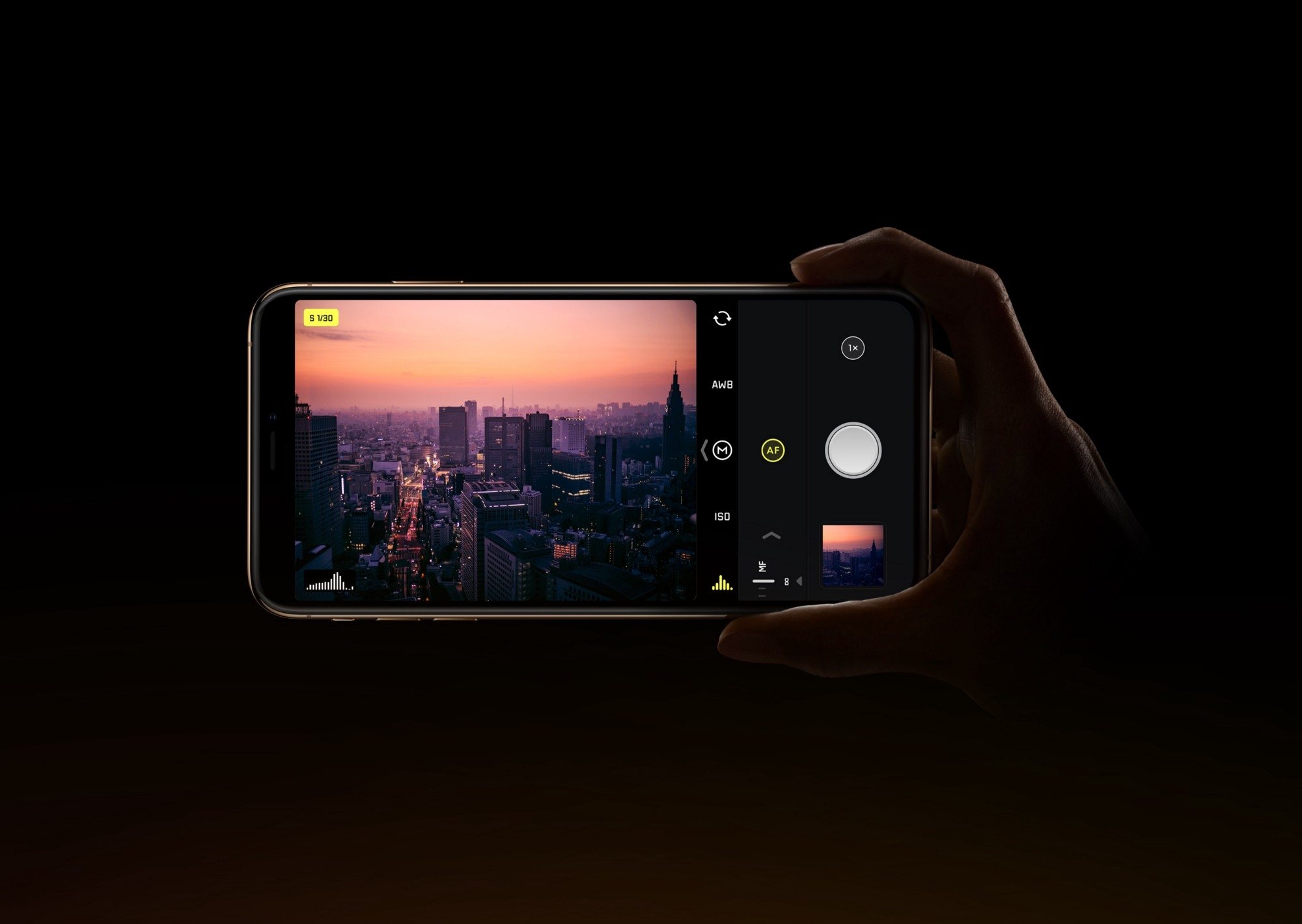
Outside of Apple employees, one of the people most knowledgeable about the iPhone’s camera is Sebastiaan de With, designer of the manual camera app Halide. It is fitting, then, that Sebastiaan would publish what I believe is the best explanation of the iPhone XS camera system to date. Following up on a piece he wrote about the new camera’s hardware changes, the subject of today’s article is software – specifically, all the work of computational photography on the iPhone XS and XS Max.

The piece starts with an explanation of the iPhone’s new Smart HDR feature, then details the exact reasons why selfies on the new iPhones appear to employ skin smoothing (a theory he soundly debunks). Finally, Sebastiaan details the problem that the XS camera poses for RAW camera apps like Halide, and shares about the forthcoming solution Halide’s team came up with: something they call Smart RAW.

There are too many excellent, informative tidbits to quote here, so I highly recommend you check out the article in full. This year’s iPhones are so full of interesting changes to the way the camera works, most of which are undocumented by Apple – as Sebastiaan says, it is “a whole new camera” in many ways.

Permalink

Apple Releases Materials for the Everyone Can Create Curriculum

Last March, Apple held an education event in Chicago where it unveiled a 9.7-inch iPad with Apple Pencil support and a new curriculum called Everyone Can Create. Since then, Apple says over 350 schools worldwide have begun working with the program. A complement to its Everyone Can Code initiative, Everyone Can Create is designed to help teachers and students use iPads in creative pursuits such as drawing, music, photography, and filmmaking.

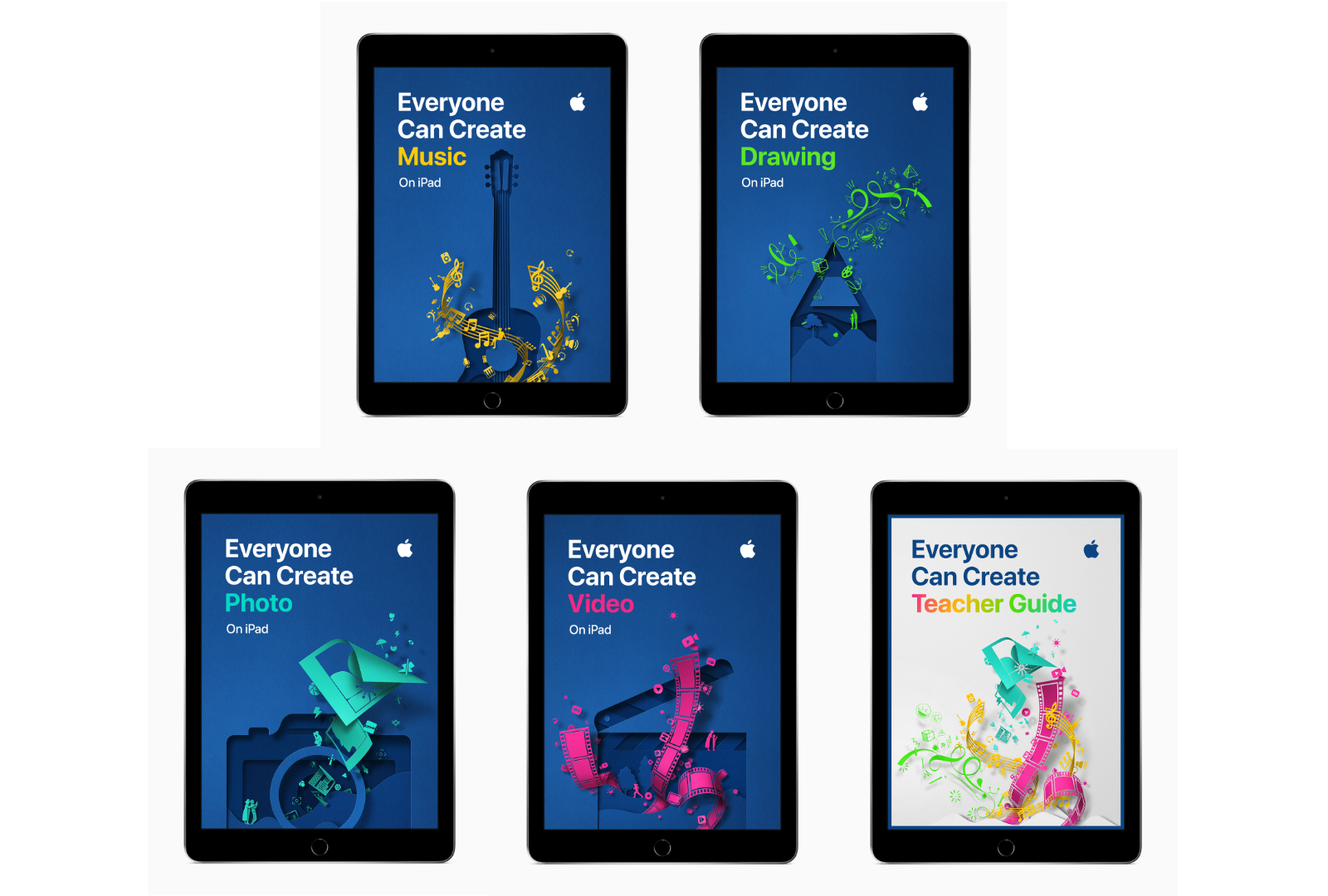
Today, Apple announced that as part of the Everyone Can Create initiative, it has released four student guides and a teacher guide that are available in Apple’s Books app.

“We believe Apple technology can help unleash every child’s creative genius,” said Philip Schiller, Apple’s senior vice president of Worldwide Marketing. “Working closely with teachers, we have built the Everyone Can Create curriculum to help bring creative expression and the arts into the classroom, and to help students stay engaged through creativity and ultimately be more successful.”

Each student guide, which is free to download in the Books app, includes projects designed to help students learn new creative skills progressively. There is also a teacher guide with over 300 lesson ideas that can be used in a variety of subjects.

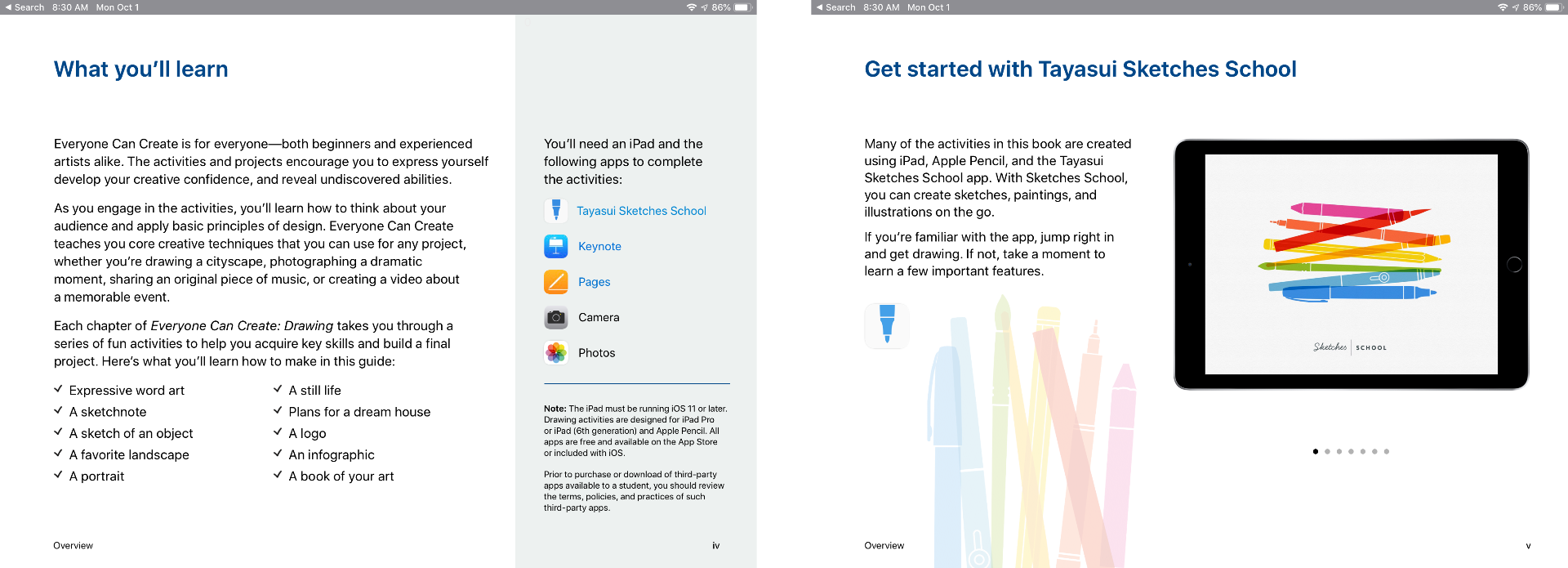
The curriculum includes projects that use third-party apps like Tayasui Sketches School as well as Apple’s apps too.

Although the Everyone Can Create guides are being released after many students are already back in school, teachers have had preview materials since the summer, which should help them incorporate the new materials into their lessons if they’d like. Everyone Can Create extends Apple’s curriculum offerings beyond coding, which I like because it should reach a broader group of students. It’s also designed to fit with existing subjects taught in schools, which I expect will make the iPad more valuable to schools that have adopted them.

The Everyone Can Create books are available as free downloads in Apple’s Books app.


iMazing 2: Manage Your iPhone Your Way [Sponsor]

Migration to New iPhones

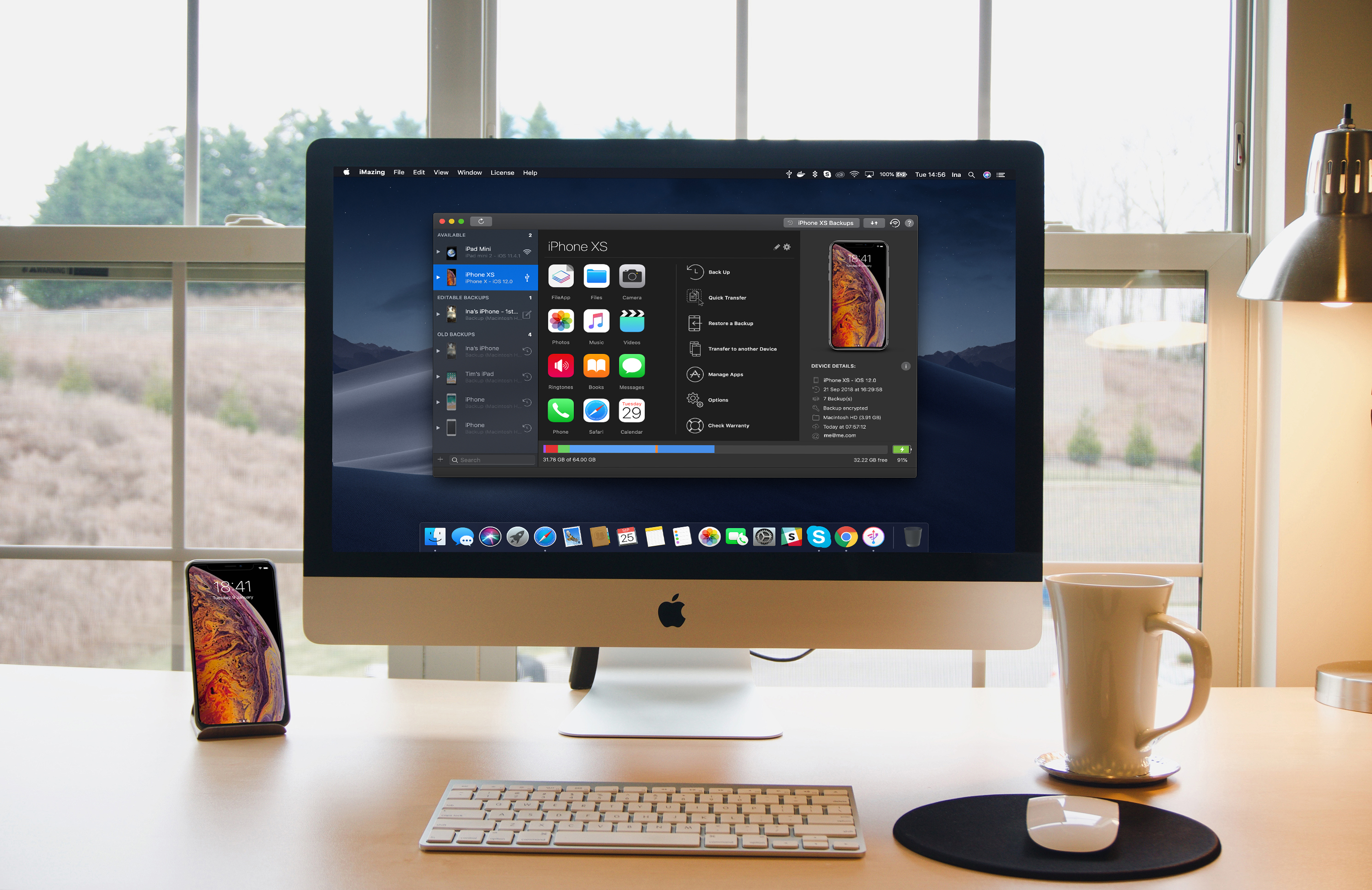
iMazing 2 provides safe and fast migration to any iOS device. Transferring data from your old iPhone to your new iPhone XS, XS Max, or XR is easy and convenient thanks to iMazing’s step by step wizard. You can even pre-load apps in iMazing’s App Library, so they’re immediately available once the transfer is done – no need to wait for your favorite apps to download after restoring an iTunes or iCloud backup.

Ready For The Future: macOS Mojave and iOS 12 Are Fully Supported

iMazing is made by Mac lovers, for Mac lovers. It features polished support for Mojave’s gorgeous Dark Mode, and handles the new security features gracefully. On iOS, iMazing works perfectly with iOS 12. If you haven’t updated already, backing up first with iMazing is a great idea: if anything goes wrong, you’ll have all your data at hand. Oh, and of course you can also update to iOS 12 from iMazing itself - in that case, iMazing will perform a security backup for you, just in case.

New Features Galore

iMazing is constantly updated with new features, quite a few of them resulting from user feedback. Calendars, Safari data, and ringtones management were added in June this year. The latest update has Dark Mode and a new drop zone called ‘Quick Transfer’: drop anything from your desktop to iMazing, and iMazing will display compatible apps installed on your device. You just need to pick the one you want your photos, media, or documents to go to.

Visit iMazing today to learn more and take advantage of a 30% off discount just for MacStories readers using the coupon code MACSTORIES30OFF2018.

Our thanks to iMazing for sponsoring MacStories this week.