Eternal City, Modern Photography: The iPhone 11 Pro in Rome

Other Notes

Here’s a collection of other miscellaneous notes and thoughts based on my experience with taking ~400 shots around Rome with the iPhone 11 Pro Max.

The Display

One of the first improvements I noticed in the iPhone 11 Pro compared to the XS Max when using it outside was the higher-contrast, brighter display. I didn’t pay much attention to the Super Retina XDR display in my first few days of indoor usage – it mostly looked similar to the iPhone XS Max’s display – but the difference became quite apparent as we were walking around Rome in the morning.

Under very bright sunlight (ideal conditions for iOS’ Auto-Brightness setting to kick in and push the device’s brightness to its peak level), I could tell that the iPhone 11 Pro’s display was brighter and more legible than the older generation one. Apple has touted these improvements with numbers such as 2,000,000:1 contrast ratio (compared to 1,000,000:1 last year) and 800 nits max brightness outdoors (compared to 625 last year), but it’s one thing to read the numbers and it’s another to see actual results in practice. I expect the iPhone 11 Pro’s brighter screen to come in handy at the beach next year.

After seeing the difference between old and new display in outdoor usage, I remembered Apple mentioned that the Super Retina XDR display could also push brightness up to 1,200 nits when viewing HDR photos or HDR10 and Dolby Vision video, so I checked for myself. I started watching The Greatest Showman, which is available in 4K Dolby Vision on iTunes and is one of my favorite movies in recent years, simultaneously on the iPhone XS Max and 11 Pro Max. The iPhone 11 Pro was considerably brighter in my side-by-side comparison and I was able to see the higher contrast with superior color separation in dark scenes. I wouldn’t want to watch an entire movie on an iPhone, but plenty of people do, and the Super Retina XDR is one impressive display to make the most of HDR content. Honestly, the sole feature missing from Apple’s iPhone display tech at this point is a higher refresh rate (ProMotion), which I hope to see in next year’s Pro model.

The New Camera UI

I was immediately sold on Apple’s new Camera UI for the iPhone 11 line for one main reason: somehow, Apple managed to pack more options in the viewfinder while also making it more comfortable to use with one hand. Much of it comes down to embedding icons and controls in the top section of the UI (when used in portrait orientation) and allowing users to swipe vertically on the viewfinder to access a secondary row of settings for flash, night mode, Live Photos, format, timer, and effects. Each of these controls expands inline to reveal segmented controls or sliders, which are easy to interact with using your thumb (in portrait orientation) or index finger (when shooting in landscape). Because they’re placed at the bottom of the screen when the iPhone is held vertically, you don’t need to stretch your thumb to reach specific options at the top of the interface.

The iPhone's new Camera UI.

The iPhone’s new Camera UI.

I also like Apple’s zoom control/lens switcher, available by tapping and holding one of the lens buttons at the bottom of the viewfinder. Although I respect the inclusion of traditional photography details such as focal lengths, I don’t particularly care for them as they’re just numbers to me – I’m interested in the results and the experience of using the Camera app. To me, the best part of Apple’s lens switcher UI is the ability to scroll the zoom wheel with one finger and jump with one seamless motion from 0.5x up to 10x digital zoom. In a nice touch, you feel a subtle haptic tap when the wheel stops on a specific lens at its default zoom level, which adds a pleasant physical dimension to the Camera experience. Add to all this the upcoming ability to change video options without having to open the Settings app, and you can see how the software updates to the Camera app are just as important as the hardware changes to sensors and lenses this year.

Browsing Shots from Different Lenses

Last week, I shared a shortcut to inspect the lens used to shoot a particular photo. The shortcut, called iPhone 11 Lens Inspector, required you to pass an individual item from the Photos app to the share sheet, select the shortcut, and double-check the lens used to capture it. I use this shortcut a lot, and you can find it here.

For this article, I needed a shortcut that would allow me to easily see all recent photos taken with a specific lens. Apple’s Photos app doesn’t currently offer smart views to browse pictures taken with the wide, telephoto, or ultra-wide cameras, so I built my own shortcut for that. Called iPhone 11 Lens Browser, the shortcut lets you select the kind of camera you want to filter photos for, then presents you with a list of photos captured with that camera; you can tap on a thumbnail to preview the selected item in Quick Look.

Browsing photos taken with different lenses using iPhone 11 Lens Browser.

Browsing photos taken with different lenses using iPhone 11 Lens Browser.

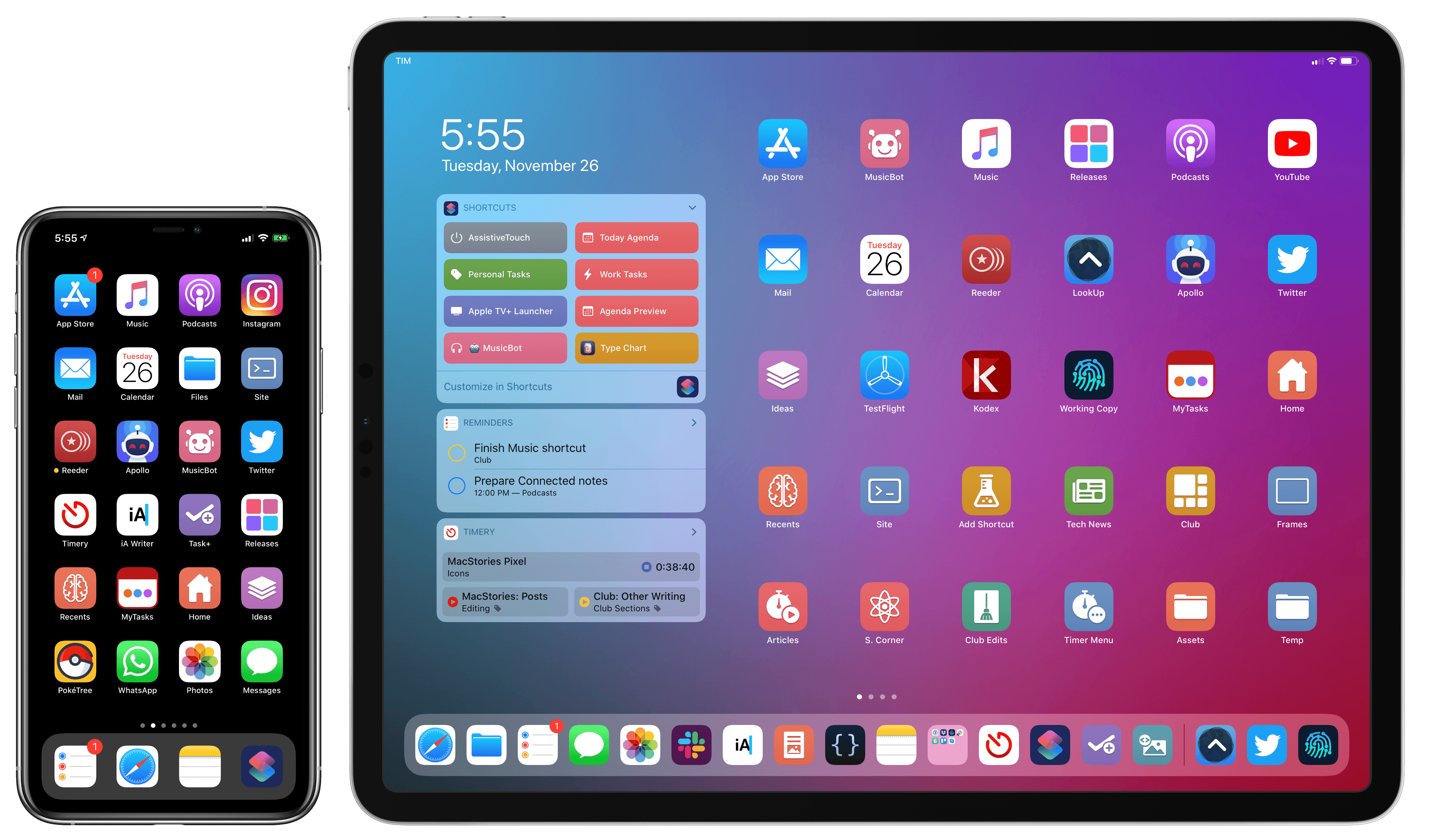
By default, the shortcut will consider your 300 most recent photos, excluding screenshots; you can customize the number to process fewer or more photos at once. When I was selecting photos to use in this story, this shortcut became an essential tool to ensure I wasn’t forgetting about other interesting shots from my library. I’ve been using the shortcut so much over the past couple of weeks, I even added it to my Home screen using MacStories Shortcuts Icons.

You can download iPhone 11 Lens Browser below.

iPhone 11 Lens Browser

Filter your photo library by the lens used to capture a photo. The shortcut is optimized for the iPhone 11 and iPhone 11 Pro, and it supports the wide, telephoto, and ultra-wide lenses. By default, the shortcut looks at the last 300 photos from your library.

Get the shortcut here.

Battery Life

I was somewhat skeptical of Apple’s touted 5-hour battery life improvement over the iPhone XS Max; in practice, the company’s claim proved absolutely true.

In normal everyday usage, I can use the iPhone 11 Pro Max all day and I’ll only see the 20% battery warning around 2 AM (I usually wake up at 10:30 AM); with that 20% of battery left, I can still use my iPhone until 4 AM before it runs out of power.3 When we went out to take pictures around Rome during the day and I used the iPhone intensively to check directions and take hundreds of pictures, it still managed to end up at 9 PM with 30% battery left.

For the first time in over a decade, I now have an iPhone that truly lasts me all day without having to worry about topping it up every few hours or investing in a battery case. I always disliked seeing the 20% battery warning around 9 PM, which forced me to ensure I would always have a portable battery, Lightning cable, or wireless charger around. With the iPhone 11 Pro Max, I can finally stop worrying about the battery and just enjoy using my iPhone throughout the day.

Apple Maps Collection

Lastly, I’ve put together an Apple Maps collection of the historical landmarks mentioned in this story.

My Apple Maps collection.

My Apple Maps collection.

The ability to add places to a collection and share it with friends was added in iOS 13, and I’ve taken advantage of it to put together a list of the 23 locations mentioned or shown in this article. You can find the collection here.

iPhone 11 Pro: Photographic Freedom

Capturing the Roman Forum, taken with the wide camera on iPhone 11.

Capturing the Roman Forum, taken with the wide camera on iPhone 11.

The more I think about the iPhone 11 Pro, the more I keep coming back to this conclusion: the iPhone 11 Pro reinvents what “pro” means – it takes pro shots without requiring pro knowledge. The device grants a freedom of visual expression that is unmatched by any other iPhone model; by making the core tenets of professional photography available to everyone, the iPhone 11 Pro’s triple-camera system, paired with its intelligent software, fosters creativity, turning each shot into a fun, unique experiment.

The iPhone 11 Pro has made me fall in love with taking pictures on my iPhone all over again. The device allows me to take great-looking pictures that have a distinct personality compared to the iPhone XS, and it does so in wildly different contexts and scenarios that wouldn’t have been possible before. And best of all, I didn’t have to study a manual to make it all happen.

Rome wasn’t built in a day, and it took 10 years of unabated evolution for the iPhone camera system to reach this level of excellence. Unlike the eternal city, it won’t last for 2,000 years. But today, the iPhone 11 Pro’s camera sure makes for an amazing, beautiful adventure around Rome.


  1. I know, I have an odd sleep schedule. Don't judge me. 

Mac Catalyst Isn’t Only for Bringing iPad Apps to the Mac for the First Time

So far, the most common path to releasing a Mac Catalyst app on the Mac App Store has been to adapt and release an existing iPadOS app as a first-time Mac app. However, that’s not the only route to the Mac App Store. Apple allows developers to use Mac Catalyst in a variety of ways, as Steve Troughton-Smith has demonstrated with HCC Solitaire, a Mac-only game built using Mac Catalyst. He and Brian Mueller, the creator of CARROT Weather, have also used Mac Catalyst to release new versions of Mac apps that were previously built with AppKit.

As Troughton-Smith’s HCC Solitaire confirms, developers are not required to have an iPad app on the App Store to release an app on the Mac App Store using Mac Catalyst.

https://twitter.com/stroughtonsmith/status/1183880710840635400

The game is an implementation of classic solitaire that’s just $0.99 and displays no ads. Perhaps most interesting from a developer standpoint, though, is that you won’t find HCC Solitaire if you search for an iOS or iPadOS version on the App Store. Troughton-Smith built the game using UIKit and the tools provided as part of Mac Catalyst without also creating an iPadOS version.

Brian Mueller's CARROT Weather.

Brian Mueller’s CARROT Weather.

Mac Catalyst apps can also be swapped in for existing Mac apps. That’s what Brian Mueller did with CARROT Weather, which was launched the day macOS Catalina was released as version 4.13 of his existing AppKit app. Troughton-Smith took the same approach with SameGame, a color-matching game in which you earn points by eliminating contiguous blocks that are the same color, releasing version 2.2 shortly after Catalina’s release.

Steve Troughton-Smith's SameGame.

Steve Troughton-Smith’s SameGame.

I don’t expect either of these approaches to become the main way that Mac Catalyst apps are released, but I’m glad to see that it’s possible. Most developers will be bringing an iPadOS app to the Mac for the first time, but business models, developer backgrounds, the APIs used in an app, and many other variables play a role in the decision of whether to use Mac Catalyst. It’s encouraging to see Apple take a flexible approach and allow developers to experiment because that makes Mac Catalyst useful to more of them. However, as I noted in my Catalina review and elsewhere, that flexibility needs to be coupled with bug fixes, documentation, and rapid evolution of Mac Catalyst for it to become a viable option for a wider audience of developers.


MakePass: Create Your Own Apple Wallet Passes on the Mac

I often find myself reaching for my iPhone or iPad to do something that can’t be done at all or as quickly on my Mac. If I’m already working at my desk in front of my Mac, though, that requires a context switch that slows me down and often leads to being distracted by something else. One of the areas where this happens most frequently is with specialized, single-purpose utilities that are plentiful on iOS and iPadOS, but often unavailable on the Mac.

A terrific example that just debuted on the Mac as a Mac Catalyst app is MakePass, an app for generating Apple Wallet passes. Whether it’s a health club membership card, bus pass, grocery store loyalty card, or concert ticket, MakePass can turn them all into digital passes stored inside Apple’s Wallet app where they are organized and out of the way.

Several apps offer functionality similar to MakePass’ on the iOS and iPadOS App Store. However, my searches turned up none on the Mac App Store. That may be because Apple’s Wallet app is an iPhone-only app, but it’s handy to be able to make passes on your Mac too because that’s one of the places where codes come into your life.

Read more


New Beats Solo Pro Headphones Featuring Apple’s H1 Chip Are Available for Pre-Order

Apple subsidiary Beats has announced a new version of the Beats Solo Pro noise cancelling headphones, which can be pre-ordered now and will begin shipping at the end of the month.

The new headphones, which retail for $299, feature Apple’s H1 chip that also powers the second-generation AirPods and Powerbeats Pro. The H1 chip enables hands-free ‘Hey Siri’ commands and the ability to share audio with someone using the Audio Sharing feature that Apple debuted with iOS and iPadOS 13. The headphones also have volume, track, and call controls on the right ear cup and a button for turning noise cancellation and their Transparency feature on and off on the left ear cup.

Unfolding and folding the Solo Pros turns them on and off.

Unfolding and folding the Solo Pros turns them on and off.

The Beats Solo Pros feature active noise cancellation to filter out external sound and what Beats calls Transparency that uses external microphones to allow some sounds through, so users remain aware of their surroundings when using the headphones. According to Beats, the headphones, which are turned on and off by unfolding and folding them, get 22 hours of battery life with noise cancellation and Transparency turned on. If those features are turned off, the company says the battery life lasts 40 hours. The company also says that a ten-minute charge provides up to 3 hours of battery life. The Solo Pros charge with a USB-A to Lightning cable for the first time too.

The Solo Pros come in six colors: light blue, red, dark blue, ivory, black, and gray. Although The Verge and other sites report that the new headphones will begin shipping on October 30th in the US, apple.com currently lists the ship date as October 29th during the pre-order checkout process.


Roku Devices Gaining Apple TV App Today

Roku announced in a press release that the Apple TV app would be available on its streaming devices starting today:

For the first time ever, Roku users can add the Apple TV app via the Roku Channel Store to discover and watch movies, TV shows and more, including accessing their iTunes video library and subscribing to Apple TV channels directly on Roku devices. Starting November 1, Apple TV+, Apple’s home for all-original shows and movies from the world’s greatest storytellers, will be available on the Apple TV app on the Roku platform.

Like the TV app on Samsung smart TV sets, the Roku version of the app offers access to all iTunes movie and TV show content, as well as all Apple TV channels options, such as HBO, CBS All-Access, and soon Apple TV+. However, content from non-channels like Hulu or Amazon Prime Video, which are accessible on iOS and tvOS devices, will not be present on the Roku version of the TV app because it lacks third-party app integrations. Moving forward though, I expect that all of Apple’s new content partners with the TV app will be full-on channels rather than legacy app integrations.

Earlier this year Apple announced that the TV app would also be arriving on Amazon Fire TV devices and TV sets from more manufacturers, so as we get closer to the November 1 launch of Apple TV+, I expect we’ll see those other vendors all follow Roku’s lead.

Permalink

AppStories, Episode 134 – Mac Catalyst and the First Wave of Apps Built with It

On this week’s episode of AppStories, we discuss Mac Catalyst, the technology for bringing iPad apps to the Mac, and round up some of our favorite Mac Catalyst apps that have been released so far.

Sponsored by:

  • Kolide – User focused security for teams that Slack. Try it free for 30 days.
  • Direct Mail – Create and send great looking email newsletters with Direct Mail, an easy-to-use email marketing app designed exclusively for the Mac.
  • UpHabit: – The app that makes connecting with people you care about part of your routine. Try it for free or take advantage of 60% off for new subscribers

AppStories+ Deeper into the world of apps

AppStories Episode 134 - Mac Catalyst and the First Wave of Apps Built with It

0:00
40:47

AppStories+ Deeper into the world of apps

Permalink

Agenda: Date-Focused Note Taking [Sponsor]

Agenda is the award-winning note-taking app for iOS, iPadOS, and the Mac with a focus on dates. Our lives are full of notes and dates, and it only makes sense to bring order to the chaos by integrating the two. Agenda, the winner of an Apple Design Award, does precisely that, ensuring that your notes are always at your fingertips when and where you need them most.

By tightly integrating your calendar and notes, Agenda becomes something more than either can offer on their own. By tying those notes you’ve been taking in advance of your next meeting to the event on your calendar, they are right there when you need them. You can use Agenda to track your team’s progress as you work on hitting milestones for a big project too. The app is also terrific for keeping a daily journal or simply expanding your to-do list with relevant reference material and notes to help keep you on track.

You can create and edit events without ever leaving Agenda too. Rather than competing with your calendar, Agenda complements it, working perfectly together.

Agenda is continually updated with the latest features for every platform. For instance, with the release of iPadOS 13, you can now use the Apple Pencil to handwrite notes or add sketches to your notes. Of course, Agenda also supports dark mode on every platform, Shortcuts, and is tightly integrated with Apple’s new Reminders app. You can even scan documents to create PDF attachments to notes on iOS and iPadOS.

Agenda is free to download and use forever. Premium features are available with an In-App Purchase that unlocks all current premium features and new ones introduced over the following 12 months.

To learn more, visit Agenda’s website, or just download Agenda now for free on the Mac App Store and on iOS and iPadOS.

Our thanks to Agenda for sponsoring MacStories this week.


The Important Role Design Plays in Building a Mac Catalyst App

There’s more to migrating an iPad app to the Mac than simply checking a box in Xcode. Although developers need to resort to AppKit APIs used to build Mac apps for some functionality, thoughtful design that respects the interaction model of the Mac is a significant part of the process too.

Vidit Bhargava is the designer behind the dictionary app LookUp and the cofounder of Squircle Apps. Bhargava, who we interviewed in the most recent issue of MacStories Weekly for Club MacStories, has written an in-depth look at how much of the process of bringing LookUp’s iPad app to the Mac was about design. As he explains:

I’m sharing this design document to highlight some of the design considerations I made for bringing LookUp’s iOS App to macOS. And while I did use fall backs to AppKit in certain situations (Even though I had no prior knowledge to AppKit, the APIs were relatively easy to get to), I still feel that a lot of apps can design a good experience without having to use them.

We’ve covered the iOS and iPadOS version of LookUp before and love it. On the Mac, there are dozens of little touches implemented throughout the app that make LookUp one of the best examples of an excellent Mac Catalyst app. What I find most fascinating is how familiar but also unmistakably Mac-like LookUp’s Mac design is, which is why it was one of a handful of apps that I spotlighted in my macOS Catalina review.

Bhargava’s full post is worth a read because it’s fully-illustrated with examples of the differences between the iPad and Mac designs, early prototypes, and the evolution of the app’s design.

Permalink

Despite Some Rough Edges, Twitter’s Mac Catalyst App Provides an iPad-like Experience That’s Better Than the Company’s Web App

Twitter is back on the Mac with an all-new Catalyst app. Twitter abandoned its Mac app early last year with a late Friday tweet:

https://twitter.com/TwitterSupport/status/964635740444360704

Given the lack of support for the app leading up to that point, Twitter’s actions weren’t surprising. However, that left Mac users with only Twitter’s web app or third-party apps until yesterday, when the company released a Mac Catalyst version of their iPad app.

Twitter’s iPad app isn’t known for a strong design:

Four years have passed since Federico tweeted that and Twitter’s iPad client hasn’t gotten much better, which left me skeptical about what a Mac Catalyst version of Twitter’s app would look like. However, I’ve been pleasantly surprised by how well the port works on the Mac despite some rough edges.

Read more