Apple Launches an Embeddable Web Players for Podcasts

Apple Podcasts now supports an embeddable podcast player for shows in its directory along with other marketing tools.

The player comes is responsive and can display either a show with multiple episodes or an individual episode along with playback controls and navigation options. There are controls for play/pause and to skip forward 30 seconds and back 15 seconds, as well as a timeline scrubber that appears after you click or tap play. An ellipsis menu button provides options to open a show or episode in Apple’s Podcasts app, copy a link to the show or episode, and copy embeddable code. The player is also responsive, making it look terrific on mobile and desktop devices. It’s worth noting that content blockers will hide the embedded players, so if you don’t see them below, disable content blockers and reload the page.

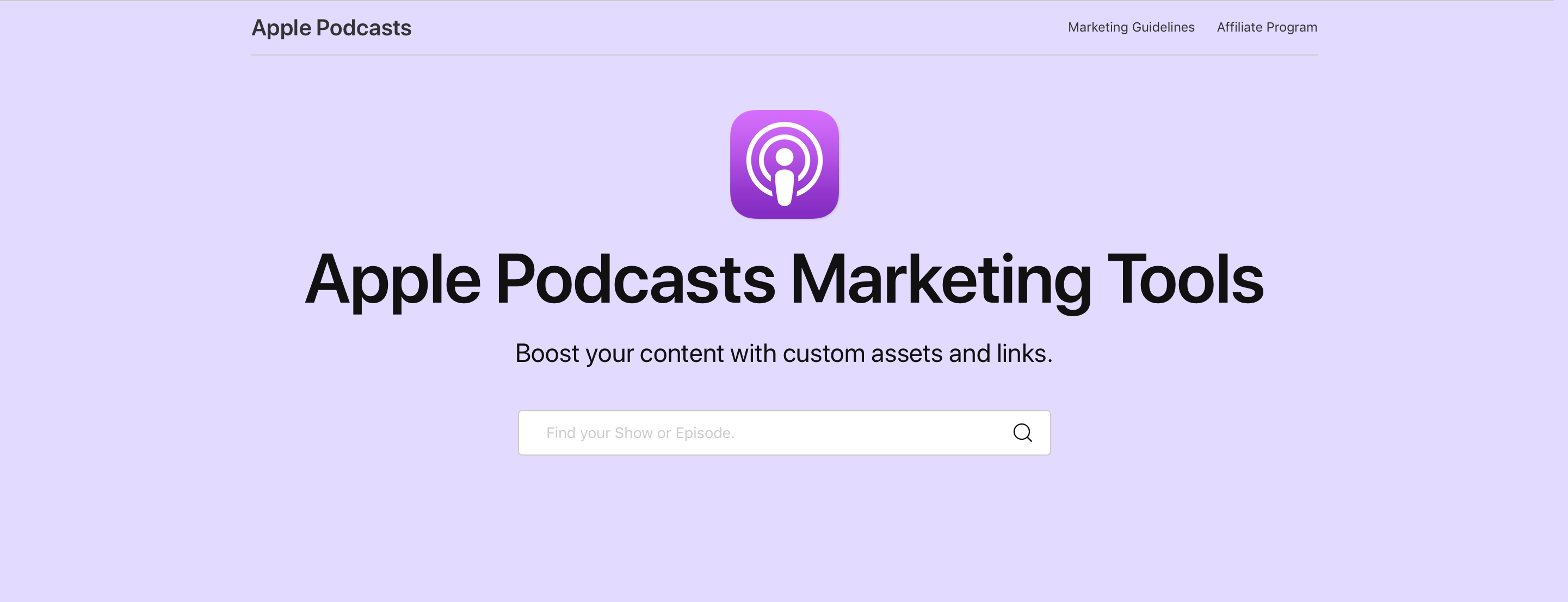
To create the code to embed the Podcasts player, visit the Apple Podcasts Marketing Tools webpage. Here’s an example of the large version of this week’s episode of AppStories:

And an embed for the show itself:

The embed for a show plays the latest episode by default with additional episodes available to the right of the player. The ‘See More Episodes’ button opens the Podcasts app. In addition to the new player, the Podcasts Marketing page offers badging resources, show and episode short link generation, Apple Podcasts iconography that can be embedded or downloaded, and QR code generation.

We’ve tested Apple’s new embeddable player with AppStories and I’ve been extremely happy with it. First of all, it’s dead simple to implement. The player uses an iframe, which means it should work out-of-the-box with little, if any, fiddling for most websites. MacStories uses WordPress and all I needed to do was paste the iframe code into the story.

What’s more, the embeds look fantastic, far better than most of the options available from podcast hosting services. Most important of all, though, the user experience is excellent, allowing MacStories readers to sample a show inline and jump to the Apple Podcasts app on any platform to learn more and subscribe.

Apple has had a similar widget system for Music content for a while, and I’m glad to see it’s been implemented for shows in Podcasts too. Podcast fans already have their preferred ways to access their favorite shows. What Apple Podcasts web embeds provides, though, is discoverability. The embeds are a simple, frictionless way for readers to sample the show and hopefully become subscribers.


Downie: Easily Download Videos From YouTube and Thousands of Different Sites [Sponsor]

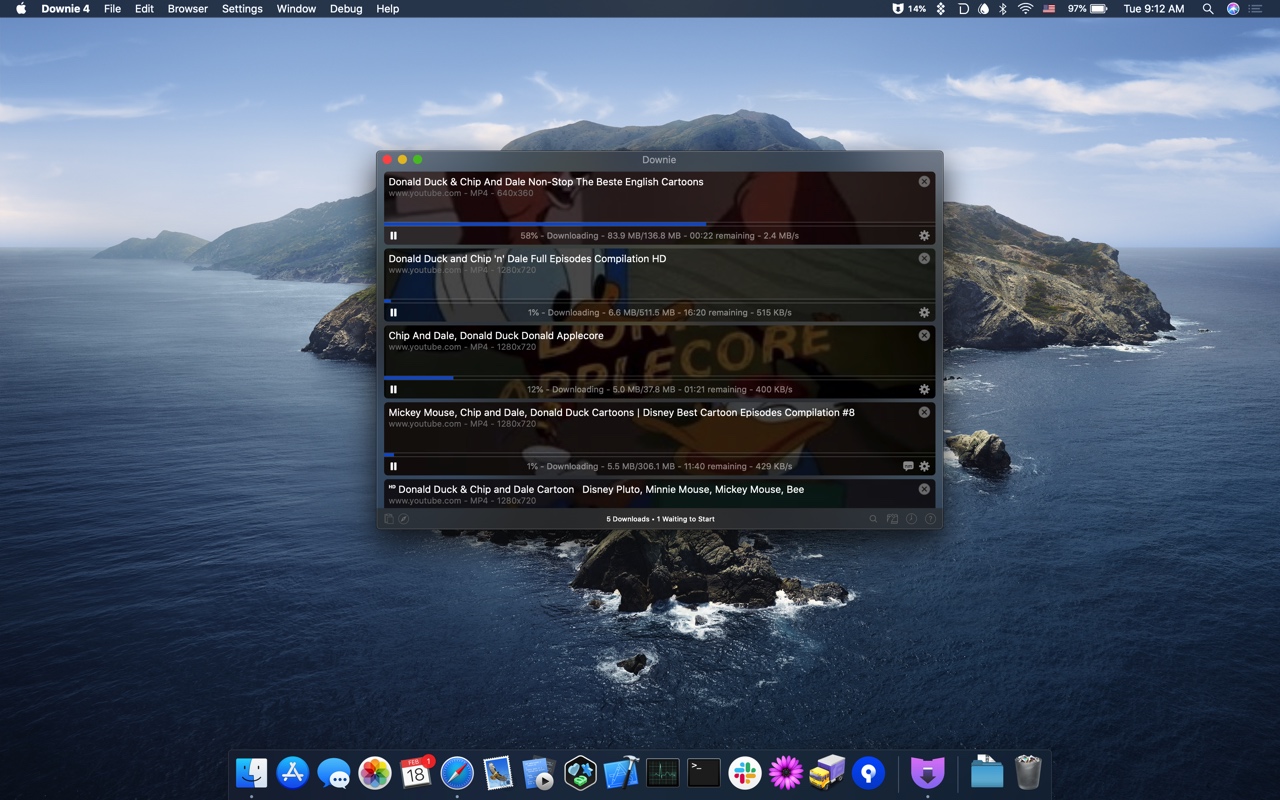
Downie for Mac simplifies the process of downloading videos from YouTube and over one thousand other sites. Just drag a URL from your browser into Downie or onto its dock icon from sites like YouTube, Youku, Bilibili, and Vimeo to immediately download a video. You can even copy text containing video URLs and paste it into Downie to start a download.

Downie is efficient and organized. Instead of downloading now, queue downloads for later. It’s a great way to process dozens of videos while you sleep and aren’t using your Internet connection for something else. Downloads can be organized automatically into folders too based on source and playlist, saving you the hassle of organizing them yourself.

When you use Downie, you also know you’re getting the best version of a video that’s available. For example, unlike many other download apps, Downie can download the 4K version of a video from YouTube if one is available. It’s that sort of attention to detail, combined with attentive support, frequent updates, and localization that makes Downie a great choice for video downloads.

Downie 4 was just released with a redesigned UI and great new features that make the app better than ever. Now, you can control Downie from the menu bar and hide the dock icon if you’d like. Downie is also up to six times faster than before, saving you a lot of time when downloading and processing large numbers of videos. Metadata is written to a JSON file now too, making it easy to process later.

For a limited time, Downie has a special 25% discount just for MacStories readers. All you need to do is use this link to purchase the app. You can use the coupon code D1B766ED at checkout to get the discount too.

Expand your video collection the easy way today, with Downie.

Our thanks to Downie for sponsoring MacStories this week.


MacStories Unwind: Apple’s M1 Macs, Big Sur, MusicBot, and New Reviews

AppStories+ Deeper into the world of apps
0:00
30:41

AppStories+ Deeper into the world of apps


Sponsored by: GoodTask – Better Widgets for Reminders and Calendars on iOS 14

This week on MacStories Unwind:

MacStories

Club MacStories

  • MacStories Weekly
    • Collection: November Event Highlights
    • Behind the Scenes: The MacStories Big Sur Review
    • Federico: iPad Features I’d Miss on an Apple Silicon Mac
    • An interview with PCalc developer James Thomson
  • MacStories Unplugged

AppStories

Unwind


The Independent Interviews Federighi, Joz, and Ternus on M1 Macs

Following Apple’s special event this Tuesday, The Independent scored an interview with Craig Federighi, Greg Joswiak, and John Ternus. The Apple execs provided some fascinating insight into their new M1 chips, including that the speed and battery life of the M1 Macs were far greater than even Apple had imagined they would be before the project began.

Federighi discusses the differences between the new MacBook Air and Pro as well. The Independent’s Andrew Griffin writes:

The M1 arrives at first in three different products: the MacBook Air, MacBook Pro and Mac Mini. The latter occupies its own place in the line-up, but given that the Air and Pro now have the exact same chip, how can they stay distinct?

“Thermal capacity,” says Federighi decisively. The Pro has a fan – Apple calls it an “active cooling system” – while the Air doesn’t, and the rest of the performance flows from there.

Federighi starts sketching out a graph that will be familiar to anyone who watched the event. The thing that is really holding these chips back is heat: as you give them more cooling to play with, they become even faster. The MacBook has some other things, too – such as even more battery – but it’s that extra headroom that really allows them to roar.

The interview also discusses Apple’s chip naming strategies and their decision to not ship new laptop hardware designs alongside the new chips. Federighi even gets a chance to pour cold water on the popular theory that Big Sur is paving the way for touchscreen Macs:

“I gotta tell you when we released Big Sur, and these articles started coming out saying, ‘Oh my God, look, Apple is preparing for touch’. I was thinking like, ‘Whoa, why?’

“We had designed and evolved the look for macOS in a way that felt most comfortable and natural to us, not remotely considering something about touch.

Make sure to check out the whole article over at The Independent.

Permalink

macOS Big Sur: The MacStories Review

Conclusion

The Mac's future is bright.

The Mac’s future is bright.

There are plenty of things in the world to worry about in 2020. The future of the Mac isn’t one of them.

Until recently, the Mac stood at a crossroads. The path the Mac was on had served it well, but the computing world has changed a lot over the past decade-plus.

As I said at the top of the review, a big part of the difference is the emergence of the iPhone and iPad. Both platforms sprung from OS X roots, but their OSes diverged as the years passed.

Simultaneously, Intel’s processors, which had served the Mac well since 2006, became a roadblock to progress. Chips were delayed, hampering Mac advances. Meanwhile, Apple was developing chipsets of its own that were meeting and exceeding the performance of Intel’s chips in some cases. In addition to raw computing power, Apple’s low-powered ARM SoCs have also allowed it to introduce new functionality in iPhones and iPads that it couldn’t achieve with Intel’s processors.

The combination of circumstances left the Mac in a precarious posture. The Mac wasn’t exactly in crisis, but it was stuck on a separate, slower trajectory from Apple’s other products with a cloudy future. Faced with this dilemma, Apple could have chosen to remain on the path it was on or set off in another direction. With Catalina last year, it was clear that the company had chosen a new destination.

It would be going too far to say that the Mac hasn’t benefitted from the popularity of the iPhone, but there are still too few of the best iOS apps on the Mac. That isn’t a concern for existing Mac users who have found a set of apps that work for them, but it is a problem for new users, as are the subtly different ways the OSes work. Together, the issues create friction that restricts Mac adoption.

Instead of letting the Mac continue on its own uncertain trajectory, Apple has embarked on a multifaceted campaign to reimagine the Mac and integrate it better into its product lineup. The entire blueprint for the Mac’s future has yet to be revealed, but it’s clearly an ambitious plan that necessitates hardware and software changes that will affect every Mac user and developer.

Apple’s switch to its own chips will allow the company to build Macs that take advantage of things like the Neural Engine, high-performance and high-efficiency CPU cores, and other features of the company’s iPhone and iPad SoCs that are tuned specifically to the hardware they power. The new SoCs should enable Apple to take the Mac in new design directions in the future too.

Big Sur is a significant departure from its predecessors. The OS takes aim at several different goals, but the most important for the Mac’s future are Big Sur’s design, its commitment to Mac Catalyst, and the conspicuous use of SwiftUI.

It’s fair to wonder why Apple felt the need to roll out a top-to-bottom redesign of macOS’s UI at the same time it’s transitioning to a new hardware architecture. Part of it is to send a visual message that the Mac is entering a new era, but it’s a practical change too.

Apple hasn’t unified its OSes, creating a one-size-fits-all OS that spans all of its products, but Big Sur does meet its closest neighbor, the iPad, partway with its new design. It’s a careful balancing act. Apple has clearly stated that its goal with the redesign was to create something familiar to Mac users. Left unstated, though, is that the design is meant to be familiar and welcoming to iPad users, too, and dovetails neatly with the tablet’s Mac-like design elements such as its new sidebar. The result brings the Mac and iPad closer together while helping iPadOS assert independence from iOS. Although it takes some getting used to, on balance, I think Big Sur’s new design succeeds.

Design is just part of the story, though. Mac Catalyst and SwiftUI are equally important parts of the story for developers and, ultimately, users. Apple reaffirmed its commitment to Mac Catalyst by significantly improving it with Optimized for Mac and moving Messages and Maps to it. The company has also sent an important message to developers about SwiftUI by using it to bring widgets to the Mac. There are still rough edges, but the role of each underlying development technology is much more clear with the release of Big Sur than it was with Catalina.

Where WWDC 2019 left developers confused about the roles SwiftUI, Mac Catalyst, and AppKit would play going forward, WWDC 2020 told a much more compelling story that’s embodied in Big Sur. It’s a complex story, to be sure, but so is the app ecosystem. By creating different paths for developers to bring their apps to the Mac, Apple has taken a pragmatic approach that maximizes the chance that developers in all sorts of circumstances will find developing for the Mac attractive.

Whether the trajectory that Apple has set for the Mac is successful remains to be seen. That will ultimately be judged by users. Still, even before knowing much about M1 Macs, I’m excited. Big Sur isn’t perfect, and its design will surely continue to evolve as it has over the course of its betas. Despite some rough edges, though, I think macOS 11 strikes an appropriate balance between where the Mac has been and where it’s going.

In the final analysis, I go back to what I said about the Mac in my Catalina review:

There’s no greater threat to the Mac than resistance to change that exists not because the change is worse, but because it’s different.

‘Different’ requires that users make adjustments, and invariably, some aspects of Big Sur will catch on more than others, requiring adjustments by Apple too. That’s part of the iterative process of software development. However, when I peer in the direction of the path that’s been chosen for the Mac, I’m heartened. Even though that path is fraught with risk and the destination isn’t clear, the lengths Apple has gone to realign its product lineup and improve the Mac’s position within it demonstrate that the Mac remains as important to Apple as it does to its users.


HomePod mini Review Roundup

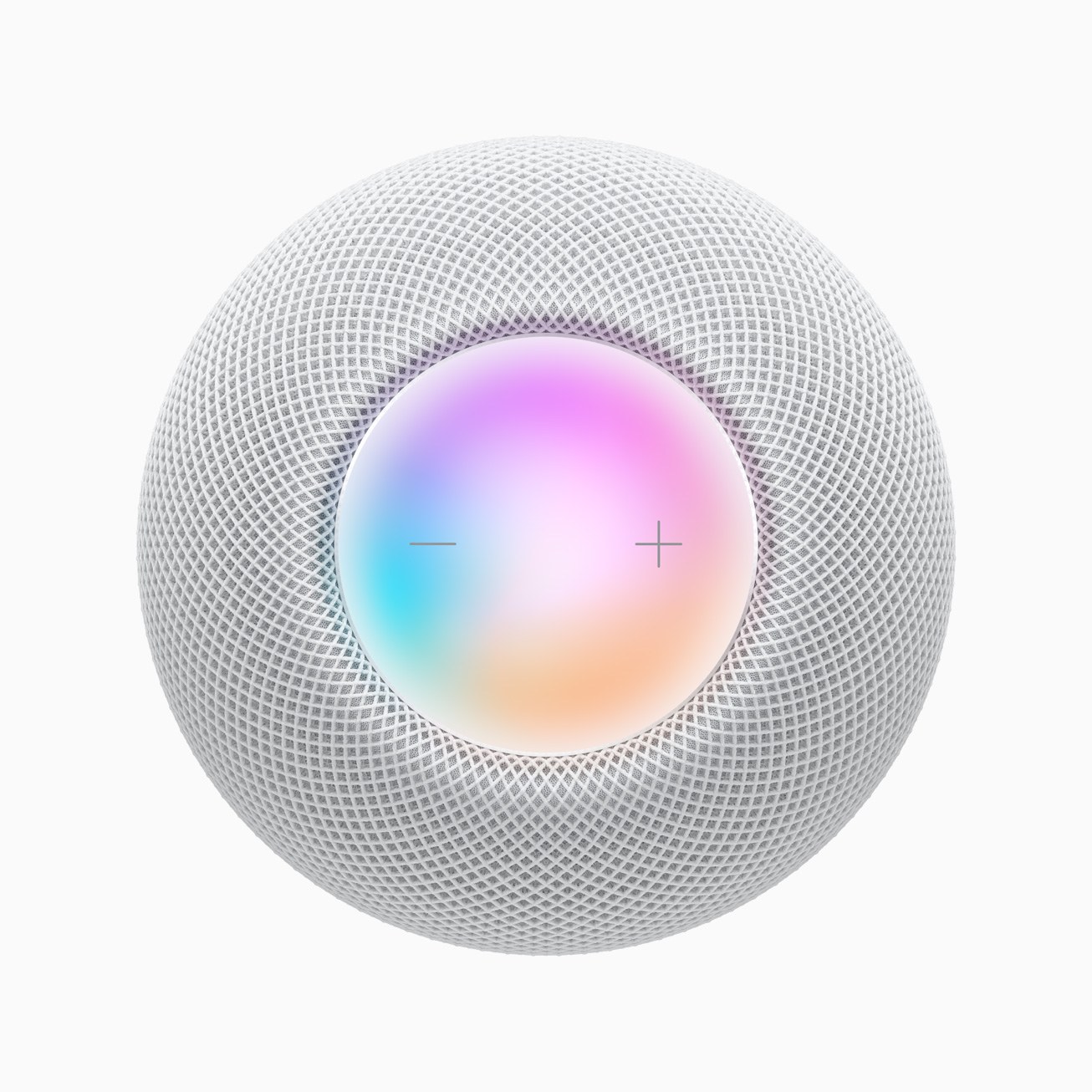
Several reviews of Apple’s new HomePod mini were published today. The mini, which I covered following Apple’s October event, is considerably smaller and less expensive than the original HomePod. Although we learned a lot about the mini in October, today’s reviews are the first to judge the sound quality of the mini.

Marques Brownlee was impressed with the quality of the HomePod mini’s audio for such a small speaker. Brownlee points out that there are less expensive smart speakers available, ones that support more smart home products, and smart assistants that he thinks are better. However, for a seamless, integrated experience with Apple’s products and great sound, he concludes the HomePod mini is a good choice.

At The Verge, Dan Seifert takes the HomePod mini through its paces too. He concludes:

At $100, compared to the original HomePod’s $350 launch price, the mini is priced low enough that you can envision buying more than one and spreading them throughout your home. It does most of the things you expect a smart speaker to do and sounds good when doing them. If you’re already fully bought into Apple’s ecosystem, including services, it’s hard to fault the HomePod mini’s price or capabilities. It also provides an escape from some of the privacy concerns and baggage that come with the Echo or Nest smart speakers, including the increasingly common ads that show up in Alexa’s responses.

However, Seifert also feels that Apple’s HomePod mini is behind the offerings available from Amazon and Google both in terms of smarts and sound quality.

Engadget’s Nathan Ingraham has a similar, although slightly more positive, takeaway:

The HomePod mini is a lot easier to recommend than the original was back in 2018. It’s significantly cheaper than the first HomePod, which automatically means more people will consider it. And it’s also a lot more capable than the original was in 2018, with more of the features you’d expect from a smart speaker. And, like the Nest Audio, it sounds very good for the price, making it a solid value for $100.

Brian Heater at TechCrunch concludes that the HomePod mini is a surprisingly good speaker for the price and size, noting about the audio:

It’s full and clear and impressively powerful for its size. Obviously that goes double if you opt for a stereo pair. Pairing is painless, out of the box. Just set up two devices for the same room of your home and it will ask you whether you want to pair them.

Jim Dalrymple at The Loop came away impressed after testing the HomePod mini, both in terms of its sound quality and ability to handle Siri requests:

I love the HomePod mini. It’s useful in accessing my personal information like lists, notes, and calendars, and it allows me the flexibility to play music wherever I want.

The sound quality of the music is really good for such a small speaker—or any speaker. HomePod mini fits almost anywhere you want to put it, and it looks great.

For more unboxing and hands-on videos, there are also videos available from Justine Ezarik:

and Rene Ritchie:

After reading and watching these reviews, I remain excited to try the HomePod mini. I have a bunch of HomeKit devices and have enjoyed the convenience of using Siri with the original HomePod, but it was too expensive to add them to every room in my house and also more speaker than necessary for many rooms. My hope is that the mini will fill in those gaps extending music to more of our home and bringing Siri into earshot in more circumstances.


Craft Review: A Powerful, Native Notes and Collaboration App

Note-taking apps on Apple platforms have never been in a better place. Apple Notes is a fantastic built-in option with deep system integrations. Bear offers an elegant Markdown experience and powerful note linking features. Agenda takes a unique date-based approach to note-taking. Evernote just launched its long-in-the-works redesign, and Noto provides a great mix of style and substance. There are quality Pencil-based note-takers like Notability and GoodNotes. And certain web-based tools like Notion are starting to put a higher priority on their app experience.

But for all the excellent options already out there, it can never hurt to have another. Especially when that new option is as well done as Craft.

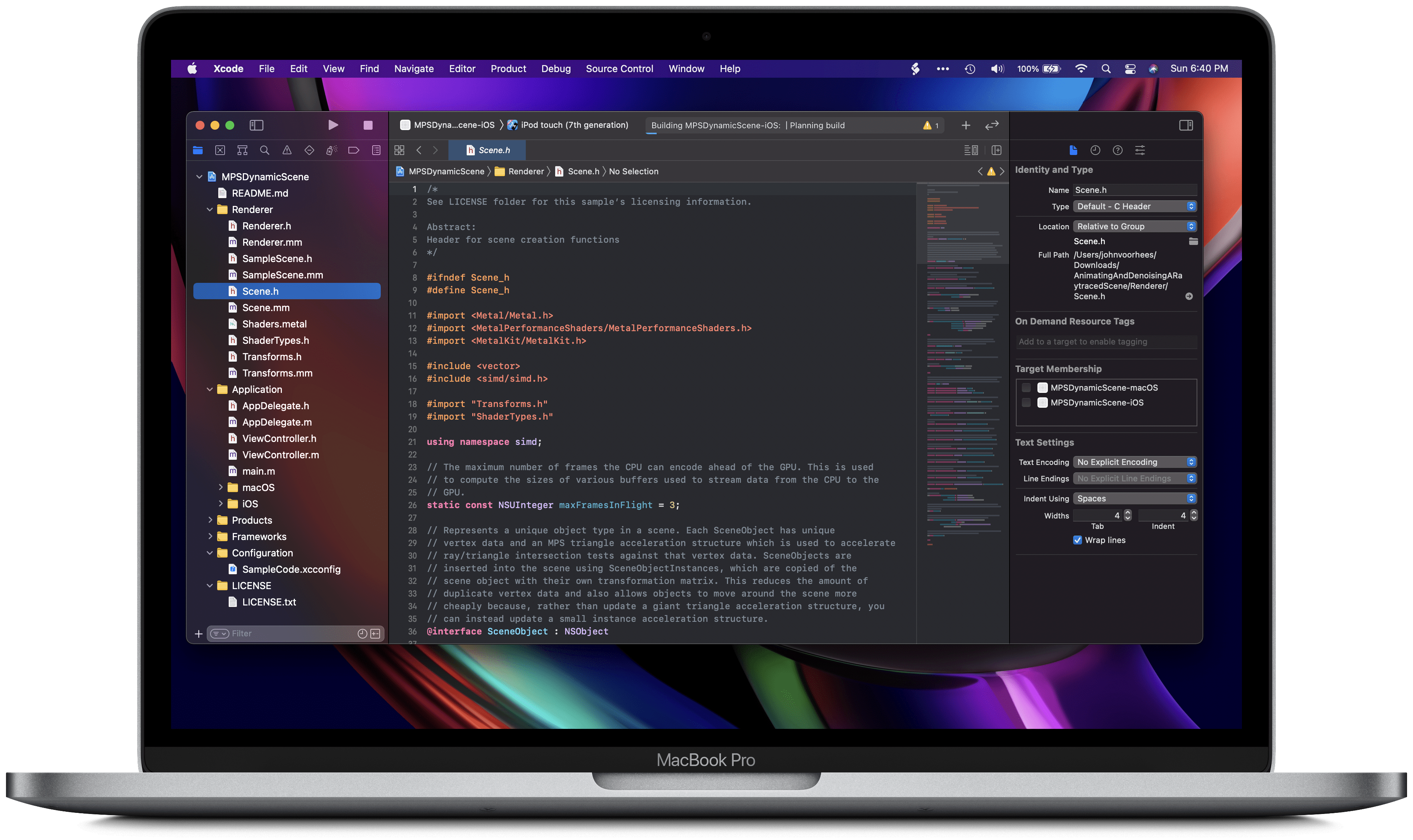
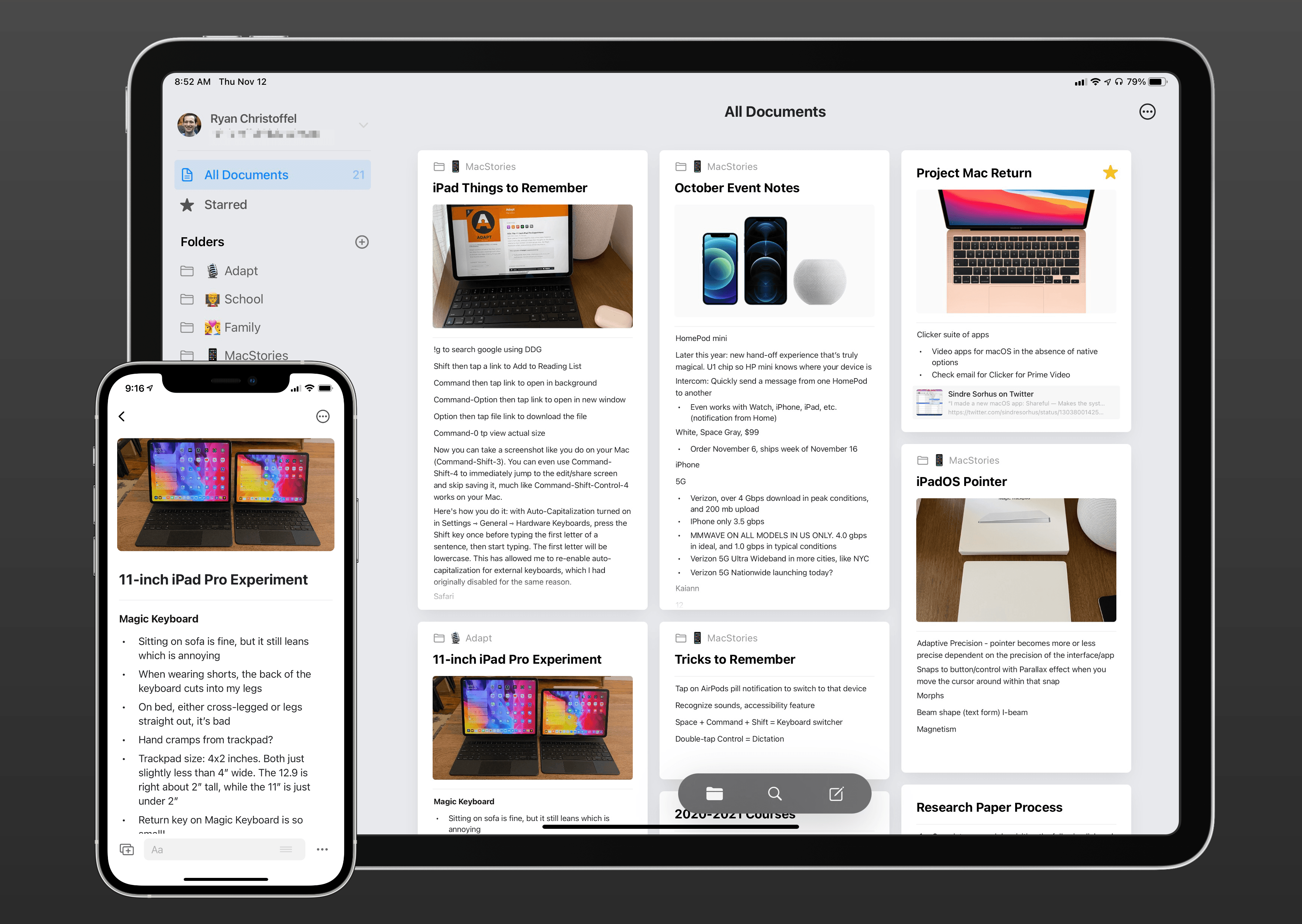
Craft is launching today across iPhone, iPad, and Mac as a new note-taker that blends the block-based approach of Notion with a thoroughly native experience, taking advantage of all the OS technologies you would hope for and throwing in valuable features like real-time collaboration. It’s the most exciting note-taking debut I’ve seen in years.

Read more


Apple Add Automatic Updates in TestFlight 3.0

Chance Miller at 9to5Mac:

The addition of automatic updates in TestFlight is a notable improvement. This means that when you’re beta testing an application, the app will automatically update whenever a new version is released by the developer. Previously, you’d have to go to the TestFlight app and manually install updates.

For developers, this also means that it will be easier to ensure that all beta users are using the most up to date version of the app.

If you’ve ever been on a TestFlight beta, you know how great this feature addition is. Personally I fell out of the habit of checking for app updates once I enabled automatic updates in the App Store, so I’m quite excited that this change will help me stay up to date on the TestFlight betas that I’m running.

TestFlight is an App Store app, so make sure your version has been updated to 3.0 from there. Once it has been, launch the app and accept or decline the automatic updates dialog that should pop up on launch.

Permalink