
 MacStories Weekly: Issue 353
MacStories Unwind: The Banshees of Inisherin and Matilda the Musical







This week on MacStories Unwind, John takes listeners to the coast of Ireland for The Banshees of Inisherin, and Federico adds some song and dance to everyone’s day with Matilda the Musical.
Links and Show Notes
John’s Pick:
Federico’s Pick:
- Matilda the Musical on Netflix
Things 3.17 Overhauls the App’s Shortcuts Actions

Things 3.17 is out for iPhone, iPad, and Mac with greatly expanded support for Shortcuts. That opens up a much wider variety of possible automations than ever before. It’s a lot to take in at once, but I’ve been playing with these actions since the end of last year, so I thought I’d highlight what each does and share a few shortcuts that I’ve built with them.
At the highest level, these are the kind of Shortcuts actions I like best. They work across all of Apple’s platforms and include parameters and predicate filtering, which allow users to build fine-tuned shortcuts that either weren’t possible before those features were added to Shortcuts or would have required users to jump through many more hoops to achieve.
When you start exploring Things’ Shortcuts actions keep in mind that they operate on more than just tasks. When you see ‘items’ referred to in the actions, that could any of the primary components of the app, including projects, headings, tasks, areas, or checklists. Not all actions support all item types, and each item has a unique set of properties that can be accessed depending on the action, so it’s worth experimenting to understand everything that can be accomplished.
The Mac’s 30th Anniversary Icon Font Shared As SVG Images→
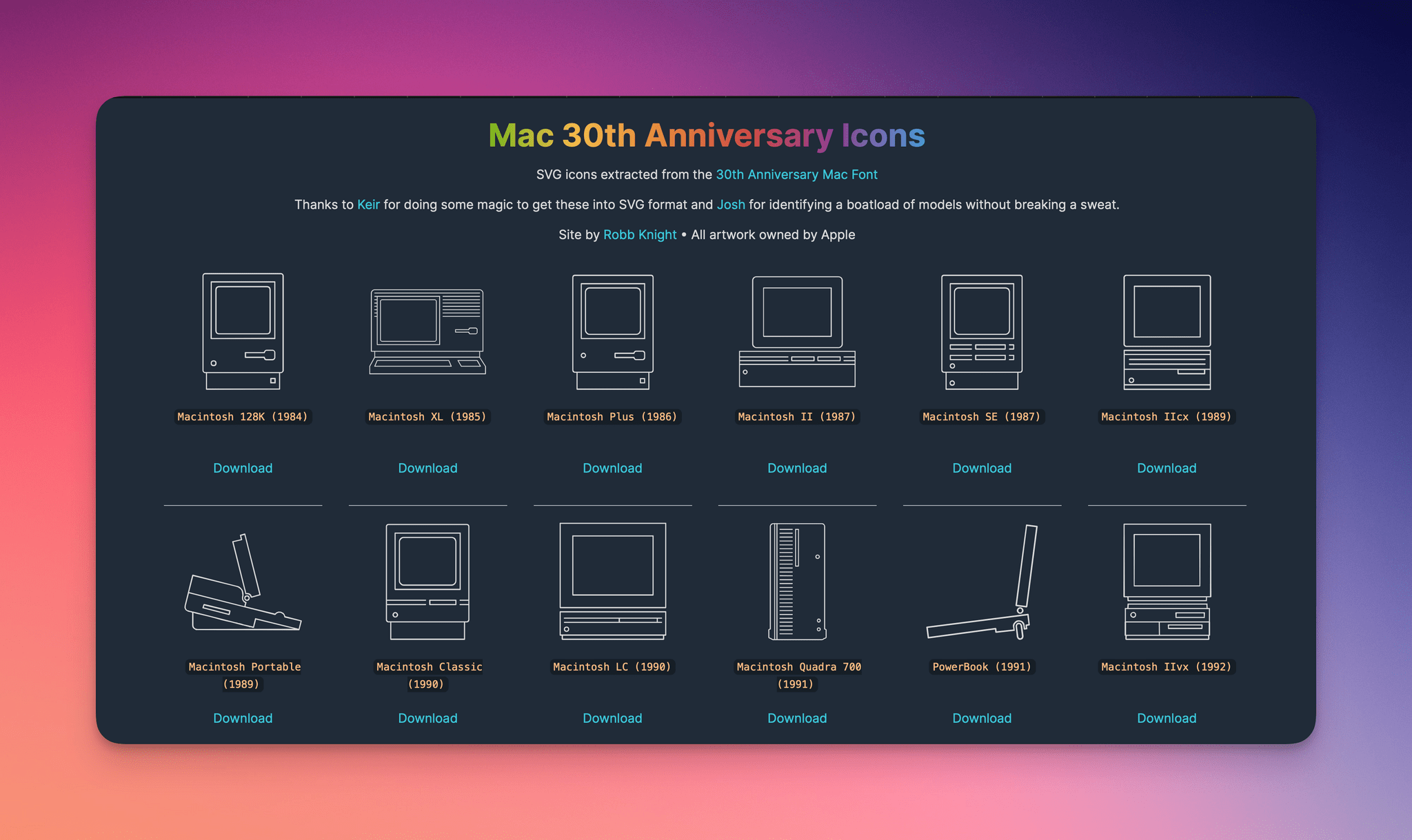
In 2014, for the 30th anniversary of the Mac, Apple celebrated with a mini site featuring the stories of the people behind the computer and its users. As part of that event, Apple created a special font of line-drawn versions of every Mac from its introduction on January 24, 1984 through 2014.
Robb Knight, my co-host on the Ruminate podcast, has had that font sitting on his Mac for years until yesterday when he released it as a series of downloadable SVG images with the help of friends Keir Ansell and Josh Calvetti.

I love this sort of project. The line drawings of these Macs look great and, as SVGs, are suitable for a wide range of projects. Robb has a long list of other interesting projects worth checking out on his website, including Alfred workflows, a Mastodon bookmarklet, a Mac utility to eliminate trackers from URLs, and a set of tools for Micro.blog to name a few.
Unread 3.3→
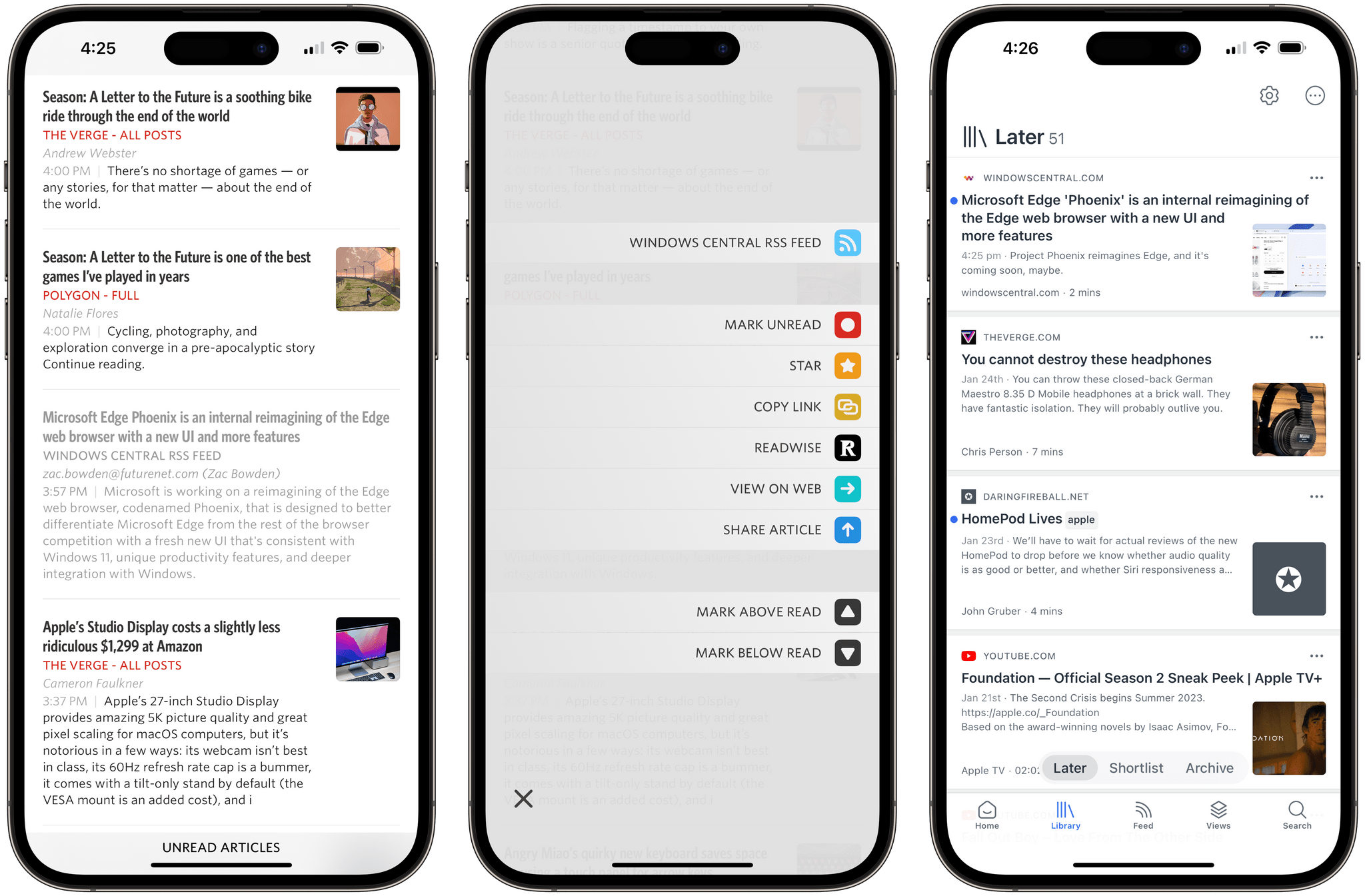
Unread, the elegant RSS reader by Golden Hill Software that we’ve covered before on MacStories, received its 3.3 update today, and it’s an interesting one I’ve been playing around with for the past week. There are two features I want to mention.
The first one is the ability to set up an article action to instantly send a headline from the article list in the app to Readwise Reader. As I explained on AppStories, I decided to go all-in with Reader as my read-later app (at least for now), and this Unread integration makes it incredibly easy to save articles for later. Sure, the Readwise Reader extension in the share sheet is one of the best ones I’ve seen for a read-later app (you can triage and tag articles directly from the share sheet), but if you’re in a hurry and checking out headlines on your phone, the one-tap custom action in Unread is phenomenal. To start using it, you need to be an Unread subscriber and paste in your Readwise API token.
The second feature is the ability to save any webpage from Safari as an article in Unread, even if you’re not subscribed to that website’s RSS feed. Essentially, this is a way to turn Unread into a quasi-read-later tool: the app’s parser will extract text and images from the webpage, which will be then be saved as a ‘Saved Article’ in Unread Cloud, Local feeds, or NewsBlur, or as a ‘Page’ in Feedbin.
If you’re a new Readwise Reader user, I recommend checking out Unread 3.3, which is available on the App Store for iPhone and iPad.
AppStories, Episode 313 – Imagining Apps for an Apple VR Headset→
This week on AppStories, we imagine the kinds of apps that may emerge for an Apple VR headset.
Sponsored by:
- CleanMyMac X – Your Mac. As good as new. Get 5% off today.
- Pillow – Sleeping better, made simple.
](https://cdn.macstories.net/banneras-1629219199428.png)
On AppStories+: Cookies, Cider, and touchscreen Macs.
We deliver AppStories+ to subscribers with bonus content, ad-free, and at a high bitrate early every week.
To learn more about the benefits included with an AppStories+ subscription, visit our Plans page, or read the AppStories+ FAQ.
Club MacStories Sample: Federico Achieves His Universal Control Dream and John Reflects on Indie Life
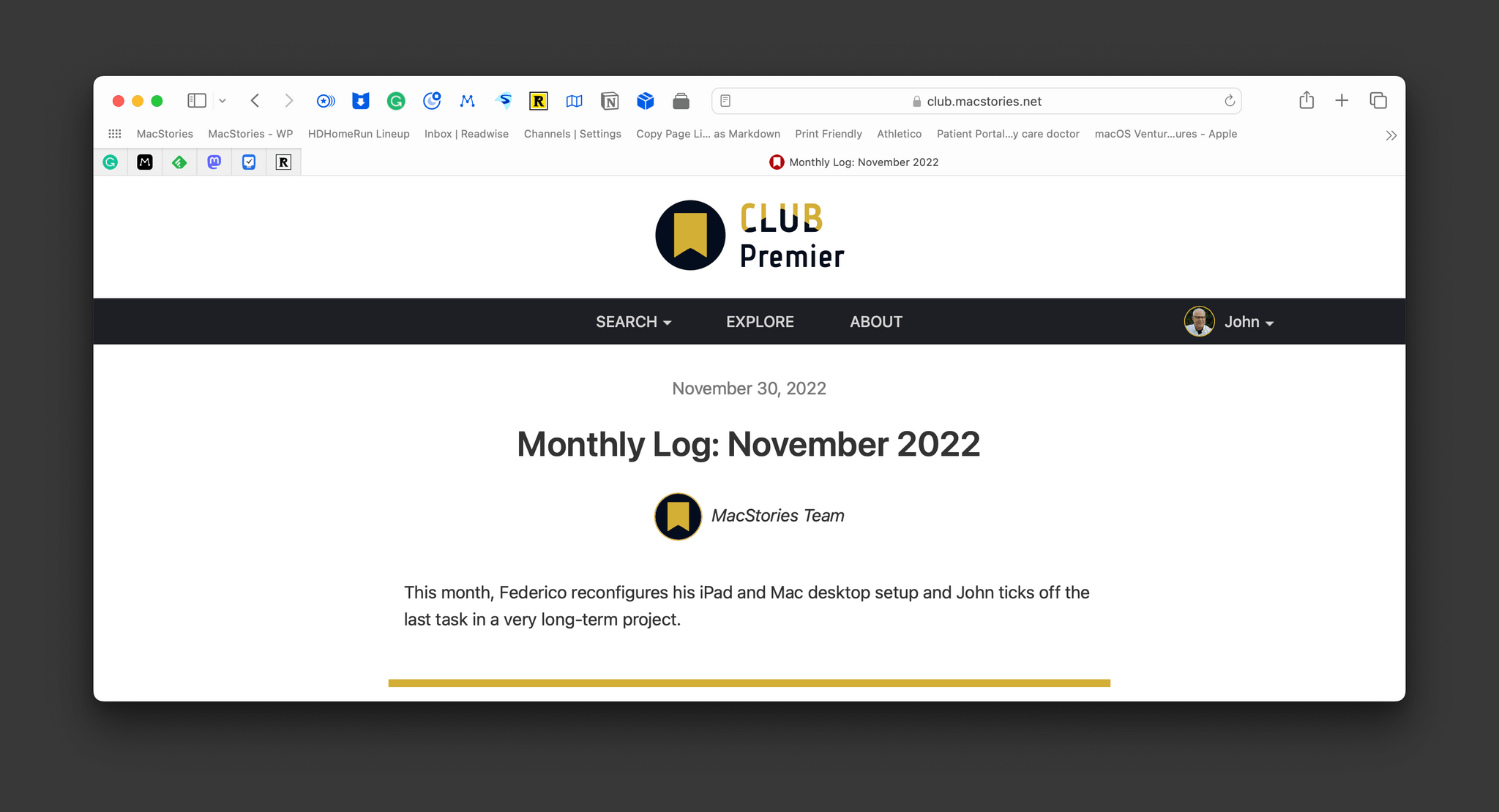
Editor’s Note: Every now and then, we like to share some of the writing we’ve published for Club MacStories members with the broader MacStories community to give readers a feel for what we offer in case they’re thinking of joining themselves.
The Club has grown to encompass far more than just our writing. There’s the Discord community, AV Club events to discuss community-chosen media, Club-only columns, podcasts, and more.
But, at the heart of the Club are our two regular newsletters available via email and the web. MacStories Weekly, which is packed with new app discoveries, tips, shortcuts, columns, and more, is published roughly 48 times a year, and the Monthly Log, which features longer-form columns, comes out every month for a total of 60 newsletters a year.
Today we’re sharing the November 2022 issue of the Monthly Log, featuring two columns. The first, by Federico, is an in-depth look at how he’s used Universal Control to achieve the iPad Pro setup he’s always wanted. In the second story, John reflects on some lessons he’s learned since joining MacStories.
We hope you enjoy these stories and consider joining the Club. MacStories wouldn’t be possible without the generosity of its readers, so thank you to all of you who are already members or were in the past, and welcome to those of you just joining now. Your support means a lot to us.
Micro.blog, Mastodon, and Ivory→
Manton Reece has a fantastic explanation of the underpinnings of Micro.blog and Mastodon and how they work with third-party clients like Ivory, which Federico reviewed yesterday.
Manton’s post is in response to questions about why Micro.blog work with Tapbots’ Ivory since both Micro.blog and Mastodon implement the ActivityPub standard. The answer is that ActivityPub is primarily a service-level server-to-server API that allows Micro.blog and Mastodon servers to interact with each other. However, clients like Ivory use a different Mastodon API for reading and writing Mastodon posts that doesn’t match up feature-for-feature with Micro.blog. Manton explains the problems that causes:
Could Micro.blog implement the Mastodon API, thereby allowing Ivory to connect to Micro.blog as if it was a Mastodon server? Technically yes, but doing so would introduce a couple problems. By design, Micro.blog does not have exactly the same features as Mastodon. We left out boosts, trends, and follower counts, and added other things that are outside the scope of Mastodon.
If Micro.blog worked with Ivory, what would the UI look like when the features didn’t exactly match up? It would be confusing. Ivory would appear broken and it would disrupt the experience we’re going for with Micro.blog’s community.
That isn’t to say that signing into Micro.blog from Ivory to read and post to Micro.blog in the future is impossible. However, as Manton points out, it will require further experimentation and, ultimately, coordination with third-party apps while keeping an eye on preserving Micro.blog’s identity. Because, after all, Micro.blog and Mastodon are two distinct services that approach social media with different philosophies that are reflected in their designs. Interoperability is appealing on the surface, but not if it comes at the expense of the unique features that users of Micro.blog or any other service have come to expect and rely on.
Ivory for Mastodon Review: Tapbots Reborn

There’s an intangible, permeating quality about Tapbots apps that transcends features and specs: craftsmanship. With Ivory, launching today on the App Store for iPhone and iPad, you can instantly appreciate that level of care and refinement that the Texas-based duo is well known for after more than a decade on the App Store. But there’s something else, too: for the first time in a few years, it feels like Mark and Paul are having fun again.
Ivory is a Mastodon client, and it’s tricky to evaluate it right now because its version 1.0 is launching under extraordinary circumstances.
As we’ve documented on MacStories, Twitter’s idiotic new “leadership” recently decided to unceremoniously and crassly put an end to third-party clients such as Tweetbot with no warning, which forced Tapbots to scramble and figure out a solution on how to discontinue Tweetbot while dealing with subscription renewals while also accelerating the timeline for the launch of Ivory, which they’d been working on for months. I’ve been following the development of Ivory very closely (I’ve been using the app as my main Mastodon client since its first alpha in late November), and I know that the Ivory 1.0 launching today isn’t the debut version Mark and Paul were envisioning. By Tapbots’ own admission, there’s still a lot of work to do on Ivory, but given how the Twitter situation evolved, they had to ship something. There is already a roadmap on Tapbots’ website for Ivory, if you’re curious to know what the developers are planning for the foreseeable future.
As I was saying above, however, there’s something else about Ivory that, in many ways, makes today’s release an important milestone in our community worth documenting and celebrating. Ever since we at MacStories decided to abandon Twitter, we’ve gone all-in on Mastodon and, broadly speaking, we want to embrace the idea of decentralized and federated social media. Over the past few weeks, I’ve seen hundreds of other people I used to follow on Twitter do the same. I believe we’re witnessing the beginning of a new social networking era, and even though Mastodon has been around for a few years, many of us (myself included) are only realizing now that we should have paid attention to this kind of technology years ago.
For the second time since I started MacStories in 2009, I can observe developers imagining what interfaces for reading and posting status updates on the web should look like. New conventions are being created as we speak, and we are, once again, witnessing the rise of a vibrant ecosystem of third-party apps designed for different needs, platforms, and people. Only, this time, there is no single company that controls the fate of all this.
So that’s the something that makes the release of Ivory a special one in the Apple community. More than a reactionary “what if Tweetbot, but for Mastodon” move, Ivory marks a new beginning for Tapbots in a way that Netbot never was. (If you know, you know.) We’re living in new and exciting times for indie apps, and I think that you can feel it when the creator of an app feels the same way. Ivory exudes enthusiasm. Even though it’s not the most feature-rich client I’m testing right now, it’s the one I’m constantly drawn towards. Ivory is going to establish a baseline for quality and polish on iOS and iPadOS; it’s the app future Mastodon clients for iPhone and iPad (and, hopefully soon, Mac) will have to measure up against.
Ivory is the start of a new chapter for one of the most beloved indie studios in our community. So let’s take a look.