Plain Text Primer

Plain Text Primer

Michael Schechter has kicked off a new series over at A Better Mess, detailing the basics of working with plain text. In today’s article, he covers nvALT, Brett Terpstra’s excellent fork of Notational Velocity.

nvALT is a free note-taking tool with some great features for plain text and markdown editing. It serves as the foundation for my plain text workflows. It stores all of my text files in an environment that is lightening fast for creating and searching through notes. I use nvALT as a repository for everything.

Personally, I’m a big fan of both plain text and nvALT. As I have written on multiple occasions before, plain text is portable, timeless, and it happens to work with some of the finest apps on the App Store.

Michael’s overview is a good starting point if you’re interested in plain text. Check it out here, and here.

Permalink

Living Earth HD — My First Mac OS X Weather App

I’ve never seen the need for a desktop weather application. I’ve always considered it way easier to fire up Chrome, go to the website of my favorite German weather forecast provider, look up the forecast, then get to work. So why should I clutter my menu bar or even my desktop with another app I have to update and look at to justify its purchase? On iOS the situation is completely different: I need a weather app on my iPad for quick glance without the hassle of typing in a web address into Mobile Safari.

Living Earth HD is one of the newest iPad weather apps featuring an interactive 3D animated world globe with live weather forecasts. After testing it, I realized that this concept didn’t suit me on the road, although the app looked pretty awesome on a Retina Display. I want precise forecasts I could quickly glance at, just like Weather HD 2’s new Quick View feature. So although I like Living Earth HD for iOS, it didn’t have any chance to become my default weather app. Two weeks ago, Ryan and Moshen from Radiantlabs published a port of Living Earth HD to Mac OS X, which I will refer to as Living Earth Desktop throughout this review. I got curious and started testing it. After more than a week now it is still in my menu bar, right beside the Dropbox and Tweetbot icon, which means it’s a really good app.

Read more


Create OmniFocus Tasks From Drafts, Scratch, Or Any Text Editor Through Dropbox

Back in October 2010, I posted a tutorial on how to add new tasks to OmniFocus or Things using Dropbox, AppleScript, and PlainText by Hog Bay Software. In June 2011, I wrote about more ways to add tasks to OmniFocus (my GTD app of choice), and noted how I had only “scratched the surface of what’s possible to do with OmniFocus and task creation”.

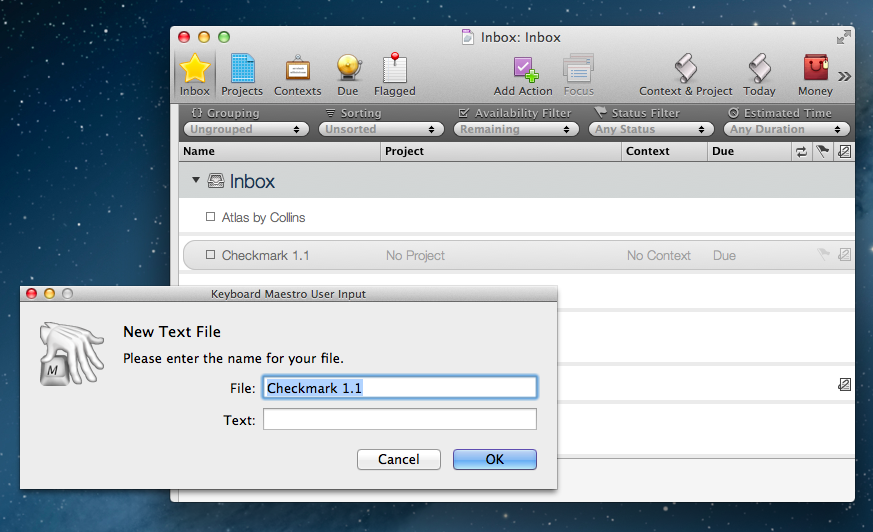
I decided to slightly revisit my workflow now that several “quick Dropbox note-taking apps” like Scratch and Drafts have come out. These apps are already integrated in my daily routine, but the following method works with any text editor, and, obviously, using Dropbox is recommended if you want to be able to create tasks from anywhere. Read more


Change Text Case With AppleScript

Last night, I was looking for a quick way to change a string of text from lowercase to Title Case, which is the format I use for headlines here at MacStories. Normally, I would recommend installing WordService by DEVONtechnologies, but that’s a system Service, and I don’t seem to be able to install those without logging out and back in (I didn’t want to log out).

As I’ve come to learn lately, when you’re looking for ways to automate your Mac, the solution has likely already been posted on MacScripter. Among all the possible combinations of AppleScript to change text to a particular case format, I like this one by forum member “kai”. Essentially, the script takes the someText property and transforms its text items through changeCase to four possible options: upper, lower, title, and sentence.

To customize the script to my needs, I set someText to get the contents of my clipboard, change the case, then turn the result over to the clipboard again. In this way, I can select any text, copy it (so the original version is available in ClipMenu’s history), change the case, and paste back. To run AppleScripts with a keyboard shortcut, I use either Keyboard Maestro or Alfred.

Check out the AppleScript here.


iPhone 5: The Rumors

Written by Graham Spencer, Cody Fink and Federico Viticci.

On Wednesday, September 12, Apple will likely announce the next-generation iPhone, rumored to be called “iPhone 5”. Initially reported by iMore in July, Apple’s September event will put the final word on what is believed to be the biggest upgrade to the iPhone’s line since the iPhone 4. And quite literally so.

Whilst CEO Tim Cook promised earlier this year to be “doubling down” on secrecy for unreleased products, a large number of alleged drawings, internal and external parts, and even software references have “leaked” in the past months, pointing to a device similar to the 4/4S family, but featuring a bigger screen. Moving to a taller screen would, supposedly, allow Apple to pose the iPhone 5 as a much more significant upgrade than the iPhone 4S (if only for the design alone), which, however, still managed to sell “fairly” well. And – again, based on ongoing speculation – a bigger display would allow developers (and Apple itself) to show more content to the users, enabling a new kind of experience for reading, browsing the web, playing games, and watching movies.

But it’s not just about the new screen. Below, we’ve assembled a timeline of sorts, organized by sections, linking to the most likely and popular rumors or leaked photos that have been posted to date.

While we don’t normally report on rumors that pop up on a daily basis, all signs at this point seem to suggest information posted online by various outlets is correct; recently, Jim Dalrymple of The Loop confirmed/denied a variety of rumors on the new iPhone. As Rene Ritchie of iMore wrote, while Apple could have spent some of its $100+ billions in the bank to orchestrate a complex series of “fake” leaks to create a “surprise effect” next week, they don’t have more time than anyone else on this planet, so the parts floating around – everyone seems to have one these days – are most likely accurate.

This, though, doesn’t mean we know how the next iPhone will be like. As you’ll see below, there are leaked displays, new dock connectors, motherboards, and even measurements, but this doesn’t necessarily imply we can be 100% sure this is what the next iPhone will look like. We can only attest with a certain degree of probability that, yes, Chinese manufacturers have given us a pretty good idea of what the new iPhone should be like, but only Apple can pull the curtain off what appears to be a major milestone for the iPhone’s product line.

So jump past the break, and check out the gallery of photos and links we’ve put together. Just don’t fall in the trap of believing this is all there is to the new iPhone’s story, because as we’ve learned in the past, there’s more to new Apple products than connector cables and leaked components.

The experience – how hardware and software integrate with the device – is still up for Apple to redefine next week.

Read more


Adobe Photoshop Touch Now Retina Ready

Released in February, Photoshop Touch, Adobe’s mobile version of the popular desktop photo editing software, has been updated today to include Retina support on the third-genereation iPad.

When the new iPad came out in early March, early adopters lamented the fuzziness of graphics and images of the then just-released Photoshop Touch; the lack of high resolution mode was particularly concerning because, as the market leader when it comes to photo retouching and image creation, many thought Adobe would do better, shipping a version of its app ready for the Retina display (as many indie developers did).

Today’s version 1.3 brings Retina display support with updated graphics (though some menus, like the font-picking one, are still low-res), and support for high resolution images; the app now supports images up to 12 megapixels and allows you to work on them maintaining the highest quality settings. Admittedly, while the app could produce and edit on the iPad’s Retina display, working with surrounding fuzzy UI elements wasn’t the best experience, and it’s good to see Adobe (finally) improving the app with up-to-date features.

Alongside support for the Retina display, Photoshop Touch 1.3 brings two new effects, faster animations (the app does seem snappier in navigating content), integration with Photo Stream, and addiitonal minor fixes and improvements.

Adobe Photoshop Touch is available at $9.99 on the App Store. Check out our original review of the app.


Harry McCracken: “One Year Later, the iPad Is Still My Favorite Computer”

Harry McCracken: “One Year Later, the iPad Is Still My Favorite Computer”

Harry McCracken has been working a lot from his iPad. And by “a lot”, I mean Harry McCracken was one of the first journalists to bring his iPad full-time and turn it into a serious work machine for writing. He shared some great tips and workflow ideas last year, and his experience was the inspiration for this article of mine, which analyzed the iPad’s journey from early adopters to mass market as a “Post PC” device. McCracken’s story also motivated me to use the iPad more for work-related purposes, and I was not alone.

One year later,  McCracken interviews himself about the pros and cons of the past 365 days as a proficient iPad user. More importantly, he argues that it’s not about the writers and bloggers anymore – the iPad is being used by “regular” people, who are finding the iPad to be a viable solution for variegate tasks like reading and checking emails, or more specific activities like screenwriting and managing medical records in healthcare.

I’m pretty sure it’s not just journalists who are using iPads as computers. I see people doing it in airplanes. I’ve seen them doing it on the subway. When I’m out and about, strangers run up to ask me about my keyboard. Something’s happening here, and it’s happening quickly — and so I thought I’d update you on my experiences as of the one-year mark.

Skipping the question as to whether the iPad can or can’t be a “computer” altogether, what we really should consider is that, ultimately, consumers aren’t wasting their time arguing on the nature of the device, they’re just using it. As it turns out, arguing on productivity isn’t nearly as productive as just getting work done, like McCracken (and others did).

Read Harry McCracken’s post over at TIME.

Permalink

Organizing Everything With Plain Text Notes

Organizing Everything With Plain Text Notes

nvALT

nvALT

In a guest post for Macworld, Macdrifter’s Gabe Weatherhead shares some tips about his note-taking workflow, based on plain text files.

Like everyone else, I need to keep track of lots of bits of information. Some of those bits are as simple as the brand of salad dressing my wife likes; others are as complex as an outline for a multi-year project at work. Whatever the size, origin, and purpose of these bits, I keep track of them all by saving them in a reliable system of plain-text notes—a system that enables me to find any bit of information whenever I need it, in a form that makes sense to me when I do.

My workflow is similar to Gabe’s one. I store all my notes – rigorously in plain text format for data portability – in a single Dropbox folder, and I use a variety of apps and hacks to work with these files on the device at hand. The advantage of working in plain text is that I never have to worry about file conversion and corrupted databases – and when combined with Dropbox, it really all just works. Plus, I can stay assured that, twenty years from now, an archive of my notes will still be there, as plain text – like PDF – will likely be around.

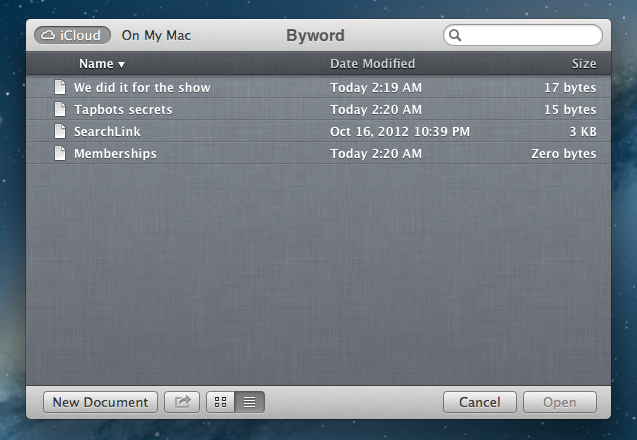
On the Mac, like Gabe, I use Brett Terpstra’s excellent nvALT to switch between all my notes. I don’t use tagging, but I do use Alfred to peek inside the contents of my plain text files to find links or bits of text I had previously saved (like favorite tweets). Occasionally, I might write in TextEdit or Byword, but generally – no matter the app I’m using – Markdown previews are handled by Terpstra’s other insanely useful app, Marked. On iOS, as I recently explained, I tend to access my notes with a combination of Nebulous Notes, Writing Kit, and WriteUp depending on what I need. To quickly save notes into Dropbox, I rely on Drafts, which was recently updated to version 2.0.

I like plain text because it lets me write and access my notes the way I want to. As David Sparks once wrote, it’s timeless. Make sure to read Gabe’s post here for some great tips.

Permalink