Apple Q3 2013 Results: $35.3 Billion Revenue, 31.2 Million iPhones, 14.6 Million iPads Sold

Apple has published their Q3 2013 financial results for the quarter that ended on June 29, 2013. The company posted revenue of $35.3 billion. The company sold 14.6 million iPads, 31.2 million iPhones, and 3.8 million Macs, earning a quarterly net profit of $6.9 billion.

We are especially proud of our record June quarter iPhone sales of over 31 million and the strong growth in revenue from iTunes, Software and Services,” said Tim Cook, Apple’s CEO. “We are really excited about the upcoming releases of iOS 7 and OS X Mavericks, and we are laser-focused and working hard on some amazing new products that we will introduce in the fall and across 2014.

The company generated $7.8 billion in cash flow from operations during the quarter. Read more


‘How strange is Apple’s iMessage? The strangest.’

Craig Mod has a few suggestions that would go a long way towards improving iMessage. He talks about conflicting IDs, unsynced histories (and someone else had to make an app to fix how terrible searching history is on the Mac), and the lack of proper profiles for the people you’re conversing with.

The biggest problem I have with iMessage is that it’s capable of but really poor at handling group conversations. Our issues revolved around the “Send and Receive” settings. For a group chat to really work, everyone has to be sending from the same address. More often than not, this was different between a Mac and iOS devices. If someone in the group was sending a message on their iPhone, the default was likely a phone number. If someone in the group was sending a message on their Mac, the default was probably an email address. Linking helps, but keeping track of all these settings is difficult. If one person in the group was sending from a different address, it would cause a new conversation to appear in iMessage (thus “splitting the thread”) for the receivers. For the sender, everything would appear to be the same. With a big group of people this became a daily annoyance because it became difficult to follow conversations when different instances or pieces of it showed up in different places. It’s a hard problem to describe, especially when receivers can opt to receive messages at multiple email addresses (and if the same person you’re conversing with decides to send you something to an alternative address, I believe the message should show up in the same conversation). The reality is that the settings are kind of a mess and talking about this stuff caused a lot of frustration and we eventually gave up.

And we won’t even get into the problems that the iMessage for Mac app has. But that was a mess for a whole different reason, the main problem being that it would lock up our Macs when they awoke from sleep as hundreds of messages were downloaded. This is why our team fled to Google Hangouts once those apps became available on iOS (more on that in a minute).

iMessage is fine for its intended use, as an SMS replacement for talking to friends or family one-on-one, but people are treating it as the next Aol. instant messenger. And can you blame people? Our expectations are measured by how fast iMessage is at sending messages. Today’s virtual keyboards allow us to rapid fire messages and hold conversations a lot longer than our T9 phones did years ago. The days of traditional slow texting are over.

Google Hangouts has its own problems. The iOS apps in particular aren’t terrible aesthetically, but they slow down and I get frustrated waiting for messages to be sent and received a lot. I’m mostly happy with the Chrome extension, except when I play video in the background and the app gets bogged down because of something intensive happening in the browser. The good thing is that we haven’t had a problem following conversations and Google’s history (especially for images) is fantastic. The bad news is that it’s the opposite of iMessage: Hangouts fixes the history and contact stuff, but isn’t very good with the sending and receiving part on mobile. It has a desktop app (Chrome extension) that works but mobile apps that struggle. Ugh!

Permalink

Realmac Software Releases Ember - A Digital Scrapbook for Your Mac

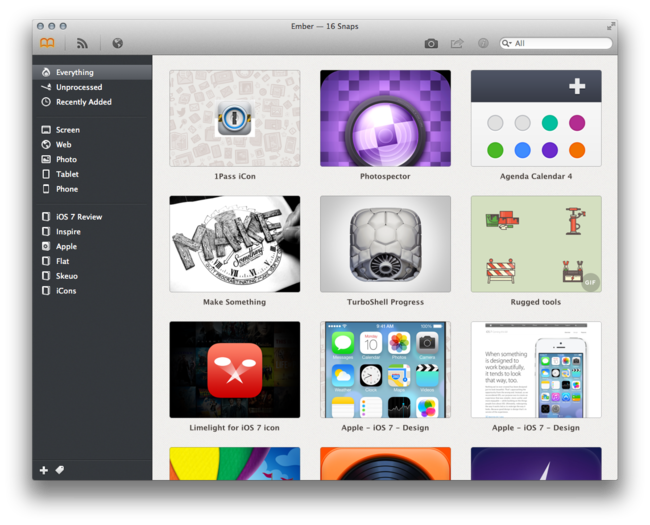
Realmac Software, makers of great apps such as Clear, Rapidweaver, Analog, and Analog Camera, have released Ember for Mac today. Last month, Realmac detailed in a blog post what the future of LittleSnapper was and the team explained:

Over last few months, we’ve been getting a few emails asking about LittleSnapper - with some folks wondering if the app is still under development.

As it happens we’ve been heads-down-working on LittleSnapper for some time, and I’m absolutely thrilled today to dispel any rumours of the app’s demise and announce today that we’ve been hard at work on the next version of LittleSnapper: Ember for Mac.

Remember the original Ember? It was a great webapp (saved screenshot) that let you browse and add images to collections for inspiration: I used it all the time before Dribbble became so popular. Back in June of 2011, the Realmac team shut down the service and it was a major bummer for me – but it was understandable. Today, Ember is back as a Mac app, and it works great. Users of the old LittleSnapper are going to love Ember because it’s much more than a simple name change, but rather more like a ‘Pro’ version of the old software.

LittleSnapper users can easily import their libraries upon launching the new Ember app. The only thing you need to do to prepare for Ember is to make sure you’re using the most recent version of LittleSnapper, as only LittleSnapper libraries opened with LittleSnapper v1.8.5 can be imported into Ember. After that, Ember will be populated with all your goodies (Ember also supports importing multiple libraries if you need to do so).

Ember is a great place to store photos, images, drawings, websites, app screenshots, or just about any image that inspires you. Just drag, snap or import the images that you want to keep, then organize them into your own relevant collections. Ember lets you annotate the images you need to give feedback on with drawing and text tools that allow you to give feedback / edits on images; if you need to, you can rotate and crop your images so they are correctly sized and aligned.

Images can be shared via AirDrop, Messages, Twitter, Facebook, Tumblr, Flickr, and CloudApp. In terms of library organization, tags help you sort and projects keep them all neatly organized, while smart projects work just like OS X Smart Folders – you can set the parameters on what they filter and collect.

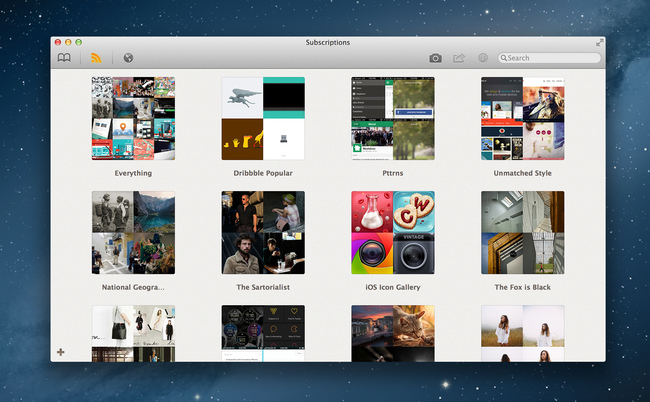
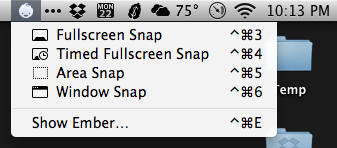
If you’re looking for inspiration and items to add, Ember has a few options. You can use the built-in web browser (it’s responsive!) and snap from there with built-in tools; the browser has a smart element detection that automatically suggests areas to snap as you roll over a webpage. Under the Subscriptions tab, you can subscribe to a site’s RSS (like Dribbble’s popular feed) and the app will refresh the feed on launch (or manually). Ember has browser extensions that will import snaps from Chrome and Safari there is a menu bar tool for quick and easy snaps from anywhere on your Mac.

Ember can also auto-detect iPhone and iPad screenshots. Drag the PNGs from your iOS device and Ember will automatically sort them into “Phone” and “Tablet”. Preferences let you set your image and text editor of choice, plus snap shortcuts, among other things. Ember will let you open images in your default browser, use Notification Center to let you know when you have new subscription images, and many more nice little touches.

When discussing Ember’s release, Federico asked me what I thought about the lack of sync an/or iOS apps and I answered: “For me, it doesn’t come into play at all with this app because I can import iOS screens. Most of my inspiration/design browsing is from my desktop computer and, if I really need to snap a screenshot from iOS, I can save it to Dropbox so when I get home I can import it into Ember. In a way, that’s like having sync.” Now, I do think syncing ember data across Macs (via Dropbox or iCloud) would be nice but that’s not yet available but could be in a future update.

Ember is a very polished app with a fantastic UI, slick animations, full-screen mode and it’s simply a fun app to use and organize images with. If you’re a digital creative person and want to organize your screenshots, inspirational images and reference files, Ember could be what you need. Ember for Mac is available today via the Mac App Store for $49. The price may be a little steep for some, but Ember is powerful, sexy, smart, and worth every penny.



The Menu Bar, Episode 015

The peerless Federico Viticci visits the bar to chat naming your band/blog, the allure of Apple, Microsoft’s thick cake of middle-managers, the lovechild of Automator & Sublime Text, and making things that don’t suck.

I was invited on one of my favorite podcasts and we had a great discussion about Apple’s culture, the topics we pick for MacStories, and more. We also talked about my favorite upcoming app, Editorial.

Listen to the episode here.

Permalink

Apple Announces 1 Billion Podcast Subscriptions

Apple has today announced that they reached 1 billion podcast subscriptions in iTunes:

From comedy to hard news to sports to innovative educational content and so much more, podcasting has transformed the global media landscape. Podcasts on iTunes launched in the summer of 2005 and since then, we’ve seen countless episodes downloaded and streamed. But the heart of podcasting is finding your favorite voices in this exciting field and subscribing to the best ones. To celebrate 1 billion podcast subscriptions, we’re highlighting some of the most popular podcasts of all times, as well as a collection of captivating new shows.

Apple is celebrating the milestone with a custom iTunes page that features podcasts under Classics, What’s Hot, and New & Noteworthy. The Classics include This Week in Tech, This American Life, and Stuff You Should Know, among others.

Apple also gave additional numbers to Macworld, providing more insight into available episodes and podcast subscriptions.

Permalink

Indiegogo: Canary is Your Connected Home Security Camera

Home security systems have a reputation for being a hassle to install, difficult to use, and expensive to boot. Instead of entrusting a company to monitor you home for a monthly fee, what if you could monitor your home yourself?

Canary is personal monitoring device with a focus on home security. Not dissimilar from a modern baby monitor, Canary uses its widescreen HD camera and microphone to keep an eye on your home. Combined with night vision, motion detection, and smartphone alerts, Canary quickly becomes an inexpensive tool for apartment dwellers or renters. The monitoring device also includes some sensors for monitoring temperature, air quality, and humidity, which could be useful for determining whether a fire has broke out in your home.

What makes Canary unique is how it informs you of changes in your homes environment. Notifications will inform you of movement in your home, letting you then sound an alarm and call 911. It can also send notifications for sudden changes, like if hears audio when nobody is normally home or if the temperature suddenly drops. Kind of like the Nest, Canary is supposed to build a profile that knows when you’re home and when you’re not, and can use the iPhone’s geofencing features to automatically enable and disable Canary as you leave and enter your home.

I think the main thing that people like about security systems is that they feel like they’re a deterrent. Doors beep when people enter and leave the home and the house alarm will sound if a someone intrudes while you’re away, hopefully letting the neighbors know something isn’t right. There’s also all sorts of sensors that can detect when a window is broken for example. For people who want full home security, Canary won’t offer that kind of stuff. You can, however, connect multiple Canary monitors together if you want more coverage. The current suggestion is to put Canary in a place that covers the most entrances or where multiple places converge. For people who don’t have the option of installing a traditional alarm in their condos or apartments, I think Canary covers all the right bases in a compact device. You simply buy the device and there are no subscription fees to use the app and its monitoring service. For people who want more, Canary will offer that down the road.

Canary does away with keypads and codes, turning a smart camera and a plethora of sensors into an IFTTT like service that engages when you go to work or head out to take care of errands. It’s available to pre-order for $199 in white or $249 in black or silver. The campaign has already raised $146,284 in contributions, already ahead of the $100,000 goal. Learn more and contribute here.


Bugshot 1.1

In my review of Bugshot 1.0, I mentioned the app’s poor scrolling on iOS 6 devices and lack of Open In menu to send annotated images to other apps.

Version 1.1 is out today on the App Store, and it brings performance improvements, Open In support, and a Blur tool to pixelate sensitive information. I didn’t think about a Blur tool when I first covered the app, but it is indeed a great addition to Bugshot (with a cool implementation).

Bugshot is $0.99 on the App Store.

Permalink

Comparing T-Mobile’s, AT&T’s, and Verizon’s Early Upgrade Plans

Dante D’Orazio of The Verge compares the Jump, Next, and Edge plans across the United States’ three biggest carriers. The costs of these plans are broken down into tidy charts that explain what’s happening when you opt into these plans.

T-Mobile’s made a lot of news lately thanks to their outspoken CEO and marketing campaigns around becoming the “un-carrier.” T-Mobile’s greatest strength is that they have the most transparent plans in the industry and flexible options for those who bring their own phones to the carrier. Last week T-Mobile announced Jump, a plan that’s supposed to help people upgrade to a new phone earlier. AT&T and Verizon followed with Next and Edge, but their plans aren’t really that good of a deal. Dante has a couple breakdowns for those who want to upgrade every year and every six months. T-Mobile has the most affordable plans, but in the end none of them are that great.

Ultimately, most everyone is better served by sticking with their traditional cell phone plan and buying a phone at full cost when you can’t take that old smartphone any longer. It’s best, then, to think of these “upgrade plans” as extended payment plans that take advantage of customers who want the newest phones and want to pay little up-front by charging them massive fees as the months roll by. No deal.

I don’t think these plans are necessarily geniune attempts to help customers who want to upgrade early, but they do at least ease the pain of upgrading. Maybe people might find it easier to break up the cost of their next phone into chunks rather than paying for an expensive phone outright. Personally I’d rather just budget and buy the phone if I really wanted to do this, selling the old one afterwards, even though it’d be a bit of a hassle.

And these plans definitely make more sense for those who want the latest Android phones, since iPhones are (so far) on an iterative update cycle with major updates occurring every two years. For the iPhone it’s not the next phone that’s substantially better than the one you have now, it’s the one after that. If you have the iPhone 5 you’ll want next year’s. If you have the 4S you’ll want this year’s. Etc. etc. Things could change, but I think in the United States, the two year contract cycle is the way to go for most people. Today’s phones are powerful enough that the latest can stay relevant for a long time. You couldn’t say that in 2010, but you can say that now if you’re buying a flagship phone.

Permalink