Hazel 3.2 Adds Mavericks Tagging Support

Hazel is the key element of my paperless workflow and several other automation scripts I run on my Mac, such as photo backups. One day, I will get around describing my paperless system (which I have tweaked and perfected over the past months), but, today, allow me to link to version 3.2 of the app, which adds support for tags in Mavericks.

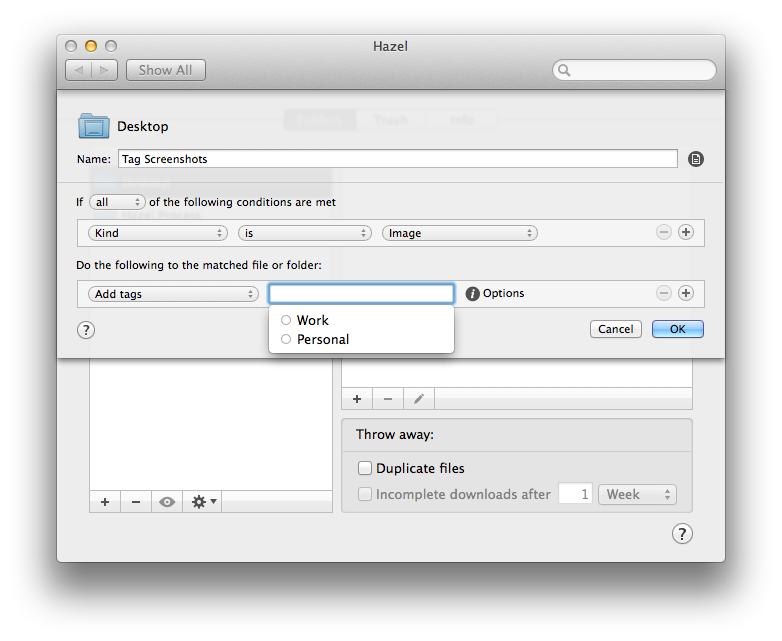
You can now create rules that check for tags in matched files and apply tags automatically. This is great if you want to process a bunch of files automatically and tag them instead of moving them into a folder. Hazel can pick up tags you’ve already created on your Mac, as well as create and replace existing tags if you want to type a tag’s name manually in Hazel.

Interestingly, Hazel can still set color labels (I assume for Mountain Lion users?) and it doesn’t show a tag’s color inline when editing an action – for me, it just displays a blue “token” for the tag with a white label. It’s really a minor issue –  I have been testing the public betas with Mavericks support and they’ve been working well for me.

You can get Hazel here, and check out our review of version 3.0 and some of my workflows.


Mavericks, Mail, and Gmail

Joe Kissell:

Apple Mail in Mavericks treats Gmail accounts differently than any previous version of Mail did. Although some of the changes are quite clever, the implementation has flaws. Your mileage may vary, of course, but I’ve seen a number of folks on Twitter complaining about some of the same things I’ve found. Here’s what I’ve observed and what you can (and can’t) do about it.

I mentioned “strangeness” with Mail in my review of Mavericks. Joe does an excellent job at documenting what’s going on and why.

I’ll let you guess what other old feature Mavericks broke in Mail (keep reading Joe’s article until the end).

Permalink

AppleScript Support Effectively Gone From New iWork Apps

Clark Goble notes that, with the new iWork apps released yesterday, the AppleScript dictionary included in them has been so slimmed down it’s basically gone. He has screenshots showing the regression, and he concludes:

What I suspect Apple doesn’t realize is how much small business and small shops workflow depends upon AppleScript. Casual use is fine. But a lot of people do more. It wouldn’t be so bad were there an alternative. This isn’t just like Apple not upgrading the Mac Pro. This is like Apple not upgrading the Mac Pro for four years, then announcing that the Mac Mini is the new Mac Pro. And discontinuing FCPX, Aperture, and its other pro apps and telling you to use iPhoto and iMovie.

It’s baffling that the same company that brings these automation enhancements cuts AppleScript support in other Mavericks apps. Maybe the iWork team didn’t have the time to rework AppleScript support for the new apps. However, as Dr. Drang notes, it’s strange that AppleScript has been removed from apps that once had it.

I hope that Apple will put AppleScript back in a future update to iWork. I don’t want to think that Apple just doesn’t care about consumer apps also used by advanced users (with higher needs) anymore.


Permalink

AppleScript, Automator, and Automation Improvements in Mavericks

I have been using Mavericks for a little while now and I have to admit that I was a little slow to get excited about this release of OS X. Once I started to sink my teeth into some of the power-user features, though, it didn’t take long for me to really get sucked into trying out every new geeky addition, specifically all of the new AppleScript features.

I will be the first to admit that AppleScript is not my favorite language and I only ever use it when I absolutely have to, but, with the release of Mavericks, Apple has added some very compelling reasons to give it another chance. I was recently discussing AppleScript with a developer friend of mine, and we agreed that since Apple had begun stripping out some script-related functionality of core apps like iTunes, it would not be surprising if the language was slowly phased out of any upcoming OS releases. However, I was wrong. In a surprising turn of events, Apple decided to breath new life into AppleScript and make it easier than ever to write clean and reusable scripts. Read more


Working with Mavericks After A Year of iPad

I don’t need my Mac as much as I used to.

When I started MacStories in April 2009, I had a late–2008 MacBook Pro and an original iPhone I had bought from the United States and unlocked to make it work in Italy. From 2008 and until the better part of 2012, my MacBook Pro (and then the Air) was my primary computer: it was the device I used to write, browse the web for research and leisure, respond to emails, and do all the other tasks to get work done on a daily basis. Because my Mac was also the only device that could allow me to manage MacStories, I had to bring it with me on trips or longer vacations.

I’ve always been the kind of Mac user who likes to enhance his OS X experience with little scripts, shortcuts, and automation tools to save a few minutes every day and speed up tedious work tasks. I have Keyboard Maestro macros to automatically resize and generate screenshots for my reviews; I have assigned hotkeys to actions that I run frequently; if necessary, I can trigger a Python script or AppleScript-based workflow and have OS X take care of a complex task for me. I fall into the category of OS X power users and I’m fond of the apps and utilities I rely upon. But, in the past year, I’ve found myself using them less and less because I enjoy working from iOS more.

Most of my work activities are related to writing: whether it’s an article, a quick research note, an email, or chatting with my co-workers, I spend a lot of time typing and assembling words in a way that (I hope) makes sense to my readers and colleagues. In the past year – as people who have been following this site know – I have realized that I can be as efficient on my iPhone and iPad as I am on my Mac. I was initially forced into my new iPad-first workflow by frequent hospitalizations and a general inability to use my MacBook Air for long writing sessions; after the initial “What do I do now” moment and annoyances, I’ve come to like iOS – and the iPad – more and more.

I haven’t listened to people who told me I couldn’t work from my iPad. Read more