Posts in reviews

FileBrowser for iPad Lets You Access Computers, Network Drives, Shared Folders

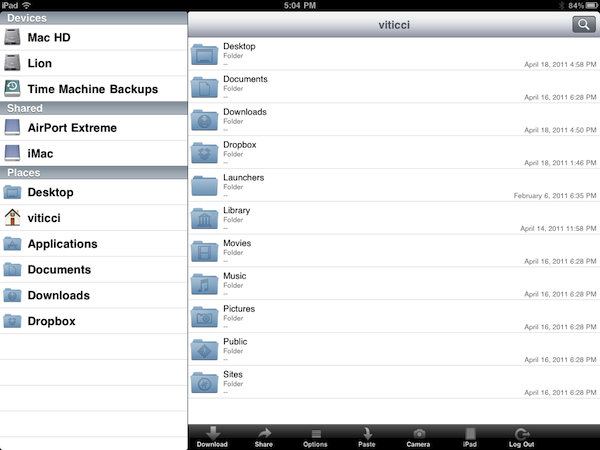
Earlier today I mentioned (again) Cloud Connect Pro, a universal $24.99 app that enables you to access online services like iDisk and Dropbox, local and remote computers, AirPort Disks and much more. Cloud Connect is a pricey app, but it also packs a whole screensharing app, runs on iPhone and iPads and it’s got the possibility to navigate a computer’s filesystem with a Finder-like interface. For quite some time, however, I’ve been using a cheaper alternative to Cloud Connect called FileBrowser that runs only on the iPad, it doesn’t have screensharing functionalities or Dropbox / iDisk / Google Docs integration but enables you to connect to your computers, shared folders and network drives just fine.

FileBrowser uses the CIFS and SMB protocols to connect to Windows and Mac computers, and NAS drives. Linux is also partially supported but you can’t connect using Apple File Sharing (AFP) or FTP. Once File Sharing is enabled on your Mac, FileBrowser should be able to see your machine on a local network. There’s no support for automatic computer discovery, but you can easily add a new computer by typing “username.local” in the “Name or Address” field – where “username” is the actual name you chose for your Mac’s Home folder. With the same .local domain, FileBrowser can connect to an AirPort Extreme station (and thus open the contents of a shared drive) or recognize the folders you’ve decided to share (besides Home) in your Mac’s System Preferences. This app is quite powerful in the way it lets you remotely connect to a machine using a DynDns hostname, enter username and password in the Settings (to avoid being asked every time), or tweak the Advanced Settings to change the SMB port number and pipelining.

FileBrowser can also open and preview a variety of file types, including music files and video formats supported by the iPad (no, it won’t do live conversion for your AVIs like Air Video). Songs can play in the background and be shared through AirPlay, but the app goes fullscreen when playing them and there’s no way to keep browsing or creating a queue. I’m okay with having videos in fullscreen, but the developers should find another implementation for music playback. The app can load images and documents like PDFs too, plus every file can be saved as a “bookmark” for quick access or emailed as an attachment. Again, these files come from your computer and network drives, not the iPad itself. There’s a temporary file cache that you can “purge” from the Settings, alongside many other options to enable admin shares or change the remote permissions for file creation / deletion, for example. There’s a lot of stuff to play with to turn FileBrowser into a powerful app, finely tuned to connect to your computers and network drives. FileBrowser doesn’t have the best interface the iPad has ever seen, but as far as functionality is concerned we have a great piece of software here. Fast, stable, feature-rich and being actively developed by Stratospherix.

At $3.99 in the App Store, FileBrowser gives you the tools you need to access and browse computers and drives from your iPad. Make sure to also check out NetPortal for iPhone, from the same developers, which brings most of the functionalities of FileBrowser to the iPhone.

Read more


Grades 2: The Student’s Record Book to Success

As ambitious as we are as students, we’re not always guaranteed good grades or perfect scores despite long nights and exam crams. With nothing more than a few syllabi and red ink, keeping track of your grades and measuring your performance with a calculator is outdated and unnecessary. Weighted grades and a failed exam can turn a trip to the calculator into a worrisome mess of numbers and unmet expectations. In your pocket, however, you already have all the tools necessary for instant grade-ification. Grades 2 is your personal performance record that crunches all of the numbers so you don’t have to, providing near instant feedback on what you need to aim for to maintain your target grade (preferably an A). Jeremy Olson is at it again, refining the user experience from Grades and delivering a free update that adds a GPA calculator and due dates to keep you on schedule.

Read more


Prycast: Pandora Radio Player Review & Giveaway

While I don’t think Pandora itself needs any introduction, you may not be familiar with one of the latest Mac Apps to bring your Pandora account to your desktop. Pyrcast is a menu bar radio player for your Pandora stations, allotting access to all of your favorite music and controls that can be tucked away into a standalone player, or via a drop-down menu. Pyrcast allows for global keyboard shortcuts for restarting the song, liking and disliking the current track, and for play/pausing. Additionally accessibility has been added with Growl support, though I found the Rate Up and Rate Down icons to be unintuitive in the player (just bring over the thumbs up and thumbs down guys). Pyrcast looks similar to Ecoute in terms of navigation, though you can just quickly jump to another station by clicking “Stations” at any time. Pyrcast is $4.99 in the App Store, and we’re giving away three copies in a quick giveaway to a few lucky readers. Jump past the break for contest rules.

Read more


Review: Mr. Reader Takes On Reeder For King of iPad RSS Apps

I read a lot on my iPad. Either with Instapaper, Read It Later, Flipboard or iBooks, there’s lots of content to consume and these apps made specifically for the tablet are a real pleasure to use. I don’t reckon I read as many articles saved from the web or discovered through social media on the iPhone as much as I do on the iPad. But of course, Instapaper and Twitter aside, there’s another category of apps I’m constantly going back to: RSS readers. Both for work and personal purposes, RSS plays a huge role in my workflow that requires me to stay on top of news, save items for later, and forward them to my colleagues. Google Reader is my RSS service of choice.

On the iPad, there’s no doubt Silvio Rizzi’s Reeder has become the most popular RSS app currently available on the App Store. I love Reeder, and I use it on the Mac and iPhone as well. Reeder is beautiful, fast, stable, has lots of options and syncs with Google Reader. Ever since it came out on the iPad last year, I haven’t looked back. But you know I’m always curious to try out new things and alternatives, because you never know what might be coming out from the minds (and Xcodes) of thousands of iOS developers out there. Mr. Reader, an iPad app released last week in the App Store, is a new Google Reader client that I’ve been testing for the past 3 weeks. I was impressed by the quality of the app, so I took it for a spin on my homescreen. Read more


Instadesk: The First Instagram Client for Mac

Thanks to Instagram’s huge success and the release of an API that allows third-party developers to plug into the service to fetch images, user information and much more, in the past weeks we’ve seen the quick rise of dedicated Instagram clients for iOS that don’t focus on shooting and uploading new images (the API doesn’t allow that, yet) but instead turn Instagram’s social aspect into a central part of the experience. Apps like Instagallery for iPad or the popular Flipboard make great use of Instagram’s API and third-party tools by letting you browse popular photos and read comments directly from the tablet’s larger screen; they also let you like and comment on pictures, see your own photos and profile or follow other people. Photo taking capabilities aside, these apps are proving that there’s a whole world of social interactions and media behind “a simple iPhone app” that deserves to be studied and implemented through native software for iPhones and iPad. Not to mention other clever experiments with the Instagram API we have covered on MacStories, such as printed photos and web apps.

But what about the Mac? When you follow a link to an Instagram picture from, say, your Twitter client of choice, the photo will open into the web browser. Instagram’s website lets you see the photo at higher resolution and check out the author’s details, but there’s no “social backend” to browse photos and people just yet. Instadesk, a new app available in the Mac App Store, wants to bring Instagram’s full experience to the desktop. The app has a clean and nice design with thumbnail previews and beautiful icons in the top toolbar; it enables you to create local “albums” to save photos for later; it lets you share photos from you or others through a variety of social networks supported by Instagram.

Instadesk is a full-featured Instagram client built specifically for the Mac. Once you’ve authorized the app with your credentials and granted permission to access your account through the API, Instadesk will place a link to your profile in the sidebar, right below links to the feed, most popular photos and tags, and status updates. In the profile tab you can check out all your photos, people you follow and your followers. As you click on a thumbnail in Instadesk, the photo is automatically brought in the foreground with a slick animation and a new screen that shows the author on the right (with buttons to follow / unfollow) as well as comments and likes,  and a box to leave a new comment yourself. You can like a photo or open it in the web browser, download it locally on your computer or hit the Share button to share the instagr.am link with your Facebook friends, Twitter followers and email contacts.

The popular section offers a selection of the most viewed photos and tags, whilst the Feed displays items posted by you and the people you follow. Instadesk also comes with a slideshow functionality and a “find user” option to manually search for a person on Instagram.

Instadesk provides a nice way to browse Instagram from your Mac. At $1.99 in the Mac App Store, it’s not a bad deal if you’re a loyal (and addicted) Instagram user. More screenshots below. Read more


dPad Is A Lightweight iPad HTML Editor for Bloggers

I haven’t written many blog entries from my iPad, and the main reason is that inserting links and rich content like images and video embeds can be really, really annoying on the tablet. No HTML editor for the iPad nailed it when it comes to offering an interface and a set of tools that allow bloggers to rely on the device as their main blogging machine; and especially if you write for blogs with several articles every day and you need to keep up at a fast pace, wasting time trying iPad apps is impossible. But I believe also those folks that post status updates and journal entries on their personal blogs must have noticed the iPad is far from being an ideal mobile blogging device, and the lack of dedicated apps is worrying. Sure, there are plenty of iOS text editors out there, even with advanced HTML and Markdown formatting capabilities; for bloggers like me, though, that is not enough. Either with WordPress, Movable Type, Drupal or a custom CMS you might be using on your blog, there are usually a lot of writing and management options to consider that most apps don’t support. The official WordPress app doesn’t even accept custom fields and many, many other things that millions of bloggers rely on every day. The situation is almost unacceptable, and I really don’t understand why – with more than 15 million iPads out there – someone hasn’t set out to create the ultimate iOS blogging app. I really don’t. Yet we keep hoping. Read more


iBackupTunes: Copy, Backup & Share Your iOS Music Library

Released yesterday in the App Store, iBackupTunes by drahtwerk is one of the most powerful music apps for iOS I’ve recently installed on my iPhone and iPad. This time, though, I’m not talking about a new iPod replacement app that aims at enhancing music playback with Wikipedia or last.fm integration: instead, iBackupTunes is “powerful” in the way it lets you copy songs and albums off your synchronized iPod library, back them up locally on your device and share them with others, even wirelessly. Whilst the procedure of importing songs might sound a little too complicated at first, iBackupTunes provides a graphical user interface that makes it easy to choose music, listen to it, and back it up. Read more


Oldie but Goodie: Play External Audio Thru Your Mac With LineIn

If you’re one of my crazy Twitter followers, you’re already well aware that I’ve significantly reduced the role of iTunes in my life thanks to Instacast, which has been reviewed by everyone from Shawn Blanc, to Michael Hurley on Macgasm, and myself on MacStories. Though I could talk about Instacast for ages, the problem I had to solve next was figuring out how to get the audio off my iPod touch and into my office speakers. The big issue is that my setup can’t accommodate more than two audio inputs, and while audio over AirPlay is probably possible with AirFoil, I notice a significant battery drain as I stream both audio from the web and broadcast it to my local speakers in the bedroom. I wanted to avoid this in the office since outlets are scarce, so I needed a way to pipe audio from my iPod touch thru my Mac. Enter an old Rogue Amoeba goodie: LineIn. Not only is it free (who doesn’t love free), but it requires nothing more than a button press to set up and pass my iPod touch audio through the audio line in to the audio line out. There isn’t a close button for LineIn, but you can simply press ⌘H to hide the app when you don’t need it.

It’s a great find, and something that might come in handy for at least one of our dear readers down the road. Download it (and check out other Rogue Amoeba freebies) here.


Typeplace - Share Your Typeface Passion: Review and Giveaway

Serif, San Serif, letterpress, kerning - typenerds of the world know these terms and know them well. Everywhere we travel, we see interesting uses of fonts in public places. Many of us even take pictures of them for inspiration and interest. What if you could use your iPhone to share these interesting findings within your social circle?

Typeplace is a new and cool way to discover, share, fave, and even share geo-tagged noteworthy pieces of typography with friends. Like Gowalla, Typeplace also awards virtual “badges” and certificates. The app has a nice interface, a familiar bottom tab bar and subtle brown and wood color scheme.

Read more