Posts in reviews

iDisplay for iPad: An Interactive Wireless Display Still Rough Around the Edges

It’s been sometime since iDisplay had launched on the App Store, and I wanted to see if performance and friendliness had improved once the 1.3.2 update landed and brought support for the iPad 2. While I don’t yet have Apple’s iPad 2 dock, the Smart Cover provided an alternative, ample viewing orientation for a landscape extension from my MacBook.

iDisplay will universally work across your Windows and Mac boxes via a free client, though the installation process is less than friendly. Mac users are generally spoiled with easy drag and drop installs, but iDisplay requires manual installation and restart to successfully install the software. I wasn’t terribly happy that I had to stop all of my work to get iDisplay up and running, but to be fair DisplayPad which we reviewed back in December also required a restart. What bothers was that on the reboot, the resolution for my 1280x800 display changed twice before returning to normal upon the login screen. Despite a less than stellar install process, how well does the iPad app work?

Read more


Review: Take Five…For Mac!


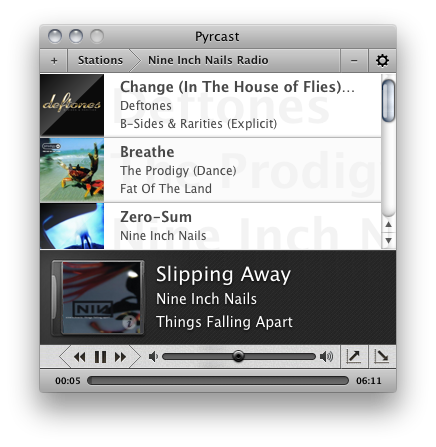
Now I will admit, I never bought Iconfactory’s Take Five for iOS. Don’t get me wrong it’s a beautiful app but I didn’t see myself using it that much on my iPhone. I’m so use to just using the volume controls or multitasking tray. The point of the app makes a lot of sense though: it’s aimed at letting you restart music that you paused and forgot to turn back on. I received an email a few weeks ago with the subject “Take Five for the Mac Beta,” I knew right away that this would fit into my workflow on my iMac because I get more sidetracked at home with my wife, kids and the television. So now when I want to pause music, I use Take Five for the Mac. Read more


Week Calendar 3.0 Is A Powerful iCal Alternative for iPhone

In the past months, I’ve taken a look at different calendar applications for the iPhone and iPad that aim at bringing more functionalities (either through particular interface approaches, extended Google Calendar support, or other features) to a device’s built-in calendar software from Apple. The iOS calendar app, a tiny version of iCal for the desktop, is fast and elegant and works just fine for most users, but sometimes you want or need more from a mobile calendar or agenda. For instance, the possibility to have more views available (rather than the List, Day and Month ones designed by Apple) or “do more” with events and reminders. And while I know most of MacStories readers are huge fans of Calvetica and Cloud Calendar for the iPhone and iPad, respectively, I’m pretty sure some of you have been looking for a slightly more “powerful” or, dare I say, “geeky” alternative to Calendar.app. If so, meet Week Calendar.

The name says it all: Week Calendar’s biggest feature is the weekly view that’s the focus of the entire experience and undoubtedly something that Apple’s calendar app really lacks. In the app’s weekly view you can pinch & zoom vertically or horizontally to show / hide hours and days, double-tap to focus on a specific event or rotate to landscape mode to gain an even broader view. Tapping on the top toolbar allows you to select a date to jump to, whilst selecting an event opens a desktop-like popup with related information. Tap on the popup, and you get to another screen with all the details you’ve entered and buttons to share, print (that’s right, AirPrint) or create a template off the event itself. You can edit an event at any time, and even display the assigned location on a map. Something that I really like about Week Calendar (well, weekly view aside): you can link contacts from the Address Book to an event. Like I said, everything’s pretty full-featured to offer a wide array of options and choices.

“Choices” seems to be a prerogative of Week Calendar: from the main screen, an iPad-like popover lets you switch between 7 different views: List + Search, Day, Week, Month, Year, Agenda, and Today. The “Go to a Day” shortcut lets you manually enter a date to open. Switching between sections and views felt fast and highly responsive to me, although I have to say I’ve only configured the app with two calendars: my personal one, and US Holidays. The app comes with this kind of optional, built-in subscriptions that you can activate from the Settings. Speaking of which, there’s a lot of stuff to choose from in there: from Time Zone support and “Week starts at” to an auto-coloring system for events with a specific title, you can stay assured the option you’re looking for has been implemented in Week Calendar. I can see how many will prefer the simplicity of an app like Calvetica, but sometimes an application for “nerds & power users” is more than welcome. Other features of Week Calendar that impressed me for the quality of the implementation were fullscreen support (you can activate it with a single / double tap and choose what UI elements to hide), possibility to cut and drag & drop events in any view for easy re-arrangement and TextExpander integration.

Week Calendar is an app that needs to be used for weeks – even months – to be fully appreciated. There’s so much stuff to play with, configure and customize it’s not really easy to fit everything into a single article – plus, I believe all these options have the added value of turning the app into a completely different experience depending on how you use calendars. So, head over the App Store now and buy Week Calendar 3.0 – at $1.99 it’s possibly the most “serious” calendar app for iPhone I’ve seen so far. Read more


LogMeIn for iOS: Remote File Transfer Made Easy

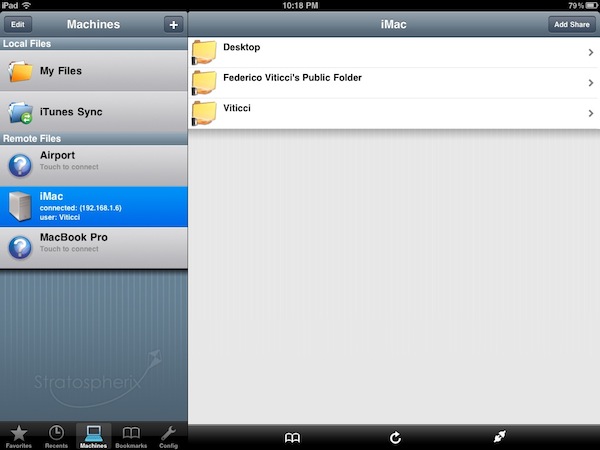
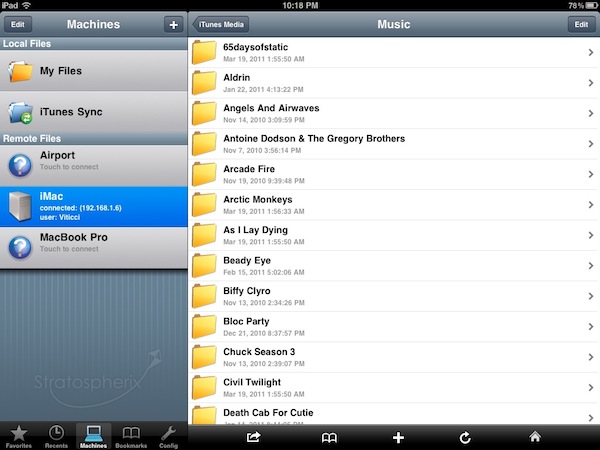
Reviewed a couple of times in the past by our editor Cody Fink, LogMeIn Ignition for iOS has been around for a while in the App Store. In fact, in spite of popular apps like Edovia Screens and iTeleport allowing users to remotely access their computers’ screens, thousands of users installed LogMeIn’s software for the iPhone (and later, iPad) on day one and never thought of going back to another app. That’s what Cody did, whilst I settled with Screens as my go-to app for displaying my Mac’s desktop on iOS devices. Recently, however, I decided to take LogMeIn Ignition for a spin, and I was surprised to find out the new features introduced in the latest update are exactly what I was looking for.

LogMeIn comes with VNC functionalities, but I will keep on using Screens for that. It’s a matter of a personal preference, and you can read more in my Screens review. Edovia’s elegant and simple solution to remotely connect to a Mac’s screen has incredibly useful, reliable and easy to configure for me, so I won’t switch over to LogMeIn as far as screensharing is concerned. Rather, I’ve been intrigued by LogMeIn “file transfer” option added in version 2.0, which aims at offering users a simple way to copy and move files across computers and iOS devices using LogMeIn’s desktop companion. Best of all, once you spend your 30 bucks to purchase LogMeIn Ignition in the App Store, screensharing and file transfer will be offered as free services with no need to buy an additional LogMeIn Pro subscription. Read more


Fresh Feed Elegantly Puts RSS In The Menubar

There are many ways to consume RSS feeds on the Mac platform: when it comes to syndicating content from your favorite websites, apps like NetNewsWire and the Reeder beta come to mind, although many people simply prefer to keep an eye on Google Reader (the most used service nowadays to subscribe and follow feeds) in their desktop browser.

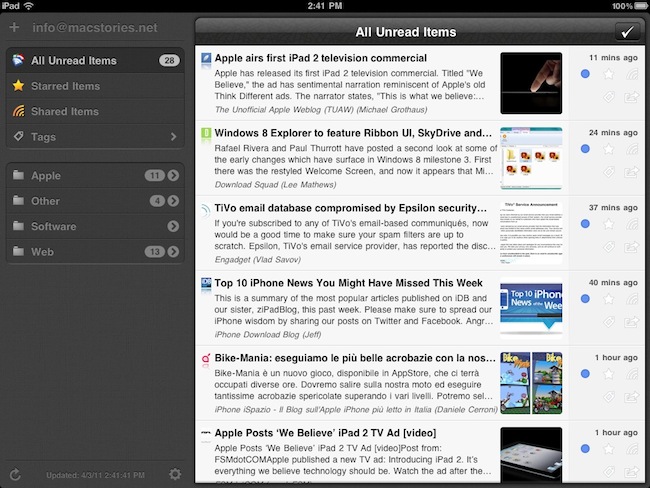
Over the years several alternatives have surfaced that enable users to read RSS feeds in different ways on the desktop. Fresh Feed, a free utility in the Mac App Store, does what many other apps have tried, but in a very elegant way: it puts RSS items in the menubar, and allows you to open them as new tabs in the browser. Where Fresh Feed really shines, in my opinion, is the user interface: it looks like a bigger iPhone app placed in the menubar, yet it doesn’t feel “weird” as several other Mac apps that try to resemble their iOS counterparts. Its “cells” for new RSS entries look sweet and polished. They’re chronologically ordered, but you can scroll with your trackpad to load as many articles as you can. A click on the “more” button loads the item in your desktop browser, automatically leaving Fresh Feed. To add new RSS feeds, you have to open the Preferences and paste a website’s feed URL.

There’s no option to set refresh times or auto-import feeds from Google Reader, unfortunately. If you just want to use Fresh Feed to stay up to date with the articles from a specific website, however, and not your entire Google Reader list, this might just be the app you need.

Looking forward to future updates with more features, Fresh Feed is a free download in the Mac App Store.


Droplist: Create Lists On Dropbox & Edit Them Anywhere

There’s no shortage of “list creation apps” on the iPhone and iPad. Since the opening of the App Store in 2008 and the release of the iPad last year, developers and consumers have apparently re-discovered the usefulness of digital lists (for shopping, groceries, to-dos, you name it), and the popularity of these applications has seen a terrific rise. Lists are everywhere, but very few of them support syncing of items across devices and computers. Droplist, a $0.99 app released last week, is a good-looking alternative to more complex solutions like Simplenote that does essentially two things: it creates lists and syncs them back to Dropbox. Read more


Eavesdrop: Share Your iOS Music Library Over WiFi & Bluetooth

When I was in high school, I remember we didn’t have iPhones with wireless sharing capabilities or music streaming apps like Pandora and Spotify. But we did have some iPod Classics, and sharing headphones with friends asking you to listen to your “new songs” was normal. And sharing headphones was annoying: you were forced to mess with cables, you didn’t get the full quality of a song, you always ended up with broken earbuds after a few days. Though, like I said, that was normal.

We have better ways of listening to music nowadays: streaming aside, we have portable Bluetooth speakers like the Jambox and iPod nanos that fit in every pocket and are relatively cheap. Eavesdrop, a new app for the iPhone released a few days ago, aims at taking the whole “local music sharing with your friends” concept a step further by enabling you to broadcast your iPod.app library over WiFi and Bluetooth. Read more


Kalimat Takes On Words With Friends; Remix For Speed Play

If you haven’t had enough of word based tile games for your iPhone, Kalimat is ready to take on Scrabble and Words With Friends as your go to game of choice. While I’m personally not a fan of the OpenFeint ecosystem in general, I was able to anonymously create a new profile with a gamer name to play online. Kalimat is interesting not because of differentiation in run of the mill gameplay, but because of its additional remix mode. Remix mode is interesting because there’s a timer (no casual thinking / cheating here), and you can swap out one letter per turn. The speed based gameplay is pretty wicked, and I thoroughly enjoyed this. There is also an additional secret tile (kind of like landing on a bonus in Jeopardy… okay it’s nothing like that) that awards you an additional fifty points. The Ali Baba can change the game at any time, so you’ll always want to be thinking of high scoring words to stay ahead. Kalimat supports multiple users, and the game board itself is easy to use with simple drag and drop controls. If a player drops a word on the board you’re unfamiliar with, you can look it up in the dictionary or simply chat with your opponent. For $2.99 in the App Store, Kalimat is a refreshing alternative in the word-game genre.


Samurai II For Mac: Good, Bloody Fun

For fans of the original Samurai: Way of the Warrior, we ended on quite the cliffhanger. Confronting your demons, things hadn’t turned out exactly as planned. In Samurai II: Vengeance (now on the Mac App Store), the quest for revenge will leave no prisoners. Cel-shaded environments mix with 3D combatants for a hack & slash adventure that takes you through the second chapter of the Samurai story line.

Heads up: there are some graphic screenshots behind the break (those swords can be pretty sharp), where we take a look at how well Samurai II fares with a keyboard or mouse.

Read more