This Week's Sponsor:

Copilot Money

Copilot Money, The Best Money Tracker, Launches on the Web – Limited-Time: Get 26% Off + 2 Months Free


Posts in reviews

Instagram 3.0: Maps. New User Profiles. Infinite Scrolling.

Instagram’s updates aren’t just about iterating on capturing — adding filters and giving you more ways to take photos is one thing, but the service has bigger aspirations than just sharing and socializing with friends in the moment. For the Instagramers (that’s okay to say right?) who are documenting their lives everyday through the iPhone or Android app, Instagram becomes a sort of timeline or memoir, i.e. a daily journal that can be dated back to when Instagram was first downloaded from the App Store. As new photos are added to the top of your profile, and as new photos bubble up through activity feeds, older photos may simply fade away. They’re forgotten. But old “polaroid” photos don’t simply have to disappear into the nether — every previous photo taken is likely to be just as special or just as important as the one taken moments ago.

Read more


It’s Getting Partly Cloudy On Your iPhone

Yes, here’s another weather app review for you. Instead of inventing new intros for these posts, I would like you to think about that special day when an iOS developer combines all of the single ideas of the new weather apps available - from minimalist UI elements over cool animations to perfectly displayed and visualized data - into one single application. We could finally purchase the perfect weather app for our iOS devices, and we no longer need weather app reviews like this one.

But we still desperately search for and find new, special, almost perfect weather apps with features every month, download them, try them out, and then what? We send them back into the black app hole of washed-out, used apps after some weeks, just because they do not fit our individual needs and style, and then the cycle starts again. If I’m right, this will always be the case, especially when it comes to iPhone weather apps. I believe that no UI concept in the world could visualize all important weather data possibly needed while still having a totally intuitive and simple UI on such a small screen size. On the iPad, the situation is a bit different. My personal weather app of choice for the iPad is now Weather HD 2, which I recently reviewed, because of its stunning animations, which make impressive use of the device’s Retina display. Although I won’t go away from Weather HD, there are also many other apps for people with a different taste in UI design, like minimeteo for lovers of minimalist UI or Aelios for fans of polished interfaces.

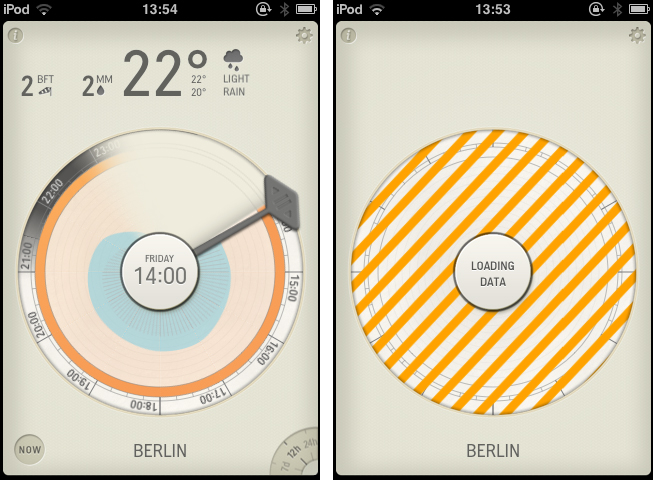
Today’s subject, Partly Cloudy, an iPhone app by German development cave Raureif, is perfectly suited for data visualization geeks. The app displays a rather limited set of weather information: temperature, wind speed (measured using the Beaufort wind force scale), precipitation and the overall current outlook. Its forecast view can be set to 12 hours, 24 hours and 7 days. All other imaginable features, like cloud movements or visibility range apps like WeatherSnitch advertise with, were completely left aside in order to provide space for Partly Cloudy’s most interesting feature: the radial clock visualization diagram.

Read more


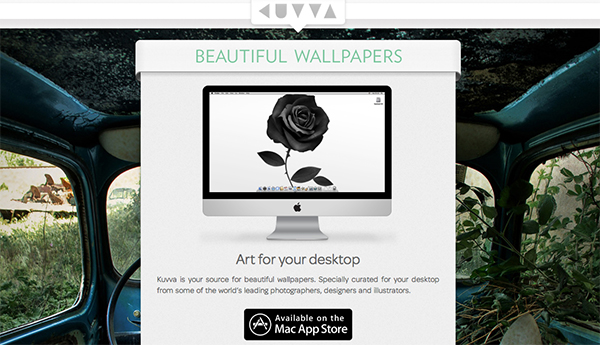
Kuvva — Beautiful Art For Your Desktop. Automated.

Currently, in the San Francisco Museum Of Modern Art, you can visit an exhibition with works of Japanese photographer Naoya Hatekayama. He has a very extensive portfolio of stunning landscapes, buildings, and Tokyo underground photography, which reach very high auction prices. One of his underground photos really caught my eye, and I dreamed of having it as a homescreen wallpaper for my iPad. I desperately tried to find digital copies of his works, regardless of whether I could get them for free or had to spend some money. But usually, professional photographers, including Hatekayama, only show their work to the public through museum exhibitions and printed photo books, not digitally. This way of publishing art has both advantages and disadvantages: on one hand, printing is the only effective way of keeping the copyright handling of your pictures and piracy of digital copies somewhat under control. Yet, it also means that many people interested in photography, especially those who do not live in big cities with renowned museums exhibiting photography, don’t have access to it. And obviously they cannot be used as wallpapers (although this would be for private, non-commercial use).

On the other hand, art which was created digitally is most of the time solely distributed digitally, hence it’s often available as a free download. However, when it comes to wallpapers for both OS X and iOS, I personally prefer photos over digital art. Of course, real pixel lovers need good resources for both kind of background images to ensure their displays are always a pleasure to look at. Websites like InterfaceLift or Poolga may completely satisfy your needs for photographic and digitally crafted backgrounds, but you always need to rely on multiple resources, which means you have to spend a lot time searching, saving, and organizing. Kuvva, founded by @djbradfield and @Nalden and based in Amsterdam, is a new web-based application project that tries to solve this problem by building up an extensive resource of handpicked photographs and digital wallpapers you have fast and easy access to. Read more


I Want A Simple Event-Planning App. Pronto!

There are many people in the Apple community who dislike the native Reminders app on iOS. When it was introduced in October last year, location-based alerts, the promise of flawless iCloud Calendar and alert syncing, and even its skeuomorphic UI seemed to be a pretty good deal. However, until the release of Reminders for Mountain Lion at the end of July, syncing with iCloud consistently led to annoying problems like doubled or missed alerts, and sometimes even data losses. And the recent debate on Apple and skeuomorphism made many people change their mind about the interface as well. Hence, just like with notes, weather, and stocks apps, there is still a healthy environment for third-party todo, reminders and event organization apps although Apple offers a native system app solution. Personally, the only thing that really struck me about the native Reminders app was its simplicity and visual minimalism. Simplicity is always a very important aspects when I think about replacing system apps with third-party solutions. Pronto by Createful is one that meets these requirements. Plus it looks great.

Pronto is a simple iPhone app for planning and organizing events. Before I dive in deeper into its feature set, it’s important to say that the app does not feature any syncing service like iCloud or Dropbox, not even with the iOS calendar app  (as is the case with Clear by Realmac Software). It’s an app suited for people who solely want to use their iPhone (or iPod touch) for calendaring and event planning. So if you’re often switching between devices and want to keep your events and alerts in sync, Pronto is no solution for you.

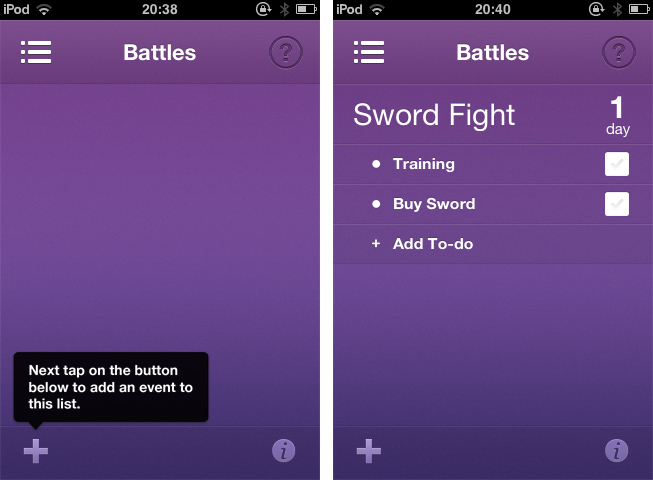
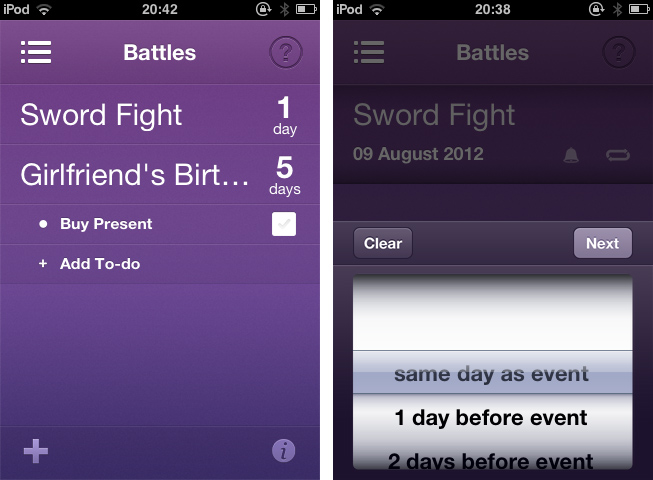
When you launch Pronto for the first time, you catch sight of the app’s main (and only) screen. Here you can create and organize categories to sort your events in, e.g.: birthdays, vacation, or work. You do so using the plus button in the lower left corner of the screen. After you created a list with several categories, tap one and you’ll get to the list of events in the respective category, beautified with a smooth slide effect. Now you can start creating single events. Just tap the plus-button again and start typing in the keyboard panel, which immediately pops up. Then set a date using a a nicely customized wheel panel, and your event is created.

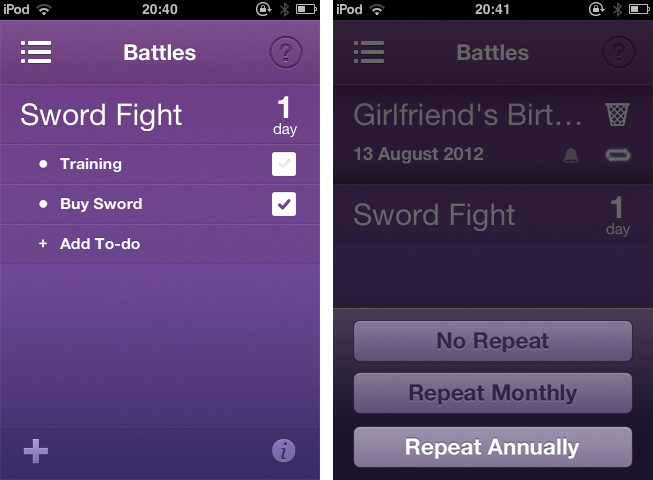
More or less every event needs some preparation. Pronto helps you to remember everything you have to handle before the event takes place with a simple event todo list connected to it. Tap on any event in the list, then on “Add To-do” in the bulleted list that faded in to create a new task. You can add as many as you like, and check them on the right side of the list after completion. You won’t forget anything; no more birthday partys without cakes and candles. Additionally, you can swipe over any event to edit it: you can rename it, delete it, enable system-wide reminder alerts (set to 1 to 30 days before the event), and make it a recurrent event (monthly or annually). This is Pronto’s whole feature set. As you can see, it is pretty limited, and there are definitely many apps out there with more useful features for just a little more money. If you search for complex but detailed functionality in your new digital event planning companion, Pronto is not suited for you.

But if you’re after cool use of gestures and inspiring UI design, you should definitely take a look at it. Pronto’s violet single-color design is very eye-friendly and “anti-skeuomorphic”. It features nice, big typography, and the background gradient subtly supports the 3D effect of the list elements, which is very nifty. The little details, like the checkboxes, the modified buttons above the wheel pickers, and the pictograms in the editing panels, really made my day. The design also makes the UI very transparent, sometimes even invisible. There are moments when you forget that you’re using a hardware device — your fingers and the app work so perfectly together. All UI effects are smoothly rendered and synced with your taps and swipes. And the already mentioned transitions and fading in elements look gorgeous, even on usually considered old devices like my iPod touch 3rd Gen which has rather low graphics performance.

So, if you’re a pixel nerd, go ahead and download Pronto for free from the App Store. Right now. And if you’re not, but you are searching for an event planning app for your iPhone, I urge you to try it, too. Maybe its minimalist feature set fits better to you than the complex functionality of tools like Things or Omnifocus.


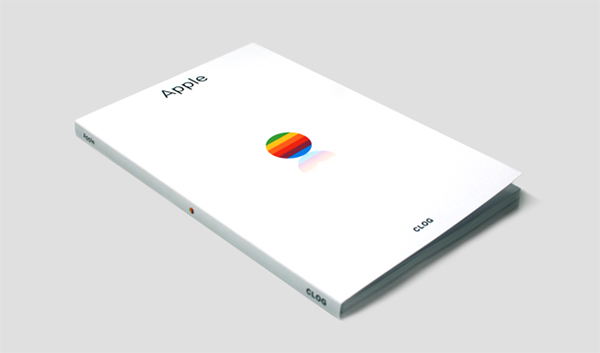
Apple by CLOG — A Book Review

I usually do not read books about Apple, the web, or design related topics. There are enough weblogs and people on Twitter linking to all kinds of content about more or less everything, so I usually don’t need additional resources in the form of printed paper. When I need to delve into the technical details of a particular topic, I’ll pick up a book so that I can soak up that in-depth knowledge. And it usually is safer to buy technical books, because you can ensure that the text it contains is professionally well researched, written, and edited by people who care about the subject, thus the chance of reading erroneous information is quite low. I especially want that kind of comfort when it comes to quite precarious subjects like art (and its “subgenres” like typography and architecture) or company ethics and philosophies. You need a strong education in history, development, current techniques, and standards of creation in the respective fields to discuss them precisely. Call me conservative, but I want to read such explanations on printed paper, written by people with years of experience and knowledge.

During the last three weeks, I was on a circular trip throughout the United States. It was my first time I got to see the country. Besides stunning cities and beautiful landscapes, I also got to see many Apple location highlights, including the 5th Avenue Store in New York City and the Yerba Buena Center Of The Arts in San Francisco, which in my mind will always feature the colorful Apple banner promoting the iPad presentation in 2010. Just blocks down the road from the YBCA, inside the San Francisco Museum of Modern Art museum store, I found the book I’m about to present now: “Apple” by CLOG.

Read more


Weather HD 2 — Yet Another Weather Forecast App?

Hello and welcome to this MacStories review of another tremendous, beautiful, high-quality weather app for iOS. Seriously, I’m running out of ideas for how to start a new weather app post without it sounding like one of the many we’ve done before. Why are so many developers spending their time making forecast apps? Maybe because the iPad still has no native one. Maybe because making a good weather app is a fun challenge for developers, since you have to combine appropriate data visualization with intuitive UI. Personally, I tend to think that people developing weather apps for iOS know that they have awesome coding skills but don’t have any major projects to test them on. Whatever the reason, I’m truly thankful that the people at vimov decided to make a weather app because their newest release, Weather HD 2, is one of the finest approaches to data visualization and UI design I’ve ever seen.

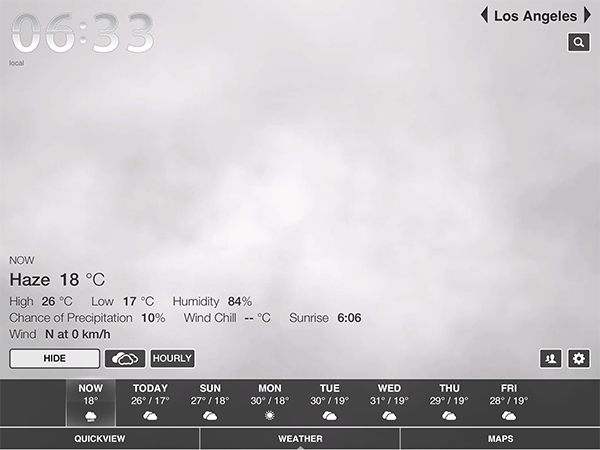
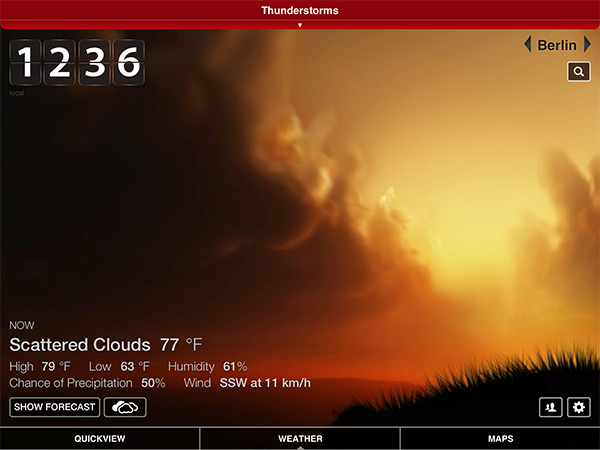
Weather HD 2 is the first major update to vimov’s original Weather HD. Fortunately for anyone who bought that version, the company decided to make 2.0 a free update instead of a new standalone app, so there will be no charge for existing customers. The original Weather HD attracted iPhone and iPad owners with its large, animated weather images, smooth UI, and large typography displaying all kinds of stats from temperature, humidity, and wind to more boring ones like sunrise time. Weather HD 2 incorporates new weather animations to enhance the variety of weather it can display, while the rest of the “old” features look the same. Additionally, the update includes three big new features: 3D weather maps, push notifications for severe weather alerts, and QuickView to view the weather at multiple locations side by side. While it is a universal app, I will only cover the iPad version here since it is much cooler to look at and use. Read more


Droplings Simplifies Public Sharing With Dropbox

Dropbox is a fantastic tool for everyone, from individuals to small businesses and teams. At MacStories, we use Dropbox every day. But while it is perfect for working or outsourcing important files you want to access anywhere, there is one feature in Dropbox which always bothered me: quickly creating download links to share files with friends or colleagues. Both in the Dropbox Finder window and web interface the process is just too intricate. I’ve always used other services like Droplr and CloudApp, although lately I’ve been growing tired with using multiple services for the same purpose.

Droplings, a lightweight menu bar app developed by fellow German freelance developer Carlo Zottman (developer of the Instapaper-to-Kindle sync tool Ephemera) could finally change that. Currently in beta, Droplings makes it easy to upload files to your “Public” Dropbox folder and share them afterwards.

Firstly, enter your Dropbox ID in the app’s settings. Then, just drag and drop the respective file onto the menu bar icon, and within seconds the file will be uploaded and a Droplings preview link will be in your clipboard, ready for sharing. The default preview page looks pretty nice (as you can see from the screenshots below) and the embedded download link will be based on Dropbox. By clicking on the app’s menu bar icon, you have access to the last five uploaded files, as well as the app’s Preferences, which basically just activate your Dropbox ID and offer an option to activate custom HTML templates for the preview site. Droplings is simple and fast, and, in my opinion, way better than copying files into the Dropbox Finder window and right-clicking to generate a download link.

Droplings for Mac

Droplings for Mac

If you miss this simplicity of sharing with Dropbox as much as I do, go ahead and try Droplings. Since it is currently in beta (v. 0.9.x), you can download it for free on the app’s website.


Scratch Review

Scratch

Scratch

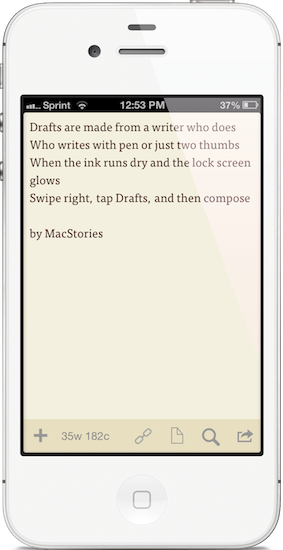
For the past week, I have been trying Scratch, a new quick note-taking app by Karbon. While the app still can’t replace Drafts in my workflow, it has some unique ideas that will be worth a second consideration in the future.

The idea behind Scratch is to offer a simple way to save plain text in Dropbox. Like Drafts, Scratch allows you to create notes that you can forward to a variety of services like Messages, Email, and the aforementioned Twitter and Dropbox. Unlike Drafts, Scratch is also capable of appending text to an existing file in Dropbox. A number of hacks to manually add appending capabilities to Drafts have surfaced in the past month.

I like the design of Scratch. The app sports custom toolbar and menu design, but it’s the kind of carefully thought-out custom that’s a great fit for the iOS platform, now mature enough to accept and foster an ecosystem of different-looking apps. The main point of interaction in Scratch is the compose area, where you’ll be jotting down your notes. As in most text editing apps these days, there is a formatting toolbar located above the virtual keyboard; in Scratch, the toolbar is fully customizable and offers quick access to other features of the app as well.

Read more


Review: The New Day One

Day One

Day One

Twenty years from now, what will you remember?

Last week, a friend of mine found an old MP3 player in her drawer. Upon recovering the contents of the device[1], she synced its music back to her iPod nano, and then she gave it to me. It was full of songs we used to listen to years ago. If songs can be associated with certain moments or periods of your life, than that MP3 player was like a photo album in sound form. Memories. Old emotions and melodies coming back to life, not a distant echo anymore. It felt like grabbing the headphones of 16 year-old me, today, with the knowledge that those moments won’t be coming back, but the experience of someone who cherished them will.

But what do I remember?

In twenty years, I’m not sure I’ll be able to remember the songs I like today, or the faces of people that I care about now. I don’t even know if I’ll be around in twenty years. But I do know that I want to do everything I can to make sure I can get there with my own memories. We are what we know. And I want to remember.

Where the human mind can’t get, I think software can help. In the connected and post-PC era we’re living in, I believe the devices and apps we use play an important role in enabling us to create memories. But just as relevant as “content creation” has become to this discussion, we have to ensure the memories we create today will be preserved digitally for the future.

For the past few months, I have been using a new version of Day One to build an archive of my life. Released today, the new Day One goes beyond the previous version’s support for text entries and adds photos, location, and weather information in an app that, for me, has become more than a simple journaling utility.

Developed by Bloom, Day One went through a remarkable evolution to get to the major updates published today. Last year, I took a look at the app and noted how it was helping me build an “archive of my thoughts” thanks to its simple and elegant interface:

There’s one thing I never really considered storing in a digital archiving app — memories. I’m talking about things like “what did I enjoy doing today” or “I decided to take a walk with my girlfriend” — specific moments that matter in life, that are important, but which our brains often blur and forget after some time to make room for new data to process and maintain.

And then again:

I try to enjoy every moment, but there’s so much the human brain can remember and it’s perfectly normal if something will get lost in the process of assimilating thoughts and processing them to turn them into memories and experiences.

If 2011 Day One was the TextEdit of memories, the new Day One is their Evernote. With support for photo attachments, location data, and improvements to sync and Mountain Lion, today’s Day One wants to overcome the limitations of text to become the window into your past life.

Day One is visual memories. Read more