Posts in news

Sponsor: SilverWiz

My thanks to SilverWiz for sponsoring MacStories this week with MoneyWiz.

The new year is the perfect occasion to start fresh with your finances. MoneyWiz is a great personal finance app for Mac, iPhone, and iPad that allows you to keep track of your accounts and manage budgets, transactions, and due bills. With MoneyWiz you can import your bank statements in a variety of file formats, and, when you want to have an overview of your financial status, check out beautiful reports that will help you be aware of how you spend, plan better, and avoid penalties from unpaid bills.

MoneyWiz comes with built-in sync, so you’ll have the same data always available across your Mac and iOS devices.

Find out more about MoneyWiz here.


Apple Airs New iPad mini Commercial: I’ll Be Home

Just in time for Christmas, Apple has aired a new TV commercial for the iPad mini. Focused on FaceTime, the commercial shows a girl and her grandfather sharing a moment of holiday cheer with the girl playing and singing the classic hit “I’ll Be Home for Christmas”. As with the first iPad mini commercials, the device plays side-by-side with a bigger iPad, suggesting that, in spite of the smaller size, it’s just an iPad.

This isn’t the first holiday-themed commercial Apple aired this year, as just a month ago they launched “Turkey” to showcase the iPhone 5 and iOS’ Shared Photo Stream feature. A nice touch: there’s snow falling over the Apple logo at the end of the video.

You can watch the commercial below. Read more


Facebook Introduces Poke for Mobile

Facebook Introduces Poke for Mobile


On Friday, December 21st, Facebook announced Poke for Mobile, a brand new application that makes it easy to say hello to friends. Where Facebook’s Messenger interfaces with the web giant’s chat app, and Facebook Camera makes it easy to upload groups of photos, Poke for Mobile offers an alternative, quick way to see who’s online and send quick greetings with pokes, messages, pictures, or video. The virtual pokes, perhaps cutely, can be set to last from one second to ten seconds. The app also lets you share where you are when you send a poke and you can see when your friends take screenshots. Poke for Mobile can be downloaded for free from the App Store.

Permalink

Evernote Launches Food 2.0 With Major Redesign, iPad Version, And More

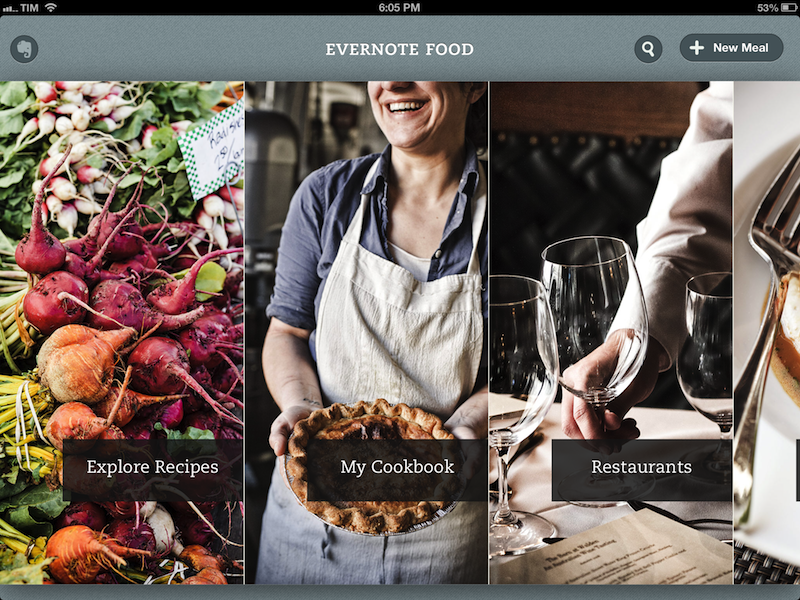
Last year, Evernote launched Food, an iPhone app to save photos and details of your favorite meals, which would then be synced to your Evernote account. Today, Evernote is launching Food 2.0, a major revamp that includes a native iPad app and a completely rebuilt experience focused on exploration, saving recipes, and browsing restaurants available in a specific area.

I have been able to quickly play around with a final version of Food 2.0, and I came away quite impressed by the effort put into this relaunch. I never got into Evernote Food, mainly because my girlfriend and I tend to save our recipes in dedicated apps, bookmark others we want to check out or simply keep a note with links to them, and because we use other services for restaurant reviews and recommendations. Being able to save a photo of a final meal – either made by us or someone else – didn’t hold much appeal against dedicated solutions. Evernote Food 2.0 wants to address exactly this issue by collecting in a single app, Evernote-style, recipes you can explore and “clip” (i.e. save in your Evernote account), while offering standalone views for restaurants and the meals you have already saved (and will continue saving) in Evernote Food.

The iPad app starts with a gorgeous horizontal wall of photos for Explore, My Cookbook, Restaurants, and My Meals. You can swipe to the right to reveal a napkin with the Evernote logo on the left, and tap on a section to view an “unfolding” animation open a specific section. I noticed that the speed of the animation took an extra second upon the first launch of the app on my iPad 3, but then went back to normal as I kept using the app. On the iPhone, the app uses the same vertical layout for sections seen in Evernote 5.0. Read more


Skitch For Mac Updated with FTP, Custom Styles, More Sharing Options

I like Skitch. However, after the move to Evernote and the release of a new Mac app, Skitch didn’t exactly go through a “smooth” transition. Namely, features were removed, and existing Skitch users weren’t thrilled with the new Evernote-only nature of the software. Last month, Evernote published a blog post detailing how, after receiving lots of feedback from their users, they decided removing functionalities people had become dependent upon was a bad move. For the past few weeks, I have been testing the 2.0.3 update to Skitch for Mac, which brings back many of the features that made the original Skitch one of my favorite Mac apps.

A feature that I’ve been using on a daily basis is FTP support. In Skitch 1.0, you could take a screenshot, quickly annotate it, and send it off to your own server via FTP. I share a lot of screenshots, and I like the combination of an easy-to-use image annotation app with my own server and my own URLs. FTP integration was the right balance between Skitch’s annotations (which I prefer to Apple’s ones in Preview) and the power of putting images on a server that’s only mine. Skitch 2.0.3 adds a new FTP/sFTP option in the Sharing tab of the Preferences, allowing you to configure multiple FTP accounts. The configuration is similar to other FTP clients for Mac (you’ll find the usual Base URL, port, and directory settings) and it took me a minute to set up with my credentials.

Once configured, you’ll be able to send images from Skitch directly to your FTP server. Unfortunately, there’s no option to assign keyboard shortcuts to a specific FTP account, so you’ll have to click on Share > FTP or right-click an image to upload via FTP. Personally, I’ve set up a Keyboard Maestro macro that uses AppleScript GUI scripting to let me share via FTP easily with just a keystroke.

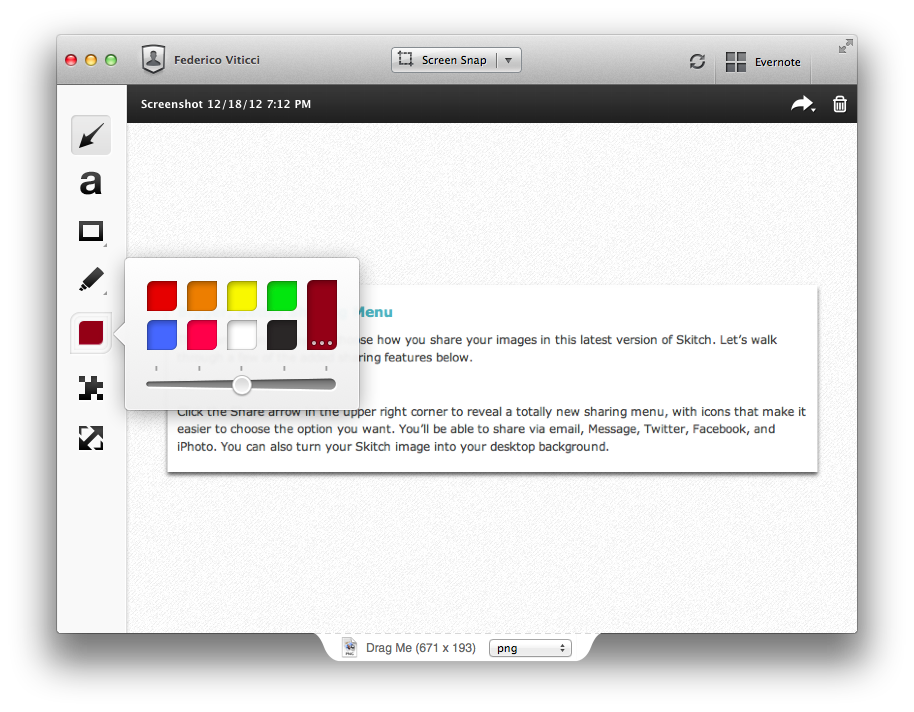
An updated sharing menu is available both from the menu bar and the Skitch image editor. From the latter, an arrow in the upper right corner reveals a dropdown menu with options for email, Messages, Twitter, Facebook, and iPhoto. You can also set a picture as desktop background, or set the kind of link that you want to generate from Skitch. More ways to share Skitch links now include direct image URL, HTML code, HTML thumbnails, and forum code. In addition to more sharing options, the new Skitch comes with an Auto Copy feature as well, allowing you to automatically place a link to a Skitch image (shared publicly) in the clipboard.

Aside from various improvements and bug fixes, other features I like include timed screenshots and custom styles. In the tools palette of the editor, you can now set a custom color for your annotations, choose between preset sizes from the same color swatch, or define your own size by manually adjusting the blue dots of the marquee around text and shapes. For me, this alone is a welcome improvement that is still easy to use and doesn’t add complexity to the editing interface of Skitch. I don’t use this functionality with Skitch, but version 2.0.3 introduces timed screenshots, letting you perfectly time areas to capture with a countdown timer.

I’m looking forward to more updates from the Evernote team on Skitch. After a series of initial missteps – possibly dictated by a need to release the app – it’s good to see features coming back, sometimes in different forms, to Skitch, which remains my favorite app for screenshot annotations on the Mac. Skitch 2.0.3 is available today on Evernote’s website.



Apple Releases iOS 6.0.2

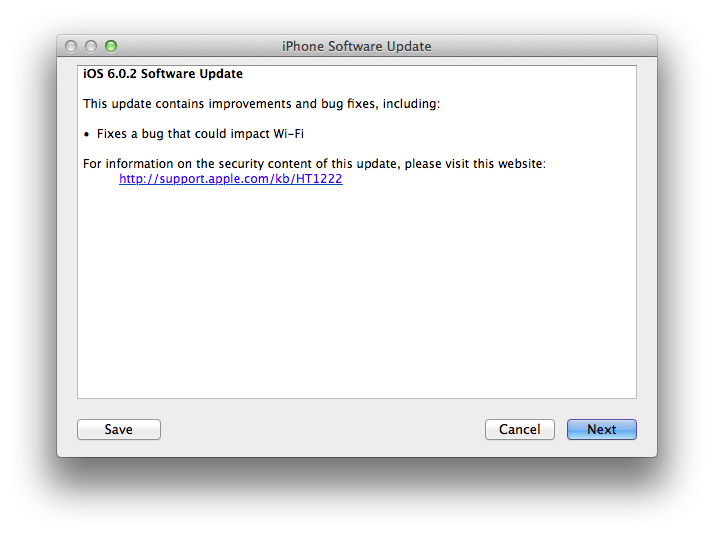
Apple just released iOS 6.0.2. The software update is now available in iTunes. According to Apple, the update includes “improvements and bug fixes”, including a fix for a bug that ”could impact Wi-Fi”. At the moment of writing this, iOS 6.0.2 is only showing up in iTunes, as Apple’s own software update tool for iOS is returning an error.

iOS 6.0.2 is available only for the iPhone 5 and iPad mini.


Sponsor: Check the Weather

My thanks to Cross Forward Consulting for sponsoring MacStories this week.

Check the Weather is a fast, accurate, and beautiful weather app for iOS. It’s universal, so with a single download you’ll get native iPhone and iPad versions. Check the Weather is powered by accurate and powerful weather data (including hazardous weather alerts from the National Weather Service and Dark Sky integration in the U.S.); the app is localized in seven different languages and presents all the basic weather data in a simple and elegant interface.

I use Check the Weather on my iPad on a daily basis because it provides a beautiful overview of my day (I use the app with the Avenir Next font), as well as upcoming days with good-looking weather icons and high/low temperature values.

Find out more about Check the Weather here.


Apple: iPhone 5 First Weekend Sales in China Top Two Million

Apple has just announced that they’ve sold over two million iPhone 5s in China since it launched three days ago on Friday, December 14th. That compares to the more than five million that were sold in the first weekend of the iPhone 5’s availability back in October (where it was available in nine countries).

“Customer response to iPhone 5 in China has been incredible, setting a new record with the best first weekend sales ever in China,” said Tim Cook, Apple’s CEO. “China is a very important market for us and customers there cannot wait to get their hands on Apple products.”

Apple has also re-iterated that the iPhone 5 will be available in more than 100 countries by the end of December, which Apple says will be “the fastest iPhone rollout ever”.

Read more


Dropbox Releases Completely Redesigned iOS App

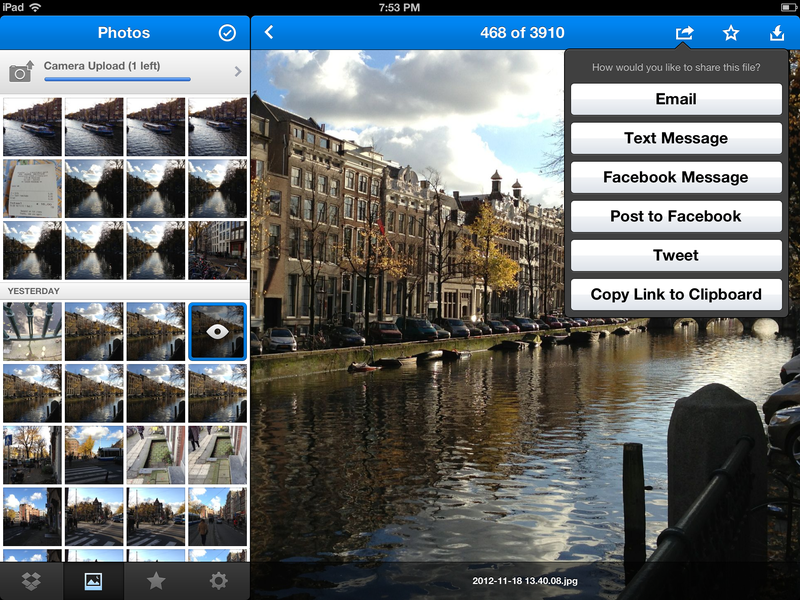
Dropbox has today launched a major new version of its iOS app, featuring a new UI design, new upload features, and an updated photo experience.

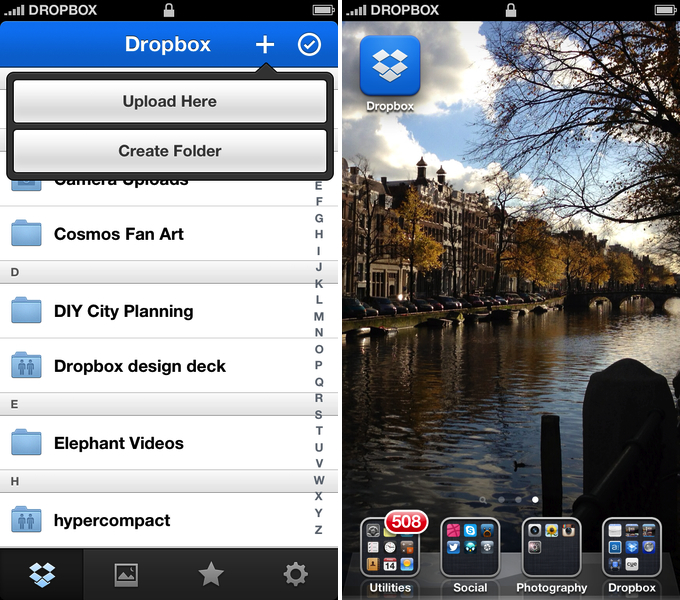
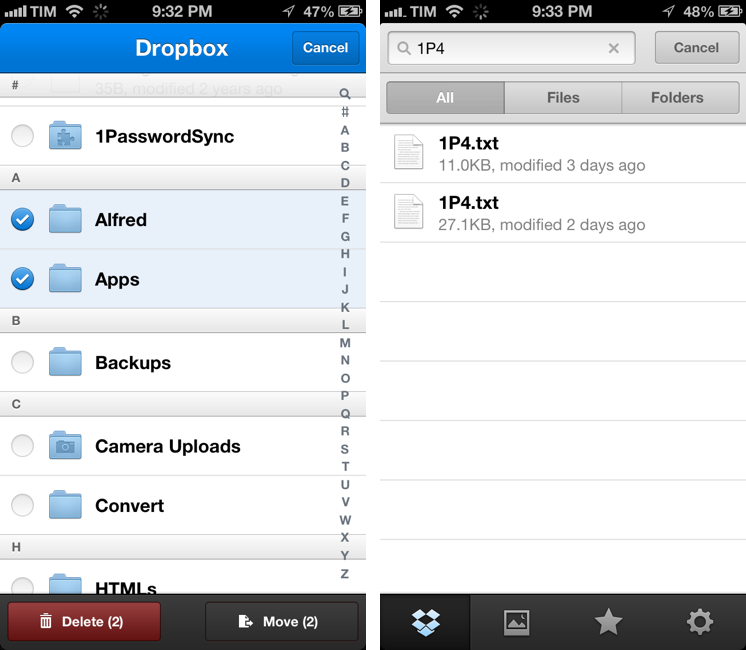
As detailed in a blog post by the company, the new Dropbox aims at simplifying the user interface with “flattened out” colors, simpler lines, and less visual complexity. For instance, the new tab bar of the app doesn’t come with text labels, using only icons to indicate folders, Photos, Favorites, and Settings. In a way, the Dropbox redesign is somewhat reminiscent of the latest Rdio update for iOS, also focused on flat colors and an overall simplification of graphical elements.

The new Dropbox changes the upload system as well. In the previous version, there was an Uploads section to upload items from the iOS Camera Roll to a specific folder; users needed to specify the folder before starting the upload process. In Dropbox 2.0, every folder – including the main Dropbox one – has got a “+” button in the upper toolbar with two options: “Upload Here” and “Create New Folder”. I look forward to trying this feature in particular as I use the Dropbox app to upload photos on a daily basis to different folders; I don’t know whether an upload button dependent on the folder you’re currently viewing will eventually make me save taps, or require more navigation around folders.

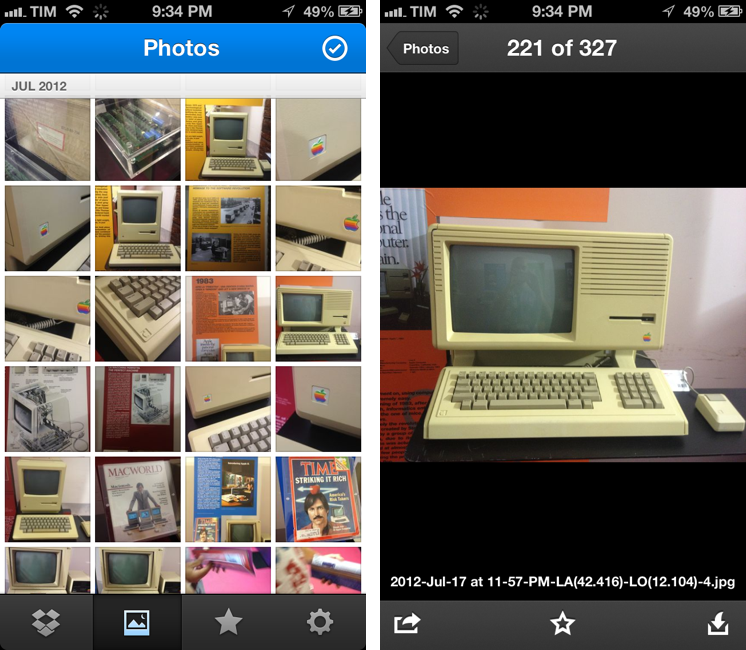
Photos are also part of my Dropbox workflow, and the new app introduces a new browsing experience for them. According to Dropbox “all of your photos” including those you have “uploaded from other devices” will be available in the new Photos tab. This view comes with a grid interface to browse photos from newest to oldest. Interestingly, sharing options for photos now include separate entries for “Post on Facebook” and “Facebook Message”. The Photos view retains the Camera Uploads functionality of the previous version (though personally I use CameraSync for this, a third-party app that offers more settings for Dropbox photo uploads).

The new Dropbox app is available on the App Store.

Update: Based on my first tests, it appears only photos uploaded with the app’s Camera Uploads feature are recognized in the Photos tab; it doesn’t seem like the app is recognizing photos I uploaded with third-party apps like CameraSync. Too, like in the previous version of the app, you can’t star folders.

More screenshots below.