This Week's Sponsor:

Copilot Money

The Apple Editor’s Choice App for Managing Your Money


Posts in Linked

AppStories, Episode 220 – Our iPadOS 15 Wishes

This week on AppStories, we jump back into their pre-WWDC wishlist series with a look at iPadOS and the sorts of OS improvements that are needed for apps to take advantage of the iPad Pro’s new M1 chip.

Sponsored by:

  • Appfigures – Analytics, Intelligence, and App Store Optimization Tools. Use the code ‘AppStories3030’ at checkout for a 30% discount for the next 3 months.
  • Inoreader – Take Back Control of Your News Feed. Use the code ‘MACSTRY2’ for 20% off your first year of Inoreader Pro.
  • Pingdom – Start monitoring your website performance and availability today, and get instant alerts when an outage occurs or a site transaction fails. Use offer code ‘APPSTORIES’ to get 30% off. Offer expires on January 31, 2022, and can be used only once.

Permalink

Joe Rosensteel Reviews the New Apple TV 4K

Joe Rosensteel has an in-depth look at the new Apple TV 4K on his website, Unauthoritative Pronouncements. Joe covers every step of the setup process, the new Siri Remote, and the new Apple TV 4K hardware. He concludes that although there have been substantial improvements in some areas, notably with the Siri Remote, there is a lot of room for improvement, especially for a device that is considerably more expensive than its competition.

One of my favorite critiques is of the setup process, which does a good job transferring your Apple TV apps to a new device, but leaves users to log into them one by one. It’s a frustrating experience that’s all too common on more than just the Apple TV. As Joe explains:

There is still this logical disconnect in this process where I have authorized the Apple TV to log into my Apple ID and access my iCloud data, including data from my existing devices, and iCloud KeyChain, but it can’t set up an Apple TV with all my apps and services logged in. I know someone might insist that this is for security, but it absolutely isn’t because all this data exists, in iCloud, accessible to anyone who has my unlocked iPhone and Apple TV - which is what is required to just populate empty apps on the screen.

My login state for these other services should really be stored in iCloud across all Apple devices I own, or with a token authorization system that uses the iPhone in my hand. At the very least, aggregate all of the services I need to log into in one spot for me to do it with Face ID, or Touch ID, opening up the saved password data for each of the entries I need to make.

The new jog wheel ring around the Siri Remote’s clickpad can be confusing to interact with too, especially because it doesn’t work with all third-party apps:

What about using it as a jog wheel? Well … it doesn’t work in all circumstances you will expect it to work in. You need to be in an app that supports the feature. YouTube, Hulu, and Disney+ don’t support it, for example. In some apps, the wheel moves the position on the timeline forward … and then backward, even though you’ve completed “a rotation” around the wheel because this isn’t really a wheel. It’s four directions mapped to a ring that doesn’t actually turn. It really breaks the rotation metaphor.

There’s a lot more to Joe’s review of the latest Apple TV, so be sure to check it out. As someone who consumes video exclusively through an Apple TV, many of these criticisms rang true. I haven’t tried the new Apple TV 4K myself, but I did replace my old Siri Remote with the new model, and despite taking a bit to get used to, that one change has been a substantial upgrade.

Permalink

Stephen Hackett Compares the Orange M1 iMac to Its Tangerine G3 Predecessor

MacStories pal Stephen Hackett has published a video on the 512 Pixels YouTube channel comparing the M1 and G3 iMacs. If you follow Stephen’s work, you know that he knows a thing or two about Apple’s colorful G3 iMacs. In 2016, Stephen acquired all 13 colors of the iMac G3, donating them to The Henry Ford Museum in Dearborn, Michigan the following year.1 The project spawned several articles, podcast episodes, YouTube videos, and even a book.

Apple’s colorful M1 iMacs began arriving on customers’ doorsteps at the end of last week, and Stephen got an orange model that he compares to the Tangerine iMac G3. The competition is far from fair given the advances made since the iMac G3’s debut in 1998, but it makes for a fun setup to show just how far the iMac has come in the past 23 years.

I’m glad Stephen chose the Tangerine iMac G3 and Orange M1 iMac for his video. The two are my favorite colors from both eras and really show off the designs of each well.


  1. I tagged along with Stephen to see his iMac G3s in an exhibit at The Henry Ford Museum during Maker Faire that summer. It was terrific to see those landmark Macs end up in a good home, especially since it’s a museum I grew up visiting for grade school field trips. We even got to see the museum’s working Apple I as a bonus treat. ↩︎
Permalink

Austin Mann on the M1 iPad Pro for Pro Photographers

Source: Austin Mann

Source: Austin Mann

I always look forward to Austin Mann’s unique perspective on Apple hardware. His latest review is from Flagstaff, Arizona where he takes Apple’s new M1-based iPad Pro through its paces as he processes photos taken at Great Sand Dunes National Park.

Mann cuts right to the chase:

As any photographer knows, one of the most time-consuming parts of the photo creation process is culling through thousands of images, making selects, and editing the images. Thanks to the M1 chip, faster internal storage, and a few other improvements, the new iPad Pro with M1 is the fastest image sorting tool I’ve ever used.

A great demonstration of the power of the new iPad Pro is the video in Mann’s post in which he moves rapidly through a large set of 60+ MB RAW photos. There’s absolutely no lag, making the iPad Pro a terrific tool for culling large collections of imported shots.

Unsurprisingly, Mann also concludes that the iPad Pro’s big, bright display and mobile data connection make it an ideal tool for previewing images on a sunny day and staying connected to research photo shoots. However, Mann’s wishes for the iPad Pro, like background importing of photos and the ability to connect multiple external storage devices, are precisely the sort of thing that is holding the iPad Pro back from being a more complete solution for photographers and other pro users. Despite the limitations, though, the new iPad Pro looks like a big step up for photographers, which I can’t wait to try with my own camera soon.

Permalink

AppStories, Episode 218 – Our iOS 15 Wishes

This week on AppStories, we continue our WWDC wish list series with a deep dive into the iOS 15 features we’d like to see announced at Apple’s annual developer conference.

Sponsored by:

  • Linode – Cloud Hosting & Linux Servers. Get a $100 in free credit.
  • Appfigures – Analytics, Intelligence, and App Store Optimization Tools.
  • DEVONthink – The one place for storing and working with all your documents, snippets, and bookmarks.

Permalink

Shortcuts Needs a Notification Toggle

Chaim Gartenberg, writing for The Verge, on one of Shortcuts’ most annoying limitations in iOS 14 – its obsession for showing notifications for anything it does:

Apple, I assume, mandates notifications because Shortcuts are extremely powerful tools for automating things on your iPhone, and it’s easy to imagine unscrupulous use of them.

But the thing is, the power of Shortcuts is to automate things in the background that I don’t want to have to deal with, whether that’s automatically disabling rotation lock when I open or close an app, open an app with a custom icon, or change the wallpaper when the battery life is low. A big glaring notification every time I do something detracts from that idea. I want my phone to be quietly helpful, not shouting in my face every time it does what I asked it to.

Years ago in my review of iOS and iPadOS 13, I argued in favor of adding an “expert mode” to Shortcuts so power users could turn off confirmation prompts for automations (which Apple removed the following year) and other notifications. Two years later, I think this goes well beyond expert users.

Since the release of iOS 14, millions of people have turned to Shortcuts as a way to customize app icons on their Home Screens. And every time they tap one of those custom icons, they have to see an alert that tells them the action they just performed was, in fact, performed. Imagine if your Mac showed you an alert every time you opened an app saying ‘You opened an app’. That’s pretty much what Shortcuts does whenever you run an automation or a shortcut added to the Home Screen.

Given the popularity of custom icons powered by Shortcuts in iOS 14 and the universal disdain for its notifications, I would be very surprised if there’s no way to turn these off in iOS 15.

Permalink

Spotify Rolling Out Redesigned ‘Your Library’ Page for Mobile Apps

As announced by Spotify earlier today, the company is rolling out a redesigned ‘Your Library’ page in its iOS and Android apps that should make it easier to browse your music collection and podcast episodes with a new grid view, better filters and sorting options, and more. From the Spotify Newsroom:

Your collection of music and podcasts is a representation of you—and it’s something deeply personal. But with 5,000+ hours of content released globally every day on Spotify and hundreds of those saved in Your Library, we know it’s crucial to be able to quickly find what you’re looking for, jump back into your latest discovery, or rediscover a beloved track you saved years ago.

Starting today, we are rolling out a new version of Your Library to all Spotify mobile users. Now, you’ll have a more streamlined way to easily explore your collection and find your saved music and podcasts faster. Your Library’s updated design and added features will enable you to spend less time looking for content and organizing your collection, and more time rediscovering the music and podcasts you’ve loved over the years. And as always, keep adding even more content for a library that grows alongside you into the future.

I’m particularly intrigued by grid view and the new filters to switch between music and podcasts. I’m also curious to see if this new design applies to the iPad app (which continues to pale in comparison to Apple Music’s solid iPad client) or not.

Permalink


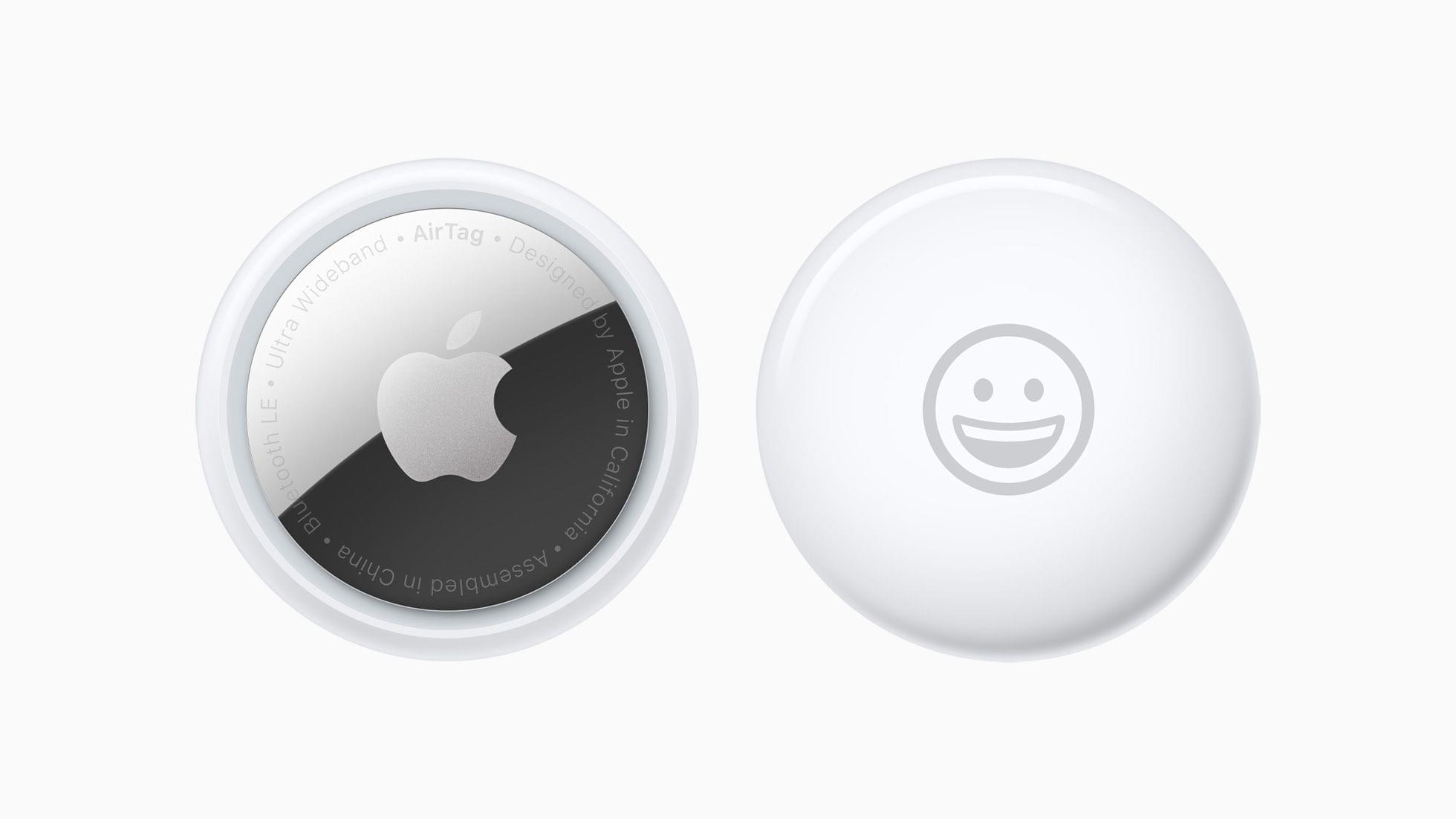
‘How Apple Designed AirTags to Be Privacy-First and Stalker-Proof’

Michael Grothaus at Fast Company interviewed Kaiann Drance, Apple’s vice president of worldwide iPhone product marketing and Ron Huang, a senior director of sensing and connectivity, about AirTags. The focus of the story is the privacy features built into AirTags, and it includes this interesting nugget not covered during Apple’s event on Tuesday:

AirTags also have a unique security feature called Pairing Lock, which protects against people who may find your lost item and snatch the AirTag from it to use as their own. Huang likens Pairing Lock to the iPhone’s Activation Lock. “It means that if you lose your AirTag, somebody can’t just pick up your AirTag, re-pair it with their phone, and continue using it,” he says. “This has been really impactful for the iPhone and we think it will be for AirTag as well.”

I’ve seen a lot of questions raised online about exactly how AirTags work and their privacy features, and this Fast Company story is a great place to start to learn more.

Permalink