This Week's Sponsor:

Inoreader

Build your own newsfeed and cut through the noise


Posts in reviews

Link Your Computer And iOS Device With myPhoneDesktop: Double Pass Giveaway!

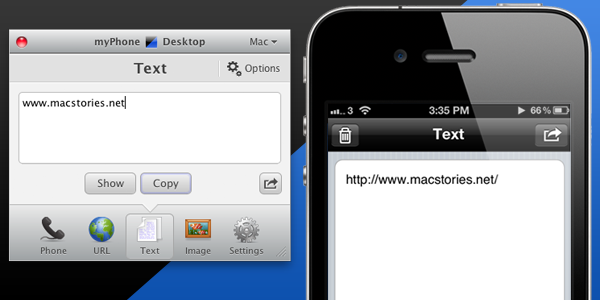
We’ve talked about myPhoneDesktop before on MacStories but we thought it deserved a short ‘re-review’ to accompany today’s giveaway. Keeping it simple, the premise of myPhoneDesktop is that it provides a portal through which you can easily transfer data and information from your desktop computer to your iPhone or iPad.

Broadly speaking the app transfers four types of data including phone data (both numbers and text messages), website URLs, text and images. When you send any of that data from your computer, and there is both a desktop and web client, it will be pushed straight to your device with a notification.

But where I think the app becomes most powerful is when you have the data on your iPhone or iPad. In the corner of the app it has the “Open in” icon where it literally has a wealth of options for your data. There is everything from the obligatory search with Google, to send by email, add to contact, send SMS or launching another app with that data. Importantly, the developers aren’t resting on their laurels, since we last talked about myPhoneDesktop there have been a few updates that continue to add more app integrations including Navigon and InstaTodo.

In reality I have only just scraped the surface of what this app can do, for example it also integrates with Google Voice and Skype, so make sure to check out the myPhoneDesktop website to learn more and get your own copy. Today we’re giving away 5 ‘double passes’ of myPhone desktop – in other words the five winners will receive two promo codes, perfect to give one copy to a iPhone-toting friend or family member, or (god forbid) use it as a belated Father’s Day gift. Details of the give away are past the break.

Read more


Send2Mac: An Easy Way To Send Webpages To A Mac Browser

Over the past few weeks I’ve mentioned on Twitter and in a couple of articles a service I’ve started using on my Macs and iOS devices, a simple tool that has contributed to making the process of sending webpages to remote computers incredibly easy. Send2Mac, a free service by developer Bastian Woelfle, installs as an app on your Mac and a bookmarklet in your browser to enable you to instantly send a webpage from any device or computer, to another Mac. It doesn’t matter where the target Mac is, or what kind of Internet connection you’re using on your iPhone, iPad, or office PC: as long as you can run a web browser and the remote Mac is connected to the Internet, the webpage will magically open in a few seconds.

In the past months, I’ve actually been busy trying to find the best way to remotely send webpages from a device to another. First, I came up with a Dropbox tweak to email links to myself, and watch them open in my desktop browser. Then I stumbled upon Push Browser, an iOS app and Chrome extension that enables you to send webpages back and forth between devices and desktop computers. I love Push Browser, but it’s got one major downside: on a Mac, it’s limited to Google Chrome, and I haven’t heard back from the developer about a possible Safari or system-wide integration. That’s why I thought of giving Send2Mac a try: rather than having a dedicated extension for each browser, this app directly plugs into a Mac’s default browser, whatever it is, and can send webpages to it. Simple. On the other end, Send2Mac generates a unique bookmarklet for each of your target machines, based on an API key thet you’re given randomly every time you visit send2mac.com to set up a new computer.

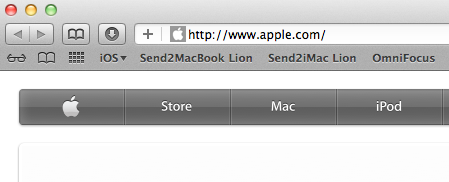
It works like this: I have two Macs, and both of them run the Send2Mac utility in the background. My MacBook Pro and iMac, however, have been assigned different API keys: they’re different, because they correspond to two different bookmarklets that let me send webpages from my iOS devices – or other computers I might happen to have. So when I’m on my iPhone and I find a webpage I’d like to check out later on my iMac, I hit the “Send2iMac” bookmarklet and it goes straight to the iMac, in a couple of seconds. If I want the page to open on my MacBook Pro, I hit the bookmarklet for that computer. If I want the page to open on my iMac, but while running Lion, I have another bookmarklet. It’s really simple: each target machine and OS has its own key and bookmarklet. No menus to navigate and no interface, you hit a button and the webpage travels from a browser to another.

I’d pay for Send2Mac if it were a premium service, but it’s surprisingly free and “might be really buggy”, as the developer writes on the app’s website. In my tests, I’ve found Send2Mac to work reliably as it’s even capable of launching a closed browser with the new webpage I sent because it’s a process that runs in the background all the time, alongside the default browser of your Mac. You can configure Send2Mac on iOS and Mac browsers, send webpages from Mac to Mac, iOS to Mac and even Windows to Mac as long as you have the bookmarklet installed.

You can start using Send2Mac by heading over here with your device, and generating a new API key for your Mac.


Discovr Apps Is Like Pandora For The App Store

Back in January I reviewed Discovr, an interactive music map that was aimed at letting you easily and joyfully discover new artists and songs based on your tastes. By providing an original interface that turned classic hyperlinking into an interactive experience with animated maps and multitouch, Discovr still holds up as one of the most original iPad apps to explore the iTunes Store in an alternate view that, eventually, also made its way to the iPhone. But after music, the Filter Squad developers might have asked themselves what is that iOS users want to discover on a daily basis. And that is apps, obviously. Discovr Apps, a new version of Discovr available in the App Store at $0.99, runs on the iPhone and iPad and, just like its music counterpart, wants to turn the App Store categories and links into a map that changes every time according to the suggestions you’re given and the apps you’re interested in.

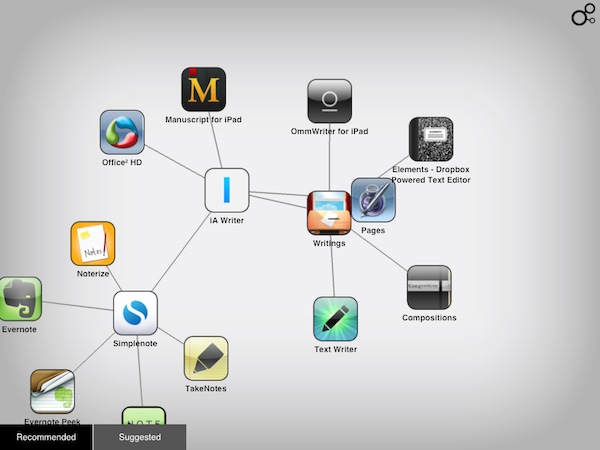
In the main page, you’re presented with a search box to manually start looking for an app, or two tabs at the bottom: recommended for you, and suggested apps. For those who don’t know how Discovr works: after the first element – in our case, an app – pops up on screen, a tap will generate related items connected to it, thus creating a map. As you keep tapping to view related items, the map grows and the connections expand. To view an item in detail, you just have to double-tap and you’re brought to an App Store-like page with description and screenshots. If you want a broader view of the map you’ve generated, pinch to go back.

You can share discoveries on Twitter and Facebook or via email, but the main point of the app is to sit down, check out the recommendations or start with an app you like, and see where Discovr brings you with its interactive system. And as far as recommendations go, I’m very satisfied with this app-focused version of Discovr: even more than Discovr for music, I found app suggestions to be really tailored to my tastes and needs, with gems like Twitterrific, Evernote, Simplenote and Writings often showing up in my maps.

Discovr is, once again, an interesting experiment that offers an intuitive way to discover media you’d probably miss in the sea of App Store apps and updates. At $0.99 in the App Store, that’s an investment you should consider to discover more great apps in the future.


Lidpop Plays A Sound When Your Mac Wakes Up

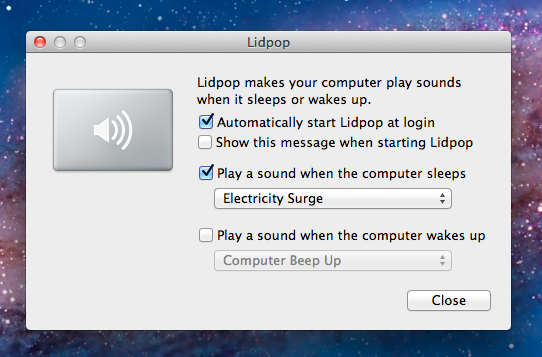
Here’s a $0.99 app from the Mac App Store that I found quite hilarious and worth a mention here on MacStories. You know when you close your Mac’s lid, or wake the computer from sleep, right? Worst case scenario, you haven’t assigned any kind of security to the process so your Mac goes to sleep and wakes up without asking for any password or displaying a login screen. Or, maybe you’re a bit like me, and you’ve told System Preferences to lock the computer as soon as it’s closed so nobody will be able to open it and log in. But in both cases, closing the lid and opening it back again doesn’t change, right? It’s just a simple action: you open, you close. Here’s when Lidpop comes in: the app will make your Mac play a sound when it goes to sleep or wakes up. Close the lid, play a sound. Wake up from sleep, play another sound. It wants to add some personalization to the whole boring concept of opening and closing a computer, but I wasn’t quite sure about the idea until I tried it. See, Lidpop comes with some hilariously well-done sound effects like “electricity surge”, “sitcom laughter” or “slamming metal lid” that will play as you close the lid, or open it. I installed the app, and found myself smiling every time the lid made a slamming metal sound – you should have seen the look on my friends’ face. In fact, I think Lidpop is the perfect app to surprise your non-geek friends and convince them that Apple computers play those sounds when you close them. Might be something I have to try out.

Close the lid with a resounding clank or a happy slide whistle. Open it back up with a laugh or a whimsical chime — it’s up to you. Lidpop brings a dash of personality to your computer.

Lidpop won’t make you more productive but it’ll make laugh when you step away from your Mac and you hear the sound of a vault closing. Get the app here.


Twitterrific 4.2 Updated for Mac & iOS: MLKSHK, Pikchur, Read It Later, and More!

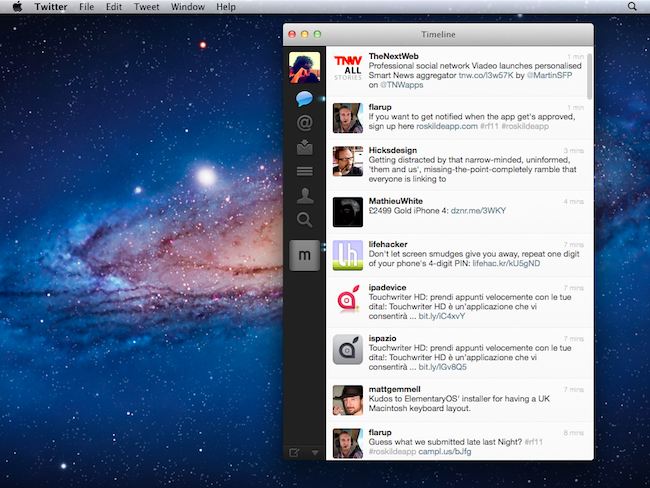
Twitterrific 4.2 is available on the App Store for both Mac and iOS right now if you’re so inclined to keep on top of the latest updates, and there’s some new major additions that we think you’ll really love. There’s also some big changes to how you’ll sign in–thanks to the way Twitter is requiring 3rd party clients to authorize your account–thus making 4.2 a mandatory update to comply with Twitter’s rules.

Read more


Musicon Lets You Add Albums To Your Home Screen

In the weeks leading to Apple’s WWDC announcements, there was one possible feature of iOS 5 that was making the rounds of the Internet, meeting many people’s expectations for the new OS: the possibility to create shortcuts for anything on a device’s Home screen would have been an interesting option to, say, let users create a WiFi icon to quickly access Network settings without opening the dedicated app. Playing around with the concept of aliases and app-specific shortcuts, the theories surrounding iOS 5 pointed at Apple building such a functionality to reduce the time spent tapping and scrolling around. That, of course, didn’t happen, but it hasn’t stopped third-party developers from releasing their own solutions that take on this idea of “creating Home screen shortcuts”.

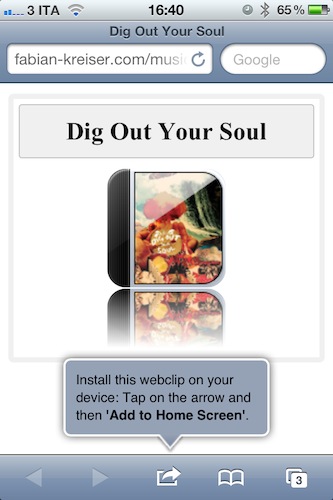
Musicon, a new iPhone app by developer Fabian Kreiser, enables you to create Home screen icons for music albums you have synced on your device or, if you’re rocking the latest iCloud features, bought on your computer and automatically pushed to your iPhone. Musicon works like this: it scans your music library (the one from iPod.app, or Music.app if you’re already on iOS 5) and fetches albums and album artworks. If music is playing from the native iOS app, a “Now Playing” button lets you control it – this app isn’t meant to be a music controller on its own, unlike Kreiser’s other iPhone app On Stage. In fact, if you have On Stage (which we reviewed here) installed on your device the app won’t show any advertisement.

Once you’ve found an album you like, select it, and hit the big “Install Webclip” button. The app will already display a preview of the icon that you’ll end up with in the Home screen in the upper section of the screen. As you hit the button, Musicon does its thing to create a shortcut: it takes you to the developer’s website to install a webclip on your device. That’s right, these shortcuts are nothing but links to a webpage that somehow takes you to Musicon after you tap on the icon. Music will start playing in the native iPod app, and Musicon will come in foreground with the playback control UI. Not the most elegant solution if you ask me, but it works and the Home screen icons shine on the Retina Display.

Musicon is free, but I wish I could pay to remove advertising without having to keep On Stage installed. The idea is pretty nice and I can see why some people would want to save a couple of albums for quick access on a daily basis – if you’re one of them, get Musicon here and start creating your own shortcuts.


Screeny: Simple Screen Recording for the Mac

In the world of screen recording apps for Mac there are many options, but most are complex and expensive. What if you could have a great screen recording app that was easy to use, had a great UI and was under $20 US? Well, browse no further my friends.

Drew Wilson, the designer developer behind dialoggs, Pictos and Valio, has just released a screen recording application for the Mac called Screeny.

Screeny is an “unbeatable screen recording experience” and could be the easiest one you have ever used as well. Before we go into details, here’s how it works: Launch the app - it lives in your menu bar. Set the capture area. Use the floating control panel, the menu bar shortcut or set a key command to record and boom, you’re done. Read more


Stay on Top of Retweets, Faves, and Follows from your Menubar with Bird Bell: Review and Giveaway!

If you’ve wanted to stay on top of your Twitter status in real time, many Twitter clients won’t show you whether that last tweet caused a few unfollows or if it was fave’d by a few of your fans. For those obsessed with getting realtime feedback, Bird Bell is an excellent companion app to any Twitter client you have on the Mac, integrating with Growl and displaying real time feedback on retweets, follows, unfollows, favorites, and lists you’re added to. Bird Bell integrates with both Twitter and Favstar, and can be customized to a wide extent in revealing growl or menubar notifications per account. With the official Twitter app for the Mac (which offers live streaming), Bird Bell can give you a bird’s eye view on just how responsive your audience is to what you’ve tweeted as soon as you’ve hit the return key. Bird Bell works in the background, and only notifies you based on your interests: I personally don’t care about follows and unfollows, and choose to see favorites and retweets instead.

Twitter junkies who want to revel in their tweets can purchase Bird Bell on the Mac App Store for $1.99 — it’s a great utility that works alongside your favorite Twitter clients. We’re also giving away five copies of Bird Bell, and you can click past the break for your chance to win.

Read more


Ben the Bodyguard Finally Released, Keeps Data Safe On Your iPhone

Teased a few months ago with an impressive website that made great use of scrolling and animations, Ben the Bodyguard for iPhone has managed to gain the interest of everyone who’s closely watching the iOS development scene and is always looking for well-designed and innovative apps. In spite of the fact that little was known about the actual purpose of the app and how it would compare against other “secure data managers” like 1Password and Wallet, Ben the Bodyguard was intriguing because of the attention to detail and design, the character himself (a French bodyguard, indeed, called Benoit – Ben) and, again, the amazing website.

After months of silence (as it seems appropriate for a good spy / secret agent / whatever it is Ben does), the app came out last night on the iPhone at $4.99 and I decided to take it for a spin. Unfortunately Ben the Bodyguard can’t be compared with full-featured solutions like 1Password, but thanks to its cool design and adventure-like nature, I believe the app still has a chance to attract casual users looking for something to keep their data safe and private.

In case you haven’t heard of it, Ben the Bodyguard is an app that, like 1Password, can keep a variety of data safe & private in its database. The app uses a master password and 256-bit AES encryption to secure your data, which consists of photos, contacts, reminders, notes, and passwords. The password tab is particularly interesting, as it allows you to choose between different templates like web login, credit card, driver’s license and bank account, or create your own template if the categories above don’t fit the password you want to protect. The most interesting aspect of the app however (and what I believe will be the main selling point for the developers and users), is how the entire interface and menu options revolve around the character of Ben. For instance, once you fire up the app for the very first time you’re greeted with an intro sequence describing the life of Ben before he became a bodyguard – you can skip this intro, but it’s so well realized you might end up watching it anyway. Just like the website (which made the rounds of the Internet months ago) puts the focus on Ben – and not the features – as a man you can trust to protect your data, the app doesn’t present itself as a software capable of encrypting and securing notes and password: instead, the general feeling you get is that there’s this man on your iPhone’s screen telling you with a French-English accent that your stuff is safe with him. Character and story-wise, Ben the Bodyguard is a winner: graphics are beautiful, voice over is fun, animations are fluid – you can see the effort that went into designing the application and giving Ben an “identity” to make it stand out from the App Store ecosystem. Read more