Posts in reviews

Alfred 1.3 Improves System Navigation with “File Buffer”

Alfred 1.3

Alfred 1.3

Released yesterday, Alfred 1.3 is a major update to the popular desktop application aimed at “increasing your productivity” on OS X. Started as a simpler app launcher, Alfred has, in fact, evolved into a much more powerful – yet always accessible – solution that goes beyond the simple definition of a “launcher”, like Spotlight would be. I use Alfred on a daily basis to browse my file system, compose email messages,  search the web and even look for my favorite songs on Rdio. Alfred was once a launcher, now it’s much more. In my workflow, it’s an app that makes the core features of OS X work better for me.

I particularly appreciate the improvements brought in version 1.3 as they address a usage scenario I often find myself dabbling into: selecting multiple files in the Finder to move them to another location. For instance, in writing my Mountain Lion review, I took a lot of screenshots; those images had to be cropped, resized, and re-composed to fit the layout of my article. Once edited, I had to move them from the Desktop – where OS X creates my screenshots – to a sub-folder in Dropbox, which, through a custom script, they are uploaded to our CDN, returning a URL. With Alfred’s new File Buffer functionality I saved precious minutes I would have otherwise spent opening the Finder and navigating with the trackpad.

The File Buffer is basically a virtual “shelf” that can temporarily host files you want to act on. Configurable in Alfred’s Preferences, you can set the Buffer to be cleared after actioning items, or after five minutes if items you selected haven’t been used.

Alfred File Buffer

Alfred File Buffer

File selection is integrated with Alfred’s existing navigation capabilities. In Alfred, you can browse your Mac’s file system with the keyboard, finding documents and folders you need and choosing from a set of actions to do stuff with them. These actions include, by default, an Open command, Reveal in Finder, Copy Path, Move, Copy, and more; they are entirely actionable with the keyboard, so you’ll be able to, say, unzip a folder and forward its contents via email to a contact without lifting a finger from the keyboard. Furthermore, you can assign favorite locations – in my case, Desktop and Dropbox – to a hotkey, and tell Alfred to open them in its own navigation, rather than the Finder’s.

With the Buffer, you can now select multiple files and act on them at once. So while writing, I was able to bring up the Desktop in Alfred, select multiple screenshots, move them to Dropbox, then launch the .txt file where image URLs get appended to. The Buffer was a huge timesaver, and, for the future, I hope Alfred will make it easier to create custom actions (right now, here’s how you can do it) and specify custom locations for the Copy and Move commands (you can type a folder’s name to instantly bring it up).

When working with the File Buffer, I often select images that I want to move or delete. Alfred’s navigation window features a thumbnail preview for files, but sometimes that’s too small to really see whether or not I’ve selected the right file. Thankfully, version 1.3 introduces support for Quick Look through the Shift key or by hitting Command-Y on a selected file. Quick Look works both in default results and the File System navigation.

Alfred Quick Look

Alfred Quick Look

Version 1.3 brings many other features, improvements, and fixes as well. There is now better integration with 1Password, a new way to show more results, a compact mode, and a “quit all” command to quit all running apps. Make sure to check out the full change log for a complete list of changes.

Alfred has become an essential piece of software in my daily workflow, and I’m glad I decided to give it a chance two years ago. You can download version 1.3 from Alfred’s website, and unlock all the app’s functionalities by purchasing the Powerpack.
Checkmark Review

When iOS 5 came out last year, I wrote about location support in Reminders:

One of Reminders’ key features is its location-based alert system. Thanks to Apple’s geo-fencing technology introduced in iOS 5 — and open for third-party developers to create apps with — the app can send you an alert when you’re about to “arrive at” or “leave” a particular place. This can be useful if you, say, want to be reminded of groceries when you arrive at the supermarket’s parking lot, or don’t want to forget about those documents when you’re leaving the office. There’s a caveat though: you can’t manually type an address as Apple chose to restrict this feature to a “contact location”. This means the address will have to be already attached to a contact in your Address Book, which can be inconvenient if you don’t want to keep the supermarket among your friends and family contacts. On the other hand, I assume Apple has done this for two reasons: saving users the time of typing addresses, and providing a familiar way to access often-used locations.

For the most part, Reminders works fine as a lightweight todo manager synced across devices and platforms. However, if you’re serious about location reminders and would like better control over how geofencing is triggered, Apple’s software won’t cut it. Because of Apple’s implementation – restricted to addresses associated with entries in your Address Book – iOS’ Reminders effectively forces you to create new contacts for places that you might need someday. So if you’re planning on setting up reminders for when you leave the grocery store, the office, the local coffee shop, or your friend’s house, you’re going to have to configure those in Address Book. Which, if you want to set up quick reminders for tasks that you won’t repeat on a daily basis, is a rather cumbersome process.

Furthermore, Apple’s Reminders isn’t the most streamlined application when it comes to the number of taps required to create a new item with due dates or alerts. Especially for location, in Reminders you’ll have to:

  • Create a new reminder and type;
  • Hit Return;
  • Select the reminder;
  • Tap “Remind Me”;
  • Select “On Location”;
  • Choose “When I Leave” or “When I Arrive”;
  • Tap “Location”;
  • Choose an address;
  • Go back and hit Done.

A 9-step process (10, if you want to pick an address from your Contacts) to create a reminder with attached location data. Can it be done better?

For the past month, I have been testing Checkmark, a highly-hyped and recommended new app developed by Snowman aimed at simplifying and speeding up the process of creating reminders on your iPhone. I found Checkmark to be a great replacement for Apple’s Reminders, and the kind of app that fits with my way of thinking, rather than forcing me to understand its rules and patterns.

Checkmark creates location and time-based reminders. It is a third-party app, so it won’t sync with the official Reminders app, nor will its reminders show up on the iPad or other devices (Checkmark is iPhone-only for now). When you open the app for the first time, you’re greeted with a first-launch tutorial that will teach you the basics: you can save favorite locations, view your current and completed items, or create a date/time based reminder if you don’t want to be reminded at a specific location. That’s it.

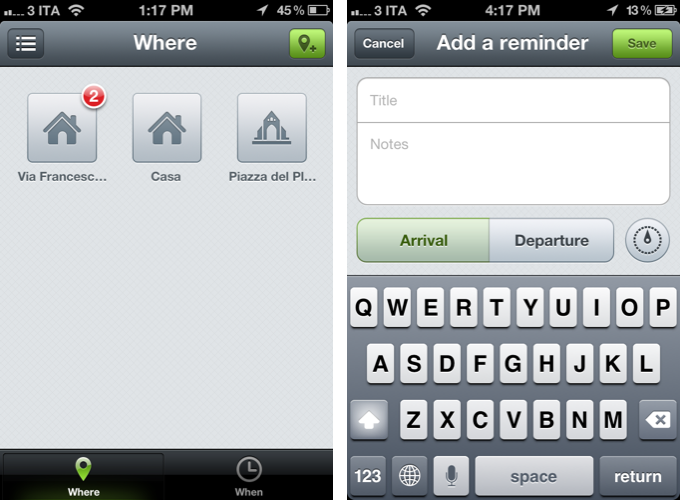
The main screen sports an intelligent design that trumps Apple’s design in terms of usability and speed. It is organized in two tabs – Where and When – that make it instantly clear which kind of items you can create, and how you can navigate between them.

The problem with Apple’s Reminders, as I outlined above, is that location is relegated to second class citizen spot inside the Address Book, rather than being displayed front and center in the app. Attaching location alerts to a reminder takes too many taps; a todo manager – no matter what kind of tasks it supports – should be fast, easy to use, and capable of receiving new items quickly. For this reason, the Checkmark developers organized the location screen as a grid of places: these are your favorite locations, they’re easy to tap on, and they are displayed through custom icons and names you can choose from a location’s settings.

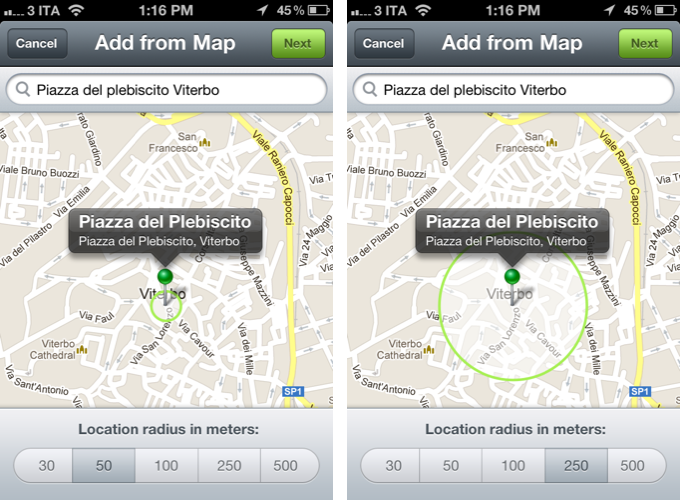
Checkmark is smarter than Apple’s Reminders: when you add a new location, you can use your current location, add an address manually from the integrated map view, and only as a last option you can import a location from your contacts. In the map, you can drag and drop the pin to adjust the position, and choose a location radius to tweak the behavior of the geofence – should the app remind you when you’re 30 meters from home, or 250? These are functionalities that Apple’s software is still suspiciously lacking, even in the upcoming Mountain Lion (except for manual addresses, which Apple seems to have implemented in 10.8).

My favorite feature of Checkmark is its streamlined way of adding new location reminders. From the main “Where” screen, you can tap on a location to view all the reminders associated with it; tap the + button in the upper right corner, and create a new one with a title and (optional) notes. Set arrival or departure – depending on whether you want to be alerted when you arrive at a place, or leave it – and hit Save. Done. Unlike Apple’s app, it takes me 10 seconds to set up a new location reminder in Checkmark.

Checkmark also combines a timer functionality with geofencing. Say you want to be reminded about today’s meeting 30 minutes after you arrive at the office; or perhaps you want to be reminded about buying milk 15 minutes after you leave while you’re on your way home. In the Details screen of a location reminder, Checkmark lets you set a timer for 5 up to 60 minutes “after” you leave or arrive at a location.

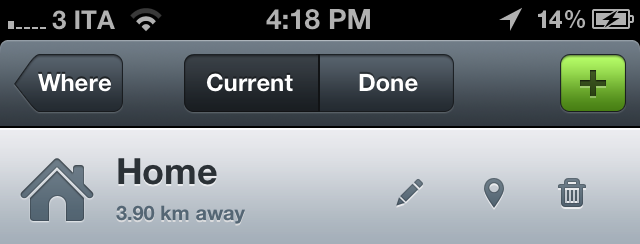
Another nice touch of Checkmark is how the app calculates the distance from a location. Similarly, I am a fan of the custom sound alert the app uses for Notification Center; notifications (reminders, sound alerts, text alerts, and badge counts) can be configured in the app’s preferences inside Settings.app.

Being a utility that runs in the background all the time through Location Services, when I first installed Checkmark I was concerned the app would use too much battery. After weeks of testing, I can say that with the “normal” accuracy I haven’t noticed a substantial drop in battery life. This comes, however, at the cost of precision with location alerts, which sometimes went off a minute later than expected. By setting accuracy to “best”, precision got considerably better but I noticed the app was draining too much battery.

Checkmark isn’t just a prettier Reminders app, it is a better take on a concept that Apple first explored but somehow failed to properly implement on iOS. Checkmark won’t sync to your iPad or Mac, so here’s to hoping the new Event Kit framework for reminders in iOS 6 will allow its developers to turn Checkmark into a new interface and experience for iCloud reminders. Checkmark doesn’t work with Siri either, so if you rely on the voice assistant to quickly create reminders, you might want to reconsider your workflow and the importance of Apple’s Reminders before making a decision. However, right now, I find Checkmark to have powerful features for location and time-based reminders, and I highly recommend it.

Only $0.99 on the App Store.


Tweetbot for Mac: Public Alpha Review

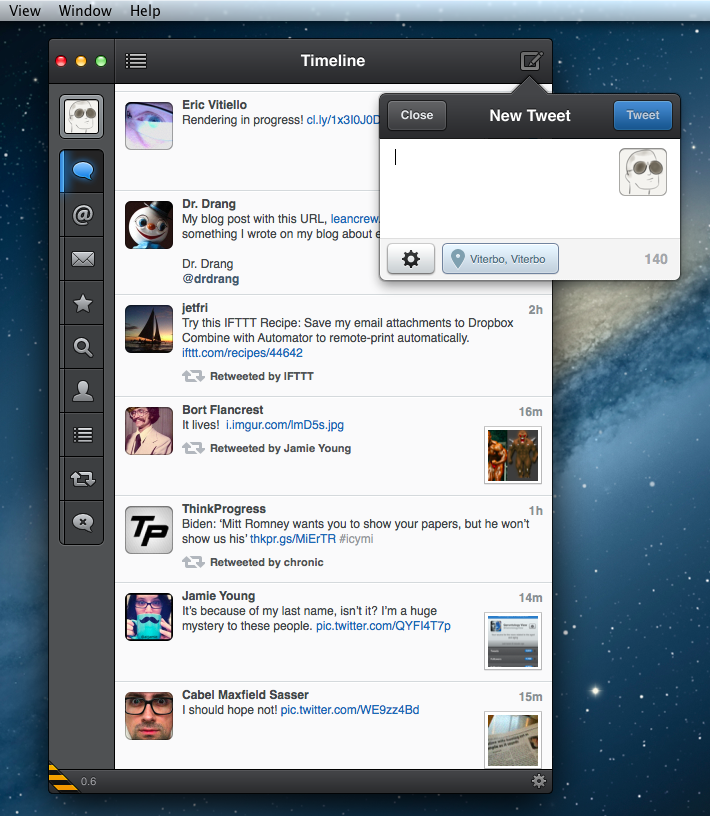
Today, Tapbots released the first public alpha of Tweetbot for Mac. This is not a final review of the app: being in the development stage – albeit ready to be tested by the public – Tweetbot for Mac is still lacking several features that will be available in the final Mac App Store version (such as iCloud sync and Notification Center support), and for this reason I’ll save my full analysis of the app for the future.

However, I have been testing Tweetbot for the past week, and I can say that it already is the best Twitter client available on the Mac. Read more


Twitter, Twitter 4.3, and The Mixed Message

The new Twitter recap

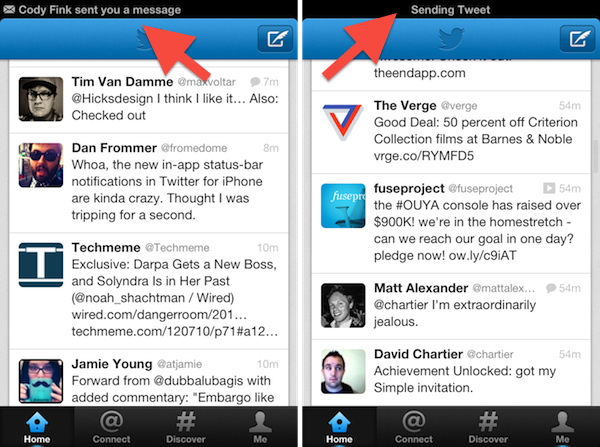
As I was telling a fellow compatriot on Twitter, the Twitter apps exist as the gateway drug. Twitter’s app isn’t for the Tweetbot socialites who are connected to their timelines 24/7, nor is it for the Twitterrific users who treat Twitter as the break room water cooler. While many writers were waxing poetic on a disappointing update following the leave of Loren Brichter from Twitter, I tried to look at how Twitter was making their experience friendlier for everyone, and not just for the power users (who have, admittedly, established Twitter as what it is today).

Twitter’s focus shifted to answer two questions, “How do we retain users who leave because they don’t get Twitter, and how do we make money?“ The Twitter app exists not to serve people who want to mange their timelines, but for people just joining the service. It exists to show new users what Twitter is all about: this was made obvious with the Connect tab ousting Direct Messages. Its sole admission is to help newcomers get accustomed to finding and following people, things, or companies they are interested in. Then there’s Promoted Tweets which insert themselves into your timeline — it’s as intrusive as an advertisement but so far minimally impacts the experience. Twitter’s app is designed to show what you can do in (what I think) is an aesthetically pleasant package. It’s not for you, Tweetbot users.

Trying to defend Twitter gets people upset. Most everyone who read MacStories and are interested in tech want features — they want the Twitter emblematic of Tweetie and Tweetbot, not of the new Twitter. And I certainly understand that Twitter took away what was once an optimal experience for lots of people. In my approach, I understand that while Twitter shunned power users (which Tweetie users happened to be), they’re trying to make something everyone can use. It’s not an app fraught with finicky settings, but rather an app that provides a simple, core experience. I initially reviewed Twitter from a perspective of a newcomer — I think the app looks nice and for what functionality it does provide, that functionality works as intended. Unfortunately for Twitter, this message isn’t getting across. The audience Twitter wants (the audience I tried to put myself in) isn’t as vocal as the established user base is.

Let’s be honest: even I, despite trying to account for what new Twitter really is, use Tweetbot — heck, I still go back to my old favorite Twitterrific from time to time. And I don’t think anyone should mind that Twitter’s app exists as-is if Twitter is presenting their app as the gateway, and not as the path. I’m in agreement with what Twitter is trying to do as long as their app coexists peacefully with 3rd party Twitter clients. However, I’m not going to continue making my claim for why Twitter’s experience is okay if they’re shunning 3rd party developers and sending mixed messages in the process. I’m not okay with Twitter’s experience being the only experience.

Read more


Guitar Pitch Pipe Lets You Quickly Tune Your Guitar

News from Hypercompact, the software company whose logo has inspired designer Evgeny Skidanov to create one of the most beautiful 3D animations I’ve ever seen. If they had published their app Guitar Pitch Pipe just one week earlier, I definitely would’ve integrated it in my story about the current state of music-making on the iPad — filed in the “small tools” sections. This guitar tuner is a perfect example for a small, reliable companion for guitarists on the road.

The App Store is flooded with guitar tuners. Apps like the UltimateGuitar tuner or Gibson’s effort are very prominent and elaborate apps — why considering this one then? Well, because it has one thing these other apps most of the time do not have: an innovative and simple UI. Guitar tuner apps are generally cluttered with features just a few percent of guitar players need like alternative tunings or the ability to change the tuning frequency; unfortunately, they are placed as prominently in the app as the standard tuning. This makes many tuner apps unnecessarily complex.

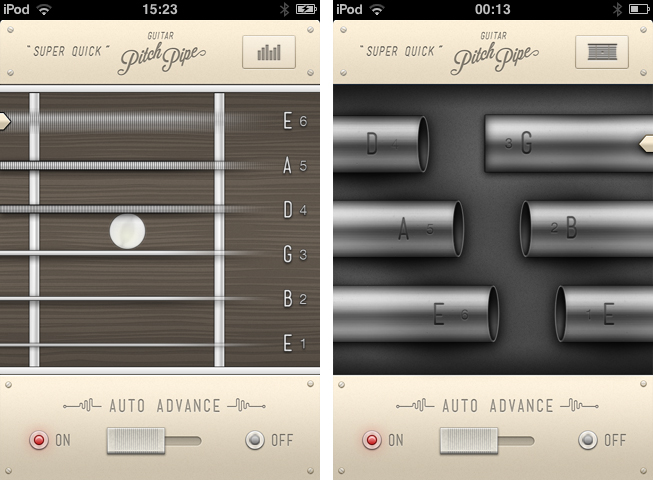
Guitar Pitch Pipe is different from that. Using a single main window, it plays back the six notes of the basic, 440Hz EADGBE guitar tuning with two different sounds: pipes (being the more unusual sound, and therefore integrated in the app name) and “classic” strings. The selected one is displayed in a visual interface, including tappable strings or pipes with the note characters on them. The currently playing pipes or strings are indicated by a closed pipe illustration or a cool 3D movement respectively. You can switch between these two layouts using the button in the top right corner.

You can either let Guitar Pitch Pipe play a note twice with a little pause in between for tuning, and then move on to the next one, or manually choose a string using the on/off switch at the bottom. The app then plays it until you move to the next one by tapping the respective string or pipe. The app constantly plays a note, there is no way, you could make it silent. Because of this you are more or less forced to only open it up when you really want to tune a guitar, otherwise it quickly becomes pretty annoying. This ensures a quick and focused use of the tuner, and makes it unobtrusive and functional.

The output sounds are very accurate, fitting to tuning both electric and acoustic guitars, and therefore make the app a very useful tool. The second reason for me using the Guitar Pitch Pipe guitar tuner from now on is its UI. We recently covered WTHR, a Dieter Rams inspired, minimalist weather forecast app for the iPhone. Guitar Pitch Pipe is quite similar to it. The app features no instructions or settings (because it doesn’t need any in its current state), it is colored beige, and uses skeuomorphed, plastic switches. The fretboard with strings and the pipes are crafted with love for detail; they are gloomy and very polished. It also features a cool icon but has a confusing description: “Super Quick”. The user could believe that the app is super quick, but without remembering which kind of app is behind the icon, it is very confusing.

However, while using the app for the first time, I immediately thought “Man, you could do much more with this design”. Retrospectively, this is still totally true: this app has potential to be enhanced with many new features while still maintaining its usability and simplicity. You could just add a second button, let’s say in the top left corner, make it trigger a pop down menu (which obviously needs to correspond with the rest of the app’s design), and let the user switch to alternate tunings like Drop D or C, or maybe even let them change the frequency. You wouldn’t need to change anything in the main screen design, just the sounds and the letters on the pipes or next to the strings to indicate different notes. This would make the app an even more complete and functional guitar tuner, suited for every type of guitarist — traditional (using standard tunings), metal and rock (dropped tunings) and progressive and experimental players (open and alternate).

But don’t get me wrong — Guitar Pitch Pipe already is a very good guitar tuner for the iPhone. Its output quality is outstanding, it’s fast and reliable, perfect for quick access, and does everything you need for tuning your guitar in standard tuning. There is just one thing that really annoyed me in its current version: sometimes, for instance when you use dropped tunings (which I personally use very often), you need some time to get back to standard tuning, especially on the lower E string. When you’re using Guitar Pitch Pipe’s automatic mode for that, the app plays each string just twice and then moves on to the next one, which is way too short in such situations. Users definitely must have the option to adjust how often single notes should be played back in auto mode. Otherwise, I absolutely recommend Guitar Pitch Pipe for any guitarist who is still searching for a good guitar tuner for his iPhone. Get Guitar Pitch Pipe for $0.99 on the App Store.


Quickly Send Webpages To Evernote with EverWebClipper

As I explained in my previous look at my writing workflow, I use a selection of tools to save notes and other bits of text to Dropbox and Evernote. While such array of applications and utilities is ever-changing due to the very nature of the App Store, the core intent of being able to distinctively store text in separate locations stays true regardless of app updates and new releases.

I use Evernote as long-term storage for a variety of text and media that isn’t necessarily an article I need to work on inside a dedicated text editor. I keep images and PDFs that I may want to reference in the future in Evernote; I archive my own tweets and favorite tweets in two separate notebooks using IFTTT (thanks to Evernote’s search, I consider this a DIY alternative to Cue, which I also use); I keep digital scrapbooks with screenshots, design inspiration material, and app documentation stored inside Evernote, and often shared with colleagues. Dropbox is for text; Evernote is for other kinds of text and more.

It doesn’t happen very often, but sometimes I want to archive webpages or links in Evernote as well. On my Mac, I use a couple of AppleScripts put together by our Don Southard to quickly archive URLs or text-based versions of webpages in my Evernote inbox for later processing. On iOS, I have been using a simple tool called EverWebClipper to instantly beam webpages from Safari to my Evernote account.

EverWebClipper isn’t pretty but it’s functional. Furthermore, it’s one of those tools that you don’t really need to look at, as much as you need to ensure it can work reliably in performing the functionality it was made for.

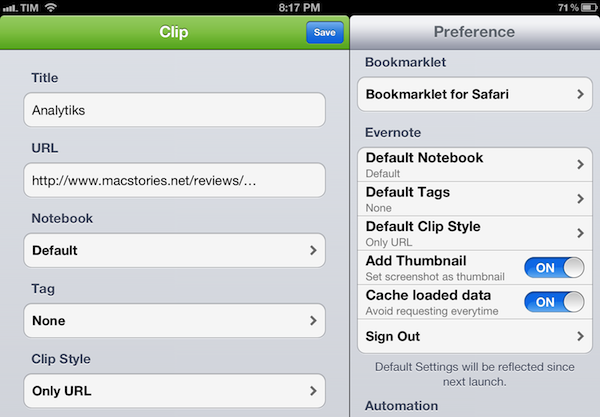
The app can be used to save webpages as URLs, styled pages, or “simple” ones. The styled option will try to preserve the original design of a webpage while allowing you to still edit text and other elements in Evernote; the “simple” clip style will strip out graphics and other elements from webpages, trying to focus on text and hyperlinks.

In actual testing, I found the styled setting to work reliably for minimalist sites like ShawnBlanc.net and Marco.org, suffering a bit in rendering graphics afterwards with sites like ours, or The Verge. However, it’s very convenient to be able to archive webpages “as they are”, even if some icons may be misaligned or missing. I’m not the biggest fan of Evernote’s “simple” mode for webpages, so I was bummed to see the app has some issues in saving the styled version of Instapaper-mobilized articles, which I prefer (and often convert to PDF on my iPad using Save2PDF).

Overall, I welcome the URL option; I like the possibilities offered by styled clips (though they’re hit or miss depending on the website); but I wish the “simple” setting would use a more capable parser like Instapaper’s.

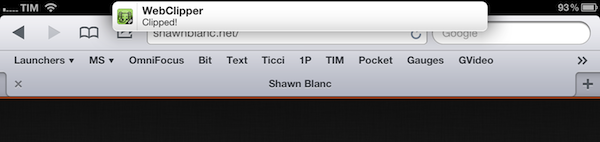
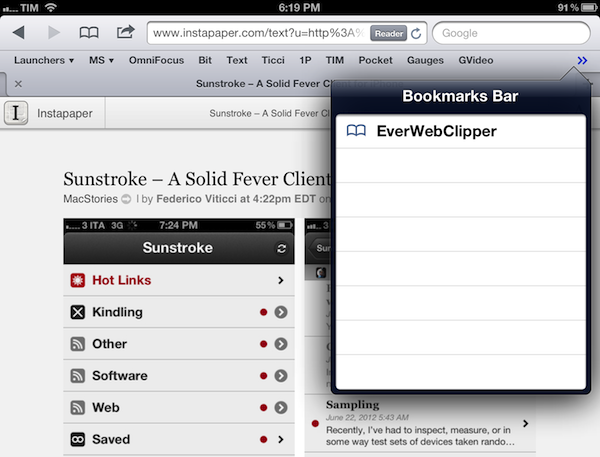
Where EverWebClipper really wins over Evernote’s standard clipper (not optimized for mobile and terrible to use in Safari) is the actual clipping process. It’s entirely automated: you can install a bookmarklet in Safari and save webpages with one tap. This happens thanks to the app’s Automation settings, which enable you to tap on the bookmarklet, and have Safari automatically return in the foreground while EverWebClipper completes the saving process. You can return to Safari “immediately” or “after clipping” – if you choose immediately, the app will send a local notification when it’s done clipping.

There are other settings available in the app, as well as a manual mode to paste URLs and specify notebooks and tags every time, rather than through the bookmarklet.

At $3.99 for the iPad version and $2.99 on the iPhone, I don’t like EverWebClipper’s pricing scheme, and I think the developer should consider making a single universal version – especially considering the minimal differences in terms of features and design between the two. However, EverWebClipper provides a better experience than Evernote’s own bookmarklet for grabbing entire webpages (not portions of them) on iOS, so you should check it out if you’ve been looking for a solid mobile Evernote clipper.


Analytiks

Released yesterday, Analytiks 2.0 by Stelios Petrakis is an interesting widget-type iOS application to quickly check on your Google Analytics account. Whilst I don’t normally bother delving deep into Google reporting while on my iPhone, I have been looking for fresh alternatives to Garrett Murray’s Ego (which took a substantial hit in terms of daily usage after I stopped using Mint), and Analytiks delivers on the need of providing essential information at a glance with an elegant presentation.

Upon first launch, Analytiks will ask you if you’re using a black or white iPhone: this choice – falling back on user input as there is no way for iOS developers to determine the color of a device – will change the interface of the app accordingly, though it can be reverted in the settings. Using Apple’s widget apps for iPhone as a source of inspiration, Analytiks presents multiple sites associated with a Google account as full-screen “cards” you can horizontally swipe and double-tap to “flip back” and reveal more content. You can access up to 5 sites using the app.

The main screen displays a site’s total pageviews for the day and current month, with smaller counts for traffic sources (Facebook, Twitter, Google), visitors, and change since yesterday/past month. Typography is clean and focused, and I agree with the choice of displaying only an essential portion of Analytics data in this view. Pageviews for the day/month, visitors, and social traffic are the data points I want to check upon on a daily basis.

Double-tap (or hit the Dashboard-like icon in the upper right corner), and you’ll be brought to another screen showing various infographics for the past 30 days, 3 months, half year, or year. Here, you’ll find graphs for demographics, top browsers, desktop vs. mobile and PC vs. Mac users, time spent on your site, and new vs. returning traffic. It’s all incredibly pretty, the animations are cute, and the app updates data fast.

Analytiks looks good and it’s easy to use. If I had to nitpick, I’d argue that the data the developer chose to display gets the job done but there could be a section for top articles and referrals also embedded somewhere else in the app – though I recognize that’s also the kind of data that’s more difficult to visualize with fancy graphics and animations. Analytiks doesn’t let you modify time ranges and other data sets, but it does look great on the iPhone’s Retina display and it serves the purpose of being a simple widget to quickly check on some Google Analytics data.

Only $0.99 on the App Store.

Note: Stats pictured above are from my personal site, not MacStories.


Sunstroke - A Solid Fever Client for iPhone

In my review of Reeder 3.0, I mentioned how the app’s implementation of Fever doesn’t allow you to specify a time range to fetch Hot Links. In the way I use Fever, in fact, the possibility to use the app as a way to catch up on important news – rather than constantly checking for updates throughout the day – is a fundamental advantage over standard Google Reader and third-party Reader clients. I recently took a week off the Internet, and relied exclusively on Fever and Flipboard’s Cover Stories to keep up with the most important news I cared about. Being able to set a time range in Fever’s Hot Links is becoming a must-have for me.

Sunstroke by Gone East delivers on the need of a full-featured Fever client for iPhone with solid sharing options, a good interface, and proper Hot Links support. I recently started using Sunstroke as my main Fever client on the iPhone, and I have been very pleased with its results and integration in my workflow. More importantly, Sunstroke concretely allowed me to keep up on the news thanks to its time range-based Hot Links, providing actual tools to filter news I had missed by time period, thereby ensuring I could be brought up to speed on relevant items no matter my absence.

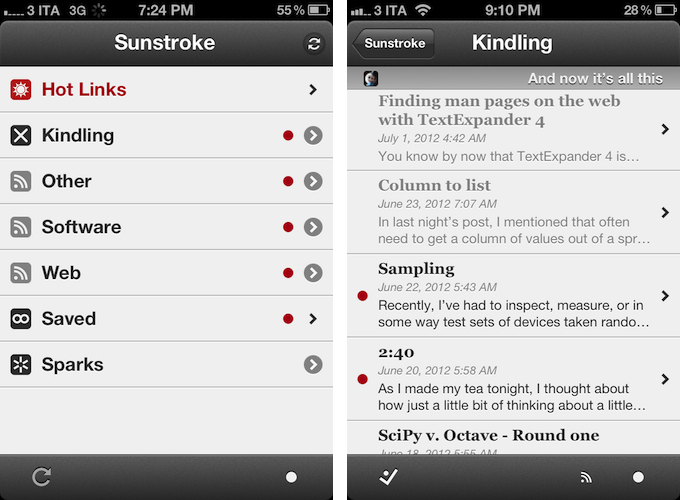
Visually speaking, Sunstroke offers a fairly familiar Fever experience. The main screen hosts Hot Links, Kindling, Saved, and Sparks sections, enabling you to switch between read/unread items and groups configured in your Fever account. I found refresh times to be slightly faster than Reeder’s – albeit it’s worth mentioning how Sunstroke comes with entirely different settings for managing Fever sync.

You can set the app to “sync automatically”, delete items after 2, 4, 6, or 10 weeks, and auto-mark items as read as you scroll. This last feature is extremely well done, with smooth scrolling when skimming through hundreds of subscriptions on my iPhone 4S. Overall, I like Sunstroke’s sync indicators and custom icons in the main screen of the app.

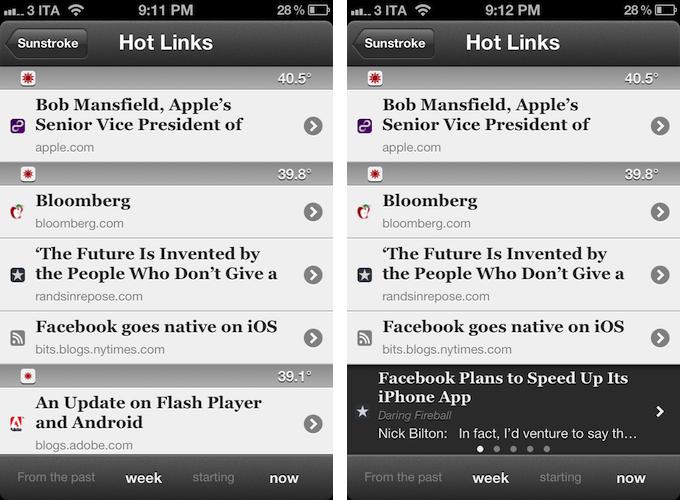
Where Sunstroke really shines is the Hot Links list. Unlike Reeder, a bar across the bottom of the UI lets you display Hot Links “from the past” few days, weeks, and month “starting” now, yesterday, and up to 5 weeks ago. This feature alone made purchasing Sunstroke worth it as it offers a solid yet simple way to set the time range according to which Fever’s hot items will be displayed. Per Fever’s typical presentation, hot items are sorted by “temperature”, and grouped by site.

Sunstroke stores every item from the Fever database on your device, which means every link that contributes to a link’s hotness can be viewed inside the app. This means that a) you can go offline and still tap around links and read articles through Fever’s own mobile viewer (though you can also use the Instapaper mobilizer) and b) you can tap & hold on a hot link to load related items as a swipeable “gallery” inline. The latter option is particularly attractive and well-implemented; my only issue is with the way Fever often cuts off headlines from hot links, but that’s not Sunstroke’s fault.

I found Sunstroke to be very polished in other areas, too. In the settings, you can tell the app to hide unread counts and show newest items first, or to cache images on WiFi-only while also setting a specific cache size.

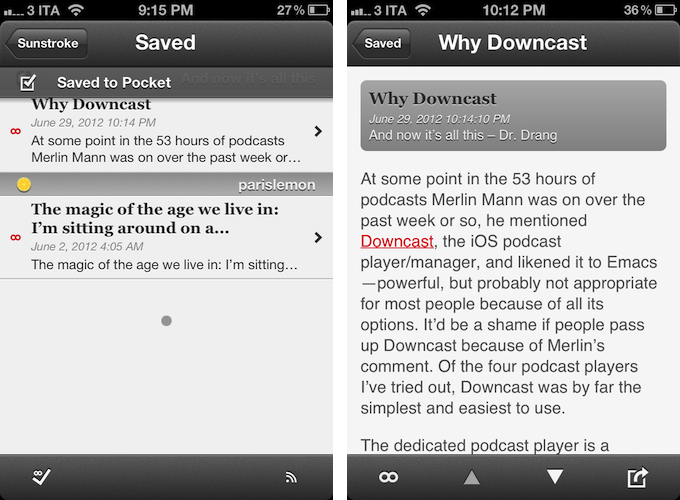
The app supports sharing through a dedicated sharing button and by tapping & holding any link, and the sharing options include Facebook, Twitter, Pocket, Sparrow, and Instapaper. Like Reeder, you can assign toggles for right/left swipe actions – mine are, unsurprisingly, set to Pocket and “Toggle Saved”, but you can also “Toggle Read”. The notification for saved items is also nicely presented and elegant.

Sunstroke is not perfect (the app crashed once in my tests; there is no iPad version for now; options to control font appearance and size would be welcome), but it undoubtedly is the most complete Fever experience currently available on the iPhone. Sunstroke has got good sharing options, great Hot Links implementation, a fast engine and navigation, and, overall, a feature set meant for heavy Fever users that outpaces Reeder’s basic support for the service.

Fever users looking for a solid iPhone client need to check out Sunstroke, which is available at $4.99 on the App Store.


A Fine Impression of Apple’s Modernized Podcasts App

Apple’s Podcasts app is an acknowledgment that podcasts make up a substantial part of entertainment on iOS devices — more people than ever are subscribing to, learning from, and taking part in conversations around the topics that interest them. Long neglected with basic playback controls and mediocre syncing in the Music app, Podcasts is now its own standalone application. You couldn’t miss the news either — the Music app notifies you of this change on your iPhone or iPad when you open it.

With large and indie media networks recording weekly, if not daily, audio and video content, listeners who want “radio on their own time” can subscribe to and take part in discussions that they otherwise can’t be a part of through traditional radio or broadcast TV (i.e. time slots). Podcasts, while not a new concept, give listeners the opportunity to stream and download often short, consumable chunks of content that that’s more accessible than written text — it’s the way to catch up on news if you’re sitting in rush hour traffic, taking the dog for a walk, or doing the dishes.

Over the years, consuming podcasts becomes an incredibly intimate experience. Because people choose to listen on their own time, and often when they’re doing specific activities where they otherwise can’t read or listen to an available live stream, people look for specific features tailored to provide a custom listening experience. Being able to increase the playback rate of podcasts, set sleep timers, create playlists, add bookmarks, and stream podcasts over wireless networks has become increasingly important. Features, more-so than fancy user interfaces, are often preferred by users who regularly listen to podcasts.

Apple’s Podcasts application on iOS is their new central hub for finding, subscribing to, and listening to podcasts on your own terms. In consideration of how Apple’s podcast directory (their Catalogue) and podcatcher intermingle, it’s a pretty typical Apple experience. And in places where I thought Apple would fall short, I’m actually impressed at the amount of stuff they’ve added to their once featureless podcatcher. While Apple has certainly gone above and beyond my expectations in what they’ve provided, I think there can be some room for improvement.

Read more