Federico Viticci

10759 posts on MacStories since April 2009

Federico is the founder and Editor-in-Chief of MacStories, where he writes about Apple with a focus on apps, developers, iPad, and iOS productivity. He founded MacStories in April 2009 and has been writing about Apple since. Federico is also the co-host of AppStories, a weekly podcast exploring the world of apps, Unwind, a fun exploration of media and more, and NPC: Next Portable Console, a show about portable gaming and the handheld revolution.

Micro Audio Converter

Micro Audio Converter

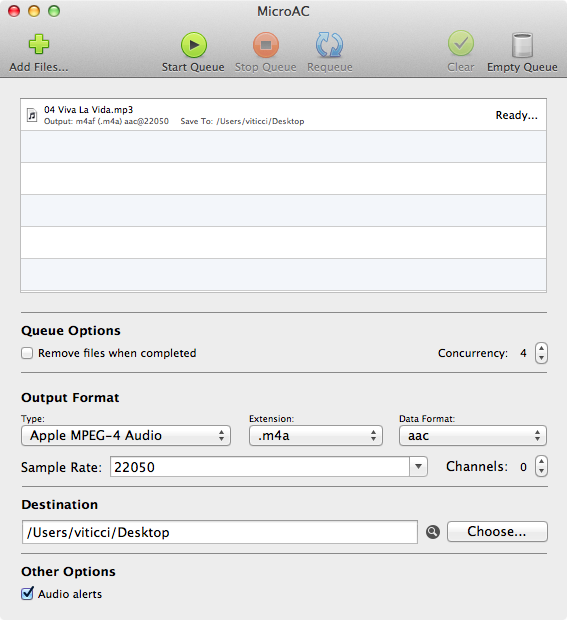
Developed by Aaron Smith, MicroAC is a nice GUI for afconvert. In case you’ve never heard of afconvert, it’s a command line tool that Apple describes as a utility to ”convert a source audio file to a new audio file with the specified file and data types”. Rather than forcing you to set parameters by hand in Terminal, MicroAC provides an elegant and simple interface that makes it easy to convert audio files from one format to another.

MicroAC can convert “Core Audio compatible formats” such as 3GP Audio, 3GP-2 Audio, MPEG-4 (both for audio and Apple audiobooks), AIFF, WAVE and CAF. The app lets you drag & drop files to convert into the main window, and you can choose types, data formats, extensions, channels, rates, and destination in the lower section of the app. In actual usage, I was able to convert MP3 files to MP4 in less than 2 seconds.

If you’d like to rely on afconvert without going through Terminal, MicroAC is a nice option. $2.99 on the Mac App Store.

Permalink

PopClip Extensions

PopClip Extensions

I first wrote about PopClip last year. Developed by Pilotmoon, it is a simple utility that brings an iOS-like popup menu for text selected on OS X. From my original coverage:

PopClip, a $4.99 app from the Mac App Store, takes a page from iOS’ playbook and overhauls the Mac’s default copy and paste actions with an iOS-like popup menu.

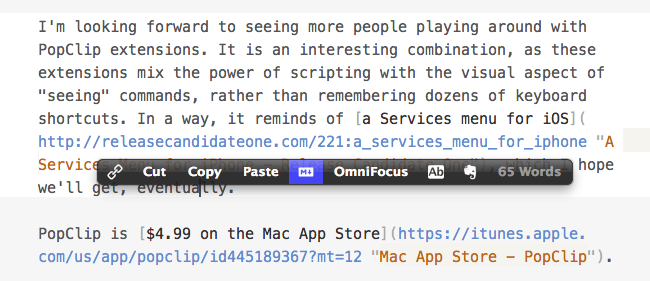
With PopClip, you can select text and a popup menu with options to copy, paste, cut and look up in Dictionary will appear, just like on your iPhone or iPad. PopClip is also capable of opening links contained in selected text, and it’s got support for spelling corrections.

I recently found out (thanks to a Systematic episode) that it’s possible to extend PopClip. Version 1.4, in fact, brought support for extensions. Pilotmoon has posted a dedicated page showcasing some examples of extensions already available. The best part? PopClip extensions can be made with AppleScript, shell scripts, system Services – it’s very easy to adapt existing scripts to PopClip’s syntax for selected text (literally one word). Extensions can have custom icons, names, and requirements, and to put one together you’ll need to create a .plist file for the extension’s settings. For developers, Pilotmoon has also posted instructions on how to create and package extensions.

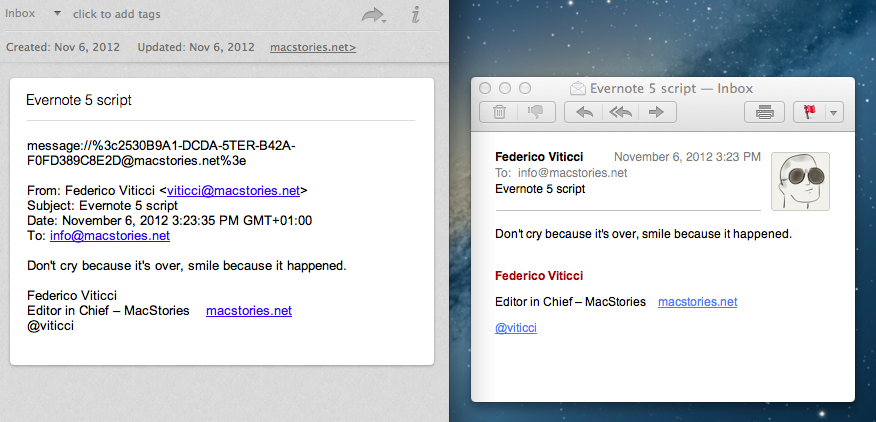
Personally, I have already installed some of the extensions linked on PopClip’s page (such as Evernote, Title Case, and Paste and Match Style), as well as an OmniFocus one by Marc Abramowitz and a set by Andy Guzman. To prove it’s really simple to update existing scripts for PopClip, I’ve created a version of today’s Mail > Evernote AppleScript that works for text selected with PopClip in an email message; it’s very simple, but you can find it here.

I’m looking forward to seeing more people playing around with PopClip extensions. It is an interesting combination, as these extensions mix the power of scripting with the visual aspect of “seeing” commands, rather than remembering dozens of keyboard shortcuts. In a way, it reminds of a Services menu for iOS, which I hope we’ll get, eventually.

PopClip is $4.99 on the Mac App Store.

Permalink


Facebook 5.1 Released with Improved Messaging, Photo Sharing

Facebook today released version 5.1 of its iOS app, which adds a new way of messaging friends and sharing multiple photos at once. The updated Facebook app now comes with a friend list on the right that you can use to easily start a private conversation. You can swipe left to access the chat panel, and add friends you contact the most to the top of the list. To customize the Favorites list, you can hit an Edit button to start “pinning” your friends in the Favorites section. Read more


Apple: 3 Million iPads Sold In 3 Days

With a press release, Apple just confirmed it has sold over 3 million iPads (iPad mini + iPad 4th gen) in three days. Interestingly, Apple is not separating sales figures of the iPad mini from the regular iPad; in the press release, Apple simply says it is a new record doubling the previous milestone of 1.5 million weekend sales of the iPad 3 in March.

Apple today announced it has sold three million iPads in just three days since the launch of its new iPad mini and fourth generation iPad—double the previous first weekend milestone of 1.5 million Wi-Fi only models sold for the third generation iPad in March. The Wi-Fi + Cellular versions of both iPad mini and fourth generation iPad will ship in a few weeks in the US and in many more countries later this year.

Apple notes how “demand for iPad mini exceeded the initial supply”, confirming that some pre-orders (which began on October 26) will be shipped “later this month”. Tim Cook was quoted in the press release:

Customers around the world love the new iPad mini and fourth generation iPad,” said Tim Cook, Apple’s CEO. “We set a new launch weekend record and practically sold out of iPad minis. We’re working hard to build more quickly to meet the incredible demand.

To put these numbers in a better context, here’s how iPad sales evolved over time since the release of the original model in 2010:

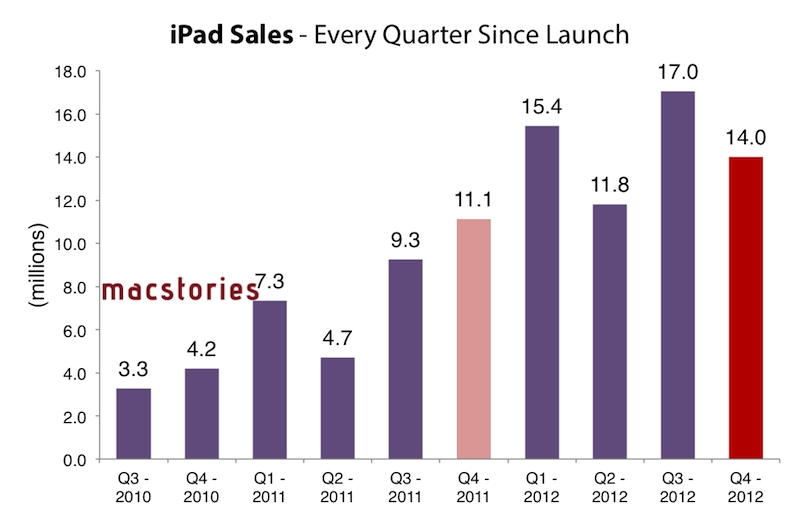
And here’s a visualization of the iPad’s growth every quarter since launch, based on Apple’s Q4 numbers (which don’t include sales for the new models).

In today’s case, however, the comparison is different as Apple is accounting for two models (iPad mini and iPad 4th gen) in a somewhat clear intention to report iPad sales as a single category without specifying models – similarly to how they do for iPod sales or iPhone sales without differentiating between device models. It’s also worth remembering how the new iPads’ rollout has been one of the largest ones for Apple to date: the iPad mini went on sale on November 2 in 34 countries, whereas the 3rd generation iPad launched in 10 initial countries, and then rolled out to 25 more a week later; both WiFi and WiFi + Cellular versions of the 3rd generation iPad were available at launch.

The iPad mini launched to positive reviews, but saw fewer and shorter lines around the world with online pre-orders quickly sold out for every model.


Evernote Announces Major Redesign Of iOS App

Following last week’s announcement of a redesigned Mac client (more details here), which was released yesterday as public beta, Evernote has today announced a major update “coming very soon” for the iOS version of the app.

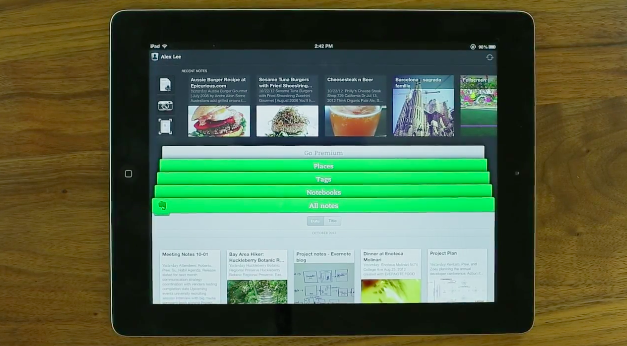
Dubbed like the Mac counterpart “Evernote 5”, the new Evernote for iOS presents a brand new interface to browse notes, notebooks, and tags on the iPhone and iPad. Using a “stacked” interface for sections, Evernote has implemented a new navigation to switch views with just two taps; on the iPad’s larger screen, the team also managed to fit in a “recent notes” scrollable menu at the top, which should allow users to quickly switch between notes from different notebooks or tags.

The update seems to borrow heavily from the new Mac app. There’s an Atlas view to browse notes by location, redesigned Tags and Notebooks views, Cards, Filters, and Sorting options reminiscent of what we saw in Evernote 5 beta for Mac. The iOS app places great emphasis on three shortcuts at the top to create a new note or photo note, the latter being a feature that leverages the iPhone’s camera to snap photos and automatically save them as new notes. It’s unclear whether users will also be able to create shortcuts for notes and notebooks on iOS – shortcuts are a new major feature of Evernote 5 for Mac that, personally, I’d love to see on iOS.

We’ve learned a lot over the years about how people use Evernote on mobile devices. It’s all about speed. Whether you’re creating a note or browsing to one, everything needs to happen fast. Also, you want the app to easily support your preferred organization scheme. If you’re a tagger, then tags must be front-and-center. If you put everything into notebooks, then those need to be quickly accessible.

As an Evernote user, I’m looking forward to trying the new Evernote app for iOS. In the meantime, check out Evernote’s blog post here and official promo video below. Read more


#MacStoriesDeals: 20% Off Hazel Screencast & Superstorm Sandy Donations

#MacStoriesDeals: 20% Off Hazel Screencast & Superstorm Sandy Donations

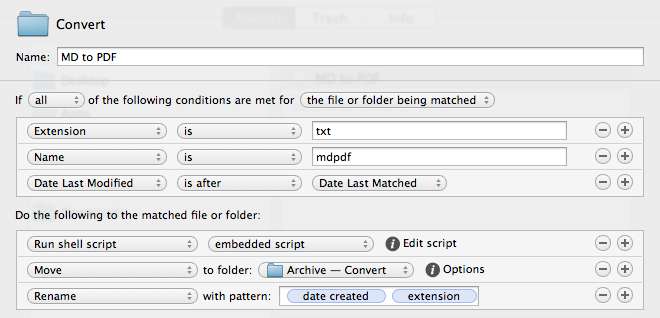
Last week, I linked to Mac OS X Screencasts’ Hazel tutorial, a 1-hour screencast detailing several Hazel features:

I have watched the entire video, and, indeed, I think it’s one of the best resources you can buy to get started with Hazel and understand all of the its potential. Screencast quality is good, with on-screen guides and labels, zoomed views on specific sections and menus, and clean transitions. The voiceover is concise and to-the-point. The video lasts an hour, but it passes quickly thanks to the provided examples and explanations – it’s definitely not boring, as most video tutorials can be nowadays.

Should you get it? Yes. If you’re new to Hazel, this will get you up to speed very quickly. And, even as a long-time Hazel user, the screencast refreshed my memory on several aspects of Noodlesoft’s app.

Thanks to Mac OS X Screencasts, we can offer a 20% discount off the Hazel screencast (regular price €10) with the coupon code MACSTORIES-IS-AWESOME. The coupon code is valid from November 1st - 18th. Simply head over to Mac OS X Screencasts’ website and paste our coupon code to receive a 20% discount.

But there’s more. For every screencast sold with our coupon code, Mac OS X Screencasts will donate €1.50 to American Red Cross to help people impacted by Hurricane Sandy in the United States. If you purchase the Hazel screencast without our coupon code, Mac OS X Screencasts will donate €3 to American Red Cross for every screencast sold.

The Hazel screencast offer is available here. If you’d like to donate to American Red Cross without having to buy the Hazel screencast, we recommend Apple’s own donation page available on iTunes.

UPDATE: Together with Mac OS X Screencasts we’re giving away 5 free screencasts for this Hazel tutorial. To enter, tweet to @macstoriesdeals with the hashtag #macstorieshazeltutorial and we’ll pick 5 winners later today! GOOD LUCK!

Permalink

Evernote 5 Public Beta Now Available

Announced last week, Evernote has today released version 5.0 of its Mac client as a public beta. Sporting a redesigned interface and over 100 new features, Evernote 5.0 is a complete rethinking of the desktop experience, built with easier access to most used notebooks and notes in mind. As I wrote last week:

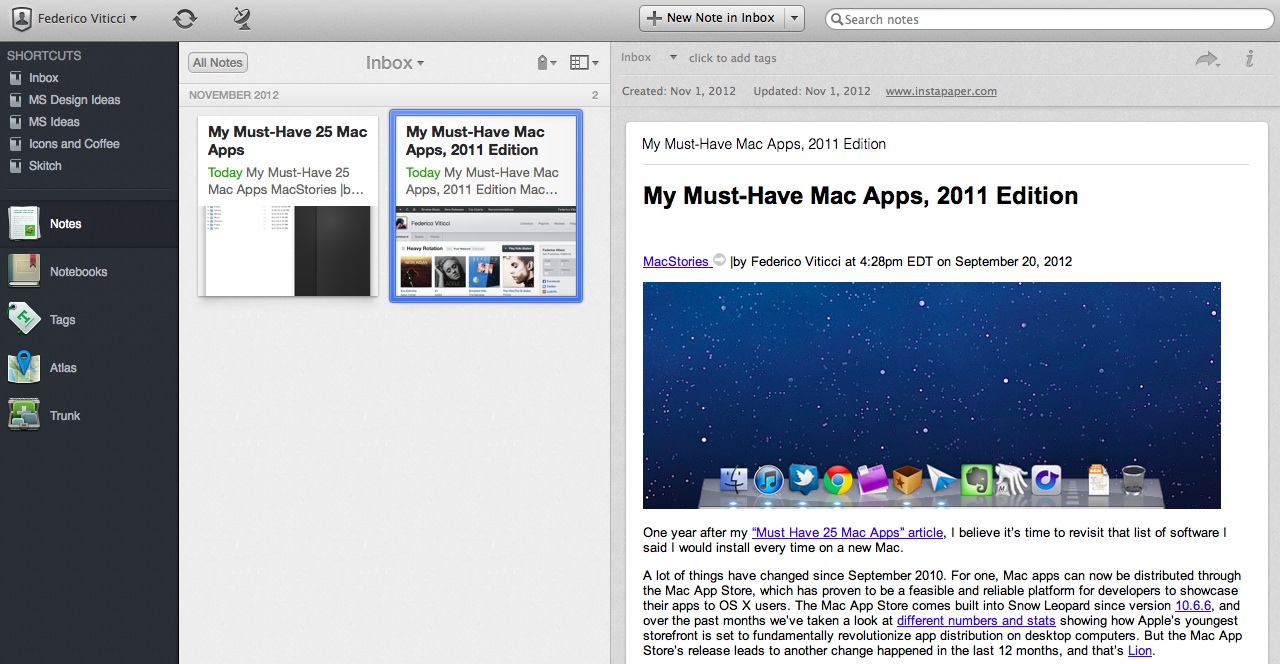
Evernote 5 will primarily focus on improving the way users manage and access their notes, tags, and notebooks. With a new sidebar, users can drag items into the Shortcuts area; user shortcuts are accessible using CMD+1/9 keyboard shortcuts – just like bookmarks in Safari. Advanced users will still be able to “show lists” in the sidebar, but, overall, according to Evernote, the redesign will be focused on making the sidebar more visual, compact, and easier to use. In fact, the new sidebar will also list the five most recent notes for quick access. Evernote says there are over 100 new features in v5.0. These include a new iPad-like Cards view for notes, improved sharing, a new look for the notes editor, more keyboard shortcuts, new views for tags and notebooks, and more.

The new interface is primarily based on the new sidebar, which lists all the “shortcuts” created by the user. A shortcut can be a notebook, a tag, a note – anything that can be selected and dragged in the app can be manually placed in the Shortcuts area. Read more