
My girlfriend and I have finally reached the point where we’re thinking about furniture for our balcony (we moved into our new place a year ago and, let me tell you, buying furniture and lights is…a process) and one of the things I knew I wanted to have was a multi-color light strip that would...
 macOS Sonoma and iOS and iPadOS 17 Public Betas
 John
John
 Combining Notes’ Tables and Internal Links for Effective Note Launchers
For this week’s issue of MacStories Weekly, I want to show you something very simple and effective I’ve started doing in the Notes app for iOS and iPadOS 17 to more easily navigate my frequently used notes. Ever since I recreated a Dashboard note in the Notes app (for context, this serves as a central...
A Quietly Big Year for tvOS→
Speaking of catching up on my reading queue: here’s Chris Welch, writing at The Verge last week about tvOS 17:
tvOS 17 isn’t trying to reinvent any of this. There are now six icons in each row, so you can add yet another app to your main “dock” at the top of the screen, but that’s about as exciting as the big interface changes get. Apple no longer seems preoccupied with becoming some all-encompassing aggregation hub for streaming entertainment, and there are good reasons for this. The company’s pipe dream of streaming content from popular third-party subscription services directly from the Apple TV app quickly fell apart. Netflix refuses to play ball with any effort to create a universal watchlist outside of the confines of its own app — whether it’s from Apple, Google, or anyone else — so what’s the point? Things are now more fragmented than I’d like, but it’s the content owners and streaming services putting those walls up for their own self-interest.
So instead, Apple is making improvements and touching up areas of the Apple TV experience that it can fully control. And it’s starting with one of the iPhone’s first major ecosystem tricks.
Chris put together a great list of changes coming to tvOS this year, most of them revolving around the ecosystem advantage Apple has compared to their competitors in this field. Rather than trying to beat Google and Amazon on price, Apple is finally leaning into the unique feature they have: iPhone owners who also have an Apple TV.
My favorite change coming in tvOS 17, however, is something that will allow me to stop using my iPhone when watching TV: VPN apps.
For years I’ve been forced to watch HBO content1 with a fake US account by starting playback on the iPhone and AirPlaying the video stream to my Apple TV. Later this year, I’ll be able to install a VPN app directly on the Apple TV and stream content on it without having to worry about my iPhone and AirPlay. Good riddance.
More on iPadOS 17’s Stage Manager→
As I always do every summer, I read other journalists’ opinions about the new versions of iOS and iPadOS after I’ve published my preview story. This week, as I’m catching up on my reading queue (yes, I’m still using the Reading List/Notes setup I described here), I was pleased to see I’m not the only one who’s liking the new Stage Manager for iPadOS 17. Similarly, I’m not alone in thinking Apple should continue refining the iPad’s multitasking system and catching up with macOS.
Here’s Jason Snell, writing last week at Six Colors:
Unfortunately, one of my most hoped-for features for Stage Manager didn’t make it into iPadOS 17: you can’t run the iPad on an external display with its internal screen shut off, as you can when a MacBook runs in lid-closed mode. Not only can the second screen be distracting, but there’s stuff Apple insists on displaying on the iPad screen, and sometimes apps get thrown over to the iPad screen when you don’t want them there.
I’ve been working with the fake clamshell mode I detailed on MacStories for the past few weeks. It’s doable, but some of the inherent limitations of this workaround are incredibly annoying. For instance: there’s no way to show Control Center on an external display (seriously). I want to believe Apple is working on a real clamshell mode for iPadOS 18.
David Pierce, writing at The Verge, has also some ideas for features still missing from Stage Manager:
But now Apple needs to make Stage Manager an actual iPad feature. It needs to integrate it with the other iPadOS navigational tools and windowing systems in a way that makes sense. Let me have widgets and apps together in a space! And please, please let me save a collection of apps with a name and then bring it up with a Spotlight search, please. It needs to take advantage of the tablet’s outrageous processing power and actually let you use more than four apps at a time. It needs, in short, to make Stage Manager feel like part of the iPad instead of a wholly separate device that just happens to live inside the same screen.
The more I look at macOS Sonoma, the more I wish I could see widgets from my iPad’s Home Screen underneath Stage Manager’s windows. That’s the kind of feature that would make a lot of sense on a bigger iPad Pro.
watchOS and macOS Sonoma Public Beta Previews
On the Value of Threads’ Social Graph→
Jason Tate, in his always-excellent Liner Notes newsletter1, has written about the practical value of Threads’ built-in social graph and how it differs from signing up for Mastodon or Bluesky:
This is a key (and likely killer) feature for onboarding someone into Threads. Like TikTok, you don’t have to do anything else after signing up to start seeing stuff. Is all of that going to be relevant to you? Probably not. But it removes the problem of most social media platforms: a user signing up and then going, “Ok, now what?” Building on top of the Instagram social graph removes a huge barrier and gives Threads a bootstrapping head start. It’s “valuable” to any Instagram user almost immediately. The app itself is fine. It’s not what I would prefer in an app for this kind of thing (Ivory is). But it’s fine. In my playing around with it over the past few days, I have two main thoughts, the first is on what works, and the second is on what needs to change. Let’s start with what works. The people are here. Joining Mastodon and joining BlueSky, I can find maybe 5% of the people I’m looking for. On Mastodon, it’s a lot of my tech and nerd friends. On BlueSky, it’s a few joke accounts. On Threads, I’d venture almost 90% of the people I’m looking for are there. Music people and bands that never joined Mastodon are there, and they’re posting. Many of the baseball and basketball accounts I follow are there, and they’re posting during games. This is a huge use case for me in a real-time app like this. Social media, and communities, are all about who is on the platform. The value a user gets is directly tied to the people who are there posting on it. I can love Mastodon as much as I want, but if I cannot extract the value I’m looking for from it daily, I’ll use it less. And that’s why I want Threads to succeed if they follow through on their promise to federate with the Fediverse.
That’s precisely the issue with Mastodon for me. I love Mastodon, and I’ve built an amazing audience of tech enthusiasts and MacStories readers there, but the non-tech people I want to follow online just aren’t there. I’ve been on Mastodon for several months now, and so many communities I used to follow on Twitter never signed up; meanwhile, I noticed folks from music Twitter, VGC Twitter, and videogames Twitter show up on Threads within days. And they’re posting.
So far, the value of Threads2 is that it fills a hole left by Twitter that Mastodon, for a variety of reasons, never filled. I don’t know if it’ll ultimately succeed without Meta ruining it in the long run, but anything to move communities away from Elon works for me right now.
- If you love music and don’t subscribe to Chorus.fm, you’re missing out. I read Jason’s site religiously every week (and have been for decades, since it was AbsolutePunk). ↩
- You can find me as @viticci there. We’re working on bringing out company accounts to Threads too. ↩
iOS and iPadOS 17 After One Month: It’s All About Widgets, Apps, and Stage Manager
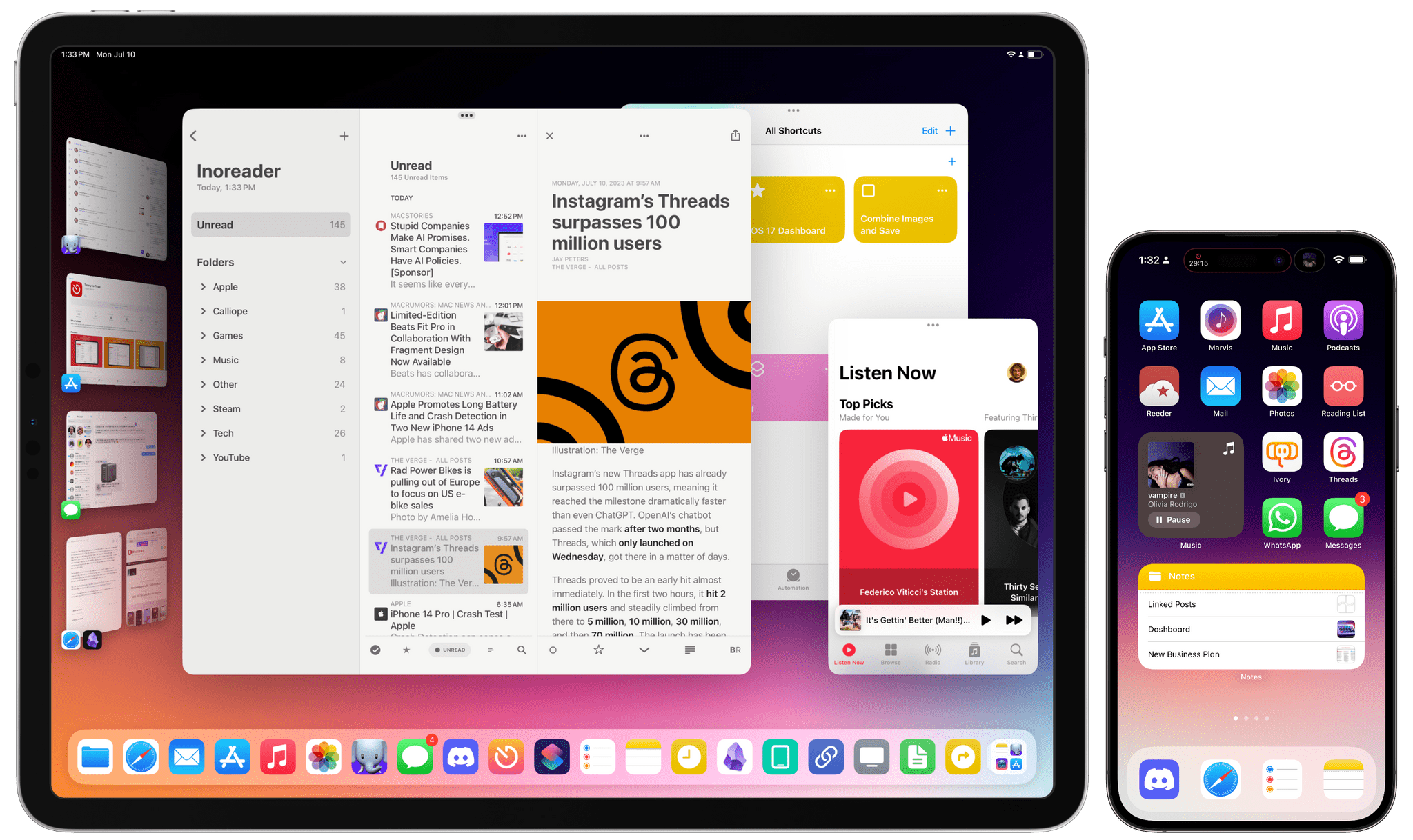
Apple is releasing the first public betas of iOS and iPadOS 17 today, and I’ll cut right to the chase: I’ve been using both of them on my primary devices since WWDC, and I’m very satisfied with the new features and improvements I’ve seen to date – especially on iPadOS. More importantly, both OSes are bringing back the same sense of fun and experimentation I felt three years ago with iOS 14.
I’ve already written about the improvements to Stage Manager on the iPad ahead of the public beta of iPadOS 17. Without repeating myself, I’m still surprised by the fact that Apple addressed my core complaints about Stage Manager a mere year after iPadOS 16. To describe my past year in iPad land as “turbulent” would be a euphemism; and yet, iPadOS 17’s improved Stage Manager not only fixes the essence of what was broken last year, but even eclipses, in my opinion, the Mac version of Stage Manager at this point.
I love using Stage Manager on my iPad now. There are still features missing from iPadOS 17 that won’t allow me to stop using my MacBook Air but, by and large, the enhancements in iPadOS 17 have allowed me to be an iPad-first user again. It feels good to write that. Plus, there are some surprises in iPadOS 17 that I wasn’t expecting that I’ll cover below.
iOS 17 is not a huge software update: there are dozens of quality-of-life features that I like and – best of all – terrific updates on the widget front. A good way to sum up Apple’s software strategy this year is the following: widgets are everywhere now (including the Watch), they’re interactive (finally), and they’re likely pointing at new hardware on the horizon (you know). As someone who’s been wishing for widget interactivity since the days of iOS 14, I can’t even begin to describe how amazing it’s been to see third-party developers come up with wild ideas for what effectively feel like mini-apps on the Home Screen.
I’m equally impressed by the work Apple has put into some of its built-in apps this year with features that I’ve always wanted and never thought the company would build. You can create internal links to other notes in the Notes app. Reminders has a column view. Podcasts has a proper queue. Even Reading List – of all features – has been updated this year. In using iOS 17, I sometimes get the sense that Apple went through popular wish lists from the community and decided to add all the top requests in a single release.
To quote my friend Stephen Hackett: the vibe is good this year, and it applies to software as well. Let me tell you about some of my favorite aspects of iOS and iPadOS 17 from the past month.