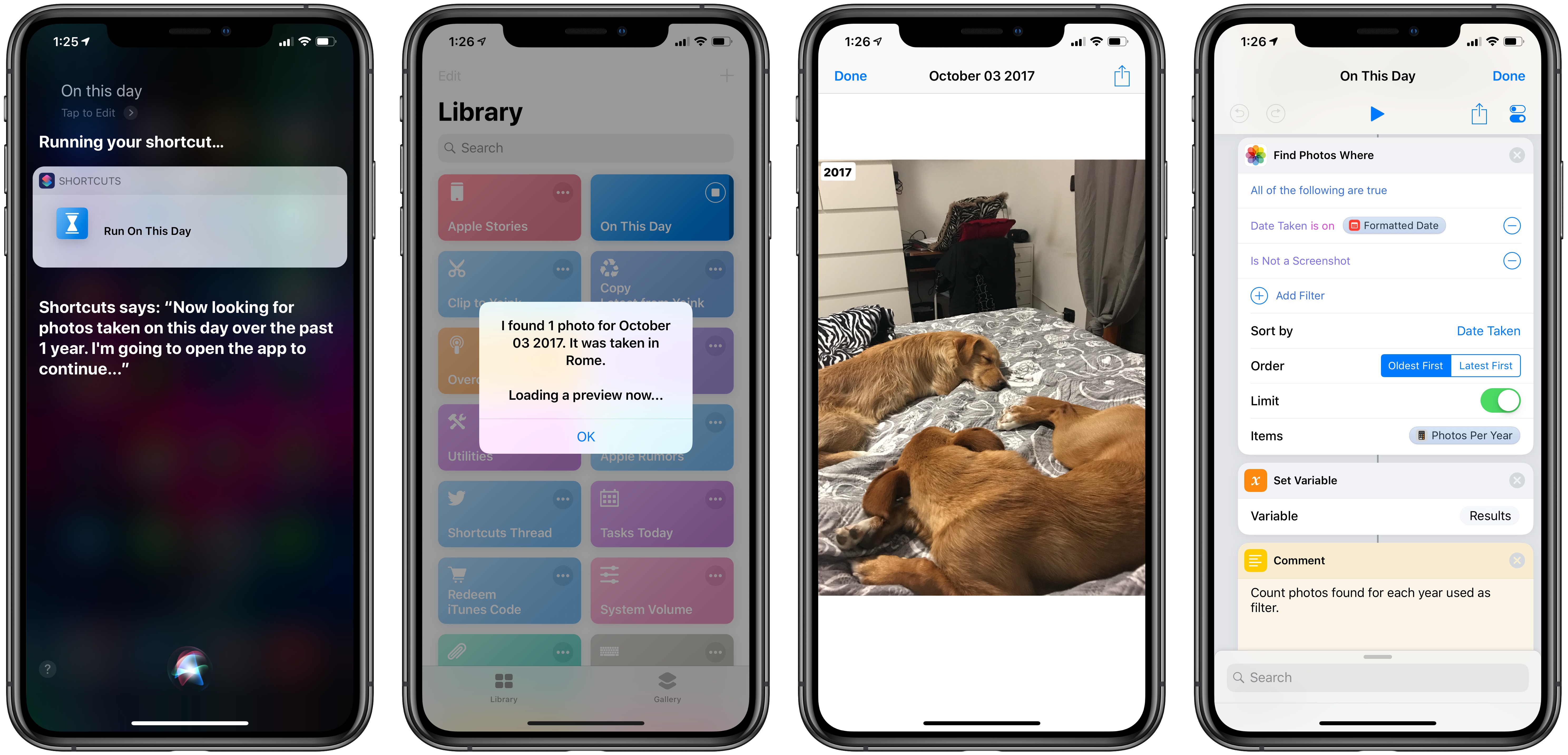
I’m in the process of creating a complete archive of every workflow I ever created for the Workflow app and updating each one for Shortcuts. As I was browsing through my old Workflow articles, I came across an interesting workflow I created in early 2015 called Photo Flashbacks. The main idea was simple enough: given Workflow’s ability to read the contents of the photo library, the workflow would filter a photo taken on the same day in previous years and preview it with Quick Look. That seemed like a fun project that I could pick up again and improve for the Shortcuts app.
 Mac and iOS App Convergence
 John
John
Connected, Episode 211: That’s Enough To Shrink Some Jeans→
The guys debate the Mac’s future being tied to the quality of Marzipan apps before sharing their impressions of the iPhone XS Max and the Apple Watch Series 4. Some advice on how to listen to the show correctly is also shared.
On this week’s episode of Connected, we talk about iPad apps on the Mac and share our thoughts on new iPhones and Watches after nearly a week of usage. You can listen here.
Sponsored by:
- TextExpander, from Smile: Communicate smarter. Use this link for 20% off your first year.
- Pingdom: Start monitoring your websites and servers today. Use offer code CONNECTED to get 30% off.
 Custom Save Menu for Keep It
In Issue 119 of MacStories Weekly, I shared an advanced ‘DEVONmenu’ workflow to save a variety of file types in DEVONthink To Go with an action extension. As I detailed in last week’s newsletter though, I’ve started using Keep It as my reference management tool on iOS, so I wanted to update the old...
Overcast 5.0.2 Adds New Series 4 Complications, More Siri Shortcuts
Following a major update that introduced a redesigned Now Playing screen, extensive shortcut support, and standalone Watch playback, Marco Arment has brought a variety of enhancements and fixes to version 5.0.2 of Overcast, released earlier today.
Overcast 5.0.2 has added new round complications for the Infograph faces on the new Apple Watch; these act as launchers that simply open the Overcast app on the Watch, which I find convenient enough. Furthermore, you can reduce the amount of haptics used by the app to communicate certain actions (I love haptic feedback in Overcast, so this option isn’t for me), and there are new options for configuring how the ‘Send to Watch’ feature works.
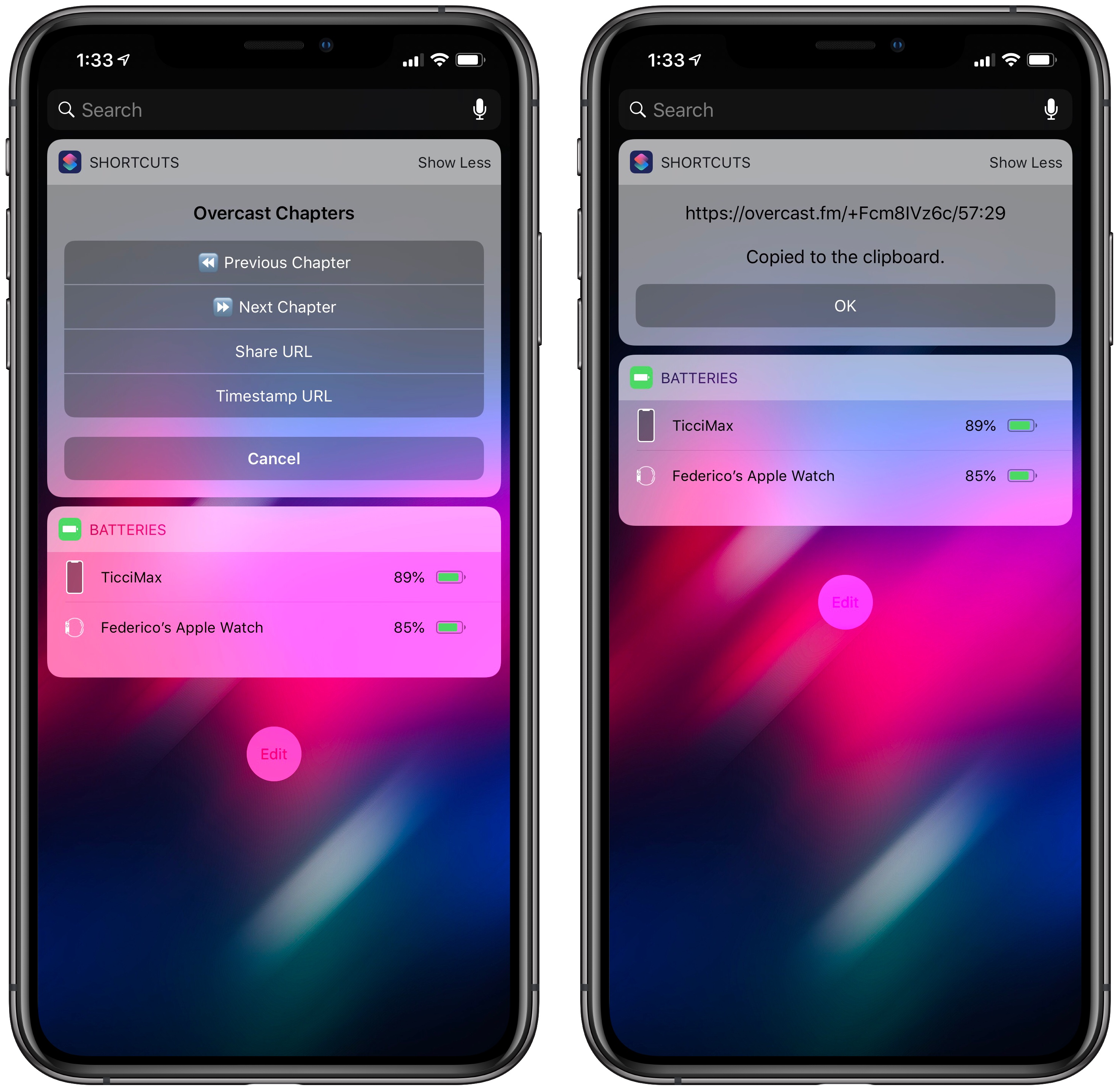
Most of all though, I’m interested in the new Siri shortcuts supported by Overcast. The app now offers shortcuts to activate or cancel the sleep timer, as well as two shortcuts to copy the current episode’s standard or timestamped link to the clipboard. The ability to quickly generate an Overcast link for the episode you’re listening to is a perfect use case for shortcuts: it removes repetitive interactions with the app and, with the tap of a button or Siri phrase, it gives you a link you can instantly share with others.
For the occasion, I’ve turned my original Overcast Chapters widget shortcut into Overcast Controls, an enhanced widget that, besides chapter navigation, now uses the app’s new shortcuts to let you copy episode links too. You can download it below.

Overcast Controls
Navigate chapters or copy links for the Overcast episode you’re currently listening to. Best used as a widget.
Adding Device Frames to iPhone XS and XS Max Screenshots with Shortcuts
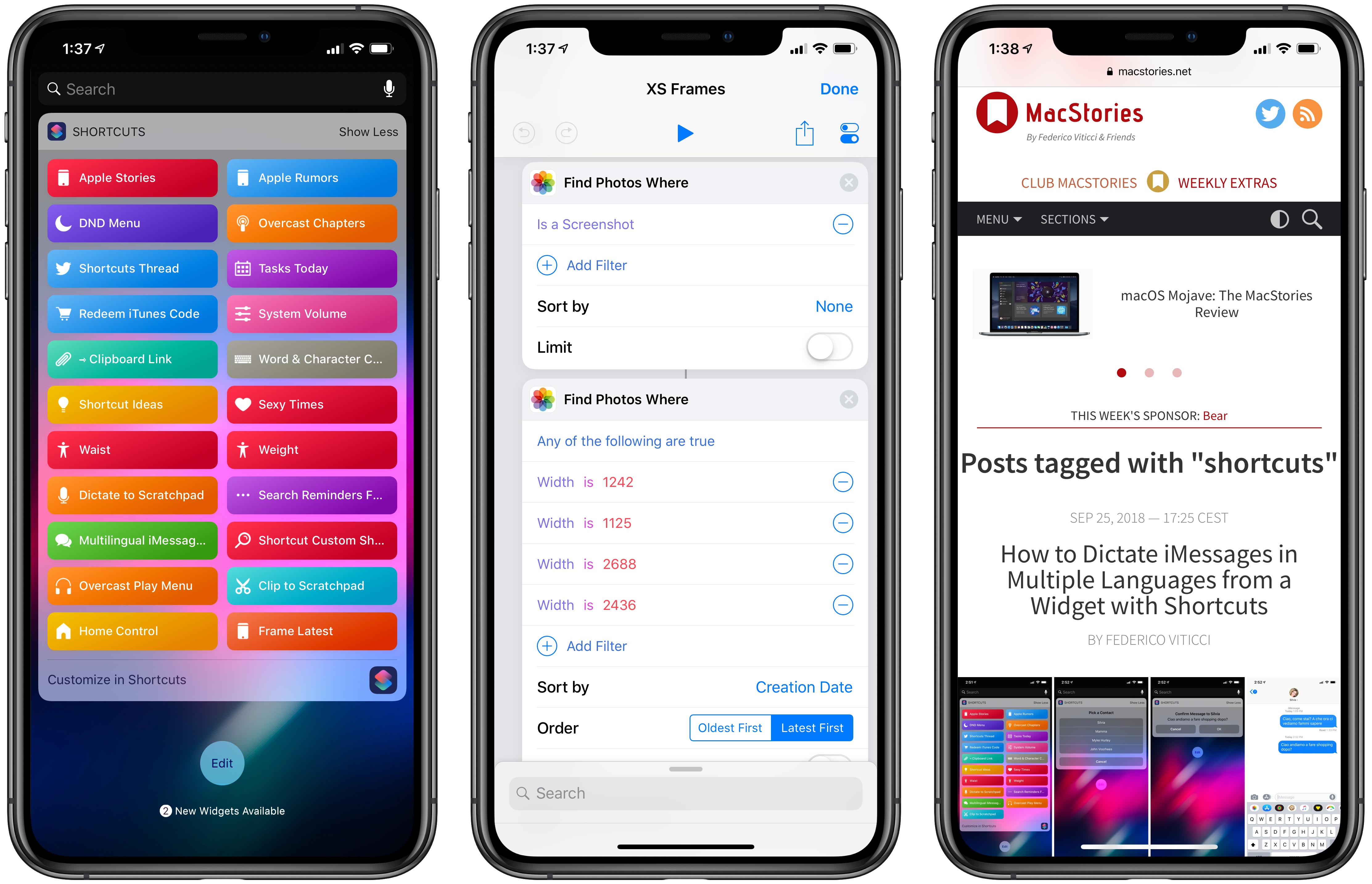
Update 10/10: A newer version of this shortcut, which can apply frames to screenshots taken on multiple Apple devices, is available here.
MacStories readers may be familiar with the way I like to present iPhone screenshots in app reviews and other stories – particularly for “hero” images, such as the one above, I want my screenshots to be contained in device frames that resemble official marketing images from Apple. They’re prettier, and they do a better job at communicating what an app looks like on an actual device. I could create these images manually using apps like Affinity Photo and Pixelmator on iOS, but the process would be slow, boring, and time-consuming. Instead, for years now I’ve been using Workflow and its ‘Overlay Image’ action to get this done in an automated fashion.
With Shortcuts and the new iPhone XS and XS Max, it was time for an update to my old workflow. While I could have kept using the same iPhone X assets for the XS given their physical resemblance, I upgraded to a XS Max this year, which meant that my screenshots wouldn’t have fit the old device frames natively anyway. Fortunately, Apple uploaded official marketing assets for the XS and XS Max a couple of days ago, so with the help of my girlfriend (who’s better at Photoshop than I am) I was able to update my workflow for the new devices and add a few extra options in the process as well.
Apple Rolls Out TestFlight Public Invite Links→
Benjamin Mayo, writing for 9to5Mac:
Apple is rolling out a new TestFlight feature which enables developers to share a public URL for an app beta. Customers can simply open the link on their iPhone or iPad and automatically enroll into the beta testing group through the TestFlight app.
This feature was announced back at WWDC in June but has only just started showing up for developers inside the App Store Connect interface. Previously to public links, developers had to manually ask people for email addresses and then send out invite in emails to each person individually.
As someone who’s routinely testing dozens of apps for review purposes, this sounds a lot more convenient than the current email-based invitation system, both for developers and users. By default, developers don’t see the names and emails of users who sign up with a link. I have a feeling this option is going to be frequently used for public betas with large pools of testers.