John Voorhees

5441 posts on MacStories since November 2015

John is MacStories' Managing Editor, has been writing about Apple and apps since joining the team in 2015, and today, runs the site alongside Federico. John also co-hosts four MacStories podcasts: AppStories, which covers the world of apps, MacStories Unwind, which explores the fun differences between American and Italian culture and recommends media to listeners, Ruminate, a show about the weird web and unusual snacks, and NPC: Next Portable Console, a show about the games we take with us.

Dato Review: Calendar Events and Time Zones From Your Mac’s Menu Bar

My calendar needs are pretty simple. I have a shared family calendar to keep tabs on personal obligations and a personal MacStories calendar for work-related events. I also share a calendar with Federico for scheduling podcast recording times and other events, but that’s about it.

If you spend lots of time in a calendar app because you have lots of meetings, having calendar sets, tasks, scheduling, video call support, weather, and other pro features inside your calendar app makes sense. My work is far more task-focused than event-focused, though. I don’t want to lose track of important events, but most days, Apple’s calendar widget on my iPhone is all I need.

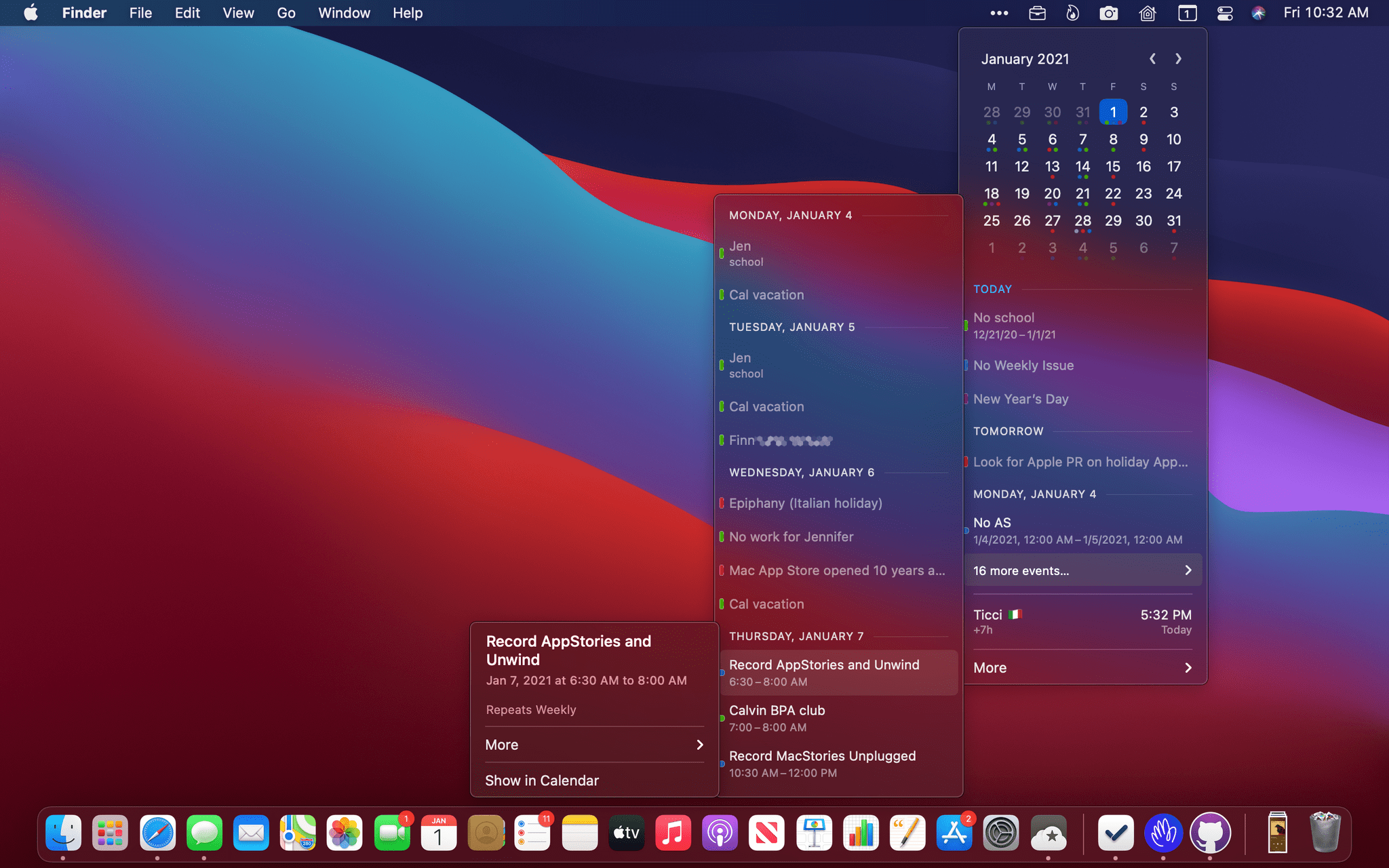
The Calendar widget doesn’t quite cut it for me on the Mac, though. Widgets are out of sight in Big Sur, and there’s no way to trigger the widget panel with a keyboard shortcut. So, instead, I’ve been using a Mac menu bar app called Dato for quick glances at my calendar. The app isn’t new, but the recent addition of time zone support caught my eye, and it has played an important role in my daily workflow ever since I began using Apple’s Calendar app again.

Read more


Scenecuts Adds Effortless Access to HomeKit Scenes in Your Mac’s Menu Bar

Scenecuts is a new utility app for controlling HomeKit devices from your Mac’s menu bar. The free, open source app, by Seattle developer Nick Hayward can control HomeKit scenes from the menu bar app’s drop-down menu, customizable per-scene menu bar icons, or the keyboard. It’s a terrific trio of options that makes controlling your smart devices immediate by freeing them from the confines of the Home app.

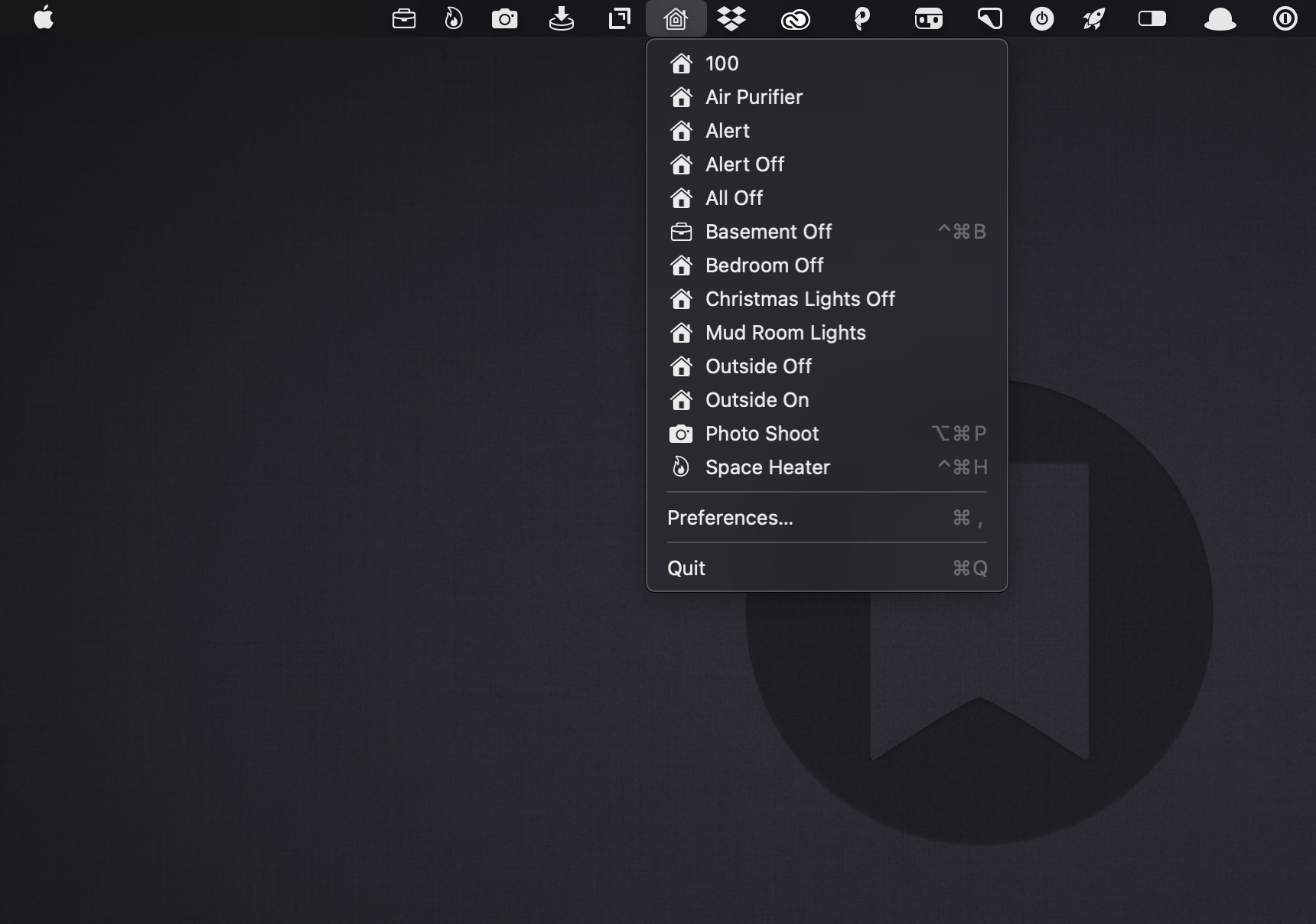
In its default configuration, Scenecuts adds its icon to your menu bar, and clicking on it reveals a drop-down menu of all the HomeKit scenes you’ve created in Apple’s Home app for controlling your smart devices. However, the app’s real power lies in its preferences, where you can edit Scenecuts’ drop-down menu, add individual scenes to your menu bar, and assign them to global keyboard shortcuts.

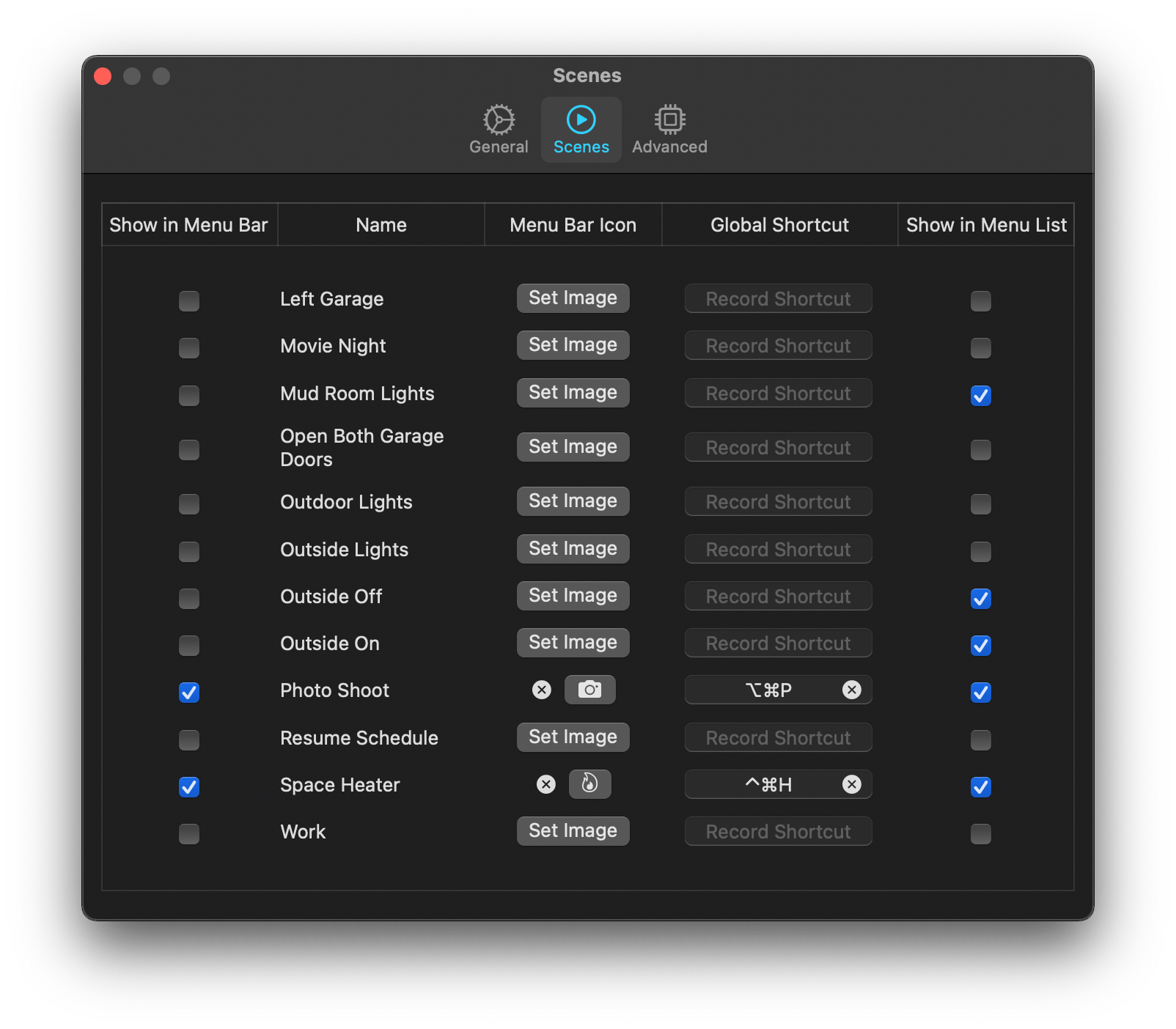
Scenecuts' preferences.

Scenecuts’ preferences.

The HomeKit scenes you want to control with a particular Mac may vary. For instance, you may only care about the lights in the room where your desktop Mac sits, but want to control any of the lights in your home with a laptop that you carry with you. Scenecuts recognizes this by providing checkboxes next to every scene in its preferences. By default, all of your scenes are available in Scenecuts’ drop-down menu, but each of them can be turned off by unchecking its checkbox, which is a nice way to tidy up a long list of scenes. I turned off a bunch of scenes to make it easier to quickly locate the ones I use most often.

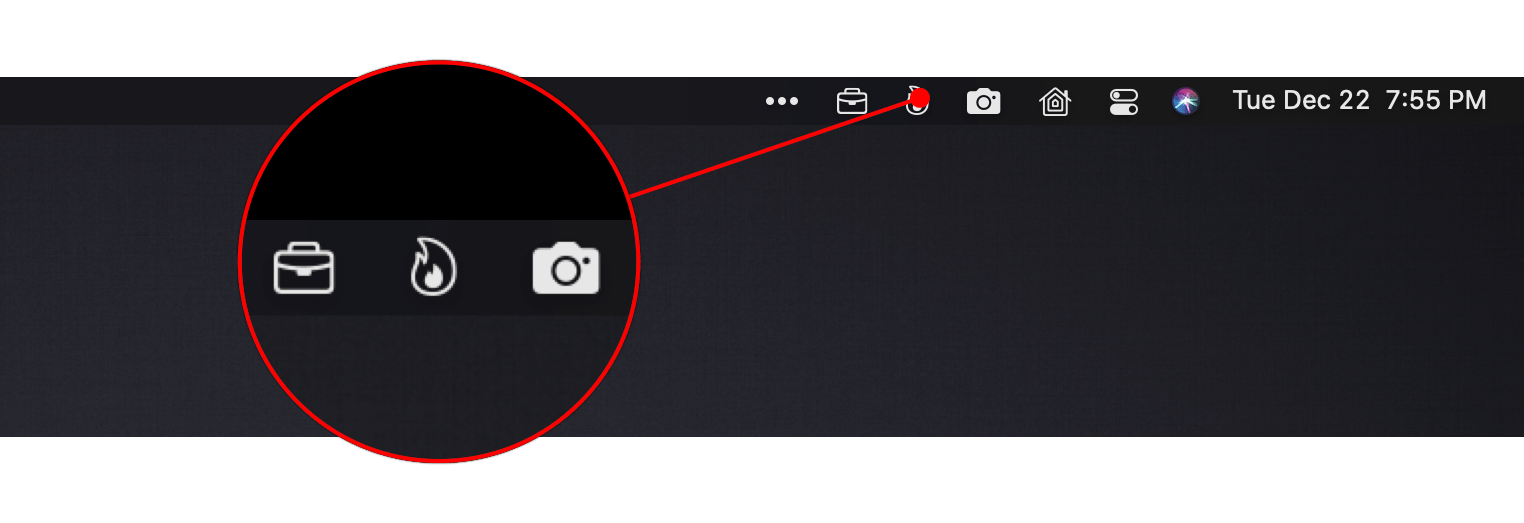
Scenes turned into individual menu bar items with SF Symbols icons.

Scenes turned into individual menu bar items with SF Symbols icons.

Another series of checkboxes, which are unchecked by default, controls whether scenes are shown as individual menu bar items. The feature is a lot like the ability to drag items out of Control Center to the menu bar. You can also add an icon for any of the scenes you add to the menu bar using Apple’s SF Symbols. I immediately added separate menu bar items for the space heater in my office and the settings for my overhead lights that I use for product photography because those are two scenes I find myself wanting to trigger from my desk regularly. The use of SF Symbols is an excellent way to pick something that is meaningful and memorable for triggering scenes.

The third way to use Scenecuts to trigger scenes is by using global keyboard shortcuts. Keyboard shortcuts are optional but extremely handy when you’re working with the keyboard instead of a trackpad or mouse. I appreciate, too, that Scenecuts displays the keyboard shortcuts you’ve assigned in its drop-down menu. The visibility provides a little reminder that has helped me memorize the shortcuts faster than I might otherwise have.

I’ve leveled my fair share of criticisms against the Home app, especially on the iPhone, but it’s grown on me when using my Mac. There’s more screen real estate than on the iPhone, which means its tile UI is less of an issue. Still, for quickly toggling my space heater or switching off a set of lights, opening a full-blown Mac app is overkill. By surfacing individual scenes in the menu bar, Scenecuts is the perfect complement to Apple’s Home app.

Scenecuts also highlights the anemic state of Control Center on the Mac. As I explained in my Big Sur review, I like the concept of Control Center on the Mac a lot, but it’s disappointing that so much of the functionality found in iOS is unavailable. Until Apple expands Control Center to incorporate scene support, Scenecuts is an excellent solution.

You can download Scenecuts for free from the Mac App Store.


Fitness Totals Review: Effortlessly Surface Fitness Data and Track Your Progress

The Apple Watch and iPhone can collect a lot of fitness data. The trouble is, there’s so much information available that it can be a little overwhelming and difficult to sift through in Apple’s Health app. The situation has left an opening for third-party apps like Fitness Totals that use smart design and leverage new features like widgets to make sense of the piles of data and provide useful insights.

Fitness Totals benefits from its tight focus on applying a consistent approach to 16 fitness metrics using its app and companion widgets. The app compares fitness data over daily, weekly, monthly, and annual time periods, providing answers to questions like ‘Have I burned as many calories today as yesterday? and ‘Is my step count higher or lower this week than last?’ The data is available in the app, but its greatest strength is its widgets.

As much as I like Fitness Totals’ widgets, though, I want to start with the app. This is where you set up which metrics you want to track, and you can view even more data than is available in the widgets. Fitness Totals can track:

  • Steps
  • Walking and Running distance
  • Walking workouts
  • Running workouts
  • Hiking workouts
  • Cycling
  • Wheelchair distance
  • Wheelchair pushes
  • Swimming strokes
  • Swimming distance
  • Downhill snow sports
  • Resting calories burned
  • Active calories burned
  • Flights of stairs climbed
  • Exercising minutes
  • Standing minutes

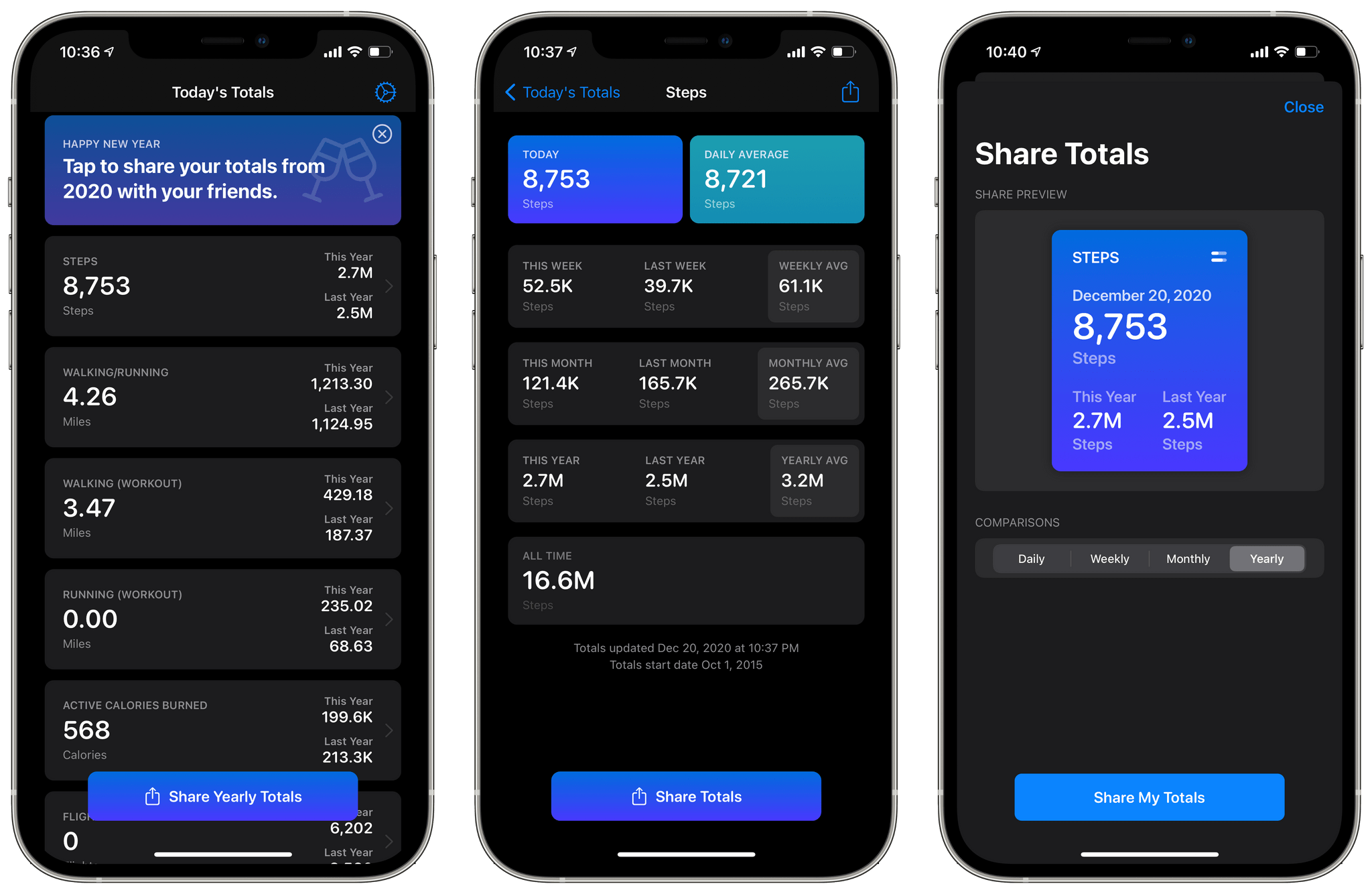
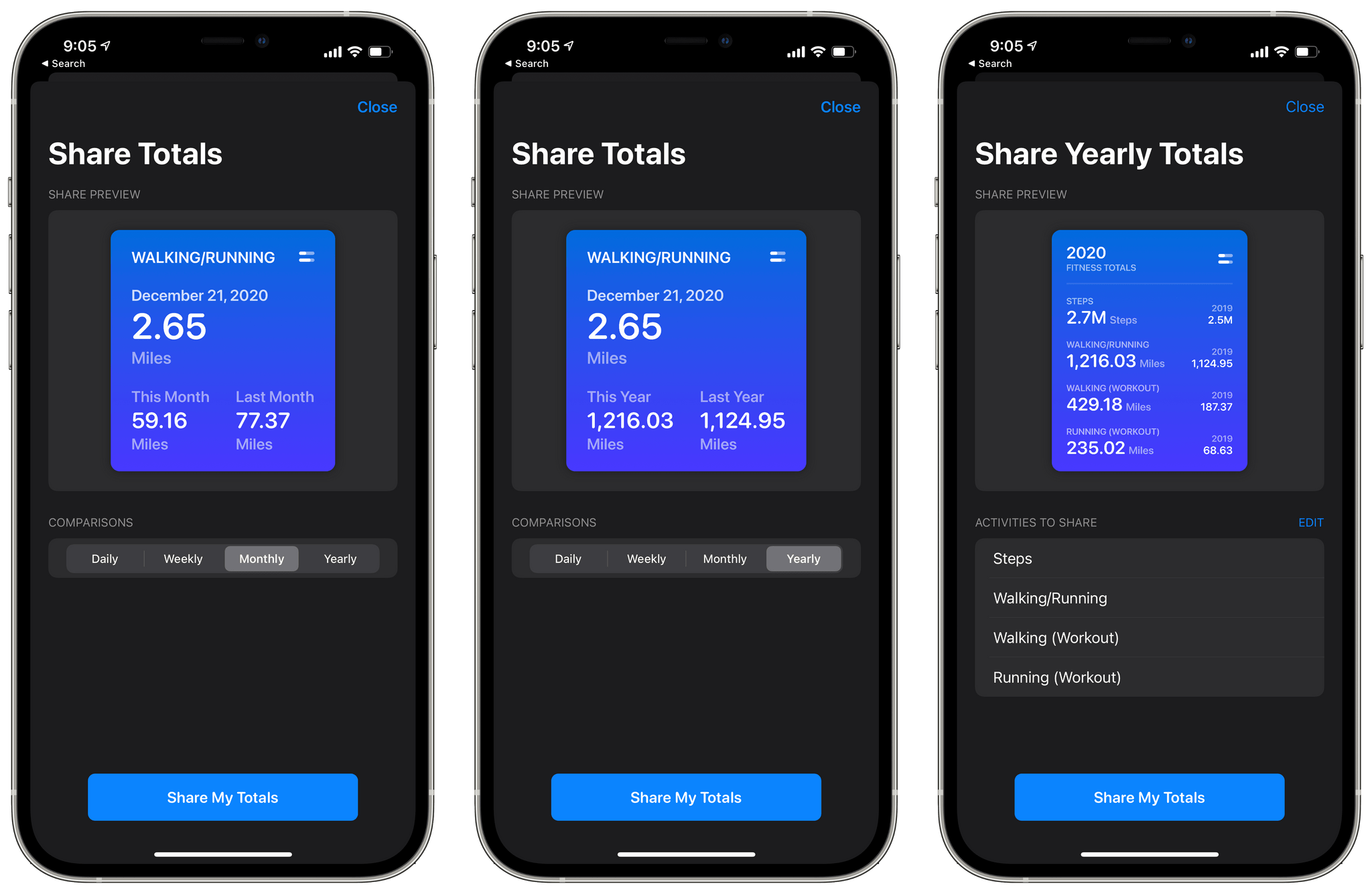
The app’s main view displays a series of cards for each category you’ve chosen to track. Each card lists your total for the day and the current year compared to last year. Tapping a card opens a detailed view with more statistics. For example, my step details included today’s total and my daily average along with totals for this week, month, and year compared to last week, month, and year, and the averages for each. Finally, there’s an all-time number totaling all the data recorded and a button for sharing a daily, weekly, monthly, or yearly summary with a colorful graphic.

Sharing your stats.

Sharing your stats.

The main view of the app also has a share button that lets you compose a graphic showing your yearly totals for any of the metrics you’re tracking. Currently, there’s also a banner at the top of the app prompting users to share their yearly totals, which does the same thing as the share button at the bottom of the screen.

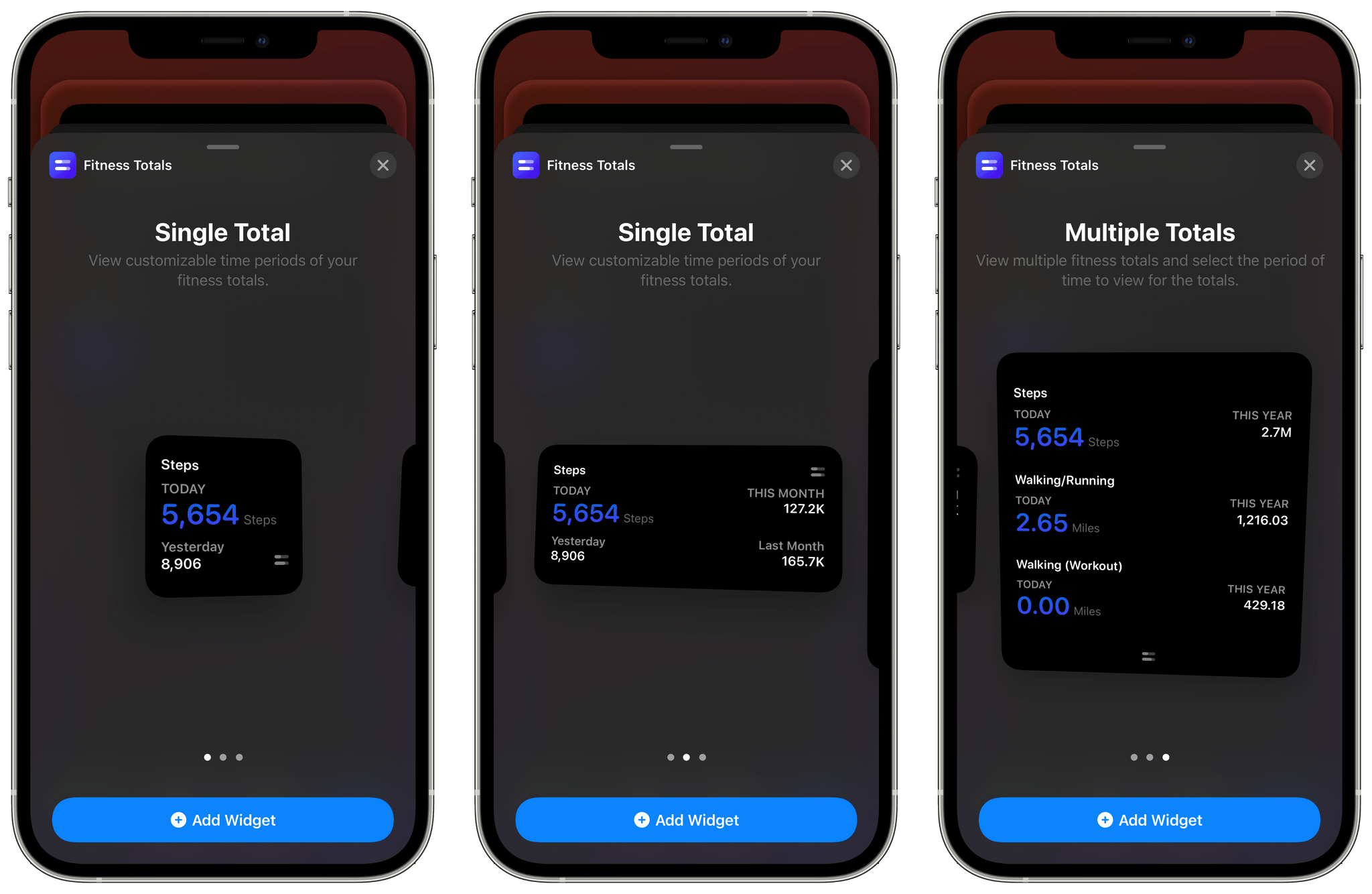
The app’s three sizes of widgets are similar to the graphics its share functionality creates. The primary difference between each widget size is how much data it can display. The small widget displays one pair of statistics: today compared to yesterday or this week, month, or year compared to last week, month, or year. The medium widget adds a second set of data points, and the large one allows for three points of comparison.

Fitness Totals' widgets.

Fitness Totals’ widgets.

I’ve been using a medium widget to remind me of my step count for today, yesterday, and last week versus this week. The widget serves as a quick way to gauge how active I’ve been as the week progresses and is a nice addition to the health and fitness stack that I’ve created on a secondary Home Screen. I may add additional Fitness Totals widgets over time, but for now, the step count widget is doing a good job of reminding me to stay active.

The one thing I’d like to see added to Fitness Totals’ widgets is color and typeface customization options. The widgets are pure black, and some statistics are a dark purple that looks good but doesn’t offer much contrast against the black, which can make the numbers difficult to read. The black background can also be a bit stark against some wallpapers.

Even so, Fitness Totals fills a nice gap Apple has left wide open. Apple’s Health app has all the data Fitness Totals displays, but the company doesn’t offer a Health widget. Fitness Totals also benefits from its focus on just a handful of fitness metrics that can be turned on or off by users surfacing the data far better than the Health app. If you’re looking for a periodic Home Screen reminder to keep you on track with your fitness plans for 2021, Fitness Totals is an excellent choice.

Fitness Totals is available on the App Store for $2.99.


Workflows Revisited: Task Management

AppStories+ Deeper into the world of apps

AppStories Episode 199 - Workflows Revisited: Task Management

0:00
48:39

AppStories+ Deeper into the world of apps

This week Federico takes listeners along on his recent tour of modern task managers, and he and John discuss the app they have settled on to keep track of their projects and to-dos.

Read more


MacStories Unwind: The 2020 Selects Awards, iOS 14.3, Fitness+, AirPods Max Power Modes, and ProRAW

AppStories+ Deeper into the world of apps
0:00
34:48

AppStories+ Deeper into the world of apps


Sponsored by: Agenda – Date-Focused Note Taking

This week on MacStories Unwind:

MacStories

Club MacStories

  • MacStories Weekly
    • Wonder - a simple, elegant Wikipedia browser and research tool
    • A collection of Home Screen customization tools
    • Federico on how he’s using Timery and GoodTask widgets
    • A big interview with Balint Orosz, founder and CEO of Craft

AppStories

Unwind