John Voorhees

5409 posts on MacStories since November 2015

John is MacStories' Managing Editor, has been writing about Apple and apps since joining the team in 2015, and today, runs the site alongside Federico. John also co-hosts four MacStories podcasts: AppStories, which covers the world of apps, MacStories Unwind, which explores the fun differences between American and Italian culture and recommends media to listeners, Ruminate, a show about the weird web and unusual snacks, and NPC: Next Portable Console, a show about the games we take with us.

macOS Sonoma: The MacStories Review

In one sense, the story of this year’s macOS update is that there is no story, but that’s not exactly right. Instead, it’s a bunch of stories. It’s the tail end of the realignment of macOS with Apple’s other OSes that began with macOS Catalina in 2019. However, Sonoma is also part of a work-at-home story accelerated by COVID-19. The OS is also linked to the story of visionOS, only part of which has been revealed. Sonoma is a bundle of narrative threads built on the foundation of past releases, adding up to a collection of updates that will be less disruptive for most Mac users than recent macOS updates. Instead, Sonoma is packed with a variety of useful new features that help draw it closer to iPadOS and iOS than ever before, design enhancements, and a few disappointing omissions.

The timing for a more modest macOS update is right. In recent years, Mac users have had to adjust to substantial redesigns of everything from their favorite system apps to the Finder’s windows and toolbars. The changes were inescapable and necessary to harmonize the Mac with Apple’s other products, but also disruptive for some long-time users.
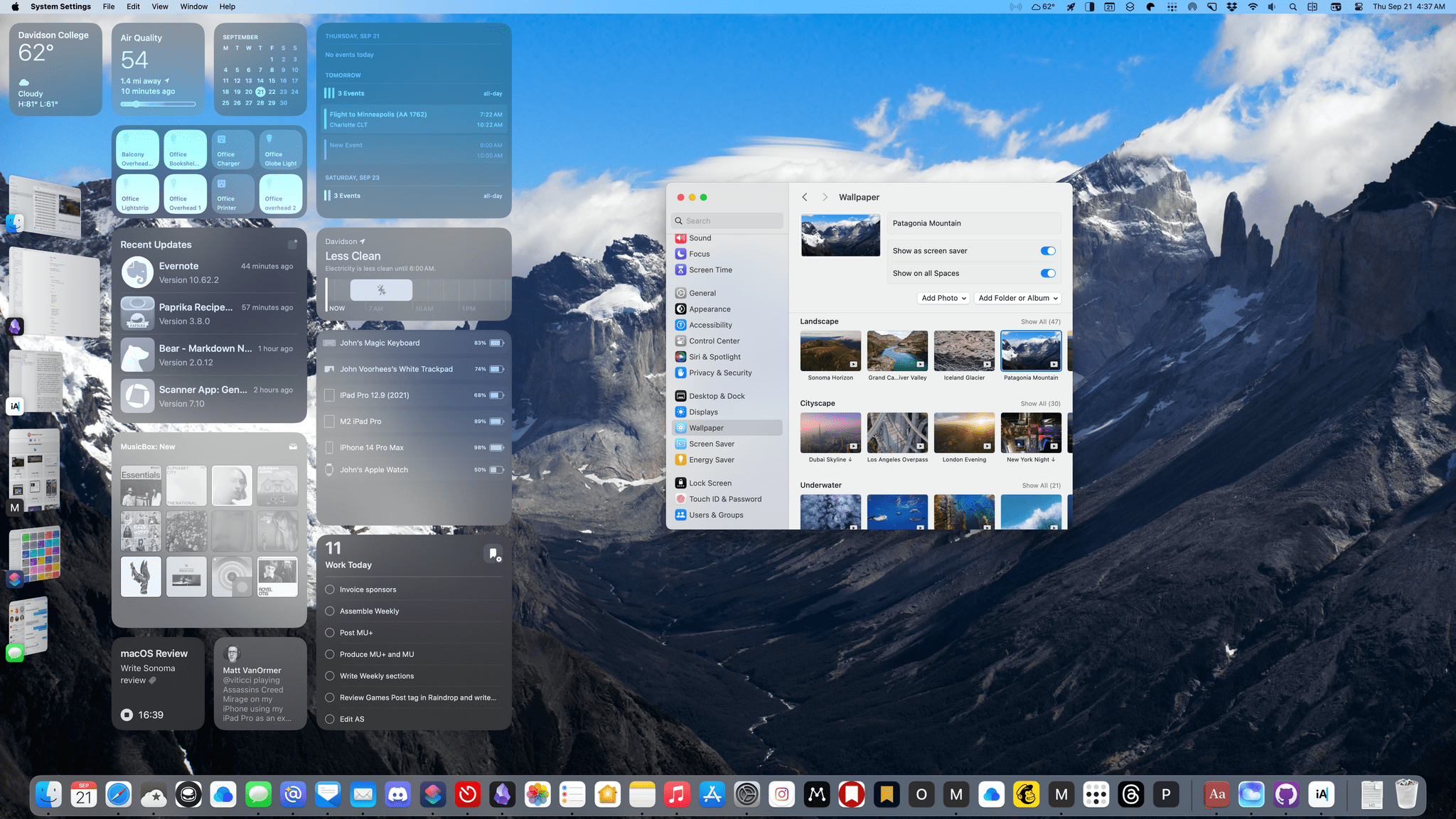
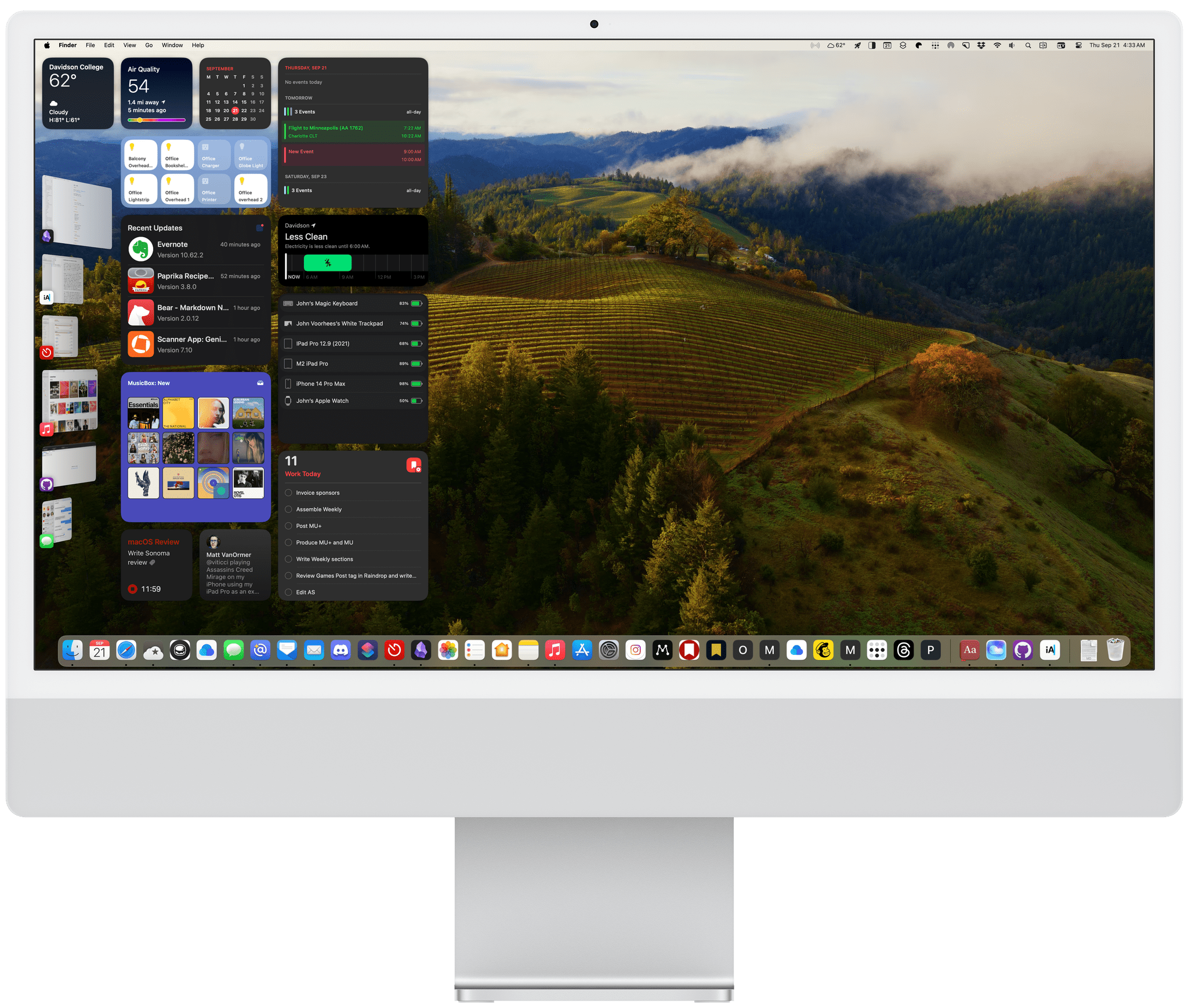
Sonoma adds a vast collection of new wallpaper and screensaver options.

Sonoma adds a vast collection of new wallpaper and screensaver options.

With macOS Sonoma, the biggest design shifts seem to be behind us – at least for the time being. Interactive widgets on the desktop are a big change this year, but it’s not like macOS dumps a bunch of them on your desktop by default. If you never want to see a widget anywhere near your desktop, you don’t have to. Other than the subtle way the login screen has changed and the new screensavers and wallpapers that are available, the core macOS experience has barely changed.

Instead, this year’s update is primarily about refining and building upon the foundation of the past few years, coupled with a handful of more significant updates to system apps. So, while the marquee features and design changes may be less notable than in recent years, there is still a long list of new and refreshed items that touch nearly every aspect of the OS, so let’s dive in.

Read more


Apple Podcasts Adds Shows From Apple Music and News, Plus a Selection of Third-Party, Subscription-Based Apps

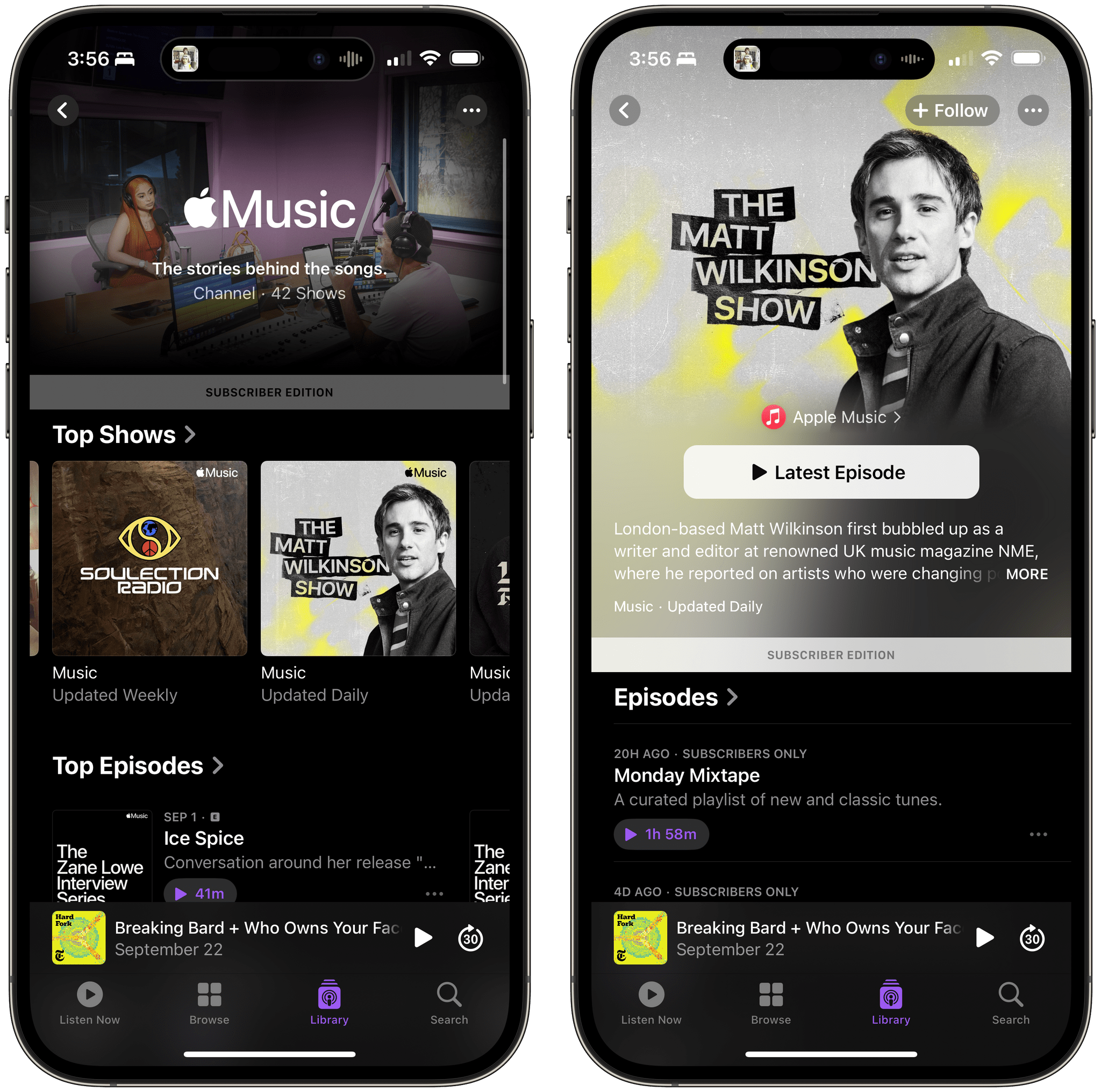
Apple Podcasts significantly expanded its Apple Music and Apple News podcast channels late yesterday and introduced podcasts for subscribers to a variety of third-party apps. In all, Apple says there are over 60 new shows comprised of over 2,500 episodes.

The Apple Music channel new features 42 shows, a significant increase from the handful that were available before. The lineup includes a mix of host-driven shows from Apple Music 1, interviews, music commentary, specials, and more, most of which are exclusive to Apple Music subscribers.

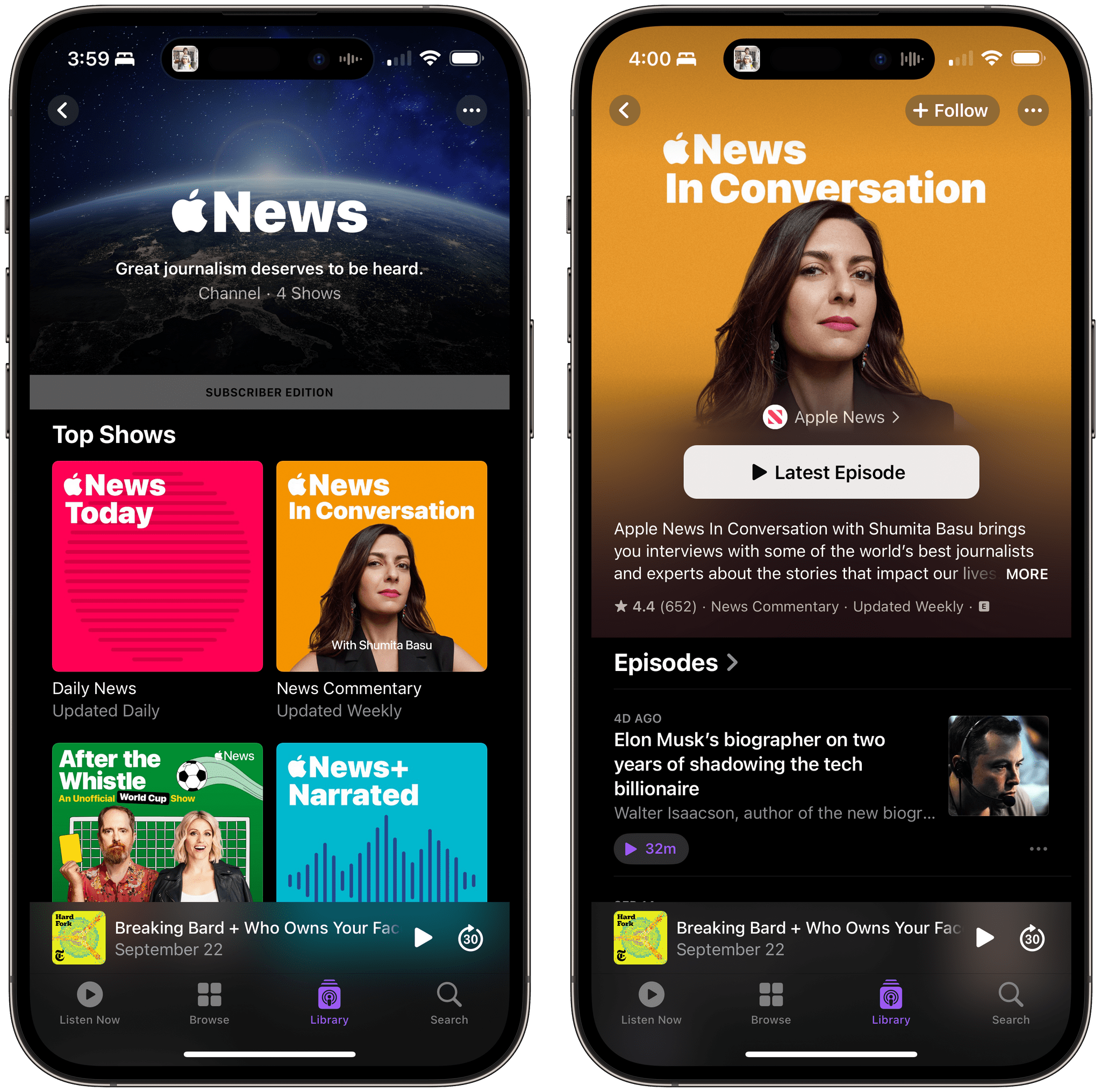
Apple News features four podcasts. News Today features a short, daily rundown of headlines from around the world; After the Whistle follows the World Cup; Apple News In Conversation is a weekly news commentary show; and Narrated News is an Apple News+ subscriber exclusive that presents audio narration of longform writing, something previously only available in the News app.

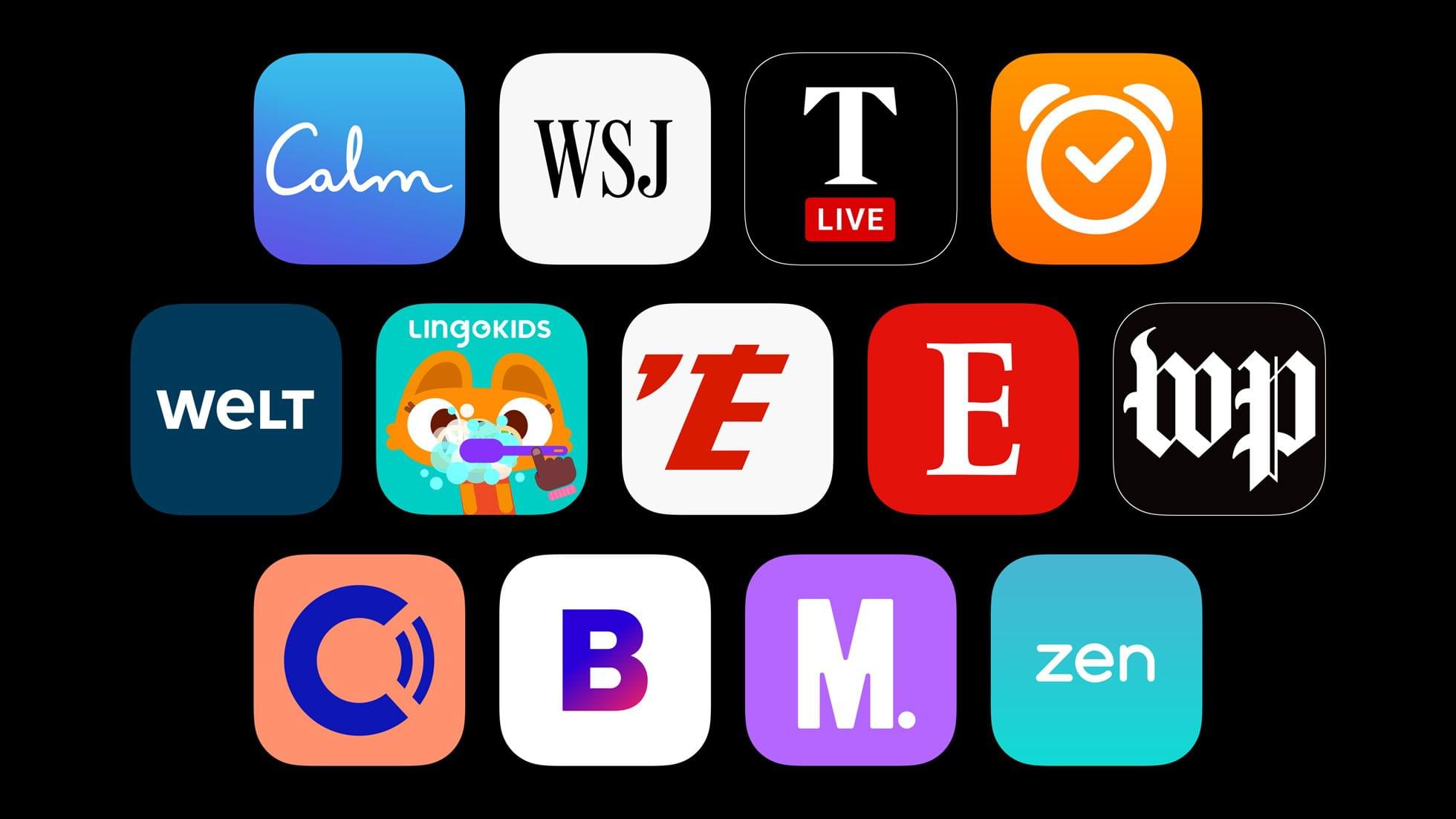
Some of the subscription-based apps that are offering podcasts. Source: Apple.

Some of the subscription-based apps that are offering podcasts. Source: Apple.

Among the subscription apps that are adding podcasts to their offerings are The Washington Post, Calm, Lingokids, Bloomberg, Sleep Cycle, and several others.

I haven’t had a chance to try any of the app add-on shows because I don’t subscribe to any of the participating apps. However, I spent some time this morning browsing through the Apple Music and Apple News offerings. Most of what is now available from Apple Music or Apple News in Podcasts was already available in their own apps. Still, I like having it available in Podcasts, where both channels’ shows fit in naturally with the other podcasts I enjoy, making Podcasts a one-stop destination for spoken audio. Listening in the Podcasts app also has the advantage of allowing listeners to receive notifications when a new episode is released and queue episodes for playback.

One thing I’d love to see the Apple Music and Apple News shows add is show notes. Links to songs played so they can be added to a listener’s library would be a useful addition to the Apple Music podcasts, as would links to materials on the topics covered by Apple News.


Widgets Everywhere

AppStories+ Deeper into the world of apps

AppStories Episode 352 - Widgets Everywhere

0:00
26:38

AppStories+ Deeper into the world of apps

This week, Federico and John take a look at some of their favorite apps with interactive widgets for iOS 17, iOS 17, and macOS Sonoma.

Read more


Interesting Links

[[John]] NVIDIA released DLSS 3.5 with upgraded ray tracing, which will see its first use in an update to Cyberpunk 2077. (Link) Jay Peters reports on a YouTube video by Vincent Zhong, who played Resident Evil Village on an iPhone 15 Pro connected to an external display and using a PlayStation DualSense controller and was...


App Debuts

[[John]] Blackmagic Camera Blackmagic Camera is a new iPhone video camera app that’s designed to put pro-level camera controls in the hands of creators. Blackmagic, which makes high-end video hardware, has released the app as a free download that’s loaded with an interactive HUD that makes dialing in the shot you want fast, while allowing...


MacStories Unwind: Preparing for Downtime and a Roadtrip Audiobook About Dragons

AppStories+ Deeper into the world of apps
0:00
0:00

AppStories+ Deeper into the world of apps


This week on MacStories Unwind, Federico preps for some serious downtime by planning a mod of his ASUS ROG Ally handheld gaming PC and I listened to Fourth Wing by Rebecca Yarros on a drive from Philadelphia back to North Carolina.

  • Kolide – It ensures that if a device isn’t secure it can’t access your apps.  It’s Device Trust for Okta. Watch the demo today!

Federico’s Season of Sci-Fi and Tech:

John’s Pick:

MacStories Unwind+

We deliver MacStories Unwind+ to Club MacStories subscribers ad-free and early with high bitrate audio every week.

To learn more about the benefits of a Club MacStories subscription, visit our Plans page.


The Mighty Mini Returns: Productivity Powerhouse at 34,000 feet

I’m sitting on an American Airlines flight, crammed in a window seat in economy class. I brought my iPad mini to catch up on some reading while I’m away, but at the last minute, I threw my Logitech K380 Bluetooth keyboard and a Twelve South Compass Pro. I cleared my task list for this trip, but it’s also been a while since I used the iPad mini for any productivity tasks, so I thought I’d bring it and the accessories along in case I had some downtime to do things like catch up on email.

I didn’t expect to do anything on the flight, especially writing. Tray tables are too shallow these days for even my M1 MacBook Air, let alone a mini in a stand with a separate keyboard. But when I settled into my seat, Jennifer pointed out the phone holder in the seatback in front of me. They’re meant for entertainment, replacing the in-seat screens airplanes used to have.

However, I discovered something arguably better that was also a fun opportunity to publish a story from 34,000 feet in the sky. When I pulled the little phone shelf out from the seatback, I saw the top bracket extended high enough that I could use it with my iPad mini. I signed up for in-flight Wi-Fi, paired the Logitech keyboard, and I was good to go.

The ergonomics are surprisingly good. The iPad is at eye level, and with nothing but the keyboard on the tray table, I can shove it closer to the seat in front of me, so my arms can extend to a comfortable position. The only downside is that without a pointing device, I have to reach up to log into websites and interact with some parts of apps, but it’s been far better than trying to type on a laptop or an iPad Pro in a Magic Keyboard. I highly recommend trying this the next time you need to work on an American Airlines flight.


Widgle’s Four Photo-Based Widget Games Deliver Simple, Fun Interactive Diversions

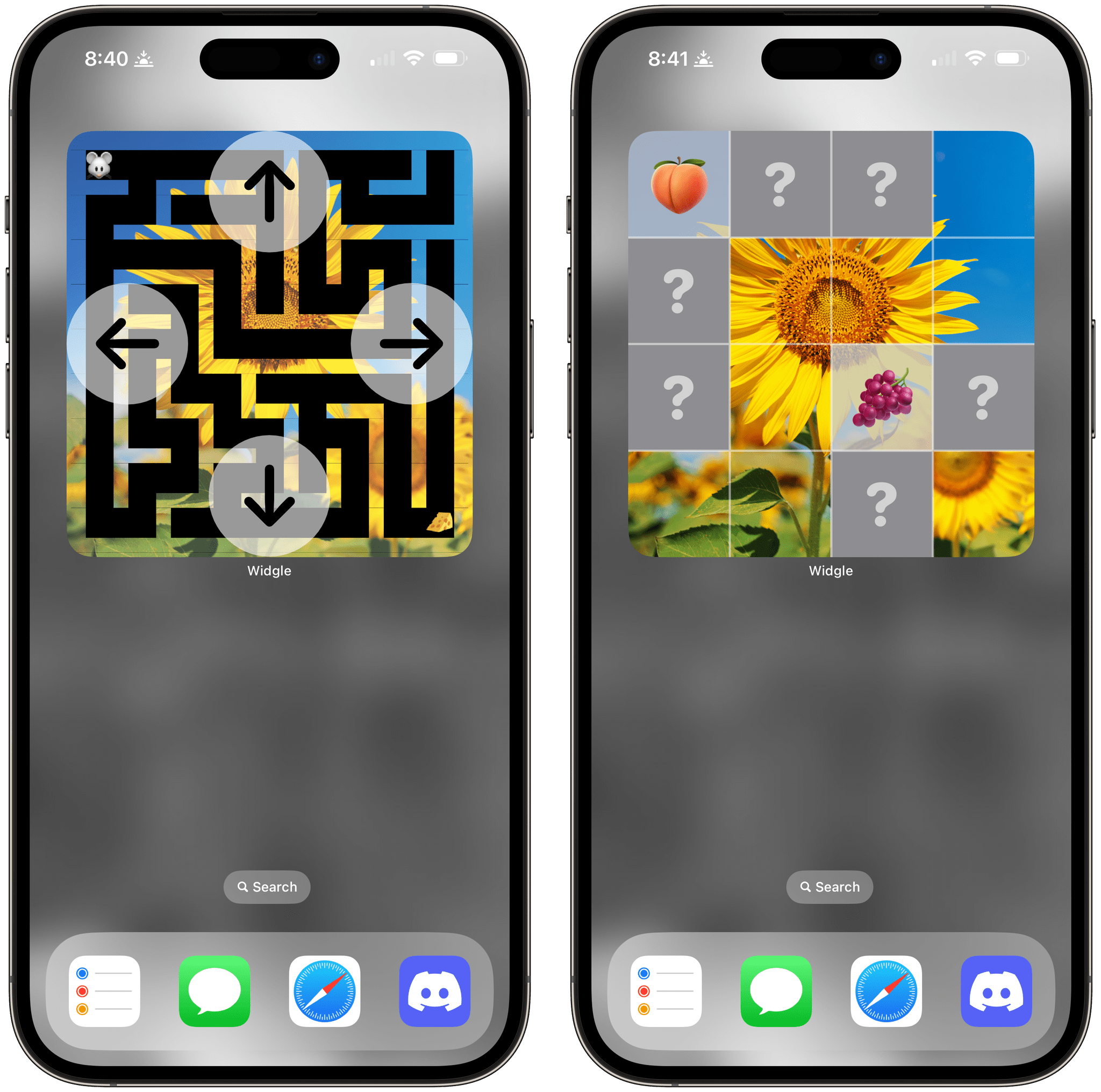
Widgle is a collection of four simple puzzle games for the iPhone and iPad that integrate with your photos. As I mentioned in connection with Widgetsmith’s Tile game, interactive widgets’ system-imposed button and toggle limitation severely constrains the kinds of games that can be built as a widget, but that doesn’t mean they can’t still be fun. Widgle’s four games, a tile sliding puzzle, a maze, a lights out-style game, and a matching game each come in small and large sizes.

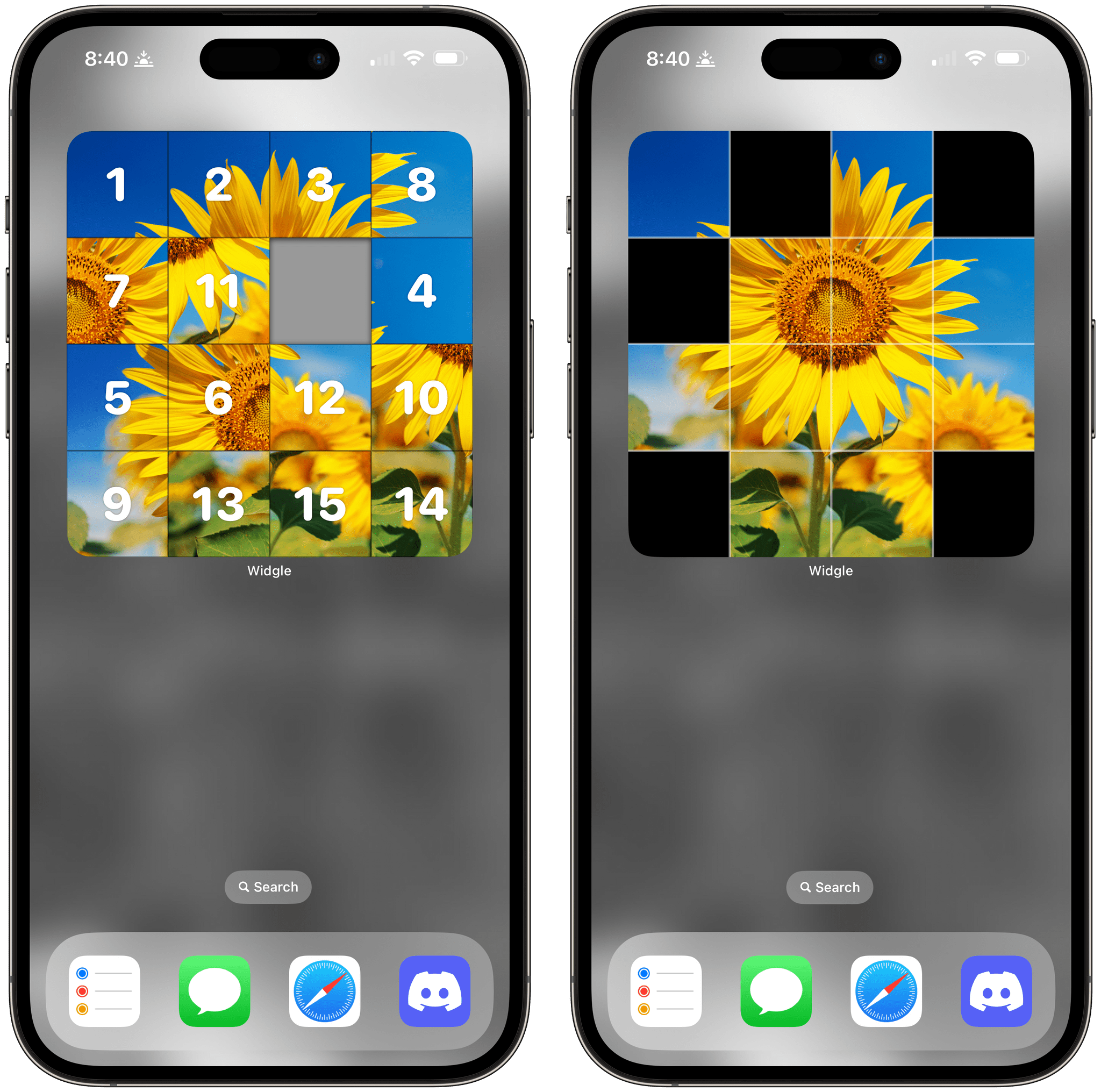
Tile Slide (left) and Lights On (right).

Tile Slide (left) and Lights On (right).

The Tile Slide game uses a photo of your choosing, scrambles the tiles, and overlays numbers, which can optionally be turned off in the widget’s settings. There’s one free space, and by tapping tiles, you can try to put them back in the correct order, reassembling your image. There are four grid options, too, a couple of which are only available in the large version of the widget.

Lights On begins with one of your photos divided into a grid with some of the squares missing. Tapping on a square inverts the others around it, and with some careful poking, you can reassemble your entire photo so it includes no blanks. Like Tile Slide, there are four grid size options, with two exclusive to the large-sized widget.

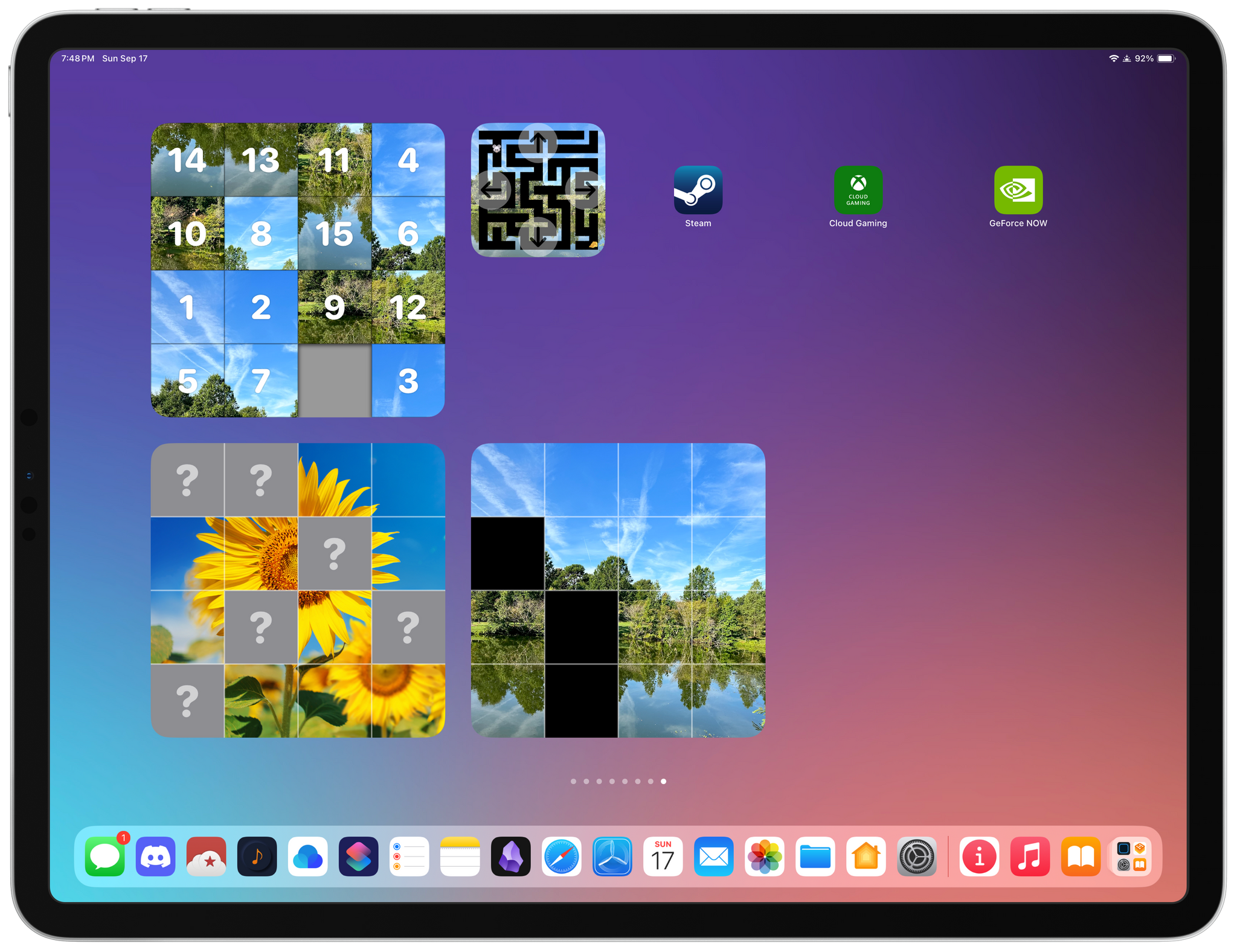
Maze Master (left) and Match Up (right).

Maze Master (left) and Match Up (right).

Maze Master overlays directional arrows around the edges of the widget, so you can guide your character through a maze backed by one of your photos. There are three difficulty levels to choose from and six different emoji characters available.

Finally, Match Up starts with a grid of squares with question marks in their centers. Tap squares to reveal the hidden emoji underneath. Find a matching pair of emoji, and the squares reveal part of one of your photos.

As I mentioned at the top. Widgle’s games are very simple classics, but I’ve still enjoyed idly playing with them when I need a break. The inclusion of photos, which can be picked in the main Widgle app, makes each game feel more personal.

Widgle is available on the App Store as a free download with an In-App Purchase of $1.99 to customize the puzzle with your photos.