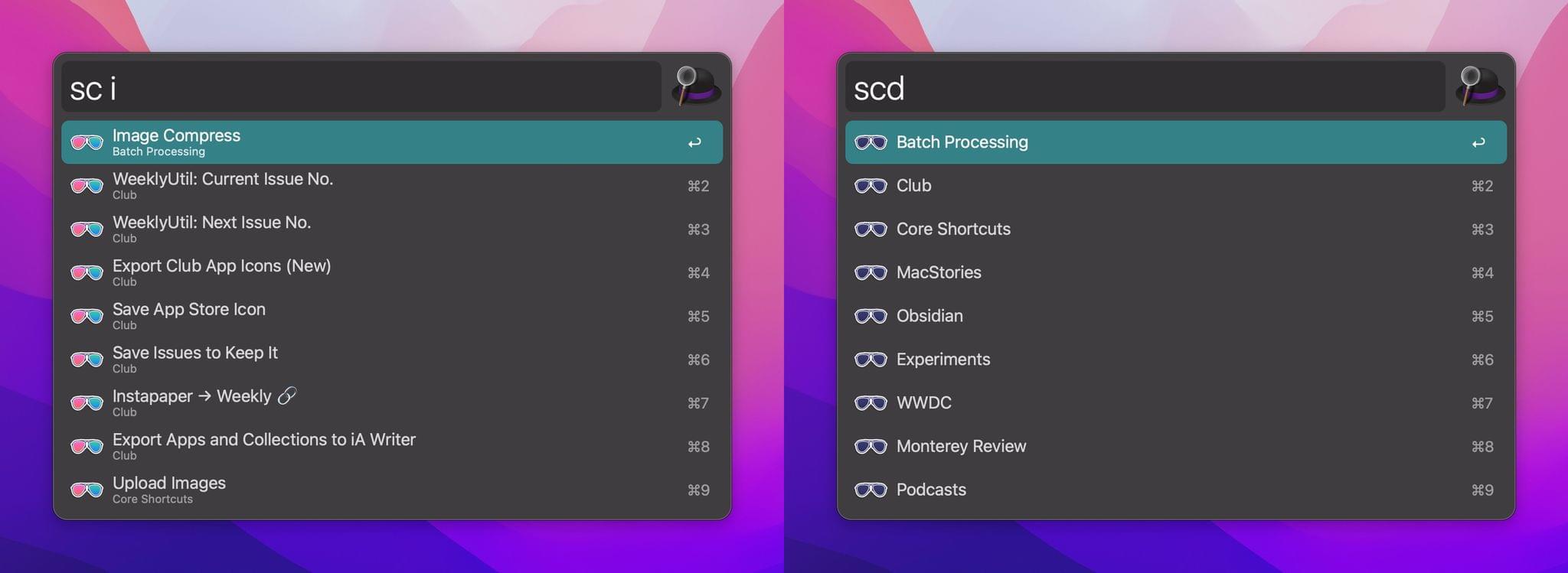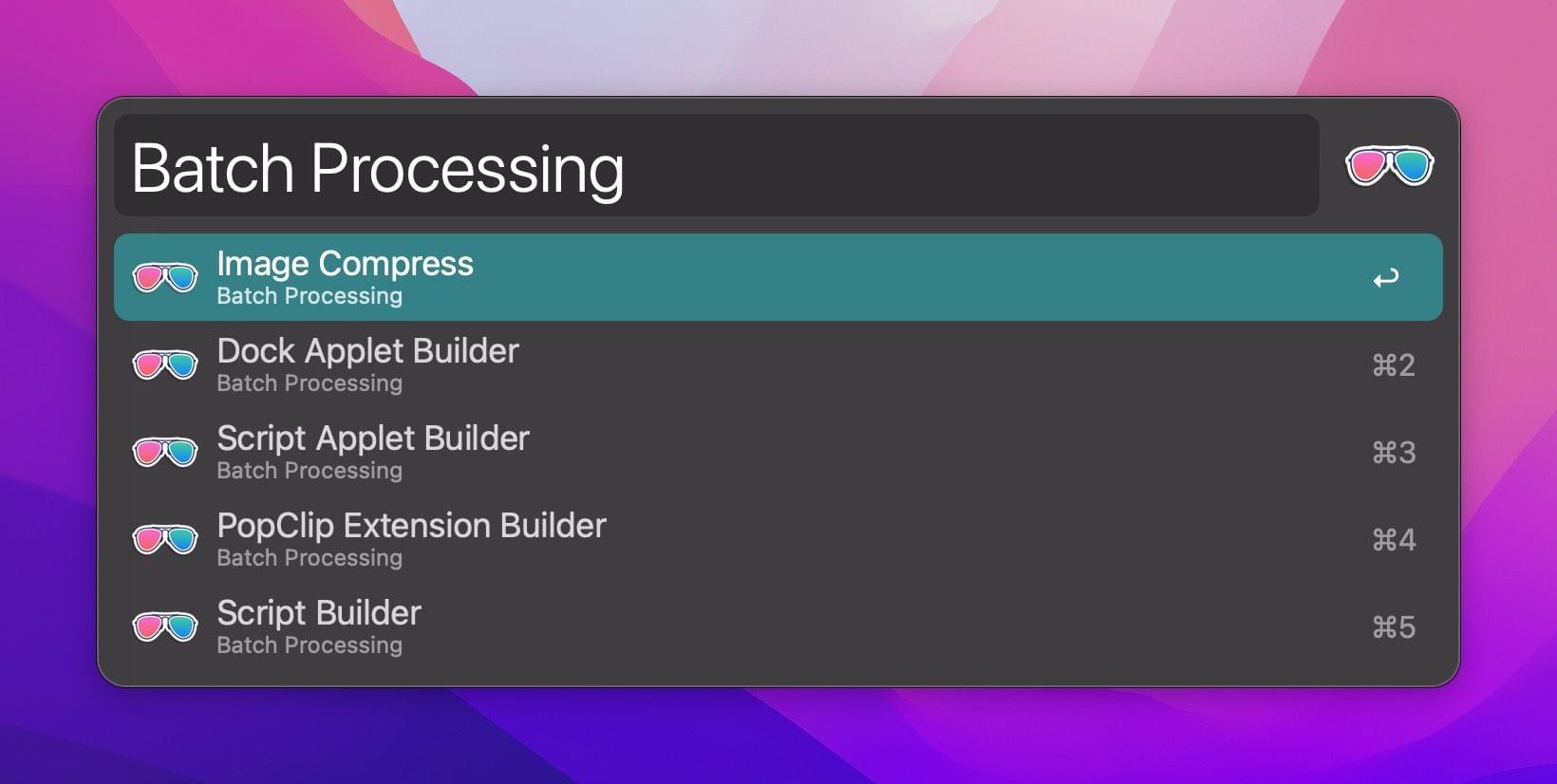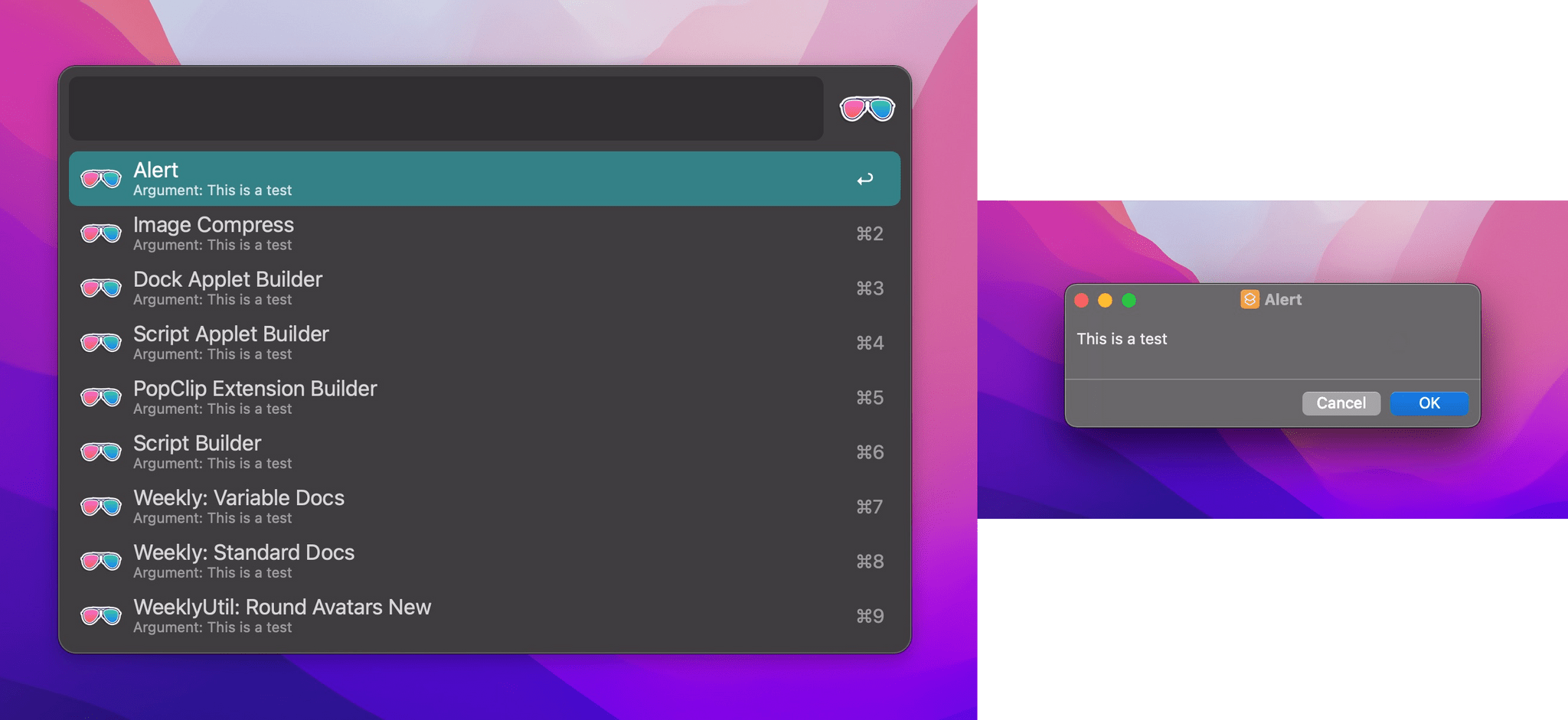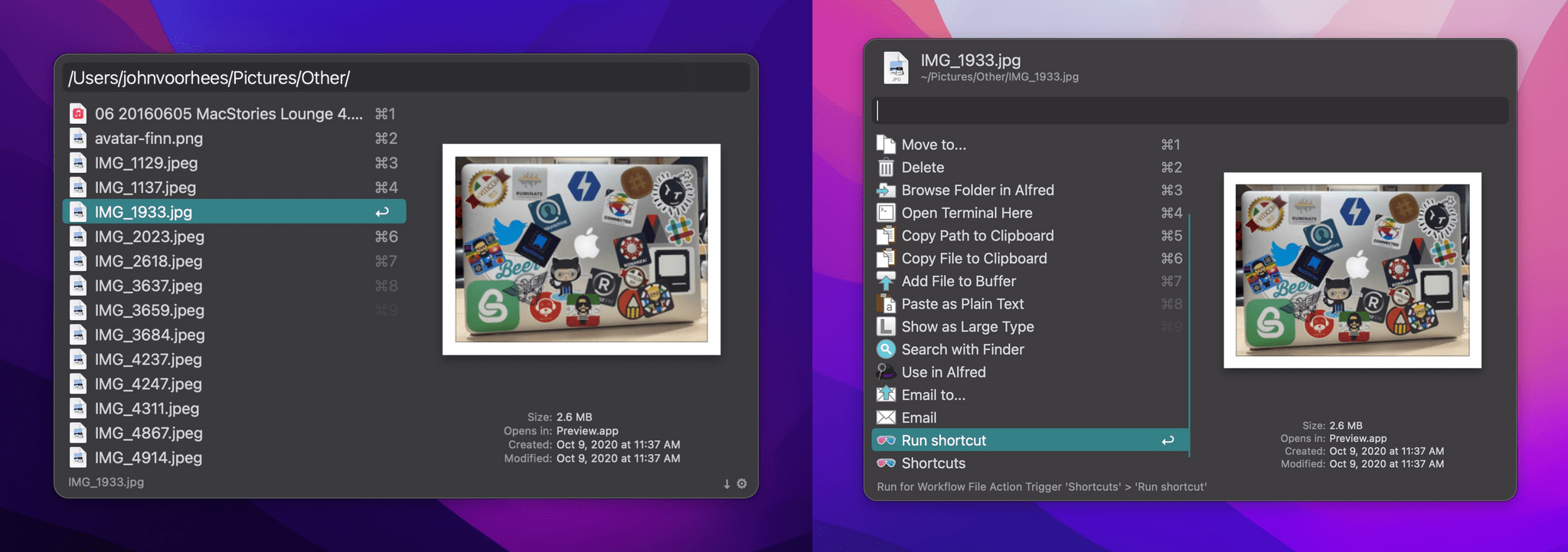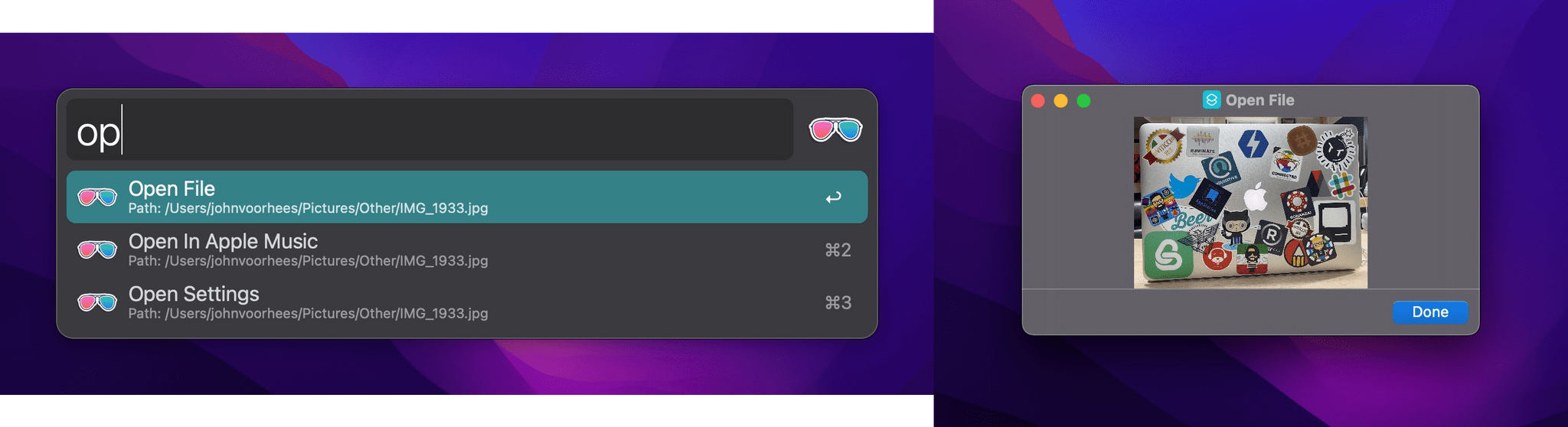
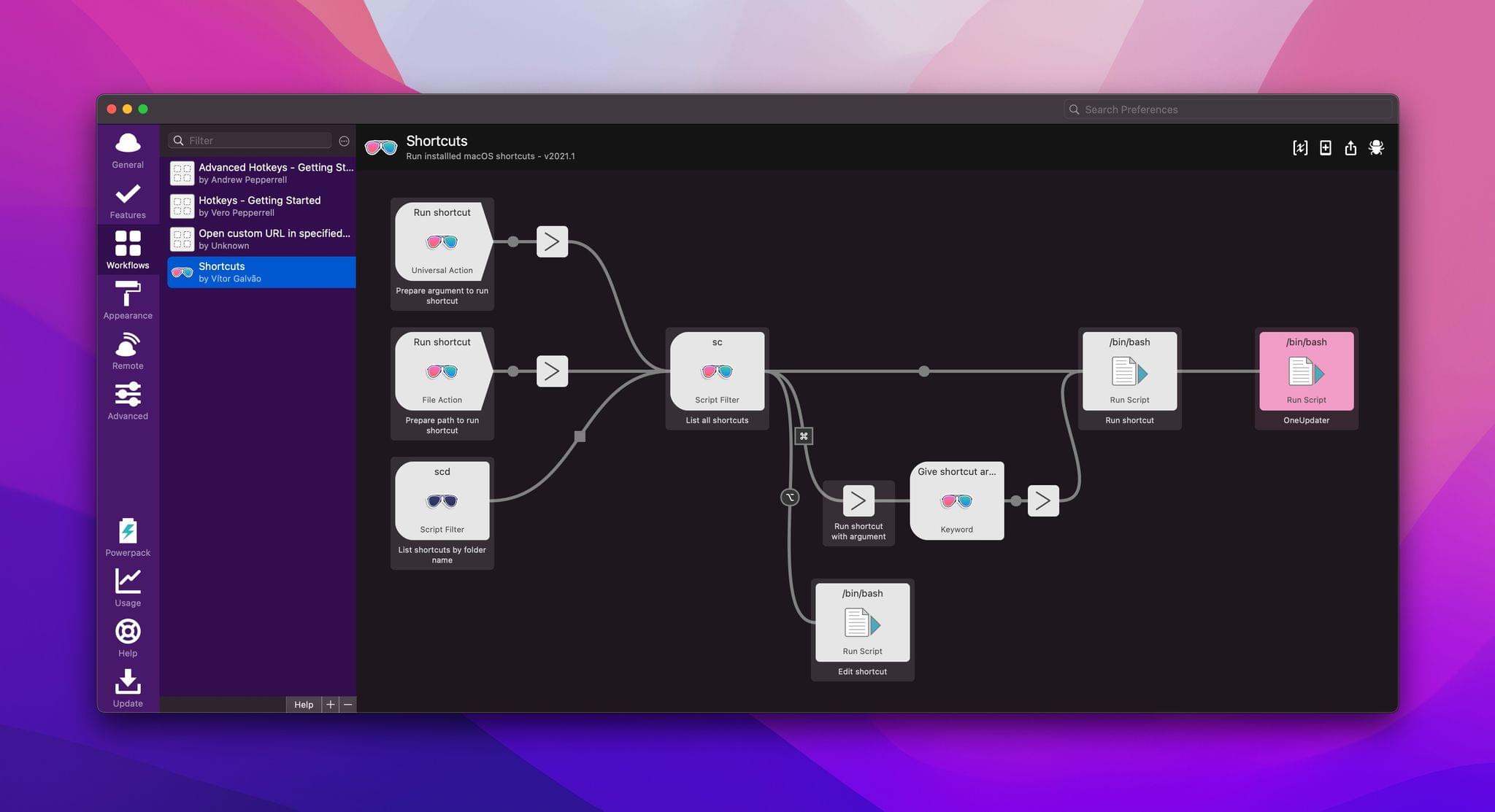
This is a great collection of Evernote workflows by my friend Sean Korzdorfer. I have been trying them for the past hour, and I’m impressed by the search workflows with filters for note content, attachments, and dates.

Make sure to read the documentation to see all the options Sean considered.

Alfred is one of the few apps that I can honestly say have changed the way I use my Mac. I remember the first time I downloaded Alfred back in 2010, the 0.4.1 beta had just been released. I was frustrated with the complexities of Quicksilver and wanted to try something different so I downloaded that early version of Alfred. I remember thinking it was nice, had a small handful of useful features, but ultimately I got bored and deleted it. I hadn’t even given the app another thought until Apple launched the Mac App Store and Alfred was one of the apps to be initially available in the store. I downloaded the free version and not even a week later I had purchased the PowerPack. I lost countless hours of my life scripting extensions to do anything and everything. Over the next 2 years the app received incremental upgrades adding new features with each release. This led to an overwhelming and hard to navigate labyrinth of settings and preferences.

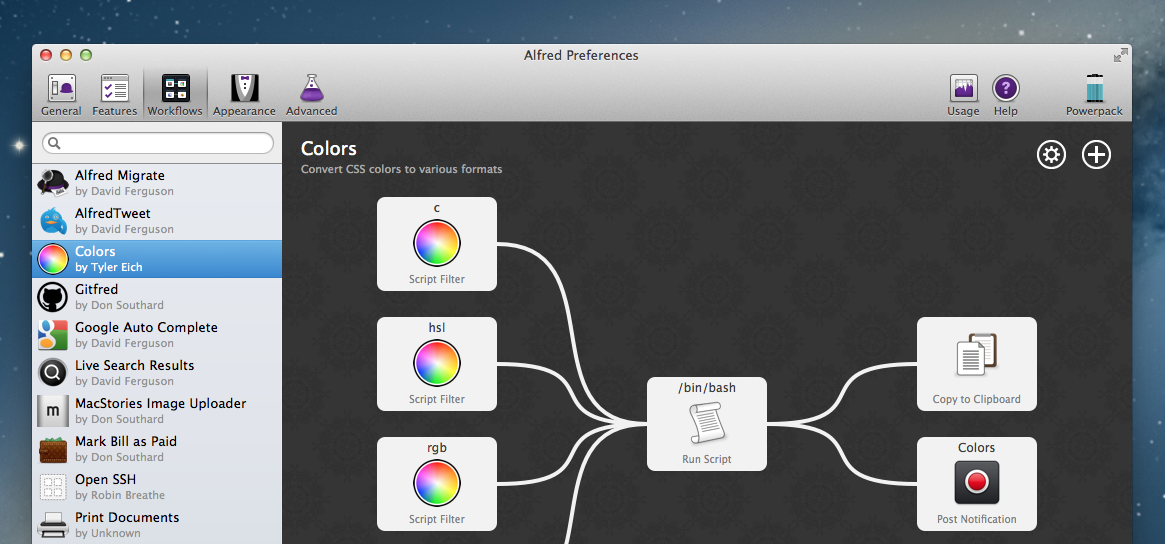
Alfred 2 doesn’t feel like an incremental upgrade to the original app. I think it could be better described as a fresh start. Rebuilt from the ground up, Alfred 2 sports a more logical preference structure that has been simplified for easy navigation without losing any features from version 1. Most notably, the developers replaced extensions with more powerful workflows. The user interface is larger, cleaner, and has new Retina-ready icons.

(more…)

Alfred 1.3

Released yesterday, Alfred 1.3 is a major update to the popular desktop application aimed at “increasing your productivity” on OS X. Started as a simpler app launcher, Alfred has, in fact, evolved into a much more powerful — yet always accessible — solution that goes beyond the simple definition of a “launcher”, like Spotlight would be. I use Alfred on a daily basis to browse my file system, compose email messages,  search the web and even look for my favorite songs on Rdio. Alfred was once a launcher, now it’s much more. In my workflow, it’s an app that makes the core features of OS X work better for me.

I particularly appreciate the improvements brought in version 1.3 as they address a usage scenario I often find myself dabbling into: selecting multiple files in the Finder to move them to another location. For instance, in writing my Mountain Lion review, I took a lot of screenshots; those images had to be cropped, resized, and re-composed to fit the layout of my article. Once edited, I had to move them from the Desktop — where OS X creates my screenshots — to a sub-folder in Dropbox, which, through a custom script, they are uploaded to our CDN, returning a URL. With Alfred’s new File Buffer functionality I saved precious minutes I would have otherwise spent opening the Finder and navigating with the trackpad.

The File Buffer is basically a virtual “shelf” that can temporarily host files you want to act on. Configurable in Alfred’s Preferences, you can set the Buffer to be cleared after actioning items, or after five minutes if items you selected haven’t been used.

Alfred File Buffer

File selection is integrated with Alfred’s existing navigation capabilities. In Alfred, you can browse your Mac’s file system with the keyboard, finding documents and folders you need and choosing from a set of actions to do stuff with them. These actions include, by default, an Open command, Reveal in Finder, Copy Path, Move, Copy, and more; they are entirely actionable with the keyboard, so you’ll be able to, say, unzip a folder and forward its contents via email to a contact without lifting a finger from the keyboard. Furthermore, you can assign favorite locations — in my case, Desktop and Dropbox — to a hotkey, and tell Alfred to open them in its own navigation, rather than the Finder’s.

With the Buffer, you can now select multiple files and act on them at once. So while writing, I was able to bring up the Desktop in Alfred, select multiple screenshots, move them to Dropbox, then launch the .txt file where image URLs get appended to. The Buffer was a huge timesaver, and, for the future, I hope Alfred will make it easier to create custom actions (right now, here’s how you can do it) and specify custom locations for the Copy and Move commands (you can type a folder’s name to instantly bring it up).

When working with the File Buffer, I often select images that I want to move or delete. Alfred’s navigation window features a thumbnail preview for files, but sometimes that’s too small to really see whether or not I’ve selected the right file. Thankfully, version 1.3 introduces support for Quick Look through the Shift key or by hitting Command-Y on a selected file. Quick Look works both in default results and the File System navigation.

Alfred Quick Look

Version 1.3 brings many other features, improvements, and fixes as well. There is now better integration with 1Password, a new way to show more results, a compact mode, and a “quit all” command to quit all running apps. Make sure to check out the full change log for a complete list of changes.

Alfred has become an essential piece of software in my daily workflow, and I’m glad I decided to give it a chance two years ago. You can download version 1.3 from Alfred’s website, and unlock all the app’s functionalities by purchasing the Powerpack.

Alfred – the productivity tool for Mac OS X that started off as a simple application launcher — has now evolved in to a tool that has literally changed the way so many people now use their computers. The team at Running With Crayons has been hard at work preparing the next release of Alfred, and today they are happy to make version 1.2 available to everyone. It has taken months of hard work, but their software development team has managed to integrate some outstanding new features and general improvements in both the free Mac App Store version as well as the Powerpack version available on their website.

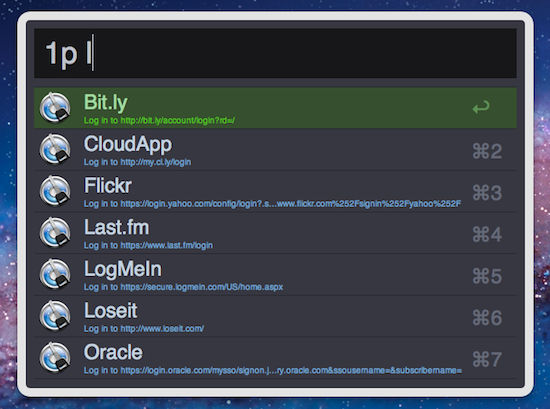
Without a doubt, the single greatest feature added to the latest version of Alfred is one reserved exclusively for paid Powerpack customers which gives users access to the their 1Password 1Click Bookmarks. There has already been a lot of buzz around the web after the developer preview of this feature rolled out, but to see it in action is truly amazing. There is very little to configure and Alfred will attempt to find your 1Password keychain, then store your bookmarks automatically. I was quite impressed because my 1Password keychain is in an obscure spot in my Dropbox folder; however, Alfred had no troubles finding it and accessing my bookmarks. From there, it is a simple command ‘1p’ to begin searching the 1Click bookmarks. In typical Alfred fashion, it searches as much of the criteria as possible including the name and URL of the bookmark to ensure it finds the right one.

I am certain that this feature was a popular request among users, and I love when developers take the time to not only listen to what their customers have to say, but actually deliver updates that reflect that actual desires of those using the software.

In both the paid and the free MAS version, Alfred 1.2 has brought tremendous improvements to the matching algorithm it uses to find files as the developer noted on his blog last week. Sometimes these performance enhancements are hard to visualize when you actually get your hands on the software, but I am confident you will see improved search results in this latest version.

Let me tell you a quick story to illustrate just how great the matching algorithm is in version 1.2. One of my fellow MacStories writers had sent me an iMessage consisting of only a quote that, judging by his continued conversation, it was one he expected me to be familiar with, yet I had no idea. I copied the text from Messages and pasted it in to Alfred intending to search Google in hopes of finding out whom he was quoting. Before I could hit enter, Alfred had found that quote inside a PDF that my fellow constituent had dropped in our shared Dropbox folder. I had no idea this file was even on my computer let alone the quote he had sent was apart of its contents. In the time it took me to type Command+V and hit Enter, Alfred had found the file and opened it for me. Expecting Safari to open with a Google search completed, it took a few seconds for my brain to comprehend what had just happened. Alfred knew exactly what I was searching for despite the fact I had no idea. That is great software.

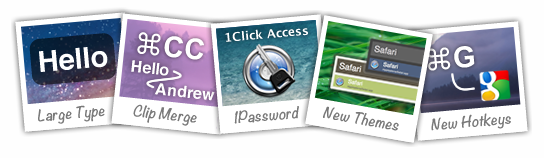
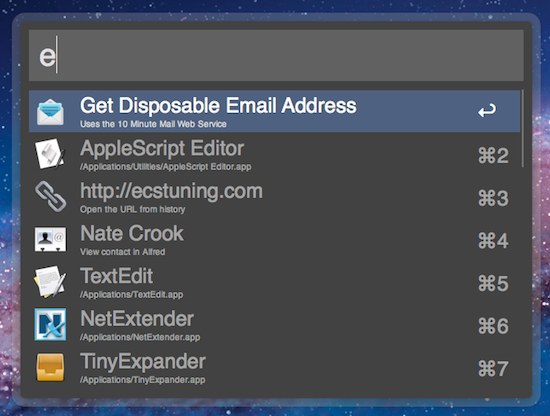
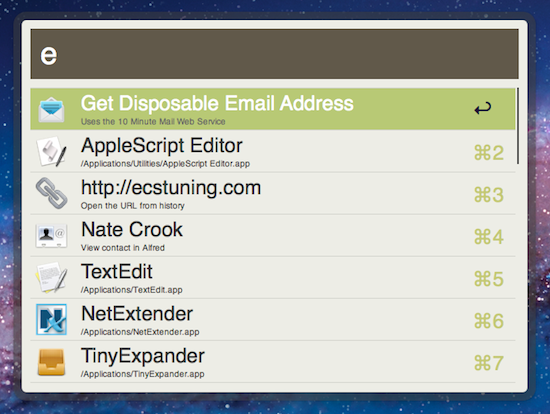
Other new features in both the paid and free versions of Alfred include two new themes as well as large type support. The two new themes called “Dark and Smooth” and “Pistachio” are a couple of great looking themes that were created by actual Alfred users and then voted on for a the opportunity to become default themes in the application. There are more details about these new themes available on the Alfred website.

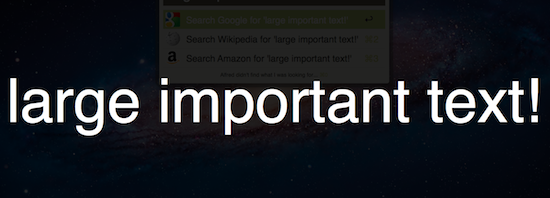
Now, not every new feature is going to appeal to everyone. This Large Type support was apparently highly requested among users but I have yet to find a reasonable use for it in my day to day workflow. The basics of this feature are as such — you type any bit of text in to Alfred and then hit Command+L. Alfred will then fill the screen with that text in an extremely large font. According to the release notes, this is great for phone numbers and email address; I have only found it useful for showing dirty words to my wife from across the living room.

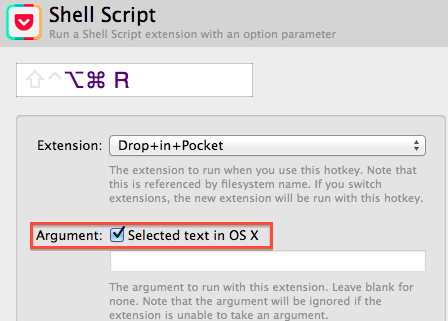
I also wanted to briefly mention some of the improvements on Global Hotkeys because it was partly a request of mine. Powerpack users will find a new check box option under Global Hotkey extensions that will allow any selected text to be passed to an extension when the Global Hotkey is triggered. It is hard to comprehend the usability added by this one small feature through simply reading about it so be sure to also check out David Ferguson’s video on how to use the new feature as he also demonstrates his “Drop in Pocket” extension.

Also added to Global Hotkeys was the option to paste the latest history item as plain text and the ability to assign a Global Hotkey to a text snippet. I have already started using the latter to manage my different email signatures with single keystrokes.

As with most general releases of Alfred, these are not the only new features and improvements, but they are some of my favorites. The release notes are quite exhaustive and contain all the additions in great detail. If you have the Mac App Store version then there is an update waiting you in the App Store so go ahead and grab it. If you have the Powerpack version then be even more excited because you also have an update waiting, but with even more awesome features!

Screen Sharing is a feature built into Mac OS X for remotely controlling another computer through the use of virtual network computing (VNC). Apple’s native screen sharing client is buried in the operating system making it nearly impossible to find the app when you actually need it. On top of that, it really lacks basic features like being able to store a connection for future use. Due to these shortcomings, most people turn to third party applications for managing their VNC connections. A quick search in the Mac App Store will turn up some pretty great options including Edovia’s Screens. Although apps like these work extremely well, not everyone wants to spend that much to easily connect to a remote computer. This is why I created the Screen Sharing for Alfred extension. I wanted Alfred to be able to function as my VNC client and really extend the functionality of the Apple’s native Screen Sharing app.

Screen Sharing for Alfred adds the ability to store information about VNC connections and quickly access them with a simple keyboard command. It is written in a beautiful fusion of shell scripting and AppleScript so it is fast, efficient, and capable of interacting with the user through AppleScript’s GUI prompts. It also incorporates David Ferguson’s genius Extension Updater system in case any new features are added in the future. For those unfamiliar with Updater, it is an extension for Alfred that allows developers to make bug fixes and add new features to released extensions – then when users run Updater, it will download the latest version of any extensions that have updates available. (more…)

Jan
18
2012

Yesterday, Brett Terpstra posted a fantastic little script to leverage Day One’s built-in CLI (command line interface, more information available here) to create new journal entries from the Terminal or an app launcher. Brett has posted instructions on how to use Launchbar with the script, or skip the app launcher part altogether and go with the Mac’s Terminal instead:

Day One already has a quick entry palette in the menubar. It also has a command line interface (/usr/local/bin/dayone)1 which provides some geeky options (try dayone in Terminal) and the flexibility needed to replace my current logging system. You can create entries quickly with either method, but I wanted just a little bit more out of it. I built a quick script which allows a basic syntax for starring entries and defining dates (using natural language) inline in the entry itself. It can be used from the command line, from LaunchBar (or similar) and can be incorporated into just about any scriptable workflow.

I wanted to make the script work with Alfred, my app launcher and navigation tool of choice, and it turns out the effort to modify Brett’s script is equal to zero. I simply replaced “on handle_string(message)” with “on alfred_script(q)” and ”end handle_string” with ”end alfred_script” to make it work in Alfred. Obviously, you’ll need to fill in the path to your script after you’ve followed Brett’s instructions.

The three Day One entries above were created (and starred) using Alfred.

Before you create a new Applescript extension in Alfred, don’t forget to download Brett’s script and make it executable in your desired location, and create a symlink for Day One’s CLI (Show Package Contents on Day One, then navigate to Contents/MacOS/dayone – that’s the CLI you have to symlink) in your usr/local/bin/ directory.

You can check out Brett’s post here, and catch up on our coverage for the latest version of the app, Day One 1.5 (Mac and iOS).

Jan
13
2012

A Software Experiment

Posted by at

For the past couple of years, I’ve been using OmniFocus to keep track of my projects and tasks. I love OmniFocus: it is a trusted system from developers I respect with an amazing set of native apps, constantly updated to take advantage of the latest features Apple has to offer. Yet for as much as I’d trust OmniFocus to handle everything for me, when personal needs change, habits are re-imagined and your workflow has to be finely tuned in a different way, software that is not meant for the purpose can only cover so much before you figure out it’s time to move on.

In the past months, some things changed in my personal life, I started a couple of new projects (including the next two iterations of MacStories), hired new people, and started helping out my girlfriend more with her job, too. To keep track of all this, I used to rely on OmniFocus, which worked extremely well until I realized I wasn’t really following any GTD methodology anymore and I had tweaked the app and made compromises with the software that turned OF into a beast it really isn’t. At the same time, I realized a part of my job — writing for this site — just can’t fit into OmniFocus’ style, at least not in the way I work. Which is to say, my colleagues use OmniFocus to manage their articles, and it works pretty well for them.

I compromised because I love OmniFocus too much. I have a deep respect for The Omni Group — a piece of history in Apple’s third-party development scene — and I have spent hours just browsing the company’s forums to read more about how people use Omni Group apps to get things done. I have dedicated Evernote notebooks just for OmniFocus and OmniOutliner, full with tips, stories, AppleScripts and lots of other cool resources. But it comes a point when, even if a specific software is flexible enough to allow for a huge amount of customization, spending hours learning and tweaking isn’t worth it anymore, especially when you have actual work to get done and people to report to. And tweaking is not getting work done, although it can give you such illusion sometimes.

I’ve been working exclusively from my iPad and iPhone for the past two months. Most recently, I got back to writing full-time again and decided to use my iPad for that, too. In this short period of time, I have used a different set of tools than OmniFocus to get things done, and this ‘experiment’ seems to be working so far.

I don’t blame it on OmniFocus. Like I said that app is fantastic, and version 2.0 is on my wish list of apps I’m looking forward to this year. I kept denying this, but the way I work (and, more generally, live) has changed in the last months of 2011; the app I used to manage my tasks wasn’t the perfect tool for the job anymore. So I stopped tweaking and moved on.

I’m now using a combination of Remember The Milk, Todo.txt and iCloud calendar. This setup is very simple, really, and I can assure you it’s more straightforward then what I had done with OmniFocus over the years. (more…)

Evernote is a cross-platform note taking solution that is adored by many for its ability to not just store snippets of information but also serve as an external brain. Among the many reasons users are drawn to this product is its extensibility. You may not realize this but Evernote has a very in-depth AppleScript dictionary that you can use to extend the feature set and make it do some pretty neat things you can’t do with it out of the box. I am going to show you how simple AppleScripting can add a few cool features to your Evernote workflow.

Note: These scripts work best when called with a global keyboard shortcut using an app like Keyboard Maestro, FastScripts, or Alfred.

Save a Link to a Webpage in Evernote

This first AppleScript is used for storing a URL to whatever webpage you are currently viewing and it works with Safari, Chrome, and Chrome Canary. By default Evernote stores the entire webpage including images, navigational menus, and even advertising links. Having a snapshot of a page is great for some situations, but most of the time you just want to grab a link to the site and safely store it in Evernote so it can be easily retrieved. This script will check to see which browsers are running and it will grab the frontmost tab from the browser that is currently active; it’ll then neatly format the information into a note with the proper title and source url, and automatically sync Evernote.

Here is an example of a page I enjoyed and wanted to be able to find again at a later time. Everything is neatly formatted with no extra fluff.

URL to Evernote

Here is an example macro to launch it from Keyboard Maestro:

Download the script: Webpage Link to Evernote AppleScript (more…)

On the Mac, the paste function associated with the CMD + V keyboard shortcut has a well-known side effect: if you’re writing a document and you paste something from your clipboard, the document’s style won’t be automatically matched. Quite possibly a “feature” per Apple’s design choice, since I switched to the Mac I’ve always been annoyed by such “remember every style” behavior, and from the reaction I’ve seen on Twitter, it turns out quite a few people dislike when they end up with weird styles in their outlines or email messages as well.

But, you might argue, there is a way to paste and match style, and that’s represented by the ⌥⇧⌘V shortcut…which requires four fingers to execute, and it’s not always implemented in the same way in third party apps. Chrome, for instance, uses ⇧⌘V, and many other apps follow a similar trend to modify the default shortcut for Paste and Match Style.

In the past few days, I’ve come across some interesting solutions to unify Paste and Match Style with a simpler keyboard shortcut, and make it the default paste action on OS X if you never want to paste with “styles”. This can be particularly handy for writers, who often prefer a plain text environment or a styled one that’s, however, consistent throughout a document. (more…)