This Week's Sponsor:

Halide

Unlock Your iPhone Camera


Posts tagged with "safari"

Leaving Google Chrome: Why I’ve Returned To Safari

Safari

Safari

I guess you could say that I was quite the fan of Google Chrome.

Before switching to Chrome last year, I didn’t have a “favorite” browser or “browser of choice”: I just kept jumping between Safari, Chrome, and Firefox, trying out all the features that the three major players had to offer on OS X. I’m pretty sure that, at one point, I even tried to go a full week with using Opera. My browser requirements have always been fairly standard (several open tabs; a lot of reading; sync with mobile devices), so I could afford to change browsers without having to worry about setting up a complex environment from scratch.[1]

As I started using my iPad as my primary computer last year, I was growing increasingly annoyed with the state of iCloud sync in Safari and lack of major overhaul to a design that originally shipped with iPhone OS 1. I don’t frequently abandon systems that work for me due to stagnation, but iOS 6’s Safari exhibited a certain staleness on top of issues with bookmark and tab sync that, for me, were becoming an annoying problem. I liked Safari’s speed and native integrations with iOS, but it was prone to errors and boring.

On the other hand, Google Chrome for iOS was promising, familiar, and power user-friendly. I fell in love with Google’s support for x-callback-url, which I integrated in several workflows of mine as it allowed me to save time when switching between apps on my iPad; sync was nearly perfect; I praised Google’s superior implementation of voice dictation and feedback, although I noted how their Voice Search couldn’t exactly compete with Siri. Google kept pushing updates to Chrome for iOS, making it a capable browser for average and power users alike.

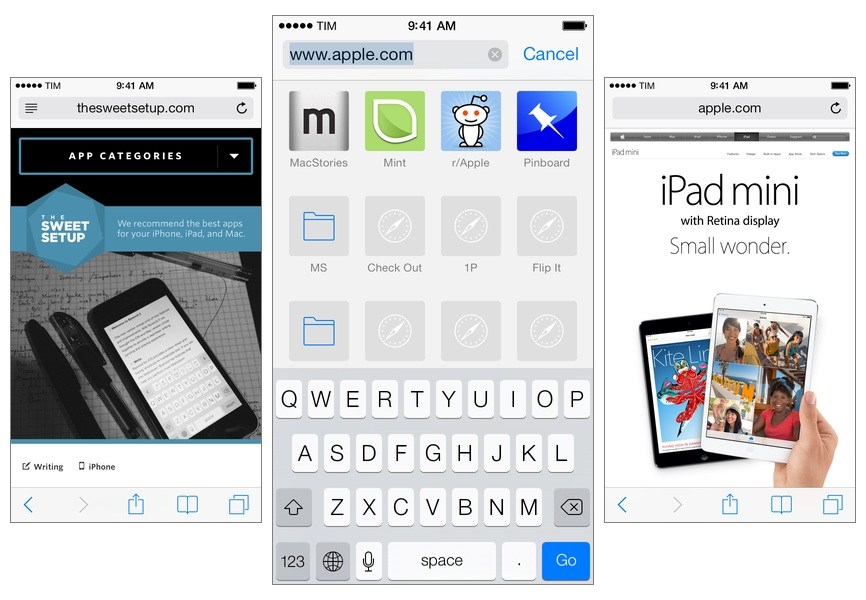
A few weeks after publishing my review of iOS 7, I decided to uninstall Chrome from all my devices and move back to Safari as my main and only browser on my iPhone, iPad, and two Macs.

I’m not looking back. I’m happy with the new Safari – so much, in fact, that I’m even considering Reading List as my “read later” service going forward.
Read more


Evernote’s New Web Clipper for Safari

Bake in Clearly, integrate Skitch, toss in the clipper from Evernote’s helper, then add sharing, and you end up with Evernote’s new Web Clipper for Safari. Once a pop-up that simply copied the full page or URL, the new Web Clipper condenses page grabs and annotation tools into a simple sidebar, adding almost all of the base features you’d find in Skitch, a standalone screenshot, image, and PDF markup and sharing application for desktops and mobile devices.

The new Web Clipper is activated by clicking on the toolbar button, which slides out a sidebar that’s reminiscent of the formatting bar found in iWork’s updated apps for OS X Mavericks. All of the actions are organized neatly into various sections for cropping the web page, drawing shapes, and sharing the results. Arrows, squares, and text can be dragged around, rotated, and resized using onscreen handles for annotating webpages. Clip tools give you a wide variety of options, including the ability to format the page into a readable article view as Clearly would before taking the final screen grab. Sharing gives you a URL that you can paste into a chat app or your favorite website, while also presenting options to share via Facebook, Twitter, or publicly via Evernote itself. There’s a couple kinks with the extension, mainly that it doesn’t like to be used with swipe back gestures or the back button while the sidebar is open, but otherwise the tools work just as Skitch lets you on a Mac.

Saving web pages into Evernote is a great way to remember a cool design, highlight an important note, or refer back to a piece of content for later reading, homework, and marketing research in an instantly searchable database. The extension is a complete revamp over the previous one, putting all of the tools that used to require two or three apps into a streamlined list of actions that doesn’t get in the way. Chrome received the new look a while ago, and hopefully the Firefox extension is next.

Learn more and grab the Safari extension here from Evernote.


Launch A Web Search In Safari From Other iOS Apps

In moving back to Safari as my main browser on every Apple device I own, I thought I should mention a hidden feature of Safari for iOS that I discovered a few months ago and that I remembered today thanks to a Twitter exchange between readers Jordan and Jerry.

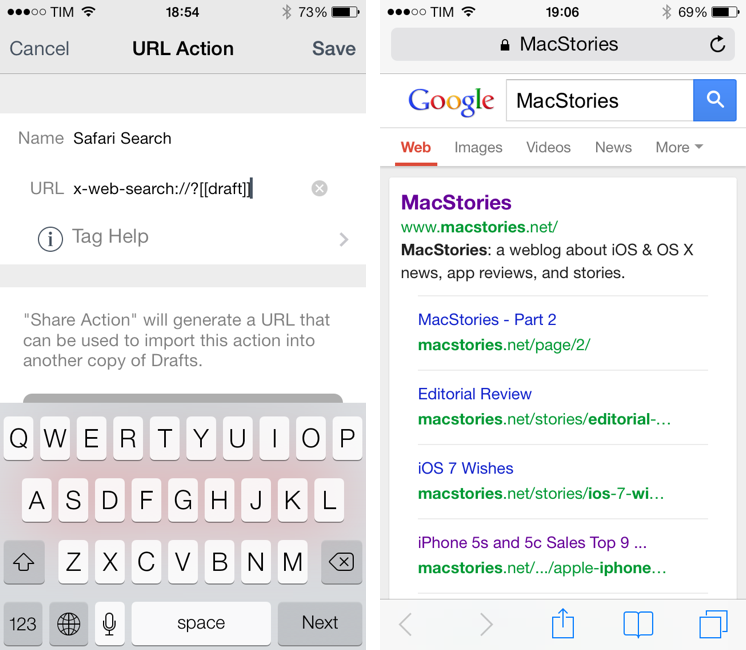
On iOS, you can launch Safari directly in a web search page using this URL scheme:

x-web-search://?[query]

Where [query] is the text of your search query. Essentially, instead of having to launch Safari, tap the address bar, type your search query, and then tap Go, you can use an app like Drafts or Launch Center Pro to quickly type out your search query and send it to Safari, which will open a new tab for your search.

In Drafts (or any other app that lets you create custom URL scheme-based services like Launch Center Pro, Editorial, or Mr. Reader), simply create an action that sends the text you’ve typed to Safari’s web search. Here’s my action if you want to install it in your Drafts app.

The benefit of this search URL scheme is that it doesn’t care about the web search you prefer: it’ll continue to work based on the search provider that you pick in Settings > Safari, and, overall, it’s just a nice shortcut that lets you save a couple of taps every day.

As usual, make sure to percent-encode your query. If you use Drafts, the action above will do it for you.


Getting Safari’s Selection on iPad As HTML With A JavaScript Bookmarklet

I modified this bookmarklet posted by “Tim Down” on StackOverflow to send selected text from Safari to Drafts as HTML. The result is the following code:

javascript:(function(){var%20h="",s,g,c,i;if(window.getSelection){s=window.getSelection();if(s.rangeCount){c=document.createElement("div");for(i=0;i<s.rangeCount;++i){c.appendChild(s.getRangeAt(i).cloneContents());}h=c.innerHTML}}else%20if((s=document.selection)&&s.type=="Text"){h=s.createRange().htmlText;}window.location='drafts://x-callback-url/create?text='+(h);})()

So let’s say you want to grab the first paragraph in this post. Normally, in Safari for iPad you’d end up with the plain text fetched by window.getSelection:

This is a fantastic report with lots of data points for any developer trying to get their apps featured by Apple. Dave Addey’s highly interactive regional graphs and notes are very well done. Be sure to check out Dave Addey’s other works on his main blog.

As you can see, formatting and hyperlinks have been removed. With the bookmarklet above, you’ll receive the HTML version of the selection – which looks like this. But what’s the point?

My idea was that I wanted to be able to automate the process of capturing rich text from iOS’ Safari; I wanted to achieve the same kind of functionality I have on the Mac, where rich text can be dragged from Safari or Chrome and dropped into Evernote, preserving styles, hyperlinks, and images. I thought that combining HTML output with an Evernote Append action (with the “Send as Markdown HTML” option turned on) would let me receive valid HTML content in Evernote starting from an iOS workflow. And, for the most part, I was right, because the workflow does mostly work.

As it turns out, Evernote is extremely cautious with the HTML tags they accept, and the ones that are supported follow the XHTML guidelines as ENML is a superset of XHTML. This means that my bookmarklet will work for something as simple as selecting a single paragraph, but may easily fail with multiple selections, inline images, complex styles, and so forth. When that will happen, Drafts will return an error when trying to append HTML to Evernote; obviously, this will work just fine with Dropbox, which doesn’t care about the kind of text you’re using in your actions. Even better, this should work very well with Textastic’s just-released update that supports x-callback-url.

I guess the solution would be to build a Pythonista-based converter for Evernote-approved XHTML tags and place it between Safari and Drafts, converting HTML tags Evernote won’t like to compatible ones. If you’re interested, my birthday is August 10.

Permalink

Enhancing Reminders with AppleScript and Macros

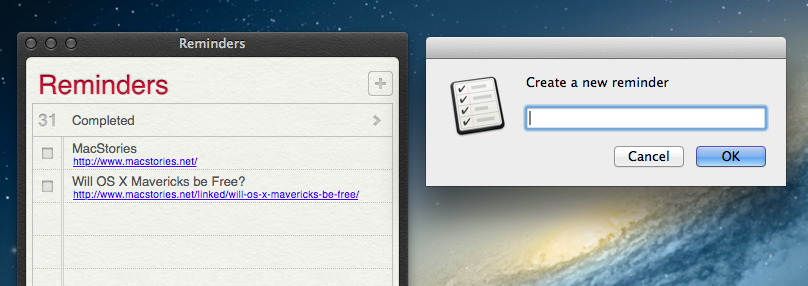
As The Omni Group keeps working on OmniFocus 2 for Mac and Apple continues seeding new betas of iOS 7 and OS X Mavericks to developers, I have been reconsidering Reminders’ simplicity and enjoying the built-in iCloud sync, which, unlike other types of iCloud, is working fine for me. However, two things I miss from OmniFocus are the possibility to integrate the app with a web browser through bookmarklets and the system-wide Quick Entry panel; I use both tools on a daily basis to easily save a browser’s tab into OmniFocus’ Inbox, or to bring up a text field where I can jot down an idea and know that, no matter the app I’m using, it’ll be saved into OmniFocus. Luckily for me, Apple’s Reminders app comes with a good AppleScript Dictionary, which is likely something that Reminders’ core mainstream audience won’t ever care about, but that we can leverage to extend the app’s capabilities and input areas beyond Mountain Lion’s leather-and-paper window.

Read more


Many Tricks’ New Safari Extensions

Cool new Safari extensions by Many Tricks, developers – among other apps – of Name Mangler (which I plan on covering soon). I like the vBulletin one:

This extension is for those who use vBulletin forum sites. It adds a contextual menu that lets you open all unread article links in new tabs, with a single click. As of now, it only works for vBulletin, but if you use forum sites based on other systems, we may be able to get it working if you can give us a URL to look at.

It’d be nice to have Chrome versions, though.

(via Dan Frakes)

Permalink

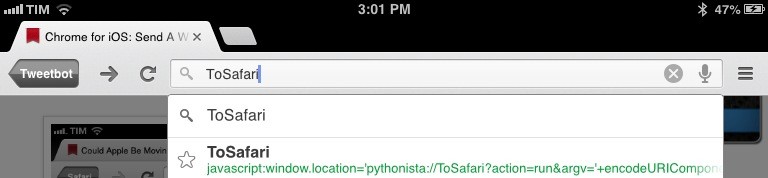
A Better Chrome To Safari Bookmarklet

pythonista

pythonista

In January, I tried to put together a bookmarklet to send the webpage currently open in Google Chrome for iOS to Apple’s Safari. That turned out to be a surprisingly complex effort as Google didn’t think offering an “Open In Safari” option would be a good idea, and the app’s URL scheme produced some interesting results when opening and closing Chrome.

I was reminded of the bookmarklet this morning by reader @CNWLshadow, and I realized that I never posted the solution I settled with. It consists of a browser bookmarklet and a Pythonista script, and it works with just one tap.

Read more