Posts tagged with "photos"

On This Day: My New Favorite Way to Revisit Old Photos

If you’ve followed my work for long, you’ve probably picked up on the fact that I’m a nostalgic person. I love to relive old memories, share old stories, and look at old pictures. It’s just the way I am.

That’s why I’m a big fan of Apple’s Memories feature built into the Photos app. You’re telling me my phone can deliver a slideshow of great pictures from my library anytime I want, and with a cheesy soundtrack to boot? Count me in. Photos is an amazing app for resurfacing pictures that otherwise might have been forgotten.

But there’s always been one feature I felt was missing from Photos: a roundup of every picture you’ve taken on a particular date in past years.1 While automatically-generated memories are great, I don’t want to limit my nostalgic photo viewing to the pictures my phone thinks are the best. I want a way to review all my pictures from the past, and an “on this day” approach is one that works well in other contexts, like journaling. Why not photos?

Enter a new app for the iPhone and iPad from developer Florian Grossmann fittingly called On This Day. It’s a simple, nicely-designed way to revisit photos you took on a particular date in previous years, and it’s quickly become a go-to for me. In fact, On This Day is now a part of my regular morning routine because it enables me to quickly do something I love to do: look at old photos and reminisce about fun moments, amazing trips, and milestones in the lives of myself and my loved ones.

The app’s UI is a simple grid of pictures, much like the one you’re used to seeing in Photos, except instead of showing every picture in your library, the app only includes images and videos from a particular date, which is displayed at the bottom center of the screen. The grid is broken up into years by headings that stick to the top of the screen as you scroll, ensuring you always know which year you’re browsing. By default, scrolling down the screen moves you backwards in time towards older photos, though you can reverse this order in the app’s settings.

Tapping on a picture will open it in a full-screen view that not only allows you to see the photo in finer detail, but also to learn more about it and act on it. I like how much information and functionality is packed into this simple screen. At the top of the screen is the photo’s time and date (as well as a count of how many photos you took on that particular day), and at the bottom of the screen, the app shows the location of where the photo was taken on a map. If you prefer to view your photo without these overlays, a single tap will dismiss them, and you can swipe left and right to move between photos in the full-screen view.

In the upper-right corner of this view, there are four buttons: Info, Favorite, Share, and Delete. Favoriting a picture in On This Day adds it to your Favorites collection in Photos. This can come in handy since the app doesn’t have the ability to actually open an image in Photos; the developer says this is due to technical limitations of the Photos app itself. But at the very least, you can favorite a photo to refer to later in the Photos app as a workaround.
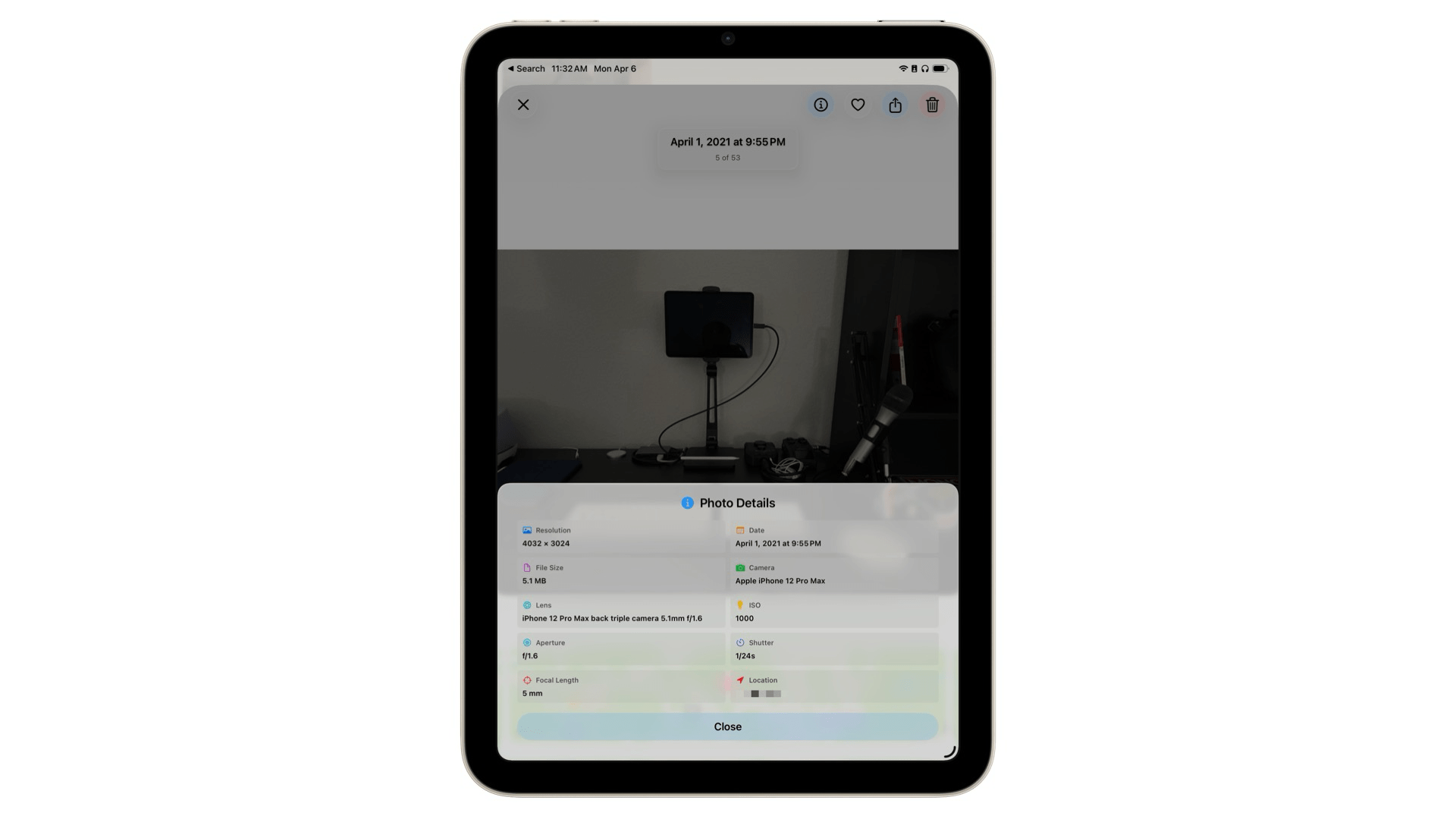
The Photo Details pane includes a variety of technical information about a photo.

The Photo Details pane includes a variety of technical information about a photo.

If you want to dig into the technical details of a picture, you can tap the Info button to open the Photo Details pane. There, you’ll find the photo’s resolution, camera and lens information, focal length, and more. It’s great to have this data close at hand when reviewing photos, especially if you want to see which iPhone you were using at a particular time in the past.

This core functionality is all I’ve ever wanted out of this kind of tool. It’s fast, it’s easy to use, and it’s designed well to help me find the photos I want and then get out of the way so I can fully enjoy them. It fits right in with current iOS aesthetics, as well, with Liquid Glass headings and buttons that blend naturally with your photos and adapt to the varying content behind them. The experience of reviewing pictures in On This Day is simply great, and I enjoy opening the app every day to see what memories it has to offer.

If you want to review photos from other days, you can do so by tapping the arrow buttons on either side of the date at the bottom of the screen or by tapping the date itself to open up a calendar to select from. Once you’ve navigated away from the current date, the app will offer a Today button above the calendar to quickly get you back to your starting point.
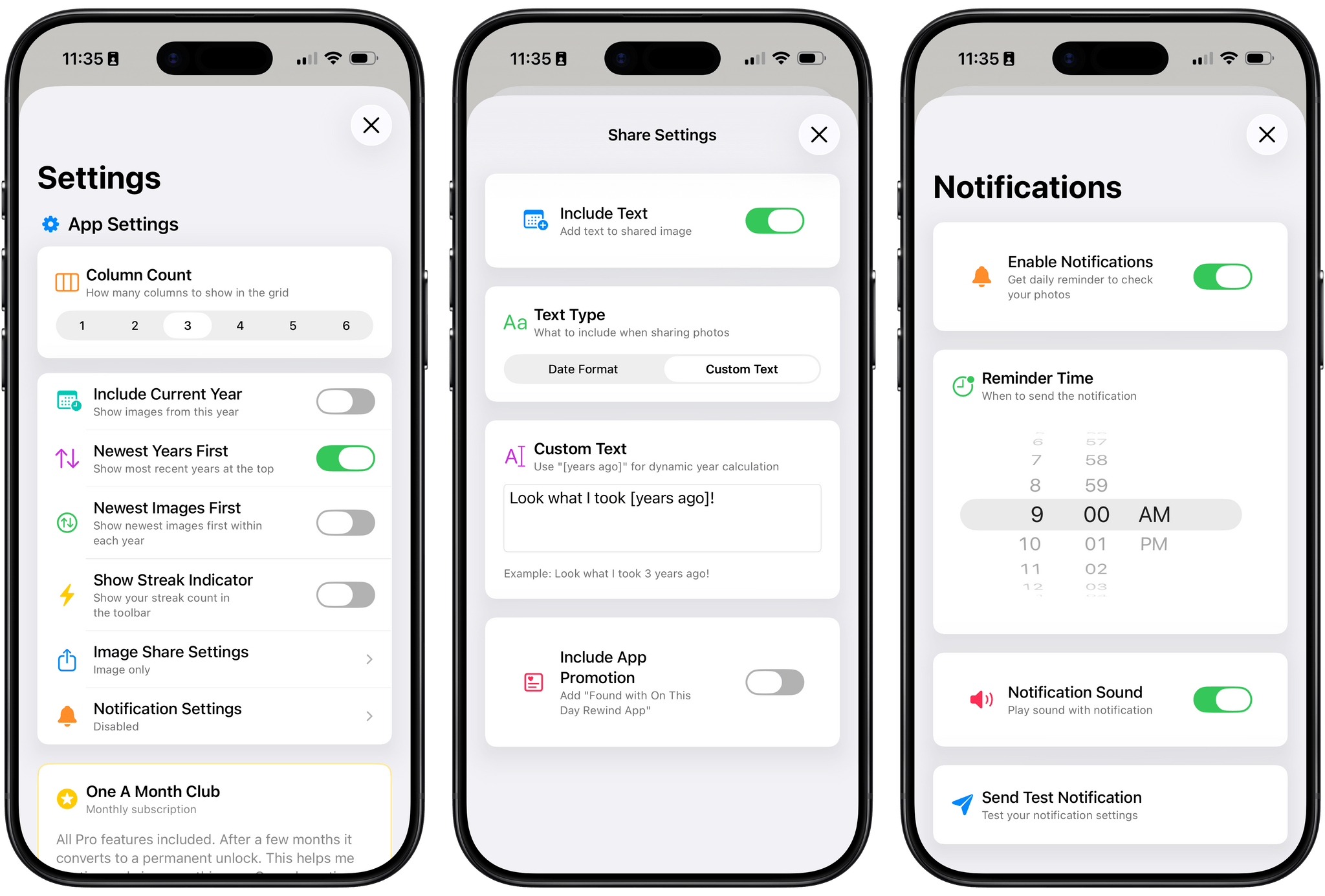
The app’s settings include a number of customization options, too. There, you can adjust the density of the photo grid, change how images are ordered, disable the optional streak count, and schedule notifications to remind you to review your photos each day. On This Day also offers the unique ability to decide what content the app sends when you share a photo; you can include the date in various formats, customized text, or no text at all. For me, part of the fun of looking at old photos is sending them to other people, so I appreciate the option to customize what gets shared.

Finally, On This Day also offers widgets in small, medium, large, and extra-large sizes so you can see photos from past years right on your Home Screen. You can adjust how many pictures appear within a widget, and photos can be displayed in full color even if, like me, you’re a user of the Clear or Tinted appearance for app icons.

This is the sort of app that I’ve been wanting on my devices for a long time, and the fact that it’s been made with such care and attention to detail just makes the experience of using it that much sweeter. I love revisiting old photos in the app every day, and if you’re the type of person who’s built up years of pictures in your library and delights in having them resurfaced for you, I think you’ll enjoy it, too. I recommend giving it a try.

On This Day is available on the App Store for iPhone and iPad as a free download, and the iPad version can also be run on the Vision Pro. The app displays photos from the past three years for free. You can unlock all past years and the app’s full range of customization options with a one-time payment of $4.99 or a $0.99/month subscription.


  1. You can technically achieve this by entering the current date (e.g., “April 7”) in the search bar and even automate this search with Shortcuts, as cleverly demonstrated to me recently by reader Miles Jefford. Personally, though, I think Photos should just include an On This Day collection. 

Kino 1.2 Adds Camera Control Support and Higher Resolution and Frame Rate Recording

Source: Lux Camera.

Source: Lux Camera.

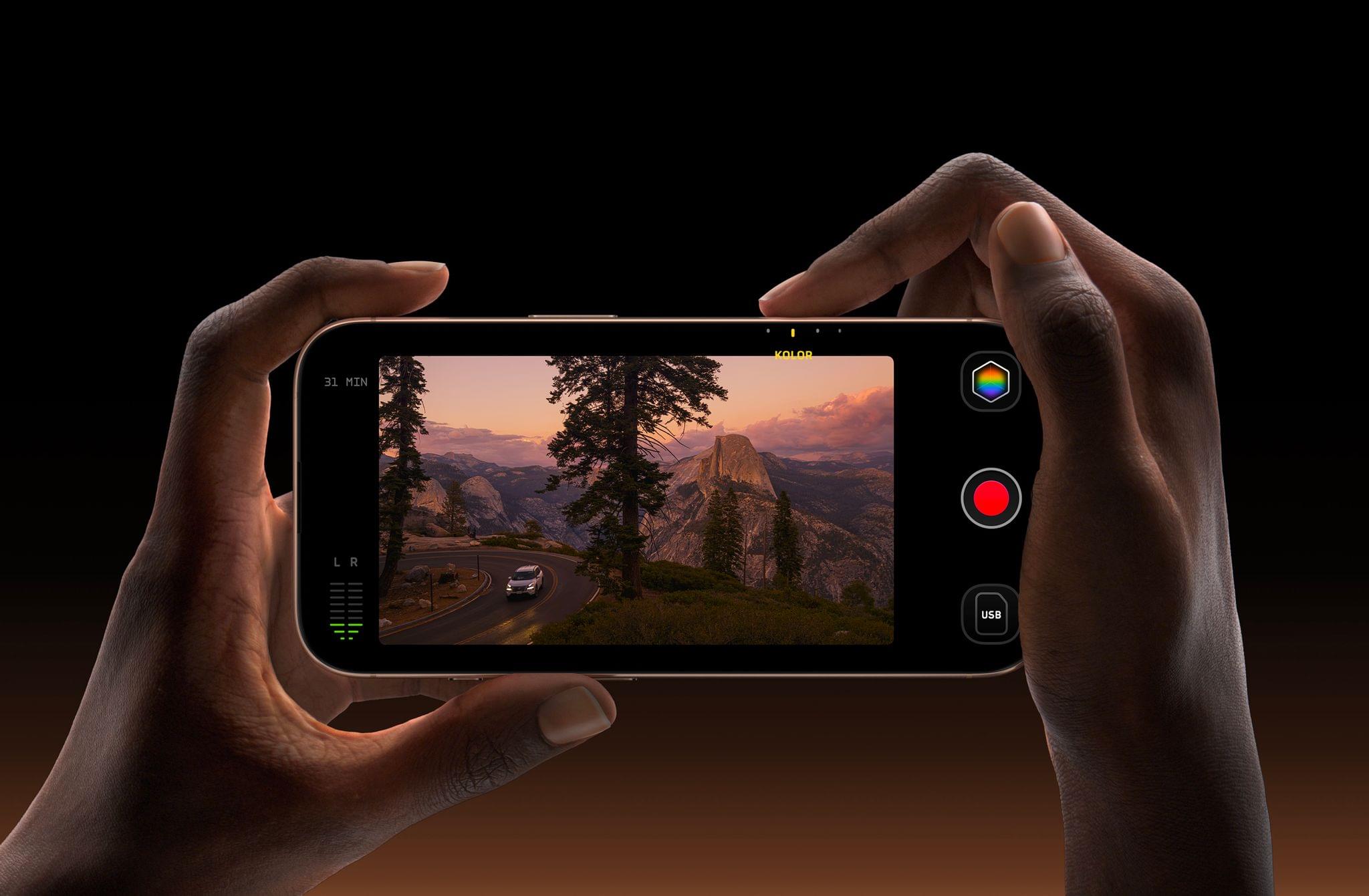
Lux Camera’s video camera app Kino has been updated to version 1.2, bringing a variety of new features and a redesigned icon. I covered the debut of Kino back in May and have been using it a lot lately because its design makes taking great-looking video so easy.

At the heart of Kino’s 1.2 update is support for the latest iPhones. Kino now works with the iPhone 16 and 16 Pro’s Camera Control for making adjustments that previously were only possible by touching your iPhone’s screen.

Kino Instant Grades. Source: Lux Camera.

Kino Instant Grades. Source: Lux Camera.

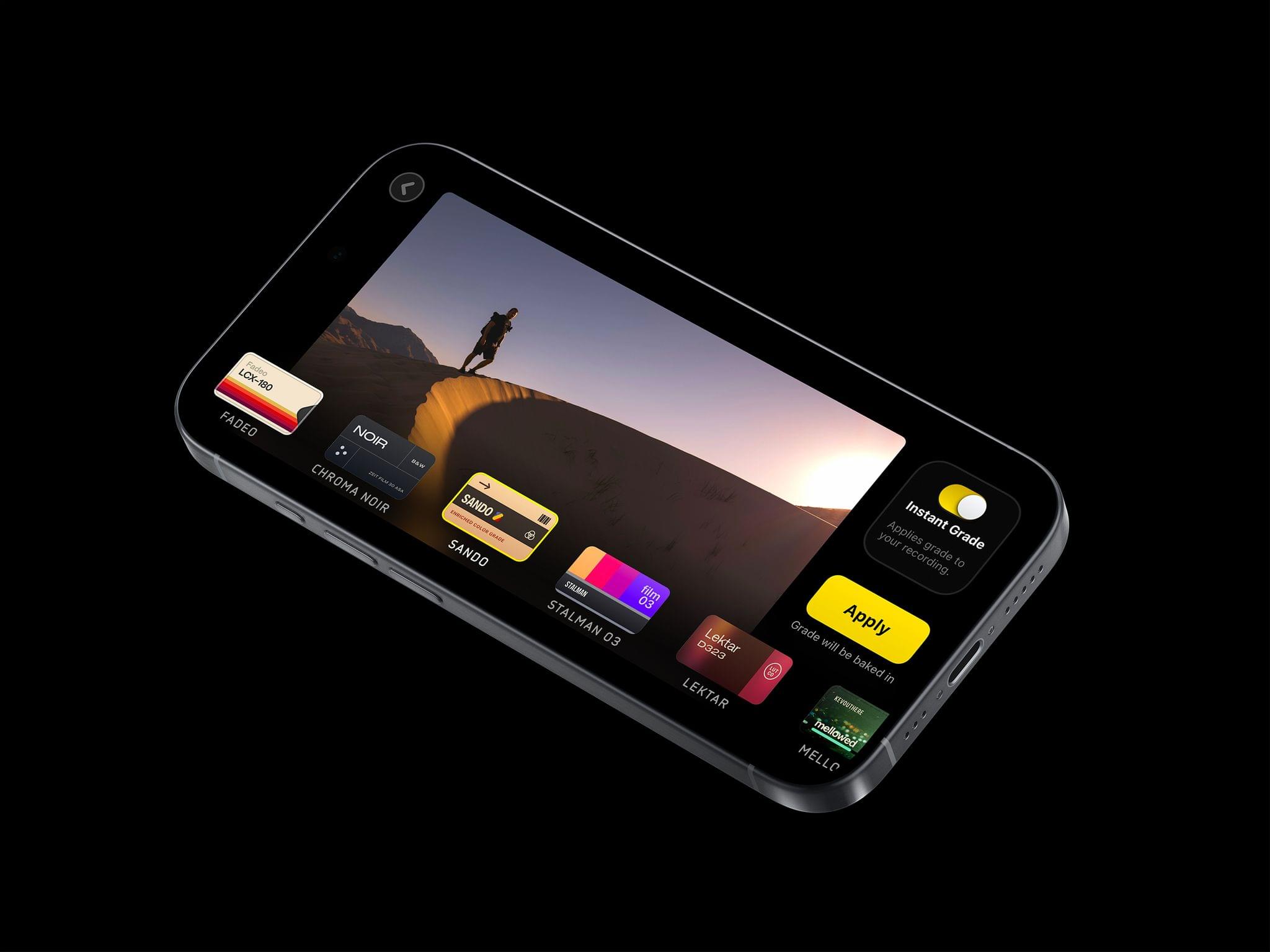
On the 16 Pro, the app also supports 4K video at 120fps with its Instant Grade feature enabled. That’s the feature that lets you pick a color grading preset created by video experts, including Stu MaschwitzSandwich VideoEvan SchneiderTyler Stalman, and Kevin Ong. Version 1.2 of Kino lets you reorder those grades in its settings to make your favorites easier to access. Finally, Kino has added support for the following languages: Chinese, Dutch, French, German, Italian, Japanese, Korean, Portuguese, Russian, and Spanish.

If you haven’t tried Kino before, it’s available on the App Store for $9.99.


Pixelmator Team to Join Apple

Today, the Pixelmator team (this and next week’s MacStories sponsor) announced on their company blog that they plan to join Apple after regulatory approvals are obtained. The Pixelmator team had this to say about the news:

We’ve been inspired by Apple since day one, crafting our products with the same razor-sharp focus on design, ease of use, and performance. And looking back, it’s crazy what a small group of dedicated people have been able to achieve over the years from all the way in Vilnius, Lithuania. Now, we’ll have the ability to reach an even wider audience and make an even bigger impact on the lives of creative people around the world.

Pixelmator also says:

There will be no material changes to the Pixelmator Pro, Pixelmator for iOS, and Photomator apps at this time.

The Pixelmator Team’s apps have always been among our favorites at MacStories. In 2022 we awarded Pixelmator Photo (now, Photomator), the MacStories Selects Best Design Award, and in 2023, Pixelmator received our MacStories Selects Lifetime Achievement Award. Congratulations to everyone at Pixelmator. We can’t wait to see what this exciting new chapter means for them and their fantastic suite of apps.

Permalink

You Can Use Clean Up with a Clear Conscience

I enjoyed this take on Apple Intelligence’s Clean Up feature by Joe Rosensteel, writing for Six Colors last week:

The photographs you take are not courtroom evidence. They’re not historical documents. Well, they could be, but mostly they’re images to remember a moment or share that moment with other people. If someone rear-ended your car and you’re taking photos for the insurance company, then that is not the time to use Clean Up to get rid of people in the background, of course. Use common sense.

Clean Up is a fairly conservative photo editing tool in comparison to what other companies offer. Sometimes, people like to apply a uniform narrative that Silicon Valley companies are all destroying reality equally in the quest for AI dominance, but that just doesn’t suit this tool that lets you remove some distractions from your image.

It’s easy to get swept up in the “But what is a photo” philosophical debate (which I think raises a lot of interesting points), but I agree with Joe: we should also keep in mind that, sometimes, we’re just removing that random tourist from the background and our edit isn’t going to change the course of humankind’s history.

Also worth remembering:

For some reason, even the most literal of literal people is fine with composing a shot to not include things. To even (gasp!) crop things out of photos. You can absolutely change meaning and context just as much through framing and cropping as you can with a tool like Clean Up. No one is suggesting that the crop tool be removed or that we should only be allowed to take the widest wide-angle photographs possible to include all context at all times, like security camera footage.

Permalink

Apple’s Commitment to AI Is Clear, But Its Execution Is Uneven

The day has finally arrived. iOS 18.1, iPadOS 18.1, and macOS 15.1 are all out and include Apple’s first major foray into the world of artificial intelligence. Of course, Apple is no stranger to AI and machine learning, but it became the narrative that the company was behind on AI because it didn’t market any of its OS features as such. Nor did it have anything resembling the generative AI tools from OpenAI, Midjourney, or a host of other companies.

However, with today’s OS updates, that has begun to change. Each update released today includes a far deeper set of new features than any other ‘.1’ release I can remember. Not only are the releases stuffed with a suite of artificial intelligence tools that Apple collectively refers to as Apple Intelligence, but there are a bunch of other new features that Niléane has written about, too.

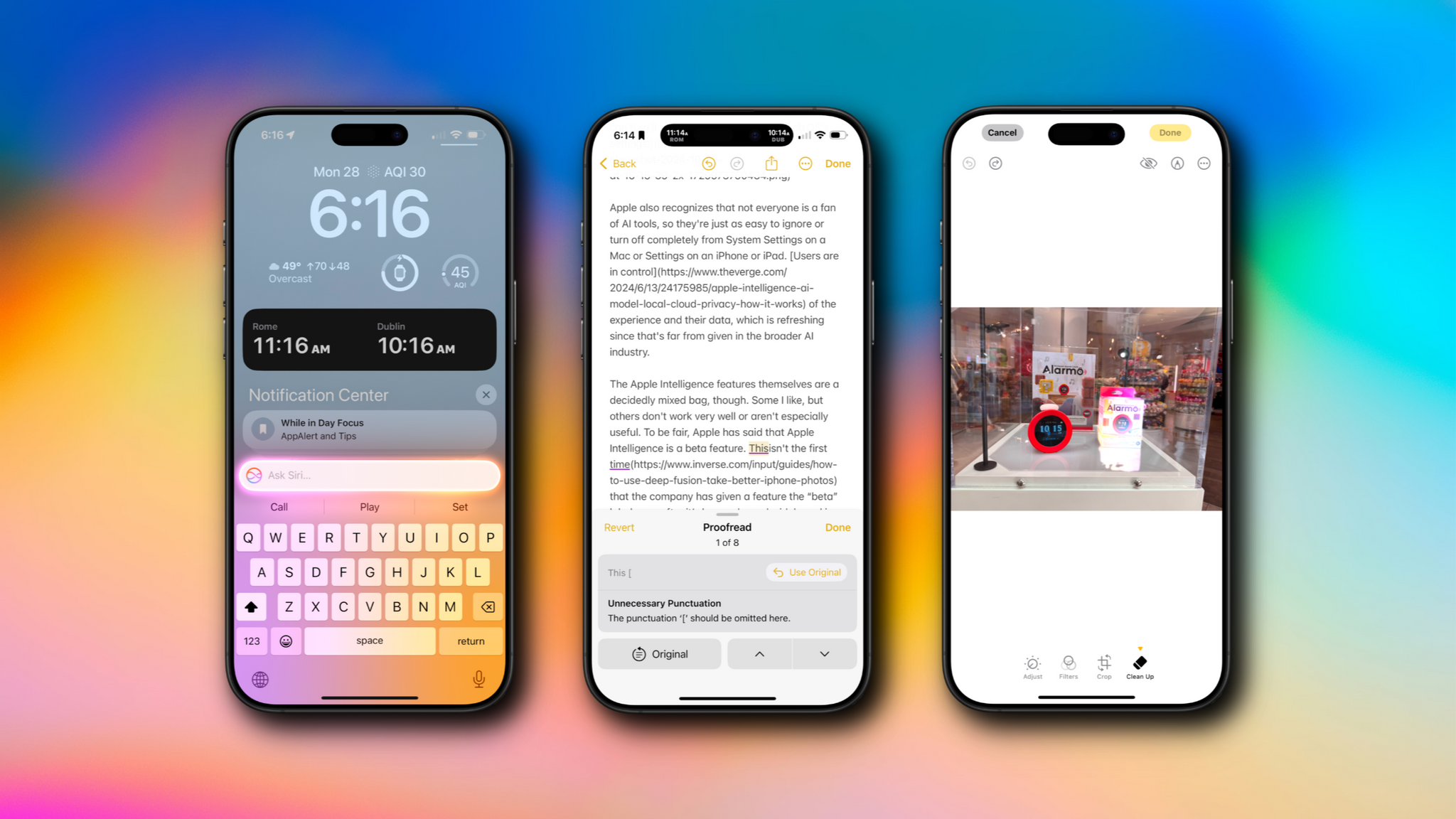
The company is tackling AI in a unique and very Apple way that goes beyond just the marketing name the features have been given. As users have come to expect, Apple is taking an integrated approach. You don’t have to use a chatbot to do everything from proofreading text to summarizing articles; instead, Apple Intelligence is sprinkled throughout Apple’s OSes and system apps in ways that make them convenient to use with existing workflows.

If you don't want to use Apple Intelligence, you can turn it off with a single toggle in each OS's settings.

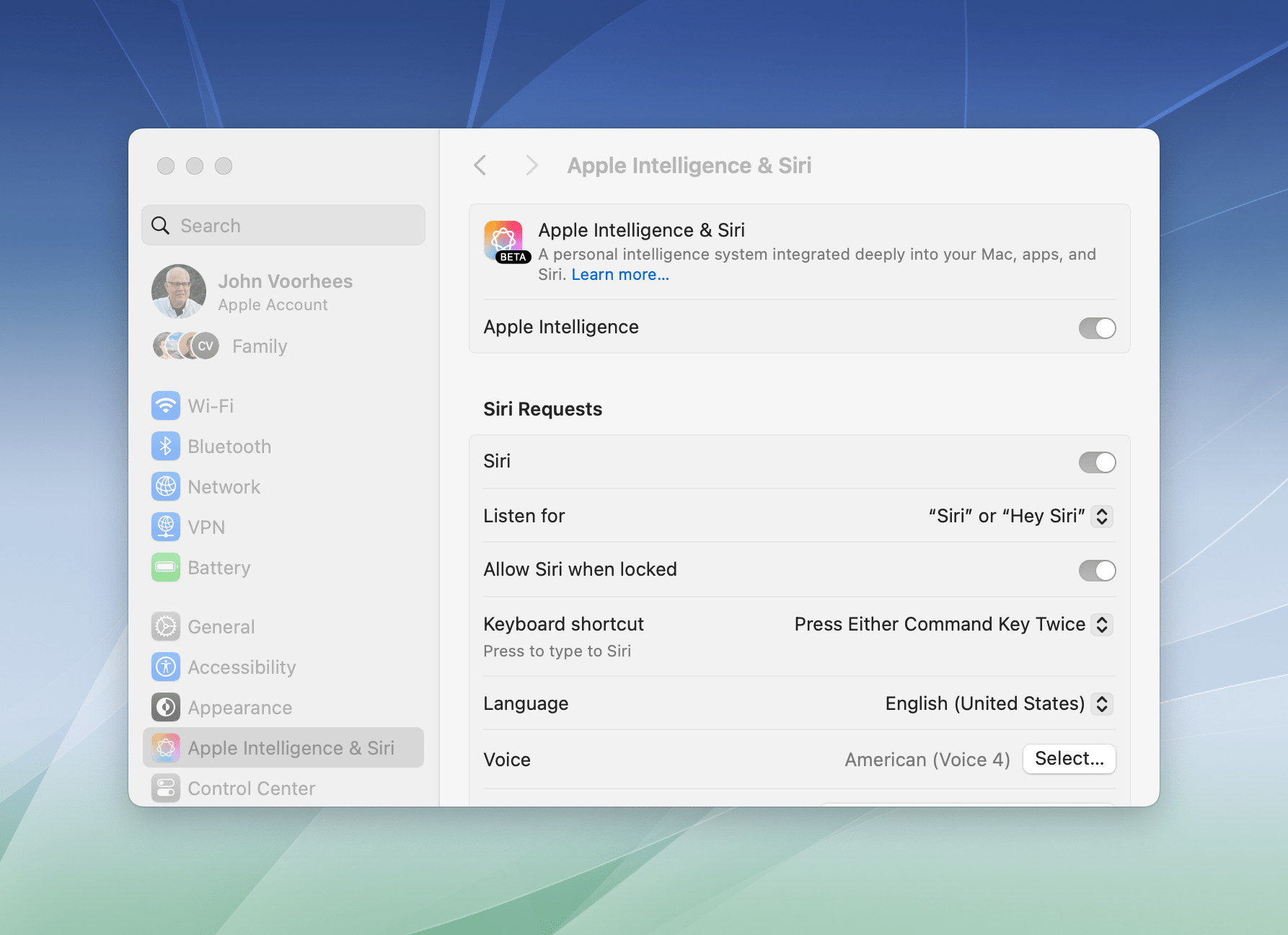
If you don’t want to use Apple Intelligence, you can turn it off with a single toggle in each OS’s settings.

Apple also recognizes that not everyone is a fan of AI tools, so they’re just as easy to ignore or turn off completely from System Settings on a Mac or Settings on an iPhone or iPad. Users are in control of the experience and their data, which is refreshing since that’s far from given in the broader AI industry.

The Apple Intelligence features themselves are a decidedly mixed bag, though. Some I like, but others don’t work very well or aren’t especially useful. To be fair, Apple has said that Apple Intelligence is a beta feature. This isn’t the first time that the company has given a feature the “beta” label even after it’s been released widely and is no longer part of the official developer or public beta programs. However, it’s still an unusual move and seems to reveal the pressure Apple is under to demonstrate its AI bona fides. Whatever the reasons behind the release, there’s no escaping the fact that most of the Apple Intelligence features we see today feel unfinished and unpolished, while others remain months away from release.

Still, it’s very early days for Apple Intelligence. These features will eventually graduate from betas to final products, and along the way, I expect they’ll improve. They may not be perfect, but what is certain from the extent of today’s releases and what has already been previewed in the developer beta of iOS 18.2, iPadOS 18.2, and macOS 15.2 is that Apple Intelligence is going to be a major component of Apple’s OSes going forward, so let’s look at what’s available today, what works, and what needs more attention.

Read more


Photomator 3.4 Adds Photo Flagging, Rating, and Filtering

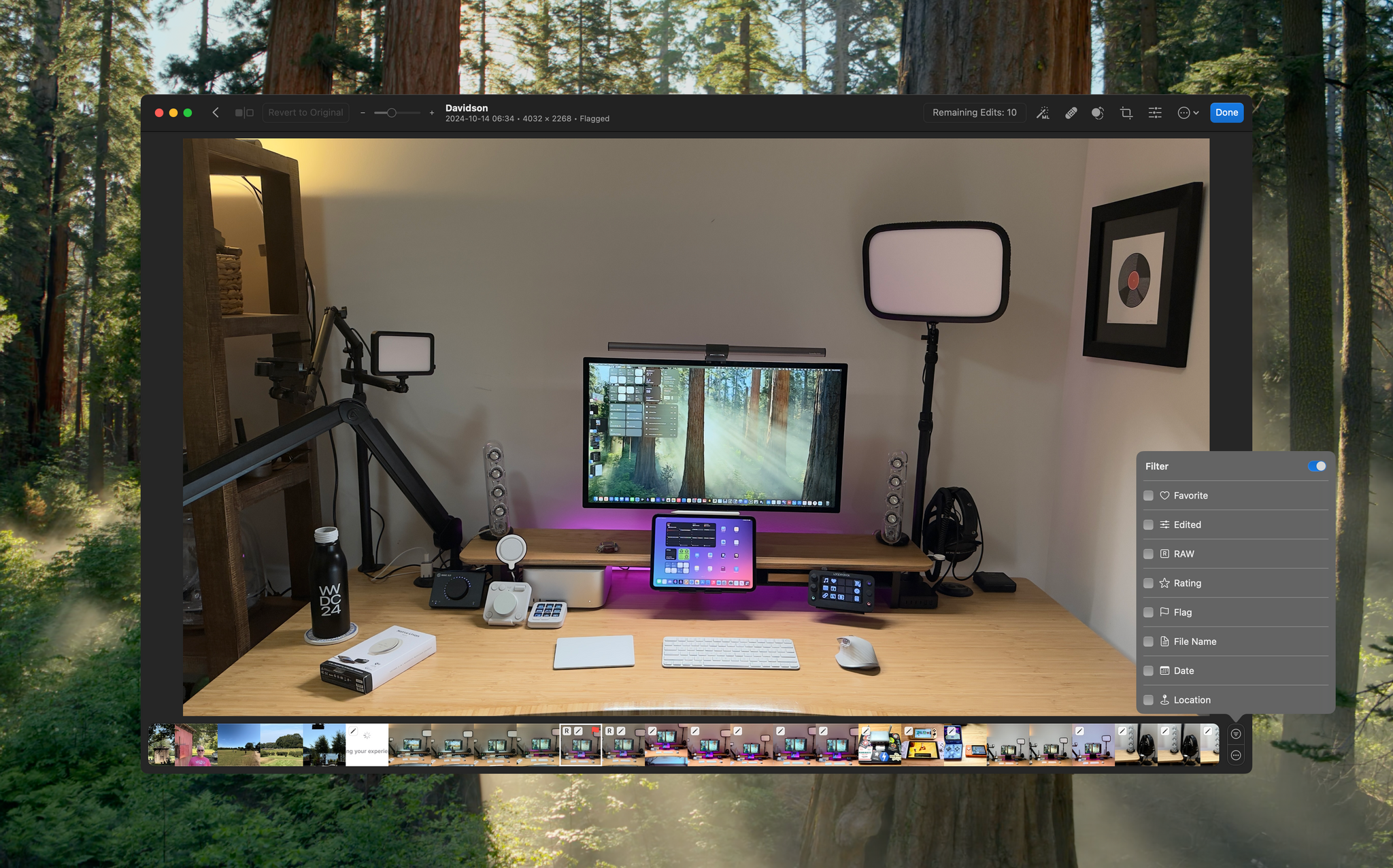
Today, Photomator 3.4 was released, adding flagging, rating, and filtering, which should substantially enhance how photos are organized with the app.

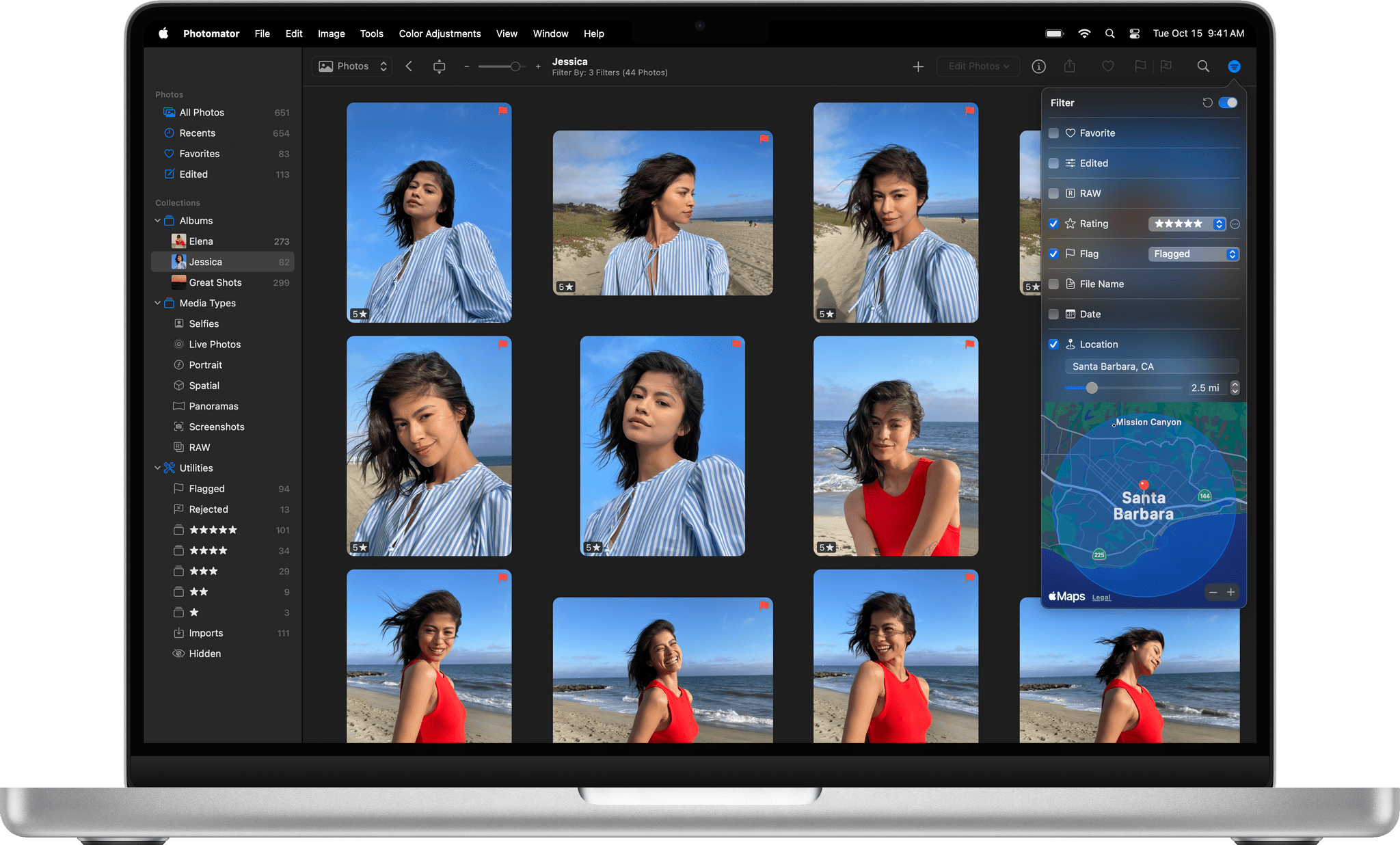
I haven’t spent much time with Photomator 3.4 yet, but the features it adds today will be familiar to anyone who has used other photo editors. The update adds the ability to flag and reject photos and apply a one- to five-star rating. Then, with filters based on flags, rejects, and star ratings, it’s easy to navigate among images to determine which to keep. The process is aided by extensive single-key shortcuts, too.

Source: Photomator.

Source: Photomator.

Photomator’s filtering options extend beyond flags, rejects, and stars. Other filtering options include whether an image is a RAW file or a favorite. You can filter based on a photo’s file name, date, and location, too. Flagged, rejected, and rated images are also gathered in special Utilities Collections, along with a new collection for imported photos. Photographs added from apps like Adobe Lightroom that store flags and ratings in metadata or XMP files are preserved when imported, too.

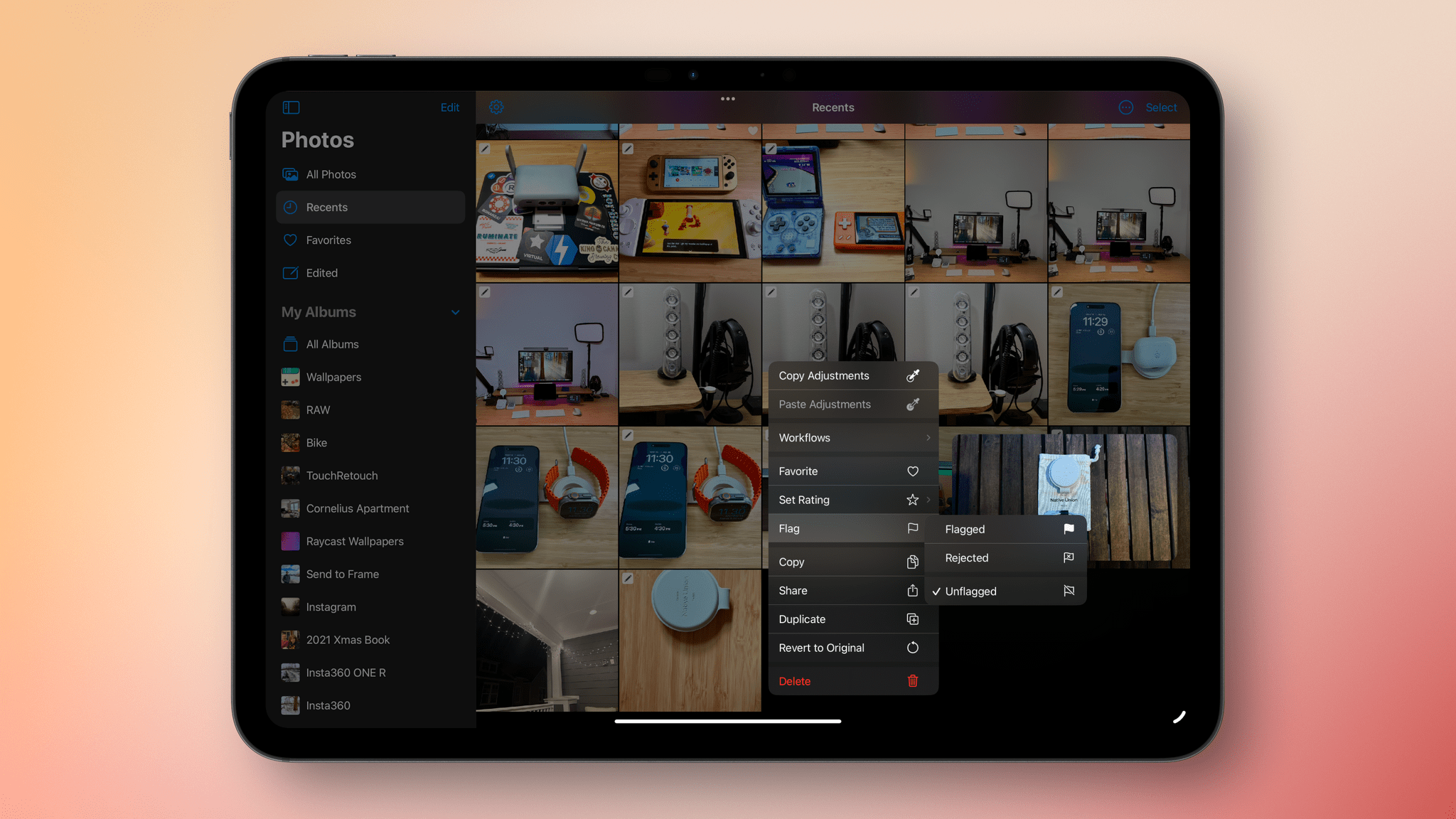
Flagging photos on the iPad.

Flagging photos on the iPad.

I haven’t tried the iOS or iPadOS versions of Photomator yet, but they share similar features, including the ability to flag and star images in the app’s browser UI. The iPhone and iPad versions support context menus for flagging and rating and batch application of flags and stars. The iOS and iPadOS versions of Photomator also include collections that assemble flagged and starred items in one place but don’t support the Mac version’s other filtering tools.

Photomator 3.4 is available as a free download on the App Store for existing customers. Some features require a subscription or lifetime purchase.


Apple Executives on the Photos Overhaul in iOS 18

Alvin Cabral, writing for The National, got a nice quote from Apple’s Billy Sorrentino on the redesigned Photos app in iOS 18:

“As our features, users and libraries have grown, so has the density of the [Photos] app. So rather than hunt and peck throughout, we’ve created a simple streamlined single view photos experience based on deep intelligence,” Billy Sorrentino, senior director at Apple’s human interface design unit, told The National.

“Ultimately, we wanted to remove friction” in how Photos is used, he added.

It’s been a few weeks since I installed iOS 18 on my primary iPhone, and I feel pretty confident in saying this: I was wrong about the new Photos app at first.

I’ll reserve more in-depth comments for the public beta and final release of iOS 18; of course, given the drastic redesign of the app, there’s also a chance Apple may scrap their plans and introduce a safer update with fewer structural changes. However, over the past few weeks, I noticed that not only do I find myself discovering more old photos in iOS 18, but the modular approach of the more customizable Photos app really works for me. I was able to fine-tune the top carousel to my liking, and I customized pinned collections with shortcuts to my favorite sections. Put simply, because of these changes, I use the Photos app a lot more and find navigating it faster than before.

Anecdotally, when I showed my girlfriend the new Photos app, she argued that the single-page design should be nicer than iOS 17 since she never used the other tabs in the app anyway. I don’t think she’s alone in that regard, which is why I believe Apple should stick with this major redesign this time around.

Permalink

Globetrotter: Your Photos and Memories on a World Map

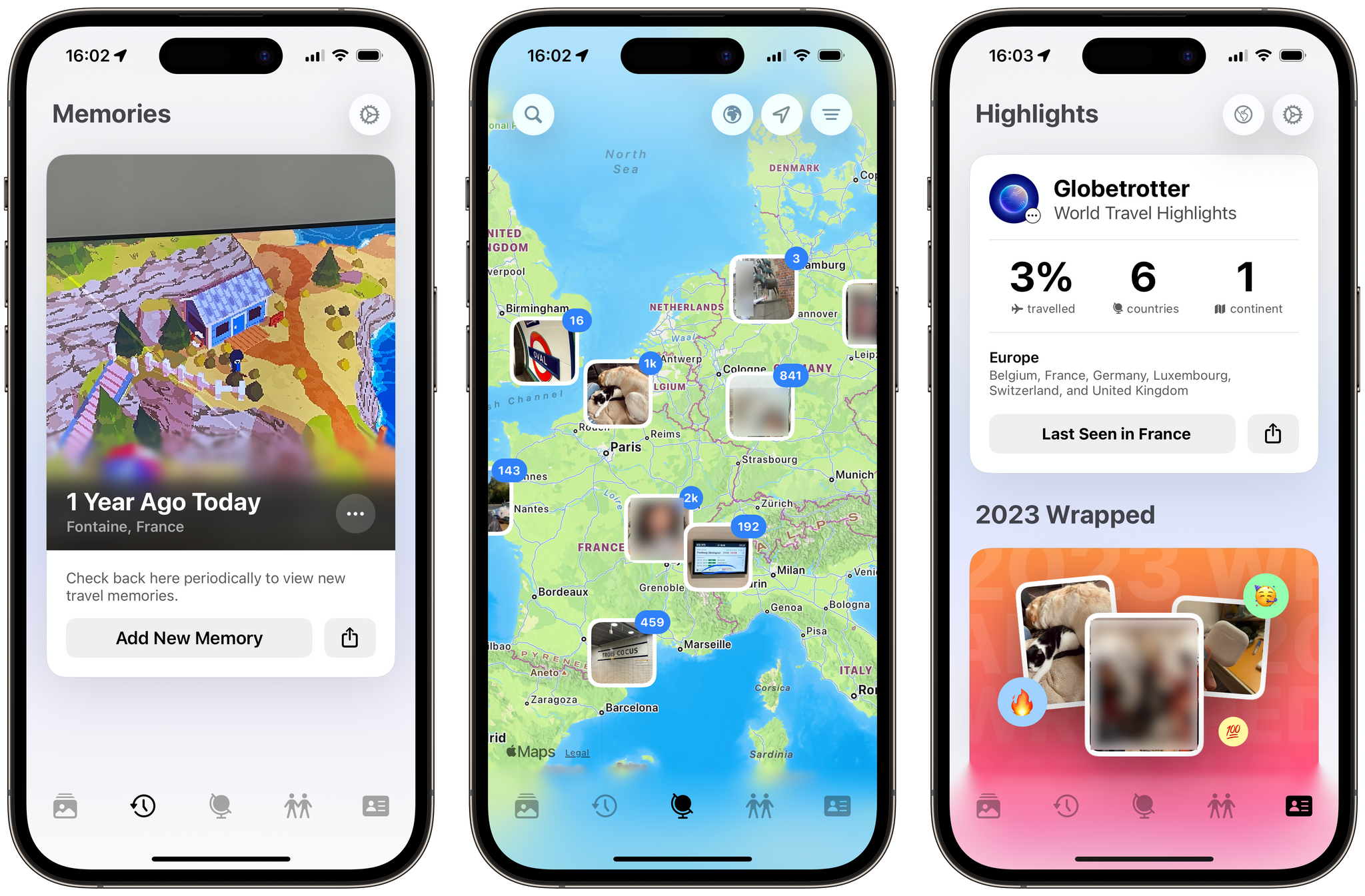
Every time I open the Memories tab in Apple’s Photos app, I feel disappointed. The memories it surfaces always seem to rehash the same events in my life, and they never really achieve to put my photos back in context. This is a big reason why, for so many years, I’ve been keeping a personal journal in Day One, which lets me revisit my journal entries by looking at a map of everywhere I’ve recorded a memory. Likewise, the ‘Places’ section in Apple Photos is my favorite way to browse through my older photos.

Globetrotter is a delightful new app created by indie developer Shihab Mehboob that embraces this idea of revisiting your photo memories by looking at them on top of a world map. The app does so in a beautifully-designed interface, with a focus on your travel memories. Let’s take a look.

Read more


Apple Music Launches on Xbox and Windows Photos Adds iCloud Photo Library Support

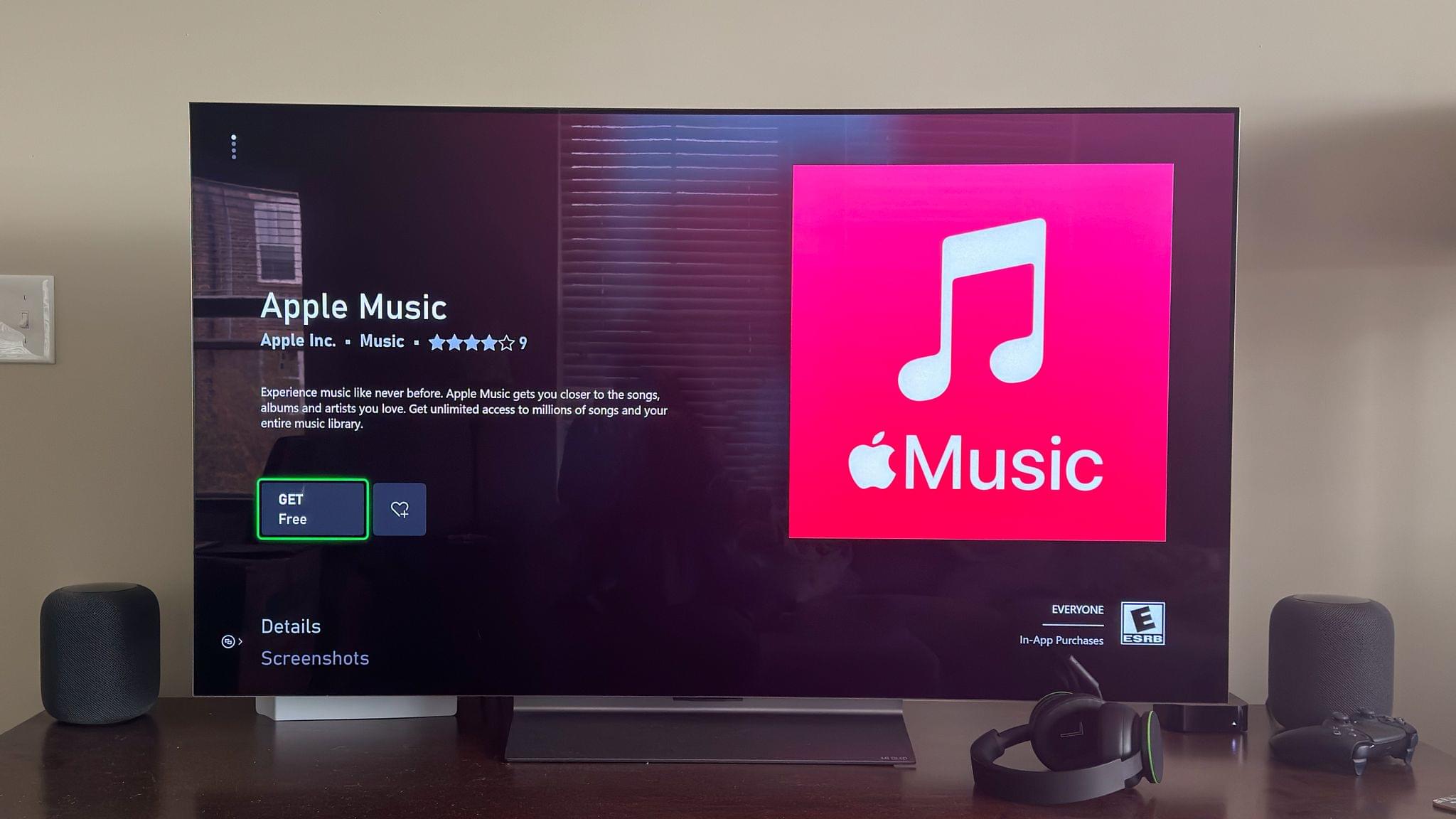
Apple Music was released today on the Xbox Store as a free download. I’ve had a chance to test the app briefly on my Xbox Series X, and the experience is very close to that of the Music app on the Apple TV.

Upon downloading the app, new users can take advantage of a free month of Apple’s music streaming service. There are multiple ways for existing subscribers to log in, too, including by using a QR code that opens a web page and asks you to sign in with your Apple ID. Once I signed in, the app on my Xbox refreshed, and I was good to go.

If you’ve ever used the Apple Music app on the Apple TV, you’ll be right at home on the Xbox version of the app. The UI is nearly identical from the ways you can interact with the service’s catalog of music to the Now Playing screen. It is my understanding that the Music app, along with the TV app, will be coming to Windows next year too.

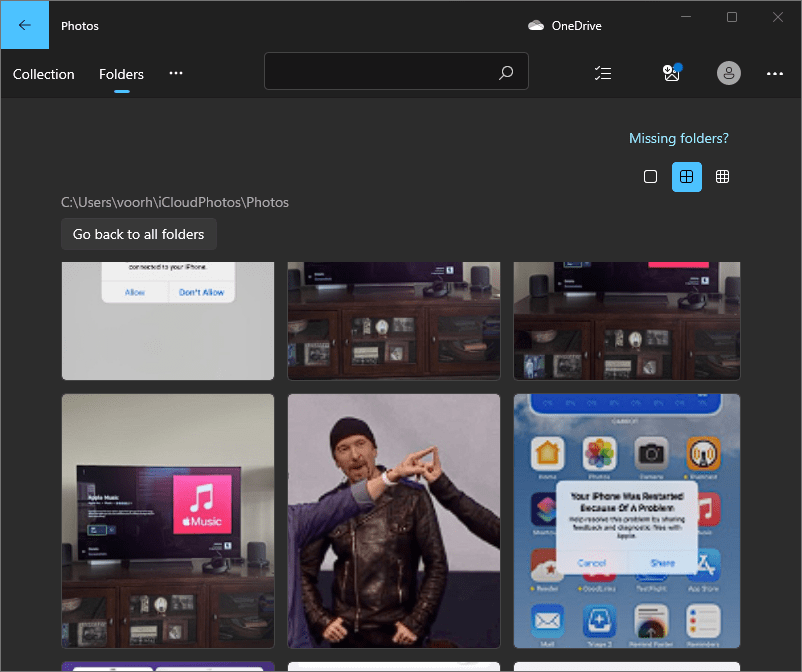
Some recent photos from my iCloud Photo Library in the Windows Photos app.

Some recent photos from my iCloud Photo Library in the Windows Photos app.

Your iCloud Photo Library is also available in the Windows 11 Photos app now, with support for both images and video. To connect the two, you need to install iCloud for Windows on your PC and choose to sync your iCloud photos library. I gave it a try on my AYANEO Next Pro and had no trouble linking Microsoft’s app to my iCloud Photo Library.

The number of devices on which you can access Apple’s media services has expanded significantly over the past few years, with availability expanding from Android devices to smart TVs and other platforms. With Xbox and Windows PC integration, that expansion has taken another big leap forward, making those services available to a much wider audience.