Posts tagged with "mac"

Mailplane Adds Evernote Integration

Users of Mailplane, a desktop interface for Gmail’s online web application, will find a new feature in the latest 2.4 update, released yesterday, that adds complete integration with capturing tool Evernote, a staff favorite here at MacStories. As you may know, Evernote allows you to easily capture your ideas in the form of notes, images, PDF documents and all sorts of document archives; with a wide range of apps that go from a native Mac client to a recently revamped iPhone app and a new version coming out soon for Android Honeycomb tablets, Evernote is a ubiquitous system that helps you save, organize and archive all the important things in your life.

The new Mailplane 2.4 adds an Evernote-specific button in the top toolbar that enables you capture a conversation, archive it in Evernote and have the app automatically include a link to the email message you previously selected in Mailplane. As the new feature saves a full copy of the message as a new note, you’ll have the possibility to enter a title, tags, as well as edit text from the message. Furthermore, a new option in Mailplane’s download manager lets you quickly send attachments to Evernote without saving them in the OS X Finder first.

Mailplane 2.4 can be downloaded here.


Fantastical: Your Personal iCal Assistant


In my preview of Fantastical, a new Mac application by Flexibits, I noted how developing a new calendar utility for OS X wasn’t an easy task at all: not only does the competition offer some great alternatives, Apple itself bundles the free iCal into the main installation of Mac OS X Snow Leopard, giving users a relatively powerful tool to manage appointments, invites, to-dos and all sorts of calendar needs. Whilst iCal – and on iOS, the Calendar app for iPhones and iPads – makes it super-simple to see all events at a glance with the supported Google Calendar, MobileMe, CalDAV and other protocols, it appears Apple didn’t really focus on letting users quickly and easily add new items with a few keystrokes and commands. To enter a new event in Apple’s default iCal, you have to open the app, head over the day you’ve chosen (or hit a keyboard shortcut) and type in every single field for the new event. That includes things like name, location, all-day checkbox, date and time, repeat, invitees and status.

Being forced to manually type all info and move the cursor around every single time is boring, and annoying; that’s exactly what Flexibits wants to fix and improve with Fantastical.

As I highlighted in my initial preview, Fantastical’s biggest feature lies in the way it allows you to enter events with natural language. Plain English, that’s it. Once the app is configured with your calendars and up and running in the menubar, you’ll be able to invoke its main window with a shortcut (or by clicking on the menubar icon), be automatically focused in the text entry field, and start typing. Before I delve deeper into this, a quick note about Fantastical’s calendar support: being the app an external tool that can be integrated with iCal, the app perfectly supports all the protocols already supported by Apple out of the box. That means MobileMe, Google Calendar, CalDAV, shared calendars – anything, really. In my tests, the app (and iCal, set as my default calendar app, more on this in a minute) worked just fine with a personal Me calendar, two Google Calendars, as well as a shared cal configured through Exchange both on Mac and iOS. As far as calendar support goes, there’s nothing to worry about if your calendars are already working in iCal. In fact, the app looks directly into it to fetch local and online calendars you might want to use, and iCal doesn’t even need to be running for Fantastical to add new events. Furthermore, the app also supports Outlook and Entourage, Yahoo! Calendar accounts as well as delegates both on Google and Yahoo.

Fantastical’s natural language system is without a doubt the most important feature that sets it apart from other calendar utilities for Mac and Apple’s own iCal. As I noted in my preview, writing “Meet with Cody tomorrow at Apple Store, Viterbo 5 PM to 6 PM” in iCal does nothing, in spite of the sentence being correct and relatively simple to understand for a computer. Writing the same sentence in plain English in Fantastical adds a new event with all the fields already filled in. I’m talking about the event’s name (Meet with Cody), location (Apple Store, Viterbo), relative date (tomorrow) and time (from 5 PM to 6 PM). Fantastical understand what you’ve written, and leaves room for typos such as “Thrsday” or “tomorow.” The system implemented by Flexibits is very powerful and, as the company’s name reflects, flexible, allowing you to enter an event’s name in almost any way you want with the app still recognizing it correctly. Why is it a big deal? Because it’s smart and it helps me save time. Instead of having to move my cursor to select checkboxes and repeat the same actions over and over again, I just write a quick sentence like I’m used to and the app does the job for me. Indeed, Fantastical is the closest thing to a “calendar assistant” the Mac has ever seen. More importantly, the system is smart in the way it knows when I’m referring to people already in my Address Book. In the screenshot below, you can see how I wrote “Meet with Cody” and the app knew “Cody” was an entry in the Mac’s Address Book. From there, it fetched the two email addresses saved with Cody’s contact information and enabled me to send an invitation without leaving the app or having to open a browser. Overall, Fantastical’s natural input technology is the best thing that ever happened to a calendar application, for all the reasons listed above.

Fantastical, however, is also a great utility because of its intelligent and clever design. Let alone the fact that the app looks beautiful (just take a look at the screenshot or download the trial and play with it for 5 minutes), the design is functional to what a user has to accomplish: entering events quickly, in seconds, without opening a full-featured calendar app. Fantastical is unobtrusive, sits in the menubar and can be launched with a keyboard shortcut. If you feel like you want to look at it all the time, you can pin the app to stay above other windows. I don’t do that, but the feature might come in handy when adding events from other applications. The calendar design is minimal, tasteful, and allows you to navigate between months with ease. Marked days and events are done the right way with subtle indicators and graphics overlaying the main calendar. Nothing about Fantastical is “too much” or redundant: events can be previewed in a small popup if you head over them with your mouse, and if you double-click them iCal will launch. Events can’t be deleted from within Fantastical, but the app allows you to enter a new one from any app or browser – as you can see in the screenshot below. The system-wide service is incredibly useful when dealing with receipts and expenses in PDF documents, or just about any date displayed on screen. It’d be nice to be able to delete events in Fantastical, but I think the focus for the developers now is to let users add events in any way they want, as fast as possible.

There are other functionalities worth mentioning, too. From Fantastical’s window, you can decide how many “next events” or “next days” to show, so you’ll always be focused on the right amount of time and events. From the same menu, you can jump to today’s view. There are some things to tweak in the Preferences as well: you can choose a default calendar and calendar app, which will be the one that handles event management in the background as you add new stuff in Fantastical. The keyboard shortcut for quick entry can be customized, alongside the menubar icon that can show date, date and weekday, or date and month. Calendars can be managed in the preferences’ second tab, and you can set default alarms for timed and all-day events so you’ll always end up with a standard alarm for every new event – very useful.

Fantastical is the calendar assistant to install on every Mac that has to deal with calendars. Not because Fantastical is more powerful than other solutions like iCal and Outlook, but because is smarter and different. Fantastical wants to be the best, fastest and most intuitive way to add new events, whereas other desktop applications focus on letting you manage your calendar, sometimes packing features that slow down the whole process of adding new events. Fantastical is available on the Mac App Store at an introductory price of $14.99, with a free trial available here. Read more


Munster: NPD Data Suggests Slow Mac Sales in April

Citing data compiled by the NPD, Piper Jaffray’s Gene Munster says [via Barron’s] Mac sales in April have been slow, mainly due to the MacBook refreshed last year that “set the bar high”, but is still nowhere to be seen in 2011. Indeed, speculation in the past months had pegged Apple’s white MacBook to be headed towards discontinuation, leaving room for the popular MacBook Airs as the new Mac OS X entry line.

Piper Jaffray’s Gene Munster this afternoon offers an update on how Apple (AAPL) computer sales are trending: It was slow in April, he writes, according to U.S. sales data compiled by NPD, thanks to a MacBook refresh a year ago that set the bar high for Apple’s year-over-year comparison.

Apple shipped 9% more units in April than a year earlier, while the Street is modeling the entire June quarter to see an increase of 22%, to 4.2 million units.

NPD data posted in February revealed a 20% increase in year-over-year Mac sales, with Apple set to sell 3.6 million Macs in the quarter – as announced at the Q2 2011 earnings call, Apple eventually sold 3.76 million units. Munster is confident that, in spite of slow sales in April, Apple will hit the Street consensus of 22% growth for the entire June quarter; on the other side of the product line, iPod sales are also expected to be better than the 10-15% drop Munster initially projected.


Cloud Connect for iOS Gets 3.0 Update, Brings Finder Integration

When it comes to remotely accessing your computer, AirPort Extreme station, FTP, Dropbox or WebDAV servers, Cloud Connect Pro is a staff favorite here at MacStories. Not only the app provides a full-featured solution to connect to all kinds of machines, servers and online services, it also offers a neat way to browse files and media in a Finder-like view for iPhones, iPod touches and iPads. We have covered the app a few times in the past, and I was impressed when Antacea managed to port the whole tablet experience to the iPhone.

The latest 3.0 update, however, makes things look much better with some UI refinements, a new audio player, a proper PDF viewer and some stability enhancements. The app retains all the functionalities of the previous versions, but introduces some welcome features and little touches throughout the whole package that add a new layer of accessibility, communication with iOS built-in tools, and more. For example, Cloud Connect 3.0 can directly play music stored in the iPod.app library, or visualize photos and videos from the camera roll. Songs can be sent to the new audio player’s playlist, which sits at the bottom of the app and displays album artwork, a list of songs waiting in the queue, as well as an AirPlay button to beam music to external speakers. Speaking of which, gone is the hideous Mac-like dock, leaving room for a more minimal bar of icons. Browsing files and folders in Cloud Connect has been improved, too: alongside the (great) column view, the developers have implemented icon-based navigation to tap your way around the filesystem. What’s cool is that you can switch between views with a tap in the toolbar, and a new button in the column view allows you to bookmark, copy, download & compress or delete any file or folder. On top of that, this new version allows you to browse songs and media from the camera roll using your Mac’s Finder by connecting to the “iPad” device under the Shared tab once Cloud Connect is running. This is by far the easiest way to import photos and music off an iOS device and onto an OS X machine I’ve tried, with Cloud Connect acting as a bridge between the two. It works great.

The app could still use some UI polish (I personally can’t stand those blue and grey tones), but I can see why Antacea decided to focus on adding and refining features for now. The lack of a serious PDF viewer, for example, was a major disappointment in Cloud Connect 1.0: the new PDF viewer introduced in version 3.0 is quite fast and responsive, lets you create bookmarks and search for text within a document.

Other features in Cloud Connect 3.0 include Google Picasa support, possibility to use a Mac or PC as a gateway to connect to other Easy Connect computers, and RDP for HP printers only. At $24.99 in the App Store, Cloud Connect doesn’t come cheap but it’s powerful, easy to use and works both on the iPhone and iPad. The app keeps getting better on each release, and I’m looking forward to some serious design improvements in the next version. For now though, Cloud Connect surely is one of the best ways to manage your remote and local connections. Read more


Apple Releases Lion Developer Preview 3

Apple just released a new OS X Lion Developer Preview. The update weighs at around 1.07 GB and it’s available now in the Software Update control panel. It is recommended for all users running Lion DP 2, and Apple’s Mac Dev Center seems to confirm the new build is indeed Lion Developer Preview 3, although the direct link on the Dev Center still goes back to Lion Developer Preview 2. It appears Apple is now seeding Lion DP update only via Software Update.

Mac OS  X Lion Developer Preview 3 is now available via Software Update for systems running developer preview 2 update 2.


In the past weeks, Apple released via Software Update two updates for Lion Developer Preview 2; these latest updates to Lion DP 2 are needed in order to install Developer Preview 3 through Software Update. Read more


First Build of Mac OS X 10.6.8 Seeded to Developers

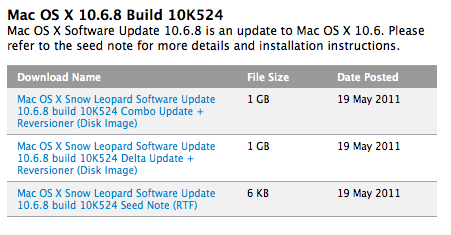
As noted by MacRumors, Apple has seeded the first build of Mac OS X 10.6.8 to developers. The new build, which carries number 10K521, confirms there’s room for at least one more Snow Leopard update before the release of 10.7 Lion, scheduled for this summer.

According to people familiar with the new build, focus areas for 10.6.8 are AirPort, Graphics Drivers, Mac App Store, Networking, QuickTime and VPN. Apple released the last public version of Snow Leopard, Mac OS X 10.6.7, on March 21, including fixes for Mac App Store, SMB servers and Back to my Mac.


Alfred for Mac Adds Sync, Launches AppleScripts with Keyboard Shortcuts

We’re huge fans of Alfred here at MacStories. The minimal launcher for Mac that was released as an alternative to Launchbar and Spotlight quickly evolved into a full-featured solution to browse files, play music from iTunes, manage your system clipboard and check on dictionary definitions. Alfred hasn’t officially reached the 1.0 status, yet the developers iterated so fast in the past months that Alfred has turned into a powerful application launcher packed with functionalities aimed at getting things done using only the keyboard. Looking back at previous Alfred releases, it’s amazing to see how the app went from being a simple way to launch apps to a tool tailored to both casual and power users, thanks to the possibility of creating custom searches, shortening links, browsing the filesystem, and more. The latest stable release of Alfred, 0.9, adds a number of improvements that greatly enhance the feature set of the app.

Alfred 0.9 can now launch any AppleScript on your Mac with a keyboard shortcut. Similarly to how the excellent FastScripts enables you to assign commands to scripts saved locally, the new Global Hotkeys section in the app’s preferences lets you assign a shortcut to a specific script, and run it when Alfred is open without seeing Alfred’s actual window. Just hit the shortcut anywhere on your Mac, and the script will execute. This is true for AppleScripts, files, and apps; being able to run AppleScripts through the app you’re already using for many other things is a very welcome addition, but it’s exclusive to those who bought the Powerpack, which is highly recommended if you want to get the most out of Alfred.

Version 0.9 also comes with Dropbox and iDisk sync, meaning you’ll finally be able to keep Alfred’s settings in sync between different Macs. The app can sync themes, snippets, scripts and custom sites. Alongside iTunes Mini Player improvements, a redesigned Preferences window and several performance enhancements, Alfred 0.9 also introduces new Terminal functionalities: you can run your Terminal commands “silently behind the scenes”, as well as add your own icons to make Terminal commands look like native Alfred actions.

Overall, it’s undeniable Alfred keeps getting better on each release. We don’t know what’s coming in the final 1.0 version, but if previous updates are of any indication I guess the developers are working on something big for the major 1.0 milestone. In the meantime, you can get Alfred here for free, and buy the Powerpack for £12 ($20). Check out more screenshots and the full 0.9 changelog below. Read more