This Week's Sponsor:

Crickets

The first alarm app for families.


Posts in reviews

Our Favorite Indie Apps for iOS 27, Vol. 3

We have another collection our favorite indie apps that take advantage of Apple’s latest OS features. Today, we’re highlighting: Haven, Structured, Capture, Scrappy, and Fin.

Haven

Haven is a HomeKit and Matter pairing code utility by João Franco for the iPhone, iPad, Mac, and Apple Watch that added Siri AI features this fall. The app is exactly what you want with this sort of utility because it makes storing codes for safekeeping fast and easy. Later when you need to re-pair a smart plug behind a couch or a lightbulb in a hard-to-reach spot, you’ll be glad you dropped the codes into Haven.

Retrieving codes is made even simpler, thanks to Haven’s Siri AI integration. Just ask for a code based on the name of your device in Haven, and Siri will fetch the code for you without opening the app. The feature works with both HomeKit and Matter codes and is compatible with natural language queries. The app also supports tagging and the ability to use Apple Intelligence to suggest a tag from among your existing tags.
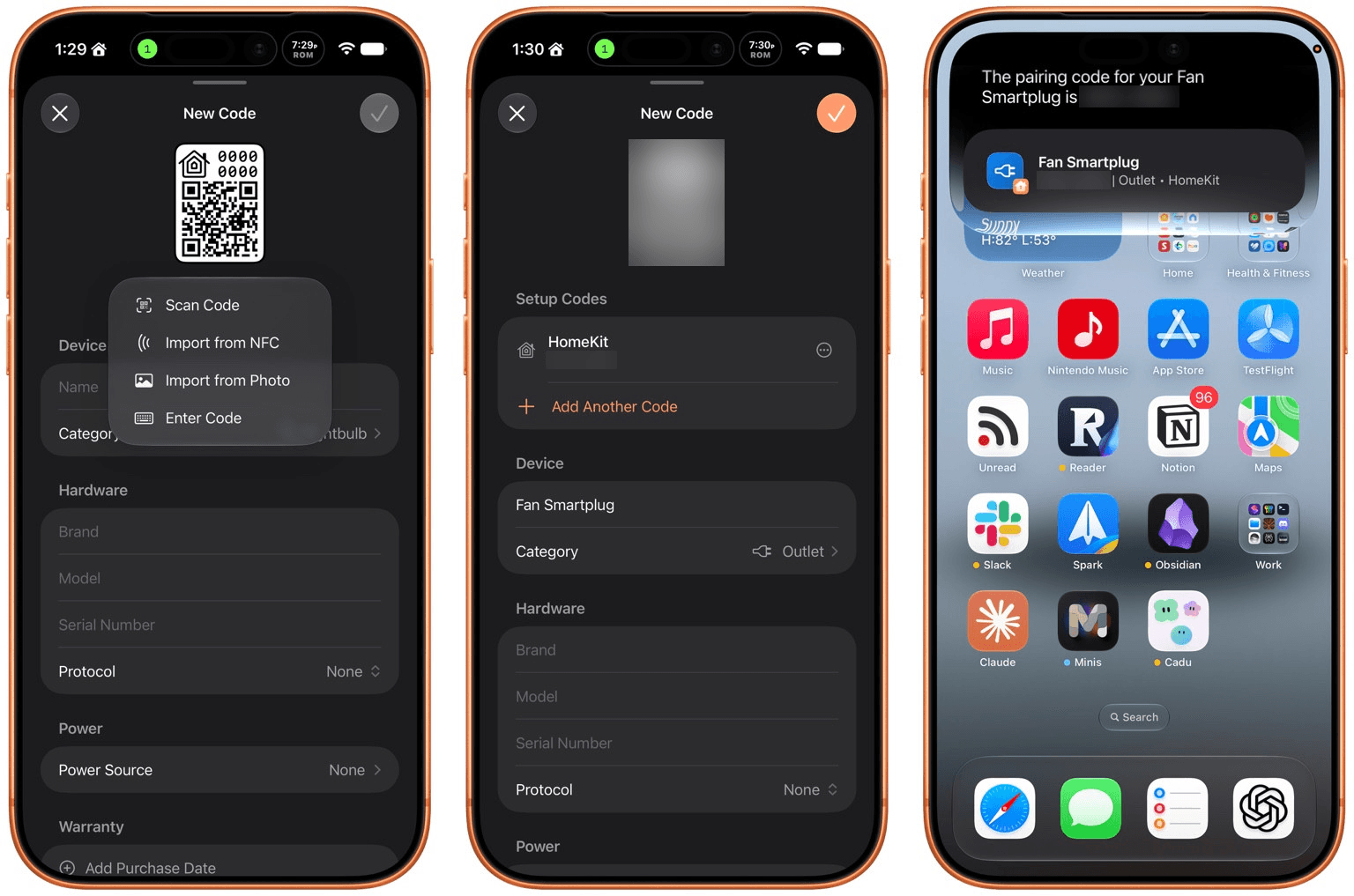
In addition to the new Apple Intelligence and Siri AI features, Haven can track the home where your device is installed, its room, category, brand, model, serial number, protocol, power source, and status. You can mark items as favorites and add notes and attachments, like a photo of the device, too.

That’s a lot, which will appeal to the HomeKit nerds out there, but as a free download that offers unlimited pairing codes for just $6.99, it’s worth setting up Haven even if all you do is name your device, add the room where it’s located, and then search for it when needed via Siri. Siri AI is perfect for databases, and as anyone who is deep into the HomeKit world knows, a database is the best way to keep your smart home humming.

Structured

I had the pleasure of meeting the Structured team at WWDC this year. It was fun to walk through the app with them, learning about all their plans for the summer development season. But it’s been even more fun to actually play with the final product on the iPhone, iPad, Mac, and Apple Watch.

Structured is a day planning app with a beautiful and unique design that made it a finalist for both the 2025 iPad App of the Year Award and an Apple Design Award. I have a bad habit of overstuffing my workday, which is precisely the problem that Structured is designed to solve by visualizing your day and work on a timeline. The app can integrate with Reminders, your calendars, handle recurring tasks, start focus timers, and more.
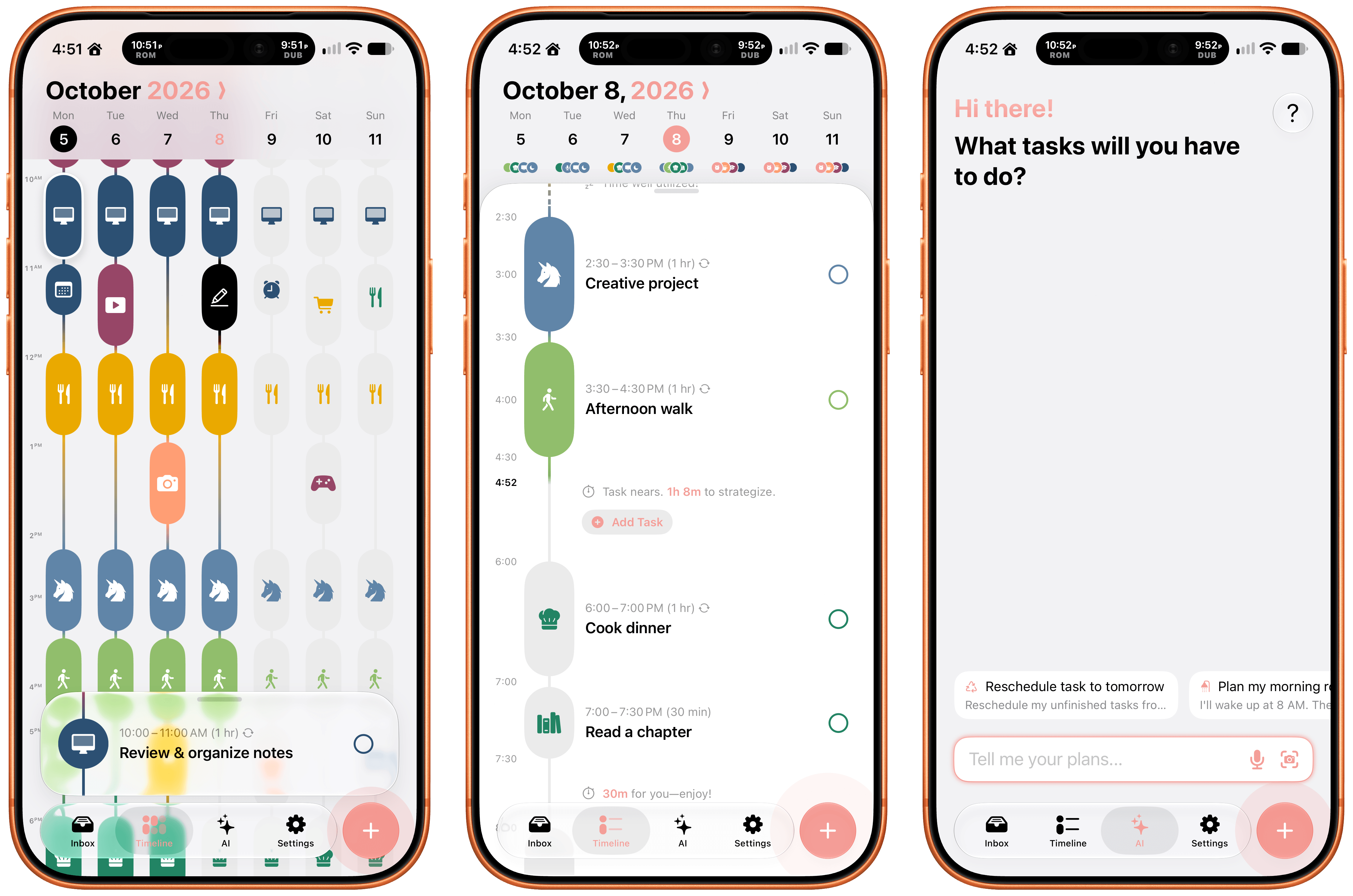
As for Siri AI, Apple’s assistant can now assist Structured users with creating and editing tasks. There’s also a color prediction feature that’s in beta that learns from your past color choices to help suggest the color of a new task. Plus, Structured got a Liquid Glass update, which makes the app feel right at home among other modern apps without sacrificing the app’s simple design and legibility. If you need help organizing your day and want to see everything in one place, you can’t go wrong with Structured.

Scrappy

I’m always on the lookout for new ways to save random things I find on the Internet. I’m a digital hoarder by nature because you never can be sure when a link, image, or article that piques your curiosity will become something more in the future. The trouble is keeping these sort of bucket apps organized.

With Scrappy, by developer Steve Harris, you can save it all: notes, images, PDFs, links, videos, photos, screenshots, and more. Harris is also the developer of Keep It a notebook and document organizer app that we’ve covered on MacStories before. There are similarities between Keep It and Scrappy, but the thing that unique about Scrappy is that it’s much more visual.
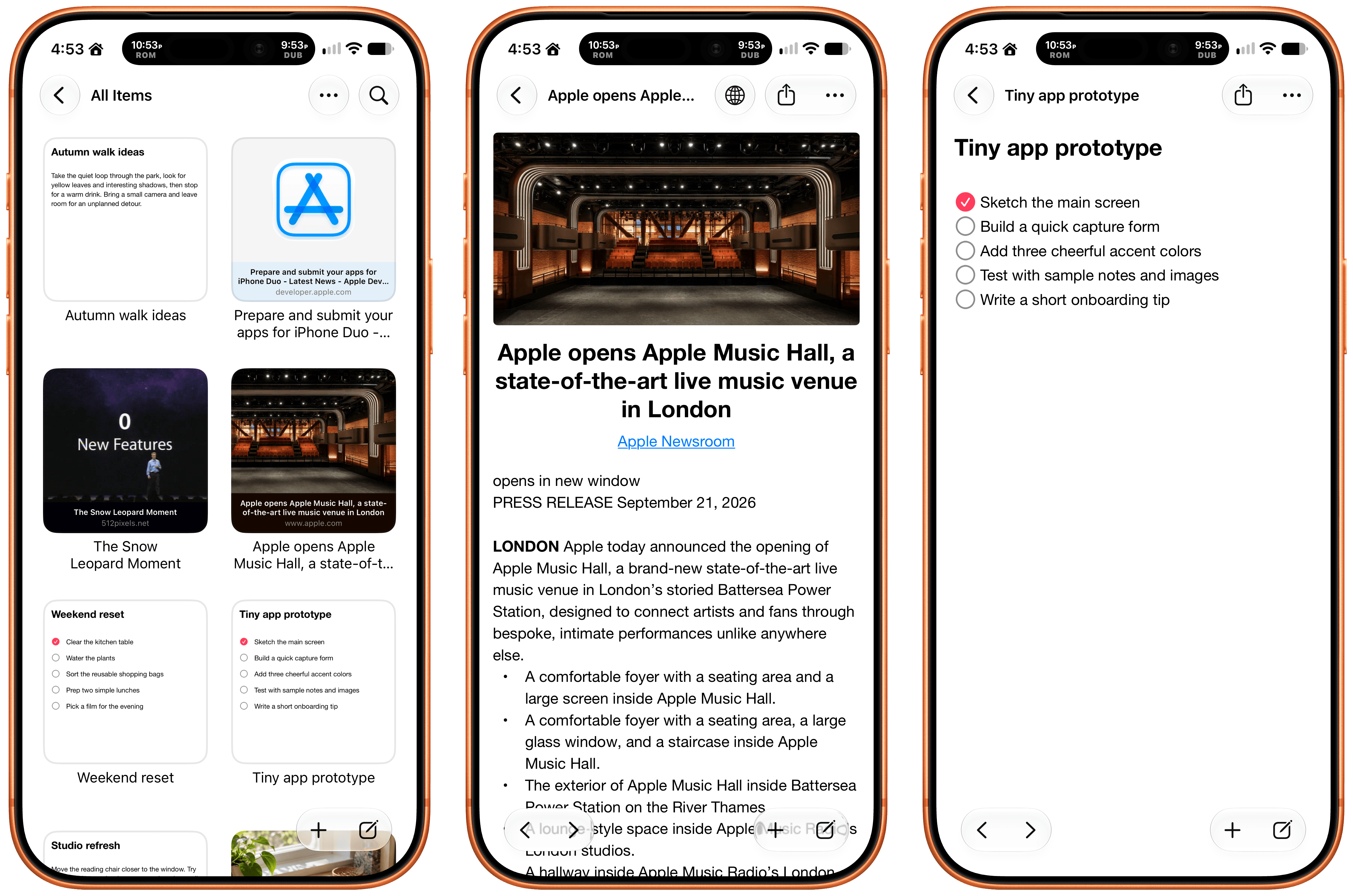
The app, which works on iPhone, iPad, and Mac, puts a handy shelf just off the edge of your Mac’s screen where you can drag items, and across all platforms, it feautures fast search and smart lists. Plus, thanks to Siri AI, you can search and open what you’ve saved and create and edit notes. There are filtering and sorting options, along with an extraordinarily long set of Shortcuts actions that make the app uniquely suited for automation. Scrappy also has a wonderfully modern card interface that takes advantage of Liquid Glass, and it displays previews of links, images, and other content. There are lots of “bucket apps” on the App Store, but Scrappy is one of my favorites.

Capture

Apps like Capture are a unique obsession of mine as the online world relentlessly accelerates. Capture acts as an inbox for text, links, images, files, and tasks that works on the iPhone, iPad, Mac, Vision Pro, and Apple Watch. While you can store information in Capture long-term, it’s really meant to act as an inbox because the app has nearly 60 integrations with other third-party apps.
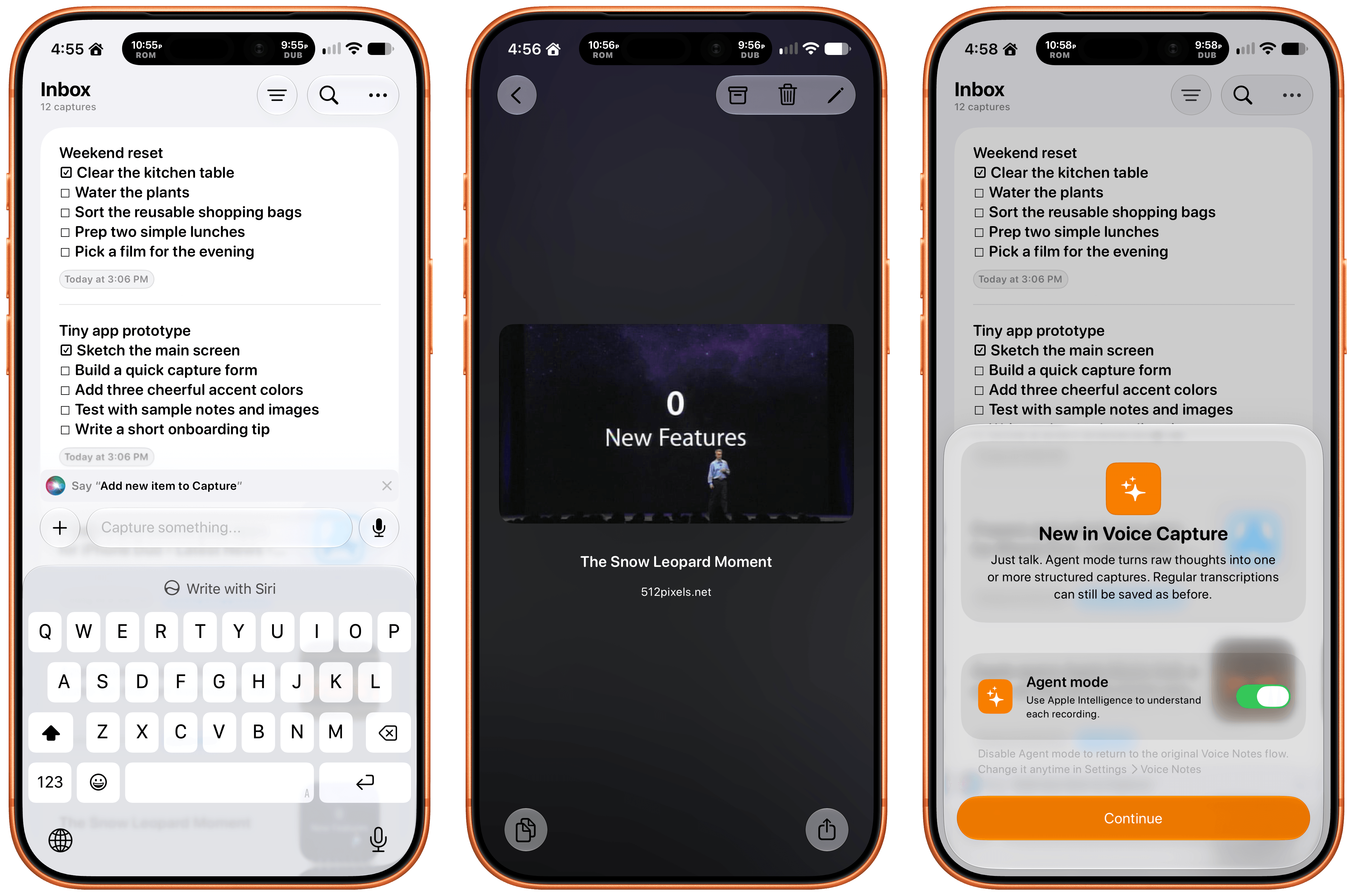
Capture has been building a deep library of integrations for a long time now, which I appreciate. It’s the sort of user-first approach that also made the app a perfect fit for App Intents. That integration makes it simple to find, create, and edit items with Siri. There is also an extensive set of Shortcuts actions, making the app a great fit for cross-app automations. Capture also offers creating, finding, and editing via Siri AI, note transcription using Apple’s on-device model, and a voice-based agentic mode.

Fin

Finally, I want to shout out Fin, the personal budgeting app for iPhone, iPad, Vision Pro, and Apple Watch. Getting data into a budgeting app quickly and easily makes all the difference in the world when it comes to sticking to your budget. Fin excels at quickly recording and organizing your expenses in a clear, colorful interface that takes advantage of Apple’s modern design language.

With the latest version, Fin adds onscreen awareness that lets you ask Siri questions about what’s onscreen. The app also exposes transactions and accounts to Spotlight making it easy to pinpoint data in both. Plus, Fin lets you search, import, export, and add data to the app using Siri. There’s an extra large chart widget too. If you’re looking for a simple on-device way to privately manage your expenses, Fin’s a great choice.


Our Favorite Indie Apps for iOS 27, Vol. 2

It’s time to get back to our favorite indie apps that take advantage of Apple’s latest OS features. Today, we’re highlighting: Bear, Gentler Streak, The Outsiders, DoMarks, and Cheatsheet Notes.

Bear

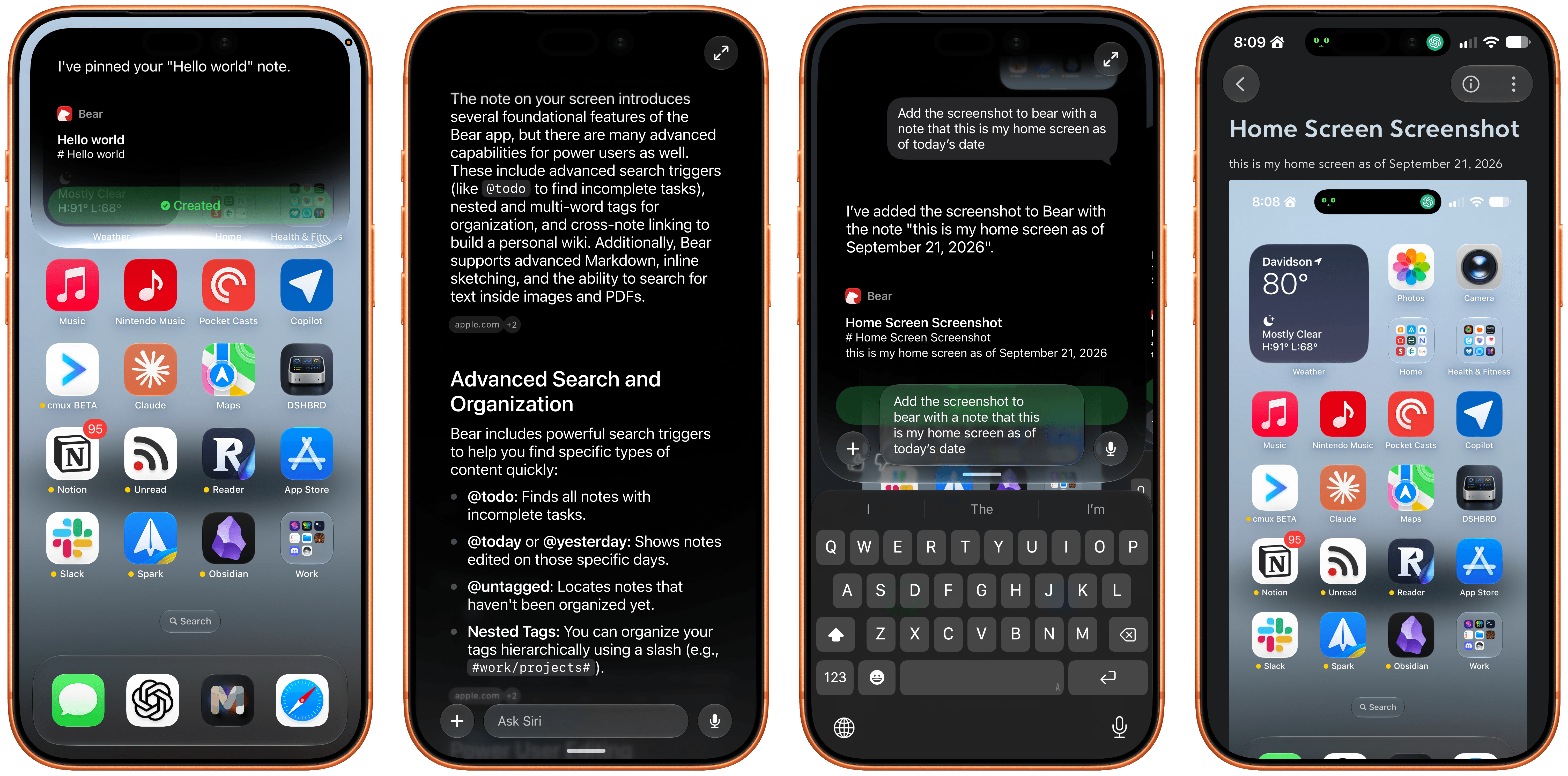
Bear, the note-taking app for iPhone, iPad, Mac, and Apple Watch, just released version 2.10 with several Siri AI features, including actions to:

  • Create a new note
  • Append text to an existing note
  • Append files to a note
  • Pin notes

The app also includes onscreen awareness so Siri knows the content of the note you’re looking at without you telling it.

Bear’s new actions make it a compelling way to dictate notes on the go. Simply invoke Siri and start talking. With the ability to start a new note or append to existing notes, you can get quite a lot done with only your voice. One of my favorite uses is annotating screenshots. I take a screenshot, invoke Siri, and in one go, I can ask it to add a new note with my last photo (the screenshot), give it a title, and add a quick note about it. It’s far easier than walking through those steps manually.

Gentler Streak

Gentler Streak

Gentler Streak

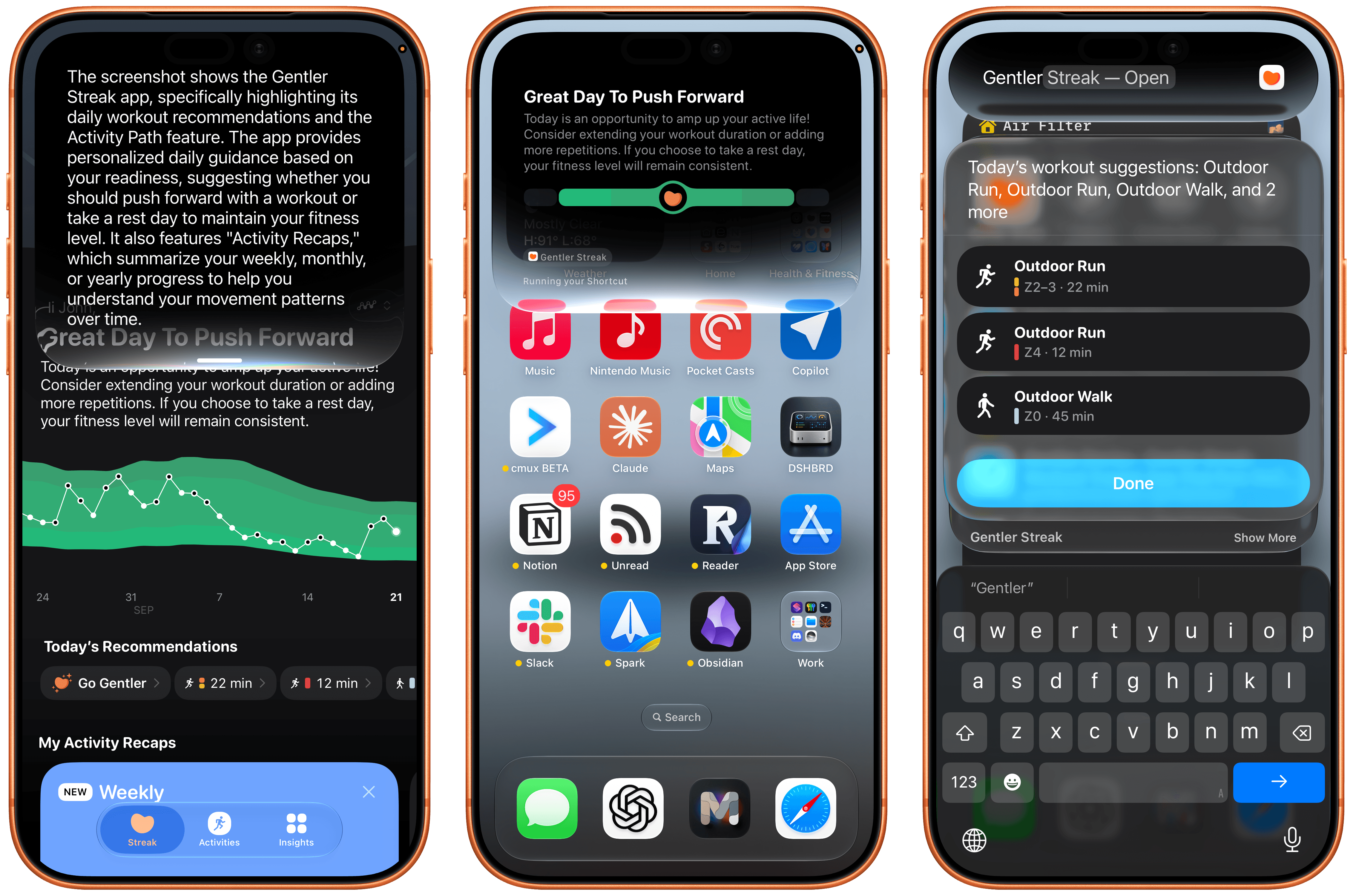
Our iPhones and the Apple Watch can collect and process a lot of health and fitness data for us. My favorite way of making sense of it all is Gentler Streak, which works on the iPhone, iPad, and Apple Watch, making sense of all that data.

One of Gentler Streak’s greatest strengths is its delightful illustrations and clear, meaningful presentation of fitness data. I love browsing my workouts and other fitness data in Gentler Streak, but with the latest release, I’ve come to appreciate the snippets it offers thanks to App Intents, too.

The update lets you access bite-sized snippets of data without opening Gentler Streak, accessing data like today’s workout, your activity status, and suggested activities all from Spotlight or Siri. It’s handy when you’re in a hurry and just want a quick update on something like how well you slept last night. The app also supports onscreen awareness, allowing Siri to explain features of Gentler Streak to you or interpret onscreen data.

The Outsiders

The Outsiders

The Outsiders

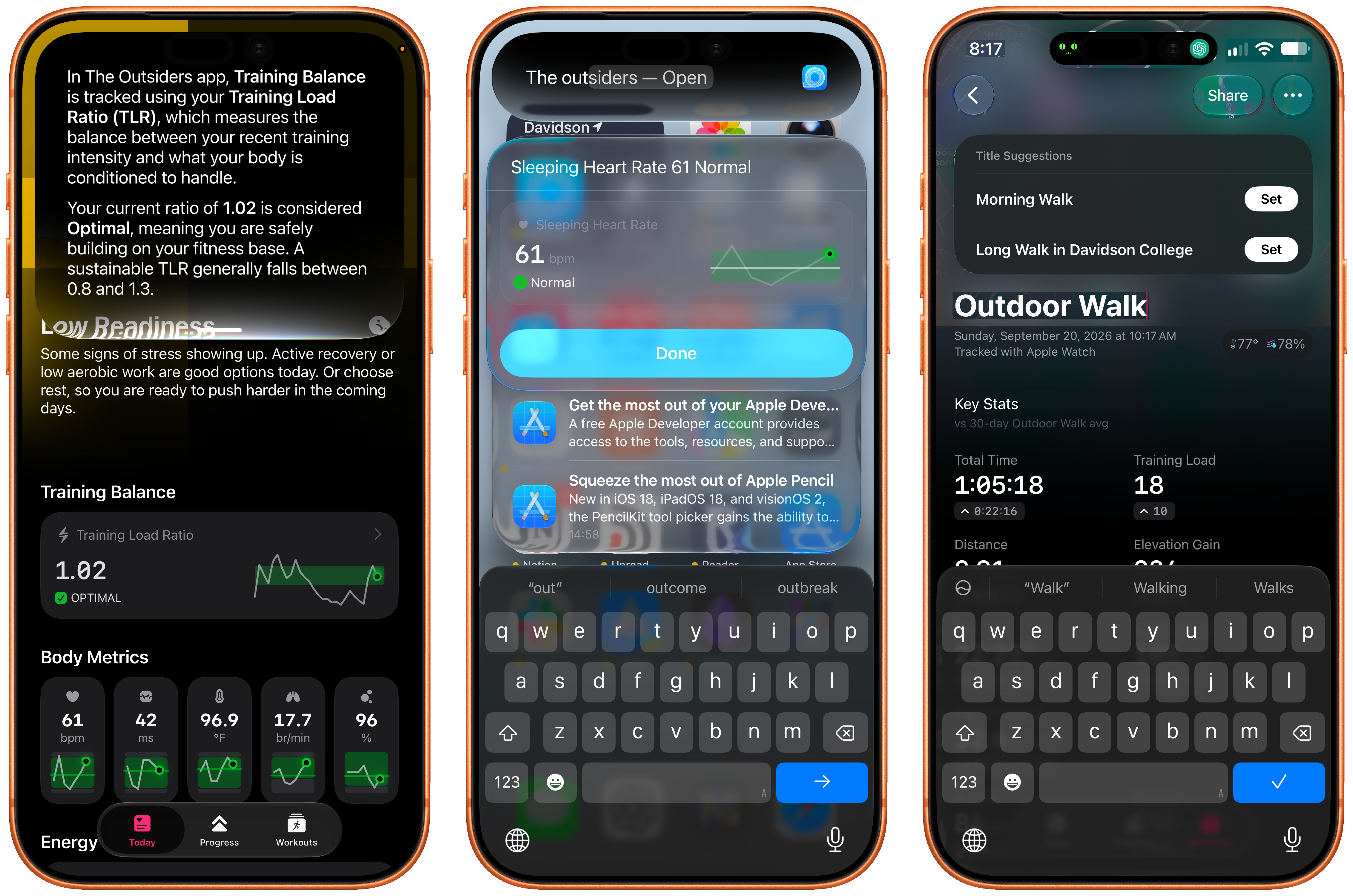
The Outsiders, from the same team as Gentler Streak, is a great complement to it, trading Gentler Streak’s relaxed approach to workouts for a more intense, performance-driven perspective. I’m a big fan of the iPhone app’s colorful design, which, like Gentler Streak, lets you access data like your training readiness, latest workout, body metrics, and sleep data simply by asking for the data “in The Outsiders.” Onscreen awareness allows Siri to explain metrics to you, too.

If you choose to edit a workout’s title, Apple Intelligence kicks in with a suggestion changing something generic like “Evening Workout” into “Evening Commute Through Davidson College,” which sounds much nicer and adds a little hint about where you were and what you did for that workout.

Cheatsheet Notes

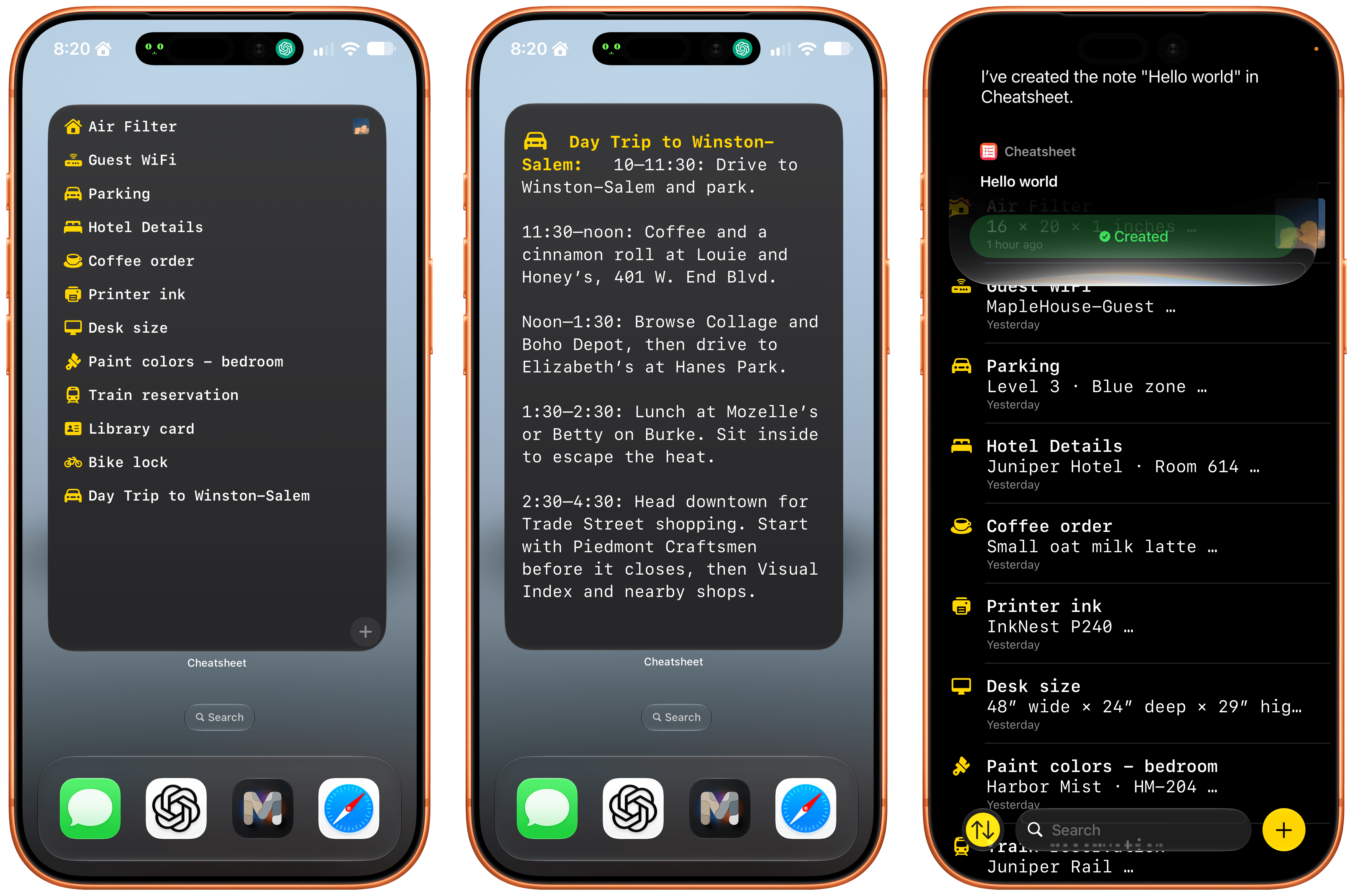
I love how Cheatsheet Notes has evolved over the years from a very basic scratchpad to a beautifully designed and focused note-taking app that adopts all of Apple’s latest technologies. The recent update, which is available for the iPhone, iPad, Apple Watch, and Mac (sold separately) is no exception, incorporating all sorts of Siri AI features, as well as new widgets.

Thanks to Siri AI’s onscreen awareness, you can ask Siri questions about information visible in your notes. You can also append text and images to notes with Siri’s help. The append functionality is especially useful because Cheatsheet is intended for quick notes about things you want to remember, like a parking spot at the airport. Take a quick photo of your parking spot, ask Siri to add it to your Airport Parking note and that’s it.

Cheatsheet has also added extra-large widgets that can display a list of notes, a set of notes tied to action buttons, a shuffling of notes from any folder, or a single note. Of course, the app also supports an extensive list of Shortcuts actions, too.

If you’re looking for a great place to store the sort of information you might otherwise scribble on scraps of paper, check out Cheatsheet Notes. It’s an excellent app and scraps of paper is no way to live.

DoMarks

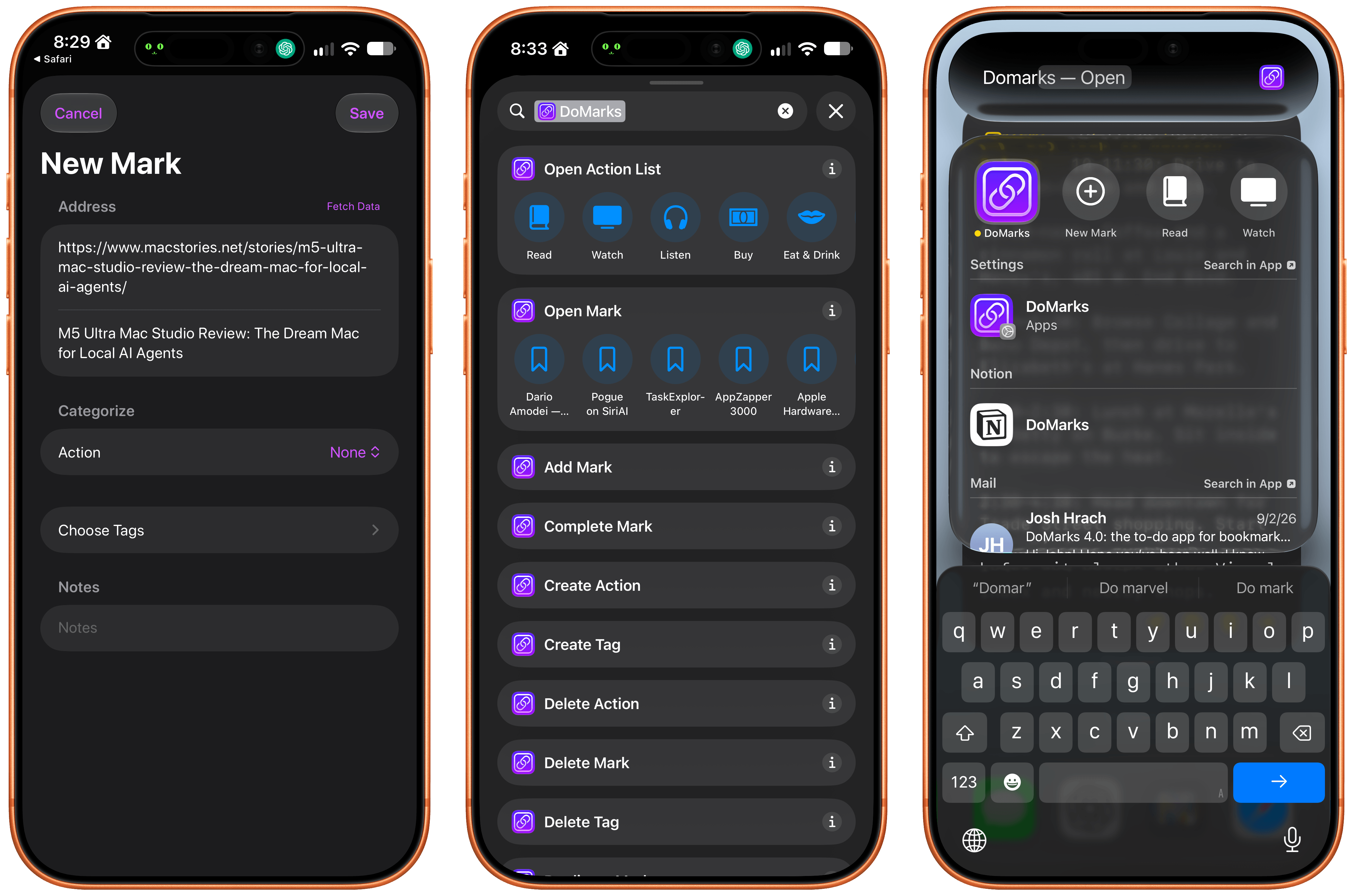
With the release of Apple’s OS updates, DoMarks reached version 4.0. The app is based on the simple idea that people save links to do something with them later. DoMarks makes that easy by helping you assign an action category to each URL you save whether it’s to buy, read, watch, or do something else with the URL. The app fills a role that’s similar to a read-later app and can be used for reading, but the beauty of it is that what you do with the links you save for later is only limited by your own imagination.

With DoMarks’ Siri AI integration, you can save a webpage from Safari simply by asking Siri to save it to DoMarks. You can also ask Siri to open a link by its name or delete it. DoMarks supports onscreen awareness, allowing you to ask questions about a bookmark, too.

Other actions available via Siri, include keyword searches and opening a bookmark. However my favorite action is “Surprise Me in DoMarks,” which will open one of your saved bookmarks at random in Safari. It’s a great way to rediscover interesting spots on the web that I came across long ago, but didn’t have the time to look at. The app has also added a long list of Shortcuts actions that makes powerful automations possible too.

I’m a link hoarder (shocking, I know), and I’ve always found it hard to know what to do with links for things I want to check out later that aren’t reading material. DoMarks is the perfect way to handle those sorts of links, and now, it’s easier than ever to build your collection of bookmarks with Siri’s help.


Big Walk: A Good Hang with Friends

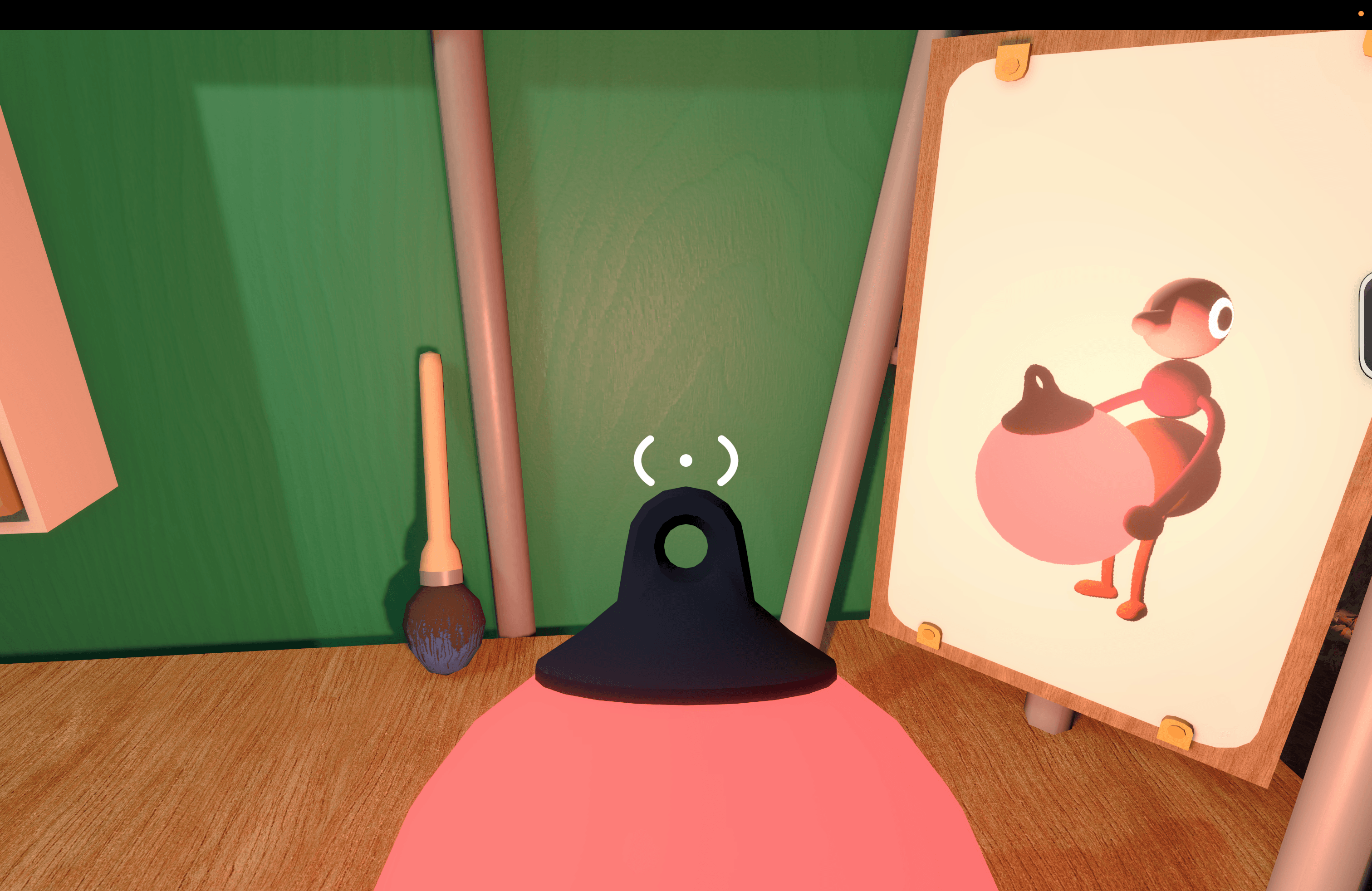
I dove into Big Walk with no expectations at all. I’d seen trailers leading up to the launch and knew that it was a co-op puzzle game from House House, the makers of Untitled Goose Game, but that was about it. And because most of my gaming is done solo, I initially tuned out most of the game’s post-launch headlines. Still, Big Walk is published by Panic, which has a great track record for finding and publishing great indie games, so I decided to give it a try earlier this week. And you know what? I love it.

Big Walk is about as low-key as a puzzle game gets in the best possible way. Co-op is the only mode, so you’ll need to coordinate a time to play it with a friend or group. One person takes the lead, setting up the session and inviting the others. The process is far simpler than trying to find a time that works for everyone in your group.

As players join, you’re dropped into a space to wait for the others and explore a little. This lobby space is where you’ll learn the game’s controls, too. Big Walk supports keyboard and mouse input as well as a controller, which is what I used, playing on an M4 Max MacBook Pro.

Once you get your bearings, it’s time to exit the lobby and start exploring. That exploration is core to what Big Walk is all about. You aren’t told what to do, but there are just enough clues to push you forward, figuring out the goals on your own without too much trouble.

I played using AirPods Pro 3, and the game made great use of their mics and speakers, simulating the environments we were in. Closed spaces were echoey, and speech was distant and faint when we were separated. Sound even becomes part of the mechanic in some puzzles, such as an early one where you have to look through an open window to hear each other properly and help guide the other player’s actions.

That cooperation is the key part of the game’s loop. You may see how to solve Big Walk’s puzzles on your own, but implementing the solution will require you and a companion to work together.

The togetherness of it all extends beyond the puzzles, too. Big Walk’s environment (at least in the early stages) is mountainous with large rocks and trees that make it possible to get separated from others. Add to that day and night cycles where it’s almost impossible to see where you’re going at night without a light, and you have every incentive not to wander off on your own without a plan for how to reconnect.

I’ve played through Big Walk’s first couple of sections, and it was a blast. The puzzles were clever and challenging without being frustrating, but most of all, I enjoyed working through them with someone else. There’s no time pressure or monsters lurking around corners – just puzzles and a chance to chat.

Ultimately, that’s what makes Big Walk work. It’s a good hang built against the backdrop of a beautiful landscape and low-key, fun challenges. I highly recommend giving it a try.

Big Walk, which supports crossplay and 2–12 players, is available on the Mac App Store for $14.99. The game is also on Steam, the Switch 2, and PS5.


EA Sports Tailors Madden NFL 27 for Apple Arcade

EA Sports has released Madden NFL 27 Arcade Edition, a version of the popular football simulation franchise that Apple Arcade subscribers can play on the iPhone, iPad, Mac, and Apple TV. It’s a big release built specifically to take advantage of Apple hardware, allowing players to play the game on a wide variety of hardware.

I was struck by how easy it is to pick up and play the game whether you’re a diehard NFL fan or not. I don’t follow football closely, but I was able to get the hang of the game and have fun right away, knocking out a Quick Play match when I had a few minutes to spare.

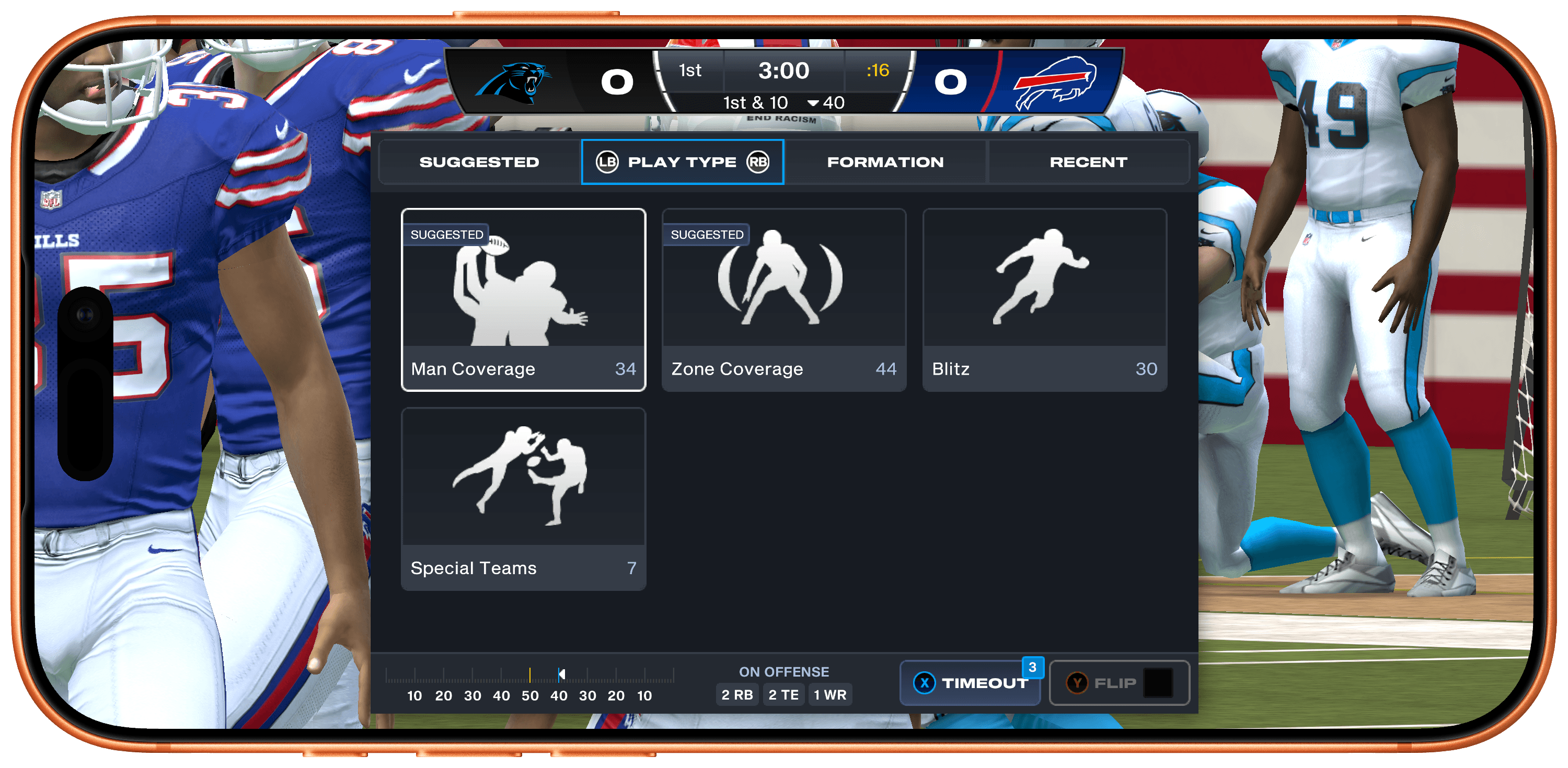
Quick Play tightly limits the overall time it takes to complete a matchup, but it doesn’t sacrifice depth in the process. There are long lists of plays you can run, including suggested plays, play types, formations, and recents, as well as a wide variety of statistics. And after a big play, you can replay it with total control over the camera angle, too.

However, if you want to go really deep, the game’s Franchise Mode lets you play a full NFL season, managing your team all the way through the playoffs. You can also draft your dream team from the game’s huge catalog of real-world NFL stars. Plus, during the real-world NFL season, player attributes shift based on their actual performance.

Madden NFL 27 also looks terrific. The 120Hz playback is smooth on the iPhone, where I spent most of my time with the game, and even nicer on a bigger screen like my 14” M4 Max MacBook Pro, making for an immersive experience.

What impresses me most about Madden NFL 27, though, is how well it makes use of the Apple hardware and technologies at its disposal. Too often, those sorts of details get left behind when a big release is published on Apple platforms.

To its credit, EA has done an excellent job adapting Madden NFL 27 for Apple Arcade subscribers. You can play across every device mentioned above, leaving off on one device and picking up on another seamlessly because saves sync across devices. Every device supports game controllers and touch where applicable, and those devices with 120Hz displays support that, too.

Madden NFL 27 Arcade Edition is available now on the App Store as part of an Apple Arcade subscription. The game is debuting on other platforms next week.


Pastebot 3 Doubles Down on Mac Clipboard Automation and Introduces Two New Business Models

Pastebot's Quick Menu.

Pastebot’s Quick Menu.

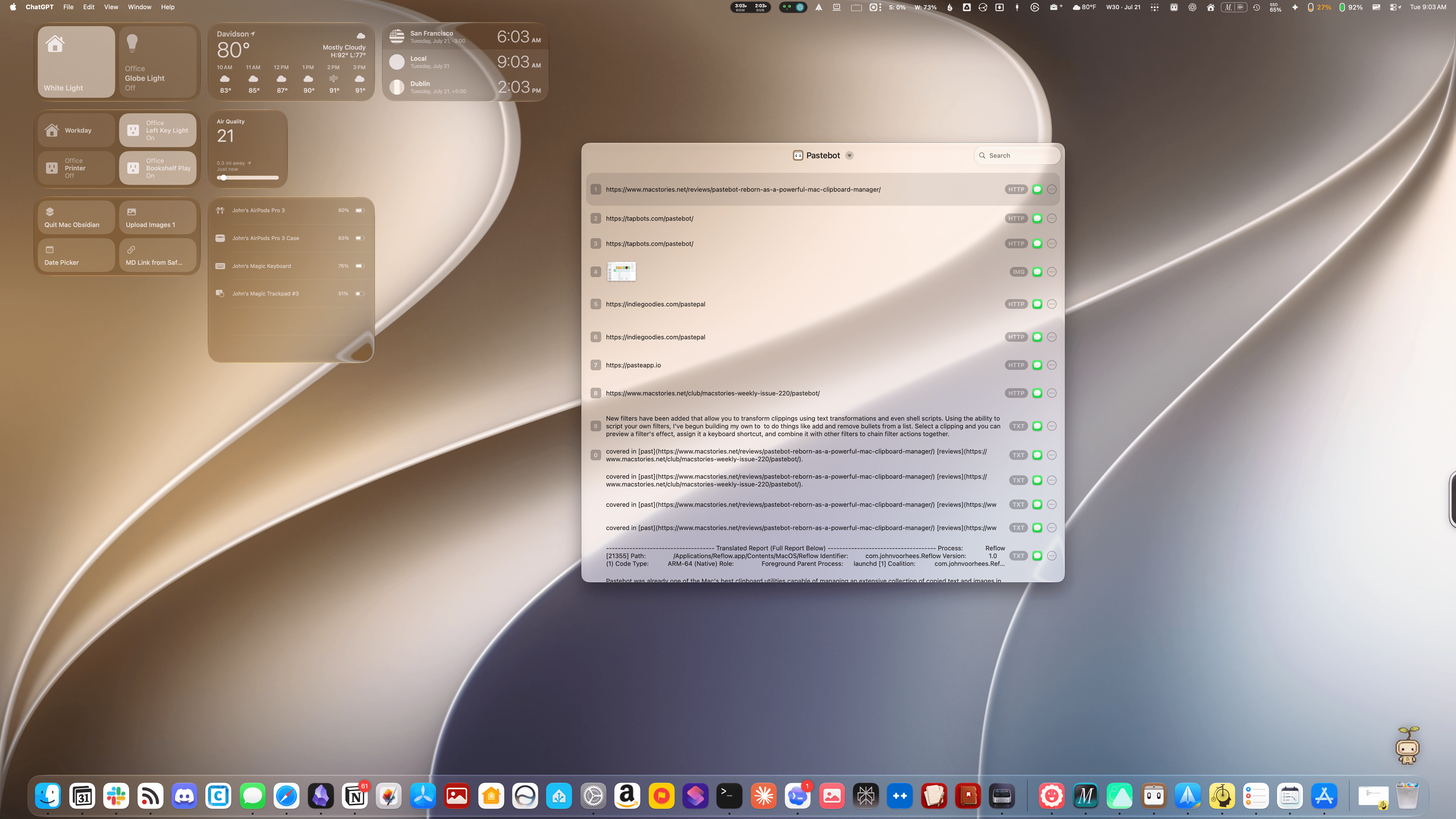
Tapbots has released Pastebot 3, a ground-up rewrite of the Mac clipboard manager that includes several powerful automation and customization options, along with two new pricing models.

Pastebot was already one of the Mac’s best clipboard utilities, capable of managing an extensive collection of copied text and images in multiple formats, PDFs, URLs, files, and HTML, along with metadata. The app can handle up to 1,500 clippings and features fast search, extensive customizable keyboard shortcuts, list and detail views of clipboard items, and iCloud sync between multiple Macs.

Read more


Open Minis Is the iOS Agent I Wish Siri AI Could Be

Open Minis for iOS.

Open Minis for iOS.

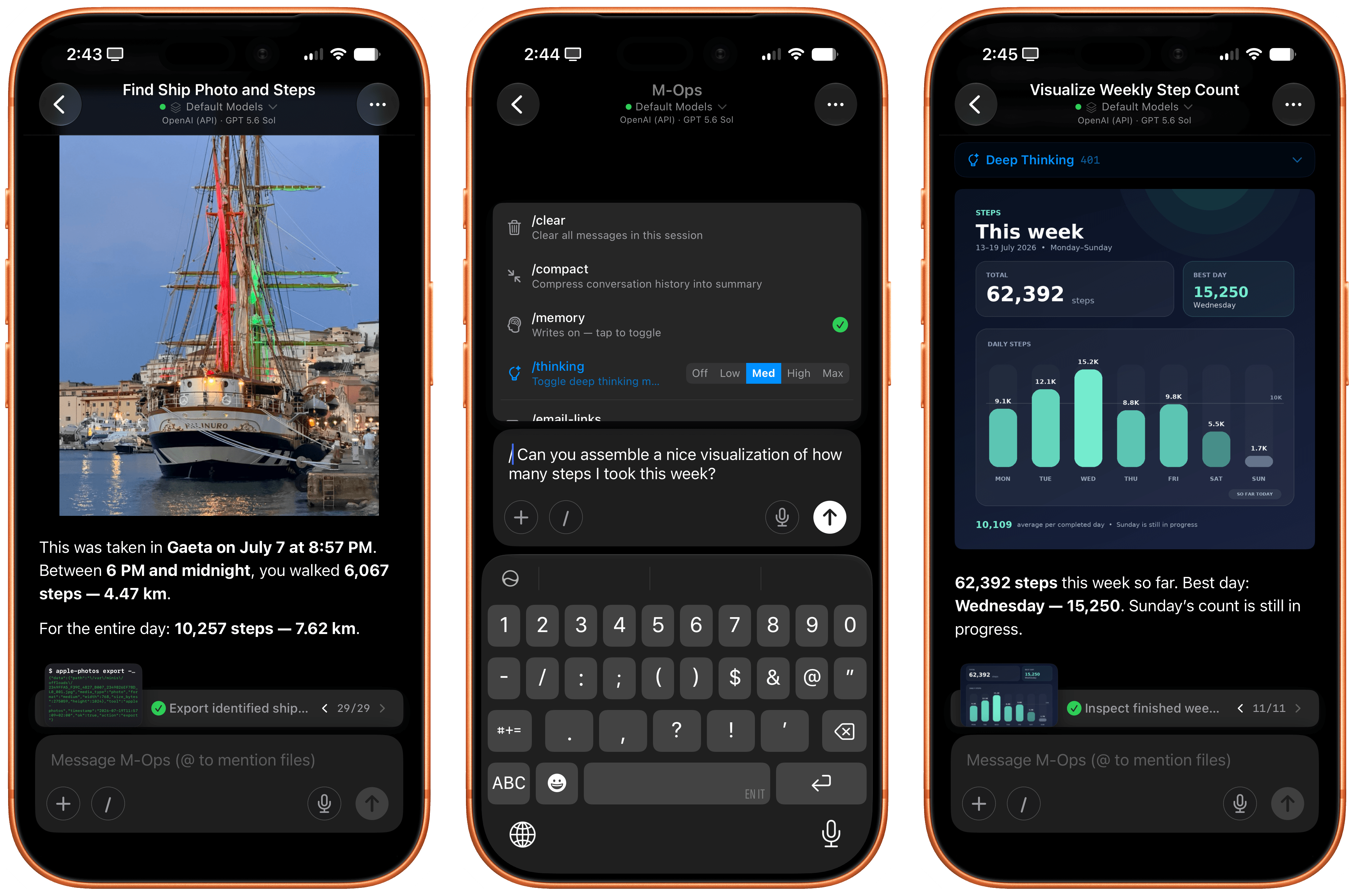
Every once in a while, I come across a third-party app that either resets my expectations for a particular niche of software on iOS or creates an entirely new category altogether. I’ve had quite a few of these moments in the 17 years I’ve been writing app reviews at MacStories: Editorial, Workflow, Obsidian, Sky, and, most recently, OpenClaw come to mind. Over the past few weeks, I’ve had another such moment with Open Minis, a new chatbot app for iPhone and iPad that I can best describe as getting a preview of Siri AI’s agentic future, today.

Open Minis is an on-device agent that lets you use any frontier model for conversations, with a twist: unlike other AI wrappers, this app deeply integrates with all sorts of native Apple system frameworks using official APIs available to third-party developers. Open Minis can control Reminders and Music, which we have seen before, but also Calendar, Maps, HomeKit, HealthKit, and Files; it can even work with frameworks such as Vision for OCR, Apple NLP for natural language processing, the iOS clipboard, speech recognition and dictation, NFC, and Bluetooth. Furthermore, Open Minis comes with its own configurable workspace in the Files app, has an on-device memory system, and features browser-use capabilities via a (once again, native for iOS developers) built-in WebKit web view.

Effectively, Open Minis is what would happen if you rolled Claude Code and OpenClaw into one intuitive agentic experience designed for Apple users, with a powerful tool-calling harness that can improve and tweak itself, and with integrations specifically designed for the Apple ecosystem. It is the most impressive indie app I’ve seen in a while. If you were disappointed by the lack of power-user capabilities in Siri AI, this is a real, currently shipping example of what Siri AI could be if only it were powered by a frontier model with truly agentic functionalities.

Read more


A Month with Logitech’s Innovative Mobi Fold Travel Mouse

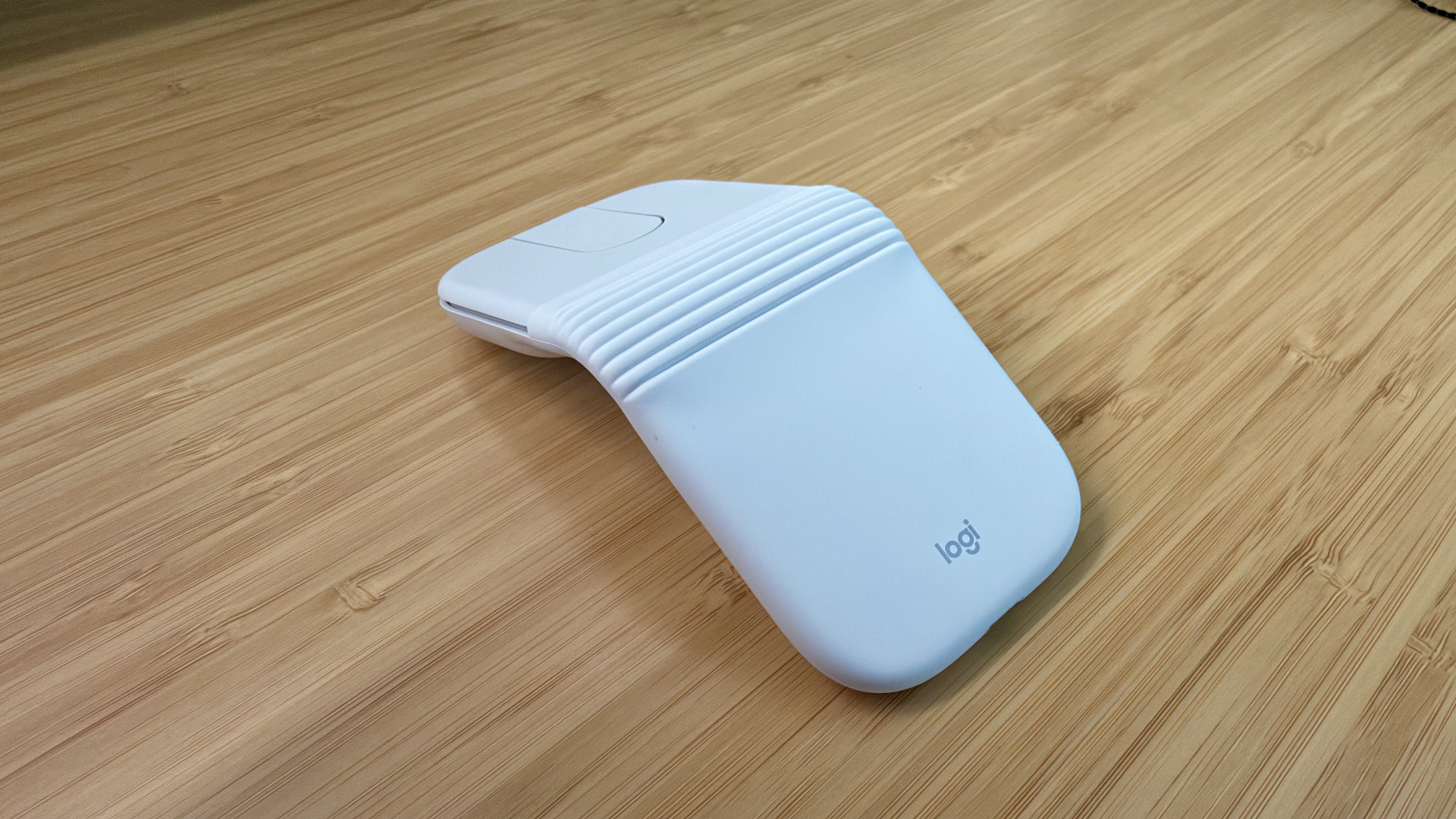
I can’t recall the last time I was truly excited about a mouse. I primarily use a trackpad whether I’m at my desk or using a laptop. The trouble with a trackpad-only setup, though, is that I sometimes wind up with wrist and elbow pain. That’s why I keep a Logitech MX Master 4 mouse on my desk to balance out the stress on my arms.

But that only works if I’m at my desk. More and more, I’ve been turning to a MacBook Pro for working away from my desk at home or elsewhere. Those locations are always less ergonomic than sitting at my desk, causing wrist and elbow pain more quickly. Still, I’ve never made it a habit to bring a mouse with me, especially when I’m away from home, because it’s more than I want to carry – that is, until Logitech’s latest mouse, the Mobi Fold, came along.

The Logitech Mobi Fold is an impossibly small mouse that folds completely in half, reducing its footprint to about ⅓ the size of my iPhone 17 Pro Max and about twice its thickness. Unfolded, it’s close to the length of the MX Master 4 but narrower. The Mobi Fold is impressively full-featured, too, making it an excellent all-around travel mouse worth taking a closer look at.

Read more


BenQ’s More Affordable 5K Display Offers Mac Users Greater Flexibility with Some Trade-Offs

Source: BenQ

Source: BenQ

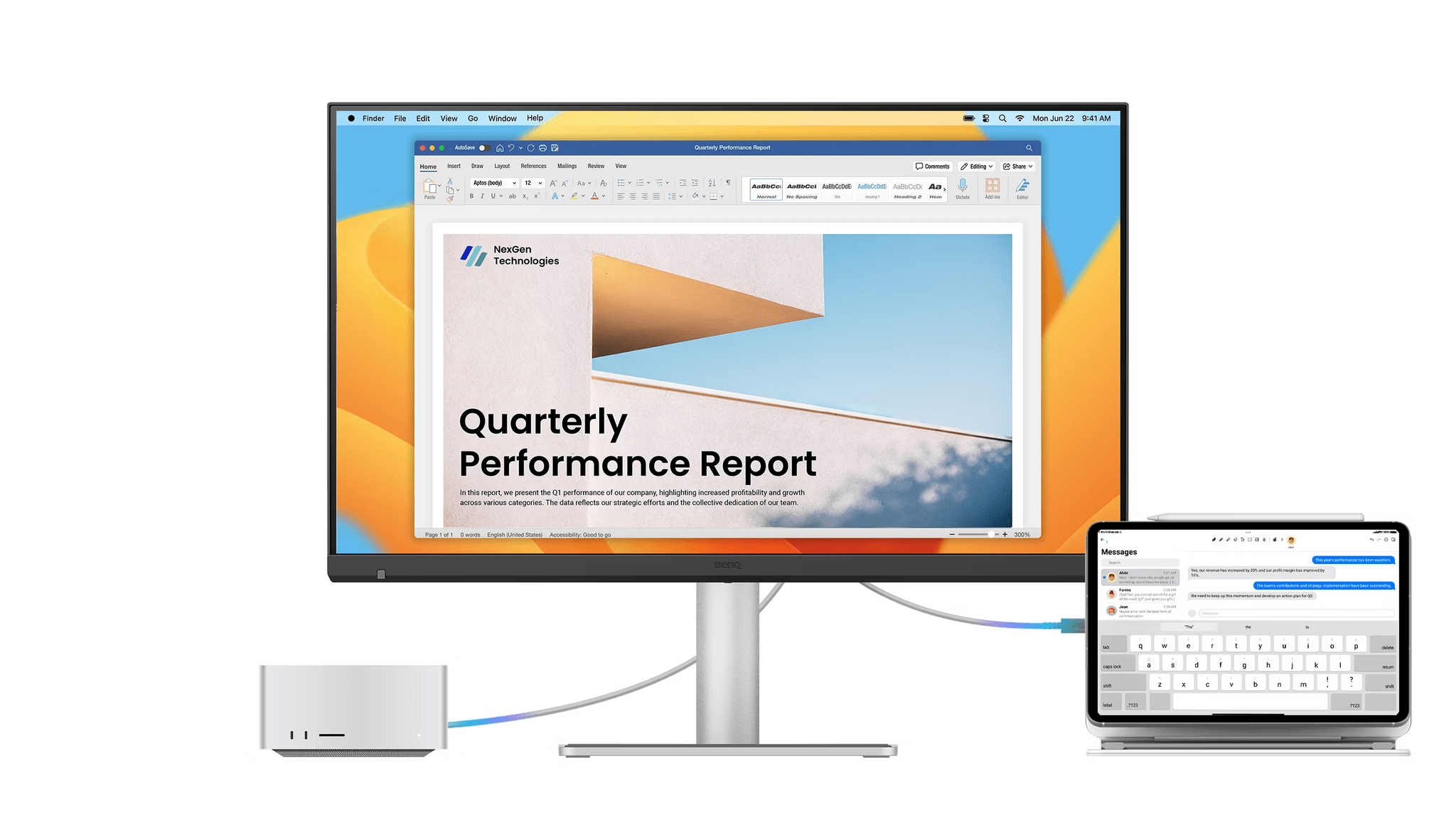
Until last fall, I was the happy owner of a first-generation Studio Display. In most respects, it was great. The screen was crisp, the colors vibrant, and it included many quality-of-life features other displays lack. Features like the Studio Display’s built-in USB-C hub, iSight camera, and array of six speakers and three microphones make it more like a Mac accessory than simply a display.

Those were all tangible upsides, but they came with their own set of tradeoffs, which Apple carried over from my original Studio Display to the updated model released earlier this year. That new model adopts Thunderbolt 5 for two of its ports – one upstream and another downstream – and improves the camera and speakers. However, both Studio Display models lack HDMI, DisplayPort, KVM capabilities for easy switching between multiple connected devices, and screen size choices.

That ultimately drove me to purchase an ASUS gaming monitor that I love. It’s OLED and bigger than the Studio Display, with a higher refresh rate, more input options, and built-in KVM. However, it lacks a webcam, microphones, and speakers, which I miss at times. It’s also 4K, whereas the Studio Display is 5K.

On balance, I’m glad I went the route I did, but it’s led me to think a lot about displays and the trade-offs among them. The good news is that there are many more choices for Mac users than ever before, even if you don’t want to sacrifice the Studio Display’s 5K resolution for more flexibility. That’s why when BenQ offered to send me their 27” 5K MA270S display to try, I jumped at the opportunity: unlike my 32” gamer-oriented ASUS display, BenQ’s display is specifically targeted at Mac users.

Let’s take a look at how it stacks up to the Studio Display and other options.

Read more


Book Beats: Reading to the Rhythm

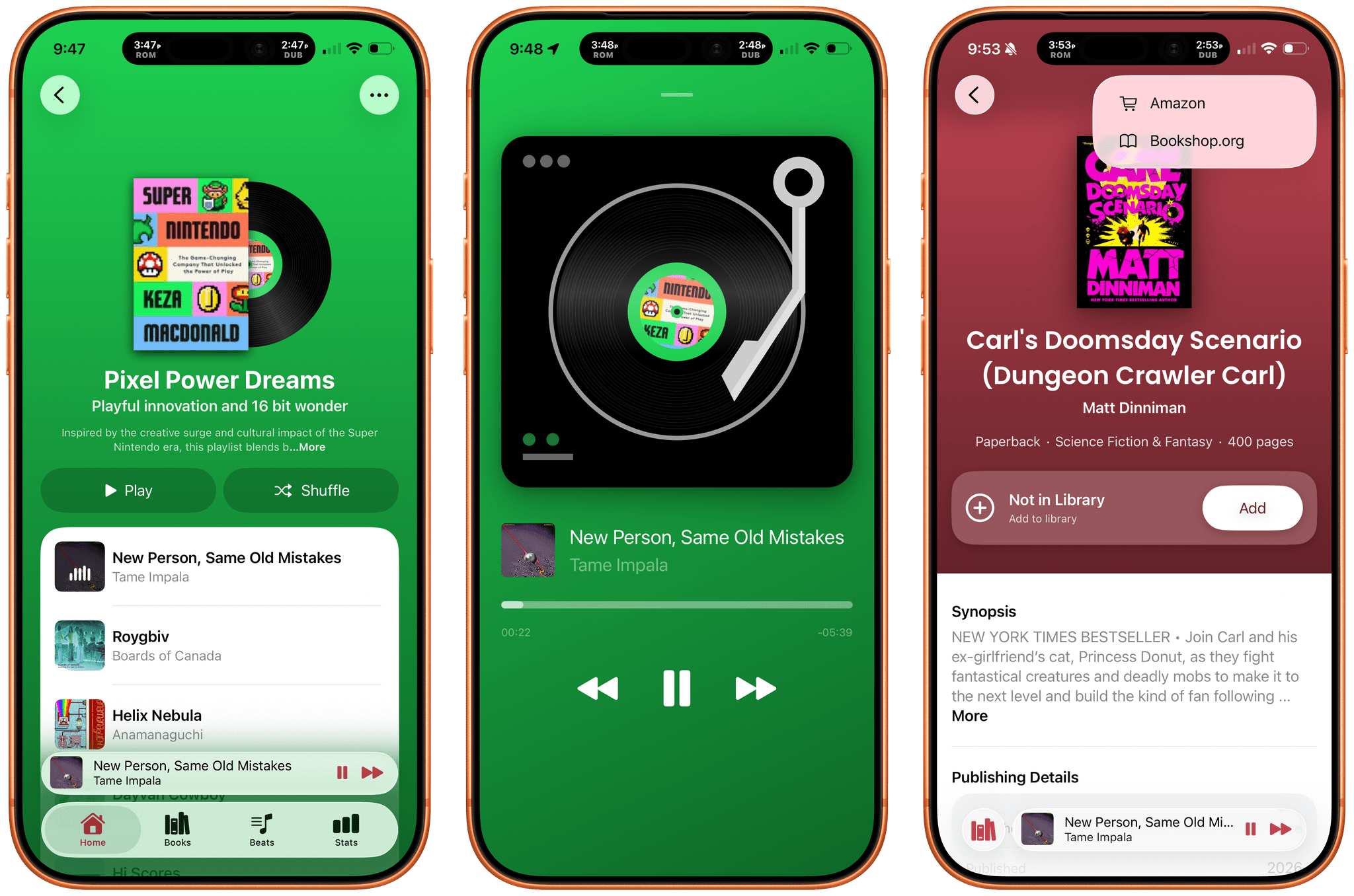
Tracking the books you read is well-trodden App Store ground. So is making music playlists. But what if you combined the two? The result is Book Beats, a new iPhone and iPad app from Olea Studios’ Casey and Lisa Doyle, that does just that, managing to elevate books and music in a new and unique way by bringing reading and listening together. It’s a terrific example of an app made by people who deeply understand its subject matter and bring AI to bear in a focused, tasteful way that elevates the app’s experience without being gimmicky.

Read more