Setting Up a Family Friendly Environment on iOS with Restrictions, Guided Access, and OpenDNS

When I handed down my iPad to a loved one, they were given a device that would give them unlimited access to the Internet. For the first time, they could access the news and weather, research articles, and Google just about anything without having to rely on me or someone else to help them. iOS devices like the iPad are lauded because they make doing things like this ridiculously easy for someone who isn’t computer savvy, and I’m comforted in knowing that the iPad isn’t likely going to suddenly stop working or become infected by a virus. At the same time, I want to make sure their experience is pleasant, and that they don’t accidentally enter a password in a phishing site or stumble upon something that might be offensive to them. We either have parents or grandparents who’re just learning about what devices like the iPad can offer them, and it’s our job to make sure they stay safe.

Parents don’t want their young child stumbling upon anything they shouldn’t, and we certainly don’t want curious kids making accidental in-app purchases, rummaging through our email, or deleting personal apps. Parents want to create safe and fun environments for their children, especially if the intention is to use an iOS device as an educational tool.

In a family setting, it’s about striking a balance. How do you make it comfortable for the grownups in the house who want to use their devices as is, while keeping your child safe online?
Read more


The Prompt: An Isolated Experiment

After recovering from the news about Facebook’s purchase of WhatsApp, Stephen and Federico discuss the problems users face while using Apple’s App Stores.

In this week’s episode of The Prompt, we started a mini-series about the App Store’s problems for developers and users, discussing possible solutions for search, discovery, and curation. Get the episode here.

Permalink

Apple Expands Two-Step Verification To New Countries

Jordan Kahn:

Back in May of last year, a long list of readers in countries around the world reported having access to Apple’s two-step verification security feature for their Apple ID. Shortly after the news broke, the feature disappeared in many countries signaling it had been launched prematurely. The only officially supported countries listed on Apple’s website included the “U.S., UK, Australia, Ireland, and New Zealand.” However, today the feature has appeared in several new countries including Canada, France, Germany, Japan, Italy, & Spain.

Apple’s list of compatible international carriers for SMS verification is available here. I just enabled two-step verification for my Italian account, and everything worked right away without any issues.

See also: our guide from last year on enabling two-step verification for your Apple ID.

Permalink

Fleksy Launches SDK for iOS Developers

Fleksy is an alternative keyboard for iOS that I first tested when Launch Center Pro, an initial partner, implemented it a few months ago. Within the limitations of iOS, Fleksy provides a different typing experience that can be faster than Apple’s default keyboard.

Today, Fleksy has opened up their SDK for any iOS developer to implement in their apps. The public SDK allows apps to feature colorful keyboards (there are themes) and a button in the Copy & Paste menu to quickly switch to the Fleksy keyboard. These system replacements are much more useful on Android because they can be activated anywhere in the OS, and it’ll be interesting to see how many iOS apps will add support for Fleksy as a user option.

Check out the Fleksy SDK here.

Permalink

This Week Adds Night Mode, URL Scheme Support

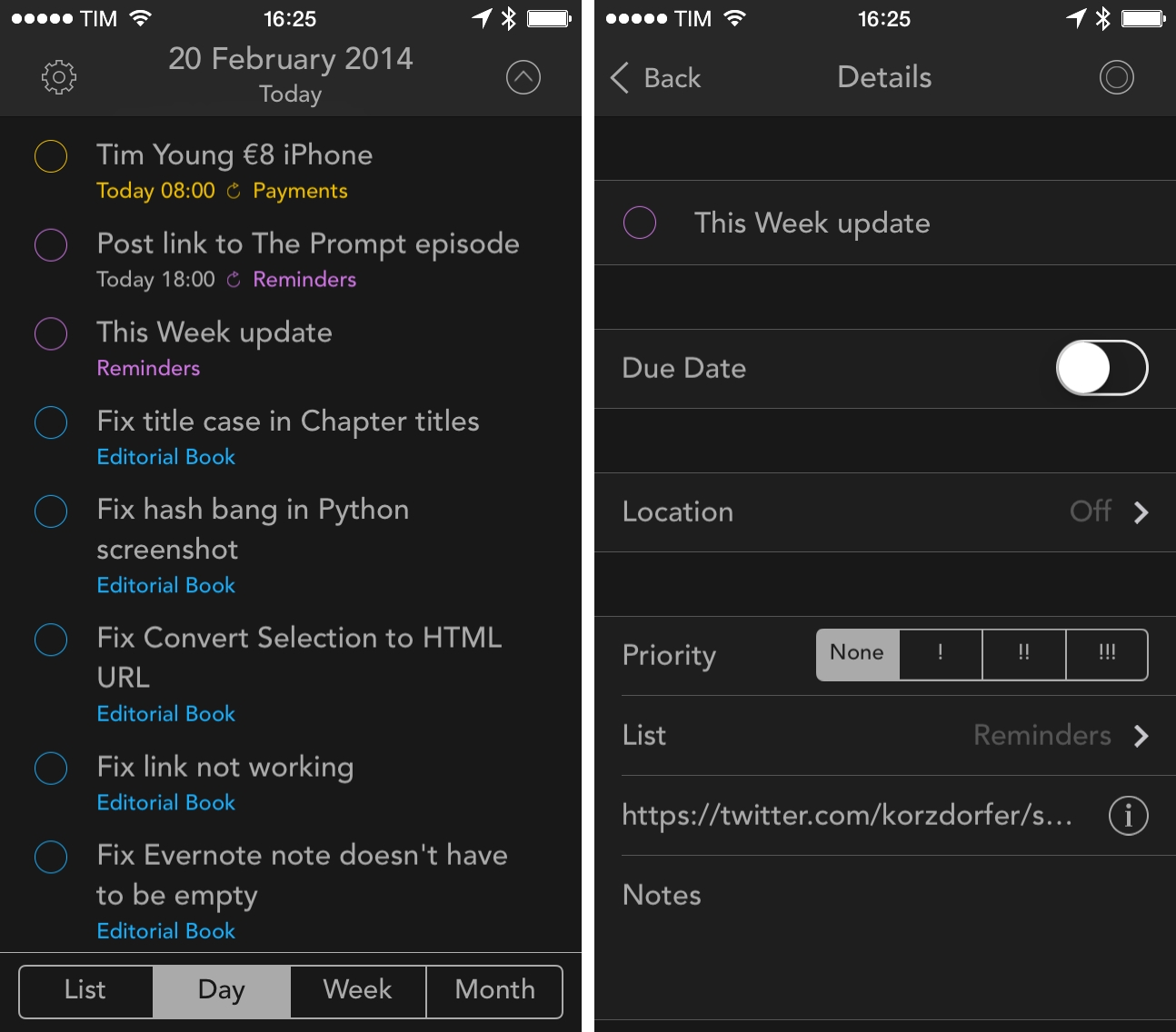
This Week is a lightweight and elegant Reminders client that I covered on MacStories when it came out for the iPhone, and when it was later updated to run on the iPad as well. Over a couple of updates, This Week has turned into an efficient utility to browse and manage reminders using a variety of views and filters.

With today’s 1.4 update, This Week gets a night mode, a larger font option, and a plethora of URL schemes with support for x-callback-url (documented in the app). If you use apps like Launch Center Pro, Drafts, or Editorial, This Week can now be easily integrated to launch views and create reminders with or without alerts. The Night Mode is also well implemented, with settings to automatically activate it during a specific time of the day, every day.

If you’re only interested in a having a different visualization of reminders (not calendar events) without natural language support, This Week is a fine app and a solid alternative to Apple’s Reminders app. This Week is Universal and $4.99 on the App Store.


Screens 3.2 Adds Trackpad Mode For VNC Control

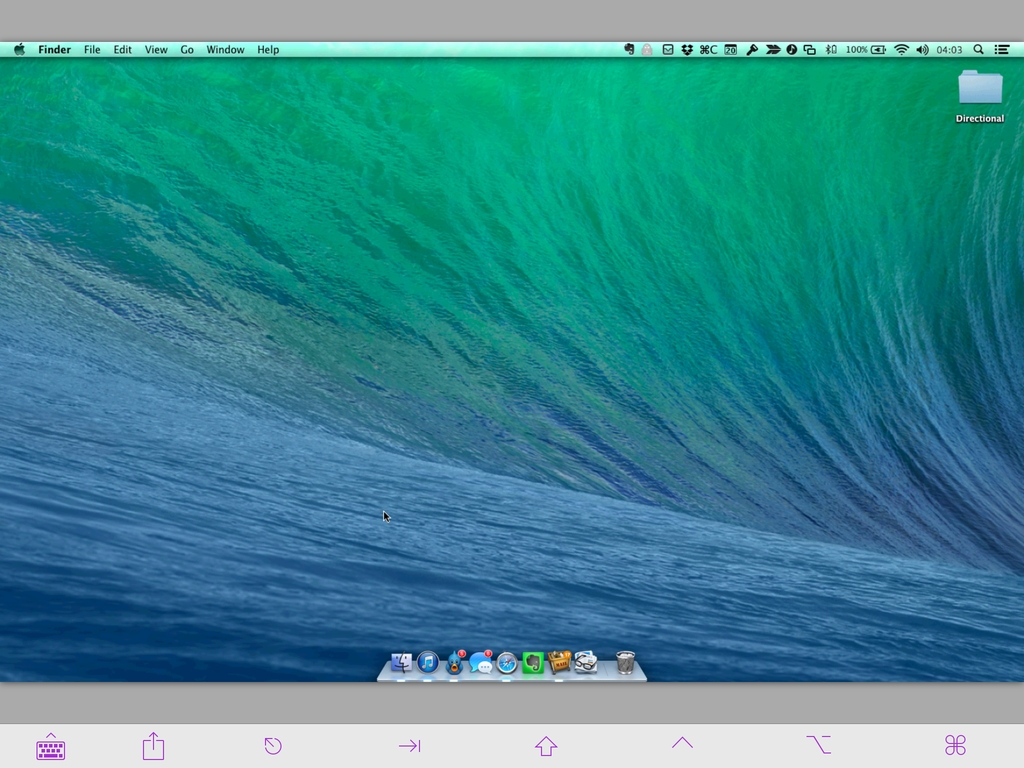
Edovia’s Screens, my favorite VNC app for iOS, has been updated to version 3.2, which, among other minor additions and improvements, brings a new mode to control a computer’s screen using an iOS device like a regular trackpad. As people who have been using Screens since the first version may know, this is a big change for the app, and I’m glad that Edovia integrated it perfectly with Screens.

It used to be that Screens could only control a computer not by letting you drag the cursor around as other VNC apps do, but by letting you tap to click and move the cursor. In version 3.2, there’s an optional Trackpad Mode in the app’s settings that allows you to activate the traditional behavior of VNC clients: your finger becomes the cursor as you move it on the screen and taps still trigger mouse clicks. You can control the cursor on any area of the screen (including the gray background), and, in my tests, cursor movements have been quick and smooth both on a local WiFi network and when connected to a remote Mac mini.

While I’m a fan of Screens’ gestures, I’ve always wished for an option to enable trackpad mode for precision controls. Before today’s update, I would find myself constantly zooming in and out in Screens to tap small buttons or menu items, whereas trackpad mode enables better precision controls that work well in the app – all while retaining gestures.

Screens 3 remains a fantastic VNC client for iOS 7 – the best in my opinion. The app is Universal, syncs with iCloud (now comes with iCloud Keychain support too), has full hardware keyboard support, and it can send/receive pasteboards and grab a screenshot of a remote computer. Most VNC apps for iOS tend to be poorly designed and difficult to master or navigate in their Preferences; Screens is easy to use, it’s packed with features (it even has URL schemes), and it puts the focus on – as the app’s name implies – your computers’ screens.

Screens 3.2 is available on the App Store.


WhatsApp: The Inside Story

From an excerpt of David Rowan’s profile of WhatsApp, which was acquired today by Facebook:

We’re the most atypical Silicon Valley company you’ll come across,“ says Acton, a clean-cut, red-faced 42-year-old from Michigan, whose appearance contrasts markedly with Koum’s 188cm-tall, dark, unshaven look. “We were founded by thirtysomethings; we focused on business sustainability and revenue rather than getting big fast; we’ve been incognito almost all the time; we’re mobile first; and we’re global first.” He and Koum, he adds, are “the yin and yang – I’m the naïve optimist, he’s more paranoid. I pay attention to bills and taxes, he pays attention to our product. He’s CEO. I just make sure stuff gets done.

One of the reasons WhatsApp worked was its simplicity. There was no “bloat”, as the WhatsApp co-founders told Wired. That’s not a concept that’s usually associated with Facebook.

Permalink

Multiple Counters with Touch Counters

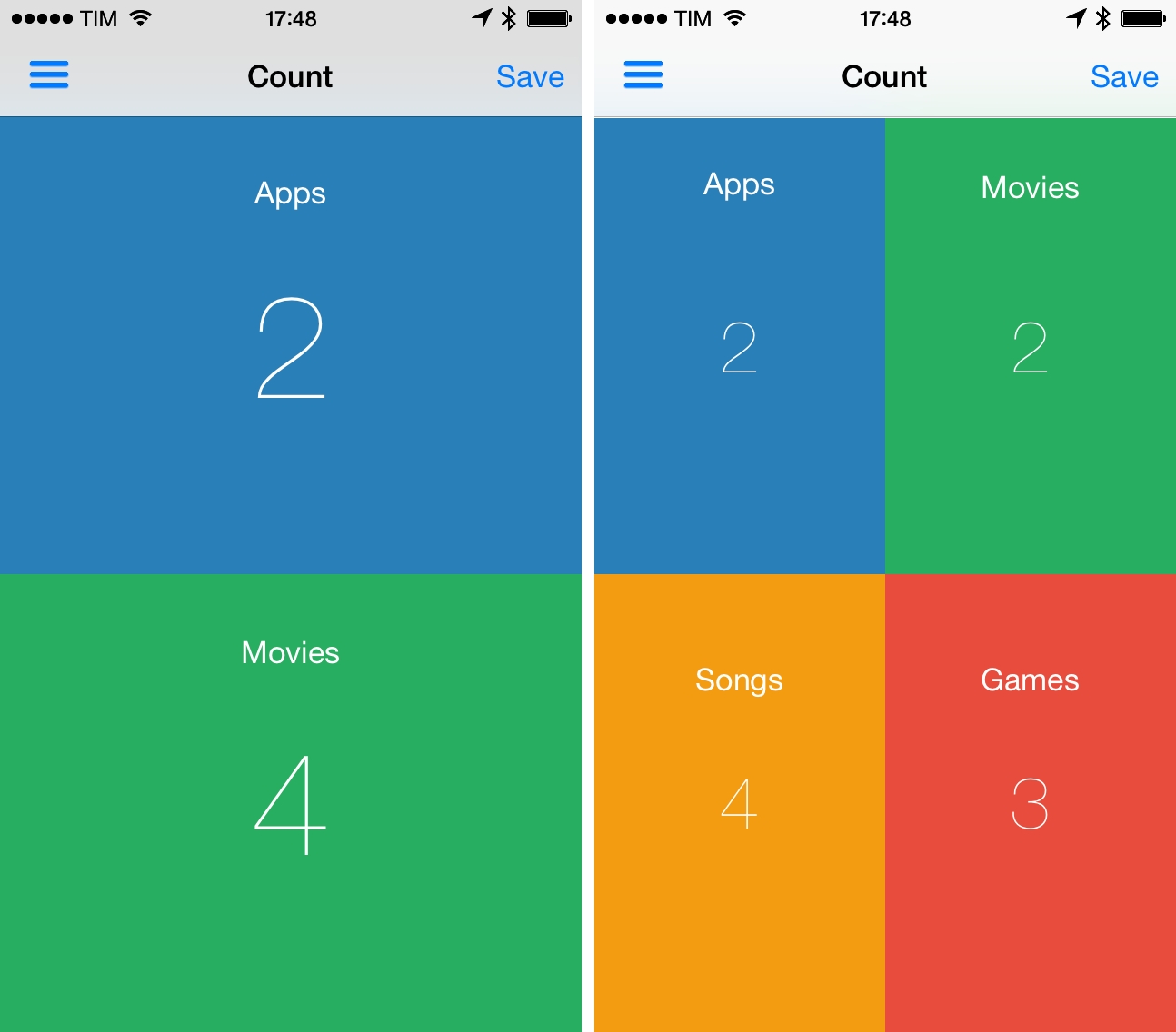
In episode 34 of The Prompt, I mentioned Touch Counters as my app pick. Touch Counters is a simple counter for iPhone that lets you display up to four counters simultaneously on screen, touching each corner to count up or down.

Touch Counters is the only iPhone app with support for multiple counters I could find on the App Store, and it could be improved in several ways. Some of the UI assets aren’t Retina-ready (seriously), there are typos in the interface, and sometimes the app plays the sound associated with taps when you just want to swipe the sidebar away. From a design perspective, it’s not great.

However, in spite of these flaws and general lack of polish, Touch Counters works as advertised: when I need to count different sets of items at the same time, I can create counters and tap on separate areas of the screen, which are visualized with different colors. Each counter can have a text label, and you can customize the background and font color in a counter’s settings; counters can be saved with totals and notes, but they can’t be exported from the app. You can even change the default increment or decrement of individual counters in the Settings.

There are probably other apps that do what Touch Counters does with a more refined UI, but Touch Counters works and I wish I used it when I had to compile posts like this. Touch Counters is $0.99 on the App Store, and I hope the developer will soon release an update.


Elevating The Expedition

Apple:

Mountaineers Adrian Ballinger and Emily Harrington have scaled many of the most renowned – and feared – mountains on Earth. In exploring frigid and unforgiving altitudes that most humans visit only in the comfort of a pressurized jet cabin, one piece of equipment has become essential to them: their iPad.

Earlier today, Apple posted the second profile of the Your Verse campaign for the iPad. The webpage has a neat layout and there are notes about the GPS app Ballinger and Harrington use, but I was hoping Apple would also specify whether or not 3G/LTE coverage is usually available and/or reliable at base camp. Overall, a good showcase of the iPad’s portability.

Permalink