Ten Years of Podcasting

There are some parts I don’t agree with, but, overall, this article by Matt Haughey is an excellent look at the current state of podcasting:

Podcasting started as a nerdy way to trade files between technologists, and it’s come very far, but at its roots, it’s still a pretty clunky method to collect audio and most podcast clients are glorified file managers. Listening to podcasts is an intensely personal pursuit, but it could also be opened up to easier and better sharing, and help create entire communities around hosts, shows, and episodes in improved ways that are easier than what we have now.

Matt touches upon different points – podcast apps, what podcast producers could do, and the social aspect of podcasts as a new entertainment medium.

The comments on podcast clients especially struck me as accurate and fair: most iOS podcast apps behave like RSS readers for audio, with little innovation in terms of discovery, smart playlists, and sharing tools. One could argue that, on iOS, Apple’s built-in Podcasts app is enough for most people who want to listen to podcasts, but that doesn’t mean that it can’t be done better or differently. Look, for instance, at the audio effects and recommendations of Overcast or Instacast’s impressive full-text search for show notes.

The same argument could be made for Apple’s Music app – built-in and “enough” for most people. But that didn’t stop Apple from buying Beats Music, which offers a completely different take on music listening that matters. And this is why I’m excited to see what Apple is going to do with Swell and how their acquisition may fit with plans for CarPlay, the Watch, and perhaps iOS 9.

I don’t know if making podcasts go beyond their geeky roots may require change from big players like Apple or simply time and more mainstream shows like Serial, but I’m excited to see how the market will mature in 2015.
Permalink

Virtual: No Time for Pig Punching

This week Federico tells Myke about his first impressions of playing Minecraft and they list their favourite games of 2014.

And on this week’s Virtual, we share our favorite games of the year – my picks include the excellent Monument Valley and Space Age on iOS. As for Minecraft, I built my first hut last night and I feel like I’m starting to understand the game. You can get the episode here.

Sponsored by:

Permalink


App Websites

Joe Cieplinski writes about the importance of having a good website for your app:

Look, I’m not saying that you shouldn’t do your due diligence with ASO, and that you shouldn’t care at all about getting people to rate your app. If you take a few hours doing some basic research, you can certainly make some improvements to your keywords that could boost your ranking considerably. But how many developers are throwing together what amounts to barely more than a skeleton web page, and then spending little to no time at all trying to drive people to it? I think there’s a lot to be gained by spending some time on this.

More than six years after the launch of the App Store, I find it curious every time I come across an app on the Store and either there’s no link to a website or the “website” consists of screenshots from iTunes and an icon. This sounds obvious – having a good app website is important (sometimes absolutely necessary) and I completely agree with Joe’s motivations.

Permalink

Automatic: Your Smart Driving Assistant on Your Smart Phone [Sponsor]

There’s a mountain of data inside your car waiting to be unleashed, and all you have to do is plug in a quick little connector and download a mobile application.

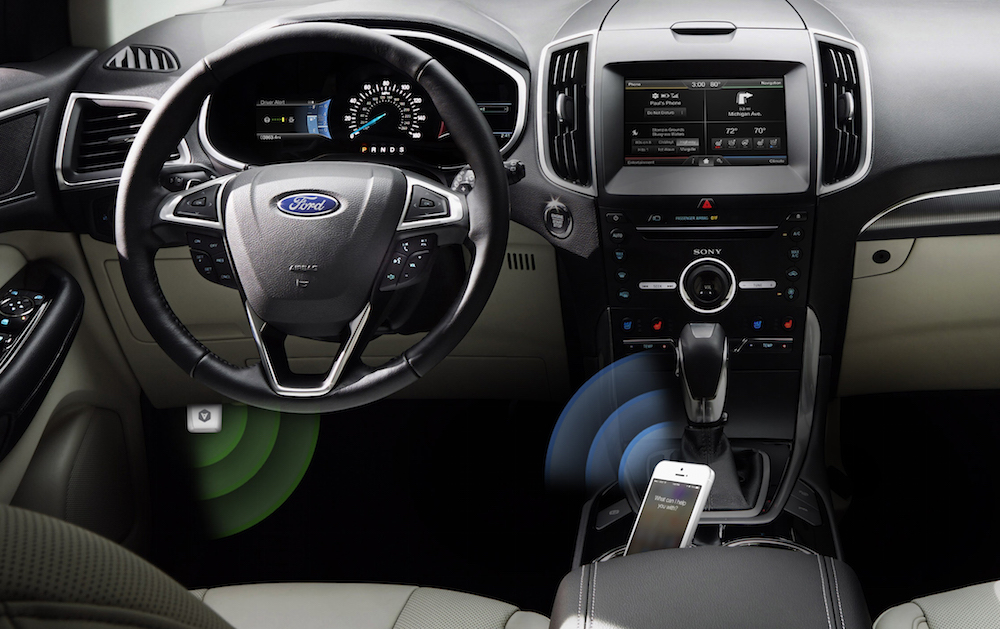
Automatic is a smart driving assistant that plugs into your car’s data port and lets you connect your smartphone (either iPhone or Android) with your car. By  talking to your car’s onboard computer and using your smartphone’s GPS and data plan to upgrade your car’s capabilities, Automatic will allow you to easily diagnose your engine light, never forget where you parked your car, and save hundreds of dollars on gas.

Automatic learns your driving habits and gives you suggestions through subtle audio cues to drive smarter and stop wasting gas. Thanks to a map view available on your phone, Automatic can display a trip timeline after every driving session, showing you how you’re doing with a Drive Score; the app can even track local gas prices and tell you how much you’re spending.

In case of engine problems, Automatic can decipher what the “check engine” light means and show you a description of the issue with a possible solution. And thanks to a feature called Crash Alert, Automatic can detect many types of serious crashes and automatically alert local authorities as well as your loved ones when you can’t.

Automatic is currently available in the US for iPhone and Android devices, with a 45-day return policy and free shipping in 2 business days.

MacStories readers can go to automatic.com/macstories to get $20 off and buy Automatic at just $79.99. For more information, check out Automatic’s website.

Our thanks to Automatic for sponsoring MacStories this week.


Tweet Analytics Now Available in Twitter for iPhone

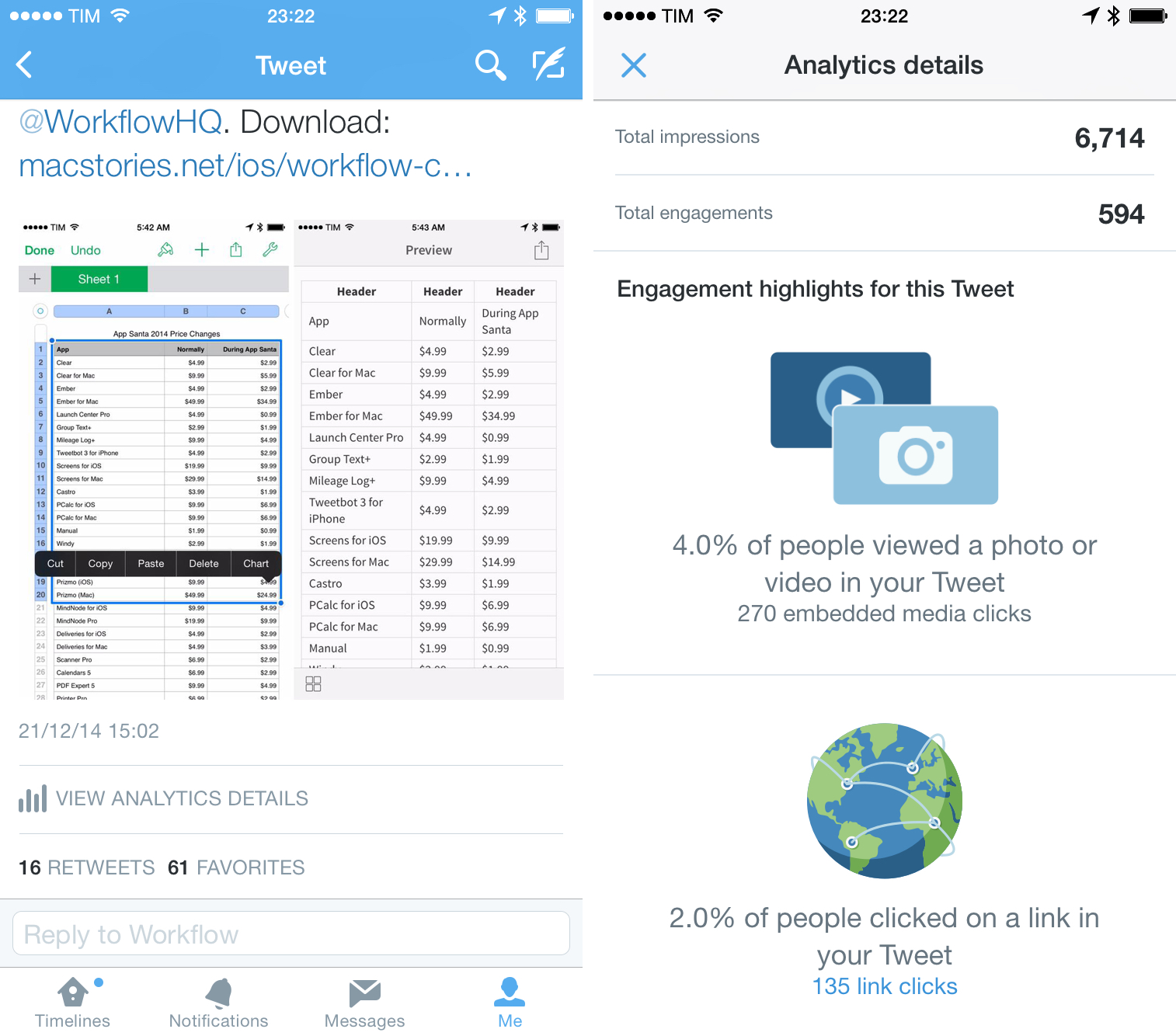
I noticed some users tweeting about mobile tweet analytics over the past couple of weeks, and today Twitter has officialized the rollout:

On mobile (currently available on Twitter for iPhone), click on one of your Tweets to get to the Tweet detail page, then tap “View Tweet activity.” Make sure you have installed the latest version of Twitter for iPhone.

It’s nice that I can look at analytics directly from the Twitter app for iPhone, although most of those stats don’t take into account third-party clients, which I suspect the majority of my followers use.

As someone who uses Twitter for work, this is another reason to keep using the official client over third-party apps, and yet more proof that Twitter for iPad never gets cool new features first.

Permalink

#MacStoriesDeals 2014 Holiday Edition: Best Deals for iPhone, iPad, and Mac Apps

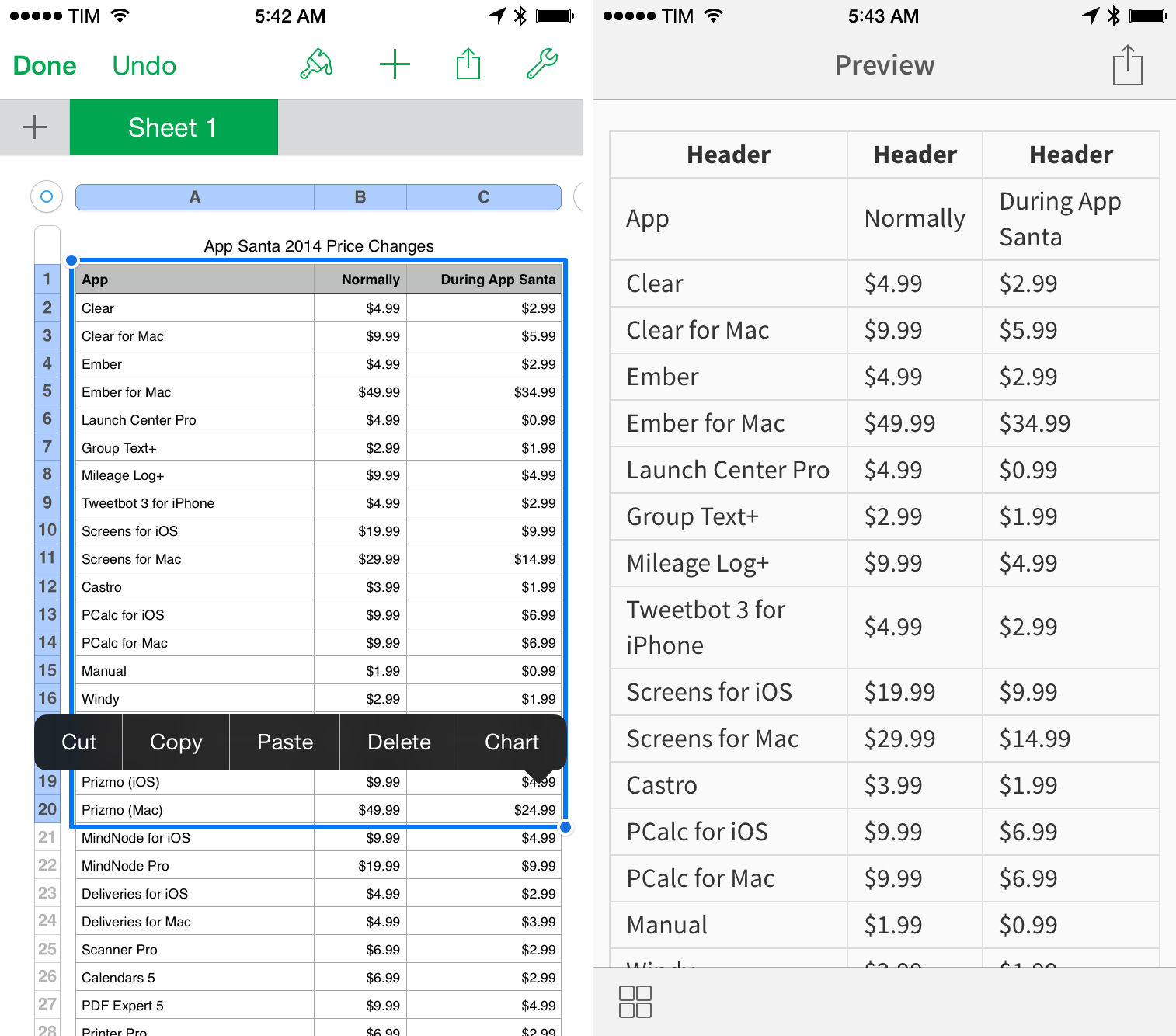
The holidays are upon us once again! #MacStoriesDeals is the best place to find great deals for iOS apps and games, Mac software, and more.

Every year, thousands of iOS and OS X software deals are launched for the holidays. We handpick the best ones and collect them in a single post with links to buy or share discounted products directly. You don’t need to be overwhelmed by holiday deals because we take care of finding the best stuff for you.

Bookmark this post and come back to find updated deals starting today through Christmas. Updates will be listed as new entries at the top of each category.

You can find us as @MacStoriesDeals on Twitter.

Read more


Workflow Tip: Append Text to the iOS Clipboard

If you do any sort of note-taking or writing on iOS, you probably find yourself wishing you’d be able to copy separate bits of text in the clipboard simultaneously. While that’s still not possible because the iOS clipboard only supports one entry at a time, the process can be sped up with Workflow.

A few weeks ago, I wrote about how I was looking for an extension to append links to an existing note through the system share sheet. I eventually downloaded NoteBox, which has an iOS 8 extension that can quickly capture any string of text and that has a merge feature to collect separate notes into a single one. That wasn’t perfect, but it allowed me to collect dozens of tweets and prepare them for a blog post on MacStories in just a couple of minutes.

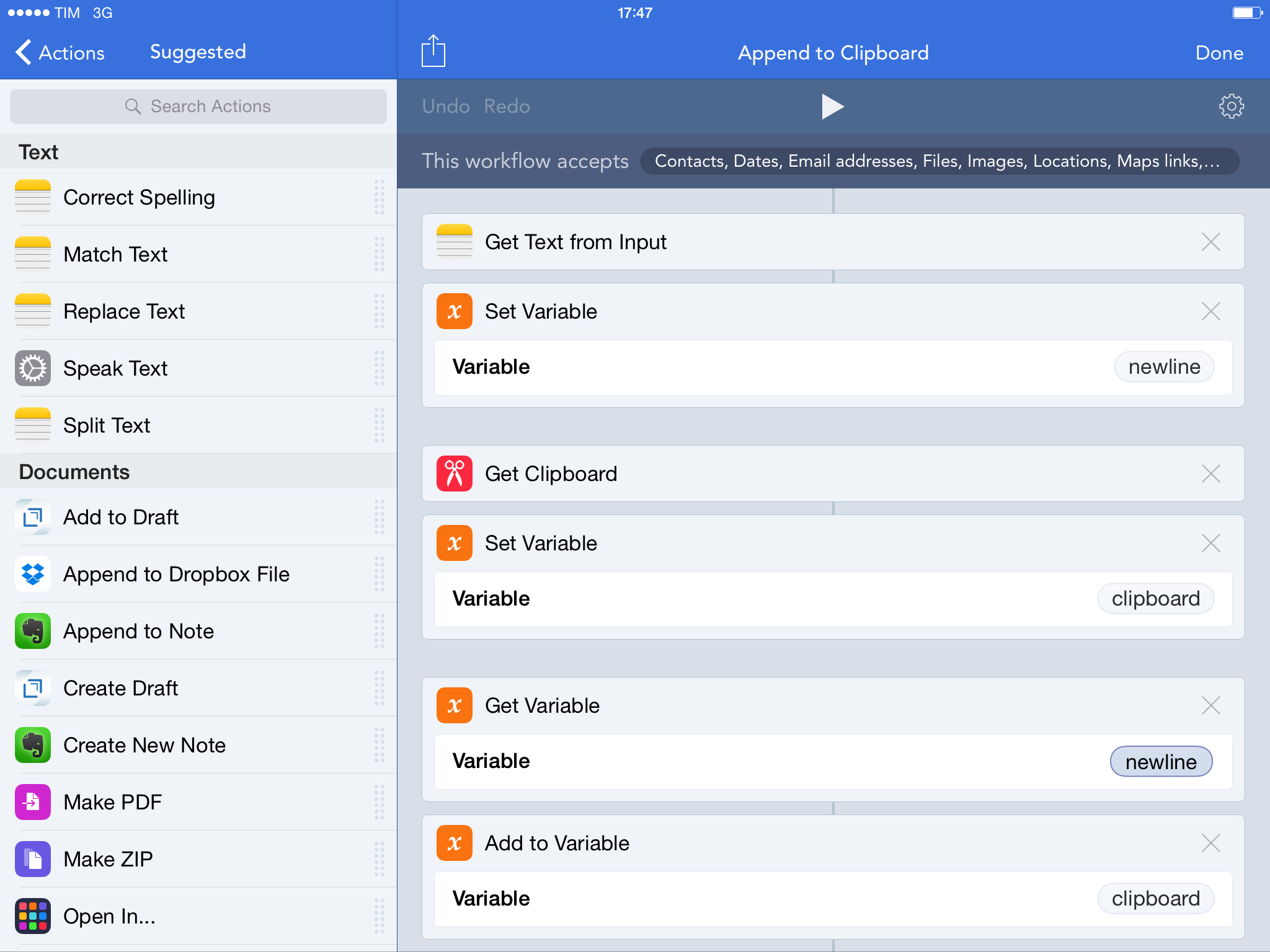
With Workflow, I came up with a better system that uses extensions and the ability to append text to the iOS clipboard. This is the workflow I use, which does three simple things:

  1. Receives input (text) from the Workflow action extension;
  2. Adds the input to your existing clipboard;
  3. Updates the system clipboard with the added input text.

In practice, this means that, using any app capable of showing the share sheet, you can add some text to your clipboard as a new line without convoluted steps of manual copy & paste. Want to add some tweets to a link you copied? In Twitterrific, run the workflow on those tweets and they will be added to the clipboard. Multiple links in Safari or RSS? Copy the first one as you’d normally do, then add more through the workflow. You won’t have to manually merge the contents of the clipboard as long as you use the Workflow action extension to append text.

I’m using this workflow every day to end up with a clipboard that contains multiple links, email addresses, or generic strings of text, and it’s been a great timesaver. You can download the workflow here.