
This Week's Sponsor:

BetterTouchTool

Now with a Powerful Launcher for Your Mac


On Multiple App Views for iPad Multitasking

Clayton Miller thinks that iOS should offer a way to view multiple documents from the same app side by side in iPad multitasking:

It’s not too hard to imagine a solution that can leverage the app-centric paradigm of iOS into something supporting multiple documents from the same app. Apps and documents both share the metaphor of the window on the desktop, so why not let them share the iOS pane model?

In an application that supports it, the slide-over menu gains a new option at the bottom for the current app. Tapping that instantiates another view of the app, defaulting to the document management or “open” view. The underlying iOS process model would likely need an overhaul for this to become a reality, but it’s a necessity.

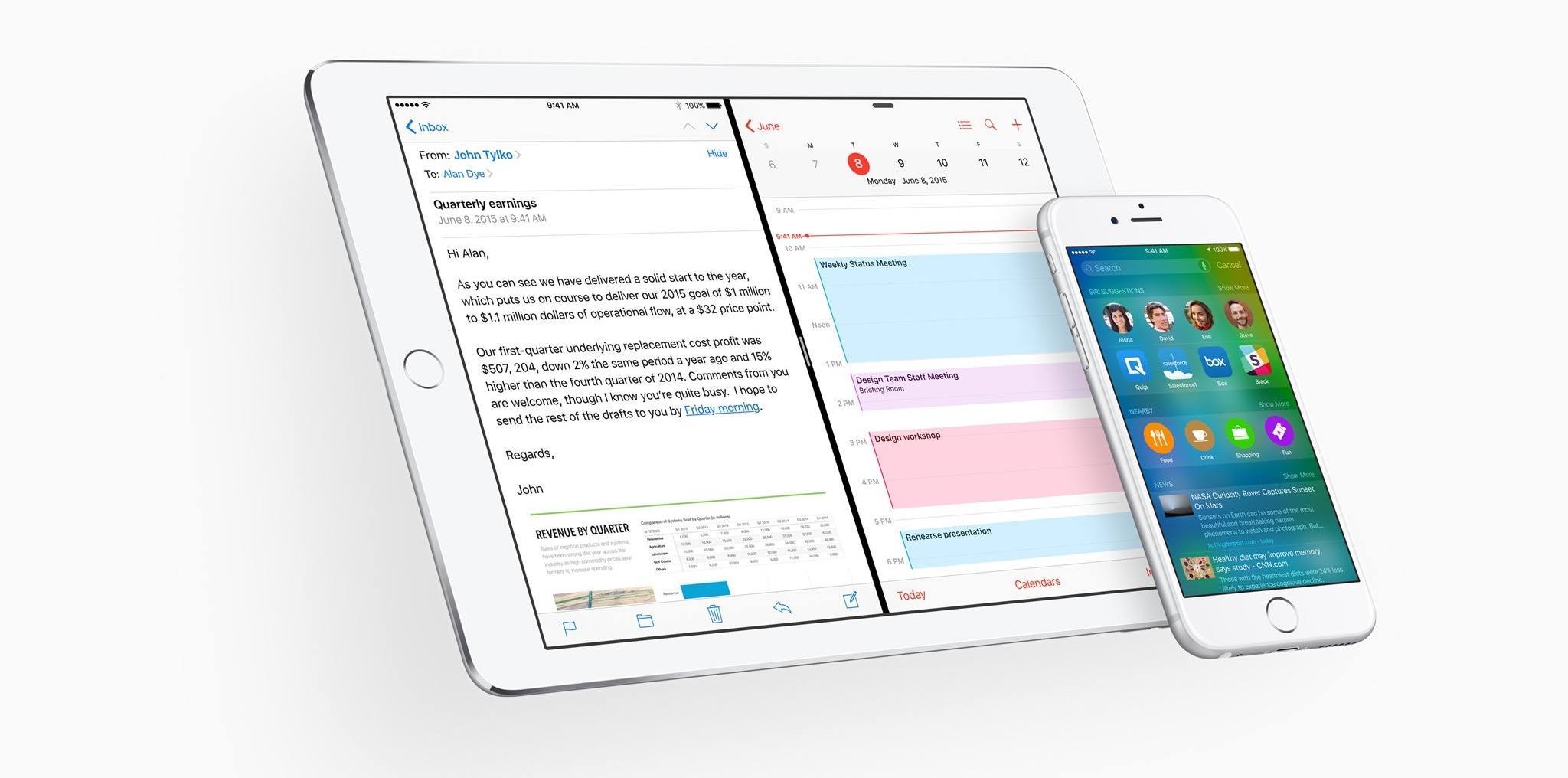
I like the concept he came up with, using the lower section of the Slide Over app picker to open a second pane for another document. But I’d go a step further and argue that users should have the ability to pin any view from the same app next to the current view, not just documents.

As I argued in my review:

One of the key aspects of Slide Over and Split View is that they cannot show two sections of the same app at once. Only individual apps can be displayed concurrently on screen: you can’t split Safari in multiple views and display both views on screen at the same time. If you were hoping to manage multiple Safari tabs or Pages documents in Split View, you’re out of luck.

Splitting apps into multiple atomic units for standalone views and documents seems like an obvious next step going forward.

If Apple brings the ability to split the current app in multiple instances for Slide Over and Split View, I hope they’ll do it for any view available in the app. Documents are ideal candidates for this, but all apps would benefit from such addition.

Permalink

Jason Snell on How Apple Got 3D Touch Just Right

From Jason Snell’s story for Macworld on trying 3D Touch at Apple’s September 9 event:

Every time I intended to use 3D Touch to “push” an icon on the iPhone home screen, the feature activated and a contextual menu popped into view, accompanied by a tiny vibration to indicate that I had succeeded with my gesture. The extension of that gesture–sliding my finger or thumb down to the right menu item and then letting go–felt natural after a single try.

When I used the iPhone without attempting to enable 3D Touch, it didn’t enable. When I tried, it worked. In Messages, I was able to push on a message preview and receive a “peek” at the full message, with accompanying vibration. When I wanted to commit to opening that message, I pushed a little harder and was greeted with another vibration as the full message “popped” in.

More than haptic feedback and shortcuts, it sounds like 3D Touch will fundamentally alter the navigation experience of iOS. Several iOS 9 features (new app switcher, back button, Universal Links) make more sense in the context of 3D Touch, too.

Permalink

How Apple Built 3D Touch

I missed this story by Josh Tyrangiel for Bloomberg Business on how Apple’s design team approached the idea of bringing pressure sensitivity to the iPhone’s screen. I liked this bit with Craig Federighi:

But in lieu of the usual polite deflection, Federighi picked up an iPhone 6S and explained one of 3D Touch’s simpler challenges: “It starts with the idea that, on a device this thin, you want to detect force. I mean, you think you want to detect force, but really what you’re trying to do is sense intent. You’re trying to read minds. And yet you have a user who might be using his thumb, his finger, might be emotional at the moment, might be walking, might be laying on the couch. These things don’t affect intent, but they do affect what a sensor [inside the phone] sees. So there are a huge number of technical hurdles. We have to do sensor fusion with accelerometers to cancel out gravity—but when you turn [the device] a different way, we have to subtract out gravity. … Your thumb can read differently to the touch sensor than your finger would. That difference is important to understanding how to interpret the force. And so we’re fusing both what the force sensor is giving us with what the touch sensor is giving us about the nature of your interaction. So down at even just the lowest level of hardware and algorithms—I mean, this is just one basic thing. And if you don’t get it right, none of it works.”

Permalink

What’s New for iOS Management in iOS 9

Since the early days of iOS, Apple has always made it relatively easy to configure iOS devices to meet the needs of managed deployments in schools, businesses, and other mass-deployment situations. Heck, even the good old iPod Classic had a “museum mode” that could lock down the device to show specific notes on the screen while audio played.

Over the past few years, iOS deployment has become more ‘professionalised’ – which might be a euphemism for ‘complicated’. Honestly, all mass computer deployment is deeply complex when you get down to it. The best systems automate almost everything. iOS deployment, as it has developed in recent years, has tended to keep most of the moving parts close to the surface. These parts have been difficult or impossible to automate and easy to overlook or forget. That would be fine if most of these parts were optional, but they’re not.

The main parts of an iOS deployment are a Mobile Device Management server for configuring and tracking your devices, the Volume Purchase Program for bulk-buying apps from the App Store, and the user of the device having an Apple ID.

When Apple launched the Volume Purchase Program, they introduced the ability for administrators to assign apps to users’ Apple IDs, rather than to devices. This also introduced the requirement that every device have a single, identifiable user who has a working Apple ID.

This was quite a good idea in the early days of iOS in the enterprise. These were days when users were bringing their own iOS devices to work and businesses had to make apps available to them. It wasn’t such a good idea for more centrally-managed deployments where the use of the device was perhaps more task-oriented than user-oriented. Think: supermarket employee who picks up one of twenty available iPads to do stock control. It also wasn’t great for schools, where many users didn’t have Apple IDs and there were no tools for bulk creation of said accounts.

I would love to tell you that iOS 9 fixes all of these problems. Unfortunately, I can’t tell you that. What iOS 9 does is fix one problem while introducing another.

Read more


Marco Arment Pulls Peace From the App Store

After a successful launch on the App Store earlier this week, Marco Arment has decided to pull Peace, his Content Blocker for iOS 9, from the App Store:

As I write this, Peace has been the number one paid app in the U.S. App Store for about 36 hours. It’s a massive achievement that should be the highlight of my professional career. If Overcast even broke the top 100, I’d be over the moon.

Achieving this much success with Peace just doesn’t feel good, which I didn’t anticipate, but probably should have. Ad blockers come with an important asterisk: while they do benefit a ton of people in major ways, they also hurt some, including many who don’t deserve the hit.

For more details on his motivations and how to ask for a refund, check out Marco’s post.

Permalink

Zen Timer: Elegant Pomodoro on Mac

Zen Timer has improved my daily work life. I have ADHD, and I recently went through a snafu where my disorder was untreated for a couple of months. In order to get any work done, I needed more structured work time, so I gave the Pomodoro technique another go. It turned out to be a huge help for me, and if it can help someone with a level of concentration as hopeless as mine, I have to believe it’s a great tool for more “normal” people, too.

At its core, Pomodoro is a simple method of working and resting in timed intervals. There are a variety of timers available on Mac and iOS for this, and just as I was making the effort to start implementing the technique again, I found Zen Timer. It’s a beautiful and creative app for interval timing that immediately became part of my daily workflow.

Zen Timer generates an animated tree which grows during a work interval, and when the timer is up, the leaves of the tree fall to the ground and rest there while it counts down to your next work period. When the next work interval starts, the tree begins growing anew. Zen Timer generates a unique tree each time, and you can customize the colors, line thicknesses, transparency and more things that people with ADHD (or OCD…) probably shouldn’t be allowed to spend too much time tweaking.

It’s visually customizable, but I’ve found there’s a specific way I like to run it: I set the size of the window as large as it will go, make the window background transparent, and set it at the bottom of the viewport at Desktop level on one of my auxiliary displays. You can hide the timer and controls during work periods, so I’m left with an elegant tree growing on my desktop while I work. I customized my wallpaper and the tree colors, of course. Because I could.

While Zen Timer comes with intervals set to the Pomodoro defaults, its timer settings are easily modified to work with any lengths of time in each interval.

If you’re looking for a new Pomodoro timer on your Mac, or are like me and just need a better way to work, check out Zen Timer ($4.99 US) on the Mac App Store. If you’re curious, check out the developer’s website for an excellent video of Zen Timer in action.


Tim Cook on PCs and iPads

BuzzFeed’s John Paczkowski was able to spend 20 minutes with Tim Cook in his recent visit to the Fifth Avenue Apple Store. The entire article has a few interesting gems, and I’m going to quote Cook’s comment on PCs and the iPad Pro:

Two last questions as we turn the corner onto Fifth Avenue: The first — how close are we to a time when people are going to stop buying home computers and laptops and use only tablets? Will they give up their Macs for the iPad Pro? “I think that some people will never buy a computer,” Cook says. “Because I think now we’re at the point where the iPad does what some people want to do with their PCs.” Cook is quick to point out, however, that this doesn’t foreshadow the end of the Mac. “I think there are other people — like myself — that will continue to buy a Mac and that it will continue to be a part of the digital solution for us,” he adds. “I see the Mac being a key part of Apple for the long term and I see growth in the Mac for the long term.”

Permalink

How the New Apple TV Uses On-Demand Resources

Writing for iMore, Serenity Caldwell has a great overview of On-Demand Resources and how they’ll work on tvOS:

Instead of making the user download 4GB off the bat, you slice up your app into a bunch of sections, called tags. You include the essential parts of the app—loading and launch screen, scores, settings, and the first five levels—in that 200MB bundle.

Other levels and assets are split into multiple tags that range in size from 64MB to 512MB. If you sliced up tags that all sized out to 100MB for your game, for instance, you’d have 38 additional items for download once a user installs the game. Those don’t come all at once, however: They’re called on-demand, when a user needs them.

(Extremely geeky thought: I wonder how this could affect the speedrunning community and level-skipping glitches if similar technologies are adopted by more platforms.)

Permalink