How to Dictate iMessages in Multiple Languages from a Widget with Shortcuts


Wallpaper: Traces by AR72014

I live in Italy, but because of my work I communicate with friends and colleagues in English. All my devices are set to English, including Siri on our HomePods. As a multilingual iOS user, the addition of multilingual typing to the QuickType keyboard was, by far, one of my favorite changes in iOS 10. Besides being aware of the language used in each iMessage conversation, since 2016 the QuickType keyboard has been able to jump between multiple languages on the fly without switching keyboard layouts – which is amazing when you have conversations with people who live in different countries. I can’t believe there was a time when I was constantly switching between the Italian and English keyboards hundreds of times each day. For international users, it was as bad as not having copy and paste before iPhone OS 3.0.

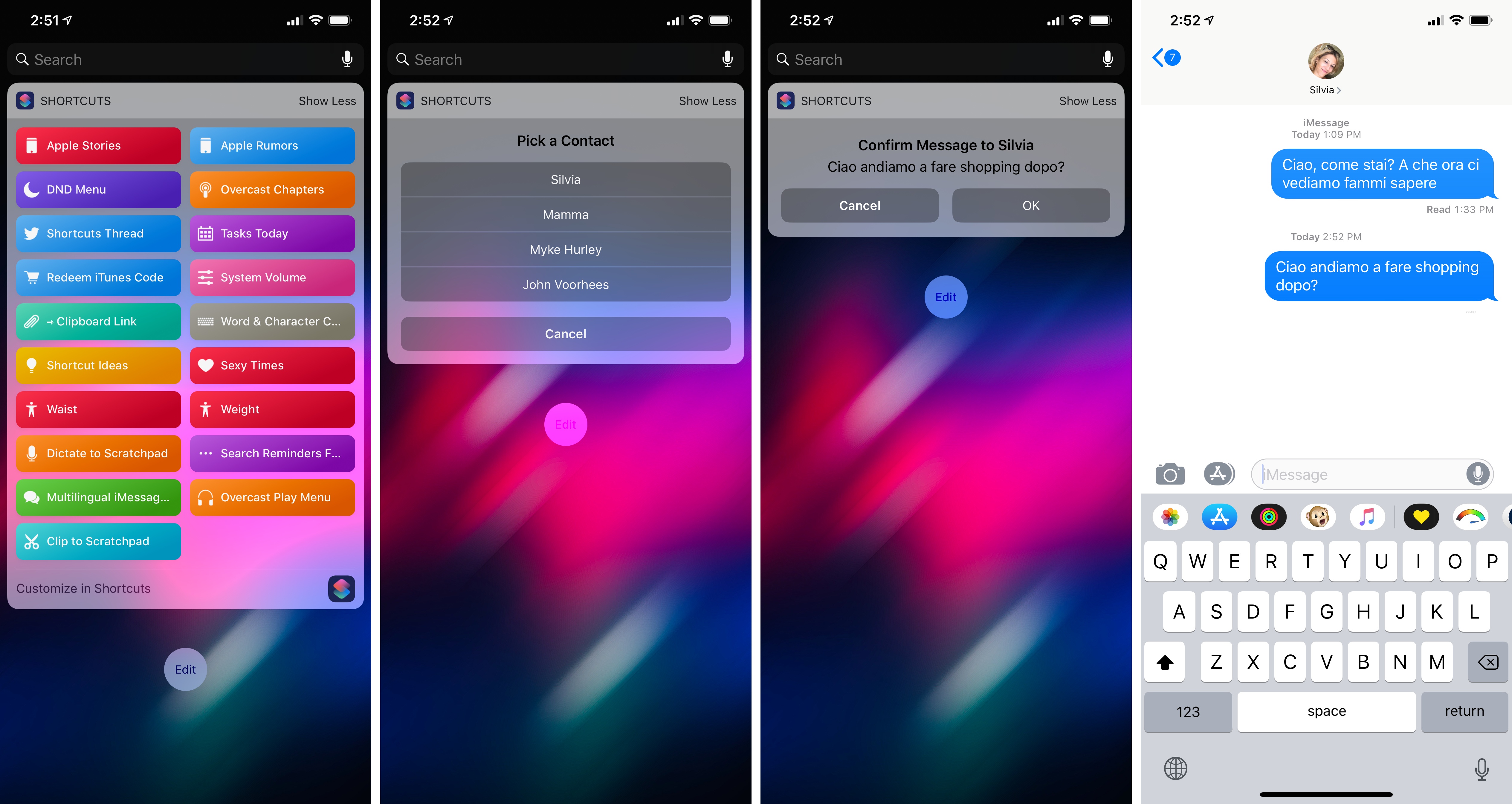
With the release of Shortcuts and the ability to send iMessages in the background (without showing the Messages composer), I had an idea: what if instead of typing I could use dictation (also improved in Shortcuts) to quickly send a message from a widget? A shortcut to accomplish this seemed relatively easy to build, so I got to work. However, after a few minutes of tests, I realized that Shortcuts’ dictation didn’t support automatic language recognition – which meant I had to consider a more creative approach.


Read more


AppStories, Episode 80 – Our Favorite Apps with iOS 12 Features (Part 2)

On this week’s episode of AppStories, we discuss more of their favorite iOS and watchOS app debuts and updates highlighting iOS 12 and watchOS 5 features.

Sponsored by:

  • Freshbooks - Online invoicing made easy.
  • eero - Never think about WiFi again. Use code APPSTORIES for free overnight shipping.
AppStories+ Deeper into the world of apps

AppStories Episode 80 - Our Favorite Apps with iOS 12 Features (Part 2)

0:00
30:55

AppStories+ Deeper into the world of apps

Permalink

Waze Adds CarPlay Support

Today, Waze, which is owned by Google, updated its iOS app with CarPlay support, which Google Maps received last week. I took Waze out for a few errands over lunch and in my limited testing was impressed.

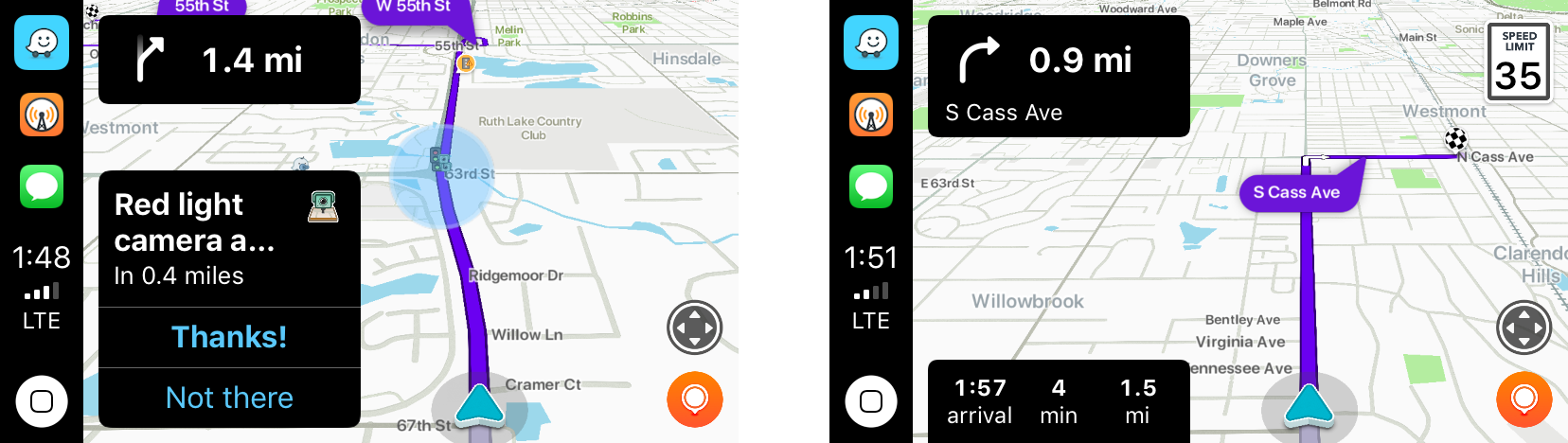
Waze immediately identified nearby stoplight cameras.

Waze immediately identified nearby stoplight cameras.

The first stop was the bank to pick up some cash. As I passed through a busy intersection, Waze warned me that there were stoplight cameras ahead, which I knew about, but it was good to see Waze did too.

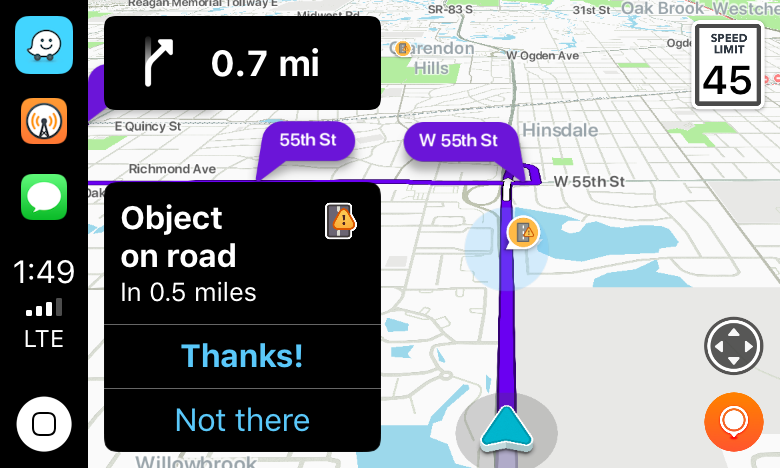
I'm glad I missed that sheet of plywood in the road.

I’m glad I missed that sheet of plywood in the road.

Next, it was off for some steak tacos to celebrate finally finishing my Mojave review. On the way, Waze said there was an object in the road. Sure enough, there was a piece of plywood straddling two lanes not too far ahead. Waze also alerted me to heavy traffic just ahead of my turnoff.

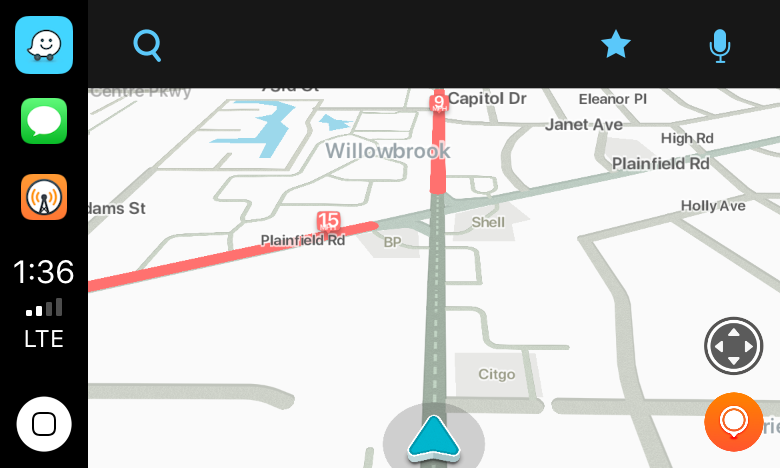
Waze alerted me to local road work.

Waze alerted me to local road work.

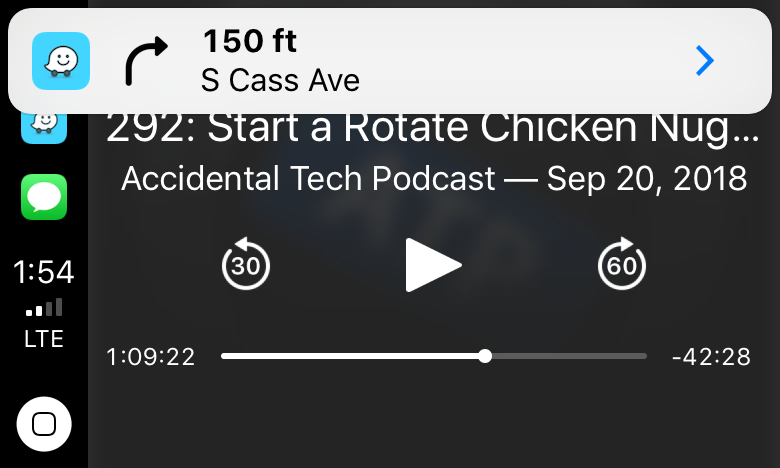
With each alert, the CarPlay UI displayed a notification with two choices: ‘Thanks!” and ‘Not there,’ with big buttons to allow me to help train the Waze database. I flipped back to Overcast, and as I approached my next turn, Waze announced it, momentarily pausing the audio, and displayed a notification that I could tap to return to the map of my route.

Tapping the Waze notification takes you back to the map view.

Tapping the Waze notification takes you back to the map view.

For people who use Waze regularly, those sorts of alerts and notifications will be familiar. Apple Maps still has the advantage of Siri integration with the hardware buttons on my steering wheel because like Google Maps, Waze can’t access Siri. That’s a shame because it’s easier to press a dedicated steering wheel button than it is to poke at a CarPlay screen in the center of your dashboard to do a voice search, but from a parked position in a bank parking lot the voice command I gave it was recognized immediately and I was on my way to the correct location.

I’ve only used Waze for this one trip, but my first impression was that the app is solid and should be well-received by its users. Especially for commuters that want traffic and other real-time, crowd-sourced data, Waze is a great option.

Waze is available as a free download on the App Store.


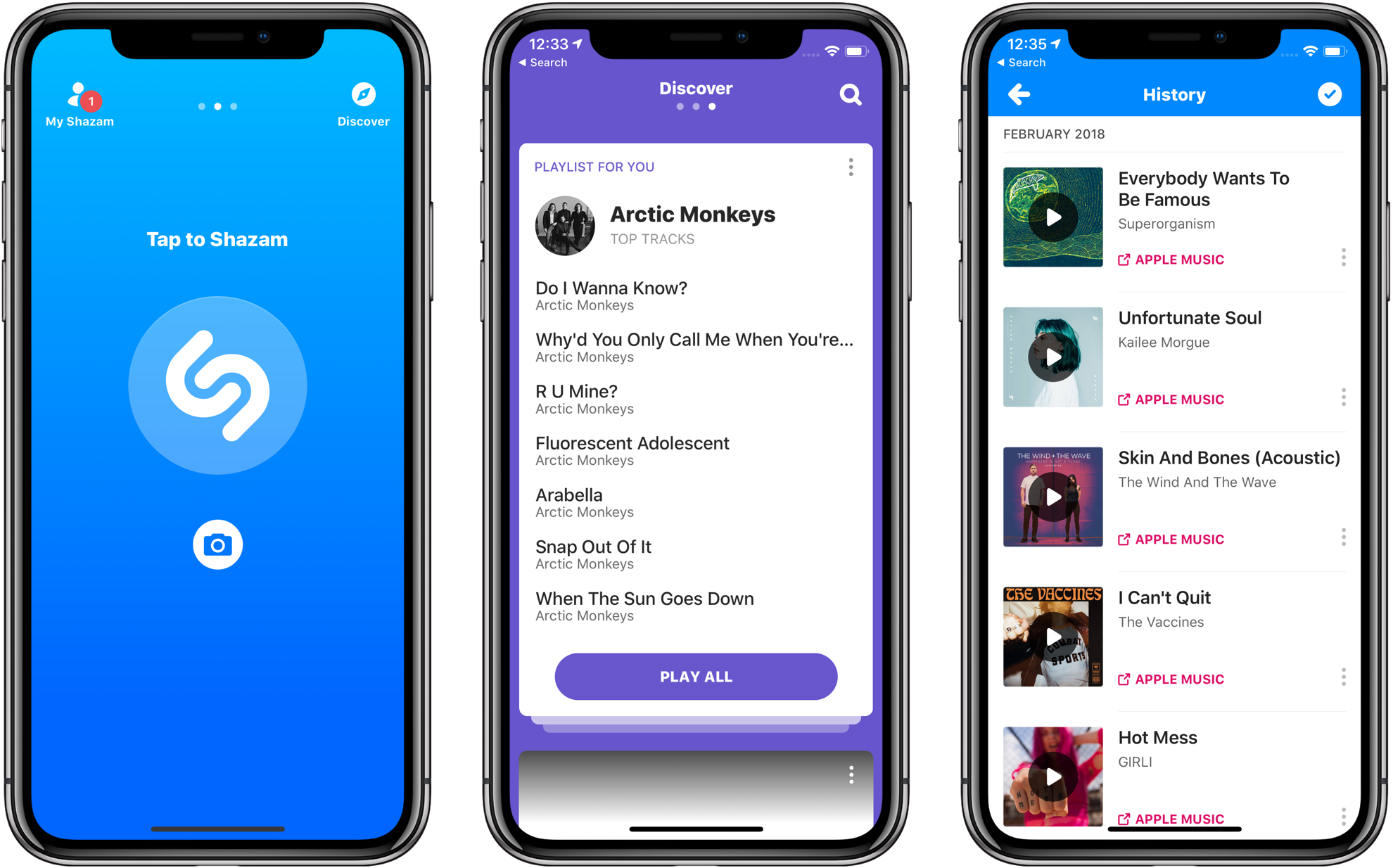
Apple Completes Acquisition of Shazam

Late last year, Apple announced that it had agreed to purchase Shazam, the music-discovery service. The acquisition was held up for a time by an investigation by the European Commission, which ultimately said the deal is not anti-competitive and could go forward. Today Apple announced that the deal had been completed.

In a press release, Apple said:

Shazam has been downloaded over 1 billion times around the world, and users identify songs using the Shazam app over 20 million times each day. With pioneering innovation in music identification, Shazam helps people discover, interact with and share video, audio or printed content across devices and mediums — and allows music fans to follow their favorite artists and share in the thrill of discovery.

Apple also announced that Shazam would soon be offered ad-free to all users.

Permalink

OmniFocus 3 for Mac: Multiple Tags, Enhanced Forecast, Powerful Perspectives

I, like probably many of you, struggle to remember essential things. I can remember that the fire alarm went off last Tuesday at 11:07 AM, but essential things like what I need to finish for the next episode of Automators don’t seem to stick in my head. Thankfully, I’m not alone! Many of us are on a constant quest, looking for the perfect task management system. Everyone has different requirements, and even if we did all use the same system, we’d use it differently.

Finding the perfect task management system can feel like a hunt for the mythical pot of gold at the end of the rainbow – everyone has a different idea of how to get there, and lots of ideas for using the gold, but a solid plan and utilisation of the system at hand is missing. No task manager can or will work for everyone, nor should it, but one thing we are not short on in today’s world is choice. It can be mind-bogglingly overwhelming trying to choose a system, and once you’ve made it that far, you then have to decide how to use your system. But the simple fact that we have choices is good news – everyone can choose which app to use, how to use it, and even when to use it.

I was once disorganised, continually missing deadlines, and had no idea what was going on. Thankfully after reading what felt like everything available on the Internet on the subject, I found out how to manage tasks well, and more importantly, I found what I needed to know to become organised. One task manager constantly kept cropping up as the recommended solution, and so after that long ago free trial I purchased OmniFocus 2 – and started to get to grips with it. I’ve adjusted my setup many times over the years – I started using OmniFocus when I was a teaching assistant living in Germany, and I used it when I went back and finished my degree, while I was a teacher, and now I use it as a programmer and a writer/podcaster. My setup and usage has evolved over the years to better work with my changing life and needs, like any good task management system should.

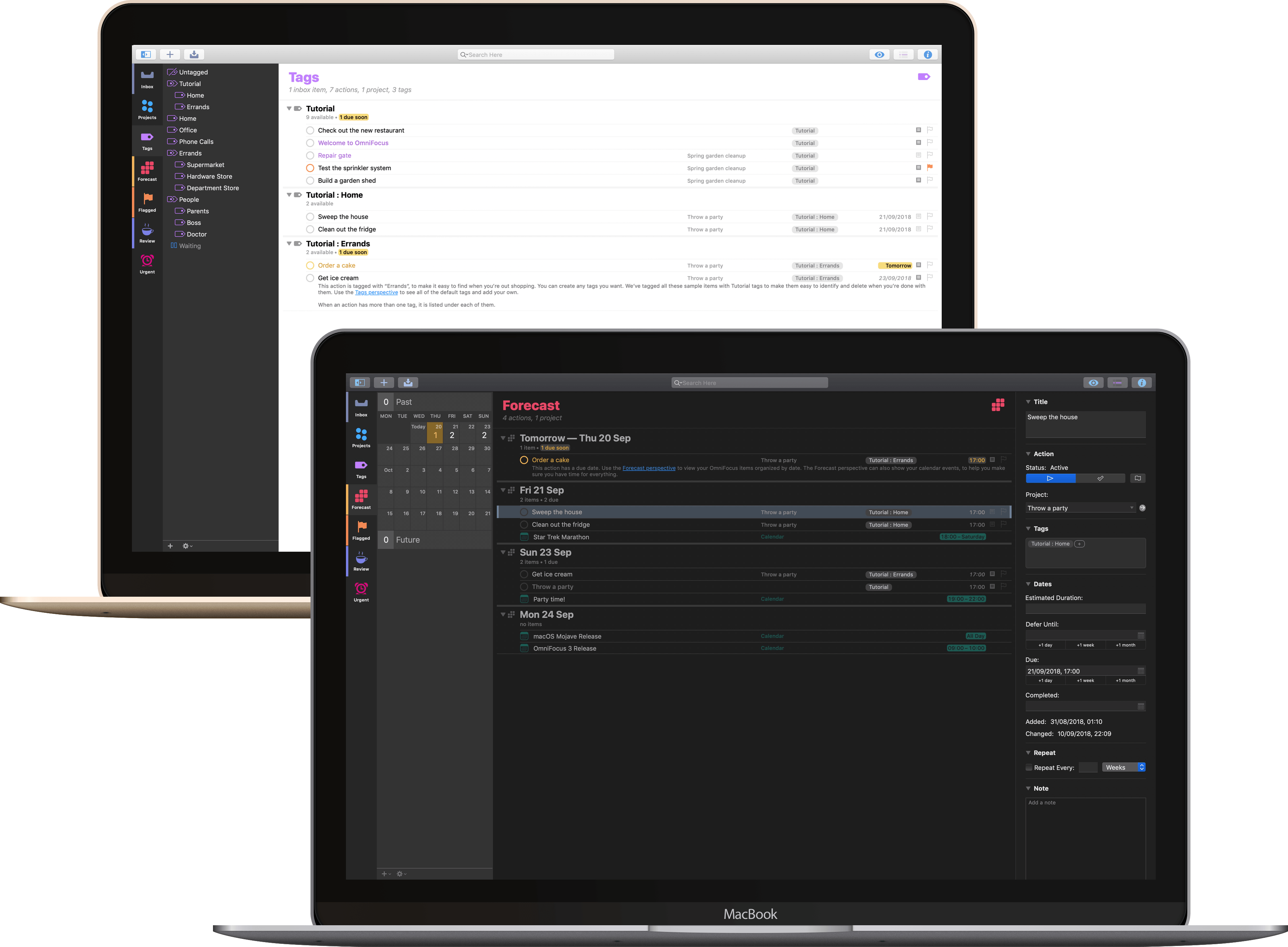
I share all this as introduction for the news that OmniFocus 3 for Mac has arrived, and with many new features. OmniFocus was the first task management system I found that really suited my needs, with all the power and flexibility I wanted, and the latest version has been put through its paces quite thoroughly by myself and other beta testers to make sure it lives up to the reputation OmniFocus has gained over the years. In terms of what’s new, in version 3 we now have multiple tags instead of a single context, extra powerful perspectives, customisable repeats, and a new look to polish the whole application off.

Read more


macOS Mojave: The MacStories Review

I went to San Jose this June not expecting much from macOS. After all, it’s a mature OS that already did what I need. My expectations were reinforced by rumors and leaks that Apple would introduce a Dark Mode and the fact that High Sierra introduced several significant foundational changes to macOS. I concluded that Mojave would focus primarily on a design refresh.

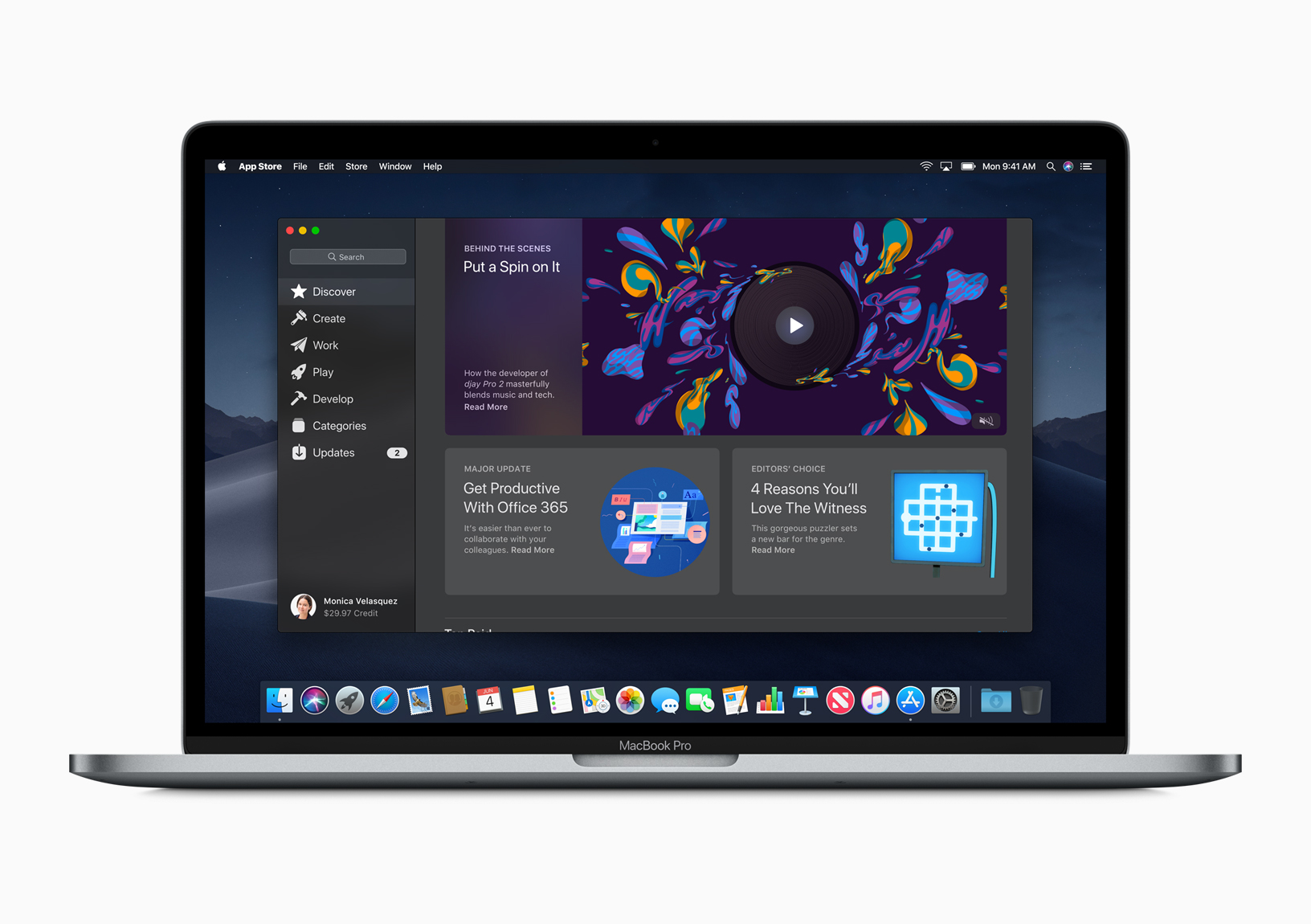
I was wrong. Dark Mode is the most visible and one of the most significant changes to macOS, but Mojave is much more than a UI refresh. Dark Mode and Mojave’s other system updates include productivity enhancements that have made meaningful improvements to the way I work on my Mac.

It took some time to acclimate to Dark Mode, but now I prefer it. As much as I like Dark Mode though, the most important changes to macOS have been those that surface existing functionality in new places making them more useful than in the past.

Mojave adds a collection of Desktop, Finder, and screenshot tools that are notable for the way they meet users where and how they work. It’s a functional approach to computing that has had a bigger impact on my day-to-day workflow than other recent updates to macOS, even where the Mojave updates provide new ways to do things I could already do before.

There’s a lot to cover in Mojave, so I’m going to dive right in and dispense with explaining how to set it up. Apple has a whole page devoted to the topic that you can explore if you’d like. Instead, let’s start by considering how Mojave’s Dark Mode.

Read more


Bear: Write Beautifully on iPhone, iPad, and Mac [Sponsor]

Bear is a beautiful, flexible new notes app for Mac, iPad, iPhone, and Apple Watch. In less than two years, Bear has earned an Apple Design Award, an App Store Editor’s Choice award, and numerous mentions on Apple’s Today page for being a great way to capture ideas, write the next blockbuster novel, and much more.

Bear embraces portability, flexibility, and privacy. Your notes are written in Markdown and saved in standard formats, then organized with the power of tags and nested tags. Sketch with styluses like Apple Pencil, and grab links with app extensions. When it’s time to ship your notes elsewhere, export them to a variety of formats.

Upgrade to Bear Pro to unlock iCloud sync, a dozen beautiful writing themes, and even more powerful export options.

For iOS 12 and macOS Mojave, Bear is ready with a big update to support their best features.

On iOS, Bear now works with Siri shortcuts for powerful automation. Who even types notes anymore? Nickelback, that’s who. Use Siri and the beautiful sound of your voice to create notes, open your to-do notes, and more. For Mojave on the Mac, free and Pro users can write in the all-new Dark Mode with our new free theme: Dark Graphite.

Most of Bear’s features are free to use, so grab it from the iOS and Mac App Stores. Learn more at bear.app, and subscribe to their infrequent newsletter for tips, user interviews, and more.

Our thanks to Bear for sponsoring MacStories this week.


iOS 12 on the iPhone 5S, iPhone 6 Plus, and iPad mini 2

Andrew Cunningham, writing for Ars Technica:

I’ve been testing iOS on old devices for six years, and I’ve never seen a release that has actually improved performance on old devices. At best, updates like iOS 6, iOS 9, and iOS 10 didn’t make things much worse; at worst, updates like iOS 7 and iOS 8 made old devices feel like old devices. Anyone using an older device can safely upgrade to iOS 12 without worrying about speed, and that’s a big deal. You’ll notice an improvement most of the time, even on newer devices (my iPad Air 2, which had started to feel its age running iOS 11, feels great with iOS 12).

As I noted in my review, I was hoping someone would run actual measurements for different system features on older devices running multiple versions of iOS. Cunningham did exactly that, going all the way back to iOS 10 on the iPhone 5S.

Permalink

Connected, Episode 210: Cold Feet Apple Blogger

Federico has published his iOS 12 review, and the boys get nerdy talking about Siri Shortcuts and some updated apps before Stephen talks about macOS Mojave’s launch.

On last week’s episode of Connected, we covered some behind-the-scenes aspects of my iOS 12 review and the upcoming release of macOS Mojave. You can listen here.

Sponsored by:

  • Away: Travel smarter with the suitcase that charges your phone. Get $20 off with the code ‘connected’.
  • Pingdom: Start monitoring your websites and servers today. Use offer code CONNECTED to get 30% off.
  • Molekule: The only air purifier that actually destroys pollutants. Use connected for $75 off.
Permalink