
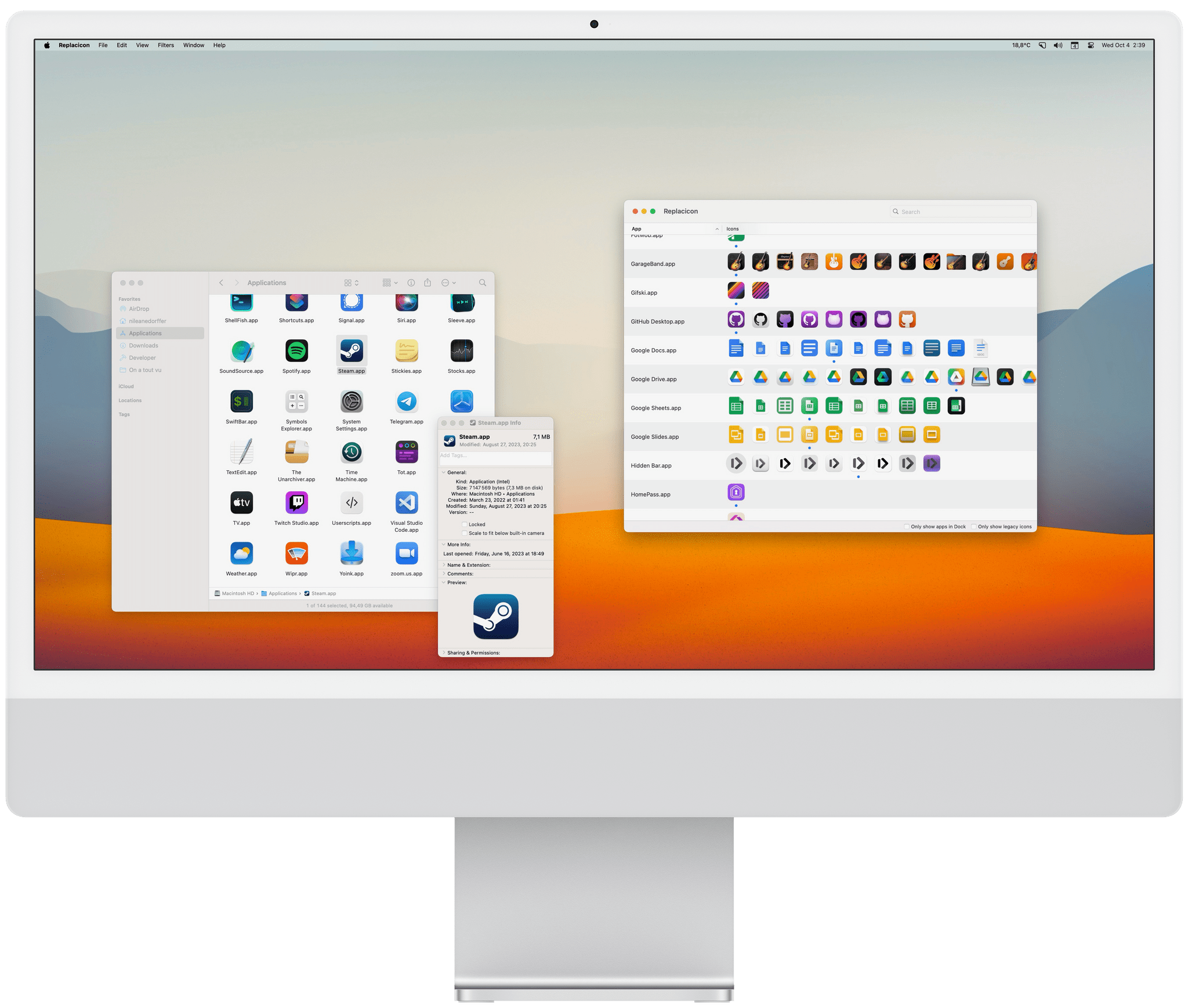
The age of wildly personalizing the look of macOS might be over, but customizing app icons is still fun, and the phenomenon is more popular than ever since the advent of Home Screen widgets and custom Shortcuts launchers that have allowed millions to personalize the look of their iPhones.
Just like on iOS, I believe there is still room for custom icons on the Mac. Whether you’re looking to completely change the look of your Dock or simply tweak a couple of app icons, here’s how you can do it.
Customizing App Icons on a Mac in 2023
TV Remote: Control Your TV From Your Lock Screen, Home Screen, and Live Activities
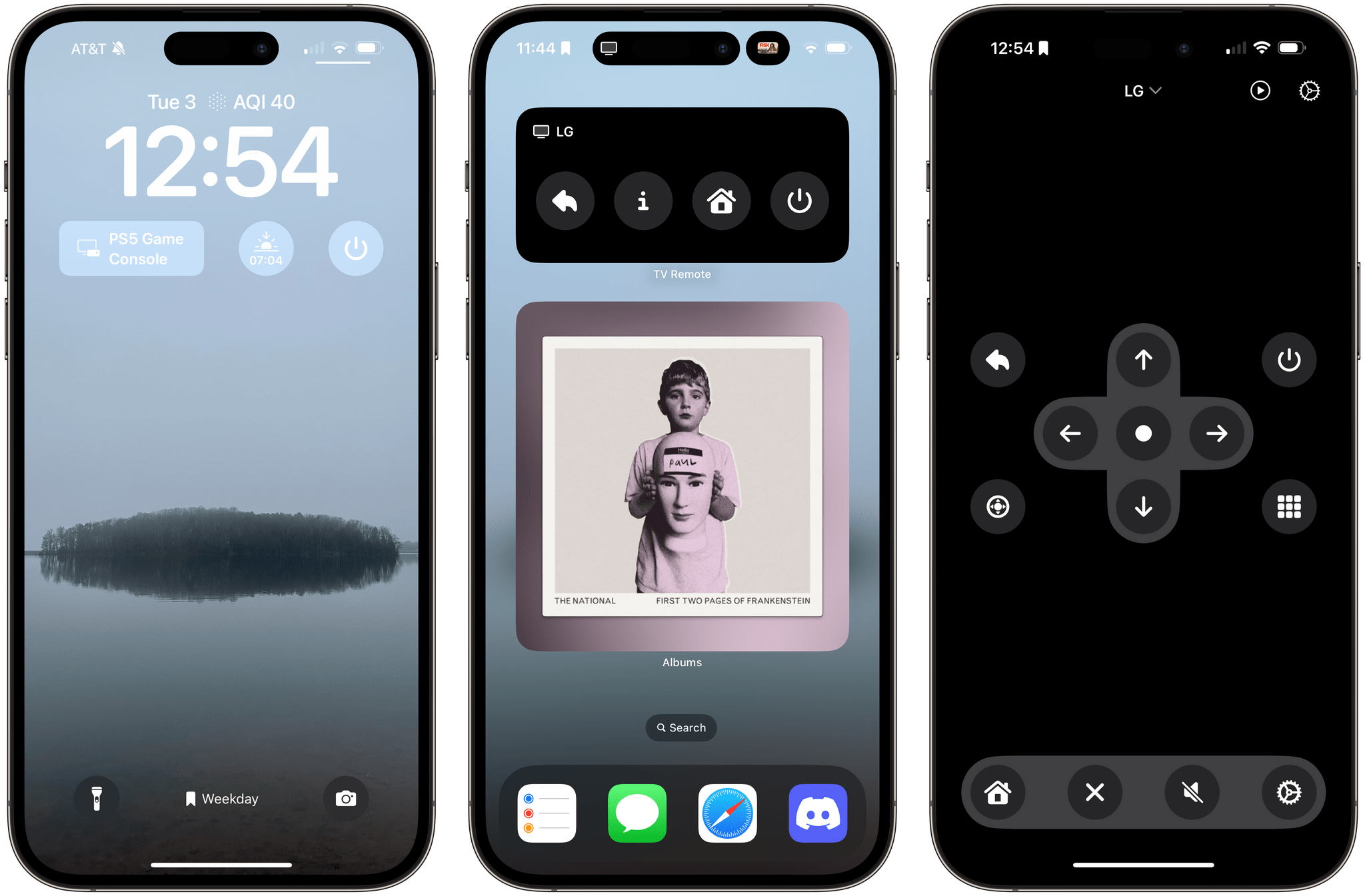
Developers have come up with endlessly clever uses for interactive widgets. I love testing them all, but one type is beginning to stick more than others. It’s the widgets for apps that require quick interactions when you’re in the middle of something else. Turning off the lights in my home office when I’m finished working for the day, toggling work timers as I switch from task to task, and then checking off those tasks as I complete them are all perfect interactions for widgets that require minimal switching away from whatever I’m doing. Hopefully, that means fewer distractions and, in turn, a more productive day.
But not everything is about peak efficiency and checklists. Sometimes, you just want to relax, which widgets can help with, too. One of my favorite apps to help with that, which recently added interactive widget support, is TV Remote by Adam Foot. Foot’s app is one I already used with my LG C2 TV, but it’s the app’s new widgets that have graduated it to a regular part of my TV routine.
AppStories, Episode 353 – tvOS 17: The MacStories Review with Sigmund Judge→
This week on AppStories, we are joined by tvOS expert Sigmund Judge, who just finished writing his tvOS 17 review for MacStories, to understand what has changed in tvOS and where it might be heading.






Sponsored by:
- TV Forecast – Track, Explore and Discover Your Favorite Shows and Movies
](https://cdn.macstories.net/banneras-1629219199428.png)
On AppStories+, I explain iPads of a Plane, a far safer version of Snakes on a Plane.
We deliver AppStories+ to subscribers with bonus content, ad-free, and at a high bitrate early every week.
To learn more about the benefits included with an AppStories+ subscription, visit our Plans page, or read the AppStories+ FAQ.
tvOS 17: The MacStories Review
Everything Else
Here’s a list of other noteworthy changes to tvOS 17.
Locate Siri Remote
In the pursuit of finding my Siri Remote quickly, the simplest way was the most effective. Apple’s Siri Remote Loop solved most of my issues for years, but when the newly designed Siri Remote arrived, its port proved incompatible.
My move to AirTag with Nomad’s Horween Leather Cover has proved fruitful for ultra-precise Find My-based Siri Remote sofa hunting shenanigans, but no one should really go through the same expense as I did. For everyone else slightly saner than I am, there’s a new feature called Locate Siri Remote, which can be found via the Remote app in Control Center for iOS.

Users can now initiate the finding of their second- and third-generation Siri Remotes by tapping on the Find prompt in the Remote app’s TV selection screen. Simply follow the blue onscreen circle, which shifts in size in order to guide your next movement toward the remote. When the Siri Remote has been located, a white dot appears and gets larger as you get closer, with text letting you know if you’re near, far, or “here” (next to the remote). The only thing still missing is a way to automate applause when you finally find it down the deepest crevice of your sofa.
Screen Savers

While the film and TV aficionado in me is begging for some fun Apple Originals-themed aerial screen savers next time around, this year sees two new locations: Arizona’s Monument Valley and the coastal redwoods of California.

Memories also join the ever-expanding list of screen saver types this year, delivering personalized collections of your photos and videos to the big screen through a satisfying variety of animations, from mosaics to the more traditional slow pans and zooms. While the default option is to show all, users can also select by favorites, recent activity, or specific album.
Like many others, I need to sort out my sizable photo library. That urgency is increased thanks to the ease of access to a selection of those same memories via a new top-shelf highlight for Apple TV. During playback, users can also manually glide through the selection of photos and video clips compiled and get information for the music track included.
802.1X Networking Support
Apple TV devices now support connection to 802.1X networks using EAP-TLS 1.3. In another win for privacy advocates, the new standard further improves privacy and security by always providing forward secrecy and never disclosing the peer identity while also reducing latency.
Restore Apple TV 4K with iPhone
Starting with tvOS 17 and iOS 17, it is now possible to restore any Apple TV HD or Apple TV 4K model experiencing problems with a nearby iPhone following a brand new onscreen prompt. Thankfully, while I haven’t yet run into problems with later hardware models, it’s good to know that there’s now another option, besides sending Apple TV 4K hardware to Apple directly.
Conclusion
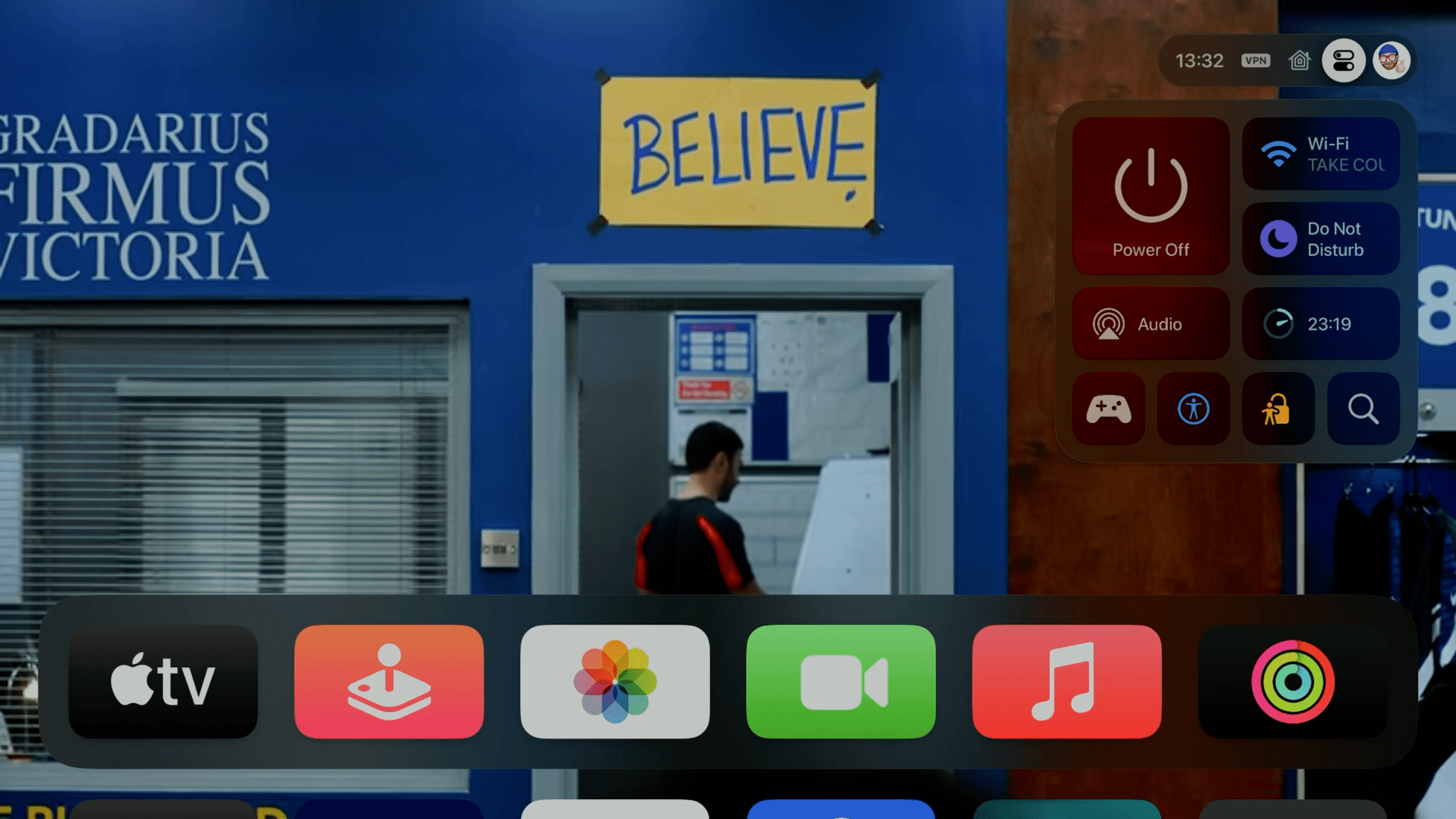
Apple TV continues to be the best streaming device out there, continually adopting new industry audio and video standards and delivering an experience both familiar and intuitive enough for anyone to pick up and enjoy.
In a year where most attention was concentrated on the next evolution in home entertainment and spatial computing, and as excited as I am to try Apple Vision Pro again, I can’t help but consider how that future may not be a replacement for, but instead, an addition to the TV.
That’s not how I thought I’d feel heading into this summer. However, what started as a surprise with the announcement of FaceTime and Continuity Camera has since morphed into palpable belief in a brighter future for Apple TV and tvOS. Yes, Apple TV will continue to be a great destination for entertainment, but this year’s tvOS release offers a first glimpse of the platform harnessing the company’s other OSes and services too.
In the short time since tvOS 17’s public release, I’ve already seen Apple TVs used in new ways for production. Once, it was just an AirPlay destination for easier top-down shots and roaming cameras. However, now, an Apple TV connected to a capture device also offers an easy way to create presentations or record conversations thanks to Continuity Camera. When developers unlock the tools that have slowly trickled out year after year, tvOS could be looked upon in a different light from how it’s regarded today.
A full production suite for small creators or extensions to current uses in meeting rooms and educational institutions could be the company’s answer to cost-effective computing in developing countries or perhaps a new way to log into its suite of productivity apps through iCloud. Maybe the TV was dropped from the top of Apple TV’s latest hardware iteration for a reason?
We’ll find out the answer to that question soon enough. Until then, it’s time to make a cup of tea and put on a movie.
A special thanks to Jonathan Reed, Devon Dundee, and James Lees for sharing in my passion for Apple TV through their hard work over the years at screentimes.net and on our podcast Magic Rays of Light.
Finally, a huge thanks to Federico and John for the privileged opportunity to follow the great work of Ryan Christoffel, whose earlier Apple TV coverage on the site continues to be a source of personal inspiration.
The Dirty Secret of OS Updates [Sponsor]

Getting OS updates installed on end user devices should be easy. After all, it’s one of the simplest yet most impactful ways that every employee can practice good security.
On top of that, every MDM solution promises that it will automate the process and install updates with no user interaction needed.
Yet in the real world, it doesn’t play out like that. Users don’t install updates and IT admins won’t force installs via forced restart.
Let’s talk about the second problem first. Sure, you could simply schedule updates for all your users, and have them restart during non-work hours. But this inevitably leads to disruptions and lost work. This, in turn, leads to users (especially executives) who simply demand to be left out of your update policy. The bottom line is: any forced restarts without user approval will lead to data loss events, and that makes them so unpopular that they are functionally unusable.
There is another class of tools that claim to get users to install updates themselves, through “nudges.” These reminders pop up with increasing frequency until users relent or the timer runs out. This is an improvement, since it involves users in the process, but users still tend to delay updating as long as possible (which for some tools can be indefinitely).
At Kolide, OS updates are the single most common issue customers want us to solve. They come to us because we have a unique (and uniquely effective) approach to device compliance.
With Kolide, when a user’s device–be it Mac, Windows, Linux, or mobile–is out of compliance, we reach out to them with instructions on how to fix it.
The user chooses when to restart, but if they don’t fix the problem by a predetermined deadline, they’re unable to authenticate with Okta. (At present, Kolide is exclusive to Okta customers, but we plan to integrate with more SSO providers soon.)
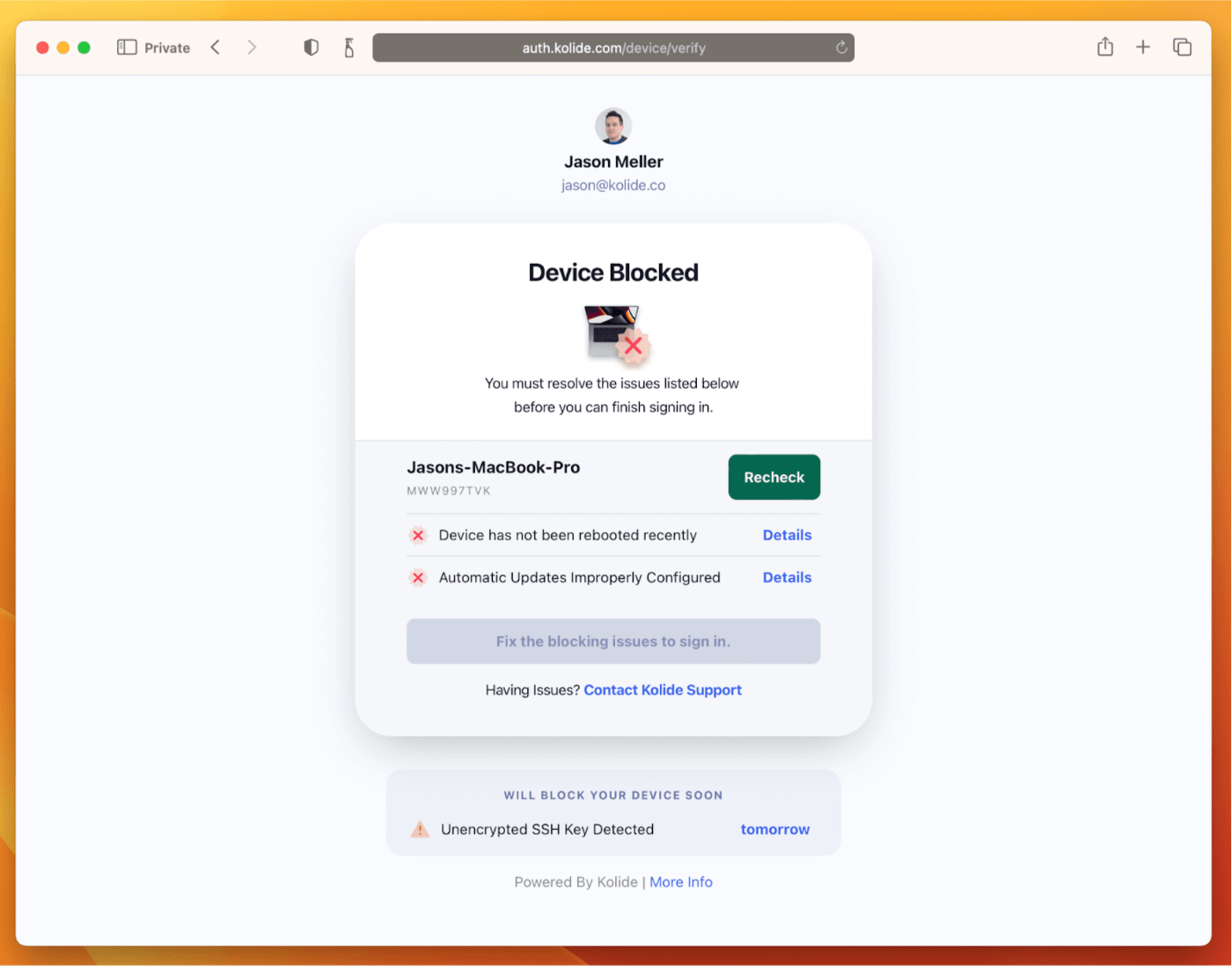
If your fleet is littered with devices that stubbornly refuse to update, then consider these two principles:
- You can’t have a successful patch management policy without involving users.
- You can’t get users to install patches unless you give them both clear instructions and real consequences.
Installing OS updates is a top priority for both security and IT, and when you make it part of conditional access, you can finally get it done without massive lists of exemptions or massive piles of support tickets.
To learn more about how Kolide enforces device compliance for companies with Okta, click here to watch an on-demand demo.
Our thank to Kolide for sponsoring MacStories this week.
 Monthly Log: September 2023
MacStories Weekly: Issue 387
MacStories Unwind: Road Trips, Casino Heists, and Apple Podcasts

This week on MacStories Unwind, Federico and I compare road trip notes and somehow wind up talking about Federico’s fascination with casinos, before turning to the latest content updates to Apple Podcasts from Music and News.
Sponsored By:
Kolide – It ensures that if a device isn’t secure it can’t access your apps. It’s Device Trust for Okta. Watch the demo today!
Links and Show Notes
Road Trips


- Federico, Pittsburgh, and The O.C.
- Anna from The O.C.
- University of Pittsburgh, Digital Narrative and Interactive Design
- Sanremo Music Festival
- Casino Sanremo
- Apple Music in Podcasts
John’s Pick:
MacStories Unwind+

We deliver MacStories Unwind+ to Club MacStories subscribers ad-free and early with high bitrate audio every week.
To learn more about the benefits of a Club MacStories subscription, visit our Plans page.
Photo Scout: An Excellent Photographer’s Companion for iPhone and iPad
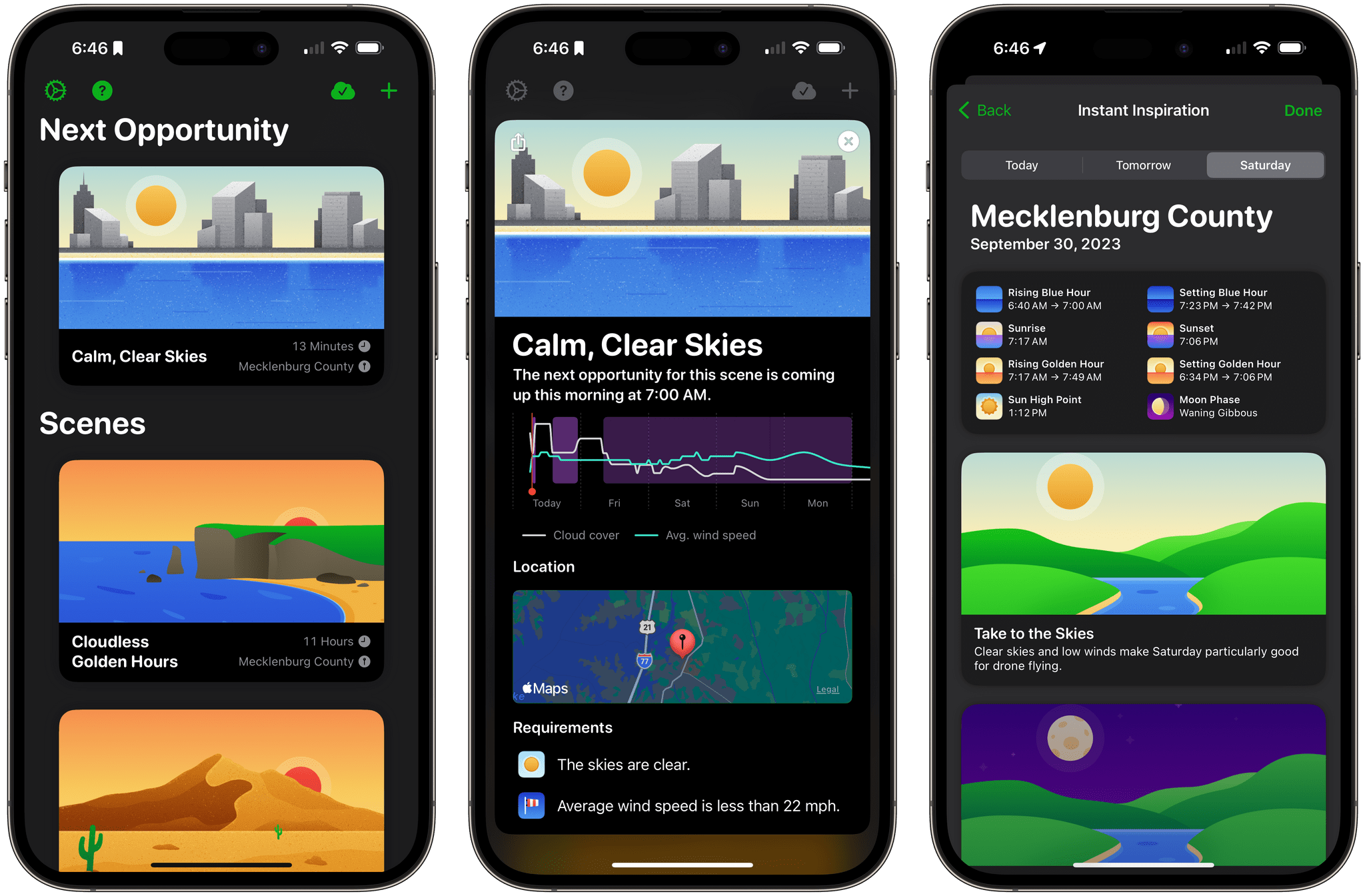
Taking a great photo requires a lot of variables to fall into place. It’s amazing when this happens by happenstance, but what if you could stack the odds in your favor? That’s the question Photo Scout by Cascable answers.
Photo Scout, available for the iPhone and iPad, combines location data with weather conditions, date and time information, sunlight, and night sky variables to recommend when you should grab your camera or drone and head out for a photo shoot. The app can account for many variables, but what’s best about Photo Scout is that it makes managing them simple.