
 MacStories Weekly: Issue 397
MacStories Unwind: The Best Music of 2023







This week on MacStories Unwind, kick off the first of our annual ‘best of’ Unwind recaps with the best music releases of 2023.
Sponsored By:
- Longplay – Rediscover, enjoy and organize your album collection.
- Kolide – It ensures that if a device isn’t secure it can’t access your apps. It’s Device Trust for Okta. Watch the demo today!
Links and Show Notes
Federico’s Top 5:
- the record by boygenius
- So Much for Stardust by Fallout Boy
- One More Time by Blink 182
- The Maine by The Maine
- Lobes by We are Scientists
Federico’s Album of the Year
- the record by boygenius
Federico’s Honorable Mentions:
- Guts by Olivia Rodrigo
- This is Why by Paramore
- Certified Depressant by Taylor Acorn
John’s Top 5:
- the record by boygenius
- Be Still My Heart by Babygirl
- One More Time by Blink 182
- Guts by Olivia Rodrigo
- First Two Pages of Frankenstein by The National
John’s Album of the Year
- First Two Pages of Frankenstein by The National
John’s Honorable Mentions:
- My Soft Machine by Arlo Parks
- Good Riddance by Gracie Abrams
- Memento Mori by Depeche Mode
- Knebworth 22 (Live) by Liam Gallagher
- Saviors by Green Day
MacStories Unwind+

We deliver MacStories Unwind+ to Club MacStories subscribers ad-free and early with high bitrate audio every week.
To learn more about the benefits of a Club MacStories subscription, visit our Plans page.
Screens 5: An Updated Design, Improved User Experience, and New Business Model
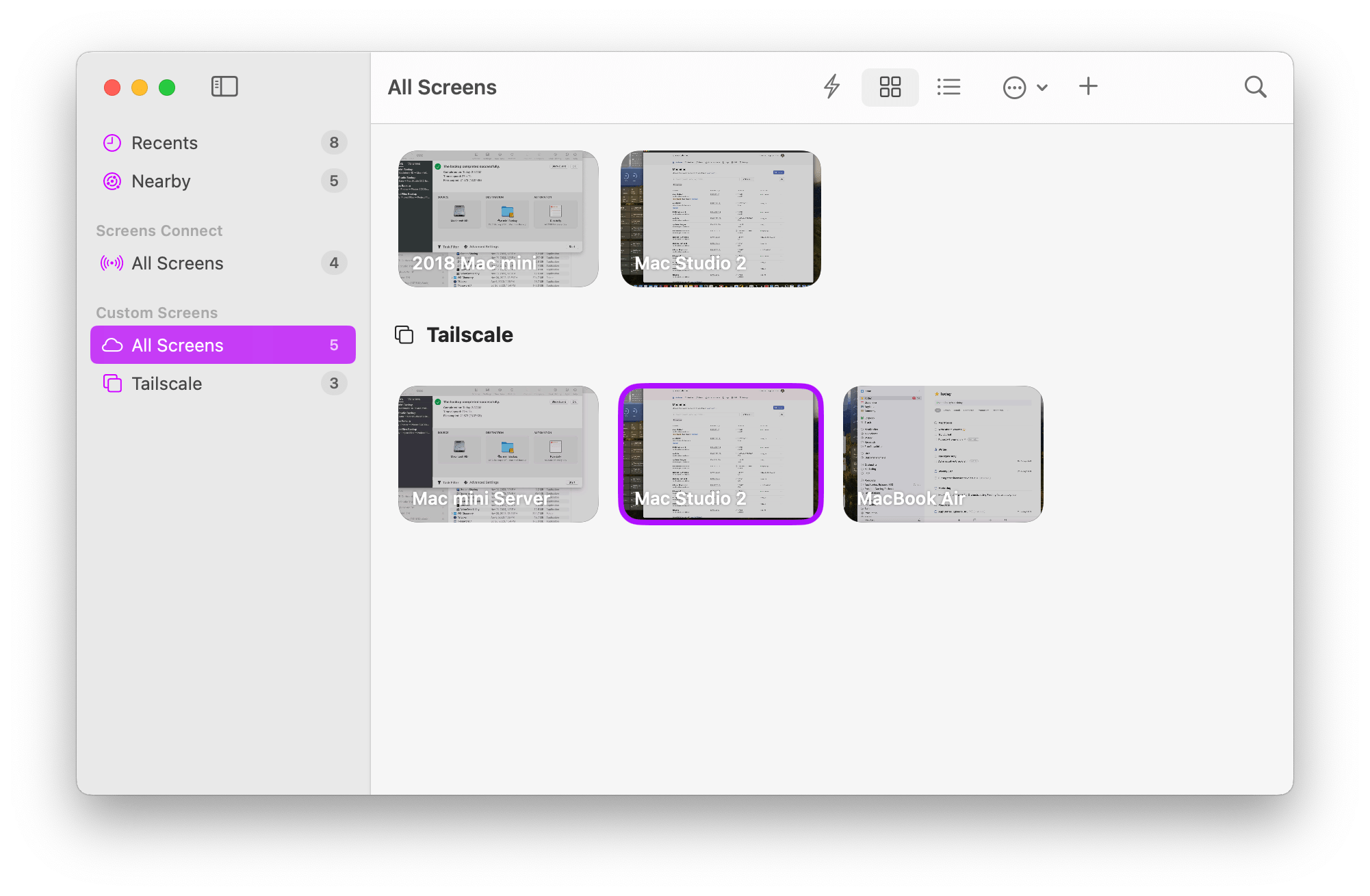
Screens, the remote screen-sharing app for the iPhone, iPad, and Mac by Luc Vandal of Edovia is one of those apps that I feel like I’ve always used. It’s installed on all of my devices, letting me lazily check on the Mac in my office from my couch or grab a file that I forgot to put on my laptop when I’m working remotely. It’s also the app that makes working with my headless Mac mini server that’s humming away in a closet feel like it was sitting right on my desk.
The last time I reviewed Screens was in 2017 when version 4 was released. In the years since, the app has received regular updates, refining the workflow of connecting to remote computers and keeping up with the latest changes to Apple’s OSes. However, as an app that’s designed to be a window to another system, the UI hasn’t seen a lot of change until today’s update to version 5, which adds a bunch of refinements to how connections are organized and makes significant improvements to the app’s toolbar.
How ChatGPT Changed Tech Forever→
I thoroughly enjoyed this story from a couple weeks ago by David Pierce, writing for The Verge about OpenAI’s ChatGPT turning one and how it created a revolution in the tech industry that no one saw coming:
We definitely seem to like being able to more quickly write business emails, and we like being able to ask Excel to “make this into a bar graph” instead of hunting through menus. We like being able to code just by telling ChatGPT what we want our app to do. But do we want SEO-optimized, AI-generated news stories to take over publications we used to love? Do we want AI bots that act like real-life characters and become anthropomorphized companions in our lives? Should we think of AI more as a tool or a collaborator? If an AI tool can be trained to create the exact song / movie / image / story I want right now, is that art or is that dystopia? Even as we start to answer those questions, AI tech seems to always stay one step and one cultural revolution ahead.
At the same time, there have been lawsuits accusing AI companies of stealing artists’ work, to which multiple US judges have said, essentially: our existing copyright laws just don’t know what to do with AI at all. Lawmakers have wrung their hands about AI safety, and President Joe Biden signed a fairly generic executive order that instructed agencies to create safety standards and companies to do good and not evil. There’s a case to be made that the AI revolution was built on immoral and / or illegal grounds, and yet the creators of these models and companies continue to confidently go ahead with their plans, while saying it’s both impossible and anti-progress to stop them or slow them down.
This all gets really heady really fast, I know. And the truth is, nobody knows where all this will be even 12 months from now, especially not the people making the loudest predictions. All you have to do is look at recent hype cycles — the blockchain, the metaverse, and many others — for evidence that things don’t usually turn out the way we think. But there’s so much momentum behind the AI revolution, and so many companies deeply invested in its future, that it’s hard to imagine GPTs going the way of NFTs.
I recommend reading the whole piece on The Verge. I quoted these paragraphs because they get right to the heart of the conflict that I also feel whenever I think about ChatGPT and similar tools. On the one hand, they were (largely? Partially?) built with data sets stolen from artists and creators (including this very website); on the other, the practical benefits of, say, using ChatGPT to help me proof-read my articles are undeniable.
I’ve been thinking about these issues a lot, perhaps because I make a living out of, well, creating content for the Internet. Is there a way to enjoy the power of LLMs without feeling weird and conflicted about how they were made in the first place? Will it even matter years from now? I don’t know the answer, but I’m hoping Apple will have one.
First Look: Stray for Mac

Stray, a high-profile and well-regarded videogame that debuted in 2022, is now available on the Mac. Initially launched on PlayStation and Windows, followed by an Xbox version this past August, today’s Mac release is available on both the Mac App Store and Steam.
The game, created by BlueTwelve Studio and published by Annapurna Interactive, is set in a neon-lit, post-apocalyptic cityscape where you play as a cat. Thrown into an unfamiliar environment, your goal is to solve the mysteries of a dangerous rundown city aided by a flying robot named B-12.
Stray was generally well-received by reviewers, who appreciated how BlueTwelve imbued its cat protagonist with personality and captured life-like cat movement and behavior. As a result, it’s unsurprising that the number of systems on which you can enjoy Stray’s feline adventures has continued to expand.
I played Stray when it debuted on the PlayStation 5 and enjoyed it. The game’s controls are relatively simple, and the story isn’t terribly long, but the puzzles are challenging, and the cyberpunk visuals are stunning. It’s been a while since I last dipped into Stray, but the game was one of my favorites of 2022, so when I got the chance to play it a day before the launch, I jumped at the opportunity.
I’ve only had time to play Stray on the Mac for a few hours, navigating through the introductory scene and the early part of the game, so this isn’t a review. However, as someone familiar with the console version, I thought I’d share my early impressions playing on my M1 Max Mac Studio and my M1 MacBook Air.
AppStories, Episode 362 – What If?: Exploring Alternative Apple Timelines→
This week on AppStories, we explore alternative Apple timelines by asking the question: What if?
Sponsored by:
Dropzone 4 – The essential drag and drop productivity enhancer.
](https://cdn.macstories.net/banneras-1629219199428.png)
On AppStories+, I try to simplify and speed up my backup setup, and Federico has an update on his default apps.
We deliver AppStories+ to subscribers with bonus content, ad-free, and at a high bitrate early every week.
To learn more about the benefits included with an AppStories+ subscription, visit our Plans page, or read the AppStories+ FAQ.
Drafts: Where Text Starts [Sponsor]
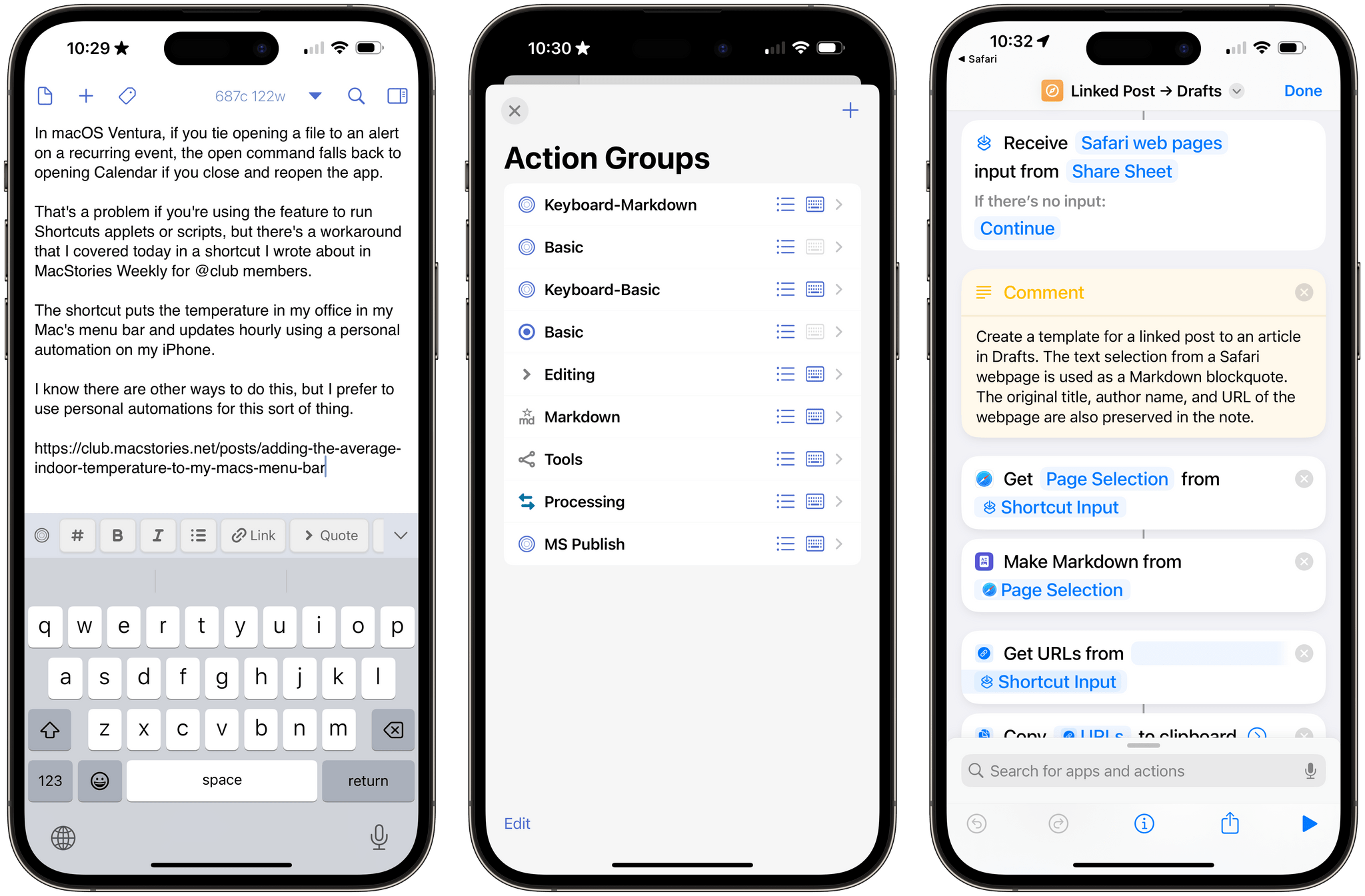
With Drafts, you can capture text on any Apple platform, wherever you are. There are iPhone, iPad, Mac, and Apple Watch versions of Drafts, which makes capturing notes, ideas, messages, tasks, and links fast and simple.
Moreover, Drafts incorporates a powerful actions system for automating your workflows. Integrate Drafts with hundreds of apps and services, including tools like:
- Obsidian
- Airtable
- Notion
- Things
Drafts also has deep support for Apple’s Shortcuts app, with over two dozen actions for manipulating text, managing Drafts, and integrating your captured text with other OS-level features. This combination makes Drafts one of the most sophisticated ways to create text automations on Apple’s platforms.
To help you get started, Drafts offers extensive documentation and guides for integrating with a wide variety of other tools. Plus, there’s a directory of user-created and curated actions and a vibrant community of users who are always around to help each other.
It’s easy to see why Drafts won last year’s MacStories Selects Lifetime Achievement award. The app is flexible, customizable, and has been regularly updated since the early days of the App Store to support the latest technologies of Apple’s OSes. That’s why if you’re looking to capture text and love to automate your workflows, Drafts is the app you need.
Right now, MacStories readers who are new to Drafts Pro or resubscribing can get a 3-month trial for free. This deal is available until December 14, 2023. For all the details and suggestions on where to get started with the app, visit the Drafts forums here.
So, download Drafts Pro today and start tinkering over the winter holidays. It’s a great way to jumpstart your workflows for the New Year.
Our thanks to Drafts for sponsoring MacStories this week.
MacStories Weekly: Issue 396
MacStories Unwind: Streaming Games at Home
This week on MacStories Unwind, Federico and I follow up on AppStories experiments with our thoughts on the Sony PlayStation Portal and the best ways to stream videogames from a console or PC on your home network.
Sponsored By:
- Kolide – It ensures that if a device isn’t secure it can’t access your apps. It’s Device Trust for Okta. Watch the demo today!
Links and Show Notes
- Gaming gear
- Wi-Fi gear
- Streaming software
- Also mentioned
MacStories Unwind+
We deliver MacStories Unwind+ to Club MacStories subscribers ad-free and early with high bitrate audio every week.
To learn more about the benefits of a Club MacStories subscription, visit our Plans page.