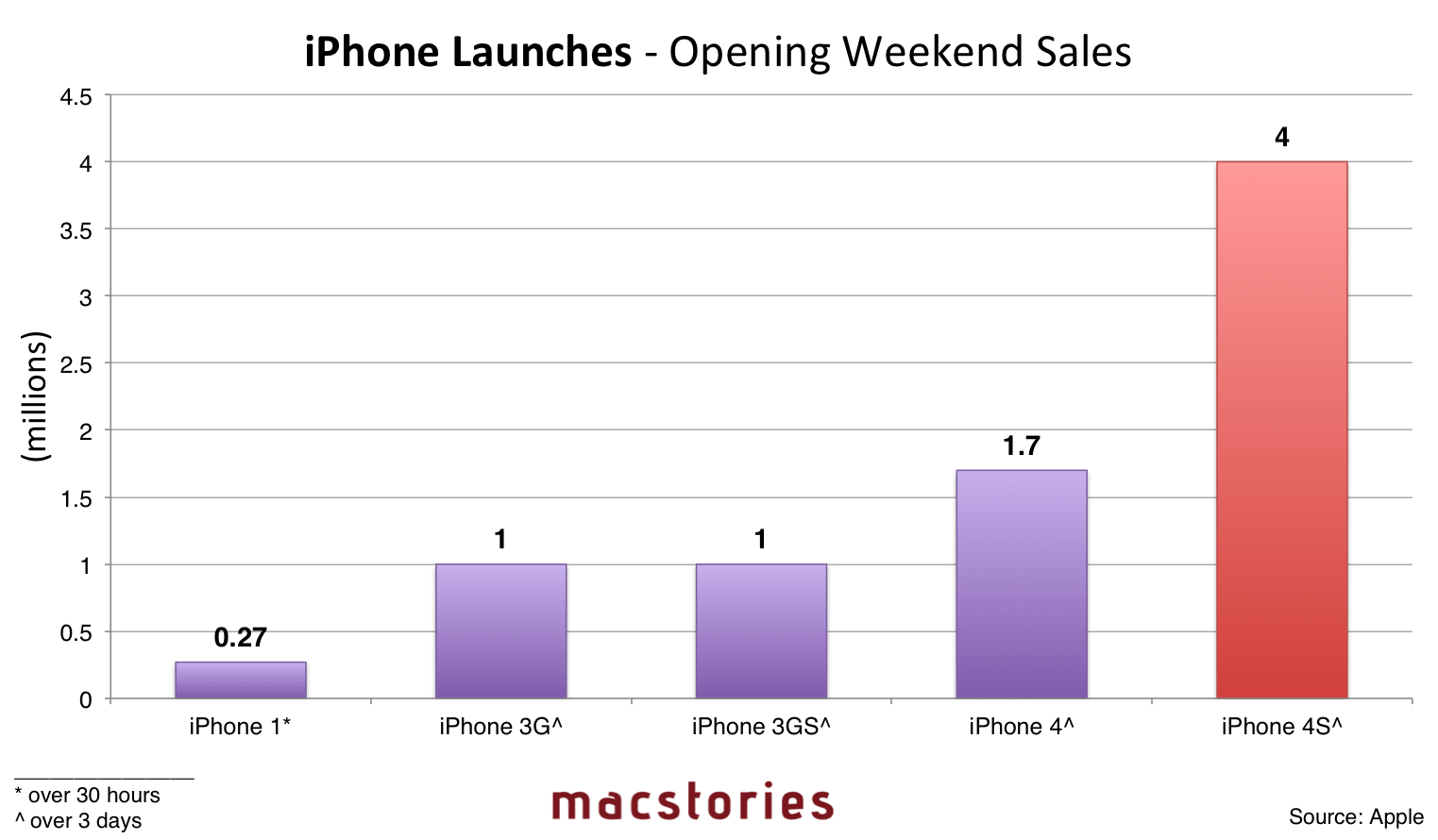
As Apple’s new iPhone 4S has topped four million units sold in its first weekend, we thought it might be appropriate to look back at Apple’s iPhone launch history and the evolution of weekend sales figures over time. The original iPhone launched in the United States in June 2007, and Apple announced the 1 millionth unit was sold after 74 days. During the launch quarter’s earnings call, however, the company confirmed 270,000 iPhones had been sold in the first 30 hours of U.S. availability.
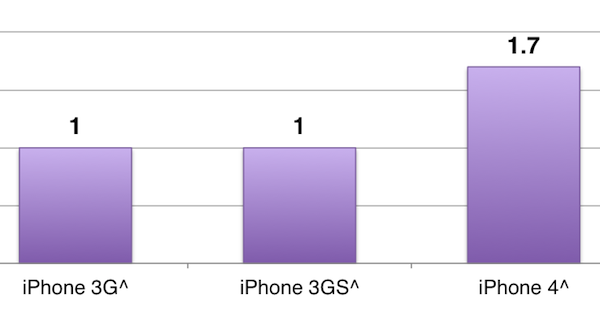
Since the iPhone 3G, which followed the original iPhone in 2008 with a new design and 3G connectivity, Apple has always managed to publish press releases announcing at least 1 million iPhone units sold after the first opening weekend. Both the iPhone 3G and iPhone 3GS, launched in multiple countries on Day One, registered 1 million sales in the first weekend. The iPhone 4, announced at WWDC last year by Steve Jobs and featuring a completely new design with more powerful CPU and improved camera, was the first iPhone to break the 1 million figure and jump past 1.7 million units sold in three days.
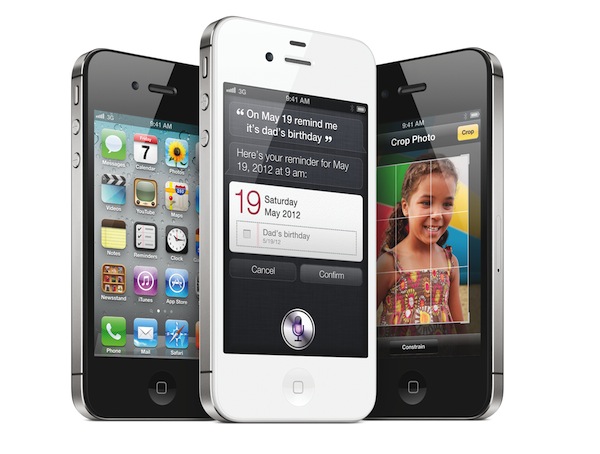
With the iPhone 4S, Apple went back to announcing “1 million units sold” – only with pre-orders and after 24 hours, not three days. In the launch weekend, as reported this morning, the company reported over 4 million iPhone 4S units sold in the seven countries the device launched on October 14th: US, Canada, UK, France, Germany, Australia and Japan.
Bigger weekend sales numbers are a result of the impressive growth of the iPhone in the past four years. Take a look at this graph we posted during the Q3 2011 earnings call in July: Apple went from 8.4 million iPhones sold in Q3 2010 to 20.3 million units in the third fiscal quarter of 2011. Launch days obviously attract far more “Apple fans” always waiting to get their hands on the latest device than “regular” sales weeks throughout the year, but clearly the popularity of the iPhone as a mass-market device is also affecting the lines around the world we see on every iPhone launch. It’s also widely believed that the iPhone 4S attracted several customers who bought an iPhone 3GS in 2009, and waited two years to get an updated model. The iPhone 4S is sold unlocked outside the US since day one, but it appears some US models have been sold without SIM-lock as well. According to Apple, unlocked iPhone 4S units will be sold starting this November.
Check out the full-size graph of Apple’s iPhone launch history here, or click on the image below to enlarge.
Data
-
Original iPhone (2007)
-
iPhone 3G (2008)
-
iPhone 3GS (2009)
-
iPhone 4 (2010)
-
iPhone 4S (2011)