Tube+ Is A Clean and Fast YouTube Client for iPhone

With Apple removing the built-in YouTube app from iOS 6 and Google releasing its own (pretty good) official app on the App Store, we should expect a renewed interest in third-party YouTube clients offering alternative features and designs. Tube+ is one of the first apps to hit with the “new wave” of YouTube clients, and I like it.

Developed by Chocomoko, Tube+ is simpler, both in terms of design and functionalities, than YouTube’s own app, or my favorite third-party client to date, FoxTube. You shouldn’t judge Tube+ by its streamlined appearance, however, as the app has access to some features and options that not even the official YouTube app has (for now). You can use Tube+ with or without a YouTube account; if you log in with your credentials, you’ll gain the possibility to check out your subscriptions, favorites, watch later videos. and uploads. If you don’t log in, you’ll still get access to regular search, Featured, Top Rated, Top Favorites, and Most Popular videos. To get the best experience, I obviously recommend logging into the service with your account.

The interface of Tube+ revolves around three tabs: Videos, Search, and Downloads. I’d like to focus on Downloads right away: unlike many other apps that had to remove a similar functionality, Tube+ (still?) allows you to download videos and keep them in a local cache so you can watch them offline. And the best part is, when you hit the download button on a video page, you’ll be asked to choose the “format you prefer” – you can download at 360p, 720p, 1080p, and all the in-between options YouTube provides. Tube+’s offline caching functionality is simple and effective, but you won’t be able to organize downloaded videos in local playlists or folders.

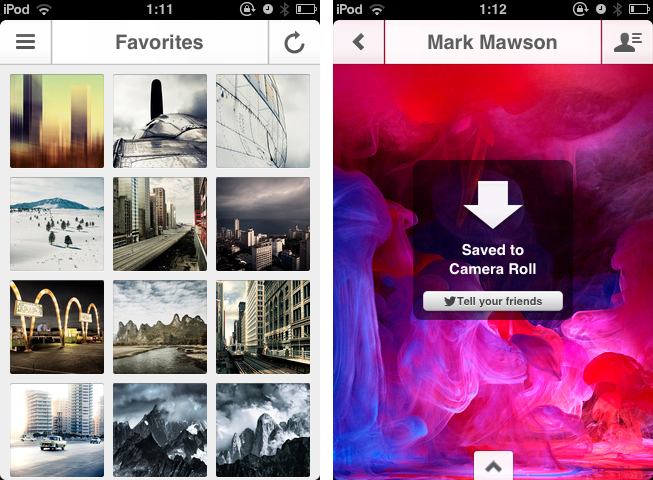
The main tab, Videos, is where you’ll spend most of your time. Here, you have various options to navigate around YouTube content using the top bar, which, similarly to Tweetbot, is actually made of buttons to change sections. The left button, a profile icon, is used to switch between public contents-only or your account; the button on the right lets you choose the default quality of YouTube videos you’ll stream, from 240p and up to 1080p with an “auto” option that loads videos depending on your Internet connection. Last, the main area of the top bar lets you switch between the aforementioned supported YouTube sections, your subscriptions, and videos you’ve liked or saved for later.

What I like about Tube+ is the control it gives me over the quality of videos I stream and download, but, more importantly, its speed and responsiveness. Tube+ is fast: sections load in a snap, video thumbnails load instantaneously when searching. There is a “load more” button to fetch more content from search, and the developers implemented the new iOS 6 pull-to-refresh mechanism to make it easy to check for updates or simply reload a page (note: Tube+ requires iOS 6). Alongside with notable performance, I appreciate the decisions behind the feature set of Tube+: again, it’s not as rich as YouTube or FoxTube, but you can still subscribe to channels and add videos to playlists, share videos with your friends, write comments, like, dislike, and mark a video as favorite.

There are some things I think Tube+ could do better. Firstly, I don’t like how, when sharing on Facebook or iMessage, the app uses its own short URL instead of regular YouTube links. This is particularly inconvenient for services that generate thumbnail previews only for YouTube URLs, like Twitter and Facebook. Second, I’d like to see an option to easily open an uploader’s video page – this is something that FoxTube still gets perfectly right in my opinion.

Overall, Tube+ offers a clean and fast experience – particularly if you use search a lot, you’re going to notice the speed of the app compared to Google’s official YouTube client. Tube+ doesn’t have the same amount of features YouTube and FoxTube have (for instance, there’s no separation of videos and channels in search results), but at $0.99 with offline caching, a good feature set and an elegant design, you should definitely consider Tube+.


Windows Users Get the Bare Minimum for iCloud

Windows Users Get the Bare Minimum for iCloud

Andrew Cunningham for Ars Technica:

iCloud for Windows remains an effort aimed mostly at iOS users who also have Windows PCs. Between the new Control Panel and iCloud.com, it’s possible for these people to keep their mail, calendars, contacts, reminders, notes, and iWork documents accessible, but it works less well alongside Macs, especially since neither the Windows control panel nor the Web portal allow you to access documents and data created in applications that aren’t Pages, Numbers, or Keynote.

Despite having a Windows box, iCloud has never been something I wanted to use on it. Just as Apple maintains iTunes for Windows, they maintain some semblance of support for iPad, iPhone, and iPod touch customers by giving Windows users a basic iCloud implementation that, at least in style, mirrors the iCloud pane in System Preferences.

Obviously you can’t open a document with a .pages extension in Windows, but there weird restrictions with e-mail, calendars, and tasks for example, which requires Outlook 2007 or 2010. Syncing bookmarks still requires Internet Explorer. With iCloud data being buried in iCloud > Storage & Backup > Manage Store in the iOS Settings app, there’s really no need for home (i.e. not enterprise) Windows users to even consider installing iCloud onto their Windows machines unless Calendar and e-mail syncing is a must. Even your iOS device can be backed up to iCloud, obviating the need for iTunes unless you have slow upstream bandwidth with your home Internet connection.

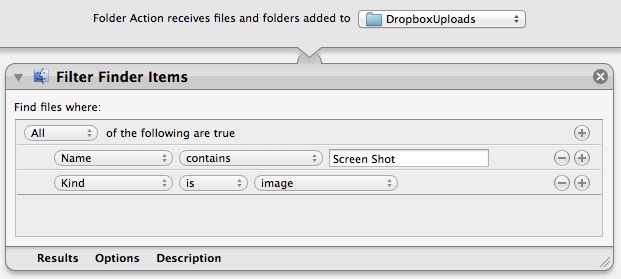
Although… As everything on iOS is mirrored into Photo Stream as of iOS 5, Windows users can take advantage of one fringe benefit — Photo Stream photos can be dumped into any folder of your choice, making Dropbox a suitable location if you’d like to have your photos on all of your devices. (Mac users wanting to move photos from iPhoto to Dropbox may want to check out Federico’s guide.)

Permalink

Growl 2.0 Now Available with Notification Center Support

Previously announced by its developers, a major update to Growl – a third-party notification system for OS X – has been released today with official Notification Center integration. Among various bug fixes, improvements to the display of some built-in themes, and separation of Action displays from Visual ones, Growl 2.0 also brings Prowl and Boxcar support.

The biggest news in this update is support for Notification Center on Mountain Lion. How it works is rather straightforward, too. If users decide they want to keep using Growl while consolidating the Visual displays in Apple’s Notification Center, they can open Growl’s Preferences, and set “OS X Notifications” to “On” under General. This will add Growl to the apps listed under Notifications in System Preferences, and it’ll effectively use Growl as a bridge between third-party apps and Notification Center.

In my tests, it worked reliably: as soon as an app with Growl support triggered a notification, that was forwarded to Notification Center immediately. The obvious downside is that, because of Apple’s restrictions, Growl won’t be able to apply its custom themes to Notification Center, or use third-party app icons for banners. So every Growl notification will carry Growl’s icon, not the one from the third-party app that triggered the original notification.

Update: For apps to show their own icons, they will need to support the Growl 2.0 SDK.

Another important addition to Growl 2.0 is the separate handling of Visual and Action displays. For instance, you can set, say, Dropbox to trigger a Smoke display (or Notification Center banner) and the MailMe or Prowl action at the same time. This is a powerful new feature that should allow for deeper customization of Growl notifications, which are handled on an app-by-app basis in Growl’s Applications tab.

Developers of Growl-enabled apps can find several technical details over the the official Growl blog. Growl 2.0 is available on the Mac App Store for $3.99.


On The Benefit Of iOS 6 Maps

On The Benefit Of iOS 6 Maps

Anil Dash, writing about his experiences with Apple’s Maps on iOS 6:

Here in Manhattan, where I live, basic search by building names is profoundly degraded in Apple’s maps search. “Bloomberg” doesn’t find the Bloomberg Tower; on Google Maps it’s the first result. Searching for its address “731 Lexington Avenue” yields that address on Lexington Avenue in Brooklyn. It’s fine to think that perhaps I wanted the address in Bed-Stuy, but even appending “NY, NY” or “Manhattan, NY” still yields the Brooklyn address. Google maps has none of these comprehension issues. I understand this is due to Apple partnering with Tom Tom, whose maps are considered to be lower in quality than other players like Nokia, but I’m not informed enough to say with certainty whether that’s the case.

In response to our iOS 6 coverage (my thoughts on iOS 6 here, Cody’s overview of Maps here) TomTom sent us the following statement:

TomTom supplies maps and related content to the majority of handheld players, including RIM, HTC, Samsung, AOL (MapQuest Mobile), Apple and, yes, Google (for the areas where they don’t make their own maps).

Our maps are used by businesses around the world, which have standards for coverage, detail, quality and safety.

When people use a map, their experience is determined by two things. Firstly, the underlying content, notably the maps. This is what TomTom is currently supplying the mobile industry with and it is what gives their maps the best foundation. Secondly, user experience is determined by adding additional features to the map application, such as visual imagery. This is typically defined and created by the handset manufacturers and third party software providers on the basis of their own vision and needs.

If I understand this correctly, TomTom is essentially implying that, because user experience is defined by “additional features” (such as Apple’s custom map tiles, I assume), then issues with the user experience are also related to the choices made by “the handset manufacturer”.

I do believe, however, that the problems mentioned by Dash (poor recognition of POIs, questionable detection of local addresses) – the same ones I mentioned in my piece – aren’t related to Apple’s “vision” and “visual imagery”. Here’s Business Insider yesterday, reporting about an interview with Waze CEO Noam Bardin (Waze is also listed in Maps’ copyright notices):

But Bardin says that Apple has taken a huge bet by partnering with TomTom, a maker of traditional GPS hardware that’s morphing into a mapping-data provider. Both TomTom and Waze are listed in Apple’s copyright notice as providers of map data. But Bardin’s observations suggest that Apple is relying predominantly on TomTom.

“Apple went out and partnered with the weakest player,” Bardin says. “They’re now coming out with the lowest, weakest data set and they’re competing against Google, which has the highest data set.

Ultimately, it simply comes down to having a good experience – no matter who puts in the data. But it’ll be interesting to see how fast Apple will manage to iterate on its new Maps.

Update: After asking whether issues with the visualization of maps were related to Apple’s imagery, TomTom provided us with an additional statement:

Yes, we did not develop the map application. Rather, we only provide the data to build a car-centric map foundation. Everything thing on top of that - routing, visualization, etc. - is determined by the supplier.

Permalink

iOS 6: Mail, Phone and Safari Feature Additions

Mail, Phone and Safari have all been around since the original iPhone launched in 2007. They all have seen subtle changes here and there over the years and in iOS 6 that trend continues but with the addition of some really neat new features.

The big new thing for Mail is VIPs which gives you more control over how you deal with your inbox and who you pay most attention to – but there’s also the addition of the pull to refresh gesture and the ability to add images directly to a new message. Phone gets two really useful and practical features: the ability to reject a call and then quickly reply to them or set a reminder to call back, and the new “Do Not Disturb” feature. Finally, the core of what made the iPhone a ‘smartphone’ in the early days, Safari, gets a new full-screen landscape mode, the ability to sync tabs across devices, upload photos and videos, and offline mode for Reading List.

To get the full overview of these new features and some neat tips, jump after the break.

More iOS 6 coverage here.

Read more


Apple Releases Several Updates To iOS Apps

After iOS 6 and an update to Mountain Lion, Apple today proceeded to release updates to some of its iOS applications. We’ve collected them all in this post, so you can have an easily digestible list of every update released today.

Apple’s Podcasts app (our original review) got a big update today. Version 1.1 brings iOS 6 support, and subscription syncing across devices with iCloud. There’s a new setting to choose to download new episodes automatically on WiFi, and pull to refresh for iOS 6. To enable sync, you’ll be asked if you want to keep subscriptions in sync through your Apple ID.

From my tests, I have noticed the app keeps the subscription list in sync, but not other podcast information, like Downcast does.

Podcasts 1.1

  • Automatically keep your podcast subscriptions up-to-date between devices using iCloud
  • A new setting to choose to automatically download new episodes only when on Wi-Fi
  • A new setting to choose whether to play episodes by oldest to newest or newest to oldest
  • Pull to refresh a subscription to check for new episodes on iOS 6
  • Additional performance and stability improvements

Read more


Apple Releases OS X 10.7.5

Following this afternoon’s OS X 10.8.2 update, which adds Facebook integration and other goodies to Mountain Lion, OS X 10.7.5 is available for Lion users. The big addition to Lion is Gatekeeper, which is a security feature that allows you to choose whether 3rd party applications can run on your Mac or not. For new Mac users, it’s an excellent security option for those purchasing and only allowing software from the Mac App Store. For developers, allowing 3rd party apps is critical for development tools and other third party applications from vendors. Thankfully, it’s easy to use, and works the same on Lion as it does on Mountain Lion.

Apple has pushed out a series of bug fixes as well, and we’ll be posting a direct download link to the combo update and add release notes once they’re available. In the meantime, Lion users will want to check Software Update for the latest download.

Update — You’ll find the direct downloads below:


Hands On with iOS 6 Maps

When Apple launched the iPhone in 2007, Google was a partner and not a competitor. Apple’s Maps, with data supplied by Google, was famously demoed by Steve Jobs when he searched for nearby Starbucks establishments and made a prank phone call with a tap of his finger. When Apple unveiled their iPad three years later in 2010, Steve Jobs was equally delighted to show off Maps, as he pinched the display to get a bigger overhead view of the Eiffel tower.

Initially, Maps was a simple mobile companion to Google Maps. Standard, hybrid, and satellite views were there, as was the ability to show traffic congestion and get driving directions between two locations of interest. It wasn’t until just over a year later with iOS 2.2 that Maps was improved with walking directions, public transit information, and street view. On the iPad, a terrain view was added. Alternate routes for directions came later in iOS 5 alongside estimated time of arrival and the ability to print directions via AirPrint. Over time, it became a robust Maps application that was better than Google Maps on the web.

What Apple did with Google Maps was pretty incredible when it was first introduced with the iPhone and later on the iPad. In contrast to using sliders and buttons on the web, Apple demonstrated that maps could be intuitive to navigate with just your fingertips. Panning around a map with your finger, tapping on search results to pull up business information, and navigating the world with Street View simply felt right on a touchscreen. Google provided often accurate search results and map data, while Apple provided a delightful interface to show their world through.

Today, using maps on our smartphones to find our way is an everyday habit. Frequent fliers rely on their smartphones to find their way in new locales, while city dwellers actively use smartphones to request public transit information. The convenience offered by our smartphones makes it possible for us to actively plan our days around city schedules, plan road trips, and get directions to a business for an all important interview. Beyond Apple’s Maps, companies like TomTom, Garmin, and Navigon added to the iPhone’s capabilities by providing real-time navigation and voice-guided directions through apps from the App Store. Yet competitors, such as Android with Google Maps and Google Maps Navigation, and Windows Phone 7 with Bing Maps and Nokia Drive, were offering GPS navigation on their ecosystems for free. For iOS 6, the missing piece to be filled-in for Apple’s Maps would have to be such a feature.

In iOS 6, Apple’s Maps is a headlining feature. During this year’s WWDC 2012 Keynote on June 11th, turn-by-turn navigation was showcased for Apple’s brand new Maps application in concert with the display of real-time traffic conditions. Apple added interactive 3D views and Flyover to select cities, giving maps a 3rd dimension on top of a traditional satellite view. As impressive as Apple’s demonstrations were, the most interesting feature are Apple’s new vector based maps, completely redesigned “from the ground up” as a replacement for Google’s Map data.

Read more


Apple Releases OS X 10.8.2

Following the release of iOS 6, Apple just pushed an update to OS X Mountain Lion as well, which reaches version 10.8.2. Available for download on the Mac App Store, 10.8.2 brings Facebook integration to OS X, working similarly to Facebook in iOS 6, and various stability improvements. Like in iOS 6, Facebook is now available as a social service to log in from the System Preferences, and there are options to update contact information and pictures through Facebook as well as system-wide sharing menus.

On the feature set side, Facebook is now also integrated in Game Center (for friend recommendations and like buttons for games), Power Nap is now supported on the late 2010 MacBook Air, and iMessage introduces support for phone numbers alongside email addresses, just like on iOS 6.

You can find the full changelog after the break. We’ll update this post with direct links as soon as they’re available.+

Update — You’ll find the direct downloads below:

Read more