


We have many great deals for #MacStoriesDeals today. You can find us as @MacStoriesDeals on Twitter.
#MacStoriesDeals - Wednesday
Tweetbot for Mac 1.2 Brings Notifications For Specific Users, Vine Previews, UI Tweaks
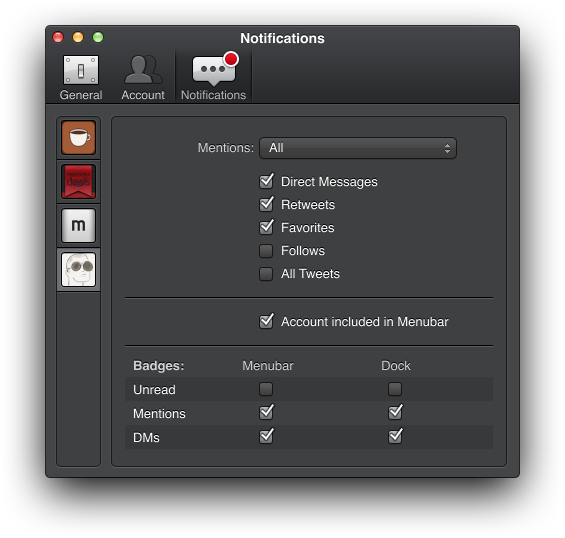
Tweetbot for Mac, Tapbots’ Twitter client that I first reviewed in October 2012, has been updated today to version 1.2, which is available on the Mac App Store. Among the notable features of this new version, Tapbots is introducing notifications for specific users, support for inline Flickr and Vine previews, and compliance with the Twitter 1.1 API. Read more
Apple Releases iOS 6.1.2 With Exchange Fix→
Apple Releases iOS 6.1.2 With Exchange Fix
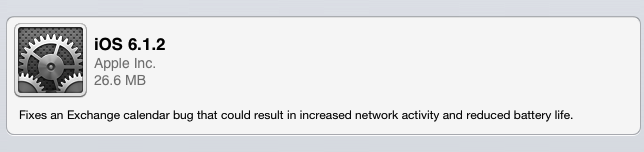
Following various reports from last week, Apple has today released iOS 6.1.2. The software update, available for all devices running iOS 6.1, introduces a fix for Exchange that could have resulted in “increased network activity and reduced battery life”.
The update is now available through iTunes and iOS’ Software Update panel. It’s not mentioned in the release notes, but – based on some first tests I ran on my iPhone 5 – it appears iOS 6.1.2 also fixes the passcode bug that was discovered last week (by following the steps to reproduce the old bug, the iPhone now simply gives a black screen/keypad instead of jumping to Phone/Contacts).
Update: I haven’t been able to reproduce the bug on my iPhone 5, but Ars Technica’s Andrew Cunningham says the bug is still unfixed in iOS 6.1.2.
iOS YouTube Downloader with Pythonista→
iOS YouTube Downloader with Pythonista
Useful script created by “pudquick” on the Pythonista forums:
Browse to http://m.youtube.com in Mobile Safari, view a video that you like (press Stop if it starts playing, you need to be looking at the page - not the video actually playing), then click on “Bookmarks” and select the bookmarklet that you created.
This will launch my script, which will pull the URL of the page you were looking at as an argument, parse it, figure out the direct download URL for the .mp4 video file, then open iDownloads directly to that URL to start downloading it.
As pudquick says, third-party YouTube clients with a “download” functionality are usually removed from the App Store as Google doesn’t allow downloading video files from the service. However, by using Pythonista to crawl the webpage and find the direct .mp4 link of a video, pudquick managed to put together a handy solution to go from your web browser to Pythonista and then directly to iDownloads to start downloading the .mp4 file.
However, I don’t use iDownloads – I prefer Readdle’s Documents and good.iWare’s GoodReader. Replacing iDownloads with your favorite file manager is very easy: in the penultimate line of the script, replace the iDownloads://URL with the one of the app you want to use (the URL of the .mp4 will be appended to it). Unfortunately, Documents doesn’t seem to be able to download .mp4 files in this way, but I had no problems with GoodReader. Simply use ghttp://to forward the .mp4 file to GoodReader and start downloading it automatically.
Make sure to check out pudquick’s explanation of the script and bookmarklet here. For our previous coverage of Pythonista, check out our tag page and my original review.
Sponsor: Smile
My thanks to Smile for sponsoring MacStories this week with TextExpander.
TextExpander is the best utility to save time while typing. Why type the same thing over and over? Your email address, your phone number, your email signature can all be made into snippets and inserted with just a short abbreviation. You can use TextExpander to correct common typos (using autocorrect snippet groups or adding your own corrections to the snippet library), insert the current date in several formats with just a short abbrevation, and even quickly automate the creation of form letters with multiple choice pop-ups, optional fields, and more.
Furthermore, TextExpander is integrated in over 140 iOS apps including Things, iA Writer and others that I personally use every day, like OmniFocus and Day One. TextExpander comes with Dropbox sync, so your snippets will always be in sync across iOS and OS X.
Find out more about TextExpander here.
Two New iPad Ads: ‘Alive’ and ‘Together’
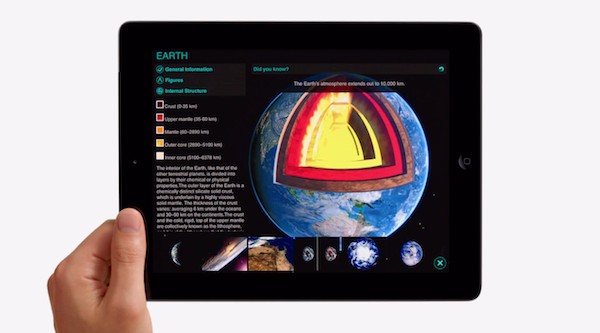
Apple has just released two new adverts for the iPad and iPad mini with a strong emphasis on the apps available for the devices. The adverts are different to many past iPad and iPhone ads in that there is no real narration, with just three words said in each.
The first, titled ‘Alive’ features the words; ‘Loud’, ‘Deep’ and ‘Alive’. After each word is said, a number of apps related to the word are demonstrated. For example, after “loud”, music apps are shown, a medical app showing the ear and a fashion app are demonstrated. The second ad, ‘Together’, features the words ‘Wild’, ‘Bright’ and ‘Together’. Both ads are described on Apple’s YouTube page as “With over 300,000 apps, iPad is up for anything you are”.
Both ads are embedded below.
iOS Multitasking Lag→
iOS Multitasking Lag
Benjamin Mayo, elaborating on a tweet by our Graham Spencer about a “delay” that occurs when switching between apps using multitouch gestures on the iPad:
The reason for this delay is linked to how iOS ‘freezes’ background applications; the period of inactivity experienced is relative to the time it takes to unfreeze the desired application. For the Settings app, the time necessary to become active is negligible, so it feels instantaneous, but for more complicated apps (like Mail) the thawing process takes longer and becomes noticeable in use. Until that point, touches do nothing because you are effectively looking at a screenshot of the application when you were last open — the app doesn’t receive any touch events at this stage.
Using the iPad every day, I, too, think this is one of the most annoying aspects of relying on the device for work stuff. While Open In would certainly top the list for many people, personally I am more annoyed by that slight delay that occurs every time I switch back and forth between two apps with the four-finger multitasking gesture. The most common scenario is copying bits of text or URLs from a browser and swiping back to a text editor or Evernote to paste them; after swiping, I can’t bring up the Copy & Paste menu instantly, because, like Benjamin says, the app is “suspended” and therefore unresponsive to taps. It is a very specific and minor annoyance, but one that, over time, becomes a detriment to the overall experience. As Graham noted, this doesn’t happen on a Mac, and it shouldn’t happen on an iPad either.
I have also noticed that the iPad mini tends to “flush” apps from memory far more frequently than my iPad 3 did. This happens with any kind of app, but it’s annoying when Safari or Chrome have to reload every tab even if I only switched between 2 or 3 apps; I suppose it’s related to the inferior nature of the iPad mini’s hardware when compared to the latest iPad 3rd and 4th generation models.
I honestly don’t care about seeing “multiple apps” on the iPad’s screen, but I’d love for Apple to find a way to make iOS multitasking less aggressive without compromising battery life, making the process of moving between apps instantaneous as it is on OS X.
iPads for Work
Shawn Blanc, writing about the iPad as a “professional” device:
Even amongst the readers of this site — whom are decidedly, clever, nerdy, and prone to living on the bleeding edge — when I talk about using the iPad as my laptop, I get more than a few raised eyebrows and responses from people who still need or prefer to grab their MacBook when it’s time to work away from the office. Even my own wife would not be persuaded to get an iPad when she needed a new computer.
I think there are many facets to this discussion. I’ll pick two.
More “advanced” users who are aware of the scripting and automation features of OS X miss those in the transition to the iPad; on the flip side, users who don’t want to automate anything still need to get work done using suites like Office or Google Docs, but the iPad doesn’t offer the same degree of functionality that a computer has in those areas. It’s an important difference: “geeks” who want robust automation combined with flexibility (usually the same people who end up writing on the Internet, like me), and people who don’t require anything fancy but just want to get things done at the office. Given the iPad strengths (portability, screen) and constraints (text selection and editing topping the list), I believe the first segment requires a deeper reworking of iOS, while the second is more related to simply finding the right third-party apps (if any).
Case in point: the aforementioned Office and Google Docs. Apple’s iWork suite was stuck for almost two years with a ridiculous file sharing mechanism, then received iCloud support, which was better, but still far from bulletproof. Even more pragmatically speaking, the iWork apps for iPad were a major breakthrough in 2010, but in 2013 they still lack many of the features of the desktop versions: Pages’ change tracking is an example, Numbers’ limited chart creation is another. What about Office, which, speaking of spreadsheets, admittedly offers even more power with Excel? Microsoft still hasn’t shown anything. Google Docs? Google insisted on giving users a web app for years, then switched to a native app, rebranded as Drive, that, however, is fairly behind when compared to the “regular” web app. This is just a possible scenario – Office-type apps – but you get my point. And yes, in spite of jokes aimed at Microsoft – people still do use Office (or, again, the free, Office-type Google Docs).
What about geeks? They usually are early adopters of features and products that go on to find success with “everyone”. I speak for experience when I say those users would like to see better inter-app communication and a way to automate tedious tasks. The funny thing is – while I purposefully took some concepts to the extreme – those aren’t “nerd requests” at all: Services, for instance, have been one of the most visible, understandable examples of OS X apps communicating with each other through data and files. Automator has allowed the creation of workflows with a “visual approach” for over a decade now.
So while I’d say this is undoubtedly “geek” and beyond most people’s needs, can we say something as simple as avoiding duplicates wouldn’t be beneficial to all kinds of iOS users? Does the “average” iOS user need to jump between 7 apps to complete a single task? How can Apple improve that area while keeping iOS easy to use and secure? How do they balance “geeky” features with “everyone” features? Could Automator go mainstream with an iOS version?
Does iOS need to be “more advanced” to be taken seriously for work purposes?
There are many questions. In the two areas I mentioned, Apple will need time to rework some aspects of iOS; developers still need time to figure out how to let people work on iOS devices.
Ultimately, I agree with Shawn. iOS devices – and iPads in particular – are professional grade devices, but their full potential will be uncovered by further developments of Apple’s software and third-party apps.