
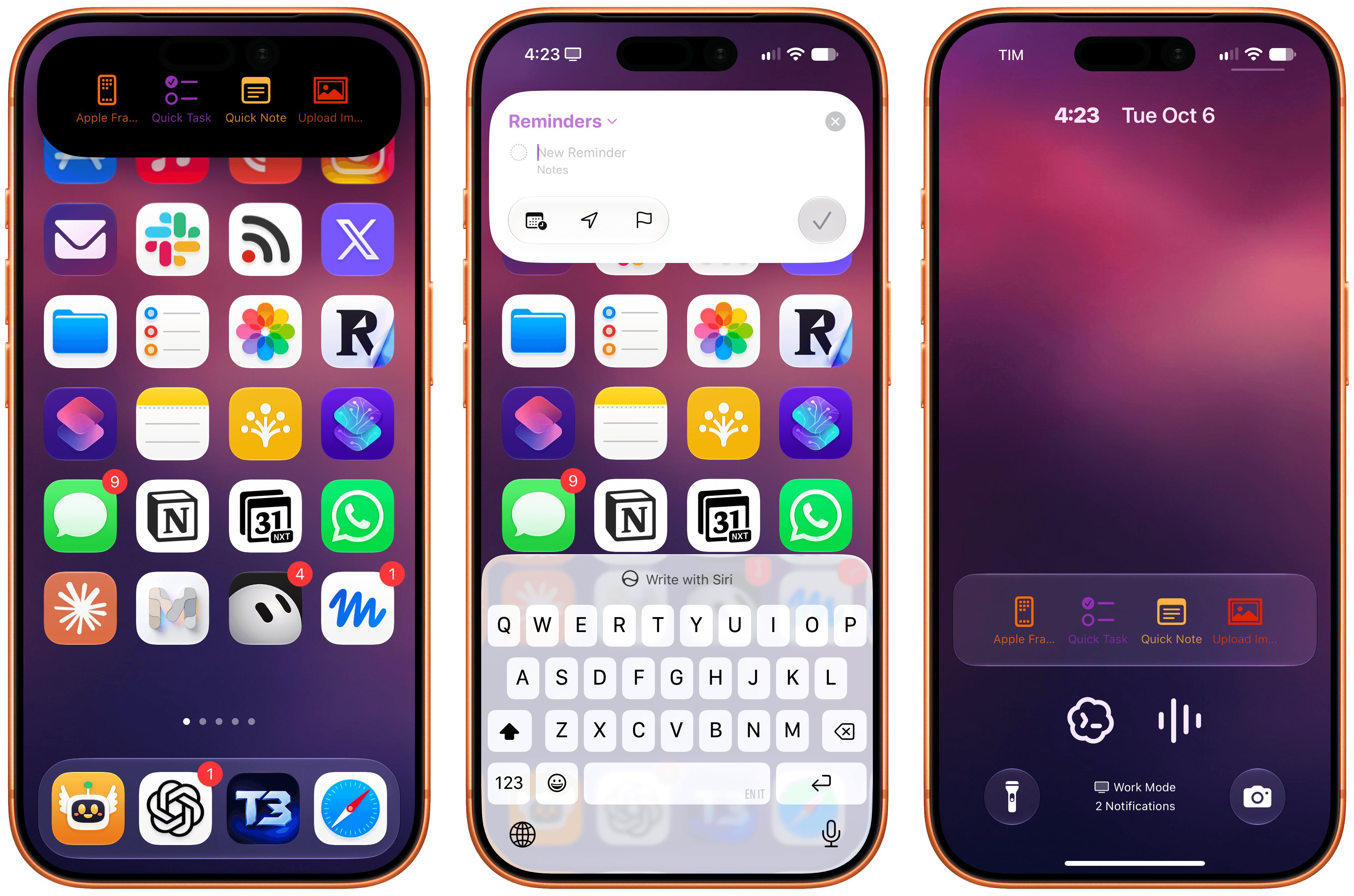
In my iOS and iPadOS 27 review, I wrote about one of the more interesting additions to the Shortcuts app for power users: automation triggers based on the contents of push notifications received on your device. As I explained, with this new trigger, you can create automations that run certain actions whenever a notification from a specific app, ideally containing a specific title or body text, arrives on your iPhone and iPad.
Posts in iOS
Deflector Turns iOS 27 Notification Triggers into a Shortcut Launcher
OpenAI Updates ChatGPT for iOS with Customizable Widgets for ChatGPT Work and Codex Remote
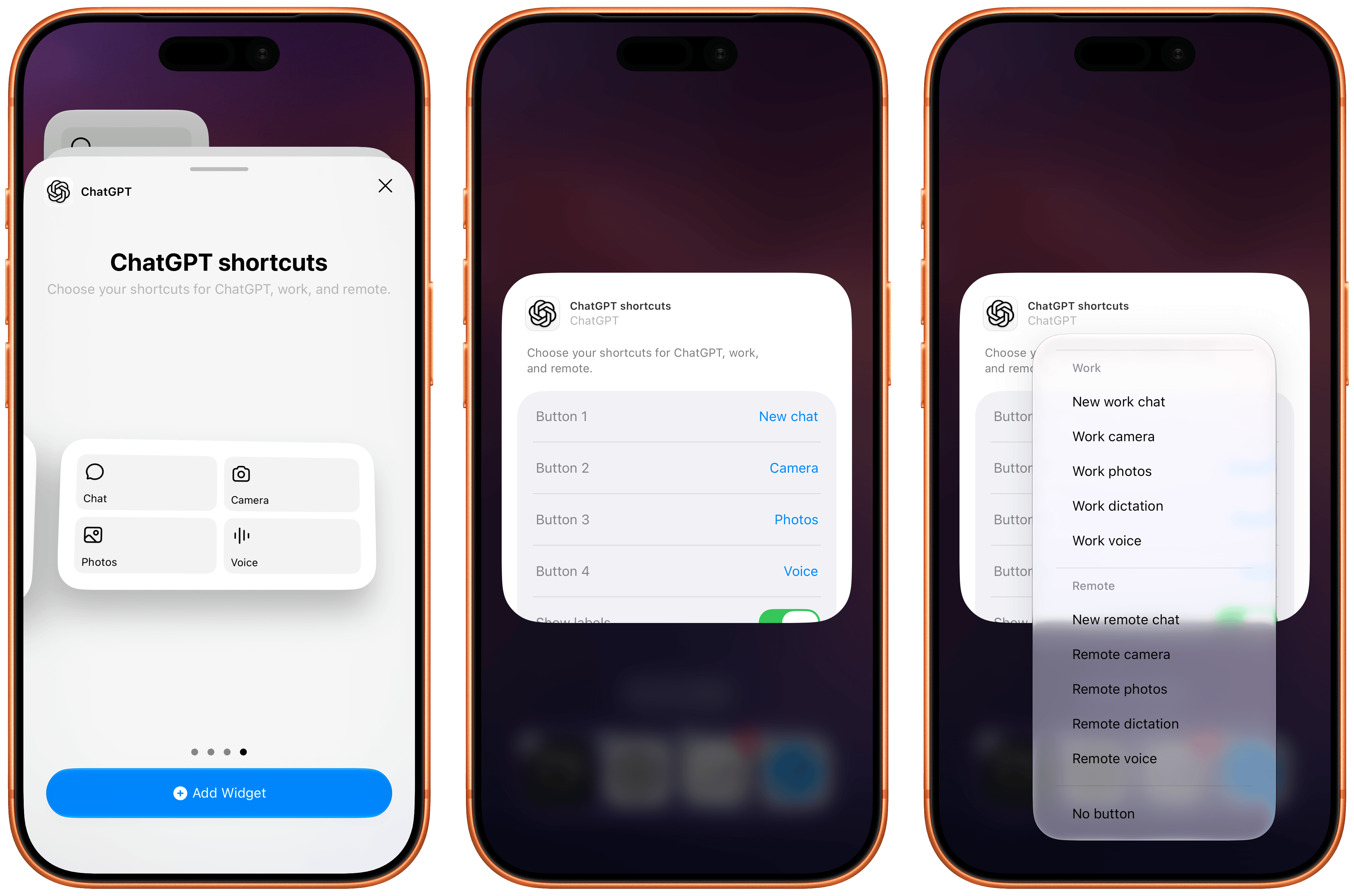
The most recent update to the ChatGPT app for iOS has introduced a new feature that will make those who rely on the company’s AI assistant for work-related tasks quite happy: a customizable widget that lets you control which shortcuts can be placed for convenient access on the Home Screen.
Lock Launcher Introduces “No Redirect” Launchers, XL Widgets for iOS 27
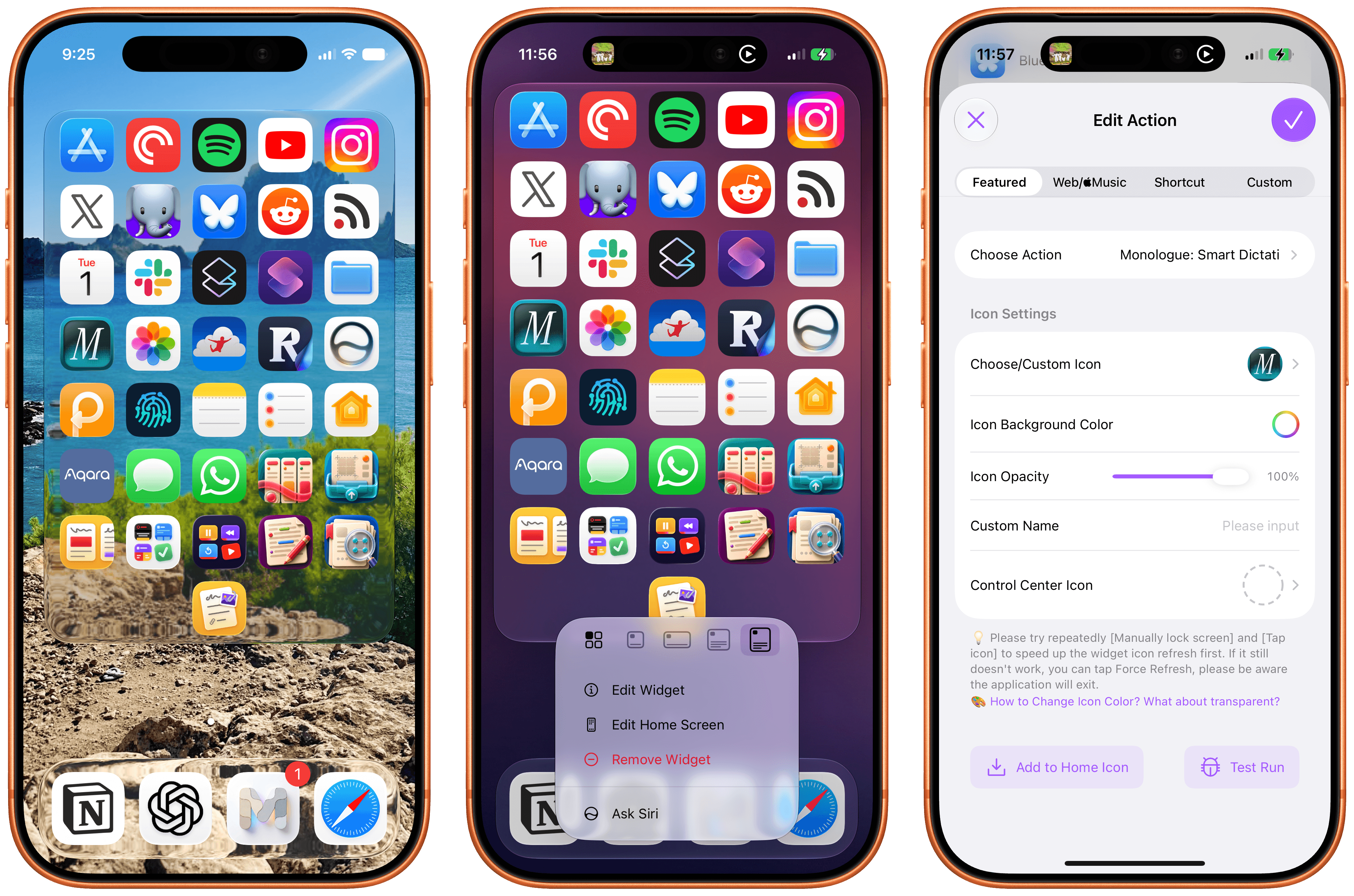
I don’t think I ever mentioned it on MacStories (although I probably did at some point on AppStories or Unwind), but my favorite “launcher” app for iOS is a utility called Lock Launcher, which I’ve been using on and off for the last couple of years. Lock Launcher started as an app for adding URL schemes to the Lock Screen a few years back, and it gradually evolved into a comprehensive “widget studio” app to design launcher widgets of all kinds for the Home Screen, Lock Screen, Dynamic Island, Live Activities, and more.
Anyway, I’m covering the app on the site today because it was updated with two features that I didn’t think were possible or allowed on the App Store, and I want to highlight them for our readers. I’m not really sure how the developers were able to add these features to the app; you may want to download it from the App Store quickly, just in case.
For starters, Lock Launcher now lets you create launcher shortcuts that open apps directly and immediately, rather than redirecting you to the Lock Launcher app first.
For years now, launcher apps on the iPhone have had to employ this workaround: you’d tap on a shortcut that opened, say, Ivory, but you would see the launcher app flash onscreen briefly before redirecting you to the actual destination app you selected. Somehow, Lock Launcher is now circumventing this limitation with a ‘Direct Open’ mode that I haven’t seen in other launcher apps for iOS. That sequence of widget, host app, and destination app was, ultimately, the reason why I always stopped using third-party launcher apps, and I love that it’s been removed by Lock Launcher.
Launching apps without redirects via Lock Launcher.Replay
At long last, I’ve been able to create a dense Home Screen with 40 icons (36 in the widget plus 4 in the dock), and they all launch directly when tapped.
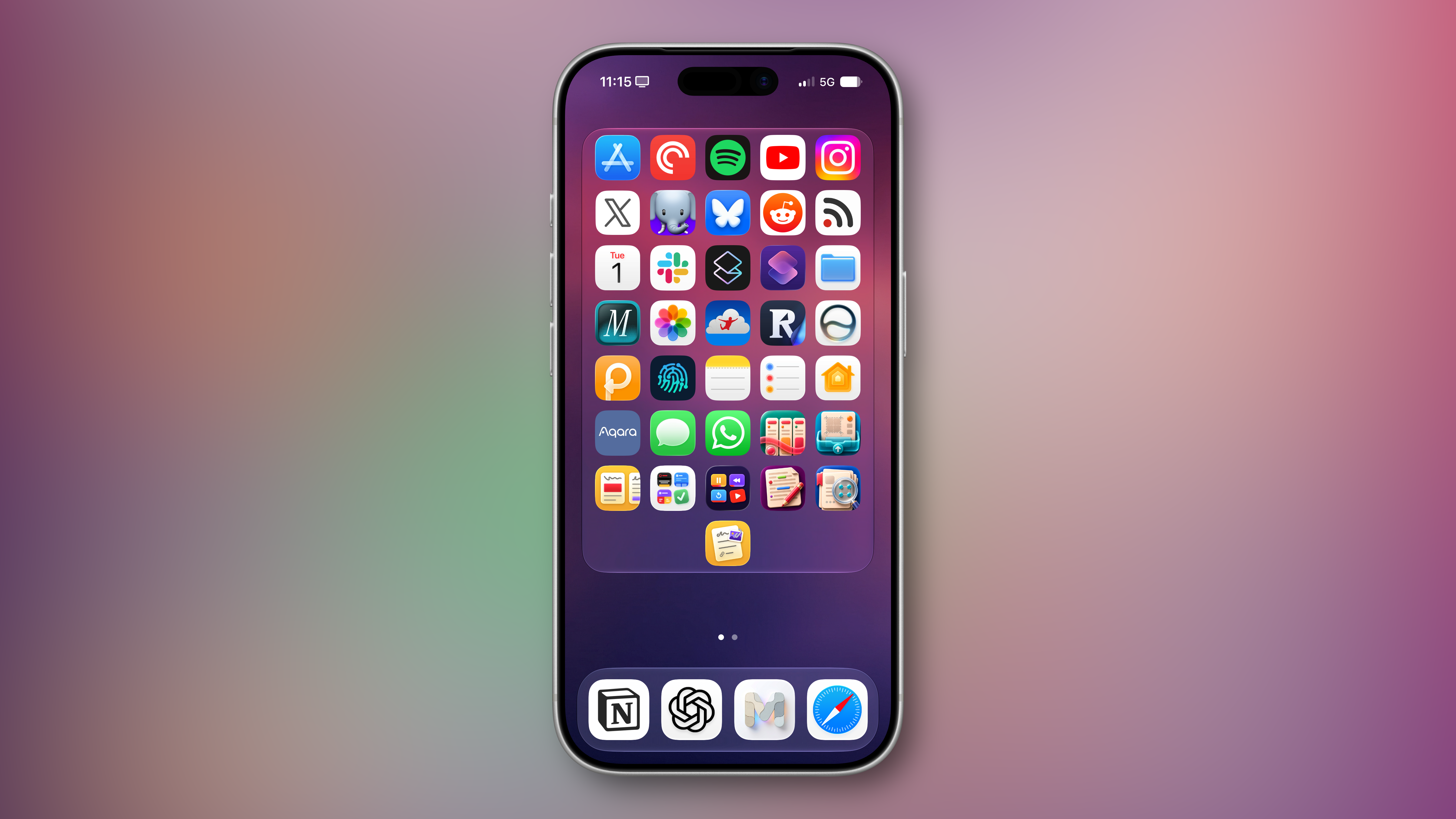
The screenshot above brings me to the second feature added in the version of Lock Launcher currently available on the App Store: XL widgets on iPhone in iOS 27.
Now, as far as I know, if an app wants to adopt an API exclusive to a future version of iOS, it typically needs to be built against that version’s SDK using the corresponding Xcode beta. However, the App Store isn’t currently accepting apps built with the iOS 27 SDK. And yet, the Lock Launcher developers must have figured out a way to support the new systemExtraLargePortrait widget size and make it work on devices running iOS 27 even though the app was built with the iOS 26 SDK. My best guess: they’re using a workaround that involves visionOS 26 APIs, since the Vision Pro received support for that family of widgets last year. (I’d love to know more about this.)
These two features, combined with the ability to apply the Liquid Glass material to widgets for beautiful refractions of the system wallpaper, make Lock Launcher the most powerful and customizable launcher utility on iOS to date. I hope writing about it doesn’t get the developers in trouble.
Lock Launcher is available for free on the App Store, with advanced features available through an optional Pro in-app purchase.
LunarWall: Shuffle Moon Photos from Artemis II On Your Lock Screen or Mac Desktop
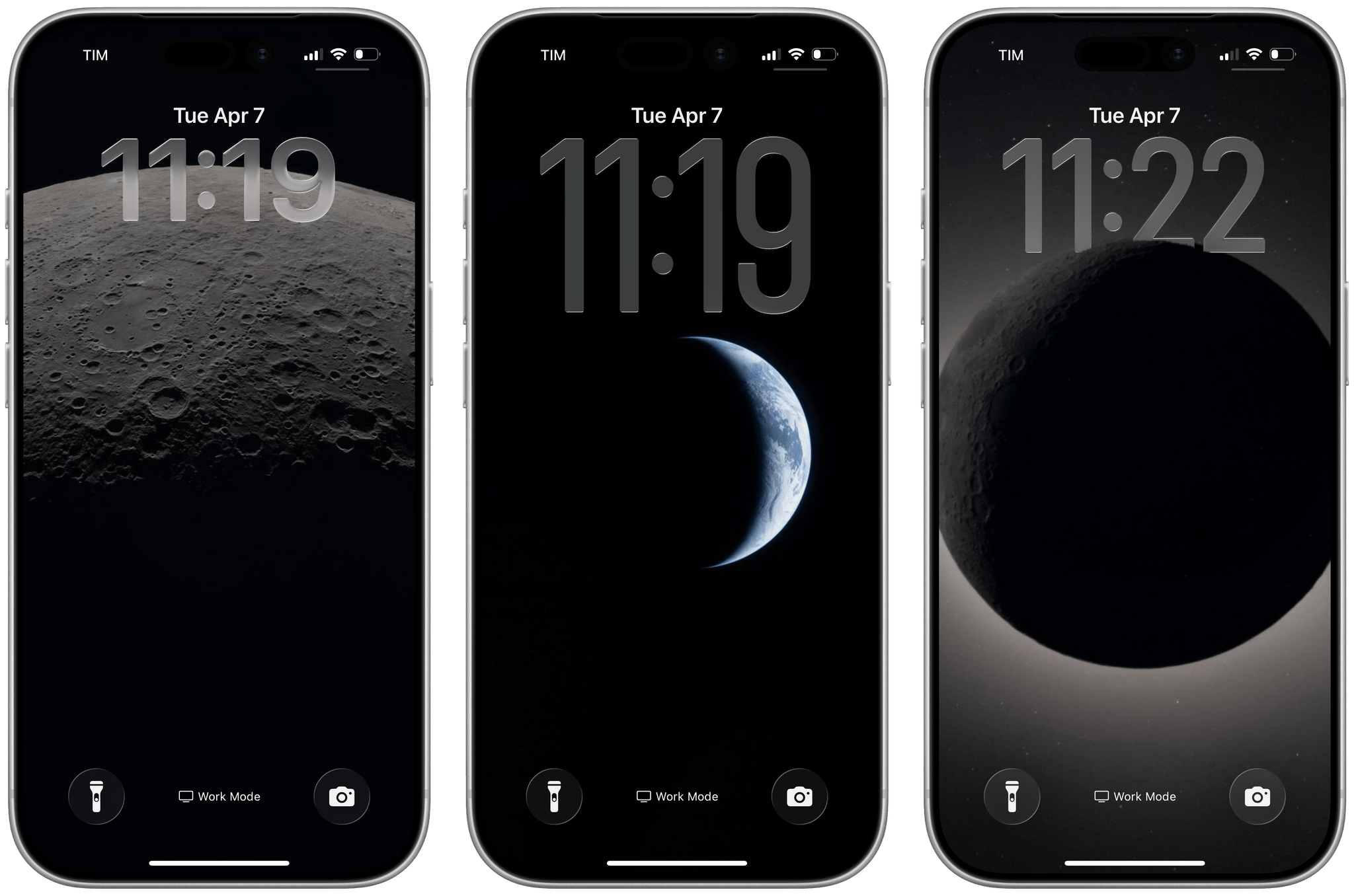
I’ve been staring at my Lock Screen and macOS desktop a lot this week. Not because of John’s iMessage notifications or the weird handhelds we share in the NPC group thread – because of the Moon. Specifically, because of photos taken by Orion as it swung within 4,067 miles of the lunar surface during the Artemis II flyby a couple of days ago. Yesterday, NASA published an official gallery of images from the flyby, and I immediately knew what I had to do.
LunarWall is a simple shortcut that picks a random image from a curated set of 23 photos pulled from NASA’s Artemis II Lunar Flyby gallery and sets it as your wallpaper. That’s it! Each time you run it, you get a different photo. The way this shortcut works, NASA’s images aren’t re-hosted or saved anywhere on your computer: the LunarWall shortcut fetches each image directly from NASA’s CDN and passes it to the ‘Set Wallpaper’ action, which is configured to automatically crop images to fit on mobile devices, blurs the wallpaper for the iOS/iPadOS Home Screen, and uses the original widescreen images at high resolutions on macOS.
Apple Frames 3.3 Adds Support for iPhone 16 and 16 Pro, M4 iPad Pro, and Apple Watch Series 10 (feat. An Unexpected Technical Detour)
Well, this certainly took longer than expected.
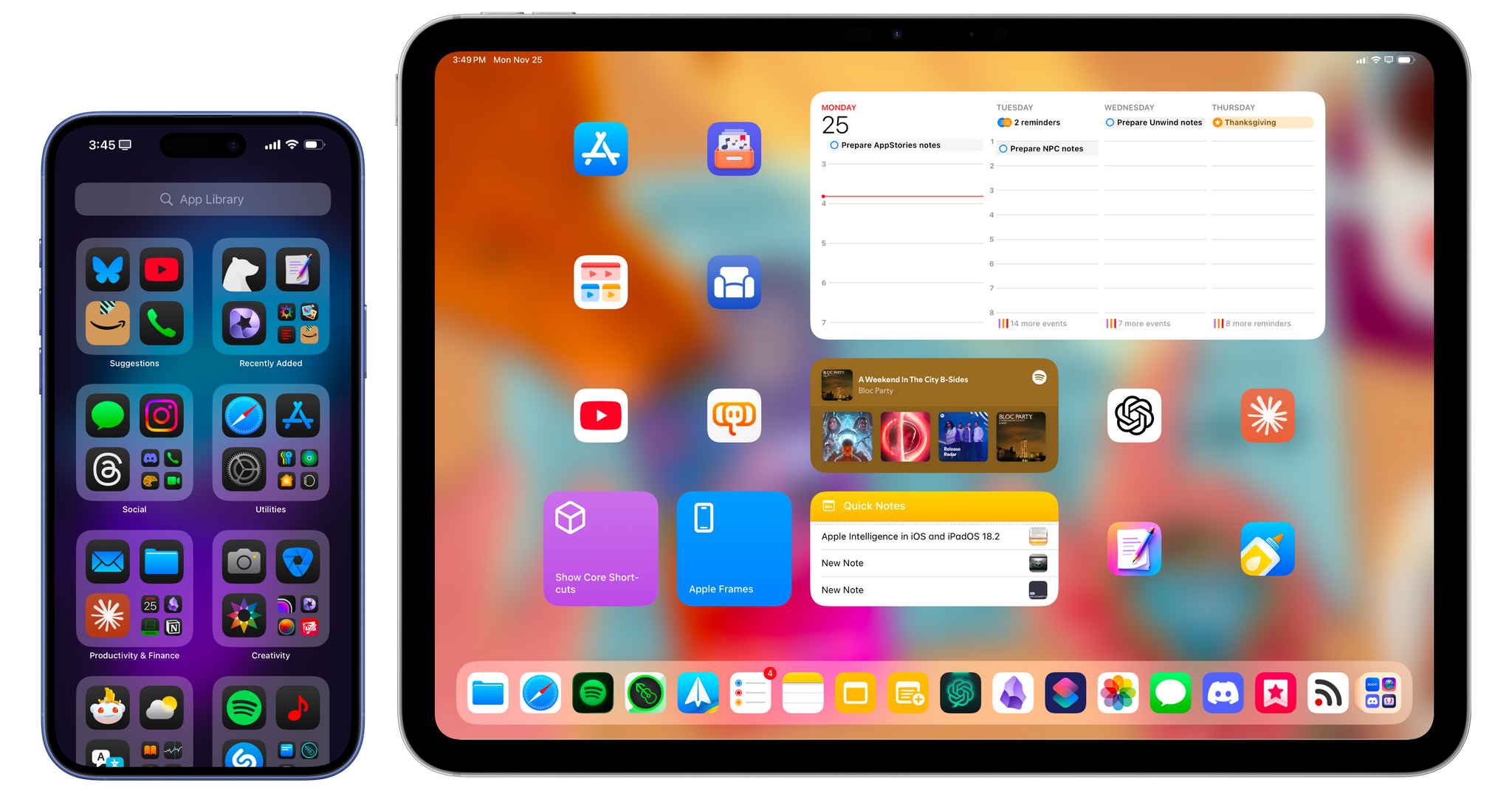
Today, I’m happy to finally release version 3.3 of Apple Frames, my shortcut to put screenshots inside physical frames of Apple devices. In this new version, which is a free update for everyone, you’ll find support for all the new devices Apple released in 2024:
- 11” and 13” M4 iPad Pro
- iPhone 16 and iPhone 16 Pro lineup
- 42mm and 46mm Apple Watch Series 10
To get started with Apple Frames, simply head to the end of this post (or search for Apple Frames in the MacStories Shortcuts Archive), download the updated shortcut, and replace any older version you may have installed with it. The first time you run the shortcut, you’ll be asked to redownload the file assets necessary for Apple Frames, which is a one-time operation. Once that’s done, you can resume framing your screenshots like you’ve always done, either using the native Apple Frames menu or the advanced API that I introduced last year.
So what took this update so long? Well, if you want to know the backstory, keep on reading.
A Feature from 10 Years Ago Is Back – with a Twist – in My Favorite RSS Client
When it comes to productivity apps, especially those that have to work within the constraints of iOS and iPadOS, it’s rare these days to stumble upon a new idea that has never been tried before. With the exception of objectively new technologies such as LLMs, or unless there’s a new framework that Apple is opening up to developers, it can often feel like most ideas have been attempted before and we’re simply retreading old ground.
Let me be clear: I don’t think there’s anything inherently wrong with that. I’ve been writing about iPhone and iPad apps for over a decade now, and I believe there are dozens of design patterns and features that have undeservedly fallen out of fashion. But such is life.
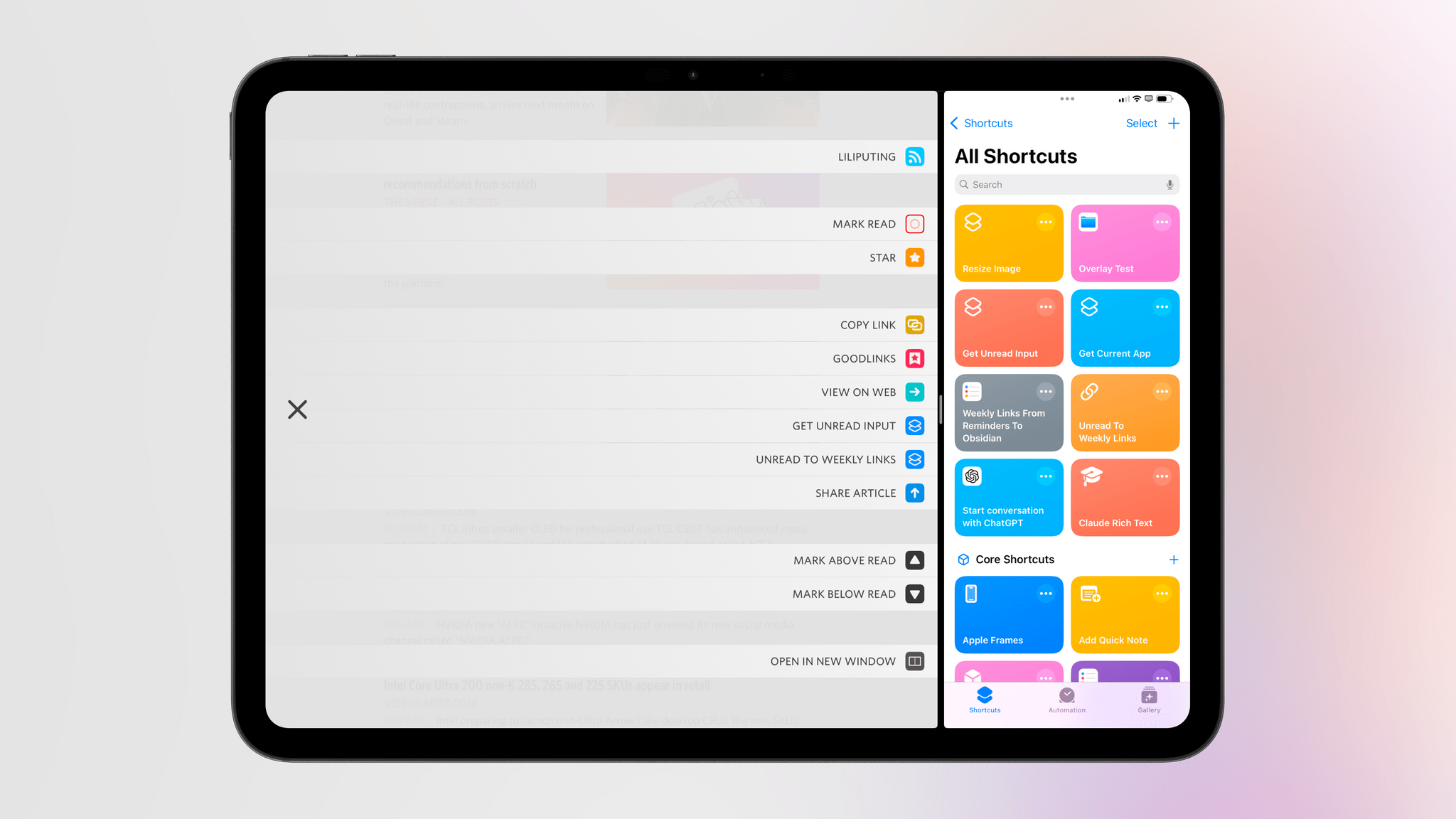
Today marks the return of a very MacStories-y feature in one of my longtime favorite apps, which – thanks to this new functionality – is gaining a permanent spot on my Home Screen. Namely, the RSS client Unread now lets you create custom article actions powered by the Shortcuts app.
Denim Adds Direct Spotify Integration to Customize Playlist Artwork
I don’t remember exactly when I started using Denim, but it was years ago, and I was looking for a way to spruce up the covers of my playlists. I was using Apple Music at the time, and it was before Apple added basic playlist cover generation features to the Music app. Even after that feature came to Music, Denim still provided more options in terms of colors, fonts, and patterns. Earlier this year, I covered its 3.0 update with the ability to automatically recognize artists featured in playlists for Club members here.
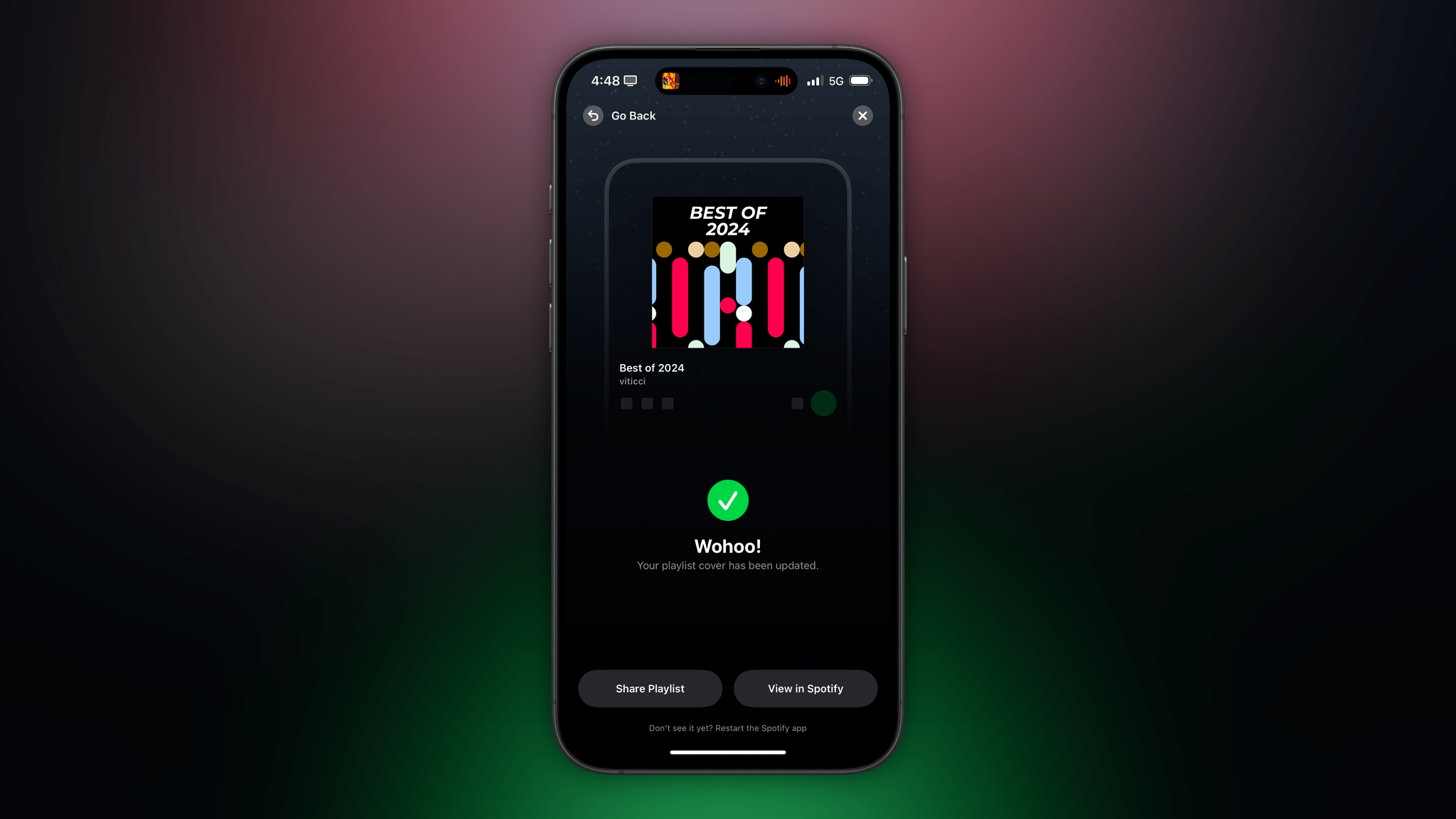
I switched to Spotify months ago (and haven’t looked back since; music discovery is still leagues ahead of Apple Music), and I was very happy to see recently that Denim can now integrate with Spotify directly, without the need to save covers to the Photos app first. Essentially, once you’ve logged in with your Spotify account, the app is connected to your library with access to your playlists. You can pick an existing playlist directly from Denim, customize its cover, and save it back to your Spotify account without opening the Spotify app or having to save an image file upfront.
That’s possible thanks to Spotify’s web-based API for third-party apps, which allows a utility like Denim to simplify the creation flow of custom covers down to a couple of taps. In a nice touch, once a playlist cover has been saved to Spotify, the app lets you know with haptic feedback and allows you to immediately view the updated cover in Spotify, should you want to double-check the results in the context of the app.
The combination of this fast customization process for Spotify and new artwork options added in this release only cements Denim’s role as the best utility for people who care about the looks of the playlists they share with friends and family. Denim is available on the App Store for free, with both a lifetime purchase ($19.99) and annual subscription ($4.99) available to unlock its full feature set.
Apple Frames 3.2 Brings iPhone 15 Pro Frames, Files Picker, and Adjustable Spacing
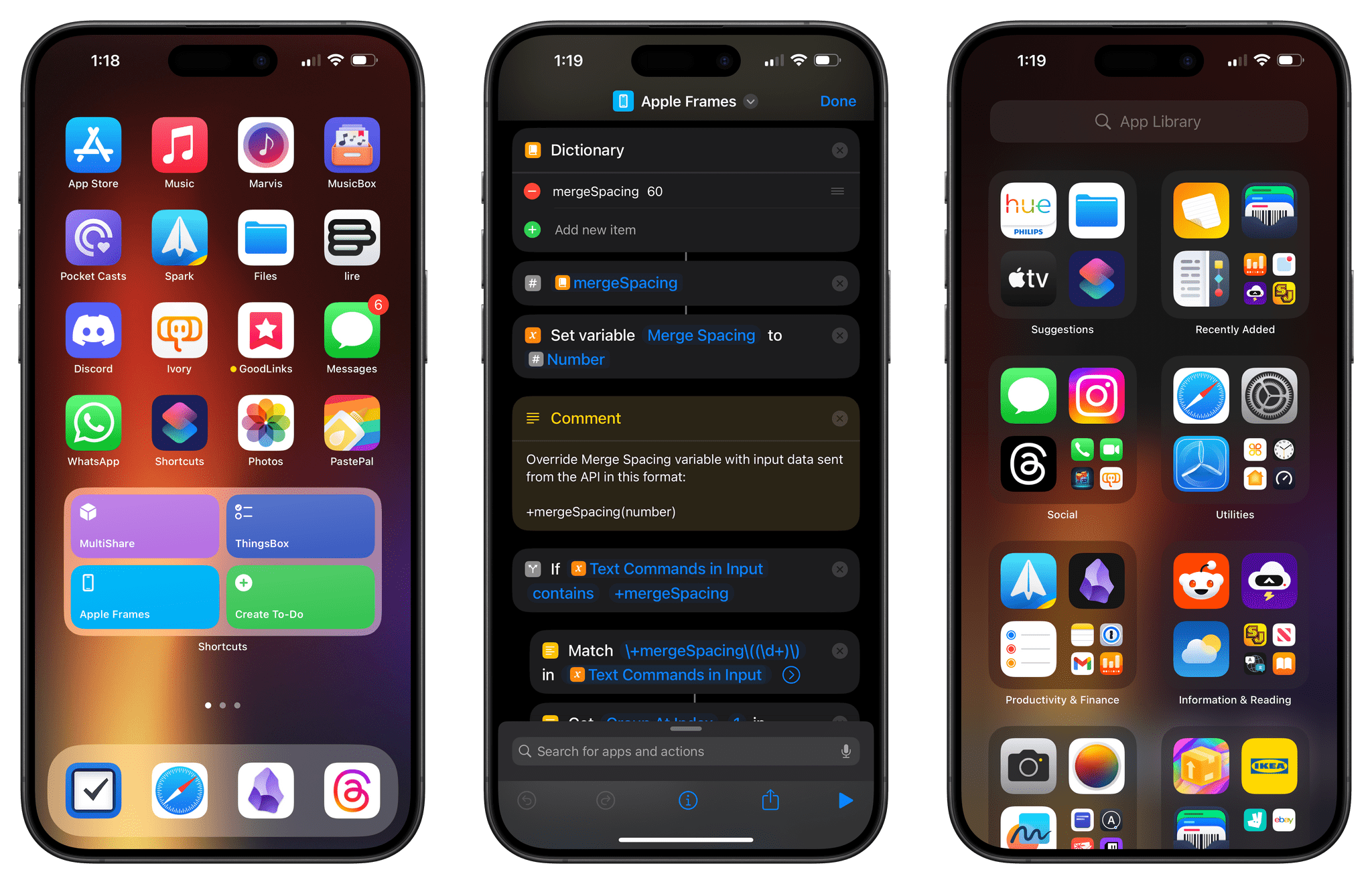
Today, I’m releasing version 3.2 of Apple Frames, my shortcut to put screenshots taken on Apple devices into physical device templates. If you want to skip ahead, you can download Apple Frames 3.2 at the end of this story or find it in the MacStories Shortcuts Archive.
Version 3.2 is a major update that introduces brand new frames for the iPhone 15 Pro line, improves the reliability of framing screenshots from devices with the Dynamic Island, and, perhaps most importantly, extends the Frames API with new configuration options to give you even more control over framed images.
Let’s dive in.
MultiButton 1.1 Makes the Action Button Change Its Behavior Based on the Currently Open App
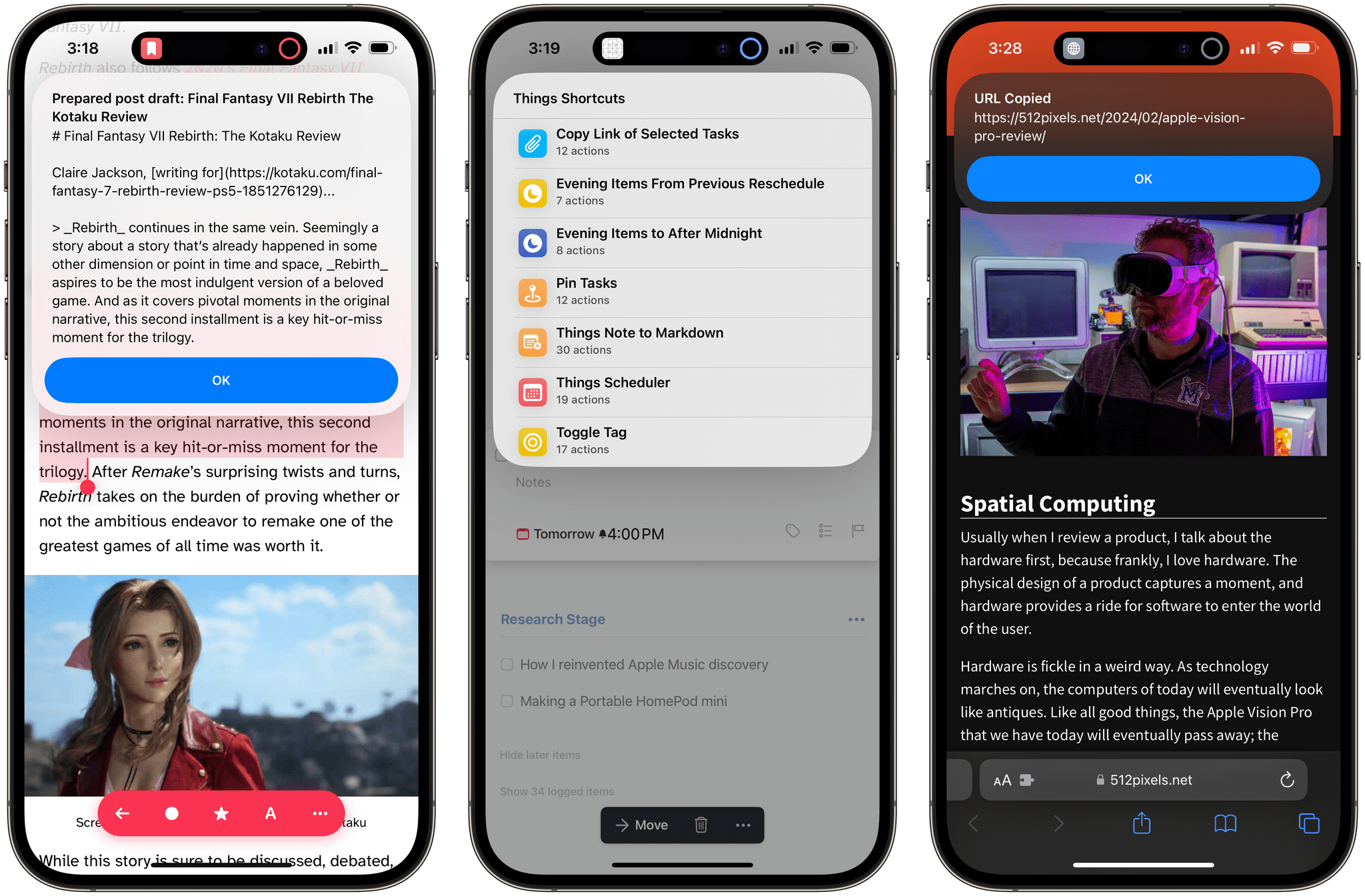
What if the Action button could change its behavior depending on which app is currently open?
That’s what I started wondering months ago after I released MultiButton, my shortcut for toggling between two commands assigned to the Action button rather than being limited to only one. Having the choice between two distinct commands is great, but can you imagine if MultiButton could become a truly contextual shortcut system that adapted to whatever app is currently on-screen?
I’ve spent the past few months working on this idea, and I’m happy to report that I was able to get it to work. In the process, I realized that what I’d designed was a comprehensive, advanced automation system that can be extended beyond MultiButton to a variety of use cases.
Later this week in MacStories Weekly and exclusively for Club MacStories members (of all tiers), I will release my latest creation that makes contextual app automation possible. It’s called CAPS, which stands for Contextual Apps Plugin System.
CAPS is comprised of three standalone shortcuts that allow you to define rules for which shortcuts should be run when the Action button is pressed while using a particular app. CAPS supports creating an unlimited number of rules for as many apps as you want; best of all, it’s based on an open file format that can be integrated with all kinds of shortcuts.