
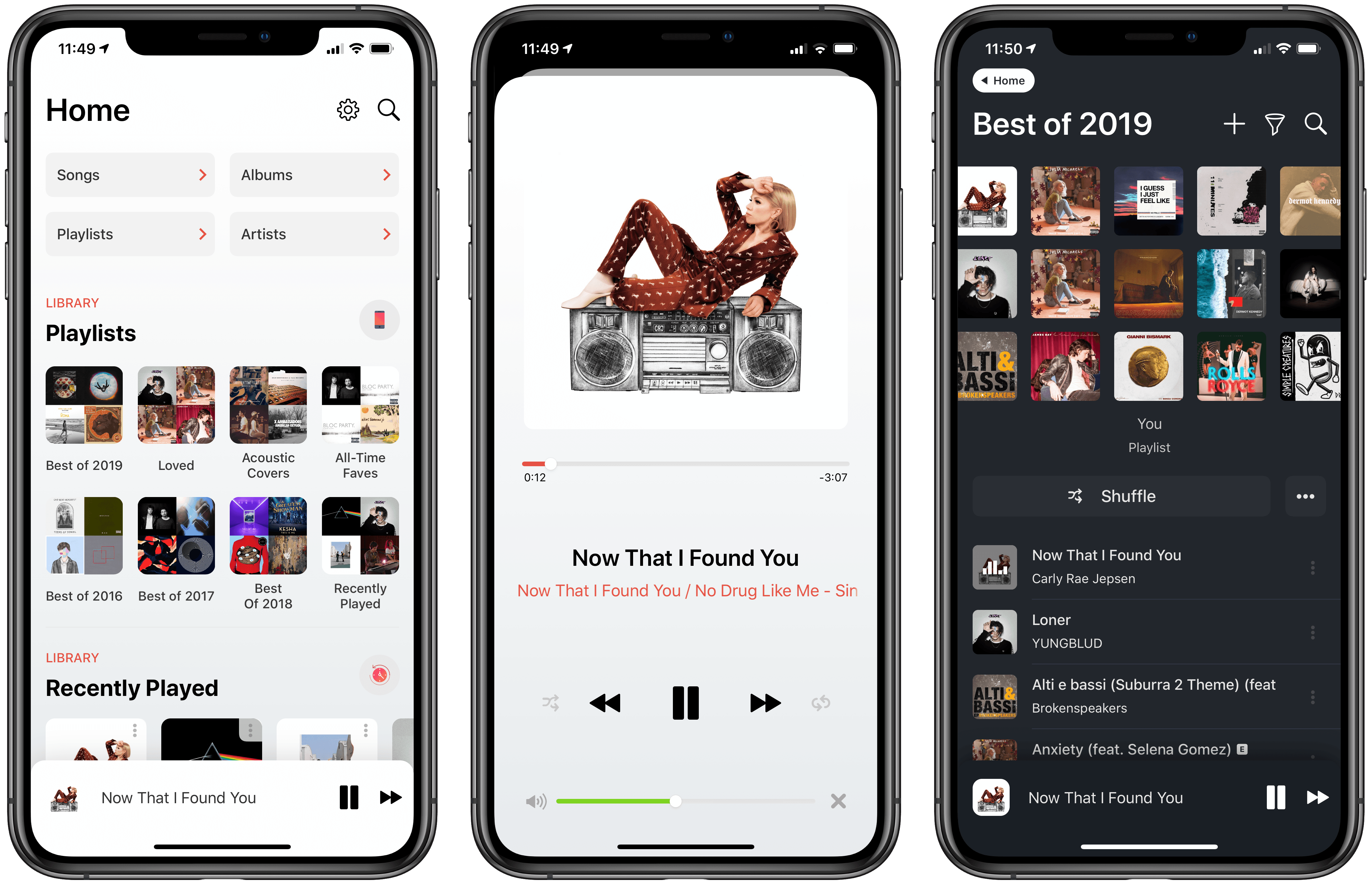
Soor, a third-party client for Apple Music created by indie developer Tanmay Sonawane, is based upon a fascinating premise: unlike other standalone music players for iPhone, Soor works with Apple’s native MusicKit API, enabling direct integration with Apple Music; unlike Apple’s Music app though, Soor prioritizes one-handed gestures, user customization, and a single-page design that packs multiple sections into one view. In theory, Soor should be the optimal blend of two different worlds – a third-party music player with its own aesthetic and stylistic choices combined with Apple Music data and the service’s vast streaming catalog. In practice, while Soor has some solid ideas I’d like to see in Apple Music too, and despite its intriguing visual design, the app doesn’t qualify as a complete replacement for the Music app on iPhone.
Posts in reviews
Soor: A Third-Party Apple Music Client for iPhone

Access Extra Content and Perks
Founded in 2015, Club MacStories has delivered exclusive content every week for nearly a decade.
What started with weekly and monthly email newsletters has blossomed into a family of memberships designed for every MacStories fan.
Club MacStories: Weekly and monthly newsletters via email and the web that are brimming with apps, tips, automation workflows, longform writing, early access to the MacStories Unwind podcast, periodic giveaways, and more;
Club MacStories+: Everything that Club MacStories offers, plus an active Discord community, advanced search and custom RSS features for exploring the Club’s entire back catalog, bonus columns, and dozens of app discounts;
Club Premier: All of the above and AppStories+, an extended version of our flagship podcast that’s delivered early, ad-free, and in high-bitrate audio.
Big Grocery Update Adds Recipe and Meal Planning Support Along with Other Refinements
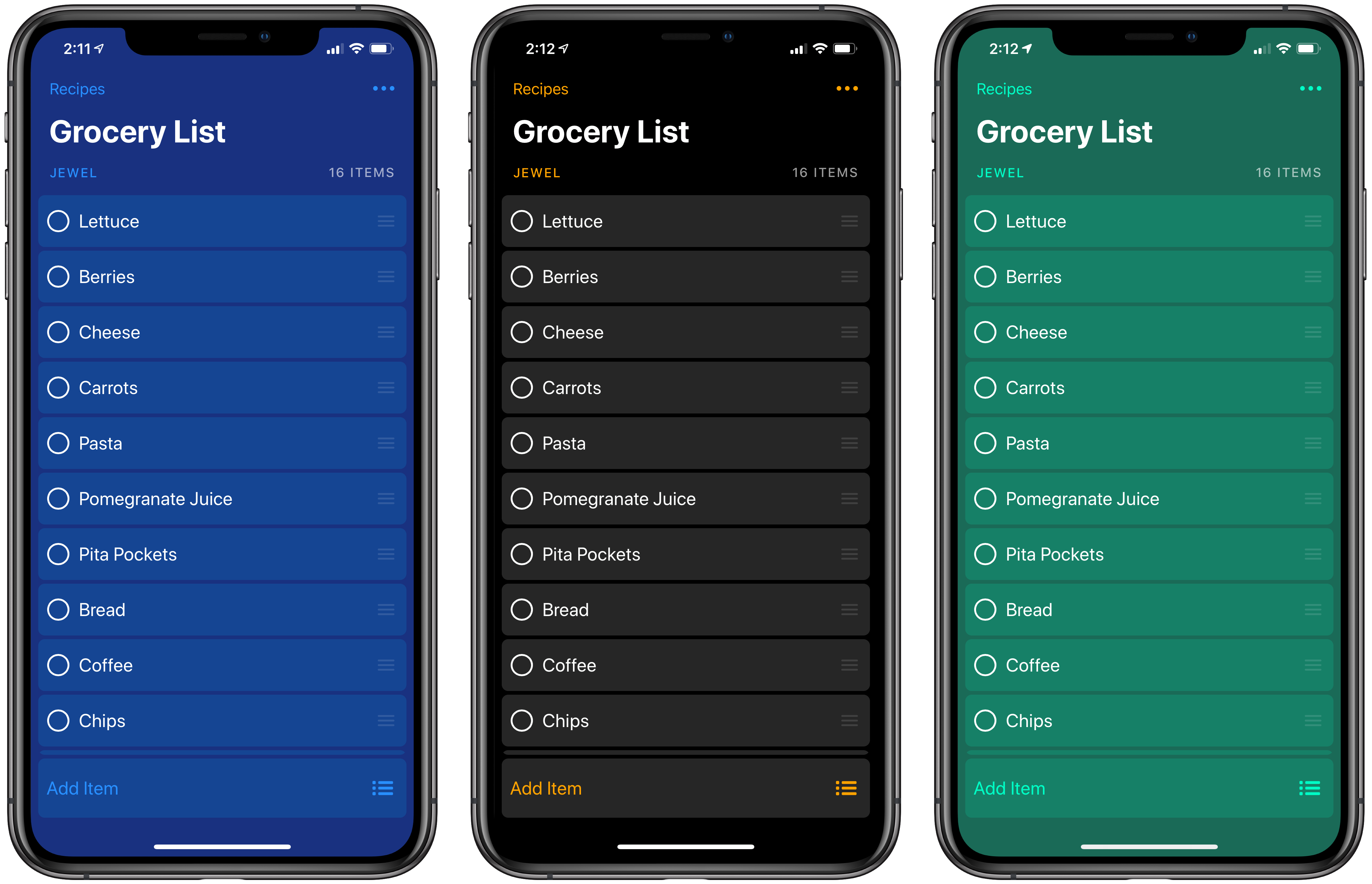
I’ve used Grocery on and off for a long time, but what finally made it stick in a way that it never did in the app’s early days was the addition of a HomePod in my living room/kitchen area. The app is built on top of Apple Reminders, which means that even from the earliest days of the HomePod, adding items to our family grocery list using Siri was reliable. Grocery’s Siri support was available before the HomePod, but the ability to add things to the list while I’m cooking or rummaging through the refrigerator transformed Grocery into an app I use throughout the week.
With version 2.0, Grocery has added a new level of power to the app by creating a flexible system that allows you to do everything from storing a template grocery list that you can reuse over and over to recipe management and meal planning. The new features add some complexity to Grocery, but if you invest a little time in understanding how the app works and take advantage of its Shortcuts integration, the update opens up interesting uses far beyond what was possible before.
Access Extra Content and Perks
Founded in 2015, Club MacStories has delivered exclusive content every week for nearly a decade.
What started with weekly and monthly email newsletters has blossomed into a family of memberships designed for every MacStories fan.
Club MacStories: Weekly and monthly newsletters via email and the web that are brimming with apps, tips, automation workflows, longform writing, early access to the MacStories Unwind podcast, periodic giveaways, and more;
Club MacStories+: Everything that Club MacStories offers, plus an active Discord community, advanced search and custom RSS features for exploring the Club’s entire back catalog, bonus columns, and dozens of app discounts;
Club Premier: All of the above and AppStories+, an extended version of our flagship podcast that’s delivered early, ad-free, and in high-bitrate audio.
The HyperDrive Slim 8-in-1 USB-C Hub Balances Flexibility and Portability for Mac and iPad Pro Owners
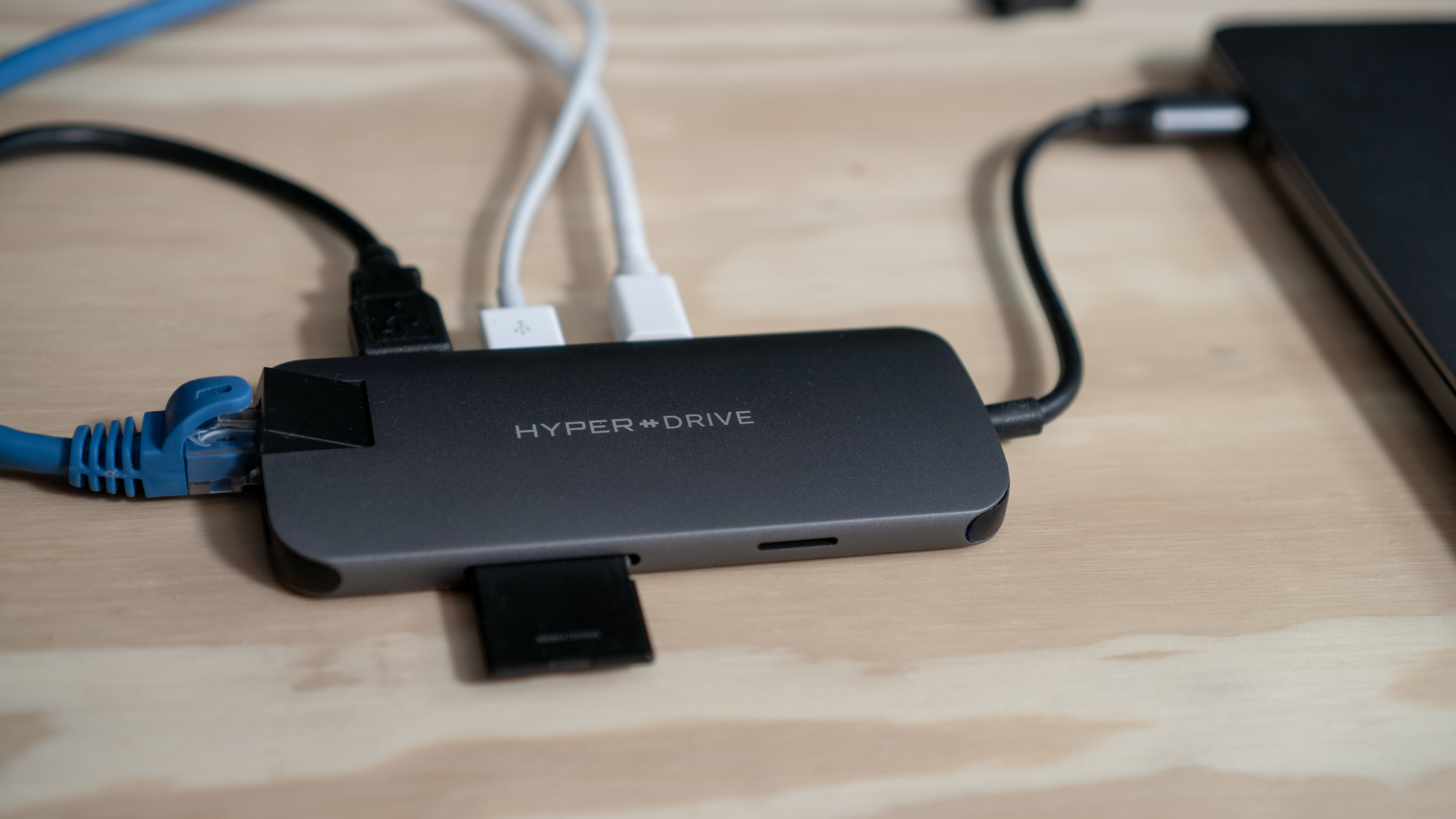
My main Mac is a 2016 MacBook Pro, which isn’t ideal. The problem isn’t really the laptop itself, it’s that my needs have changed. You see, in 2016 I was commuting to downtown Chicago every day and I wanted a portable Mac for working in Xcode and other tasks on the go.
Now, I work from home and my MacBook Pro sits in clamshell mode most of the time. It’s handy to have the MacBook to take with me when I need it, but that’s far less frequent than it used to be. Instead, my Mac drives a 27” LG 4K display, is connected to Ethernet, speakers, a Luna Display dongle, my podcasting microphone, and various other peripherals I need from time to time.
The trouble with the setup is that I quickly ran out of USB-C ports even though my MacBook Pro has four. I’ve tried several different configurations to streamline my setup, but none were quite right. Now though, I’ve finally found a solution that comes closest to meeting my needs and has the added benefit of working well with my iPad Pro. With a couple of minor caveats, the HyperDrive Slim 8-in-1 USB-C Hub is the best solution I’ve tried.
Access Extra Content and Perks
Founded in 2015, Club MacStories has delivered exclusive content every week for nearly a decade.
What started with weekly and monthly email newsletters has blossomed into a family of memberships designed for every MacStories fan.
Club MacStories: Weekly and monthly newsletters via email and the web that are brimming with apps, tips, automation workflows, longform writing, early access to the MacStories Unwind podcast, periodic giveaways, and more;
Club MacStories+: Everything that Club MacStories offers, plus an active Discord community, advanced search and custom RSS features for exploring the Club’s entire back catalog, bonus columns, and dozens of app discounts;
Club Premier: All of the above and AppStories+, an extended version of our flagship podcast that’s delivered early, ad-free, and in high-bitrate audio.
Tabs to Links: A Mac Utility for Creating Link Lists
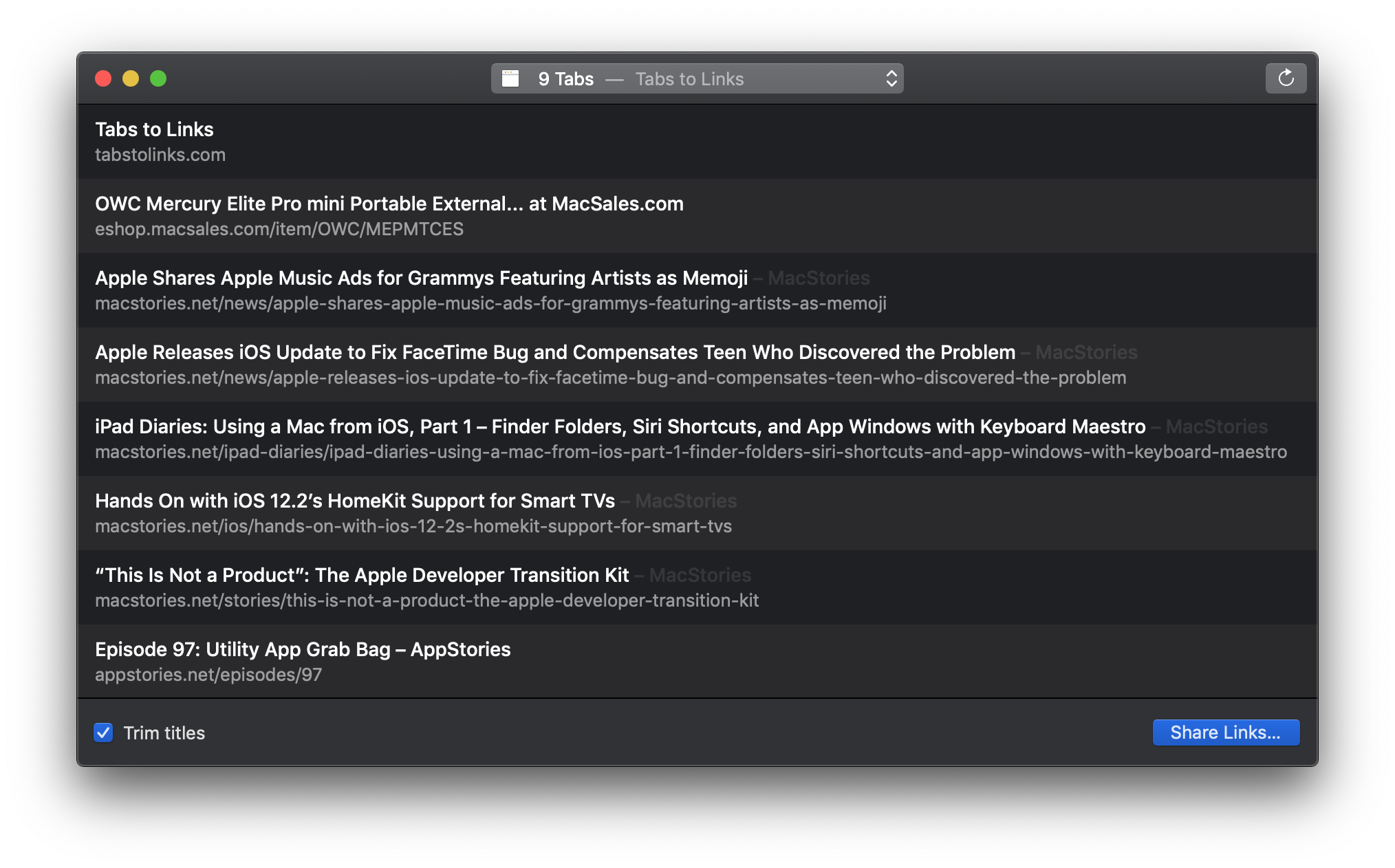
Yesterday Benjamin Mayo released Tabs to Links, a Mac utility that can grab the links and page titles from your open Safari tabs and send them to another app. The app is as simple as it sounds, but its thoughtful touches make it a tool I expect to use often.
Access Extra Content and Perks
Founded in 2015, Club MacStories has delivered exclusive content every week for nearly a decade.
What started with weekly and monthly email newsletters has blossomed into a family of memberships designed for every MacStories fan.
Club MacStories: Weekly and monthly newsletters via email and the web that are brimming with apps, tips, automation workflows, longform writing, early access to the MacStories Unwind podcast, periodic giveaways, and more;
Club MacStories+: Everything that Club MacStories offers, plus an active Discord community, advanced search and custom RSS features for exploring the Club’s entire back catalog, bonus columns, and dozens of app discounts;
Club Premier: All of the above and AppStories+, an extended version of our flagship podcast that’s delivered early, ad-free, and in high-bitrate audio.
Agenda 5 Expands iPad External Keyboard Support
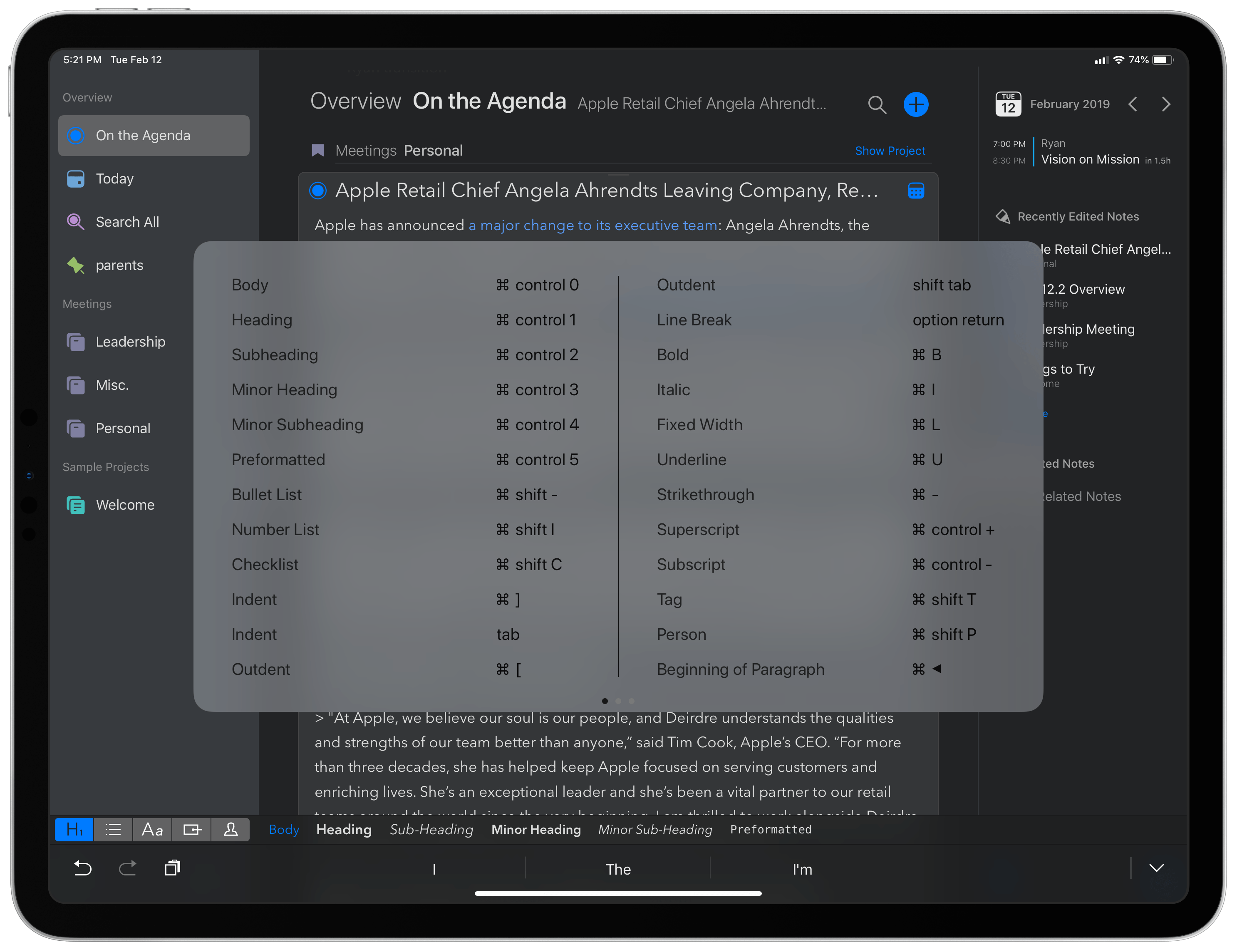
Agenda recently passed the milestone of its first full year in public release, with the Mac version debuting last January and the iOS app a few months later. The team behind Agenda has been keeping busy ever since, with improvements like Siri shortcuts, dark mode, accent colors, and most recently, images and file attachments. Today’s update to version 5.0 on iOS and the Mac is relatively minor by comparison, but it still offers a few valuable additions. There are new options for your text environment, like the ability to set a custom line spacing and use an extra small text size, plus you can now perform multi-tag and multi-person searches. The improvement that stands out most, however, is Agenda’s newly expanded support for external keyboards on iPad.
Access Extra Content and Perks
Founded in 2015, Club MacStories has delivered exclusive content every week for nearly a decade.
What started with weekly and monthly email newsletters has blossomed into a family of memberships designed for every MacStories fan.
Club MacStories: Weekly and monthly newsletters via email and the web that are brimming with apps, tips, automation workflows, longform writing, early access to the MacStories Unwind podcast, periodic giveaways, and more;
Club MacStories+: Everything that Club MacStories offers, plus an active Discord community, advanced search and custom RSS features for exploring the Club’s entire back catalog, bonus columns, and dozens of app discounts;
Club Premier: All of the above and AppStories+, an extended version of our flagship podcast that’s delivered early, ad-free, and in high-bitrate audio.
Obscura Updated with Histogram Support and a New Image Viewer
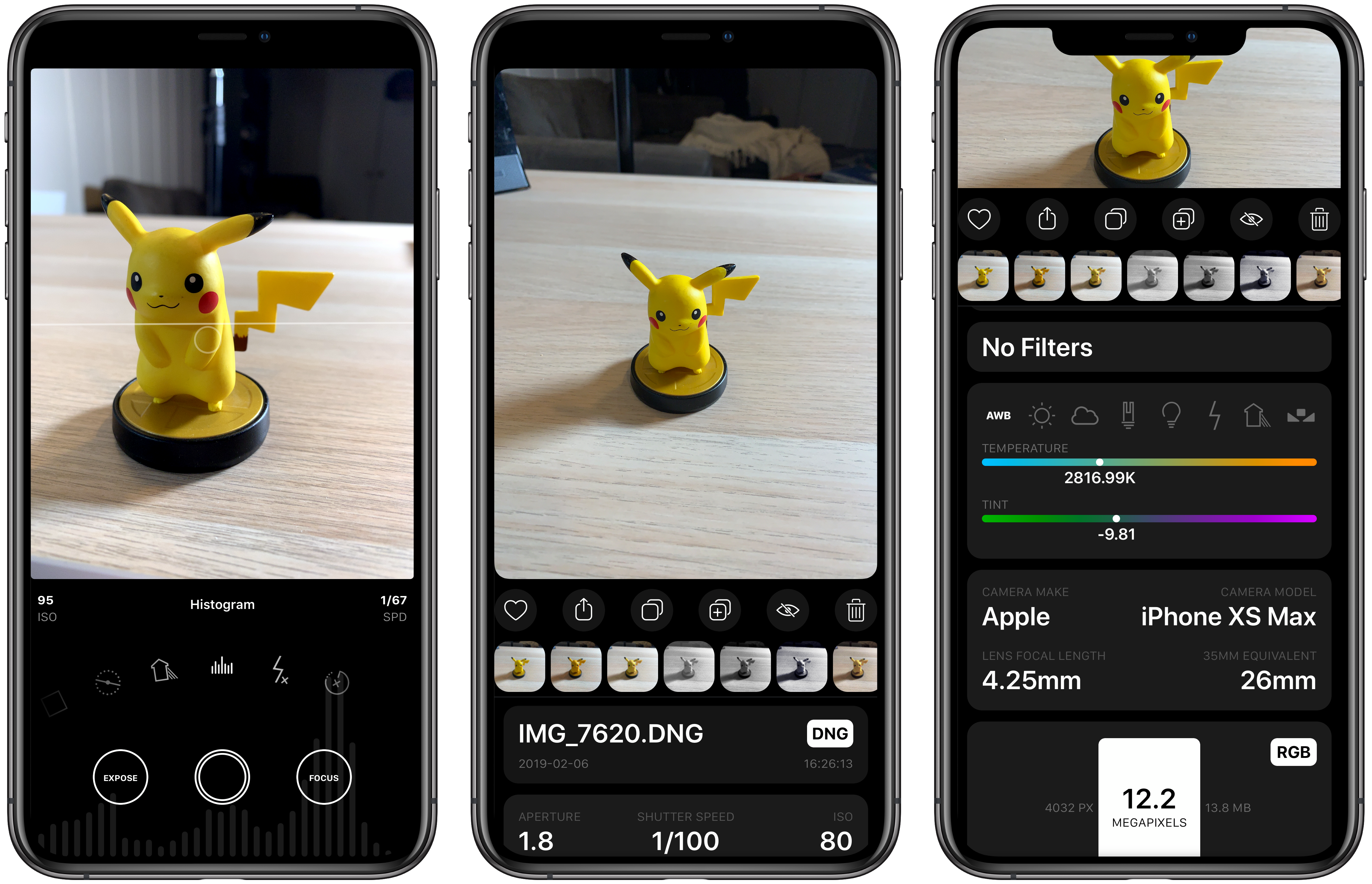
Obscura 2.0 was one of our favorite iOS app updates of 2018, which garnered it a MacStories Selects Best App Update Runner-Up award. Since it was released eight months ago, developer Ben McCarthy has continued to refine the app and add new features such as iPad support, new editing controls, localizations, and a Photos extension. With the latest update out today, Obscura has added a histogram visualizer, a redesigned image viewer, iPad keyboard shortcuts, and more.
Access Extra Content and Perks
Founded in 2015, Club MacStories has delivered exclusive content every week for nearly a decade.
What started with weekly and monthly email newsletters has blossomed into a family of memberships designed for every MacStories fan.
Club MacStories: Weekly and monthly newsletters via email and the web that are brimming with apps, tips, automation workflows, longform writing, early access to the MacStories Unwind podcast, periodic giveaways, and more;
Club MacStories+: Everything that Club MacStories offers, plus an active Discord community, advanced search and custom RSS features for exploring the Club’s entire back catalog, bonus columns, and dozens of app discounts;
Club Premier: All of the above and AppStories+, an extended version of our flagship podcast that’s delivered early, ad-free, and in high-bitrate audio.
CARROT Weather Is More Customizable and Useful on the Apple Watch Than Ever
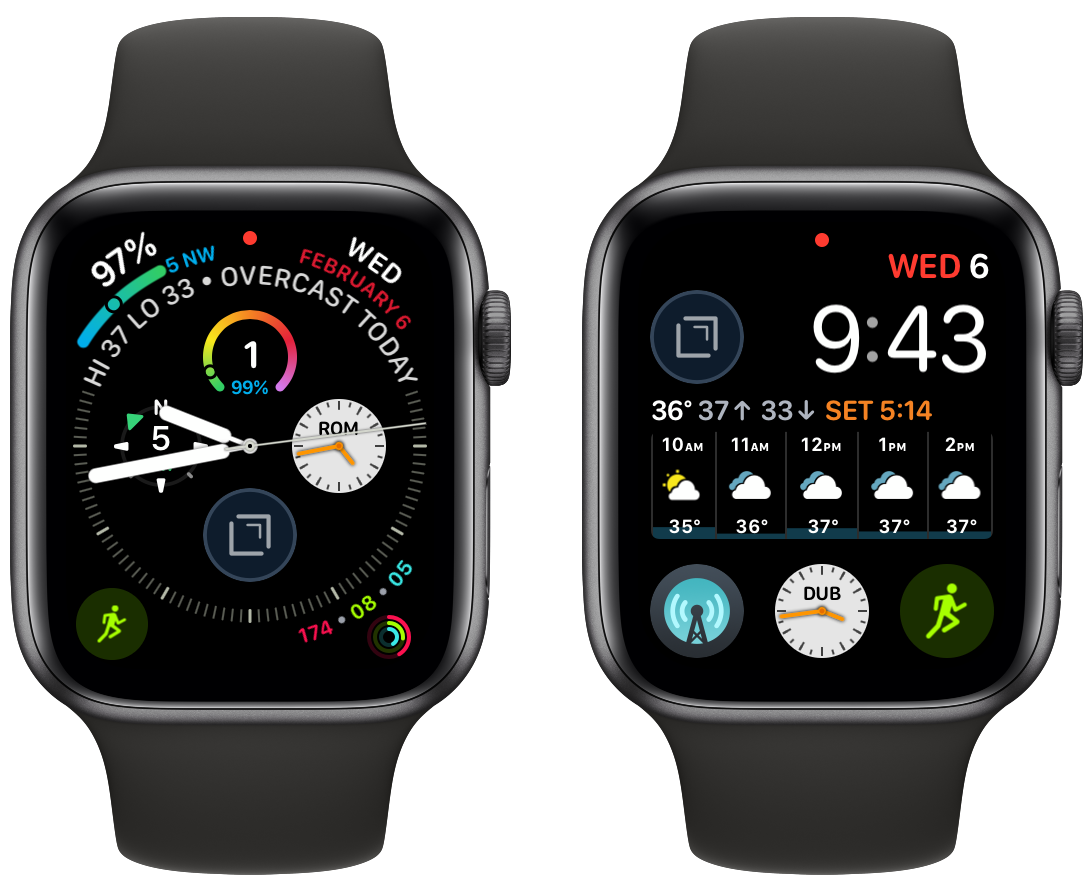
CARROT Weather has had one of the top tier Apple Watch apps for a long time now. In the early days of the Watch, CARROT was one of the few apps that loaded quickly and worked reliably. Since third-party complications were introduced, CARROT’s had some of the best. With the latest update though, CARROT has extended its Watch app’s functionality and flexibility even further and added a few other great features too.
Access Extra Content and Perks
Founded in 2015, Club MacStories has delivered exclusive content every week for nearly a decade.
What started with weekly and monthly email newsletters has blossomed into a family of memberships designed for every MacStories fan.
Club MacStories: Weekly and monthly newsletters via email and the web that are brimming with apps, tips, automation workflows, longform writing, early access to the MacStories Unwind podcast, periodic giveaways, and more;
Club MacStories+: Everything that Club MacStories offers, plus an active Discord community, advanced search and custom RSS features for exploring the Club’s entire back catalog, bonus columns, and dozens of app discounts;
Club Premier: All of the above and AppStories+, an extended version of our flagship podcast that’s delivered early, ad-free, and in high-bitrate audio.
Inspecting JSON Files on iOS with Jayson
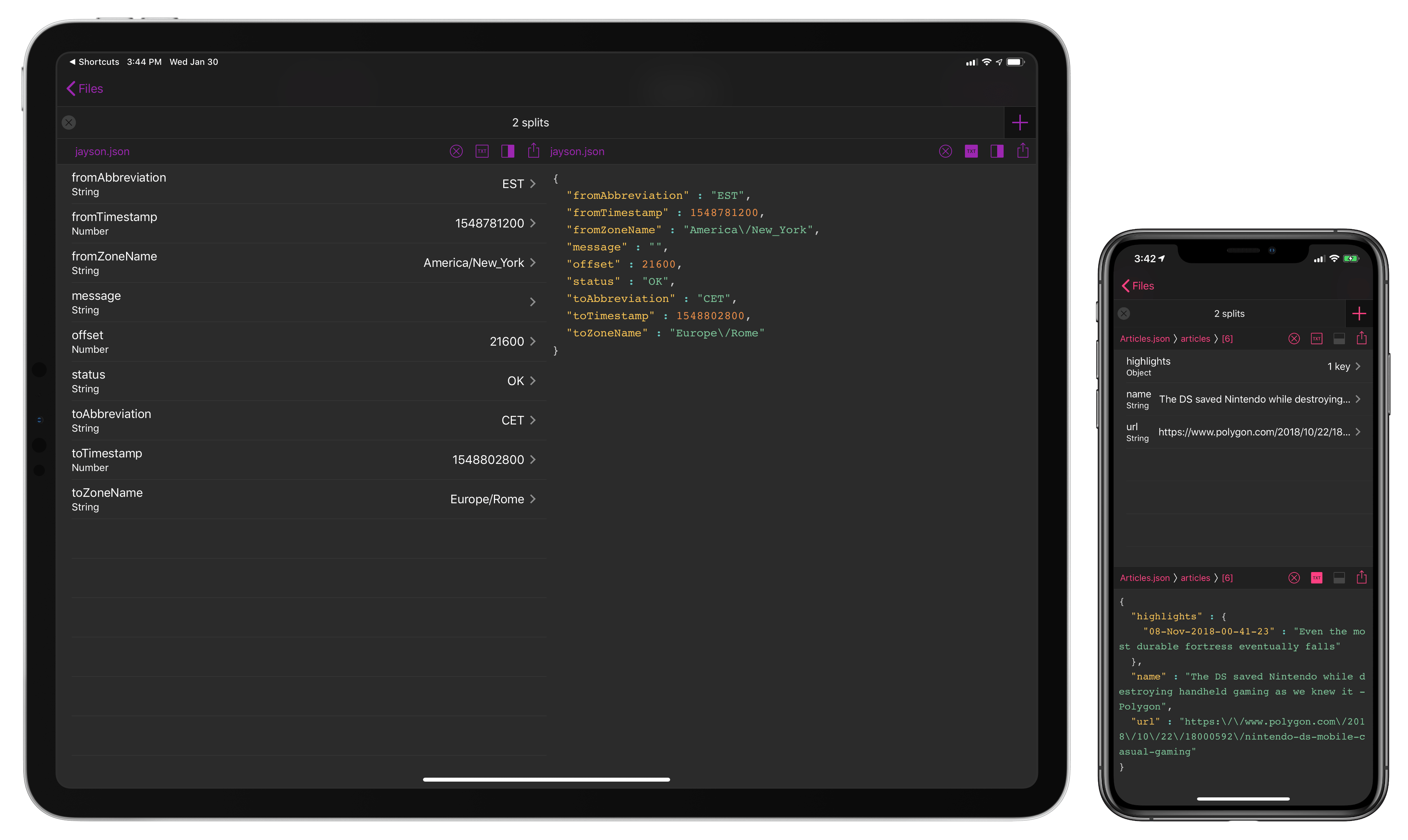
In writing about Workflow (then) and Shortcuts (now) for a living, at some point I realized that if I wanted to build more complex shortcuts to either deal with web APIs or store data in iCloud Drive, I had to learn the basics of parsing and writing valid JSON. The format is behind most of the web API-based Shortcuts I have shared here on MacStories1 and is one of the techniques I recently explained on Club MacStories when I built a shortcut to save highlights from Safari Reading List. The beauty of JSON is that, unlike XML, it’s cleaner and more readable – provided you have a dedicated viewer that supports syntax highlighting and/or options to navigate between objects and inspect values. There’s no shortage of such utilities on macOS, but this is the kind of niche that still hasn’t been fully explored on iOS by developers of pro apps. That changes today with the launch of Jayson, created by Simon Støvring.
Readers of MacStories may be familiar with Støvring’s name – he’s the developer behind one of the most powerful and innovative pro apps of 2018, the excellent Scriptable for iOS. For this reason, it shouldn’t come as a surprise that Jayson, a project that was born out of Støvring’s personal frustration with the lack of a modern JSON viewer for iOS, has that same spark of innovation and integration with native iOS functionalities that set Scriptable apart last year. If you do any kind of work with JSON on your iPhone or iPad, you need Jayson in your life, and here’s why.
Access Extra Content and Perks
Founded in 2015, Club MacStories has delivered exclusive content every week for nearly a decade.
What started with weekly and monthly email newsletters has blossomed into a family of memberships designed for every MacStories fan.
Club MacStories: Weekly and monthly newsletters via email and the web that are brimming with apps, tips, automation workflows, longform writing, early access to the MacStories Unwind podcast, periodic giveaways, and more;
Club MacStories+: Everything that Club MacStories offers, plus an active Discord community, advanced search and custom RSS features for exploring the Club’s entire back catalog, bonus columns, and dozens of app discounts;
Club Premier: All of the above and AppStories+, an extended version of our flagship podcast that’s delivered early, ad-free, and in high-bitrate audio.
AirBuddy: An AirPods Companion for Your Mac

AirBuddy by Guilherme Rambo is one of the handiest Mac utilities I’ve tried in a while. AirPods connect almost instantly to iOS devices, but the process of pairing them to a Mac is not as simple, often requiring fiddling with your Mac’s Bluetooth settings from the menu bar or System Preferences. AirBuddy solves that problem, making it as trivially easy to connect AirPods to a Mac as it is to do the same with an iPhone.
The app works with a Mac that supports Bluetooth LE and is running macOS Mojave and any headphones that include Apple’s proprietary W1 chip. That means in addition to AirPods, AirBuddy can also control Beats headphones that have a W1 wireless chip. The app runs in the background as a helper process, so you won’t usually see a window or dock icon while it’s running. Nor is there a menu bar icon. Instead, once you’ve adjusted the app’s handful of settings to your liking, the app appears almost immediately when you open your AirPods case near your Mac or turn on your Beats headphones.
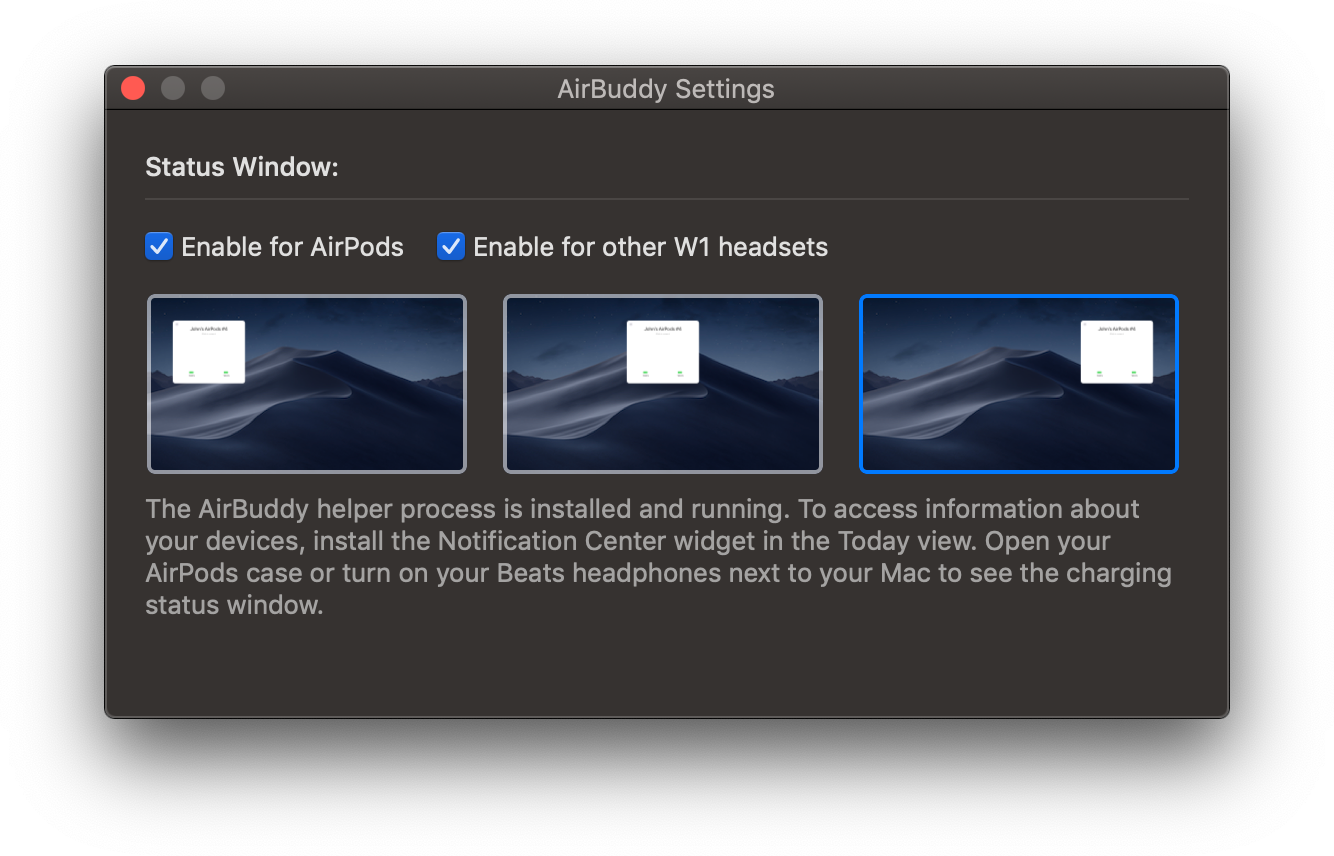
AirBuddy has a few settings that are available by opening the app from the Finder. There are checkboxes for enabling the app to work with AirPods and other W1 headphones and display options for picking where onscreen you want AirBuddy to appear when it detects nearby headphones.
Once you have the app set up, opening your AirPods case near your Mac causes a window to slide down from the top of your screen that looks just like you’d see if you did the same thing in proximity to your iPhone or iPad. For AirPods, you’ll see rotating images of your AirPods and their case with a charge indicator beneath them. The same sort of window appears when you turn on Beats headphones nearby.
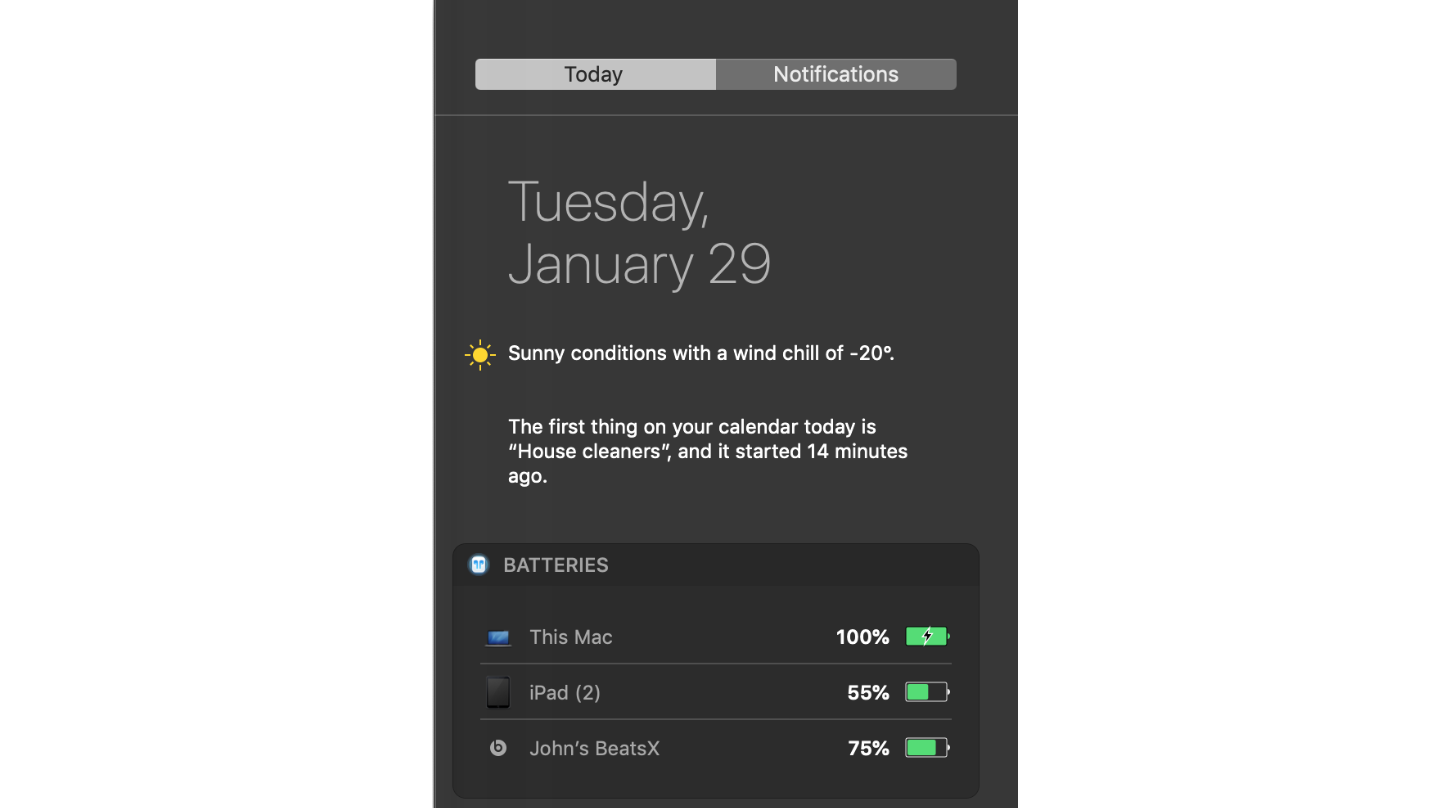
AirBuddy doesn’t just provide the status of your AirPods though. It also allows you to connect them to your Mac with a single click. There is a Mac Today widget that provides battery status for your Mac and any headphones or iOS devices you’ve ever connected to your Mac too. It’s easy enough to check the battery of devices sitting nearby without the help of AirBuddy, but it’s nice that I can also see that the battery of my iPad sitting two floors above me is running low and should be plugged in if I want to read in bed tonight.
In the past, I’ve rarely connected my AirPods to my Mac. Instead, I used headphones with my Mac’s 3.5mm audio jack because AirPods weren’t worth the trouble. In my tests of AirBuddy though, the app works as expected every time eliminating the friction from the connection process. AirBuddy is so simple and works so well that it begs the question of why Apple hasn’t built this sort of functionality into macOS. For whatever reason, Apple hasn’t, which is a shame. Perhaps Apple will add a similar feature to macOS in the future, but unless and until that happens, anyone with AirPods and a Mac should download AirBuddy.
Rambo is selling AirBuddy using a ‘name-your-price’ model with a suggested price of $5.
Access Extra Content and Perks
Founded in 2015, Club MacStories has delivered exclusive content every week for nearly a decade.
What started with weekly and monthly email newsletters has blossomed into a family of memberships designed for every MacStories fan.
Club MacStories: Weekly and monthly newsletters via email and the web that are brimming with apps, tips, automation workflows, longform writing, early access to the MacStories Unwind podcast, periodic giveaways, and more;
Club MacStories+: Everything that Club MacStories offers, plus an active Discord community, advanced search and custom RSS features for exploring the Club’s entire back catalog, bonus columns, and dozens of app discounts;
Club Premier: All of the above and AppStories+, an extended version of our flagship podcast that’s delivered early, ad-free, and in high-bitrate audio.