This Week's Sponsor:

Copilot Money

Copilot Money, The Best Money Tracker, Launches on the Web – Limited-Time: Get 26% Off + 2 Months Free


Posts in reviews

Photowerks Enhances Apple’s Photos App with Smart Albums

Apple’s Photos app is often criticized for its lack of organizational features that go beyond a list of photos and screenshots, and the company will bring some improvements in this area with iOS 7 and a Photos app capable of organizing items in Moments and Collections. Photowerks, free on the App Store, enhances Apple’s default solution with sorting options and smart albums available today to iOS 6 users.

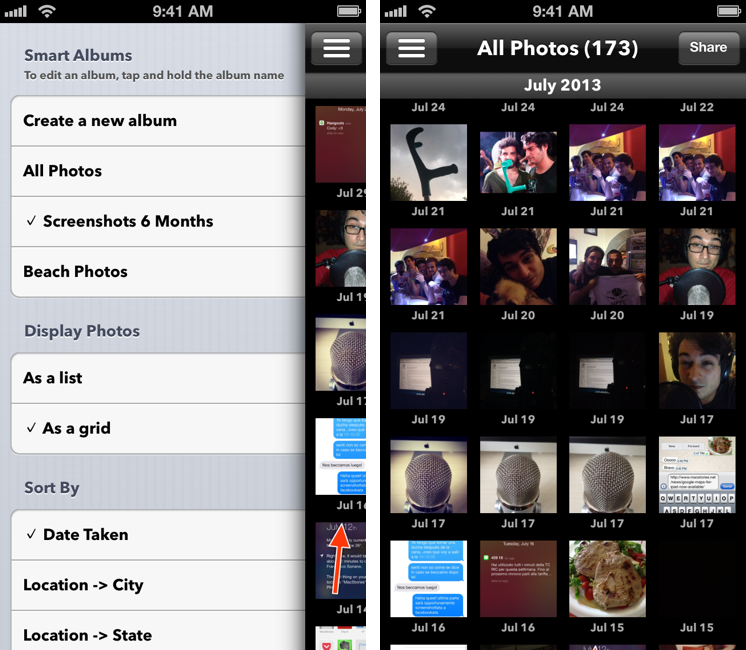
Photowerks comes with two main features: sorting, which is included in the free download, and Smart Albums, which can be unlocked with a $0.99 In-App Purchase. Once you’ve granted Photowerks permission to access your photos, the free version will allow you to load photos from your Camera Roll, show them as thumbnails on a grid or a list, and sort them (in ascending or descending order) by:

  • Date Taken
  • Location > City
  • Location > State
  • Location > Country
  • Camera > Make
  • Camera > Model

Even without unlocking the IAP, these features prove already handy as, in my opinion, they provide a better view of a stream of photos than what Apple has (or, more appropriately, hasn’t) done with the Photos app. Photos can be viewed in full-screen (where the app will display available information at the bottom), shared to Mail, Facebook, and Twitter, and grouped together to create a new album. Alas, there is no Open In support to send photos to other installed apps, like Evernote and Droplr in my case.

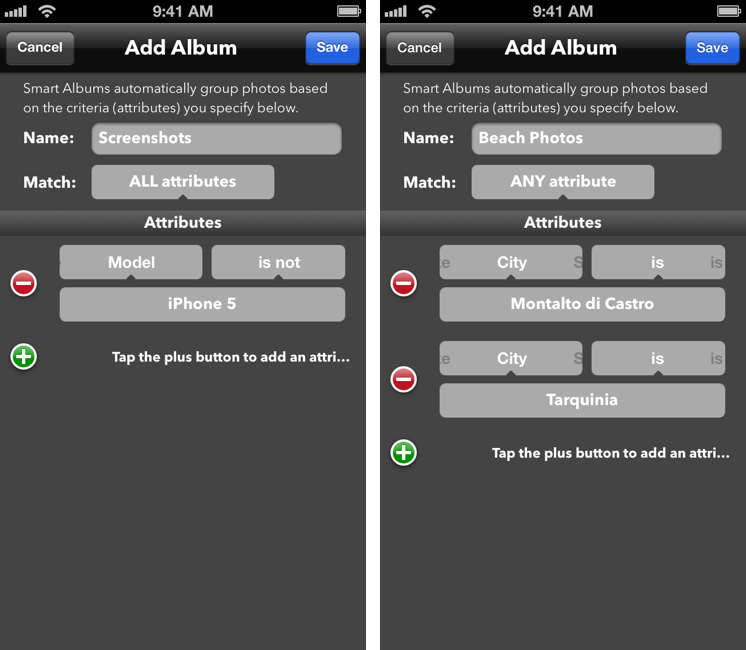
The Smart Albums feature is what really sells Photowerks. As the name suggests, they’re similar to iTunes’ smart playlists in that they let you automatically group photos based on pre-defined criteria that work with the sorting options mentioned above. By using a familiar any/all system for matching rules, Photowerks lets you specify attributes such as “date is after/is not/is/is before” or “model is/is not”; these attributes can be combined to create albums that will be populated with items that match your criteria and that you’ll be able to sort using the same sidebar that you’d use in the IAP-free version of Photowerks. On my iPhone, I have created an album that fetches screenshots taken after June 30 (“date is after June 30, model is not iPhone 5”) and photos taken at the beach (“city is Tarquinia” or “city is Montalto” with Match: Any).

I believe that iOS 7 will reduce the need for Photos.app replacements such as Photowerks, which is why I think the developers should focus on improving the feature that Apple won’t replicate in the short term – smart albums. It would be nice to be able to keep albums in sync across devices (Photowerks is a Universal app) and have access to more attributes for dates (like “past two months” or “this week”), image size, source (like Photo Stream) as well as nested conditions for even smarter filtering. I’m a big fan of the idea of having smart albums based on user-defined criteria, and I hope that the developers will keep on supporting and enhancing Photowerks for iOS 7.

Photowerks is free on the App Store.


Photochop for iPhone Chops and Distorts Your Photos

Released last night by Matt Comi of Big Bucket (well known for his work on The Incident), Photochop is an ingenious iPhone app that allows you to break your photos into tiles and distort them to create either artistic or ridiculously funny collages.

I downloaded the app last night, and started playing around with some photos of my friends (they don’t know I’m using their faces to test new apps). The first thing that I noticed is that Photochop, built for iOS 6, uses a clean UI that looks already fine for iOS 7: with clean lines and iconography, translucent bars, and a photo picker button modeled after the new Photos icon of iOS 7, Photochop looks already at home on my iPhone 5 running iOS 7. There are also some distinct choices, though, that give Photochop a unique look.

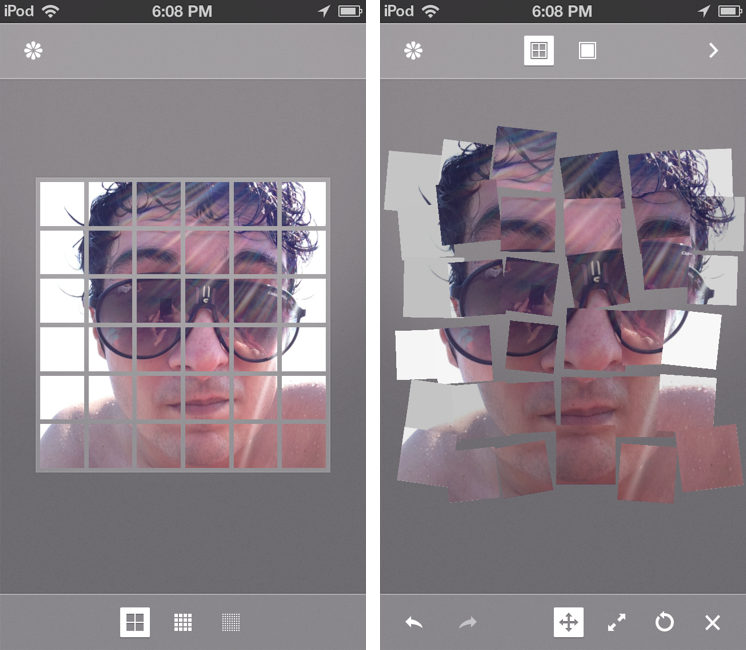
Photochop lets you work on one photo at a time, and once you’ve picked a photo from your Camera Roll you can choose between three different grid sizes before breaking it up into tiles; to start editing, you simply tap on the grid. The editing screen is fun: there are buttons at the bottom to nudge, scale, rotate, and delete tiles, and controls at the top to switch between tile mode (the “artistic” one) and warp mode. According to the developer, warp mode is meant to make “people’s faces look weird”, and that is a message that I can completely understand because that’s what I’ve been doing in Photochop with my friends’ faces. Once you’re done editing, you can put pictures inside two types of frame (or leave them without a frame) and export them to the Camera Roll, Instagram (with Open In), Twitter, and Facebook.

From a technological standpoint, I’m quite impressed by Photochop’s image distortion and manipulation, which I’m pretty sure has been made possible by Apple’s advancements in APIs offered to developers in recent years (Update: It’s actually a game engine). In using Photochop, you can see how the app will benefit from the new physics engine APIs of iOS 7: right now, the tiles feel “weightless” in how they don’t bounce and slide across the screen, and I wonder if supporting iOS 7 with new effects and physics effects is something that Comi is already working on.

Photochop is a fun little app with some nice technology under the hood. It’s only $0.99 on the App Store.


Dialogue: Handsfree Calling Through OS X

Dialogue

Dialogue

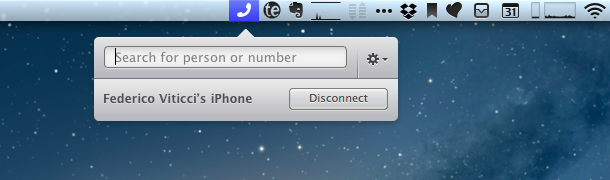
During my typical work day, my iPhone 5 is sitting on my desk next to my MacBook Air or iPad, usually locked as I’m focusing on writing or researching topics for MacStories. I don’t receive many phone calls, and when I do I don’t mind picking up my phone and using it for the task that phones were made for in the first place (remember when people used to buy phones to make phone calls?). Dialogue, a new Mac app released today on the Mac App Store, wants to remove the annoyance that some people have with switching devices when a phone call comes in; at $6.99, Dialogue uses Bluetooth to route phone calls through your Mac – employing an unobtrusive menubar popover to find contacts and manage connected devices. Read more


HEARD

HEARD appeared on the App Store at the end of June then suddenly disappeared without a trace. There was no blog post and no real explanation on Twitter — just a couple of Tweets asking to get in touch with so-and-so at the time. The whole thing was kind of strange, and I honestly believed the app had been acquired. The app looks to have been pulled due to a bug, and rather than risk poor app reviews, I surmise that the devs decided to pull it. The launch was quiet and there wasn’t too much to lose at the time. After several days, HEARD came back to the App Store with a small update. It’s here for good.

Correction: Apple pulled the application without warning after deciding the app didn’t need full background access. HEARD appealed and won their case, and the app returned to the App Store as it was originally introduced. My assumption was incorrect.

I was disappointed that I didn’t download the app right away after it disappeared (fearing I had missed the chance to try it), given that what it does is nothing short of intriguing. HEARD lets you save anything your iPhone has heard in the past five minutes. The idea that you can suddenly save a conversation to your iPhone that happened five minutes ago sounds magical. But then you start wondering if it’s even all that practical given that you’d likely want more than just five minutes if you’re intent on recording something.

HEARD is an app that runs in the background, its ability to record only limited to how much battery life you have left. By pressing a big red button, HEARD begins actively listening. There’s nothing to log into and no quirky settings to configure. Like you would see with apps like Skype or Voice Memos, HEARD changes the color of the status bar system wide to indicate that the app is listening. When you return to the app, pressing the button again saves whatever was buffered in the last five minutes to its library as a recording. You can then listen in, edit the file’s title, add tags, or delete it if you’re not happy with it. The app continues listening and the cycle begins anew.

That’s what makes HEARD kind of killer. It gives you the potential to record everything that happens. If your phone can hear it, it’s in the app’s buffer for at least five minutes.

While having this kind of power can certainly be useful, is it impractical? Sometimes. Obviously if you want to record a thirty minute meeting then you’re dead in the water unless you use another app. HEARD will let you turn off background audio to record audio snippets, but it only records as long as you hold down the button. If I can put myself in the mindset of the developer, what they’re trying to do is prevent you from accidentally recording something for so long that you run out of storage space. Personally I would like the option of not having to hold down that button, even if it meant I couldn’t leave the app if that’s the tradeoff the developers want to make. I want to use HEARD over Voice Memos and as my destination for everything, both for whatever stuff I happen to capture from the airwaves and stuff that I want to record intentionally.

I would love IFTTT integration. Just imagine saving a snippet and having it automatically end up in Evernote or another app. That’s my only want for this app going forward.

There are some aesthetic things I don’t like, particularly the ‘HEARING’ button in the center of the tab bar. I keep pressing it trying to pause and start recordings to no avail. As for recordings, those text boxes look a little dated. And the only real way to turn off background listening is to flip a switch in the settings or close the app from the multitasking bar (I feel there should be a way to pause background listening). For these things, the app does encourage feedback via a button in the settings.

Given the premise and despite being a sort of purposefully limited voice recorder, HEARD works. I felt this way when HEARD first disappeared, and I still feel this way today, that it’s something that was built for attracting attention from bigger fish in the pond, and I wouldn’t be surprised if someone did snap it up just for the idea. Yet, I do recommend at least trying out HEARD. It’s free, the limitation being that only things heard in the past few seconds can be saved. An in app purchase of $1.99 will unlock the full five minutes. Download it from the App Store.

Update 5:00 pm: @heardapp reached out to me on Twitter to point out an inaccuracy in my review of the app concerning the app’s sudden disappearance. I’ve embedded the tweets below and have updated the review.


Realmac Software Releases Ember - A Digital Scrapbook for Your Mac

Realmac Software, makers of great apps such as Clear, Rapidweaver, Analog, and Analog Camera, have released Ember for Mac today. Last month, Realmac detailed in a blog post what the future of LittleSnapper was and the team explained:

Over last few months, we’ve been getting a few emails asking about LittleSnapper - with some folks wondering if the app is still under development.

As it happens we’ve been heads-down-working on LittleSnapper for some time, and I’m absolutely thrilled today to dispel any rumours of the app’s demise and announce today that we’ve been hard at work on the next version of LittleSnapper: Ember for Mac.

Remember the original Ember? It was a great webapp (saved screenshot) that let you browse and add images to collections for inspiration: I used it all the time before Dribbble became so popular. Back in June of 2011, the Realmac team shut down the service and it was a major bummer for me – but it was understandable. Today, Ember is back as a Mac app, and it works great. Users of the old LittleSnapper are going to love Ember because it’s much more than a simple name change, but rather more like a ‘Pro’ version of the old software.

LittleSnapper users can easily import their libraries upon launching the new Ember app. The only thing you need to do to prepare for Ember is to make sure you’re using the most recent version of LittleSnapper, as only LittleSnapper libraries opened with LittleSnapper v1.8.5 can be imported into Ember. After that, Ember will be populated with all your goodies (Ember also supports importing multiple libraries if you need to do so).

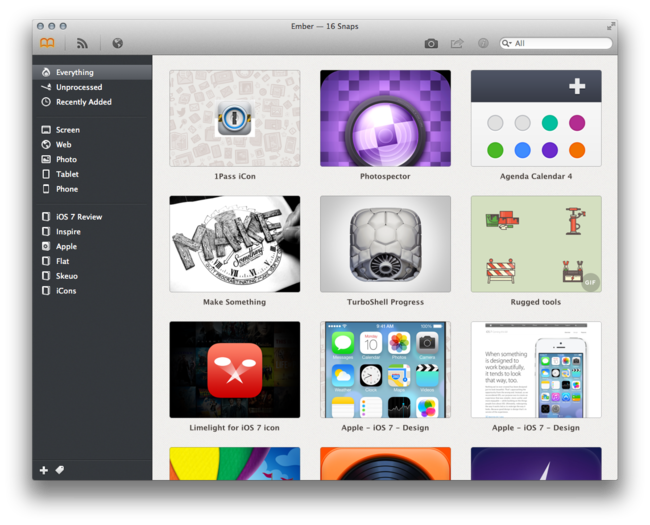
Ember is a great place to store photos, images, drawings, websites, app screenshots, or just about any image that inspires you. Just drag, snap or import the images that you want to keep, then organize them into your own relevant collections. Ember lets you annotate the images you need to give feedback on with drawing and text tools that allow you to give feedback / edits on images; if you need to, you can rotate and crop your images so they are correctly sized and aligned.

Images can be shared via AirDrop, Messages, Twitter, Facebook, Tumblr, Flickr, and CloudApp. In terms of library organization, tags help you sort and projects keep them all neatly organized, while smart projects work just like OS X Smart Folders – you can set the parameters on what they filter and collect.

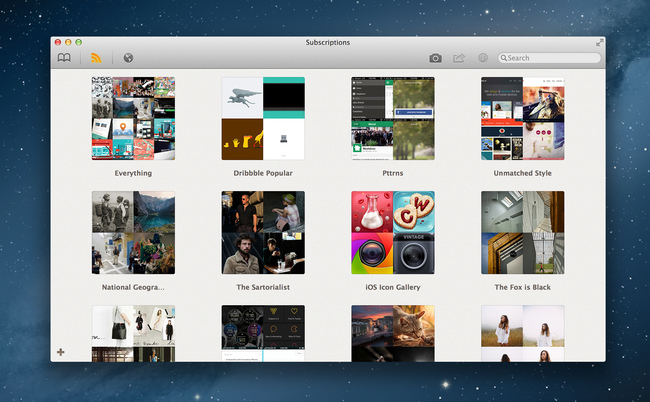
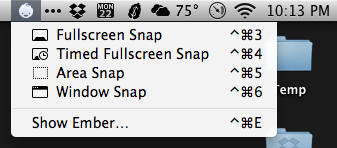
If you’re looking for inspiration and items to add, Ember has a few options. You can use the built-in web browser (it’s responsive!) and snap from there with built-in tools; the browser has a smart element detection that automatically suggests areas to snap as you roll over a webpage. Under the Subscriptions tab, you can subscribe to a site’s RSS (like Dribbble’s popular feed) and the app will refresh the feed on launch (or manually). Ember has browser extensions that will import snaps from Chrome and Safari there is a menu bar tool for quick and easy snaps from anywhere on your Mac.

Ember can also auto-detect iPhone and iPad screenshots. Drag the PNGs from your iOS device and Ember will automatically sort them into “Phone” and “Tablet”. Preferences let you set your image and text editor of choice, plus snap shortcuts, among other things. Ember will let you open images in your default browser, use Notification Center to let you know when you have new subscription images, and many more nice little touches.

When discussing Ember’s release, Federico asked me what I thought about the lack of sync an/or iOS apps and I answered: “For me, it doesn’t come into play at all with this app because I can import iOS screens. Most of my inspiration/design browsing is from my desktop computer and, if I really need to snap a screenshot from iOS, I can save it to Dropbox so when I get home I can import it into Ember. In a way, that’s like having sync.” Now, I do think syncing ember data across Macs (via Dropbox or iCloud) would be nice but that’s not yet available but could be in a future update.

Ember is a very polished app with a fantastic UI, slick animations, full-screen mode and it’s simply a fun app to use and organize images with. If you’re a digital creative person and want to organize your screenshots, inspirational images and reference files, Ember could be what you need. Ember for Mac is available today via the Mac App Store for $49. The price may be a little steep for some, but Ember is powerful, sexy, smart, and worth every penny.


Agenda 4.0 Review

Agenda 4.0

Agenda 4.0

Savvy Apps’ Agenda, one of the most popular third-party calendar apps for iOS that we’ve been covering on MacStories for years, has been updated today to version 4.0, which adds a beautiful new user interface and builds upon the previous version’s app integrations, support for Reminders, and gesture-driven event management. Agenda 4.0 is sold as a separate app for $1.99 on the App Store.

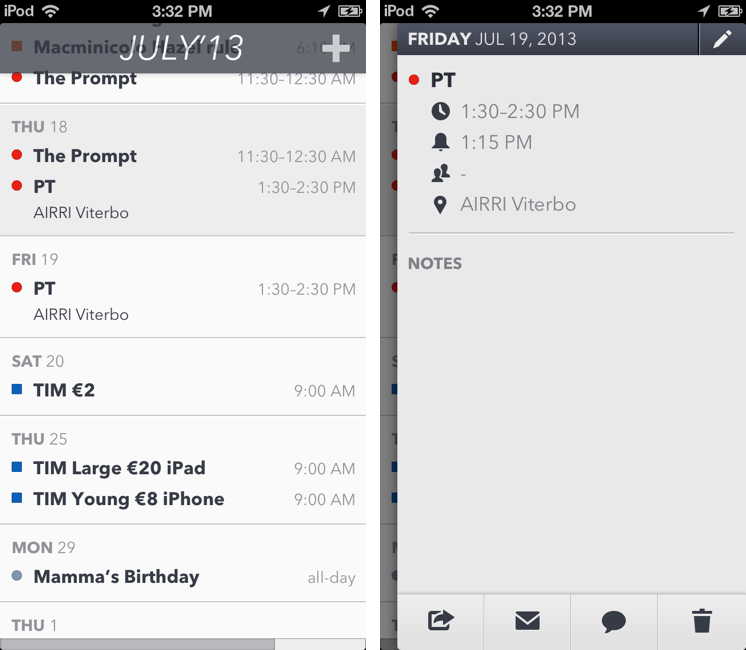
I’ve had the chance to test Agenda 4.0 before today’s public release, and as I kept using the app I noticed how it was turning into a powerful complement to Fantastical, my favorite calendar client for iPhone. As I have discussed this week on The Prompt, in fact, I’m currently going through my annual re-evaluation of my workflow, and, partly because of my curiosity in regard to iOS 7, I’ve started using Apple’s Reminders on a daily basis again. Reminders are easy to use, the app is fast, and, more importantly, it’s one of the Apple apps that can sync in the background all the time with iCloud. I can integrate Reminders with IFTTT for iPhone, and, overall, I have been enjoying the simplicity and deep system-wide integration of Reminders. While I’m a big fan of Fantastical’s Day Ticker (I think it’s one of the best calendar interfaces ever shipped on iOS), Agenda allows me to view calendar events and reminders in the same list (something that Fantastical for iPhone still isn’t capable of), and with version 4.0 this list is even more polished and clear than Agenda 3.0. Read more


IFTTT for iPhone: A Different Kind of iOS Automation

IFTTT for iPhone

IFTTT for iPhone

I used to heavily rely on IFTTT for my daily automation workflows that involved appending bits of text to files in my Dropbox, forwarding tweets to my OmniFocus inbox, generating PDFs, or archiving Instagram photos to my Dropbox account. IFTTT, acronym of If This Then That, is a web service that lets you connect other web services together to create automated workflows that run every time a piece of data is triggered: by leveraging a variety of APIs from compatible channels (such as Facebook, Dropbox, Evernote, Feedly, and more), IFTTT lets you automate the web in powerful (and sometimes unexpected) ways. Browsing Popular recipes on the IFTTT website can give you an idea of the scope of web automation that’s made possible by the service, and we’ve covered IFTTT in the past on MacStories as well.[1]

However, I stopped depending on IFTTT because, once I got more comfortable with my own Mac mini server as a remote automation assistant, I wanted to control the pipes of my personal data. I’m still using IFTTT for things like receiving an email if it’s going to rain tomorrow or a new SMS for press releases published by Apple (just an example of the power of IFTTT channels and recipes), but it’s not the primary system that I rely upon for automating daily tasks. The new IFTTT app for iPhone, which I have been testing and has been released today on the App Store, may make me (partially) reconsider my decision. Read more


Pushpin 2.0: A Powerful Pinboard Client for iPhone

Pushpin 2.0

Pushpin 2.0

On the first episode of The Prompt podcast, I chose Pushpin 2.0 as my weekly pick, and I thought the app deserved a mention here on the site as well.

In January, when I first reviewed Pushpin, I noted how the app didn’t look as good as Pinbook, another Pinboard client that, back then, didn’t support some of the power-user functionalities that were available in Pushpin. Many Pinboard clients have come out in the past few months; as MacStories readers know, my choices have always been Pinbook, Pushpin, and Pinbrowser – while these three apps were all made for Pinboard, each one of them had a peculiar feature that made it stand out. With Pushpin 2.0, I feel like the difference is now marginal, as the app takes important steps towards becoming the only Pinboard client you’d ever need to add, manage, and browse Pinboard bookmarks. Read more