

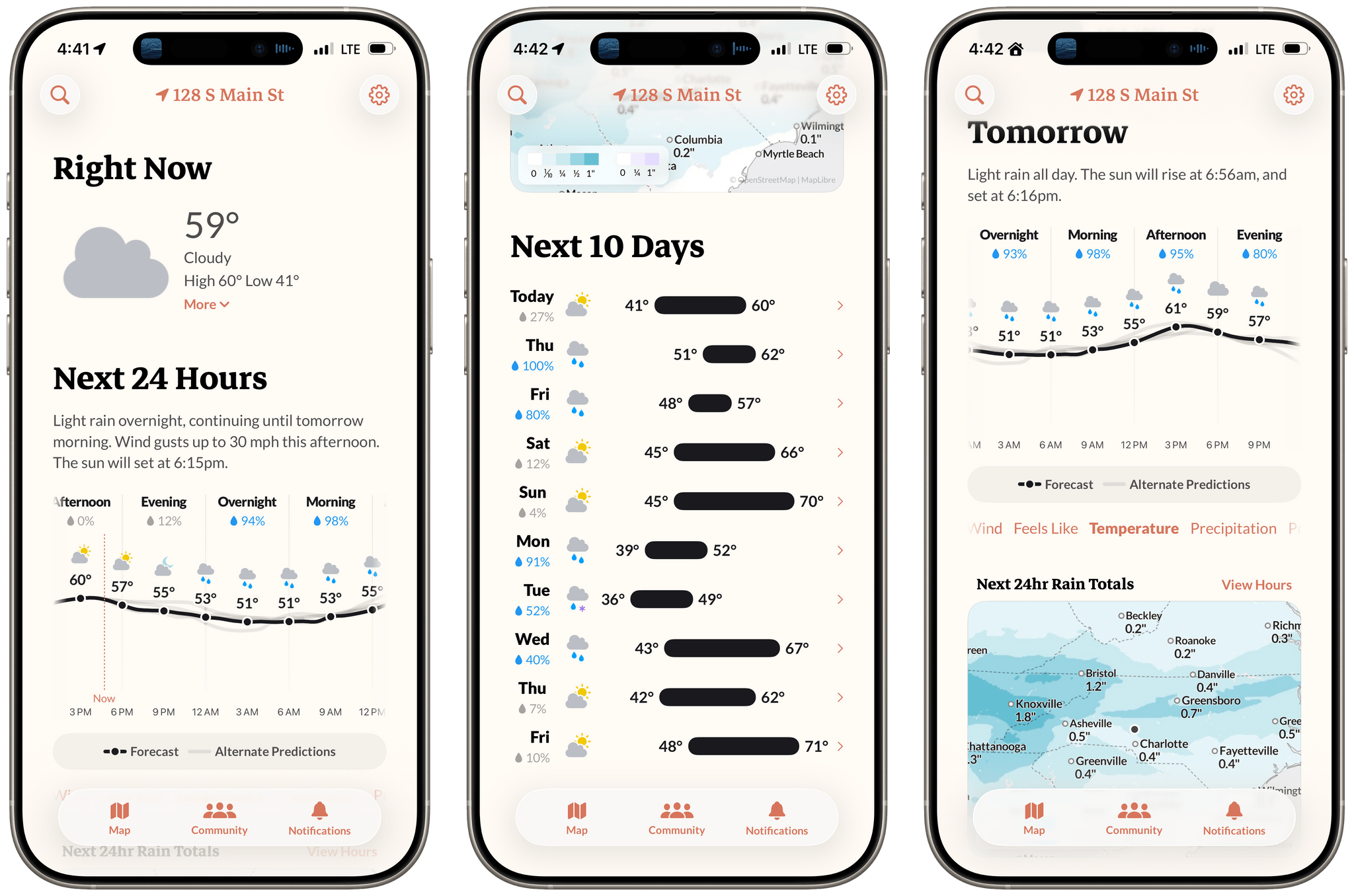
Earlier this week, the founders of Dark Sky made their post-Apple debut with a new weather app for the iPhone and Apple Watch: Acme Weather. It’s a terrific 1.0 with all the details you’d expect, plus a few interesting features that set it apart from other apps in its category.
Posts in reviews
Acme Weather: A Fresh Take on Forecast Uncertainty
Dot: The Menu Bar Calendar That’s Become My Main Calendar
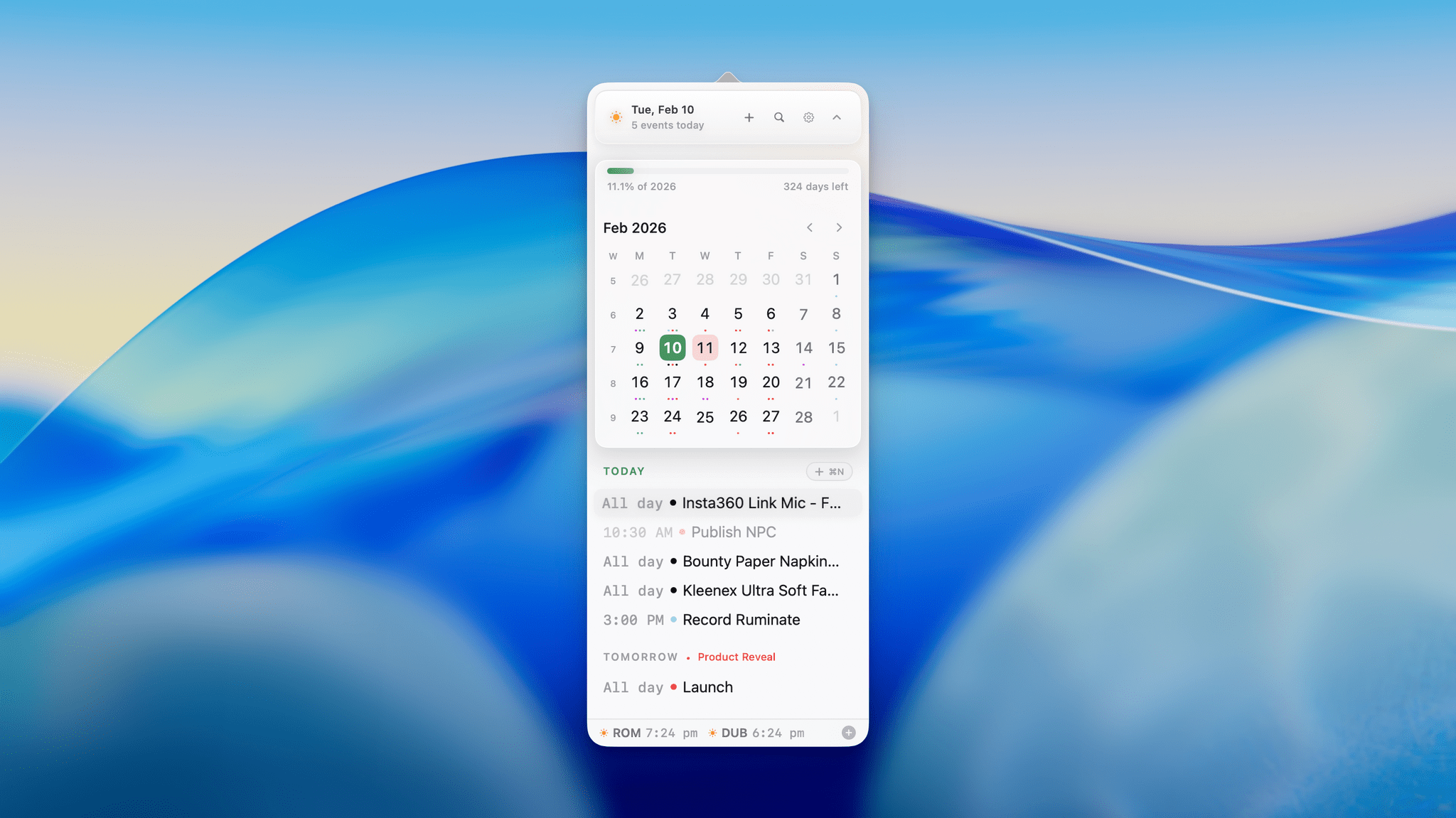
Over time, I’ve gravitated towards a two-calendar system on my Mac because I’ve never found an app where both the desktop app and the menu bar version meet all my needs. That’s probably because my calendar use is a little backwards. I don’t have a lot of meetings each week; instead, my calendar is a mix of reminders, package deliveries, and a handful of work and family events. With just two or three entries each day, I’ve found myself managing events more and more often from a simple menu bar app, reserving my full calendar app for more involved event entry and planning.
On the desktop side, I’ve used Apple Calendar the most, but I’ve also used Fantastical and BusyCal for extended periods, ultimately landing on Notion Calendar. It isn’t perfect, but its Notion integration can be handy at times. On the menu bar side of the equation, I used Dato for many years. It’s an excellent app, but even it is a little more than I need, which is why I was excited to recently discover Dot.
Creator Studio Review: Redefining Pro for the Modern Era
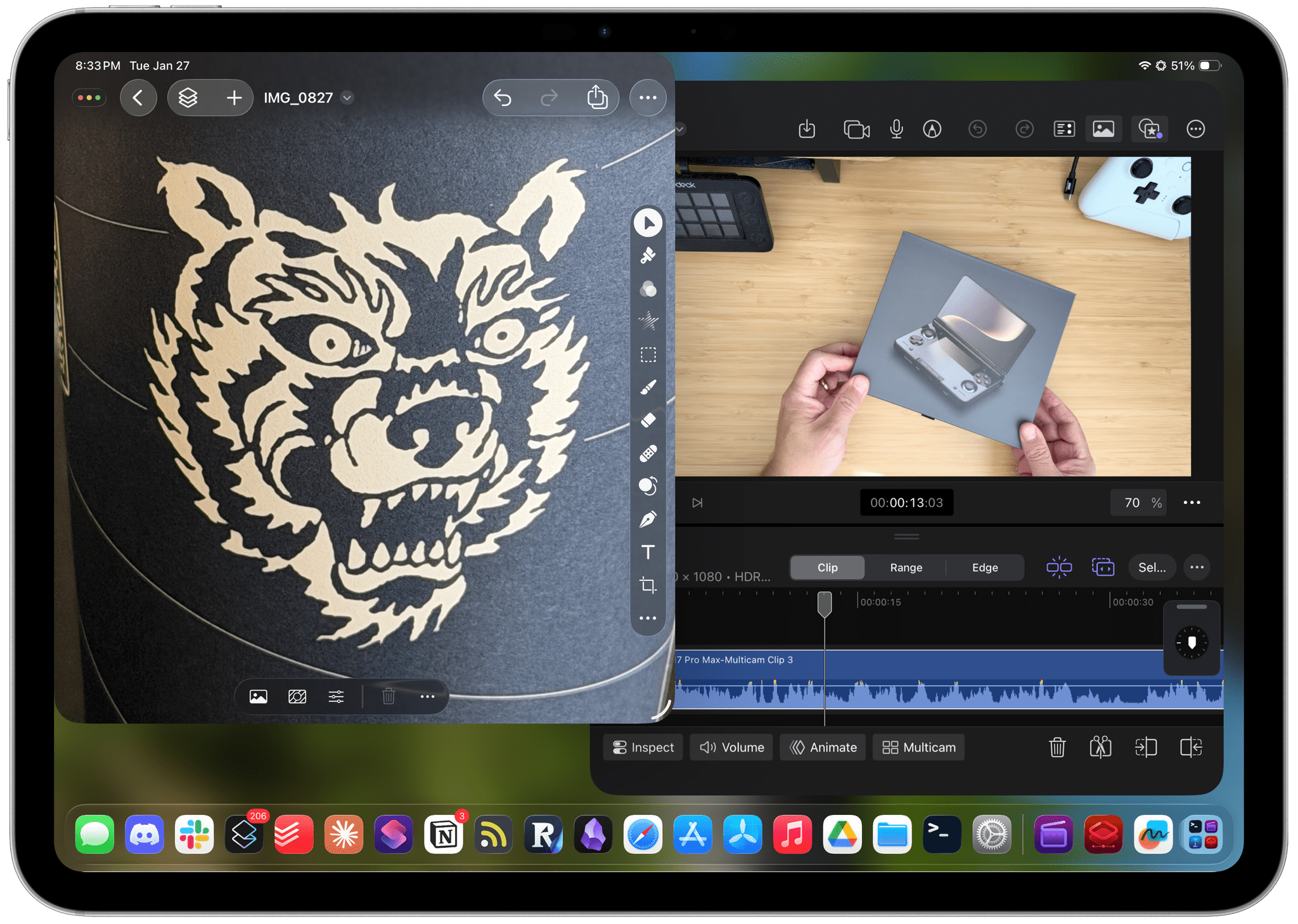
Starting today, Apple is offering a subscription bundle of its creative apps called Creator Studio. Some of what’s included is exclusive to the subscription package, while other parts of it remain available à la carte. It’s a lot to absorb, and I’ll get to all the details in due course.
However, what’s most exciting to me is the fact that Apple is clearly repositioning these apps to appeal to a broader cross-section of creatives. Apps like Final Cut Pro and Logic Pro are no longer just for Hollywood and music studios. By filling out the iPad lineup and adding Pixelmator Pro along with enhanced versions of their productivity apps, Apple has taken the first steps toward realigning its apps with what it means to be a creative professional in 2026.
This transition isn’t the sort of thing that happens overnight, which is why it’s easy to spot the gaps in Creator Studio’s offerings. I ran into a couple of bugs along the way, too. However, by and large, I think the bundle of apps hits the right notes and is heading in the right direction. Let’s take a closer look.
Two Months with the Narwal Freo X10 Pro
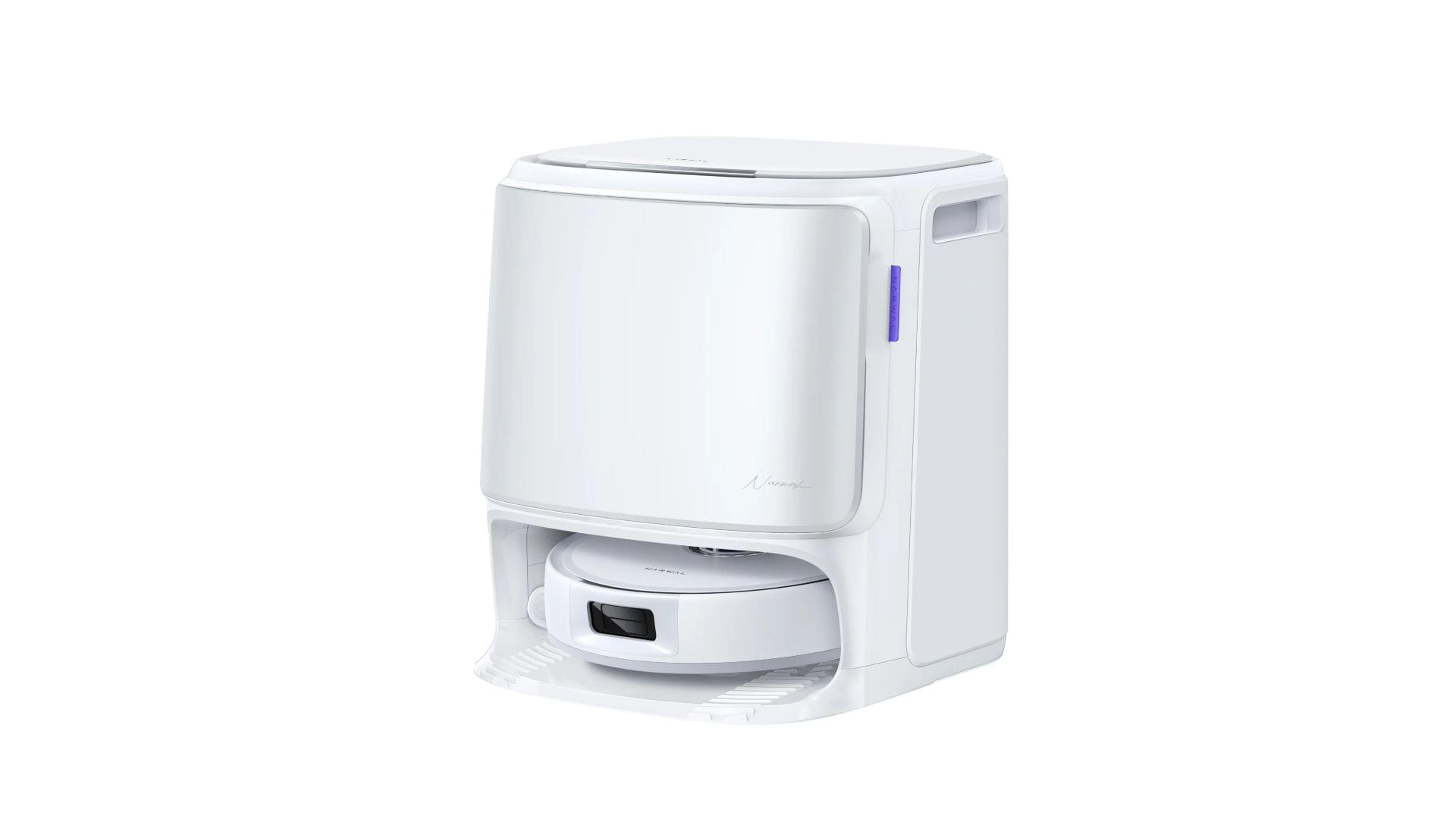
In the depths of the pandemic, I bought an iRobot Roomba j7 vacuum. At the time, it was one of the nicer models iRobot offered, but it was expensive. It did a passable job in areas with few obstacles, but it filled up fast, had a hard time positioning itself on its base and frequently got clogged with debris, requiring me to partially disassemble and clean it regularly. The experience was bad enough that I’d written off robot vacuums as nice-to-have appliances that weren’t a great value.
So, when Narwal contacted me to see if I wanted to test its new Freo X10 Pro, I was hesitant at first. However, I’d seen a couple of glowing early reviews online, so I thought I’d see if the passage of time had been good to robo-vacuums, and boy has it. The Narwal Freo X10 Pro is not only an excellent vacuum cleaner, but a mopping champ, too.
Alyx: A Fun, Flexible Way to Track Caffeine Intake

Activas: Modern Design with a Sprinkling of AI
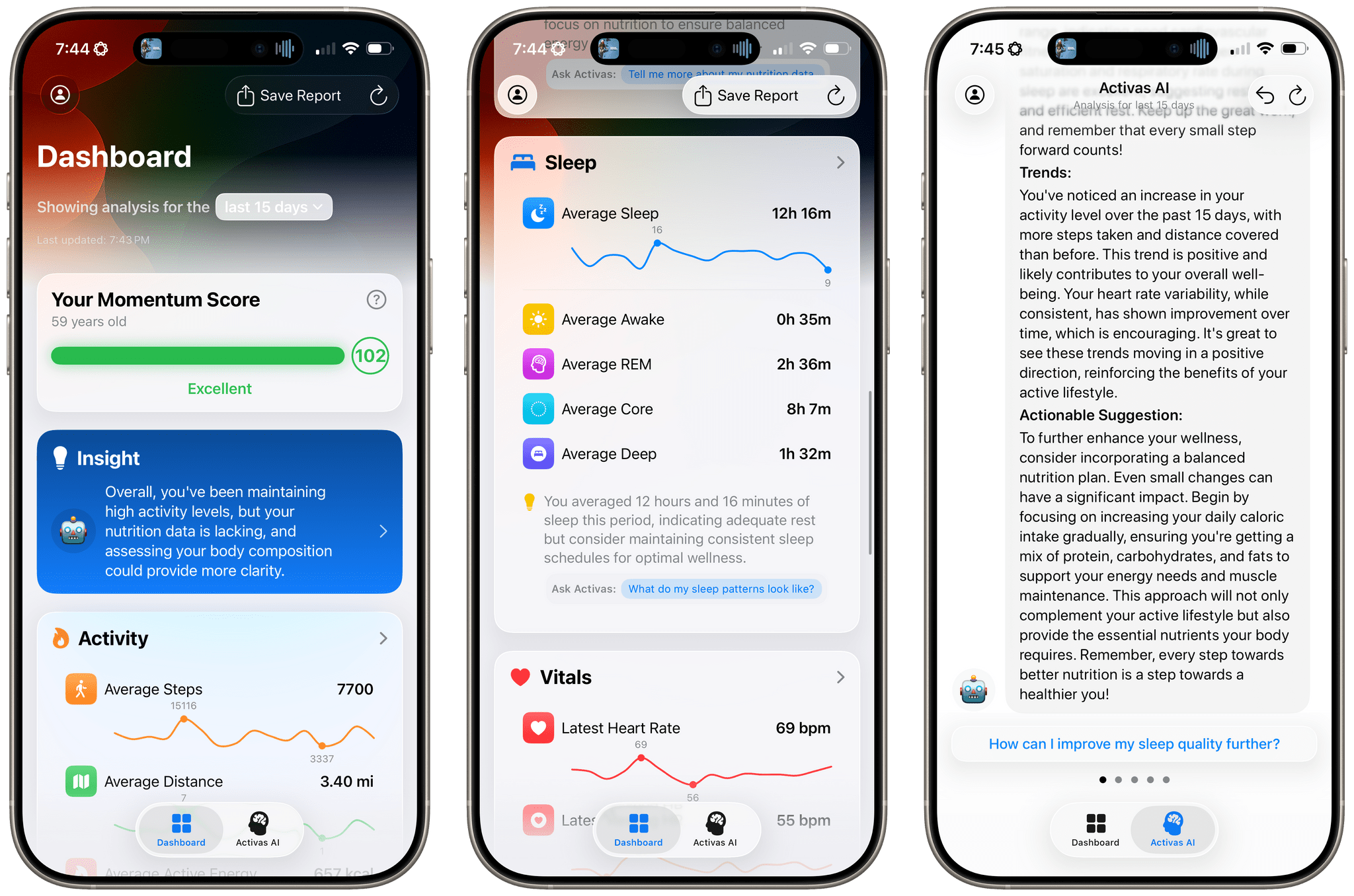
Activas is a new health and wellness tracker for the iPhone and iPad from developer Brian Hough, who built it from the ground up with Apple Intelligence and Liquid Glass in mind. The app serves as a dashboard that brings together information from the Health app in a colorful and easy-to-understand way, using progressive disclosure to avoid overwhelming users with data. It’s a fantastic example of modern design that marries form and function to elevate the user experience.
The app has just two tabs that adopt iOS 26’s Liquid Glass design without sacrificing legibility. The default view is the Dashboard, which can display your recent health and wellness metrics for the last 7, 15, or 30 days. At the top of the Dashboard is a Momentum Score that’s calculated based on a composite of step count, sleep, resting heart rate, and BMI targets, plus your calorie goal. Unlike many similar apps, Activas links to research supporting its targets, which I appreciate. The Momentum Score and a handful of additional stats can also be tracked using one of the app’s Home Screen widgets.
The Momentum Score is followed by an AI-generated insight about your metrics. Because I haven’t been tracking my calories or weight recently, the app suggested I should. That’s followed by overviews of Activity, Nutrition, Sleep, Vitals, and Body Measurement. Each of these sections appears as a SwiftUI-style card that includes graphs showing recent trends, an insight about your metrics, and a suggested question that you can ask the Activas AI with a tap. Sections can be turned on and off and reordered in the app’s settings, too.
The Dashboard’s design is superb. By collecting individual measurements in groups of related statistics and providing a takeaway about each section, the app allows users to get a quick, understandable overview of where they’re succeeding and what needs work.
Festivitas Brings Fresh Whimsy to Your Mac, iPhone, and iPad for the Holiday Season
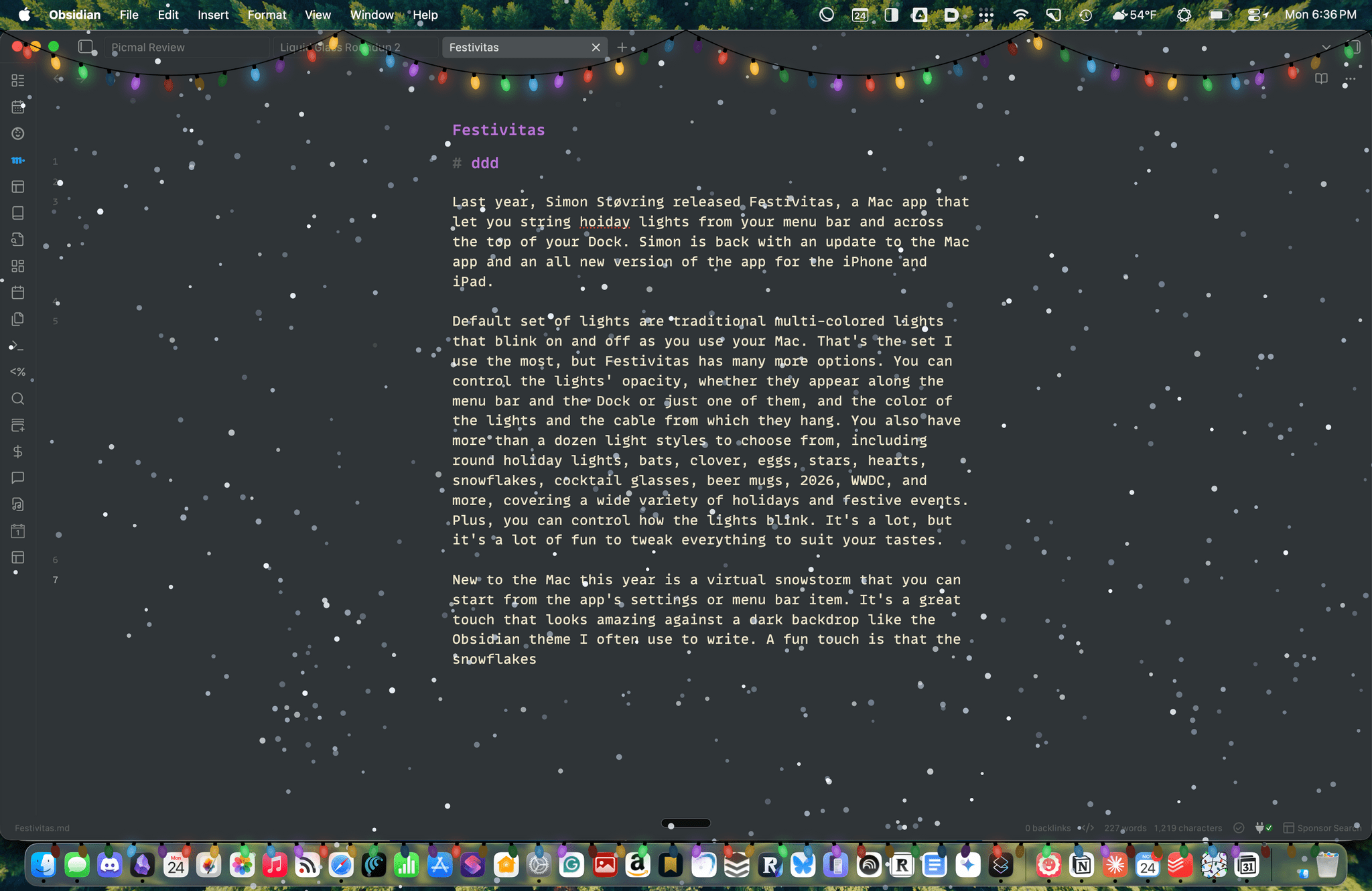
Last year, Simon Støvring released Festivitas, a Mac app that lets you string holiday lights from your menu bar and across the top of your Dock. This year, Simon is back with an update to the Mac app and a new version for the iPhone and iPad.
The default set of lights consists of traditional multi-colored bulbs that blink on and off as you use your Mac. That’s the set I use the most, but Festivitas offers many more options. You can control the lights’ opacity, whether they appear along both the menu bar and the Dock or just one of them, and the colors of the lights and the cable from which they hang. You also have more than a dozen light styles to choose from, including round holiday lights, bats, clovers, eggs, stars, hearts, snowflakes, cocktail glasses, beer mugs, “2026,” “WWDC,” and more, covering a wide variety of holidays and festive events. Plus, you can control how the lights blink. It’s a lot, but it’s also just plain fun to tweak everything to suit your tastes.
This year, the Mac app adds a virtual snowstorm that you can start from the app’s settings or menu bar item. It’s a great addition that looks amazing against a dark backdrop like the Obsidian theme I often use to write. A fun touch is that the snowflakes avoid your pointer, and you can adjust the sensitivity of this feature in settings. You can also use your pointer to push around the lights hanging from the menu bar, which is handy for those times when they obscure Safari’s menu bar or other content.
The snow is lovely. I highly recommend pairing it with the Animal Crossing Snowy Day soundtrack on Nintendo Music. It’s an incredibly peaceful and relaxing combination.
Festivitas supports Shortcuts, too. Simon has created some fun example automations that you’ll find in the app’s settings to do things like turning on the snowstorm when snow is forecast and activating your lights when you play music.

New this year is a Festivitas app for the iPhone and iPad. The app lets you build small, medium, and large widgets to place on your Home Screen. You can either frame a photo with twinkling lights or create a transparent-style widget so the lights frame an element of your Home Screen. I love that the lights framing the photos are animated, an effect I know isn’t easy to do with a widget. You can also add text and make other adjustments to each widget.
Festivitas isn’t going to help you get more done. In fact, it might even slow you down a little bit, and maybe that’s the point. Taking a moment to enjoy the app’s lights and be mesmerized by the falling snow is a good reminder to slow down a little and have some fun.
Festivitas for the Mac is available directly from the app’s website for any price you want to name between $3.99 and $9.99. The iPhone and iPad version is a free download on the App Store with a range of in-app purchases from $3.99 to $9.99 to create a similar name-your-price system.
Picmal Streamlines Batch Conversion and Compression on the Mac
One of my favorite aspects of macOS is the endless supply of great utilities for doing anything you can imagine. If there’s something you want to do on your Mac, the chances are that there isn’t just one good utility to accomplish your task; there are several.
My latest discovery is a file conversion and compression app called Picmal. The app has a wonderfully simple, modern interface that sits on top of a lot of complexity, enabling batch conversion and compression with minimal effort.
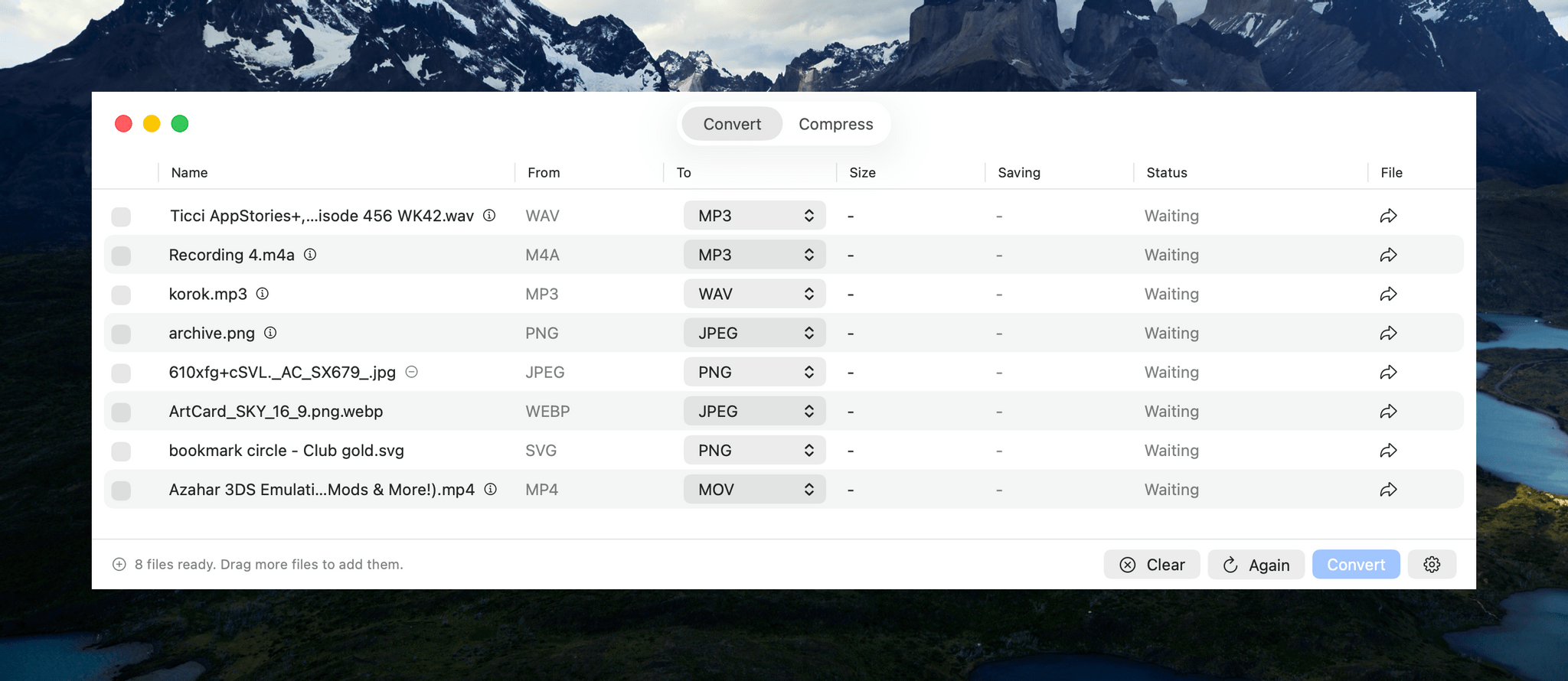
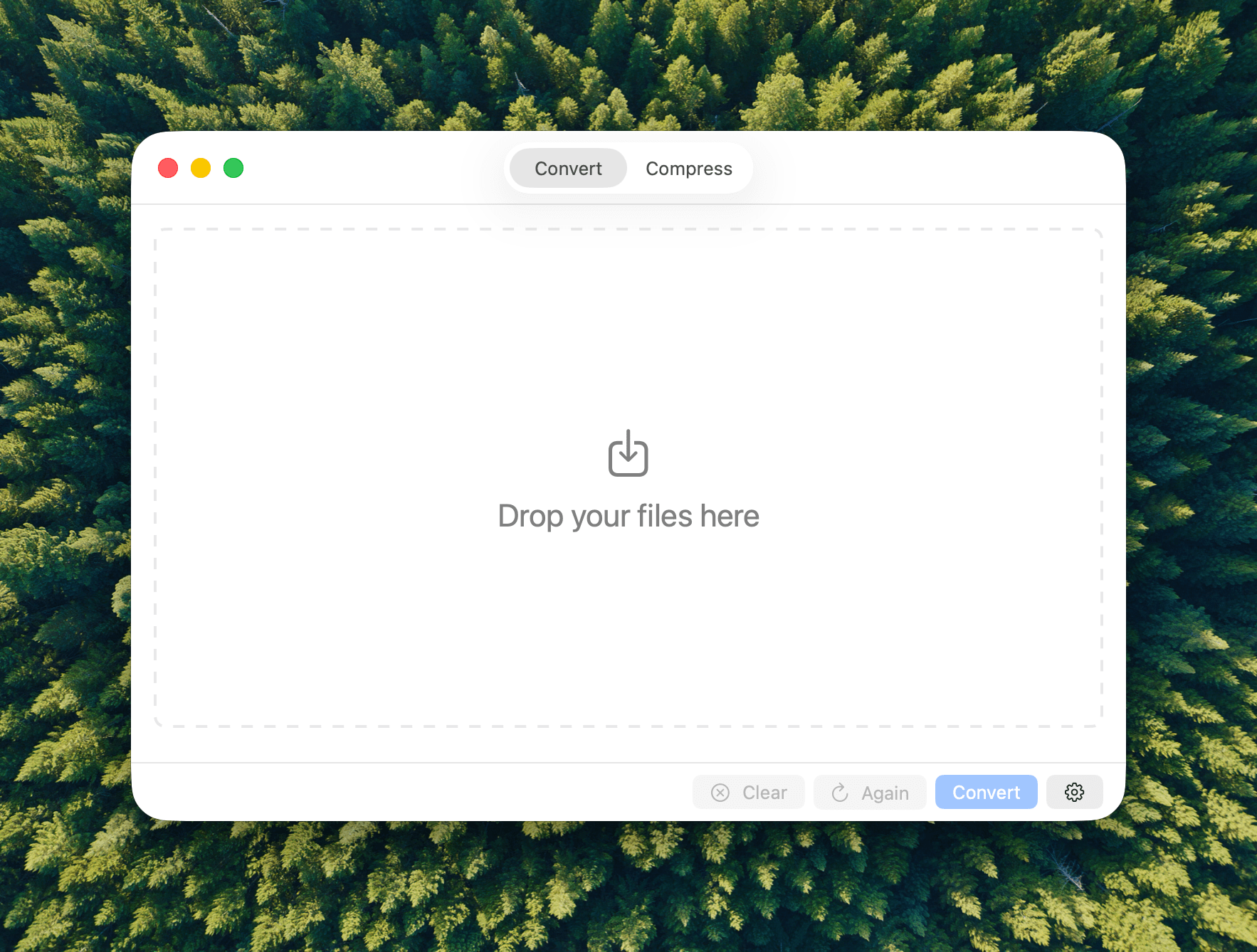
Picmal handles images, videos, and audio files in a single-window utility that features a Convert/Compress toggle at the top and a lot of empty space to start. The center of the window invites users to “Drop Your Files Here.” Once you do, the window animates into something a little closer to a Finder window with alternating white and light gray rows that make it simple to track metadata about each file.
Files can be dragged into Picmal from anywhere on your Mac, allowing for batch processing without moving your files to one location first, which I appreciate. Once converted, files are saved as new files in the folder they came from with a prefix or suffix that you can specify in the app’s Settings. You’re not limited by file type either. You can drag any combination of images, videos, and audio files into Picmal’s window, picking and choosing what to convert them into as you go.
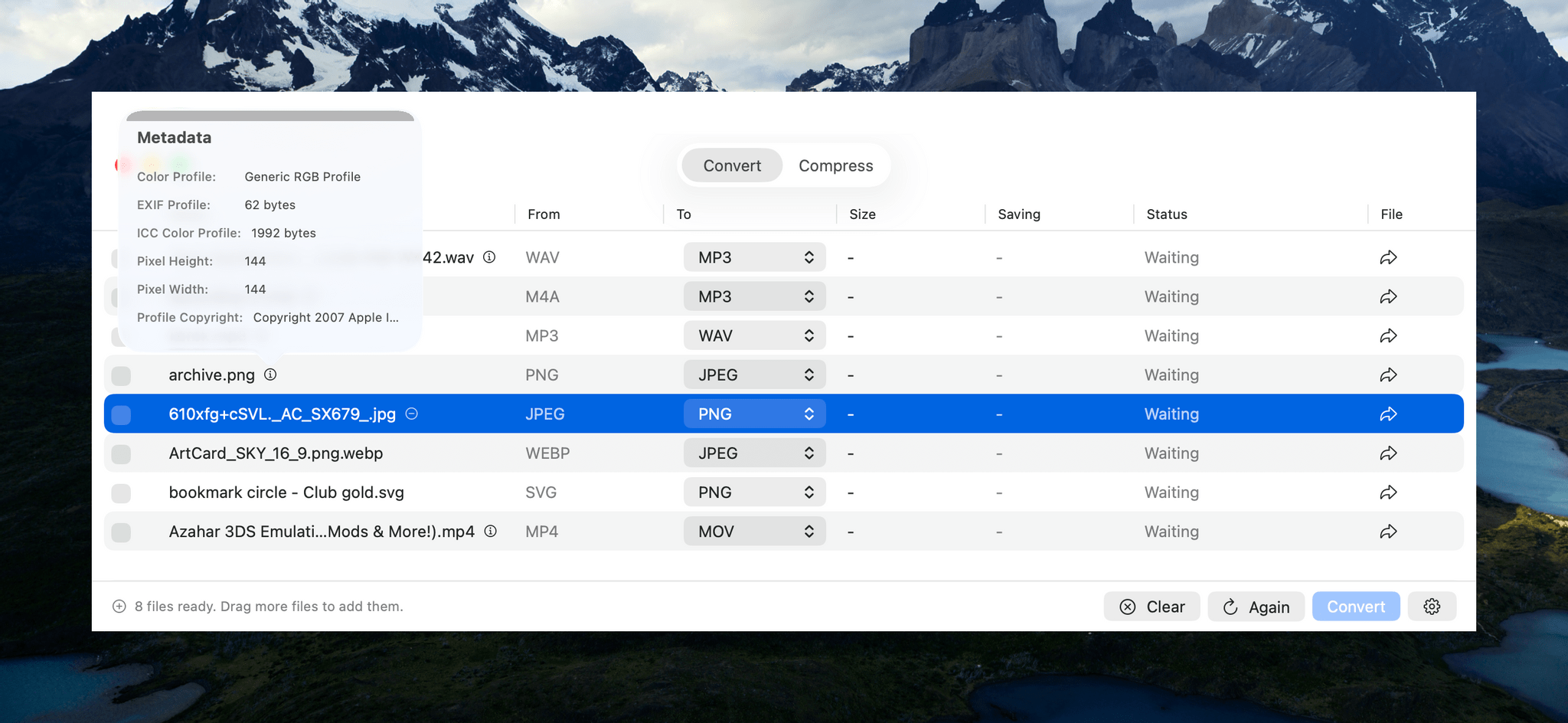
Next to some file types is a small info button that reports the sort of basic file metadata you find in the Finder’s info panel. That’s followed by a column that lists the file’s starting type, and a column with a dropdown menu for picking the destination file type. The list of supported file types is long, too, with the exact number of options dependent on the type you begin with.
If you want to check the file you’re about to convert before doing so, there’s also an arrow button on the far right of each file’s row that will take you to it in the Finder. The other columns report the output file’s size, any compression savings, and the status of each conversion. Whenever you want, you can add more files for conversion, kicking off a new batch once any ongoing conversions complete.
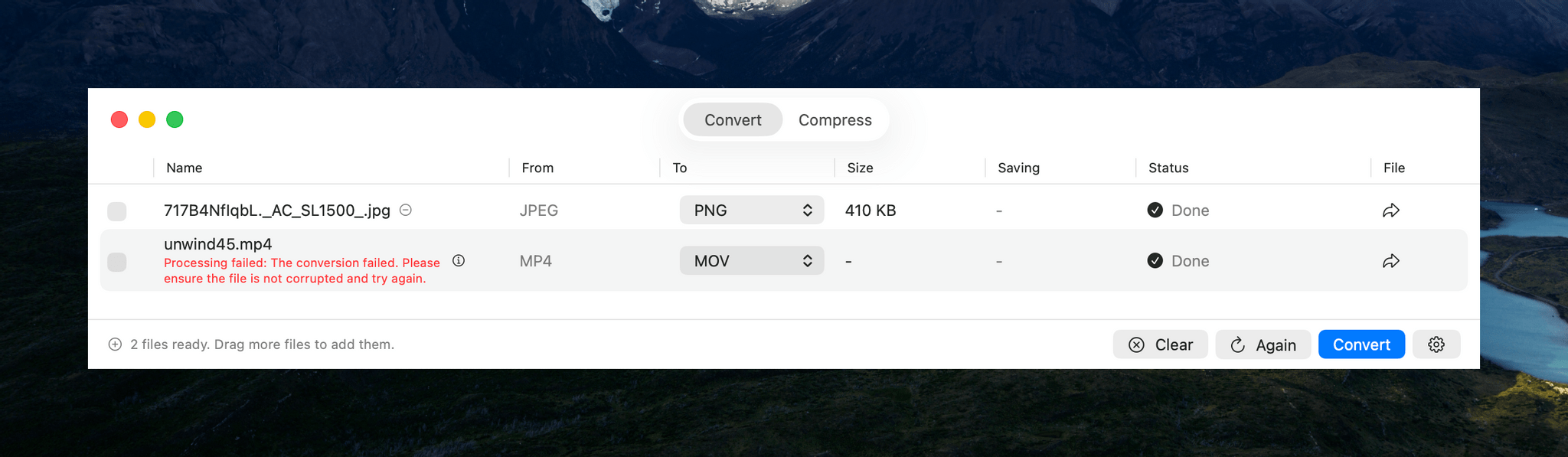
Most file conversions I tried went well, but I couldn’t manage to convert large MP4s to the MOV format.
In my testing, Picmal performed well overall. I converted images, audio, and videos to and from a variety of common formats such as PNG, JPEG, PDF, MP3, AAC, WAV, MP4, and MOV. However, I did run into trouble trying to convert a 1.55 GB MP4 of an episode of MacStories Unwind from MP4 to MOV. The conversion failed, even though much smaller files worked. Hopefully this is something that can be fixed in an upcoming update.
Another smaller issue I ran into is that there’s a checkbox next to each file in the Picmal file conversion interface that appears to be intended as a way to change the conversion file type for multiple files at once. However, the dropdown that appears when selecting multiple files of the same type didn’t give me an option to pick a new conversion type. The developer is aware of this and the large video file issue and is working to resolve both.
The other primary use for Picmal is file compression. The workflow is largely the same as converting files, with the size savings reported in a dedicated window column. By default, compressing files requires you to click on Picmal’s Compress button, but you can change the process so that it happens automatically instead. From Settings, you can also add compression to your file conversions, completing both steps together.
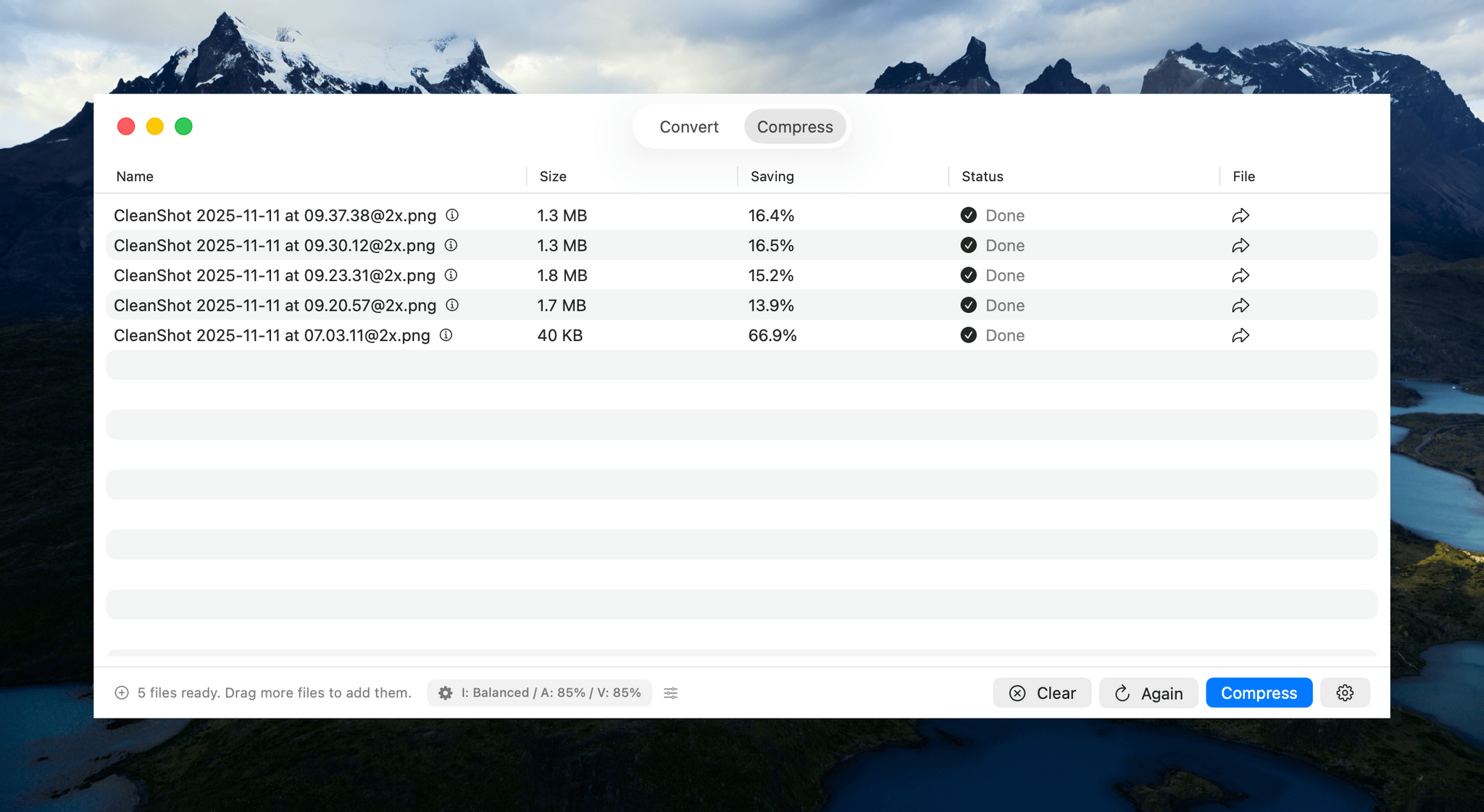
Audio and video compression quality are set to 85% by default, while image compression quality is set to ‘balanced.’ However, in each case, you can tweak the compression settings with more fine-grained controls. Another nice touch is that your compression selections and a link to Picmal’s Settings are both accessible from the bottom of the Picmal window, making your compression choices clear and simplifying the process of making any adjustments.
Aside from a couple of hiccups in my testing that the developer will likely have fixed soon, my experience with Picmal has been great. About the only thing I’d love to see added is support for Shortcuts. Otherwise, Picmal is an excellent way to manage file conversion and compression jobs of any size. There are other apps that accomplish something similar, but the simplicity and speed with which you can manage batch conversion and compression with Picmal sets it apart and makes it worth checking out.
Picmal is available directly from its developer for $9.99. That gets you the use of the app on one Mac at a time, which can be expanded to more Macs at an increasing per-Mac discount based on the number of licenses you purchase.
More Than Just a Camera Grip: Belkin’s Stage PowerGrip for iPhone
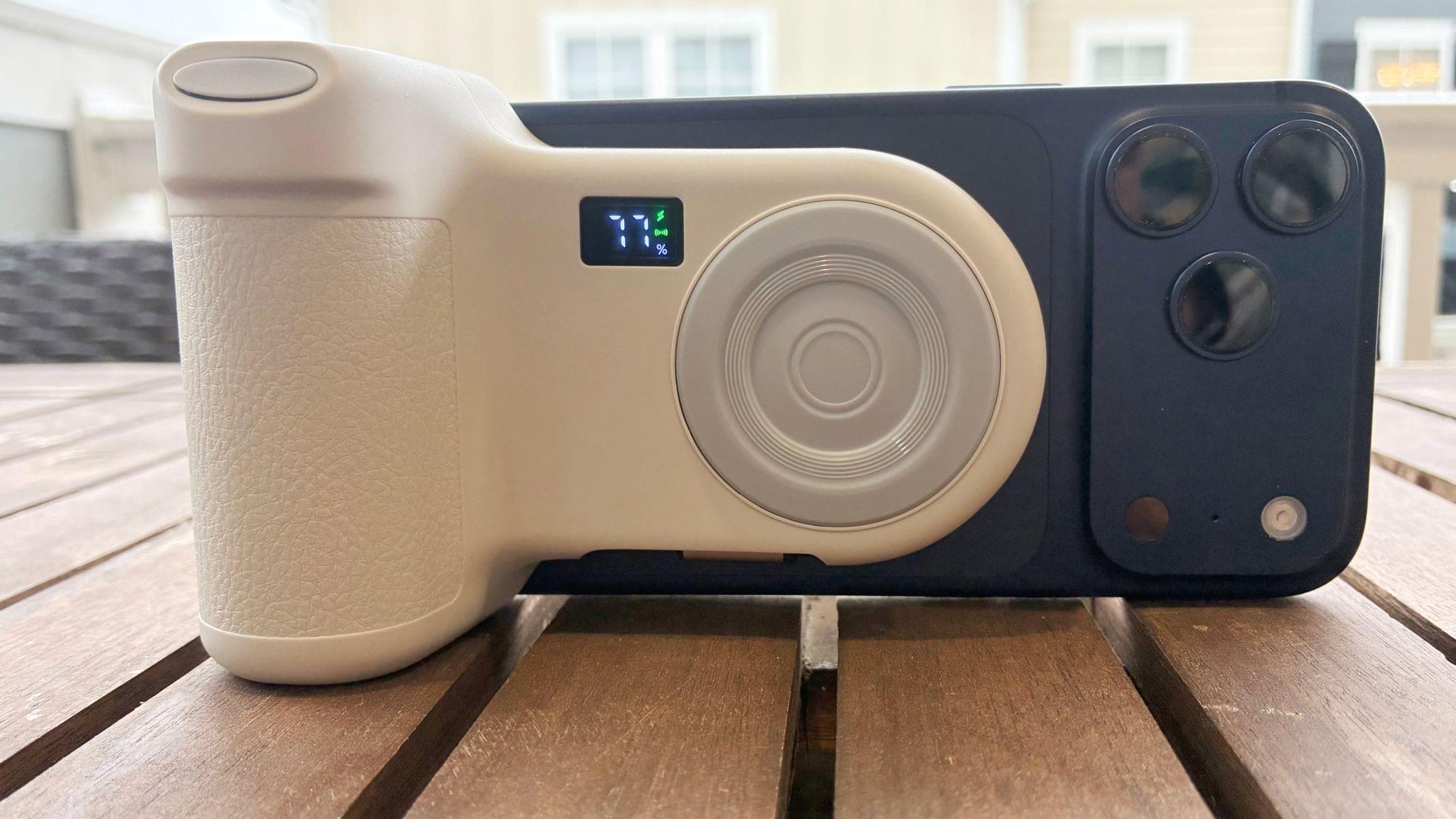
For the past week, I’ve been testing the Belkin Stage PowerGrip. It’s an iPhone accessory that adds a DSLR-like grip to your iPhone while simultaneously charging it. Belkin isn’t the first company to make an accessory like this, but the Stage PowerGrip delivers a bigger battery at a more affordable price than its competitors. That’s why it initially caught my eye. However, what I didn’t expect was for the device to make a compelling case to become part of my everyday on-the-go setup, which it absolutely has. Here’s why.