Posts in news

Aperture 3.2 Gets iCloud Integration with Photo Stream

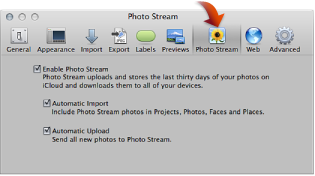
Following the release of iOS 5, OS X Lion 10.7.2 and iPhoto 9.2, Apple has also released Aperture 9.2, an update to the desktop photo editing software that adds iCloud capabilities and a number of new features. As Apple details in iCloud’s Help section, the new Aperture allows users to drag photos into the app’s library to upload them to Photo Stream. You can drag one or more photos from your library (Events, Photos, Places, or Faces) to your Photo Stream. Users can enable Photo Stream in Aperture’s Preferences -> Photo Stream and, similarly to iPhoto 9.2, choose whether they want to enable Automatic Upload and Import.
Other new features and fixes from the changelog:

  • Resolves an issue that could cause the “Loading” indicator to reappear in the Viewer when cropping a photo
  • Aperture now automatically relaunches into Full Screen mode if the application was in Full Screen mode when last quit
  • Pinch-to-zoom gesture now automatically activates Zoom mode in the Viewer
  • Left and right swipe gestures can now be used to navigate between photos in the Viewer
  • Microsoft Outlook can now be chosen in Preferences as the application used by Aperture for emailing photos
  • Fixes a problem that could cause Aperture, running on OS X Lion, to quit unexpectedly when using brushes to apply adjustments
  • Loupe now correctly displays magnification levels between 50-100%.
  • Fixes an issue that could cause Aperture, running on OS X Lion, to display the incorrect color profile on externally edited images
  • Import window now includes an option to delete photos from iPhone and iPad after they have been imported into Aperture
  • The Lift & Stamp tool now displays the correct cursor icons when being used in Split View and Viewer only modes

You can find Aperture at $79.99 on the Mac App Store.

Apple Releases iPhoto 9.2 with Photo Stream Support

Apple today released a new version of its desktop photo management and editing software, iPhoto 9.2. The update, available now, brings a number of bug fixes and improvements to iPhoto, but more importantly it brings full compatibility with iCloud’s Photo Stream for iOS devices, Macs and PCs. Photo Stream is a new service that enables users to store their last 1,000 photos in the cloud, and have them automatically pushed to all devices configured with iCloud. Photo Stream stores new photos for 30 days, and it’s not possible to edit photos stored in Photo Stream. iCloud’s Photo Stream is a continuously updated “album” with all your most recent photos, which doesn’t need to be synced or manually copied to a Mac.

From the changelog:

iPhoto 9.2 supports compatibility with iCloud and iOS 5. This update also addresses minor stability, performance and compatibility issues, including:

Left and right swipe gestures can now be used to navigate between photos in Magnify (1-up) view

Previously imported photos are now displayed in a separate section of the Import window

Book/calendar themes and card categories can now be selected using a pop-up menu in the carousel view

Resolves an issue that could cause some pages of books to print incorrectly

Rebuilding a library now correctly preserves saved slideshows and books

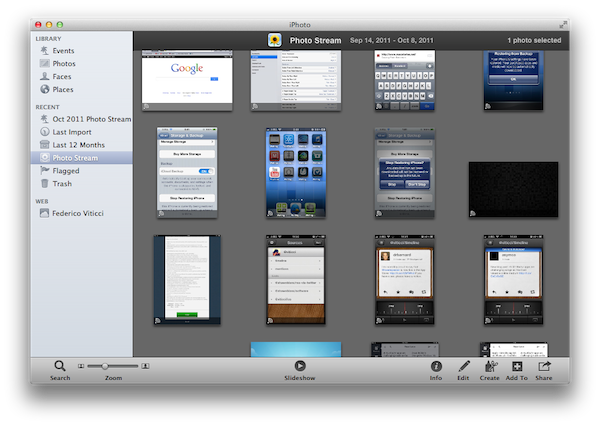
With the new iPhoto, users can enable Photo Stream directly in the app’s Preferences. Photo Stream can automatically fetch photos from the cloud, but there are two additional options to automatically import photos in Events, Photos, Faces and Places, and send all new photos from a Mac to iCloud. If Photo Stream photos are set to be automatically imported in Events, iPhoto will create single Photo Stream events as shown in the screenshot below; alternatively, users can also browse all photos in the Photos tab. Additionally, iPhoto will recognize Photo Stream items that have been already imported, and ask the user to edit the imported version upon trying to hit Edit in Photo Stream.

Photo Stream is located in iPhoto’s sidebar, and it offers the same set of controls of any album view. Users can play a slideshow of Photo Stream photos, zoom in/out, search, pinch to zoom, and quick look items by hitting the spacebar. An info panel on the right reveals additional metadata of a photo, such as location, size, file format and camera. Photo Stream items can be manually dragged out of iPhoto and onto the Finder – OS X will preserve the original file name, size, and metadata when copying photos from Photo Stream.

In my tests, iPhoto 9.2 has been fairly reliable at fetching photos and screenshots taken from an iPhone or iPad. On my home network, a photo snapped with an iPhone 4 (weighing 2 MB or less) would take around 20 seconds to appear on my Mac’s iPhoto; I assume on faster Internet connections an iPhone would take less to upload a new photo to iCloud, and even less seconds to push a photo back to the Mac.

iPhoto 9.2 is available now on Software Update. The new version is expected to be available shortly on the Mac App Store as well. You can find more iOS 5 coverage here. Read more


iWork for iOS Updated with iCloud Integration

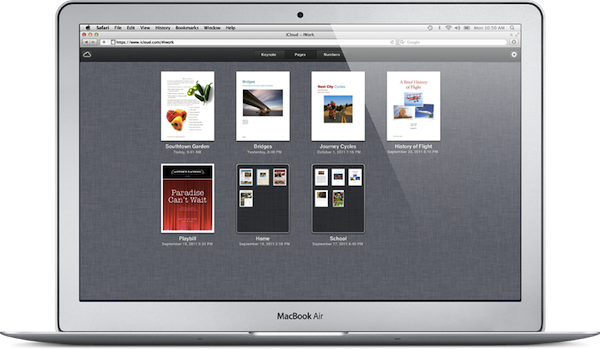
The iWork apps for iOS, available for the iPhone and iPad at $9.99 on the App Store, have been updated today with iCloud integration, which will allow users to store their documents in the cloud, and have changes pushed instantly to all their devices, as well as the iWork document interface on iCloud.com. You can find the updated versions of Pages, Numbers and Keynote in the App Store now.

I have been testing iCloud support in iWork for iOS in the weeks prior to iCloud’s launch, and it works flawlessly. As Apple demoed at WWDC in June, you can create a document on Pages for iPhone and that document will be stored in iCloud and pushed to other devices; as you start editing the document, changes will also be pushed to the cloud, and back to the devices configured with your iCloud account that have iWork installed. Unfortunately Apple isn’t providing a new version of iWork for OS X with iCloud support built-in, but users can visit iCloud.com to download and upload documents created with iWork on iOS. iCloud integration works with the folder-based system that was introduced in iWork for iOS earlier this year: you can create folders, and manage documents inside them.

iCloud makes it easy to move Pages, Keynote, and Numbers documents between your computer and your iOS devices. Just sign in to icloud.com/iwork in any modern web browser, and all your iWork for iOS documents will be there — complete with your most recent edits. Click a document to download it in iWork ’09, Microsoft Office, or PDF format. You can also drag and drop any iWork ’09 or Microsoft Office document from your computer into one of the iWork apps on icloud.com, and it automatically appears on all your iOS devices, ready for you to review, edit, or present.

Full changelogs below. Pages also received support for dictation through iOS 5 and iPhone 4S.

Keynote

  • Automatically store your presentations in iCloud and keep them up to date across all your iOS devices.
  • Download your presentations to a Mac or PC at icloud.com/iwork as Keynote ’09, PowerPoint, or PDF files.
  • Drag and drop Keynote ’09 or PowerPoint presentations to icloud.com from your Mac or PC to have them automatically appear on your iOS devices.
  • Use AirPlay to present wirelessly via Apple TV. Navigate slides, view presenter notes, and use the laser pointer while presenting from your iOS device.
  • New builds and transitions including Anvil, Blinds, Color Panes, Comet, Confetti, Diffuse, and Sparkle.
  • Advanced presentation controls including looped slideshows and autoplay.
  • Support for slide-to-slide hyperlinks.
  • Improved compatibility with Microsoft PowerPoint and Keynote ’09.
  • Includes improved support for Chinese, Japanese, and Korean language input.

Pages

  • Automatically store your documents in iCloud and keep them up to date across all your iOS devices.
  • Download your documents to a Mac or PC at icloud.com/iwork as Pages ’09, Word, or PDF files.
  • Drag and drop Pages ’09, Word, or plain text documents to icloud.com from your Mac or PC to have them automatically appear on your iOS devices.
  • Use your voice to create and edit Pages documents with dictation in iOS 5 on your iPhone 4S.
  • Create footnotes and endnotes in your documents.
  • View improved word counts with character, paragraph, and page counts.
  • Improved compatibility with Microsoft Word and Pages ’09.
  • Includes improved support for Chinese, Japanese, and Korean language input.

Numbers

  • Automatically store your spreadsheets in iCloud and keep them up to date across all your iOS devices.
  • Download your spreadsheets to a Mac or PC at icloud.com/iwork as Numbers ’09, Excel, or PDF files.
  • Drag and drop Numbers ’09, Excel, or CSV files to icloud.com from your Mac or PC to have them automatically appear on your iOS devices.
  • Use sliders, steppers, and pop-ups to easily enter data and explore results.
  • Use Merge Cells to format your tables.
  • Hide and show rows and columns.
  • Improved compatibility with Microsoft Excel and Numbers ’09.
  • Includes improved support for Chinese, Japanese, and Korean language input.

Apple Releases OS X 10.7.2

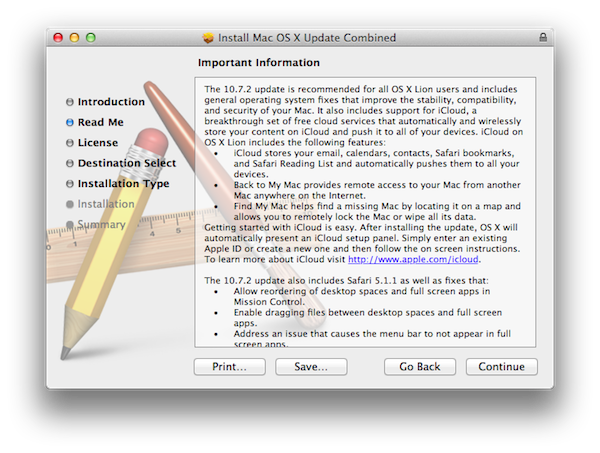
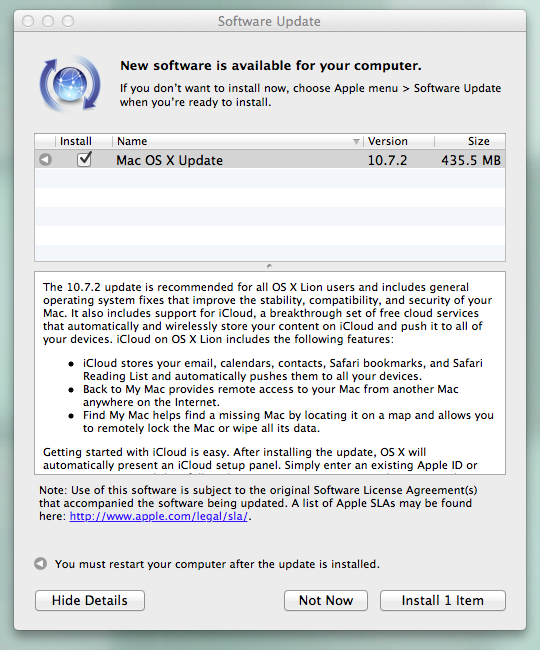
As part of this week’s iOS 5 and iCloud rollout, Apple has released OS X 10.7.2, an update for OS X Lion users that brings full iCloud compatibility to the Mac, as well as various new features and bug fixes.

From the changelog:

The 10.7.2 update is recommended for all OS X Lion users and includes general operating system fixes that improve the stability, compatibility, and security of your Mac. It also includes support for iCloud, a breakthrough set of free cloud services that automatically and wirelessly store your content on iCloud and push it to all of your devices.

Getting started with iCloud is easy. After installing the update, OS X will automatically present an iCloud setup panel. Simply enter an existing Apple ID or create a new one and then follow the on screen instructions. To learn more about iCloud visit http://www.apple.com/icloud.

With 10.7.2, Apple is now allowing Lion machines to integrate with iCloud for email, calendars, contacts, Safari bookmarks and Reading List; these items will automatically be stored in the cloud, and pushed across all your devices. As Apple previous detailed in the iCloud transition Q&A, some features of the old MobileMe service have been maintained in iCloud, such as Back to My Mac (remote access to a Mac from another Mac on the Internet) and Find My Mac, a new feature integrated with Find My iPhone that will allow Mac users to find a missing Mac by locating it on a map through iCloud.com or the Find My iPhone app. Find My Mac works similarly to its iOS counterpart in that owners of a stolen or missing Mac can locate it, track it, and send messages to the Mac’s screen remotely. It’s also possible to lock a Mac and remotely wipe it. Read more


Apple Releases iOS 5 [Direct Links]

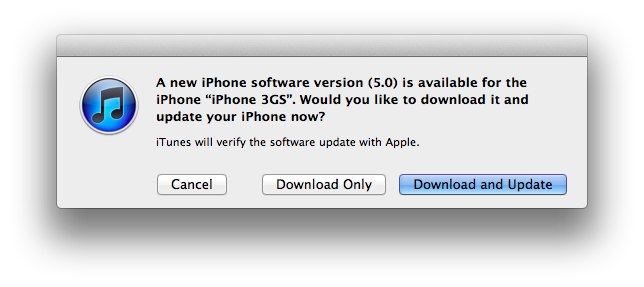
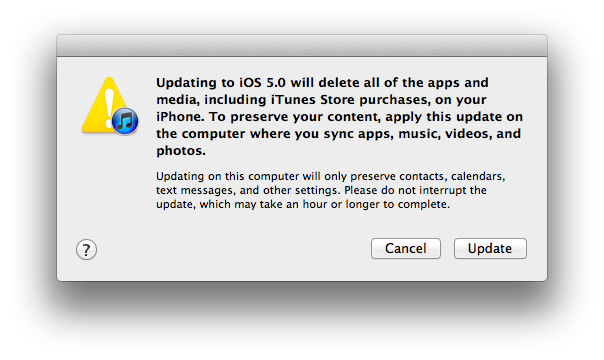
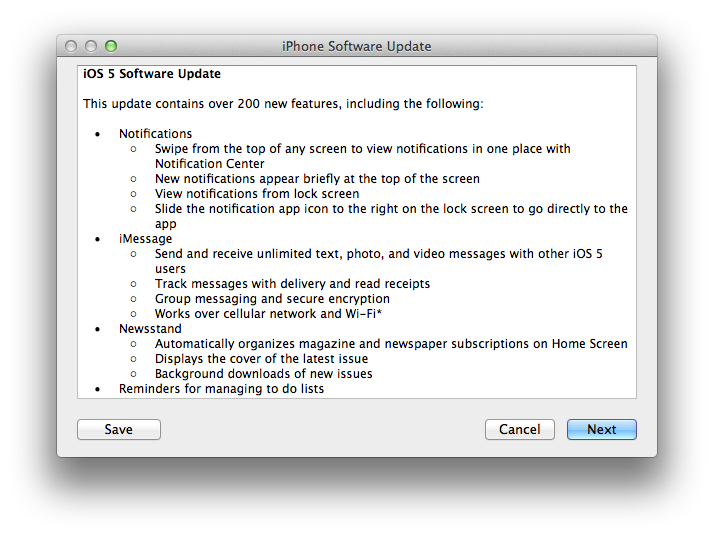
Apple today released iOS 5, a major update for the iPhone, iPad and iPod touch that adds over 200 new user features including Notification Center, iMessage, iCloud support and PC Free. iOS 5 is now available for download in iTunes; to install the new software on your iOS device, connect it to iTunes via USB and “Check for Updates” in the device’s info screen.

Originally previewed and seeded to developers at WWDC in June, iOS 5 is a major update that enables developers to implement thousands of new APIs to take advantage of Apple’s latest technologies in their apps. Apple has already started approving third-party apps built for iOS 5, with several of them available in the App Store today. iOS 5 introduces new functionalities like Notification Center, a new systemwide interface for keeping track of missed notifications; iMessage, a free text messaging solution for iOS 5 users; Twitter integration built into Safari, Photos, YouTube and Maps; iCloud, a new cloud service that automatically stores your content and wirelessly pushes it to all your devices, including Macs and PCs. iCloud, expected to roll out today as well, will allow users to keep their contacts, calendars, bookmarks, mail, notes and more in sync across multiple devices; the service is integrated into iOS apps and comes with a web counterpart available at iCloud.com.

Other features of iOS 5 include Mail and Safari improvements, a new camera button in the Lock Screen, AirPlay Mirroring to an Apple TV and a systemwide split keyboard to make it easier to type on the iPad.

For a complete overview of the new features of iOS 5, iCloud and editorial pieces on today’s software updates, visit this page on MacStories.

iOS 5 direct download links:


AirPort Utility Now Available for iOS 5

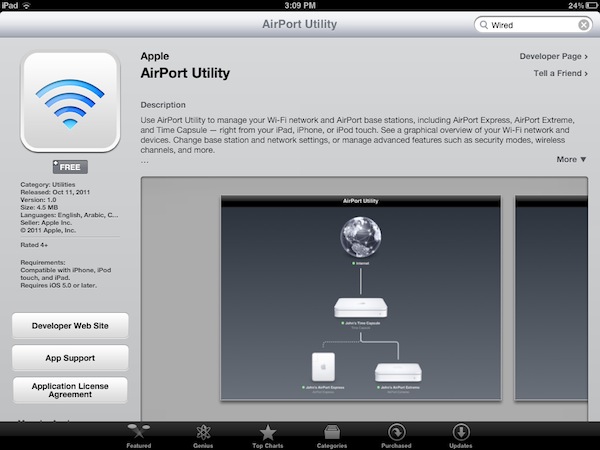
Apple today released AirPort Utility for iOS, an app to configure and manage AirPort devices on a local network. An early beta version of iOS 5 showed that Apple was building support for managing AirPort stations (such as the AirPort Express and AirPort Extreme) right into the operating system; however, as we noted last week the Golden Master release of iOS 5 included a link to download AirPort Utility for iOS from the App Store, which wasn’t available.

AirPort Utility requires iOS 5, which will become available publicly later today. You can install the app by clicking on “Manage This Network” on your iOS device’s WiFi settings for an AirPort station.

The app isn’t showing up in iTunes search yet, but here’s the direct link that should be available shortly: AirPort Utility

AirPort Utility provides a straightforward interface to manage AirPort devices on a local network. The app shows AirPort stations that are connected to the Internet, and on the iPad gestures are supported to zoom out the view and get a better visual of all the available devices. Tapping on the Internet icon will let you see the status of your connection with Router Address, DNS Servers and Domain Names; tapping on an AirPort Device will show a popover menu with the device’s name, IP Address, Serial Number, Software Version, Network and connected Wireless Clients. You can check out the connection status, IP Address and Hardware Address for each connected client.

Tapping the Edit button will enable you to configure various settings of an AirPort device, including File Sharing and Disks for an AirPort Extreme, DHCP and NAT, WAN Setup and Access Control. You can restart a base station from the app and restore it to default settings. You can manage the Internet Connection settings for the device, activate a Guest Network and change the WiFi Mode of an existing network. Overall, it appears the AirPort Utility app for iOS 5 has implemented much of the options available in its Mac counterpart.

More screenshots after the break. Read more


Apple Releases Find My Friends

Apple today released Find My Friends, a new iCloud-based application that allows users to locate their friends on a map, and share their location with them. The Find My Friends app enables you to share your location with selected contacts, and see where they are  and what they’re up to on a convenient map interface. Find My Friends is integrated with Maps and Contacts, so you’ll be able to find routes to a specific place or check on the location of someone that’s already in your Address Book.

One of the key features of Find My Friends is temporary sharing, a functionality that enables users to share their location with a group of people for a limited period of time. Users can share location for a few hours, days, or weeks, and when the time’s up the app will automatically stop sharing. Users can accept and decline friends requests easily from Find My Friends, and Apple has also implemented Parental Controls for parents who’d like to restrict access to location settings.

Find My Friends can be installed by visiting iCloud.com on an iOS device and tapping on the link to install the app. The iCloud.com website was updated last night, allowing access to everyone with an iCloud account, also removing the “Beta” label from the homepage.

iOS 5 is required for the Find My Friends app. iOS 5 is expected to become available later today. If Find my Friends isn’t showing up in iTunes search yet, here’s the direct link that should become available shortly: Find My Friends

More iOS 5 coverage here.

Read more


iPhone 4S Review Roundup

What’s the overall consensus of the iPhone 4S? Photos are noticeably superior to the iPhone 4, Siri works well (though has some limitations), and the phone itself is a whole lot faster thanks the A5 chip. Combine that with the dual antenna (the first of its kind) that’s eliminated previous problem areas for the reviewers, and we have a spectacular upgrade.

Brian X. Chen:

And then there’s the antenna. Now that metal band surrounding the iPhone contains two antennae for your cellular services, and when you’re on a call, the handset will automatically switch to the antenna that’s pulling a stronger signal.

From my experience, talking on an iPhone 4S on AT&T sounds noticeably clearer than it did on past iPhones I’ve owned. In areas with good reception, the handset still hasn’t dropped a call. And no, I haven’t experienced any degraded call performance when holding the phone “the wrong way.”

David Pogue:

Speech recognition. Crazy good, transformative, category-redefining speech recognition.

Apple won’t admit that it’s using a version of Dragon Dictation, the free iPhone app, but there doesn’t seem to be much doubt; it works and behaves identically. (For example, it occasionally seems to process your utterance but then types nothing at all, just as the Dragon app does.) This version is infinitely better, though, because it’s a built-in keyboard button, not a separate app.

M.G. Siegler:

Apps that used to take a longer time to perform a task — applying a filter in Camera+, for example — now work much faster. More generally, every app seems to load quite a bit faster. The best way to see this is to load the Settings app that is built into iOS. On the iPhone 4, it can take up to 3 seconds to load. On the iPhone 4S, it loads in less than a second. And the 4S is faster at switching between apps when multi-tasking.

Jason Snell:

The iPhone 4 antenna issue probably garnered more attention than the true scope of the problem deserved. Lots of cell phones have attenuation issues. In more than a year of heavy iPhone 4 use, I’ve rarely changed how I held the phone in hopes of getting a better cellular signal. It happened, yes, but no more than a half-dozen times. Still, I am happy to report that it seems that Apple has eradicated this problem entirely. If you shied away from the iPhone 4 because of attenuation issues, it’s safe to go back in the water.

Jim Dalrymple:

One thing I particularly noticed was the animations when launching and switching apps. When an app is launched or closed, it is supposed to zoom in or out — this wasn’t always evident in previous versions of the iPhone.

The iPhone 4 would sometimes show animations, but a lot of the time, an app would just appear.

The increased performance of the iPhone 4S is great news for developers. They have been pushing the envelope of Apple’s hardware, releasing more complex, graphics intensive apps that require this power.

Joshua Topolsky:

The iPhone 4S took some of the nicest, cleanest photos I’ve ever seen from a mobile device. If you’ve ever thought about using a phone as a replacement for your point and shoot, feel free to start taking that concept seriously. The 4S produced crisp, balanced, colorful photos that were surprisingly low-noise and never over-saturated.

Vincent Nguyen:

The result is video you might not think has been filmed on a phone. One of the issues users often experience when filming on their handsets is jerkiness in the final clip, with the quest to make a lighter smartphone also creating one which is too easy to move around in video mode. Apple’s digital image stabilization does a great job of smoothing things, though, without leaving things over-processed. Add in the on-device editing – either basic trimming as standard, or using the optional iMovie for iPhone app – and the iPhone 4S proves itself more than worthy of a place in the photographer’s pocket.

Walt Mossberg:

The system understands multiple, colloquial forms of a question. I asked, “Will the weather get worse today?” and Siri answered, “I don’t think the weather is going to get worse” and displayed a weather chart. You can check stock prices, addresses, map directions and much more. It also answers in a friendly fashion, saying things like “Coming right up” or “I’m not sure what you said, Walt.” And it has some cute answers built in. When I asked it “What’s the best phone?” it said, “Wait… there are other phones?”


Twitter Updates iOS App with iOS 5 Twitter Integration, New iPad DM Interface

Twitter released an update to its official iOS client today, adding an improved sign up experience, integration with Twitter’s own picture service, and a redesigned Direct Message view on the iPad. As we detailed with our coverage of Tweetbot 1.7 earlier today, iOS 5 is now allowing developers of Twitter-enabled apps to fetch account credentials directly from the iOS Settings app, rather than forcing users to re-authenticate with their accounts every single time. The official Twitter client, as we expected, implemented iOS 5’s single sign-on to allow users to get already-configured accounts from the Settings. The feature is optional and new accounts can still be added manually, but as I wrote with the Tweetbot update, it’s very convenient to be able to add accounts without entering usernames and passwords anymore.

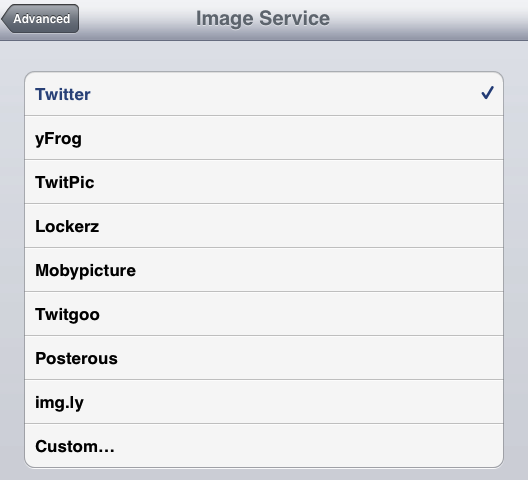
Also new in Twitter 3.5 is direct upload of photos to Twitter’s photo sharing service, available at pic.twitter.com. This can be configured in Twitter’s Preferences both on the iPhone and iPad. What’s new to the iPad is a much improved Direct Messages interface, which has been updated to order DMs chronologically and by thread with a new clean design. Gone is the DM popover from the app’s sidebar, too. iPad owners can now also tap on a location to show tweets nearby.

Twitter 3.5 is available on the App Store now.