So I just got my iPad 2, and right after restoring from an iPad 1 backup and syncing all my apps, I wanted to try FaceTime on it. Mainly to test the quality of the cameras (they do decent videos, but they’re not really that great) and the FaceTime application itself, I immediately set up a new email account to use with the iPad 2.
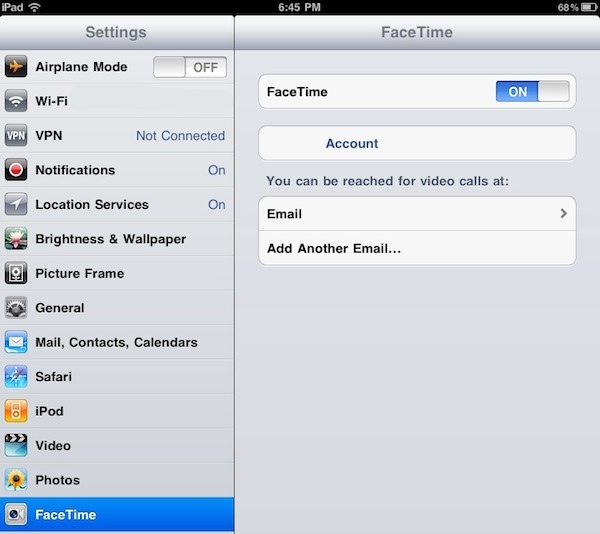
FaceTime on the iPad asks you to create a new email address on first launch; however, you can further tweak your settings, Apple ID and available email addresses in the Settings app under “FaceTime”. In this tab, I logged in with my Apple ID and assigned a new email – different from the ones I use on my MacBook Pro (Apple ID) and iMac (2nd email address). On the iPad, I set up a third email so I can make sure calls are always routed to the right device. I noticed that the verification process failed at first (I didn’t get any email from Apple), so I deleted the email address, entered it again and waited for the confirmation email. After a few minutes, FaceTime was correctly functioning on my iPad 2.
With FaceTime up and running, I wanted to give a shot to an old trick we first covered in October: auto-answering FaceTime calls on a Mac. Why would you want to do that? Simple: to turn your desktop computer into a remote monitoring tool for when you’re not around. Stuff like remotely checking on your room or home office. I leave my computers always on most of the times I have to go out, so it’s not a big deal for me. Plus, I think it’s just neat that you can fire up your iPhone or iPad 2 while on the go to call your Mac and automatically see what’s going in front of the iSight without needing a person to hit the Confirm button. Read more