Posts in iOS

Workflow Tip: Append Text to the iOS Clipboard

If you do any sort of note-taking or writing on iOS, you probably find yourself wishing you’d be able to copy separate bits of text in the clipboard simultaneously. While that’s still not possible because the iOS clipboard only supports one entry at a time, the process can be sped up with Workflow.

A few weeks ago, I wrote about how I was looking for an extension to append links to an existing note through the system share sheet. I eventually downloaded NoteBox, which has an iOS 8 extension that can quickly capture any string of text and that has a merge feature to collect separate notes into a single one. That wasn’t perfect, but it allowed me to collect dozens of tweets and prepare them for a blog post on MacStories in just a couple of minutes.

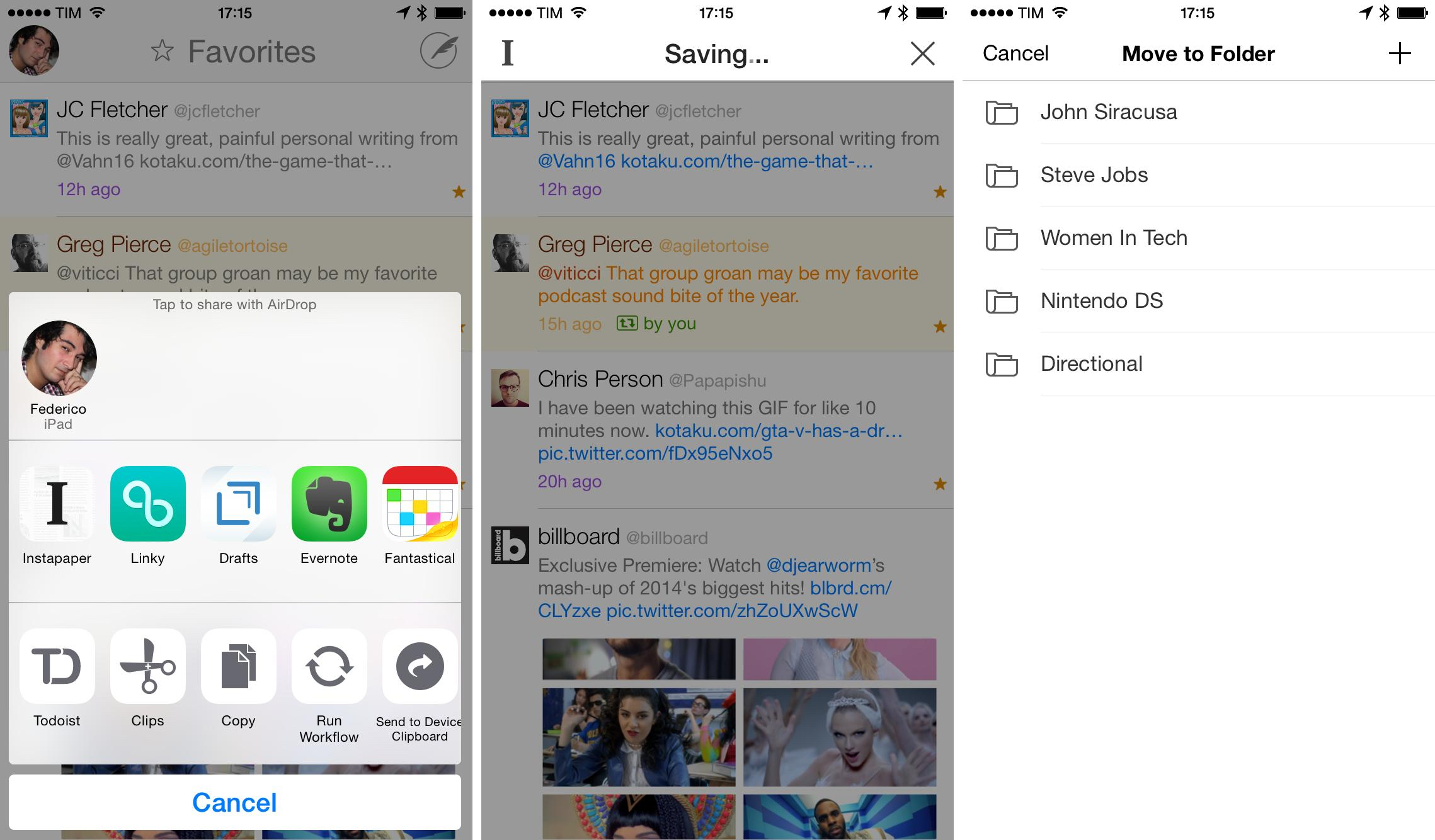
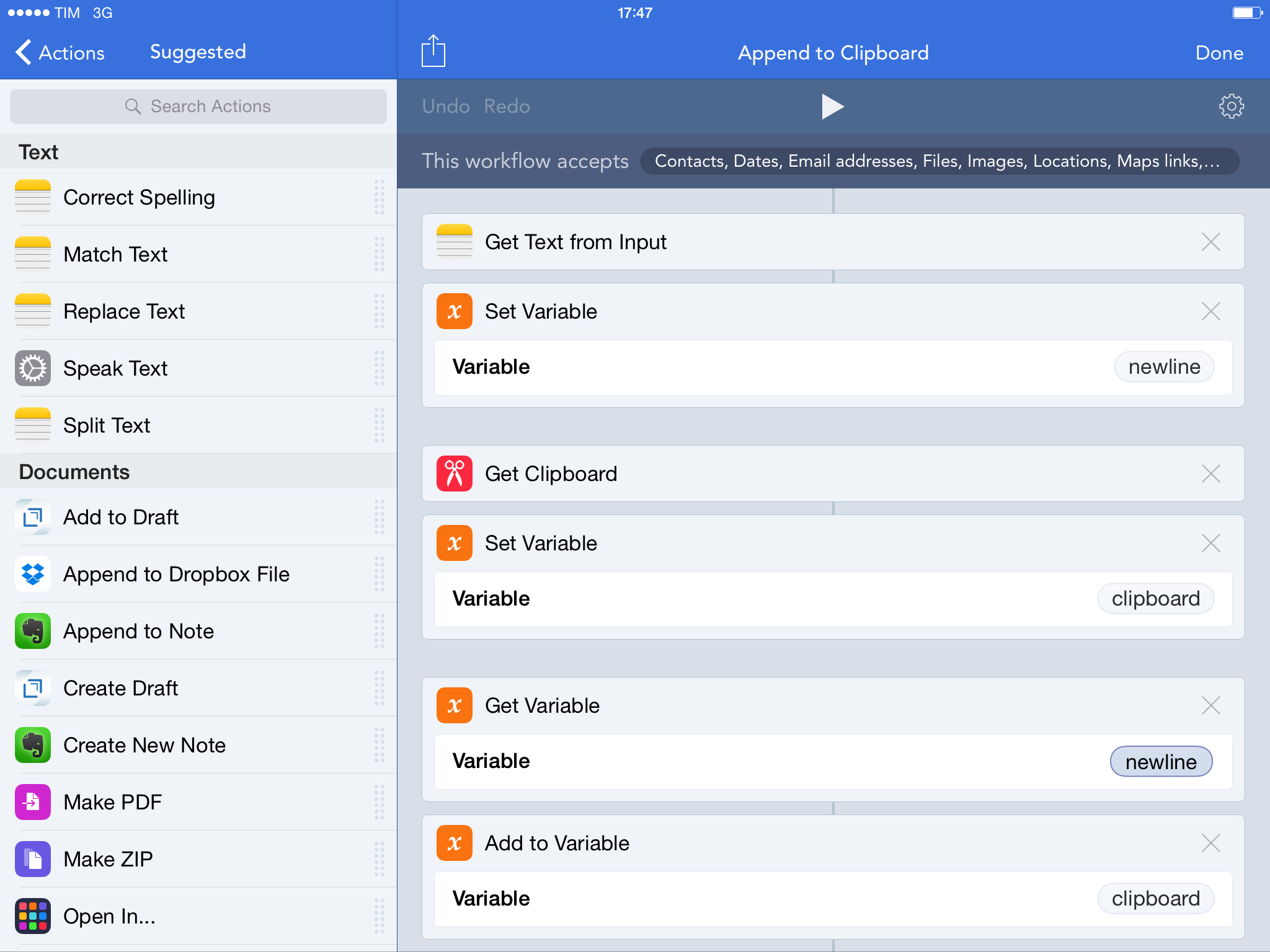
With Workflow, I came up with a better system that uses extensions and the ability to append text to the iOS clipboard. This is the workflow I use, which does three simple things:

  1. Receives input (text) from the Workflow action extension;
  2. Adds the input to your existing clipboard;
  3. Updates the system clipboard with the added input text.

In practice, this means that, using any app capable of showing the share sheet, you can add some text to your clipboard as a new line without convoluted steps of manual copy & paste. Want to add some tweets to a link you copied? In Twitterrific, run the workflow on those tweets and they will be added to the clipboard. Multiple links in Safari or RSS? Copy the first one as you’d normally do, then add more through the workflow. You won’t have to manually merge the contents of the clipboard as long as you use the Workflow action extension to append text.

I’m using this workflow every day to end up with a clipboard that contains multiple links, email addresses, or generic strings of text, and it’s been a great timesaver. You can download the workflow here.

PDF Converter Gets Universal Update

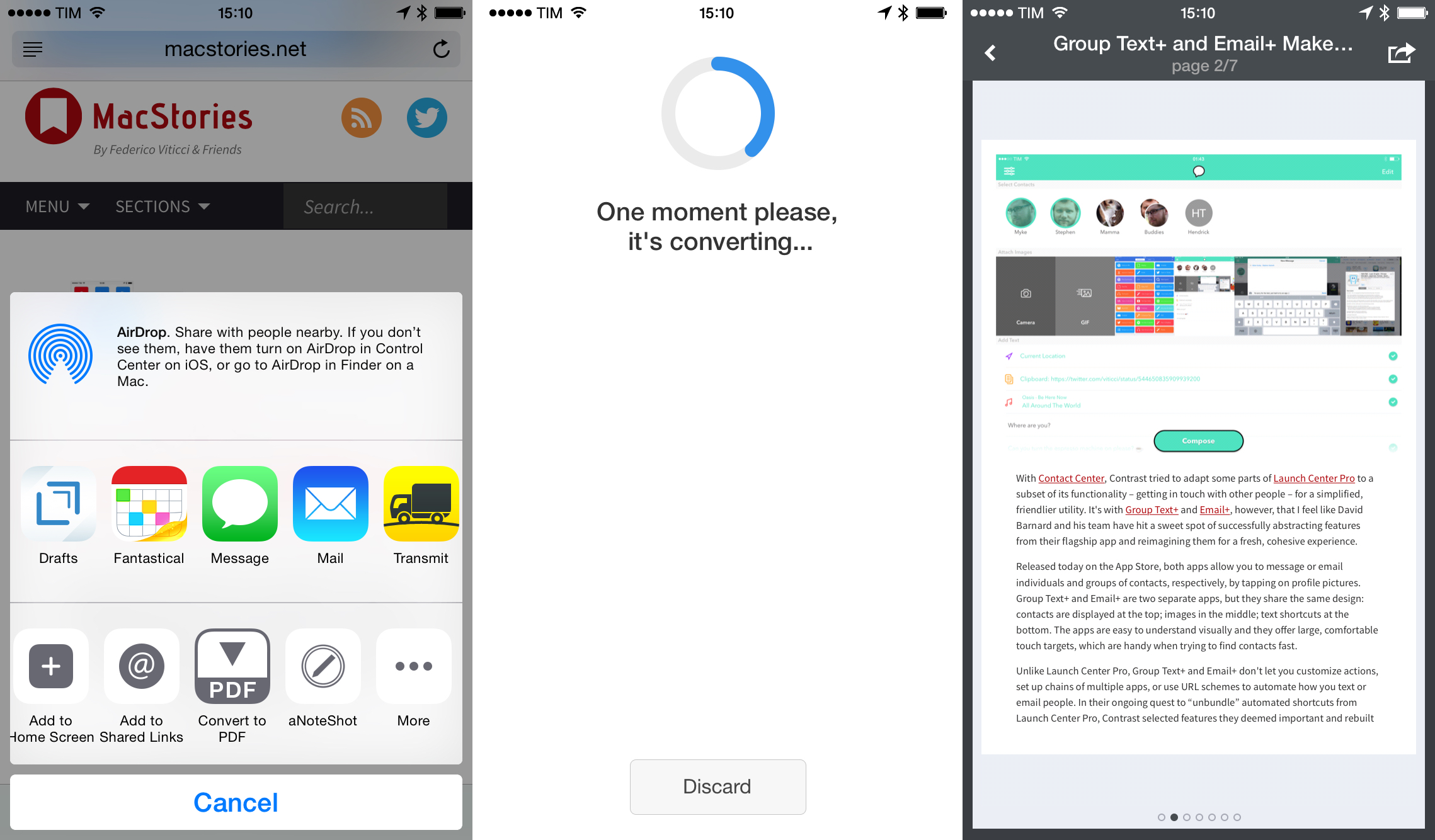
With iOS 8, Readdle updated their PDF Converter app for iPad with an action extension to quickly convert any webpage to PDF. While the same can be done with Workflow now, I like that PDF Converter saves documents automatically into the app, which can store them in iCloud Drive (and thus on all your devices) without even launching the app after a PDF has been generated.

PDF Converter was updated to version 2.2 yesterday with iPhone support – you can now “print” a webpage to PDF directly from Safari with the tap of a button without having to decide where you want to save the file. In the app, you can tap an iCloud Drive button to open the iOS 8 document picker and switch it to other document storage extensions, and you can also convert the contents of your clipboard or files from Dropbox.

If you don’t want to convert webpages or files, PDF Converter’s action extension shows up in the Photos app, which will let you convert images to PDF documents (handy if you, say, want to annotate screenshots with full-featured apps like PDF Expert).

PDF Converter 2.2 is available on the App Store at $2.99.


App Santa: Tweetbot, Drafts, Day One, and Other Great iOS & Mac Apps on Sale for Christmas

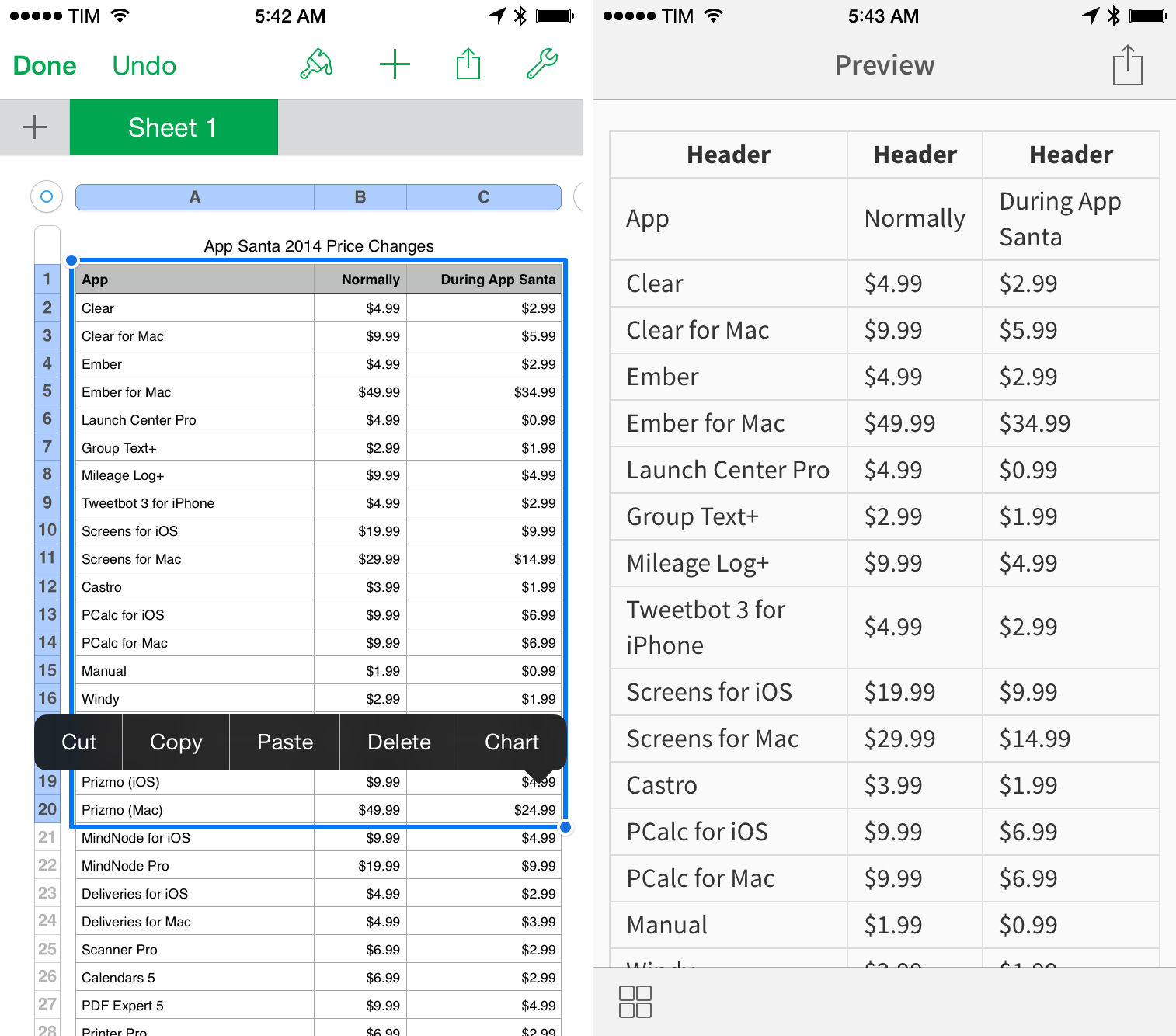
Back in 2006 and 2007, there was an initiative called MacSanta that allowed users to buy great Mac apps at discounted prices with a holiday sale. After last year’s debut (which wasn’t officially affiliated with MacSanta), AppSanta is back this year with over 40 award-winning iOS and Mac apps discounted up to 60% off the original price in a promotion that runs until December 26th.

Read more


Converting Multiple Currencies and Units with Soulver

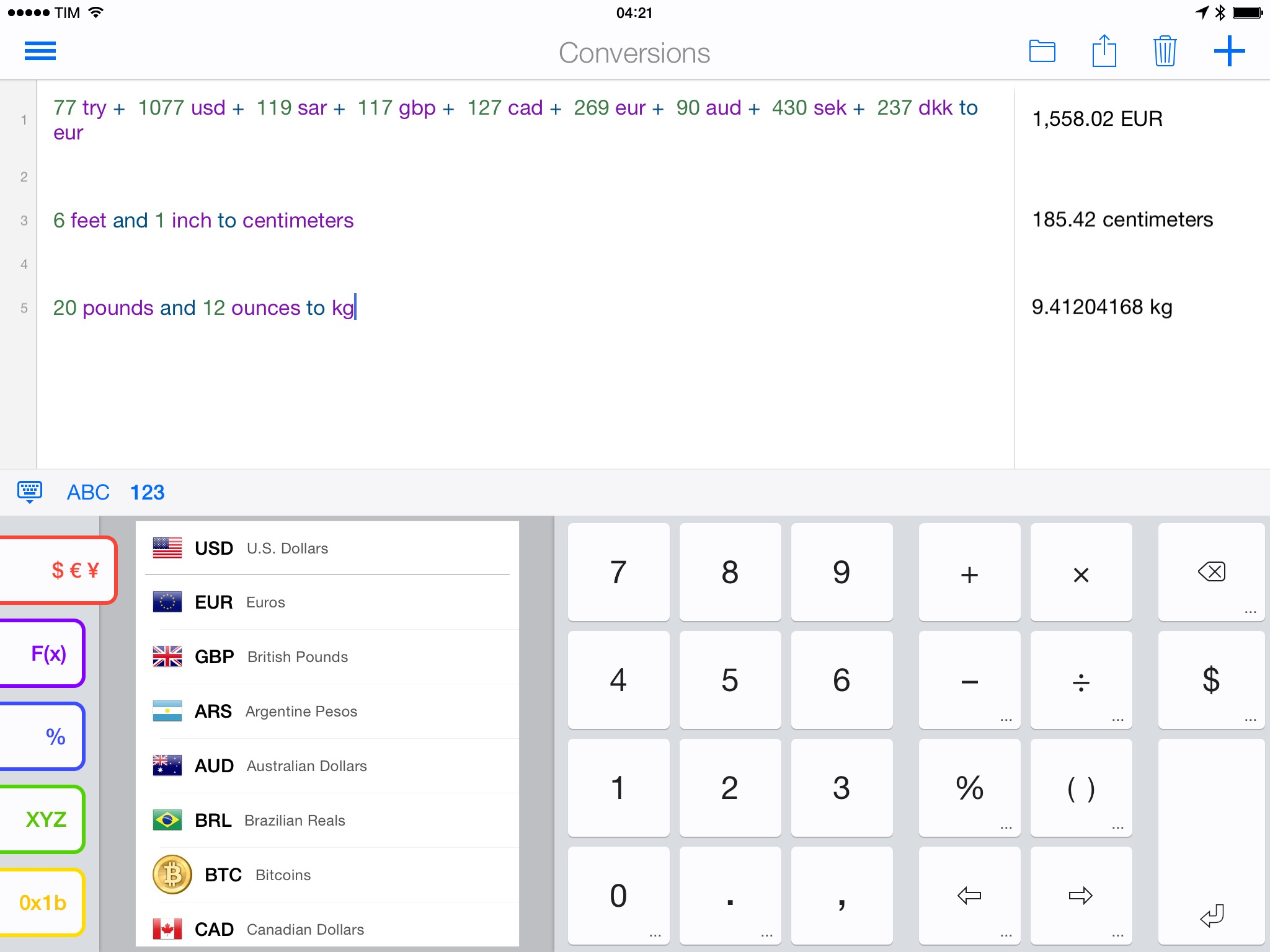
I needed to convert a series of different currencies from a list to Euros tonight, and I thought that it would have been nice to have an app with natural language input for currency conversion. The problem was fairly trivial – a list of amounts to convert to EUR to get a total – but I didn’t want to alter my PCalc layout or come up with a workflow for all those variables. To my surprise, I learned that Soulver can convert multiple currencies and units at once without much effort.

Read more