Posts in Featured

“Universal Save” for iOS Apps

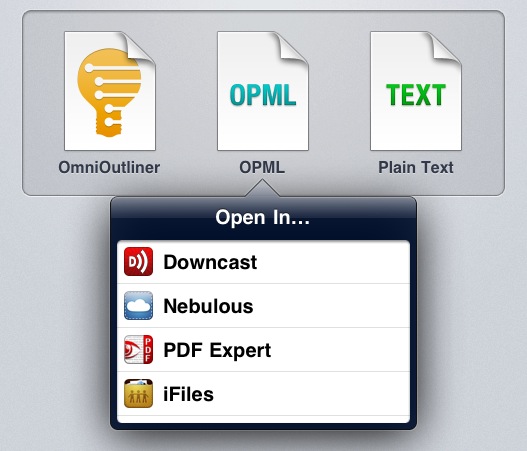
Ted Landau at The Mac Observer covers an issue I’ve mentioned several times in the past, which Apple has partially fixed with the last releases of iOS: saving documents and moving them across apps. Specifically, Landau notes that the lack of a “universal save” option for documents that can be read by third-party apps (PDFs, text files, images) leads to an annoying and pretty much useless duplication of content. Apple has implemented an “Open In…” menu to send files to other apps, but the file that’s being sent is a copy. iOS apps can’t read and modify a source file from a single location.

Currently, iOS does not come close to matching the advantages of Mac OS X here. There is no way to have a unifying folder in iOS that contains related documents from different apps. There is no way to have a document easily opened in different apps, where any changes you make in one app are instantly accessible by all the compatible apps. You can come closer with Dropbox, but closer is not good enough here.

That’s annoying for me, too, as I constantly switch between apps to get my work done, and it’s not like I don’t enjoy trying new ones. This typically leads to some sort of geek frustration – why can’t Apple build an invisible layer that lets Elements edit a text document from Evernote and Pages access the same file?

For Ted and me, yes, being able to avoid file duplication and tedious exporting processes would be nice. But I do wonder how much does Apple care about such functionalities considering the underlying paradigms of iOS and the upcoming iCloud functionalities of iOS 5. For one, Apple really cares about application sandboxing: each app has its own controlled data environment and only a few items can be shared between multiple apps. Apple cares about sandboxing so much that they’re bringing it to the Mac App Store. Would iOS sandboxing allow for a source file to be edited and “saved” by multiple apps? Where does that file belong to, technically? Would iOS apps be able to write specific metadata to it? And what happens if, hypothetically, this “shared” file needs to be pushed back and forth with iCloud?

I’m no iOS developer, but I can see this proposed “universal save” model becoming an issue when on iOS, unlike the Mac, there’s no visible, centralized Finder location to write and read files from. In fact, Ted is right when he says that the convenience of a Mac is being able to create “a folder that will contain all the assorted files needed to put his column together”. That’s made easy by the Finder – but on iOS? Apple allows third-party developers to plug into the Music library or Camera Roll, yet there’s no Apple app to “create text file here” or “save webpage from Safari here”. Again, the lack of an iOS Finder would require “universal save” to work inside any app. iDisk could have been a centralized location for files – it could have even been Apple’s “answer to Dropbox” – but it’s not going to be supported by iCloud.

And then there’s the conceptual issue of an iOS device being the app that you’re using. When you use Pages on an iPad, the iPad is a word processor. When you browse the web with Safari, you’re holding the web in your hands. On a technical level, this app console model is represented by sandboxing and one-way “Open In” menus, and soon iCloud-based documents that allow multiple versions of the same app to access files. Would a “universal save” option somehow break the illusion that you’re holding an app, reminding us that we’re using a device with multiple layers of abstractions including a filesystem?

I don’t know. I believe I’d like this feature in theory, but I wonder if there would also be a considerable trade-off to accept.

Access Extra Content and Perks

Founded in 2015, Club MacStories has delivered exclusive content every week for nearly a decade.

What started with weekly and monthly email newsletters has blossomed into a family of memberships designed for every MacStories fan.

Learn more here and from our Club FAQs.

Club MacStories: Weekly and monthly newsletters via email and the web that are brimming with apps, tips, automation workflows, longform writing, early access to the MacStories Unwind podcast, periodic giveaways, and more;

Club MacStories+: Everything that Club MacStories offers, plus an active Discord community, advanced search and custom RSS features for exploring the Club’s entire back catalog, bonus columns, and dozens of app discounts;

Club Premier: All of the above and AppStories+, an extended version of our flagship podcast that’s delivered early, ad-free, and in high-bitrate audio.

Learn more here and from our Club FAQs.


On Amazon, Ecosystems, And “iPad Killers”

Earlier today Amazon announced a completely revamped Kindle family, which includes the standard $79 Kindle, the $99 Kindle touch, and the much-anticipated $199 Kindle Fire tablet. Ad-supported options and hands-on coverage aside, I’d like to quickly touch upon a common mistake in today’s tech headlines – that the Kindle Fire will “kill” the iPad.

First off, Amazon gets it: they know an ecosystem has to scale to different devices and operating systems, so they diversified their approach to ebook reading and media consumption with three different sets of Kindle (Keyboard/$79 Kindle, Touch, Fire) all tied to a single defining feature: your Amazon.com account.

In discussing Microsoft’s approach to the concept of ecosystem when compared to Apple’s, I wrote:

In Apple’s vision, separate operating systems can live inside the same ecosystem. The single defining aspect of this vision is the Apple ID, which on iOS devices, Macs, PCs, and web browsers gives you access to:

- Songs, Movies, TV Shows, Books, Podcasts;

- Apps;

- The Apple Online Store;

- Your iOS device’s location (still free with MobileMe);

- Email, Calendar, Contact and data sync with MobileMe;

- Your desktop operating system (with Lion’s Apple ID support).

Compare this to Amazon, which is doing the following:

  • Amazon Prime: faster shipping times and Instant Video;
  • Amazon MP3;
  • Amazon Kindle;
  • Amazon Appstore;
  • Amazon Web Services.

Amazon is building an ecosystem, and all you need to access these services is a single Amazon.com account, possibly connected to a credit card. Like Apple, it may be difficult to keep everything in one account, but it’s not like the average consumer needs all the functionalities of Web Services anyway. Furthermore, Amazon controls its platforms with the web infrastructure they’ve created, and the newly announced Silk browser is the perfect example of how Amazon should also be able to somehow control and optimize web traffic operated by its devices.

There’s more. Amazon gets it because they’re offering a limited choice of devices to use with their ecosystem. Many often cite Apple’s product line-up as an example of simplicity and “just one model” philosophy, but if you think about it, there are multiple ways to get started with iOS:

  • iPhone (two colors, different storage options, carrier variations);
  • iPod touch (different storage options);
  • iPad (two colors, different storage options, carrier variations).

and the Mac (all with multiple configuration options available):

  • MacBook Air;
  • MacBook Pro;
  • iMac;
  • Mac mini;
  • Mac Pro.

Amazon may kill off some members of the Kindle family soon (DX perhaps?), but here’s what they offer today to access the Amazon.com ecosystem:

  • Kindle;
  • Kindle Keyboard;
  • Kindle DX;
  • Kindle Touch;
  • Kindle Fire.

The similarities in the underlying concepts of “ecosystem” and “uniqueness” between Apple and Amazon are clear, but there are some key difference that many people don’t seem to properly consider when referring to the latest Kindle Fire as an “iPad killer”. Assuming that by “killer” they actually imagine a scenario where people will stop buying iPads altogether and start seeing the Fire as the only option, Amazon would still need Apple’s retail power at an international level. These people that write “iPad killer” seem to forget that the iPad is available in 64 countries today. Amazon’s Kindle Fire will ship November 15th in the US. So let’s put the “killer” argument behind us once and for all.

Amazon is about to launch a product that may end up being a feasible alternative to the iPad for some people, a product shares several similarities with Apple’s approach to the digital ecosystem. I have no doubt Amazon will sell millions of these new Kindles, and I think the Fire in particular will prove popular with families, readers, movie watchers, gamers – average consumers that may prefer a cheaper device integrated with the Amazon.com account they already have and use daily.

It’s hard to form a complete thought on Amazon’s new strategy because they’re just getting started. The unification process of Amazon’s ecosystem and diversification of unique devices begins today, and the Kindle Fire will ship in less than two months. It’s hard to imagine whether Amazon’s long-term plan is “trying to be like Apple” with international releases, rich App Store, deals with music labels, partnerships with carriers, and so forth. It’s also worth considering that Amazon isn’t completely independent from others yet, as the Kindle Fire runs on a modified version of Android 2.x with possible legal implications in patent fees. And more importantly, it doesn’t even make sense to “judge” the Kindle Fire right now as a winner or PlayBook when we even haven’t tried one. But two months from now, right ahead of the holiday season, let’s picture the following situation: assuming an average consumer interested in reading, listening to music, playing games, watching movies and browsing the web has $500 to spend, will he pick an iPad or a Kindle Fire? And is there a reason to pick both?

That’s where ecosystems prove their strengths.

Access Extra Content and Perks

Founded in 2015, Club MacStories has delivered exclusive content every week for nearly a decade.

What started with weekly and monthly email newsletters has blossomed into a family of memberships designed for every MacStories fan.

Learn more here and from our Club FAQs.

Club MacStories: Weekly and monthly newsletters via email and the web that are brimming with apps, tips, automation workflows, longform writing, early access to the MacStories Unwind podcast, periodic giveaways, and more;

Club MacStories+: Everything that Club MacStories offers, plus an active Discord community, advanced search and custom RSS features for exploring the Club’s entire back catalog, bonus columns, and dozens of app discounts;

Club Premier: All of the above and AppStories+, an extended version of our flagship podcast that’s delivered early, ad-free, and in high-bitrate audio.

Learn more here and from our Club FAQs.


Control Multiple Macs with Teleport

I don’t always use two Macs simultaneously, but when I do, either there’s an Apple keynote or I’m trying new apps.

That’s how I stumbled upon Teleport, a free OS X utility, last year when I needed to switch back and forth between MacBooks during an Apple keynote, and why I decided to take the app for a spin again now that’s been updated for Lion. Teleport isn’t new to Mac users – in fact, it’s been around since Tiger and it’s probably the most popular app to control two Macs on the same local network. Now that version 1.1 is out with support for Lion and multi-touch gestures, I thought a fresh mention would be appropriate.

Teleport is extremely simple in what it does, although it uses some advanced technology to accomplish it: once installed in System Preferences, Teleport allows you to move your cursor (and keyboard) between multiple Macs. Teleport recognizes Macs “shared” on the same network, and through a system similar to Apple’s “hot corners” and based on Bonjour, it lets you “teleport” the mouse across screens.

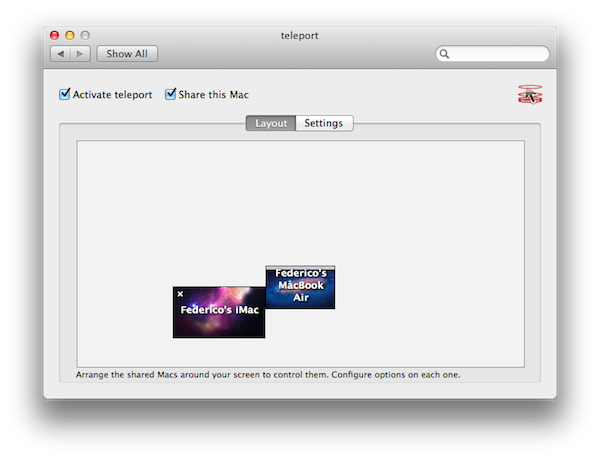
Shared Macs that have Teleport activated in the settings will show up with their respective desktops in the app’s panel; you can arrange Macs placing them next to a main computer’s screen so you’ll remember how to switch displays, and configure options in a dedicated sub-menu. These options include handy things like “switch only if key is pressed” or “share pasteboard”. In this latest version of Teleport you can assign a keyboard shortcut to switch to another Mac, and Lion’s gestures are fully supported so you’ll be able to perform three-finger swipes and other Mission Control trickery on a Mac running Lion.

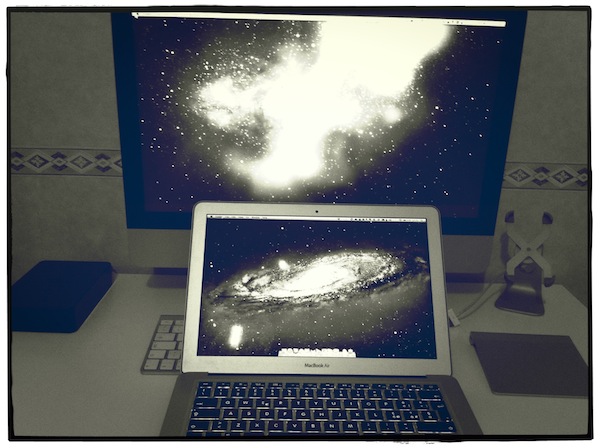
When controlling my iMac through my MacBook Air’s trackpad and keyboard, I was able to drag & drop files using Teleport, and have the contents of the pasteboard from my MacBook Air automatically synced on my iMac. There are several utilities to control how the pasteboard is shared and synced across local Macs, but Teleport manages to make the whole process “invisible” in a package that also happens to do much more.

For instance, Teleport supports encryption for file transfers, and you can read more about it on Abyssoft’s website and the ReadMe file included in the download. Long story short: you can generate your own certificate to activate encryption and it’s even easier if you already have a .Mac account. Also in Teleport’s settings, you can enable a menubar item, bezel, and sound notifications. The sound effect is particularly neat when you switch between Macs, as it really gives you the sense of something “travelling” between two spaces (Teleport also displays a quick animation at the side of your screen). Control requests are also handled well between shared Macs, with options to “ask me if host can be trusted”, “reject if host not already trusted” and “automatically accept”. If you leave Teleport always running, when a shared Mac comes back online a red indicator will flash on the previously configured side of the screen.

Version 1.1 includes a few more features like:

  • Host specific options: you can define the switching and sharing options per host, to have different settings.
  • Propagated options: the options you set for a host also apply when coming back from it.
  • Full multi-screens support: all screens of shared Macs are now visible, so pairing a secondary screen is much easier than before.

Teleport isn’t new, but it’s nice to see the app working well on Lion with gestures and multiple displays. If you happen to control multiple Macs every once in a while, give Teleport a try. It’s a free download (and make sure to donate if you really like it).

Access Extra Content and Perks

Founded in 2015, Club MacStories has delivered exclusive content every week for nearly a decade.

What started with weekly and monthly email newsletters has blossomed into a family of memberships designed for every MacStories fan.

Learn more here and from our Club FAQs.

Club MacStories: Weekly and monthly newsletters via email and the web that are brimming with apps, tips, automation workflows, longform writing, early access to the MacStories Unwind podcast, periodic giveaways, and more;

Club MacStories+: Everything that Club MacStories offers, plus an active Discord community, advanced search and custom RSS features for exploring the Club’s entire back catalog, bonus columns, and dozens of app discounts;

Club Premier: All of the above and AppStories+, an extended version of our flagship podcast that’s delivered early, ad-free, and in high-bitrate audio.

Learn more here and from our Club FAQs.


Apple Confirms: Media Event on October 4th

Jim Dalrymple at The Loop reports Apple sent out invitations for a media event moments ago. The event is scheduled for October 4th and it’ll take place at Apple’s headquarters in Cupertino.

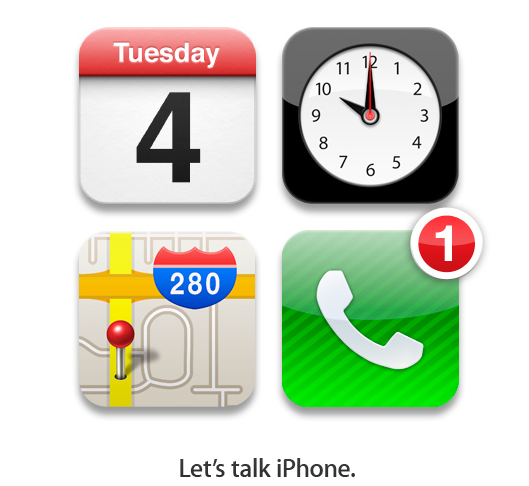
Looking at the invitation posted by The Loop, it’s clear Apple’s keynote will focus on the iPhone – the tagline for the banner is “Let’s talk iPhone” – and, curiously enough, the image features four of Apple’s stock apps for iOS: Calendar, Clock, Maps, and Phone. We wouldn’t look too much into a possible hidden meaning on this image, but all these apps were mentioned in a rumor that claimed to have details on Assistant, an upcoming software feature of the iPhone 5. Obviously, the image itself is a representation of the event’s details (October 4th, 10 AM at Infinite Loop), but it’s not like Apple hasn’t hinted at upcoming features/products in invitations before.

Apple is widely expected to unveil the next-generation iPhone at is next keynote. Speculation surrounding the device in the past months has failed to pinpoint exactly how the next iPhone will look like, and iPhone 4-like parts surfaced this summer suggested Apple could also plan a minor “iPhone 4S”  upgrade. Others claim the “iPhone 5” will be a completely redesigned device with thinner form factor, and possibly a bigger screen. Either way, the next iPhone is rumored to feature the company’s A5 processor, 1 GB of RAM and an 8-megapixel camera – as for the iPhone5-iPhone 4S speculation, you can read more about it in our rumor roundup and retrospective.

At WWDC in June, Apple announced iOS 5 with iCloud integration would ship “this Fall” to customers. iCloud is cross-compatible with iOS devices, web browsers, PCs and Macs – OS X will need an update to version 10.7.2 (currently in beta with developers) to work with iCloud. Other software updates expected to hit with iOS 5’s release are iTunes 10.5 (required for iOS 5 device syncing) and iPhoto 9.2 (for Photo Stream integration).

Access Extra Content and Perks

Founded in 2015, Club MacStories has delivered exclusive content every week for nearly a decade.

What started with weekly and monthly email newsletters has blossomed into a family of memberships designed for every MacStories fan.

Learn more here and from our Club FAQs.

Club MacStories: Weekly and monthly newsletters via email and the web that are brimming with apps, tips, automation workflows, longform writing, early access to the MacStories Unwind podcast, periodic giveaways, and more;

Club MacStories+: Everything that Club MacStories offers, plus an active Discord community, advanced search and custom RSS features for exploring the Club’s entire back catalog, bonus columns, and dozens of app discounts;

Club Premier: All of the above and AppStories+, an extended version of our flagship podcast that’s delivered early, ad-free, and in high-bitrate audio.

Learn more here and from our Club FAQs.


Apple Announces Q4 2011 Conference Call For October 18

As usual after the end of a fiscal quarter, Apple refreshed its Investor web page and activated the URL that will redirect to its next conference call webcast. For the fourth fiscal quarter, which ended on Saturday, September 24th, Apple has announced that they will announce results on October 18th.

Apple’s conference call webcast discussing Q4 - 2011 financial results will begin at 2:00pm PT/5:00pm ET on Tuesday, October 18, 2011.

Please note that comments made during this call may include forward-looking statements that are subject to risks and uncertainties, and that actual results may differ materially from these forward-looking statements. For more information on the factors that could influence results, please refer to Apple’s SEC filings.

In Q3 2011, Apple posted $28.57 billion of revenue with 20.34 million iPhones, 9.25 million iPads, and 3.95 million Macs sold. The company posted record quarterly revenue of $28.57 billion and record quarterly net profit of $7.31 billion, or $7.79 per diluted share. Also in Q3, Apple reported an amazing growth in China with revenue of $3.8 billion during the quarter. In the year-ago quarter, Apple posted revenue of $20.34 billion with 3.89 million Macs, 14.1 million iPhones and 4.19 million iPads sold during the quarter.

Initially rumored to be released in September, Apple’s fourth quarter won’t include any iPhone 5-related results – the device is now rumored to be unveiled at a media event on October 4th. The earnings call will provide, however, insight into Apple’s summer release cycle, which saw updates for the popular MacBook Air line, new Mac minis, and the release of OS X Lion in July. If most recent rumors are to be believed, the Q4 earnings call might be a way for Apple to announce day-one sales of the next iPhone, rumored to be hitting the U.S. marked in mid-October.

We will provide live updates from the call on our site’s homepage on October 18 starting at 2 PM PT.

Access Extra Content and Perks

Founded in 2015, Club MacStories has delivered exclusive content every week for nearly a decade.

What started with weekly and monthly email newsletters has blossomed into a family of memberships designed for every MacStories fan.

Learn more here and from our Club FAQs.

Club MacStories: Weekly and monthly newsletters via email and the web that are brimming with apps, tips, automation workflows, longform writing, early access to the MacStories Unwind podcast, periodic giveaways, and more;

Club MacStories+: Everything that Club MacStories offers, plus an active Discord community, advanced search and custom RSS features for exploring the Club’s entire back catalog, bonus columns, and dozens of app discounts;

Club Premier: All of the above and AppStories+, an extended version of our flagship podcast that’s delivered early, ad-free, and in high-bitrate audio.

Learn more here and from our Club FAQs.


RestoreMeNot Disables Lion’s Resume For Individual Apps

One of Lion’s biggest changes for geeks and average OS X users alike has been its Resume functionality, which combined with Auto-Save ensures your documents are always saved in the background, and their application windows restored after you reboot your Mac, or quit an app. Whilst Lion’s window restoration may come in handy if you don’t want to lose your Safari browsing session or writing point in TextEdit, the opposite can also be true: automatic window restoration can be annoying for scratch documents that you don’t want to see again, in apps that perhaps you think should always start up fresh and uncluttered.

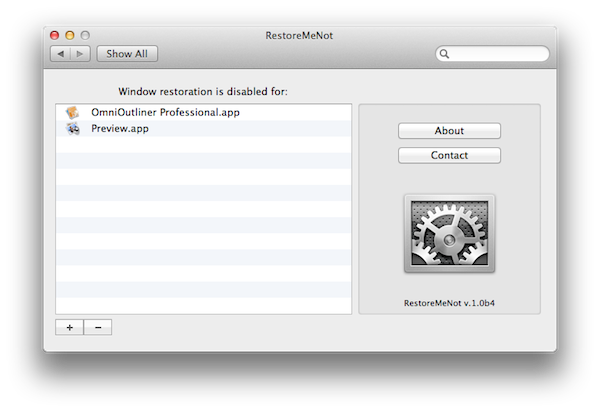
In our OS X Lion review, we detailed how it’s possible to decide to “quit and discard windows” every time by pressing the Option key alongside the usual CMD+Q combination – but wouldn’t it be nice to automatically disable window restoration forever in a specific app? In the days following Lion’s release, a number of Terminal hacks surfaced indicating that it was indeed possible to disable window restoration on an app-by-app basis. RestoreMeNot, a free System Preferences panel covered by Lifehacker earlier today, gives these Terminal hacks a graphical user interface that lets you choose apps you don’t want to restore windows with.

The app is extremely simple. Once installed, it’ll ask you for apps from your Finder. In my workflow, I always find myself hitting Command+Option+Q to quit and discard windows in Preview and OmniOutliner, so I might as well add them and go back to my usual Command+Q shortcut. RestoreMeNot does exactly this – it basically overrides the standard “Quit” command with “Quit and Discard Windows” and it’ll make sure your selected apps will launch window-free when possible (TextEdit, for instance, will create an “Untitled” document every time). Don’t worry though – this won’t disable auto-save: I tried with TextEdit, and whilst its windows wouldn’t be restored, the contents of a modified document were still correctly saved by Lion.

If you’re looking for a more advanced way to tweak your OS X Lion’s behavior, TinkerTool recently added an option to individually control Resume for apps as well. You can download RestoreMeNot for free here.

Access Extra Content and Perks

Founded in 2015, Club MacStories has delivered exclusive content every week for nearly a decade.

What started with weekly and monthly email newsletters has blossomed into a family of memberships designed for every MacStories fan.

Learn more here and from our Club FAQs.

Club MacStories: Weekly and monthly newsletters via email and the web that are brimming with apps, tips, automation workflows, longform writing, early access to the MacStories Unwind podcast, periodic giveaways, and more;

Club MacStories+: Everything that Club MacStories offers, plus an active Discord community, advanced search and custom RSS features for exploring the Club’s entire back catalog, bonus columns, and dozens of app discounts;

Club Premier: All of the above and AppStories+, an extended version of our flagship podcast that’s delivered early, ad-free, and in high-bitrate audio.

Learn more here and from our Club FAQs.


YouTube Testing New Mobile Layout

Following the Cosmic Panda experimental design launched in July, it appears YouTube is now testing an updated mobile layout that borrows some of the color schemes and interface elements of this summer’s refresh for desktop web browsers. The new mobile layout can be enabled at m.youtube.com/new_visual_design, and I’ve noticed this by opening the YouTube website from my iPhone (running the latest iOS 5 beta, but it works on iOS 4 too) earlier today. A quick Google and Twitter search seems to confirm that the new mobile layout is a recent change that, similarly to Cosmic Panda, is opt-in and needs to be manually activated.

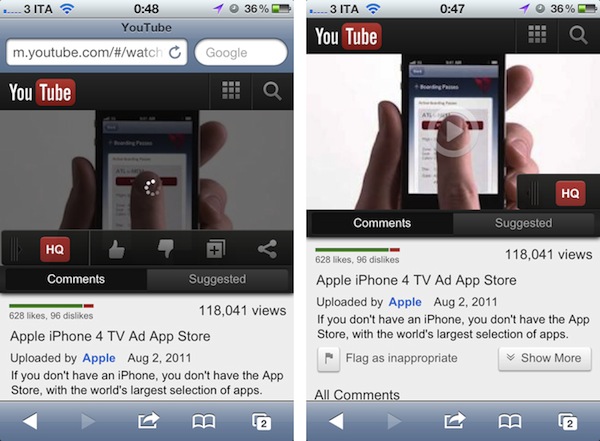
Once enabled, the new design brings a much darker color palette that presents videos against dark toolbars and buttons – I assume this should make videos a little easier on the eye, but the effect is sort of ruined by Safari’s blue address bar. Unlike the standard mobile layout, launched last year, when saving this new design to the iPhone’s Home screen you won’t get a Retina-ready icon or full-screen web app. This, again, should be related to the experimental nature of the design.

The new mobile layout brings updated buttons and a new toolbar to toggle HQ on videos, give them a thumbs up/down, and share them. The HQ toggle comes with a neat fading animation and the video thumbnail has new loading and Play controls, too. Read more

Access Extra Content and Perks

Founded in 2015, Club MacStories has delivered exclusive content every week for nearly a decade.

What started with weekly and monthly email newsletters has blossomed into a family of memberships designed for every MacStories fan.

Learn more here and from our Club FAQs.

Club MacStories: Weekly and monthly newsletters via email and the web that are brimming with apps, tips, automation workflows, longform writing, early access to the MacStories Unwind podcast, periodic giveaways, and more;

Club MacStories+: Everything that Club MacStories offers, plus an active Discord community, advanced search and custom RSS features for exploring the Club’s entire back catalog, bonus columns, and dozens of app discounts;

Club Premier: All of the above and AppStories+, an extended version of our flagship podcast that’s delivered early, ad-free, and in high-bitrate audio.

Learn more here and from our Club FAQs.


Google+ for iOS Update: Mobile Hangouts, New Notification Settings, And More

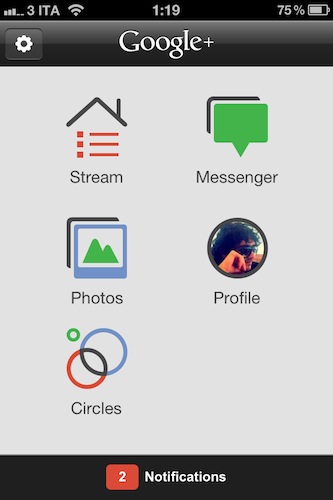
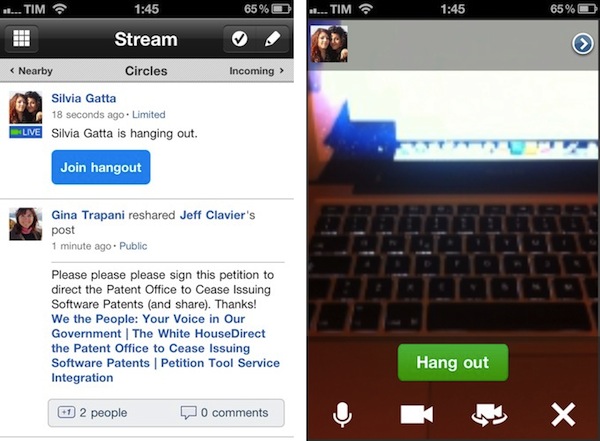
A major update to the official Google+ app for iOS has been released on the App Store, and it adds the features mentioned by Google earlier this week when the service hit official “beta” status (open to everyone) after a limited field-trial period. As previously announced by Google, the mobile app for iOS now comes with Hangouts support – meaning that you’ll be able to join a Hangout directly from your iPhone or iPod touch. I haven’t been able to test this yet as none of my friends is currently streaming a Hangout session, so I can’t comment on the app’s performances with video yet. When covering the functionality for the Android app, however, Google wrote:

In life we connect with others in all sorts of places, at all different times. And the connections you make unexpectedly are often the ones you remember the most. We think Hangouts should keep pace with how you socialize in the real-world, so today we’re launching it on the one device that’s always by your side: your mobile phone. To get started, simply find an active hangout in the Stream, and tap “Join”.

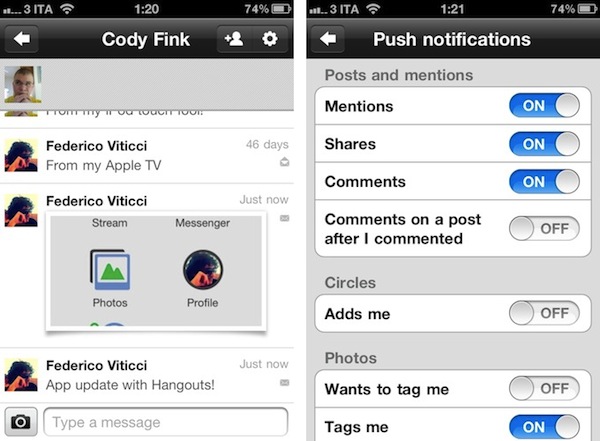
The most notable change as you fire up the updated app is Huddle, which has been renamed to Messenger and now supports photos. You can easily attach photos from your Library or snap new ones within a Messenger thread, and Google claims there have been some reliability improvements as well.

Throughout the app, I’ve spotted several optimizations that should make the mobile Google+ experience more enjoyable. For one, granular controls on notification settings now allow you to selectively receive push notifications for mentions, shares, comments, or comments on a post after you commented. You can also be notified about new people circling you, and new tags or comments on photos. Considering iOS 5’s upcoming Notification Center functionality, these changes should make for an optimal experience when dealing with the incoming stream of notifications from Google+.

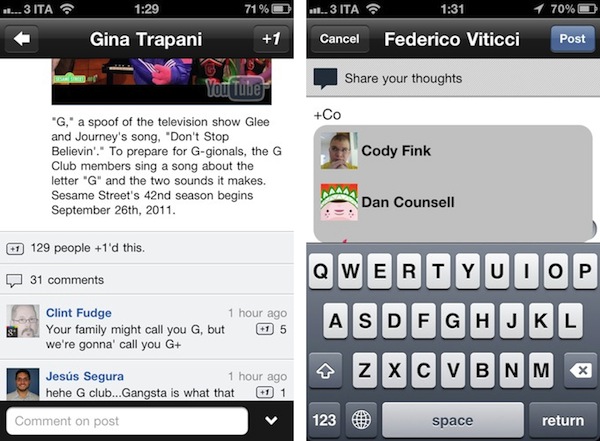
Other improvements in Google+ for iOS include the possibility to +1 comments, a map view in the profile for places you’ve lived, and a new feature to share posts with individuals only, instead of circles. Furthermore, Google mentions improvements to search in the changelog, and better support for +mentions (in the compose view, you’ll get a popup dialog to pick users, similar to Twitter).

The new Google+ update for iPhone feels like an important step forward in bringing the app up to parity with the website, as well as the mobile Android client. You can get it here on the App Store.

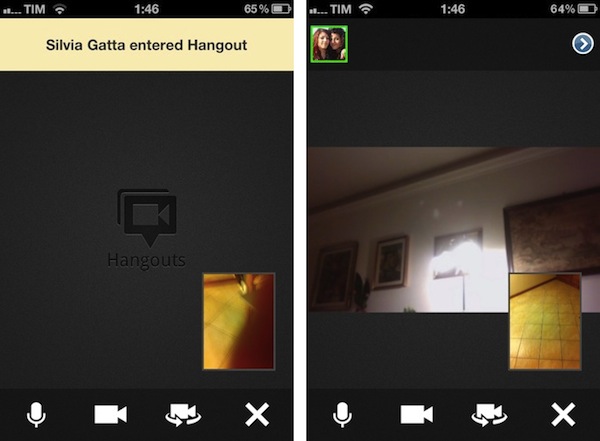
Update: I’ve run some first mobile Hangout tests, and performances seemed pretty reliably on my home network. Video quality was slightly worse than Apple’s FaceTime on the same connection, but it was a very slightly difference. What matters is that you’re able to join a Hangout directly from your stream as one of your friend starts it, and as you click “Join” you’ll be brought to a new dark screen that will load your camera view (front-facing by default), as well as your friend’s. There are notifications for new people joining a Hangout, and as multiple members join you can open a new screen to instantly add them to a circle.  There are buttons in a bottom toolbar to mute audio, freeze the camera, switch between front and rear-facing cameras, and leave the Hangout.

Overall, the process of joining a Hangout from my iPhone was pretty smooth, though on my friend’s end, she told me she was logged out at some time, and had to re-enter the Hangout. During those few seconds, I was left alone with a black screen as you can see in an image below. Hangouts on desktop web browsers have been recently enhanced with new features as you can read in Google’s blog post.

Access Extra Content and Perks

Founded in 2015, Club MacStories has delivered exclusive content every week for nearly a decade.

What started with weekly and monthly email newsletters has blossomed into a family of memberships designed for every MacStories fan.

Learn more here and from our Club FAQs.

Club MacStories: Weekly and monthly newsletters via email and the web that are brimming with apps, tips, automation workflows, longform writing, early access to the MacStories Unwind podcast, periodic giveaways, and more;

Club MacStories+: Everything that Club MacStories offers, plus an active Discord community, advanced search and custom RSS features for exploring the Club’s entire back catalog, bonus columns, and dozens of app discounts;

Club Premier: All of the above and AppStories+, an extended version of our flagship podcast that’s delivered early, ad-free, and in high-bitrate audio.

Learn more here and from our Club FAQs.


QuickCal 3.0 Gets Redesigned UI and BusyCal Support

Back in May I reviewed QuickCal for Mac, an iCal add-on that, through a very straightforward interface, allowed you to create new events in iCal using “natural language input”. With a combination of keyboard shortcuts and direct iCal integration, QuickCal let you write down events in plain English (example: Lunch with Cody tomorrow at Italian restaurant), and have them automatically formatted as new entries in iCal, which would then sync them to a MobileMe or online service of choice. Alternatively, QuickCal also featured native Google Calendar support, so events didn’t have to go through iCal first to be synced online. With a clean menubar list of upcoming events, support for to-dos and smart reminders, I was quite impressed by QuickCal as an iCal add-on for desktop users.

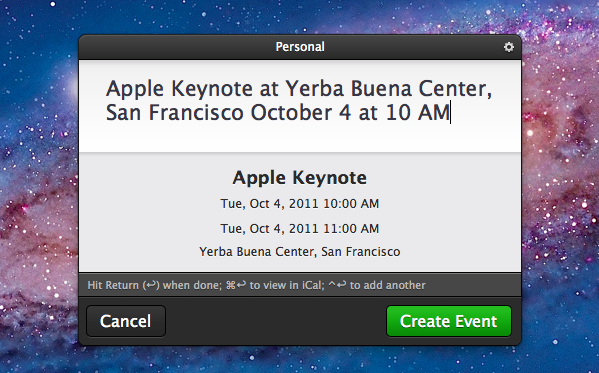
With the 3.0 update released today, QuickCal adds a completely redesigned UI, a new dynamic dock icon, and a series of improvements throughout the interface. As with the previous version, QuickCal can be invoked by pressing a keyboard shortcut (mine is Control+Shift+Q), which will open a floating panel (think OmniFocus’ quick entry/Alfred/NotifyMe) to start writing down a future event. Focus is immediately placed on the text cursor; the new QuickCal entry box design is nice to look at, and it retains the underlying simplicity of the older versions. As you type, text is automatically formatted to reflect an event’s data points like date, location, and duration. For instance, “Meet with Chris at Apple Store, Viterbo tomorrow from 5 to 6” will result in an event called “Meet with Cris”, with location, date and duration fields automatically filled in. This hasn’t changed from the old QuickCal.

QuickCal 3.0 has a beautiful dock icon with a dynamic date on it (like iCal), although unfortunately, due to Apple’s rules with menubar apps and Lion, you’ll have to manually drag it from Launchpad or the Applications folder onto your dock if you want to see it. Once it’s there, you’ll be able to click on it to open the quick entry panel, and drop text on it as well. If you don’t want to use QuickCal’s own quick entry box, you can make its natural language input work with popular application launchers such as Alfred and LaunchBar.

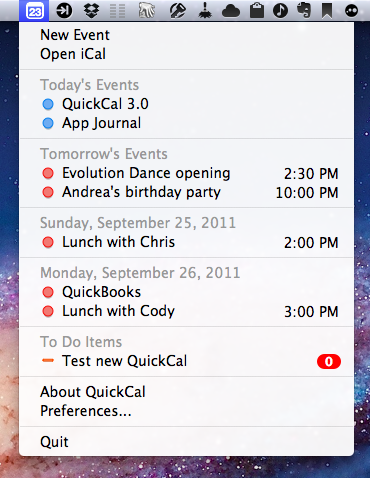
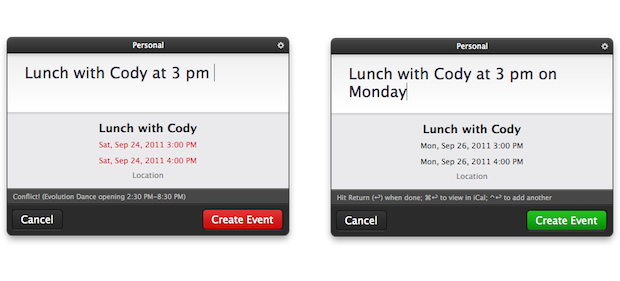
Other features of QuickCal 2.0 have been maintained and refined in this 3.0 release. The app can still create to-dos in a specific calendar with the “todo” prefix – this works nicely with iCal’s Reminders in Lion. QuickCal also provides a summary of upcoming events and to-dos in the menubar, and you can play around with the app’s preferences to tweak sorting options, days to show, and completed events. You can set a default calendar for new events and to-dos, enable Google Calendar sync in the second tab of the Preferences, and, as with version 2.0, activate automatic conflict resolution, so the app will turn red if you’re creating an event that’s overlapping an existing one.

One of my favorite features of QuickCal 2.0 has been ported over to 3.0, and that’s Smart Reminders. With this functionality, you can set the app to automatically apply certain alarms for events that are a day, week, or month away. This way you’ll always have a reminder available and different depending on the kind of event you’re assigning it to.

QuickCal 3.0 comes with native BusyCal support, but I haven’t been able to test this. I’ve only tested the app with MobileMe and iCloud calendars, and I’ve noticed QuickCal still isn’t completely independent from Apple’s iCal in that it requires iCal to be open to sync events to the cloud. With iCal closed but QuickCal running, new events will be saved in QuickCal, but they’ll only be synced after you launch iCal. Another app with natural language input for events, Fantastical, comes at a higher price on the App Store ($14.99), but it syncs events immediately to the cloud thanks to native CalDAV sync support.

QuickCal 3.0 is a simple and effective companion for iCal, now with a nicer UI. I prefer to call the app an add-on, rather than a mini-calendar replacement, as it requires iCal to be open to sync events to iCloud/MobileMe, and it can’t live on its own unless you’re a Google Calendar user. Natural language input is certainly more reliable than iCal’s in Lion, and the interface is unobtrusive enough to be there to assist you, but get out of the way as you don’t need it. If you’re an iCal user and you’re looking for a quicker way to enter events in plain English, QuickCal is only $2.99 on the App Store (a free 14-day trial is available on QuickCal’s website).
Read more

Access Extra Content and Perks

Founded in 2015, Club MacStories has delivered exclusive content every week for nearly a decade.

What started with weekly and monthly email newsletters has blossomed into a family of memberships designed for every MacStories fan.

Learn more here and from our Club FAQs.

Club MacStories: Weekly and monthly newsletters via email and the web that are brimming with apps, tips, automation workflows, longform writing, early access to the MacStories Unwind podcast, periodic giveaways, and more;

Club MacStories+: Everything that Club MacStories offers, plus an active Discord community, advanced search and custom RSS features for exploring the Club’s entire back catalog, bonus columns, and dozens of app discounts;

Club Premier: All of the above and AppStories+, an extended version of our flagship podcast that’s delivered early, ad-free, and in high-bitrate audio.

Learn more here and from our Club FAQs.