

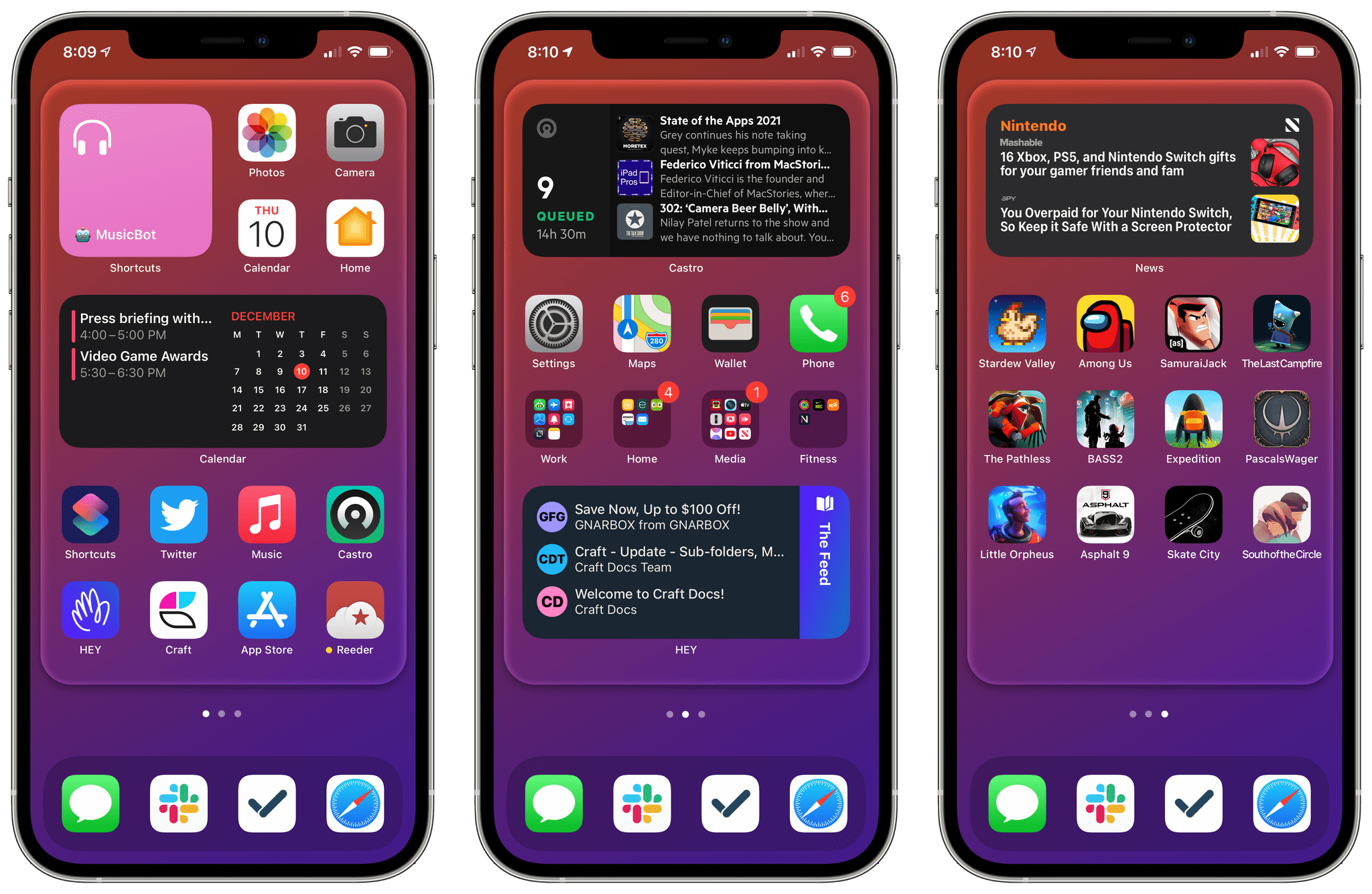
When I released the updated version of Apple Frames, my shortcut to quickly put screenshots inside physical frames of Apple devices, in late October, I was only able to add support for the iPhone 12 and 12 Pro. Unlike other shortcuts you may find on the Internet, Apple Frames is based on Apple’s official device images, which are available on the company’s Marketing page here. At the time, the .zip file labeled ‘iPhone 12’ only contained assets for the iPhone 12 and 12 Pro, and I promised I’d add support for the smallest and biggest iPhone models as soon as possible.
ShortSwitch: A Shortcut to Quickly Import Screenshots and Videos from a Nintendo Switch on Your iPhone and iPad
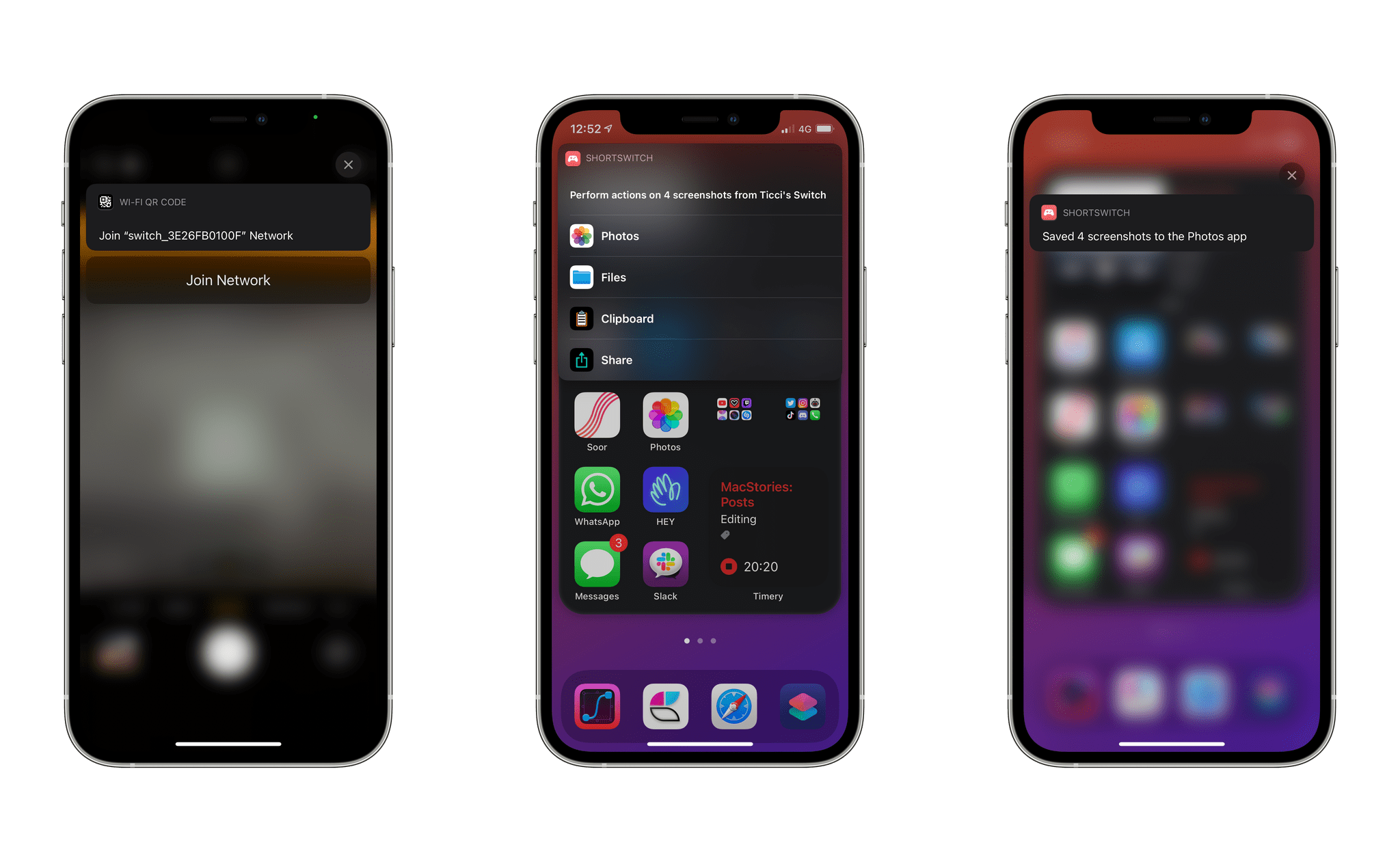
Last week, Nintendo rolled out a new feature that simplifies importing screenshots and videos taken on a Nintendo Switch on any smart device. As part of the console’s 11.0 firmware, you can now share up to 10 screenshots or a single video capture from the Nintendo Switch media gallery and, by scanning a series of QR codes with your phone or tablet, wirelessly connect your device to the console and save them via a web browser. Although Nintendo’s approach may not be as intuitive or modern as, say, Microsoft automatically saving all screenshots you take on an Xbox console and uploading them to your Xbox account, it is a clever, platform-agnostic solution that will keep working with any device that can scan a QR code and connect to the console’s Wi-Fi network.1
As someone who plays a lot of Nintendo Switch games2 and has always disliked having to share screenshots via Nintendo’s Twitter integration on the Switch, I’ve long wanted an easier way to send images and videos from the console to my iPhone and iPad. As soon as I tested Nintendo’s new feature, I had a feeling I could further speed up the process with Shortcuts and remove the (little) friction left in Nintendo’s system for sharing media between the console and smart devices.
The result is ShortSwitch, a shortcut that automatically recognizes media being shared by a Nintendo Switch over Wi-Fi and which gives you the option to save all items at once in Photos or Files, share them via the share sheet, or copy them to the clipboard. ShortSwitch does this by directly accessing the local web server created by the Nintendo Switch to share media; because it doesn’t need to connect to the Internet or use third-party apps, ShortSwitch runs instantly and allows you to save multiple items at once in just a couple seconds. Even better, you can configure ShortSwitch to run as a Personal Automation on your iPhone and iPad, which means the shortcut will run automatically as soon as you connect your iPhone or iPad to a Nintendo Switch.
You can download ShortSwitch at the end of this article and find it (alongside 220+ other free shortcuts) in the MacStories Shortcuts Archive. Now, allow me to explain how ShortSwitch works and how I put it together.
 Workflows Revisited: Note-Taking
 John
John
AppStories Episode 197 - Workflows Revisited: Note-Taking
0:00
44:26
44:26
This week, Federico and John continue their mini-series focused on breaking down and rethinking the core workflows behind MacStories by tackling note-taking and their adoption of Craft for personal and collaborative notes.
Amazon Rolling Out ‘Type with Alexa’ Feature in iOS App→
Paul Lamkin, writing at The Ambient:
Amazon is rolling out a new feature within its smart home app. Type with Alexa allows you to send messages to your digital assistant using a keyboard and text messages, rather than using your voice.
The new feature, which is rolling out as part of a public preview - _The Ambient _contributor Jennifer Pattison Tuohy noticed it pop up on her phone - means you can send discreet messages to Alexa for occasions when your voice might not be the best option; think cinemas, on the train, at a funeral and so on.
Sure, you could already search within the app for Alexa Routines and smart home device controls, but the new keyboard based input also allows you to ask queries such as diary updates, calculations, news headlines and the like - as well as acting as a pretty nifty search tool for smart home routines and devices with your Alexa ecosystem.
I also noticed the public preview of this feature in the Alexa app on my iPhone, and I’ve been playing around with it since last night. My first impression is that ‘Type with Alexa’ is what I’ve long wanted from Siri: having a silent conversation with a smart assistant that can control smart home accessories, interact with web services, and play music or podcasts is terrific. Anything you can ask Alexa with normal voice commands can also be typed now, so sending a message such as “play 305 by Shawn Mendes in the kitchen” from your iPhone will result in Alexa playing that song via an Echo speaker in the kitchen. (I’m aware that Google Assistant has offered a typing mode for a long time; however, I don’t use Google’s smart home products.)
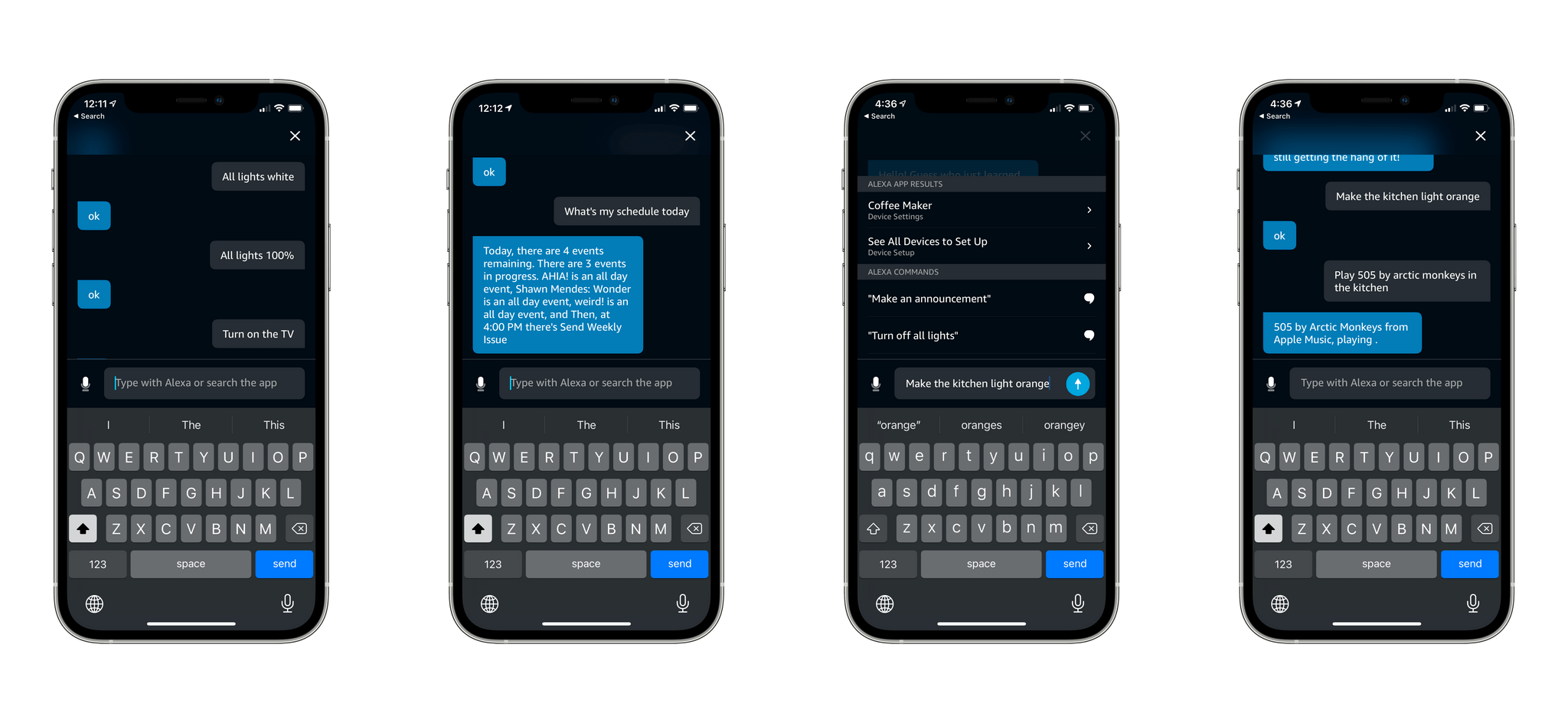
I could achieve something similar with Siri by enabling iOS’ ‘Type to Siri’ Accessibility setting. The problem with that option, as I mentioned several times before, is that it replaces Siri’s voice interactions: if you enable ‘Type to Siri’, you’ll no longer be able to issue voice commands and the keyboard will always be displayed instead. I’m not the first one to ask this, but I’d love the ability to have a separate conversation with Siri in iMessage in a future version of iOS.
 Creating a URL Scheme Launcher for the Mac Menu Bar
I’ve been doing a lot of admin-related work lately to plan the next year of MacStories, Club MacStories, and AppStories (spoiler: we have huge things in store for 2021) and, for this reason, I’ve been spending more time than usual on my Mac mini between chatting with the team on Skype and Slack and...
Peter McKinnon on Apple’s MagSafe Wallet→
I received my MagSafe wallet a few days ago, and it didn’t take me long to observe how I was in complete disagreement with the general consensus from most reviews: the majority of reviewers I follow didn’t like it and criticized its flimsiness; I loved it, couldn’t figure out what issues other people had with putting it in their pockets, and generally found it everything I hoped it would be.
Fortunately, I’m not alone in thinking the MagSafe wallet is great. I wish I could quote a single part from Peter McKinnon’s video about it, but I found myself nodding in agreement with every word, so just go watch the whole thing below. (My thanks to MacStories reader Chuck for sharing this.)
Not only does McKinnon know a lot about leather-based products and wallets, but he also perfectly encapsulates the qualities that make the MagSafe wallet an ideal accessory for people like me: its build quality is terrific; it’s thin and feels good to hold in the hand when paired with an iPhone; thanks to MagSafe, the connection between the iPhone and wallet is strong but it’s still easy enough to remove when you need to access one of your cards. I’ve been using a Bellroy wallet case for over a year; I prefer the MagSafe wallet since it’s less bulky and doesn’t require me to swap cases when I’m back at home. When I’m driving, I can leave the wallet in my pocket and put the iPhone 12 Pro on Belkin’s new MagSafe car vent mount (which I also like a lot), and everything comes together beautifully thanks to the new MagSafe standard.
Based on my usage over the past few days, I think I’m going to be a MagSafe wallet person for the foreseeable future. Imagine if it turns out I’m also going to like the much-criticized MagSafe Duo charger?
Oh.
Downloading YouTube Videos on iPad with youtube-dl and a-Shell→
Greg Godwin, writing at NonProfit Workflows:
There are various apps for the Mac that’ll download YouTube videos, but there’s nothing comparable for the iPad. I discovered that it’s possible to download these videos using the iCab browser if you change the user agent, but I could never get this to work consistently. There is a command-line program you can run called
youtube-dlthat will download videos from YouTube (and other sites). The problem is, the iPad doesn’t ship with a Terminal app like the Mac does, so while I could do this on my Mac, I struggled to find a way to use this command on my iPad.
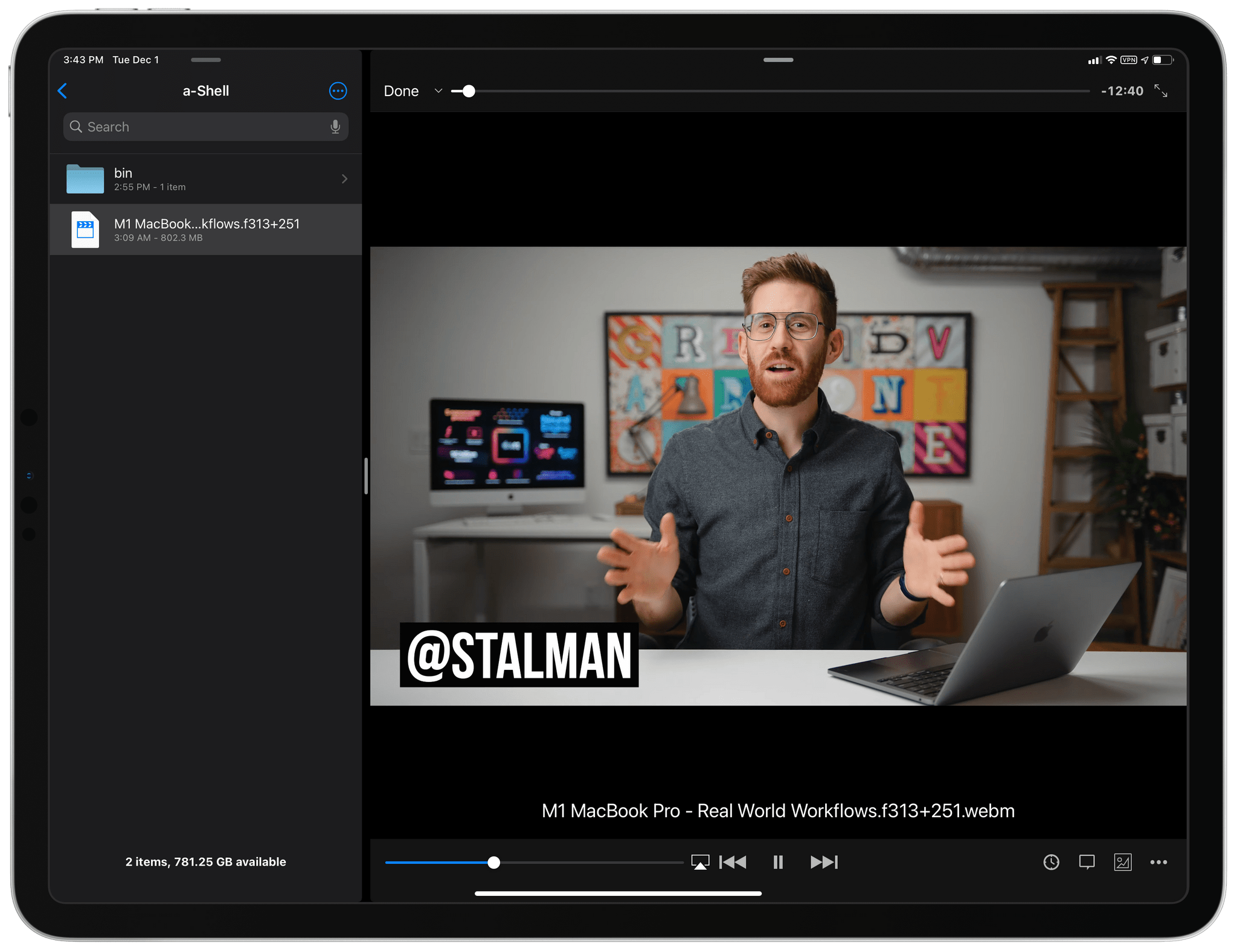
Greg has written an excellent tutorial on how to install the (recently reinstated) youtube-dl utility (which I’ve been using to download YouTube videos on my Mac mini for years) and use it on iPad via a-Shell. I followed their tutorial and was able to get youtube-dl up and running on my iPad Pro – with support for encoding files via ffmpeg – in literally two minutes. There’s probably less of a need for downloading YouTube videos on iPhone and iPad now that the YouTube app supports native 4K playback on Apple platforms, but I think it’s great to be able to download videos offline for research and archival purposes regardless. I always like to download the best possible version of a video in the WebM format, which plays beautifully at crisp 4K in the free VLC app for iPad.
Side note: I’ve been trying to use this shortcut to pass the URL of the current video from Safari/YouTube to a-Shell via the share sheet. Unless I’m missing something obvious, the a-Shell app launches but doesn’t run my command, which is passed as a ‘Text’ parameter to its Shortcuts action.
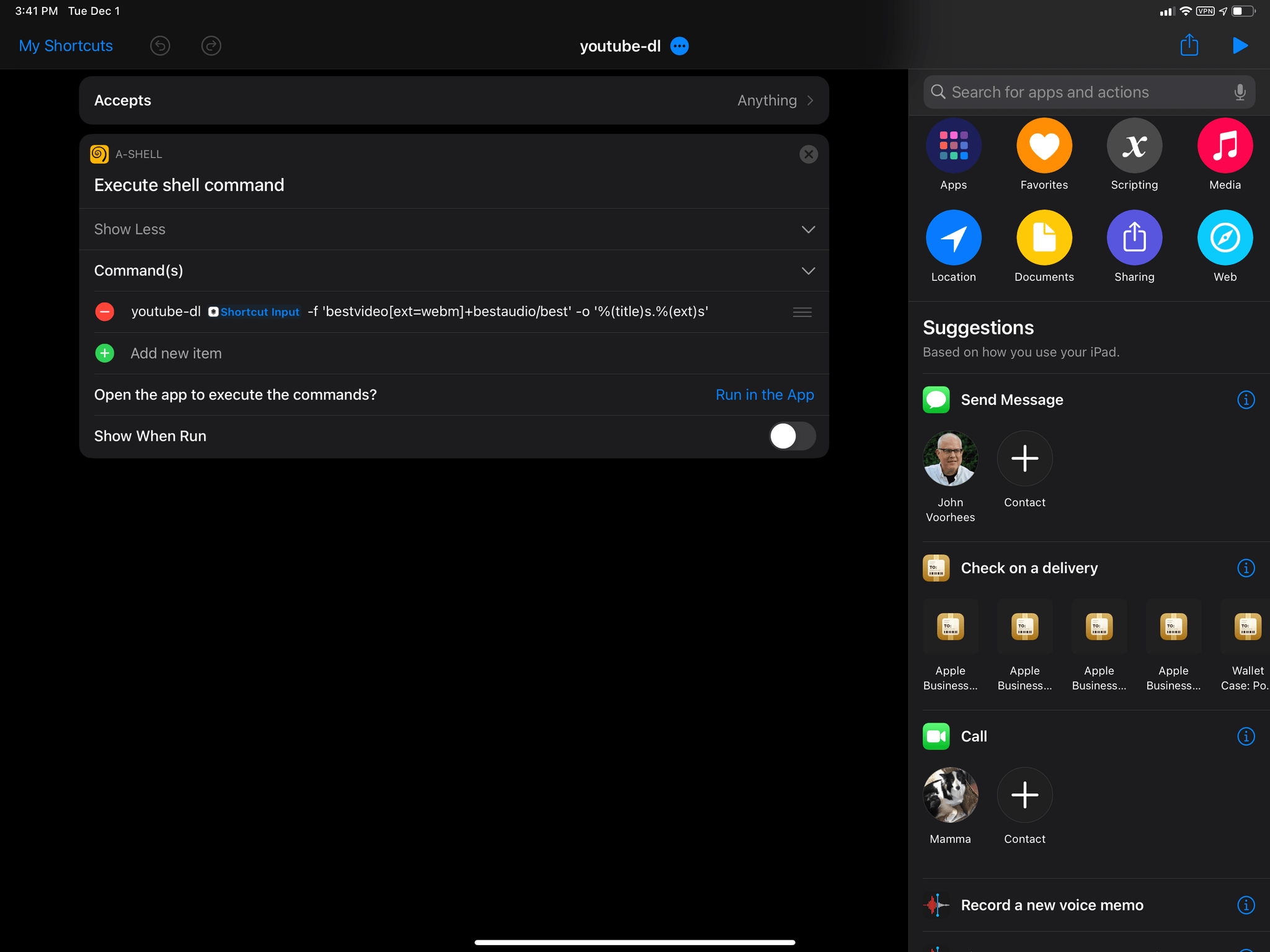
Update: Thanks to MacStories reader Jay, I was able to make a-Shell’s Shortcuts action work by switching from single- to double-quotes. I’ve made a shortcut that lets you pass a YouTube URL from either Safari or the YouTube app to a-Shell – which will start downloading it – so you don’t have to type the command (and related options) manually each time. You can find it below and in the MacStories Shortcuts Archive. Also, don’t miss this tip by Greg on navigating a-Shell’s local folder structure.

youtube-dl
Download a video from YouTube using youtube-dl and the a-Shell app for iPhone or iPad. The shortcut accepts any YouTube URLs passed from Safari or the YouTube app via the share sheet. Detailed instructions on how to set up youtube-dl and a-Shell can be found here.
Workflows Revisited: Email
AppStories Episode 196 - Workflows Revisited: Email
0:00
49:51
49:51
This week Federico and John kick off a new mini-series focused on breaking down and rethinking the core workflows behind MacStories. In this first installment, we revisit how the MacStories team uses email, a long-standing workflow that has changed very little since the site was founded, and why we chose to move to HEY by Basecamp.
Reading DRM-Free EPUBs in MarginNote for iPad
As I recently shared on an episode of MacStories Unwind with John, I’ve been (slowly) reading Carl Sagan’s excellent Cosmos and highlighting interesting passages and quotes from the book. I’ve always liked to highlight, store, and try to remember what I read in books as I want to make sure there’s value to be...